
iOS 新浪微博-3.0 新特性
每个程序在第一次启动的时候,都会显示新特性。效果如下:

思路:
- 添加一个ViewController,里面放两个View,一个是UISrollView,另一个pageControl
- 往UISrollView添加四个UIImageView,并在最后一个添加分享和开始微博按钮
- 实现UISrollViewDelegate,在滚动的时候,监听页数,设置pageControl页数显示
- 设置启动时,window显示的是新特性Controller,并判断版本号
代码实现
1,2,3实现代码在同一个控制器里
NewfeatureViewController.h
#import <UIKit/UIKit.h>

@interface NewfeatureViewController : UIViewController

@end
NewfeatureViewController.m
//
// NewfeatureViewController.m
//
// Created by jiangys on 15/10/11.
// Copyright © 2015年 Jiangys. All rights reserved.
// #import "NewfeatureViewController.h"
#import "TabBarViewController.h" // 新特性图片总数
#define NewfeatureCount 4 @interface NewfeatureViewController ()<UIScrollViewDelegate> /** 滑动图片 分页 */
@property (nonatomic, strong) UIPageControl *pageControl; @end @implementation NewfeatureViewController - (void)viewDidLoad {
[super viewDidLoad]; // 1.添加UISrollView
[self setupScrollView]; // 2.添加pageControl
[self setupPageControl];
}
/**
* 添加UISrollView
*/
- (void)setupScrollView
{
UIScrollView *scrollView=[[UIScrollView alloc] init];
scrollView.frame=self.view.bounds;
scrollView.delegate=self;
[self.view addSubview:scrollView]; CGFloat scrollW=scrollView.width;
CGFloat scrollH=scrollView.height;
for (int i=; i < NewfeatureCount;i++) {
UIImageView *imageView=[[UIImageView alloc] init];
imageView.width=scrollW;
imageView.height=scrollH;
imageView.y=;
imageView.x=i*scrollW;
// 显示图片
NSString *name=[NSString stringWithFormat:@"new_feature_%d",i+];
// if (FourInch) { // 4inch 需要手动去加载4inch对应的-568h图片
// name = [name stringByAppendingString:@"-568h"];
// }
imageView.image=[UIImage imageNamed:name];
if (i==(NewfeatureCount-)) {
[self setupLastImageView:imageView];
} [scrollView addSubview:imageView];
} // 3.设置scrollView的其他属性
// 如果想要某个方向上不能滚动,那么这个方向对应的尺寸数值传0即可
scrollView.contentSize = CGSizeMake(NewfeatureCount * scrollW, );
scrollView.bounces = NO; // 去除弹簧效果
scrollView.pagingEnabled = YES;
scrollView.showsHorizontalScrollIndicator = NO;
} /**
* 添加pageControl
*/
- (void)setupPageControl
{
UIPageControl *pageControl=[[UIPageControl alloc] init];
pageControl.numberOfPages=NewfeatureCount;
pageControl.currentPageIndicatorTintColor=YSColor(, , );
pageControl.pageIndicatorTintColor=YSColor(, , );
pageControl.centerX=self.view.width * 0.5;
pageControl.centerY=self.view.height-; [self.view addSubview:pageControl];
self.pageControl=pageControl;
} /**
* 初始化最后一个imageView
*
* @param imageView 最后一个imageView
*/
- (void)setupLastImageView:(UIImageView *)imageView
{
// 开启交互
imageView.userInteractionEnabled=YES; // 添加分享复选框
UIButton *shareBtn=[[UIButton alloc] init];
[shareBtn setImage:[UIImage imageNamed:@"new_feature_share_false"] forState:UIControlStateNormal];
[shareBtn setImage:[UIImage imageNamed:@"new_feature_share_true"] forState:UIControlStateSelected];
[shareBtn setTitle:@"分享给大家" forState:UIControlStateNormal];
[shareBtn setTitleColor:[UIColor blackColor] forState:UIControlStateNormal];
shareBtn.titleLabel.font=[UIFont systemFontOfSize:];
// titleEdgeInsets:只影响按钮内部的titleLabel
shareBtn.titleEdgeInsets = UIEdgeInsetsMake(, , , );
shareBtn.width=;
shareBtn.height=;
shareBtn.centerX=imageView.width*0.5;
shareBtn.centerY=imageView.height*0.7;
[shareBtn addTarget:self action:@selector(shareClick:) forControlEvents:UIControlEventTouchUpInside];
[imageView addSubview:shareBtn]; // 开始微博
UIButton *startBtn=[[UIButton alloc] init];
[startBtn setBackgroundImage:[UIImage imageNamed:@"new_feature_finish_button"] forState:UIControlStateNormal];
[startBtn setBackgroundImage:[UIImage imageNamed:@"new_feature_finish_button_highlighted"] forState:UIControlStateHighlighted];
[startBtn setTitle:@"开始微博" forState:UIControlStateNormal];
startBtn.size=startBtn.currentBackgroundImage.size;
startBtn.centerX=imageView.width*0.5;
startBtn.centerY=imageView.height*0.78;
[startBtn addTarget:self action:@selector(startClick) forControlEvents:UIControlEventTouchUpInside];
[imageView addSubview:startBtn];
} /**
* 分享给大家
*/
- (void)shareClick:(UIButton *)shareBtn
{
shareBtn.selected=!shareBtn.isSelected;
} /**
* 开始微博
*/
- (void)startClick
{
// 切换到TabBarController
/*
切换控制器的手段
1.push:依赖于UINavigationController,控制器的切换是可逆的,比如A切换到B,B又可以回到A
2.modal:控制器的切换是可逆的,比如A切换到B,B又可以回到A
3.切换window的rootViewController
*/
UIWindow *window = [UIApplication sharedApplication].keyWindow;
window.rootViewController = [[TabBarViewController alloc] init];
} #pragma ScrollView 代理
-(void)scrollViewDidScroll:(UIScrollView *)scrollView
{
// 获取页码
CGFloat doublePage=scrollView.contentOffset.x/scrollView.width;
int intPage=(int)(doublePage+0.5); // 设置页码
self.pageControl.currentPage=intPage;
} @end
设置启动时,window显示的是新特性Controller,并判断版本号
新建一个分类来处理,以后其它地方也可以使用
UIWindow+Extension.h
#import <UIKit/UIKit.h>

@interface UIWindow (Extension)

- (void)switchRootViewController;

@end
UIWindow+Extension.m
#import "UIWindow+Extension.h"

#import "TabBarViewController.h"

#import "NewfeatureViewController.h"

@implementation UIWindow (Extension)

- (void)switchRootViewController

{

    NSString *key = @"CFBundleVersion";

    // 上一次的使用版本(存储在沙盒中的版本号)

    NSString *lastVersion = [[NSUserDefaults standardUserDefaults] objectForKey:key];

    // 当前软件的版本号(从Info.plist中获得)

    NSString *currentVersion = [NSBundle mainBundle].infoDictionary[key];

    if ([currentVersion isEqualToString:lastVersion]) { // 版本号相同:这次打开和上次打开的是同一个版本

        self.rootViewController = [[TabBarViewController alloc] init];

    } else { // 这次打开的版本和上一次不一样,显示新特性

        self.rootViewController = [[NewfeatureViewController alloc] init];

        // 将当前的版本号存进沙盒

        [[NSUserDefaults standardUserDefaults] setObject:currentVersion forKey:key];

        [[NSUserDefaults standardUserDefaults] synchronize];

    }

}

@end
接下来,在AppDelegate里调用就很简单了,只需要一行代码即可。
- (BOOL)application:(UIApplication *)application didFinishLaunchingWithOptions:(NSDictionary *)launchOptions {

    self.window=[[UIWindow alloc]init];

    self.window.frame=[UIScreen mainScreen].bounds;

    [self.window switchRootViewController];  // 只需要添加这一行代码

    [self.window makeKeyAndVisible];

    return YES;

}
隐藏导航栏
// 隐藏状态栏

- (BOOL)prefersStatusBarHidden

{

    return YES;

}
显示新特性图片设置
在设置新特性的时候,由于图片是全屏的,因而,不同的手机屏幕尺寸需要不同的图片。实际上,4s 使用的是2x,5s使用的是ratain 2x,6 和6s使用的是3x
第一步:选择iPhone
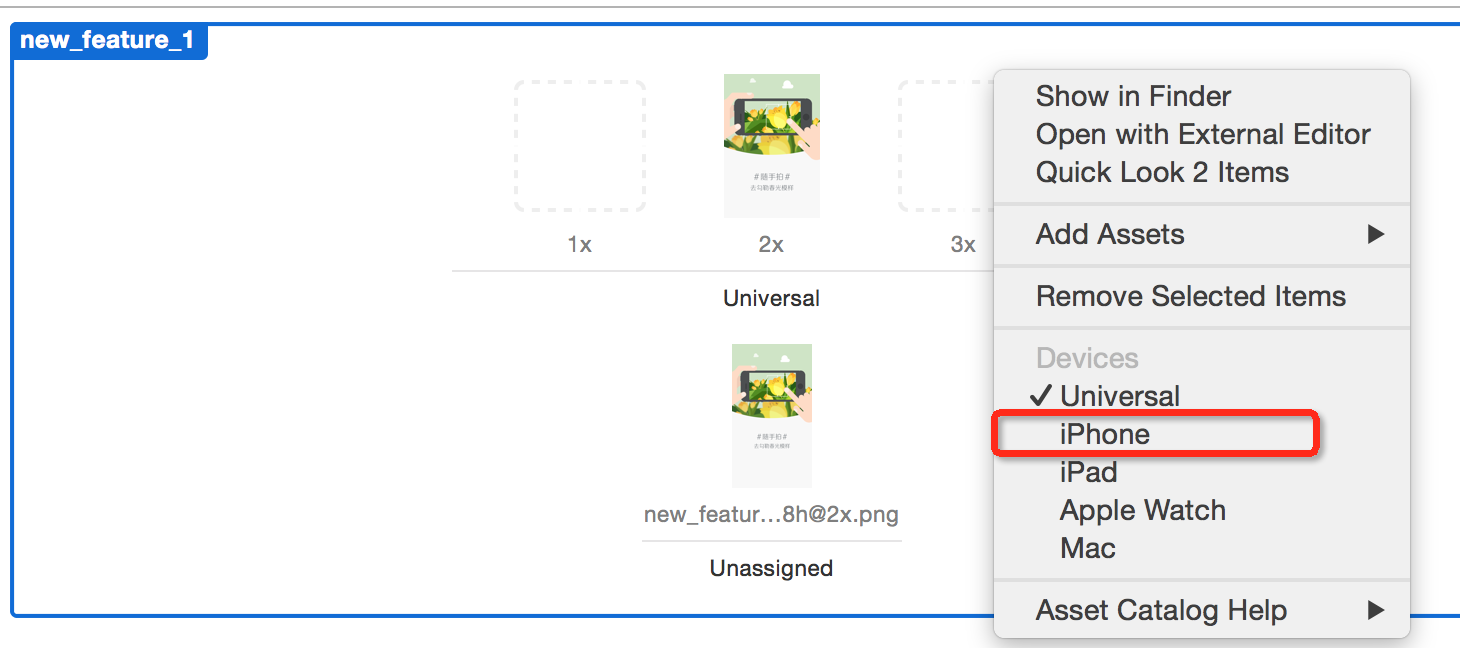
第二步:调整显示格式如下
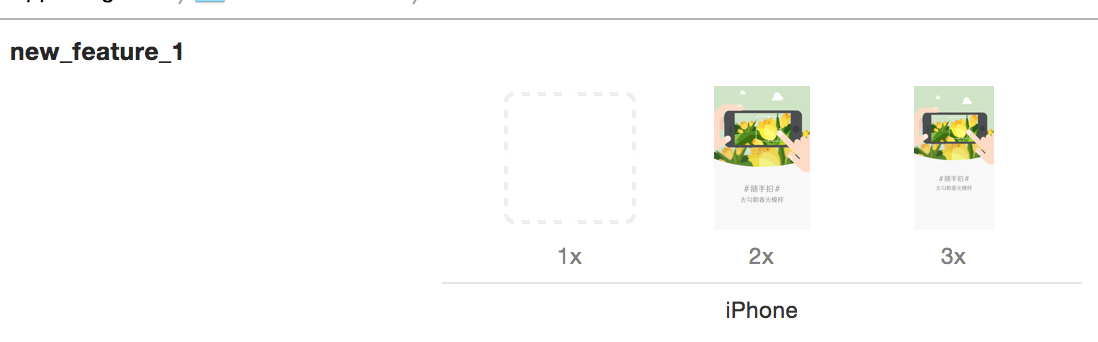
第三步:打开目录,点击Contents.json,添加Retina4 图片尺寸(和x3是一样的)。

最终显示效果:

实际,也可以通过另一种方式来实现,那就是定义一个宏,如果屏幕尺寸大于568,则使用568的图片。
宏定义:
// 是否为4inch以上

#define FourInch ([UIScreen mainScreen].bounds.size.height >= 568.0)
界面调整:
        // 显示图片

       NSString *name=[NSString stringWithFormat:@"new_feature_%d",i+];

       if (FourInch) { // 4inch  需要手动去加载4inch对应的-568h图片

           name = [name stringByAppendingString:@"-568h"];

       }
章节源代码下载:http://pan.baidu.com/s/1dDi8XiD
新浪微博Github:https://github.com/jiangys/Weibo
iOS 新浪微博-3.0 新特性的更多相关文章
- iOS开发——新特性OC篇&Swift 2.0新特性
Swift 2.0新特性 转眼间,Swift已经一岁多了,这门新鲜.语法时尚.类型安全.执行速度更快的语言已经渐渐的深入广大开发者的心.我同样也是非常喜爱这门新的编程语言. 今年6月,一年一度 ...
- AFNetworking 2.0 新特性讲解之AFHTTPSessionManager
AFNetworking 2.0 新特性讲解之AFHTTPSessionManager (2014-02-17 11:56:24) 转载▼ AFNetworking 2.0 相比1.0 API ...
- 浅谈Tuple之C#4.0新特性那些事儿你还记得多少?
来源:微信公众号CodeL 今天给大家分享的内容基于前几天收到的一条留言信息,留言内容是这样的: 看了这位网友的留言相信有不少刚接触开发的童鞋们也会有同样的困惑,除了用新建类作为桥梁之外还有什么好的办 ...
- Java基础和JDK5.0新特性
Java基础 JDK5.0新特性 PS: JDK:Java Development KitsJRE: Java Runtime EvironmentJRE = JVM + ClassLibary JV ...
- Visual Studio 2015速递(1)——C#6.0新特性怎么用
系列文章 Visual Studio 2015速递(1)——C#6.0新特性怎么用 Visual Studio 2015速递(2)——提升效率和质量(VS2015核心竞争力) Visual Studi ...
- atitit.Servlet2.5 Servlet 3.0 新特性 jsp2.0 jsp2.1 jsp2.2新特性
atitit.Servlet2.5 Servlet 3.0 新特性 jsp2.0 jsp2.1 jsp2.2新特性 1.1. Servlet和JSP规范版本对应关系:1 1.2. Servlet2 ...
- 背水一战 Windows 10 (1) - C# 6.0 新特性
[源码下载] 背水一战 Windows 10 (1) - C# 6.0 新特性 作者:webabcd 介绍背水一战 Windows 10 之 C# 6.0 新特性 介绍 C# 6.0 的新特性 示例1 ...
- C# 7.0 新特性2: 本地方法
本文参考Roslyn项目中的Issue:#259. 1. C# 7.0 新特性1: 基于Tuple的“多”返回值方法 2. C# 7.0 新特性2: 本地方法 3. C# 7.0 新特性3: 模式匹配 ...
- C# 7.0 新特性1: 基于Tuple的“多”返回值方法
本文基于Roslyn项目中的Issue:#347 展开讨论. 1. C# 7.0 新特性1: 基于Tuple的“多”返回值方法 2. C# 7.0 新特性2: 本地方法 3. C# 7.0 新特性3: ...
随机推荐
- centos 断网
不知道为什么.....开启服务后就是断线 查询 ip addr 故障状态 正常状态 配置中关闭网络管理 命令:chkconfig NetworkManager off 配置中开启网络管理 命令: ch ...
- 《开源网店系统iWebShop2.0模板开发教程》的说明
<开源网店系统iWebShop2.0模板开发教程>是网上广为流传的一个文档,有点问题. 其中的第4章: ========================================== ...
- [No0000119]什么是柳比歇夫的时间事件记录法
上图是我过去一年来做的时间事件记录中的某几天的记录文字.从接触到这种方法以来,也就是2009年的7月31日到今天,我已经作了一年多时间的记录.那么什么是时间事件记录?很简单,就像那两幅图片上所展示的, ...
- 【魔改】hdu6325 多校赛3G xy排序凸包+llvector模板
凸包算法前的预处理,可以极角排序,也可以按X,Y轴排序, 极角排序需要找到角落里的一个点,Xy轴排序要跑两遍凸包 而本题的要求只要一个上半凸包,并且有X轴从小到大以及字典序限制,完全符合xy排序,直接 ...
- git commit -m 与 git commit -am的区别
字面解释的话,git commit -m用于提交暂存区的文件:git commit -am用于提交跟踪过的文件 要理解它们的区别,首先要明白git的文件状态变化周期,如下图所示 工作目录下面的所有文件 ...
- i-chips融合芯片分析
适合做图像变形和融合 http://www.i-chips.co.jp/products/ma_non-deployment/c786.html 下面视频其实用了2个芯片,其中IP00C733用原始信 ...
- int 存储大小 数组元素个数
为了得到某个类型或某个变量在特定平台上的准确大小,您可以使用 sizeof 运算符.表达式 sizeof(type) 得到对象或类型的存储字节大小.下面的实例演示了获取 int 类型的大小: 实例 # ...
- Java 输入/输出——处理流(RandomAccessFile)
RandomAccessFile是Java输入/输出流体系中功能最丰富的文件内容访问类,它提供了众多的方法来访问文件内容,它既可以读取文件内容,也可以向文件输出数据.与普通的输入/输出流不同的是,Ra ...
- dp单调性优化
跟着书上的思路学习dp的单调性优化觉得还是很容易想的. 数据范围: dp,数据范围是百万,这应该是O(n)的算法了. 首先不难想到设f[i]表示到第i个百米所能达到的最大能量,那么f[n]即为所求. ...
- 深探树形dp
看到同学在写一道树形dp,好奇直接拿来写,发现很不简单. 如图,看上去是不是很像选课,没错这不是选课,升级版吧,多加了点东西罢了.简单却调了一晚上和一上午. 思路:很简单强联通分量+缩点+树形dp.直 ...