
How to Install Bugzilla on Ubuntu 20.04
In this blog post, we are going to explain in step-by-step detail on how to install Bugzilla on Ubuntu 20.04.
Bugzilla is an open-source web-based bug tracking system written in Perl. This testing tool is developed and maintained by the Mozilla project, and the team of developers is still developing and expanding its features. The main purpose of this detect-tracking software is to track the bugs, issues, and other change requests. The compatibility of the software on multiple operating systems like Windows, macOS, and Linux makes it more popular than any other.
Installing Bugzilla on Ubuntu 20.04 is a very easy process and may take up to 10 minutes. Let’s get started!
Table of Contents
Prerequisites
- A server with Ubuntu 20.04 OS
- A VPS with at least 4 GB of RAM available
- User privileges: root or non-root user with sudo privileges
Step 1. Update the System
Since we have a fresh installation of Ubuntu 20.04, we need to update the packages to the latest versions available:
sudo apt update -y && sudo apt upgrade -y
Step 2. Install Apache2
We are going to use Apache as a web server in this tutorial. To install it execute the command below:
sudo apt install apache2
After successfull installation, start and enable the service
sudo systemctl start apache2 && sudo systemctl enable apache2
To check if everything is OK, execute the following command for the status of the Apache2 service:
sudo systemctl status apache2
You should receive the following output:
root@vps:~# sudo systemctl status apache2

● apache2.service - The Apache HTTP Server

     Loaded: loaded (/lib/systemd/system/apache2.service; enabled; vendor preset: enabled)

     Active: active (running) since Sat 2022-04-02 12:35:15 UTC; 36min ago

       Docs: https://httpd.apache.org/docs/2.4/

   Main PID: 44676 (apache2)

      Tasks: 7 (limit: 4617)

     Memory: 15.5M

     CGroup: /system.slice/apache2.service
Step 3. Install Perl and Dependencies
Since Bugzilla is written in Perl programming language, we need to install it along with the dependencies.
sudo apt install build-essential libappconfig-perl libdate-calc-perl libtemplate-perl libmime-tools-perl build-essential libdatetime-timezone-perl libdatetime-perl libemail-sender-perl libemail-mime-perl libemail-mime-perl libdbi-perl libdbd-mysql-perl libcgi-pm-perl libmath-random-isaac-perl libmath-random-isaac-xs-perl libapache2-mod-perl2 libapache2-mod-perl2-dev libchart-perl libxml-perl libxml-twig-perl perlmagick libgd-graph-perl libtemplate-plugin-gd-perl libsoap-lite-perl libhtml-scrubber-perl libjson-rpc-perl libdaemon-generic-perl libtheschwartz-perl libtest-taint-perl libauthen-radius-perl libfile-slurp-perl libencode-detect-perl libmodule-build-perl libnet-ldap-perl libfile-which-perl libauthen-sasl-perl libfile-mimeinfo-perl libhtml-formattext-withlinks-perl libgd-dev libmysqlclient-dev graphviz sphinx-common rst2pdf libemail-address-perl libemail-reply-perl
Step 4. Install MariaDB database server
To install the MariaDB database server, execute the command below.
sudo apt install mariadb-server
Start and enable the mariadb.service with the following commands:
sudo systemctl start mariadb && sudo systemctl enable mariadb
Check the status of the mariadb.service
sudo systemctl status mariadb
You should receive the following output:
root@vps:~# sudo systemctl status mariadb

● mariadb.service - MariaDB 10.3.34 database server

     Loaded: loaded (/lib/systemd/system/mariadb.service; enabled; vendor preset: enabled)

     Active: active (running) since Sat 2022-04-02 13:30:06 UTC; 7min ago

       Docs: man:mysqld(8)

             https://mariadb.com/kb/en/library/systemd/

   Main PID: 70881 (mysqld)

     Status: "Taking your SQL requests now..."

      Tasks: 30 (limit: 4617)

     Memory: 65.3M

     CGroup: /system.slice/mariadb.service

             └─70881 /usr/sbin/mysqld
Step 5. Create Bugzilla database and user
Next, we need to create a Bugzilla database, the Bugzilla user, and grant the permissions for that user to the database.
 CREATE USER 'bugzilla'@'localhost' IDENTIFIED BY 'YourStrongPasswordHere';

 CREATE DATABASE bugzilla;

 GRANT ALL PRIVILEGES ON bugzilla.* TO 'bugzilla'@'localhost';

 FLUSH PRIVILEGES;

 EXIT;
Step 6. Install Bugzilla
Before we can install Bugzilla we need to download the latest stable version.
 cd /var/www/html

wget https://ftp.mozilla.org/pub/mozilla.org/webtools/bugzilla-5.0.6.tar.gz
Once downloaded, extract the bugzilla file.
tar -xvf bugzilla-5.0.6.tar.gz -C /var/www/html/

 mv bugzilla-5.0.6 bugzilla
Once, this is done go into the “bugzilla” directory and check the setup.
cd /var/www/html/bugzilla/

./checksetup.pl
If the setup, fails due to some missing Perl modules, you should receive the following output:
COMMANDS TO INSTALL REQUIRED MODULES (You *must* run all these commands

and then re-run checksetup.pl):

    /usr/bin/perl install-module.pl DateTime

    /usr/bin/perl install-module.pl DateTime::TimeZone

    /usr/bin/perl install-module.pl Template

    /usr/bin/perl install-module.pl Email::Sender

    /usr/bin/perl install-module.pl Email::MIME

    /usr/bin/perl install-module.pl List::MoreUtils

    /usr/bin/perl install-module.pl Math::Random::ISAAC

    /usr/bin/perl install-module.pl JSON::XS

To attempt an automatic install of every required and optional module

with one command, do:

  /usr/bin/perl install-module.pl --all

*** Installation aborted. Read the messages above. ***
Execute the commands below to install the required modules:
/usr/bin/perl install-module.pl DateTime

/usr/bin/perl install-module.pl DateTime::TimeZone

/usr/bin/perl install-module.pl Template

/usr/bin/perl install-module.pl Email::Sender

/usr/bin/perl install-module.pl Email::MIME

/usr/bin/perl install-module.pl List::MoreUtils

/usr/bin/perl install-module.pl Math::Random::ISAAC

/usr/bin/perl install-module.pl JSON::XS

/usr/bin/perl install-module.pl ExtUtils::PkgConfig module
Once, the required modules are installed you need to check the setup again:
./checksetup.pl
Now, when the modules are installed, the next message that you should receive is that there is an error with the database connection:
There was an error connecting to MySQL:

    Access denied for user 'bugs'@'localhost'

This might have several reasons:

* MySQL is not running.

* MySQL is running, but there is a problem either in the

  server configuration or the database access rights. Read the Bugzilla

  Guide in the doc directory. The section about database configuration

  should help.

* Your password for the 'bugs' user, specified in $db_pass, is

  incorrect, in './localconfig'.

* There is a subtle problem with Perl, DBI, or MySQL. Make

  sure all settings in './localconfig' are correct. If all else fails, set

  '$db_check' to 0.
To solve this, you need to open the “/var/www/html/bugzilla/localconfig” file with your favorite editor and make the following changes:
sudo nano /var/www/html/bugzilla/localconfig
Enter the name of the database, user, and the password you set in step 5.
$webservergroup = 'www-data';

$db_driver = 'mysql';

$db_host = 'localhost';

$db_name = 'bugzilla';

$db_user = 'bugzilla';

$db_pass = 'YourStrongPasswordHere';

$db_port = 0;
After these settings are done run the ./checksetup.pl again.
./checksetup.pl
You should define your administrator’s email, username and password once the database connection is successful.
Checking for            DBD-mysql (v4.001)    ok: found v4.050

Checking for                MySQL (v5.0.15)   ok: found v5.5.5-10.3.34-MariaDB-0ubuntu0.20.04.1

Removing existing compiled templates...

Precompiling templates...done.

Fixing file permissions...

Initializing "Product/Component Changes" email_setting ...

Initializing "Dependency Tree Changes" email_setting ...

Marking closed bug statuses as such...

Creating default classification 'Unclassified'...

Setting up foreign keys...

Setting up the default status workflow...

Creating default groups...

Setting up user preferences...

Looks like we don't have an administrator set up yet. Either this is

your first time using Bugzilla, or your administrator's privileges

might have accidentally been deleted.

Enter the e-mail address of the administrator: admin@yourdomain.com

Enter the real name of the administrator: admin

Enter a password for the administrator account:

Please retype the password to verify:

admin@yourdomain.com is now set up as an administrator.

Creating initial dummy product 'TestProduct'...

Now that you have installed Bugzilla, you should visit the 'Parameters'

page (linked in the footer of the Administrator account) to ensure it

is set up as you wish - this includes setting the 'urlbase' option to

the correct URL.

checksetup.pl complete.
Step 7. Create a Virtual Host configuration file
In order can access the Bugzilla Web interface we need to create a virtual host configuration file where we can define our domain, document root, and some script parameters.
First, create the configuration file with the following command:
touch /etc/apache2/sites-available/bugzilla.conf
Open the file, and paste the following lines of code:
<VirtualHost *:80>

ServerName yourdomain.com

DocumentRoot /var/www/html/bugzilla/

<Directory /var/www/html/bugzilla/>

AddHandler cgi-script .cgi

Options +Indexes +ExecCGI

DirectoryIndex index.cgi

AllowOverride Limit FileInfo Indexes Options AuthConfig

</Directory>

ErrorLog /var/log/apache2/yourdomain.com.error_log

CustomLog /var/log/apache2/yourdomain.com.access_log common

</VirtualHost>
Enable the Apache2 confguration file and other modules:
sudo a2ensite bugzilla.conf

sudo a2enmod headers env rewrite expires cgi
Check the syntax of the Apache2 configuration.
apachectl -t
You should receive the following output:
root@host:~# apachectl -t

Syntax OK
If you receive this output you can safely restart the Apache service.
sudo systemctl restart apache2
Now, you can access the Bugzilla Web interface at http://YourDomain.com
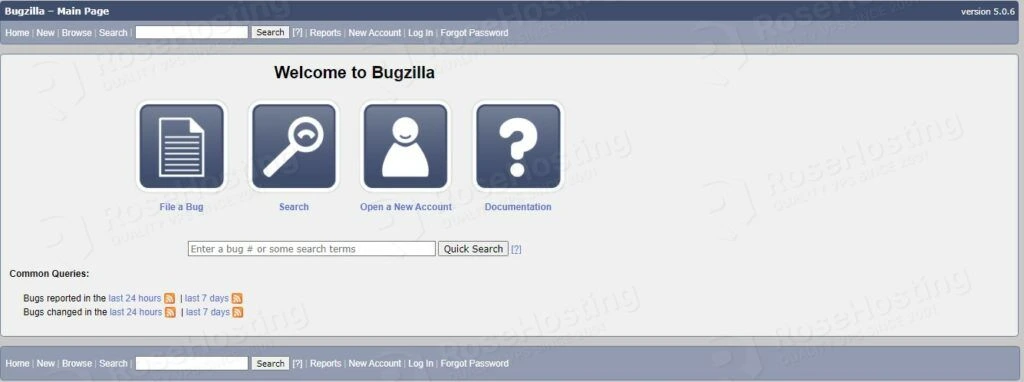
Congratulations! You successfully installed and configured Bugzilla tracking software on Ubuntu 20.04. If you find it difficult to install, you can always contact our technical support and they will do the rest for you. We are available 24/7.
If you liked this post on how to install Bugzilla on Ubuntu 20.04, please share it with your friends on social networks or simply leave a reply below. Thanks.
Leave a Comment
Comment
NameEmail
Save my name, email, and website in this browser for the next time I comment.
To prove you are human please solve the following *7 − = two
How to Install Bugzilla on Ubuntu 20.04的更多相关文章
- 安装MySQL到Ubuntu 20.04
本文的内容主要来自对How To Install MySQL on Ubuntu 20.04的翻译.在根据该文的指导下,我在自己的Ubuntu 20.04.3 LTS版本中安装了MySQL 8. St ...
- How To Install Nginx on Ubuntu 16.04 zz
Introduction Nginx is one of the most popular web servers in the world and is responsible for hostin ...
- Ubuntu 20.04下源码编译安装ROS 2 Foxy Fitzroy
ROS 2 Foxy Fitzroy(以下简称Foxy)于2020年6月5日正式发布了,是LTS版本,支持到2023年5月.本文主要根据官方的编译安装教程[1]完成,并记录编译过程中遇到的问题. 1. ...
- win10 + Ubuntu 20.04 LTS 双系统 引导界面美化
版权声明:本文为CSDN博主「ZChen1996」的原创文章,遵循CC 4.0 BY-SA版权协议,转载请附上原文出处链接及本声明. 原文链接:https://blog.csdn.net/ZChen1 ...
- Ubuntu 20.04.1 安装软件和系统配置脚本
#!/bin/bash # https://launchpad.net/ubuntu # https://www.easyicon.net # https://download-chromium.ap ...
- Ubuntu 20.04上通过Wine 安装微信
没有想过会在一个手机软件上花这么多心思,好在今天总算安装成功,觉得可以记录下这个过程,方便他人方便自己. 首先介绍下我使用过的其他方法,希望可以节省大家一些时间: Rambox Pro:因为原理是网页 ...
- 树莓派安装 Ubuntu 20.04 LTS 碰壁指南
树莓派安装 Ubuntu 20.04 LTS 碰壁指南 设备 Raspberry 4B 4+32G 系统 Ubuntu 20.04 LTS 1.镜像下载与烧录 镜像下载地址:https://cdima ...
- OpenCV4.4.0 安装测试 Installation & Examination (Ubuntu18.04, Ubuntu 20.04)
OpenCV4.4.0 安装测试 Installation & Examination (Ubuntu18.04, Ubuntu 20.04) 单纯简单的 OpenCV 安装配置方法,在这个地 ...
- Pangolin 安装测试 Installation & Examination (Ubuntu 20.04)
Pangolin 安装测试 Installation & Examination (Ubuntu 20.04) 如题所述,这是一个比较轻松的 Pangolin 安装配置方法,同样是基于 WSL ...
- Ubuntu 20.04 Docker 安装并配置
前言 Docker 的使用能极大地方便我们的开发,减少环境搭建,依赖安装等繁琐且容易出错的问题. 安装 Docker Ubuntu 20.04 官方 apt 源中就有 Docker,我们可以直接通过 ...
随机推荐
- 前后端是怎么交互的呢?(Jvav版)
一.什么是前端 在网上,我也去找了一些观点,其实都是应用层面的,什么使用一个地址,回车以后就能拿到 .html文件等等 说的也没问题,前端简单点说呢,就是负责展示和美化的页面,大部分在网上我们所看到的 ...
- 前端树形结构图treeShapeStruct,可拖拽移动,点击展开收缩,无限添加子集
快速实现树形结构图,可拖拽移动,点击展开收缩,无限添加子集; 下载完整代码请访问uni-app插件市场地址:https://ext.dcloud.net.cn/plugin?id=12650 效果图如 ...
- git reset --hard 撤回后commit的代码消失了的解决办法
楼主在今天的工作中使用了这个命令 git reset --hard 撤回后commit的代码消失了,因为有commit,所以暂时得到了拯救,太不容易了,差点以为自己写的代码没了. 网上到处找帖子,看看 ...
- 从头学Java17-Modules模块
模块Modules 了解module系统如何塑造 JDK,如何使用,使项目更易于维护. 烧哥注 从头讲JDK17的文章比较少,英文为主,老外虽能讲清原理,但写的比较绕,所以决定翻译一下,也有个别细节完 ...
- Unity的IPostBuildPlayerScriptDLLs:深入解析与实用案例
Unity IPostBuildPlayerScriptDLLs Unity IPostBuildPlayerScriptDLLs是Unity引擎中的一个非常有用的功能,它可以让开发者在构建项目后自定 ...
- 使用Python读取图片
一.Python学习两大道具 1. dir()工具 作用:支持打开package,看到里面的工具函数 示例: (1) 输出torch库包含的函数 dir(torch) (2) 输出torch.AVG函 ...
- python学习笔记:继承与超类
与java类似,继承的出现是为了提高代码的重复利用率,避免多次输入同样的代码.而超类就是java中的父类. 1.继承 要指定超类,可在定义类时,在class语句中的类名后加上超类名 基类就是超类,派生 ...
- Microsoft edge锁定在任务栏上,被修改主页360的解决方法
今天从桌面下边的任务栏打开Microsoft edge浏览器,突然发现主页被篡改为360导航了(生气!恶龙咆哮ooo 在桌面上是Microsoft edge,固定到任务栏就成为Microsoft ed ...
- 说说 Go 语言的坑(二)
上一篇文章 说说 Go 语言 for-range 的坑 说的是 for-range 的,工作中,其实还是遇到蛮多奇奇怪怪的问题,这里也顺便整理了一下,就当作是续集:) 先继续看 for-range 的 ...
- Cilium系列-8-绕过 IPTables 连接跟踪
系列文章 Cilium 系列文章 前言 将 Kubernetes 的 CNI 从其他组件切换为 Cilium, 已经可以有效地提升网络的性能. 但是通过对 Cilium 不同模式的切换/功能的启用, ...