
GitLab - 安装并启动GitLab
1 - GitLab安装
1.1 信息确认
[Anliven@node102 ~]$ uname -a

Linux node102 3.10.0-957.el7.x86_64 #1 SMP Thu Nov 8 23:39:32 UTC 2018 x86_64 x86_64 x86_64 GNU/Linux

[Anliven@node102 ~]$ cat /etc/system-release

CentOS Linux release 7.5.1804 (Core)

[Anliven@node102 ~]$
1.2 准备步骤
# 安装依赖

sudo yum install -y curl policycoreutils-python openssh-server postfix

# 启动SSH和postfix

sudo systemctl enable sshd

sudo systemctl start sshd

sudo systemctl enable postfix

sudo systemctl start postfix

# 开放端口

sudo firewall-cmd --add-service=ssh --permanent

sudo firewall-cmd --add-service=http --permanent

sudo firewall-cmd --reload
1.3 安装方式1:Yum
curl https://packages.gitlab.com/install/repositories/gitlab/gitlab-ce/script.rpm.sh | sudo bash

sudo yum install -y gitlab-ce
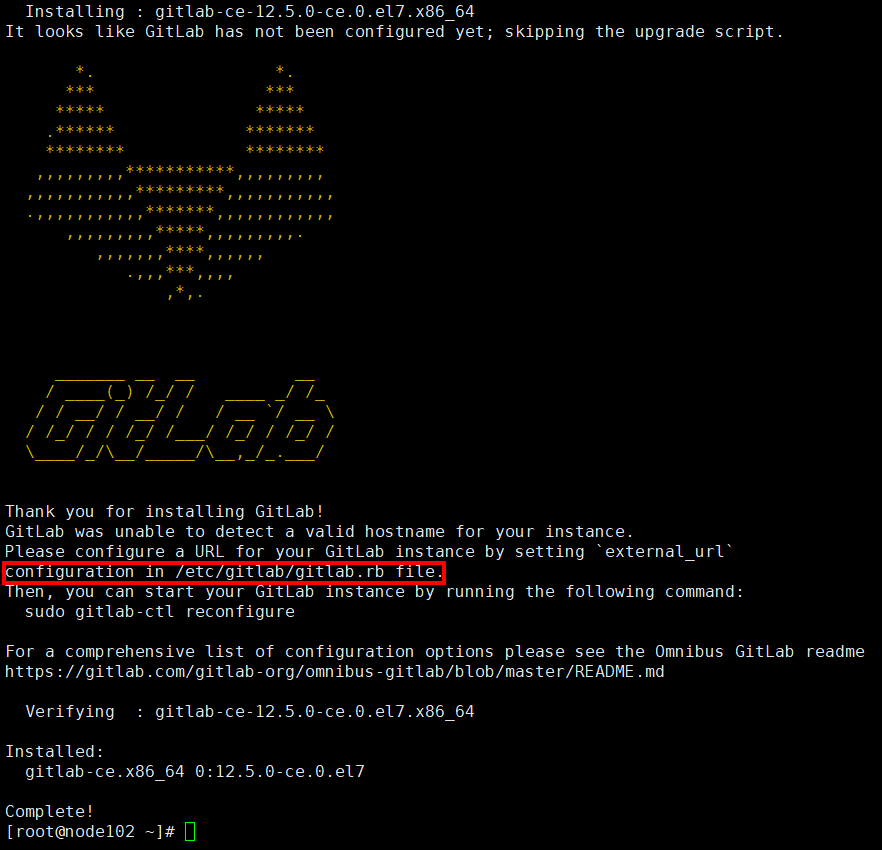
1.4 安装方式2:下载并安装rpm包
清华镜像:https://mirrors.tuna.tsinghua.edu.cn/gitlab-ce/yum/el7/

注意:可以单独下载RPM包,然后上传到Server,要节约时间点。
wget https://mirrors.tuna.tsinghua.edu.cn/gitlab-ce/yum/el7/gitlab-ce-12.5.0-ce.0.el7.x86_64.rpm

rpm -i gitlab-ce-12.5.0-ce.0.el7.x86_64.rpm

2 - 初始化配置
GitLab默认的配置文件路径:/etc/gitlab/
- /etc/gitlab/gitlab.rb:主配置文件,包含外部URL、仓库目录、备份目录等
- /etc/gitlab/gitlab-secrets.json:(执行gitlab-ctl reconfigure命令行后生成),包含各类密钥的加密信息
2.1 初始化配置
- 配置首页地址(需将设置的域名DNS解析到服务器IP,或者修改本地host将域名指向服务器IP)
- 修改服务端口,避免和其他服务端口冲突
- 重新配置并启动,使配置生效,并确认相关组件或进程的状态
- 设置账号密码和管理员信息
[root@node102 ~]# ll /etc/gitlab/

total 96

-rw------- 1 root root 97727 Nov 26 23:05 gitlab.rb

[root@node102 ~]#

[root@node102 ~]# cat /etc/gitlab/gitlab.rb |grep -v "#" |grep -Ev "^$"

external_url 'http://gitlab.example.com'

[root@node102 ~]#

[root@node102 ~]# vim /etc/gitlab/gitlab.rb

[root@node102 ~]#

[root@node102 ~]# cat /etc/gitlab/gitlab.rb |grep -v "#" |grep -Ev "^$"

external_url 'http://192.168.16.102'

unicorn['listen'] = '192.168.16.102'

unicorn['port'] = 8081

[root@node102 ~]#

[root@test102 ~]# gitlab-ctl diff-config

diff --git a/etc/gitlab/gitlab.rb b/opt/gitlab/etc/gitlab.rb.template

index 3e27e40..31c0b45 100644

--- a/etc/gitlab/gitlab.rb

+++ b/opt/gitlab/etc/gitlab.rb.template

@@ -20,7 +20,7 @@

 ##! URL on which GitLab will be reachable.

 ##! For more details on configuring external_url see:

 ##! https://docs.gitlab.com/omnibus/settings/configuration.html#configuring-the-external-url-for-gitlab

-external_url 'http://192.168.16.102'

+external_url 'GENERATED_EXTERNAL_URL'

 ## Roles for multi-instance GitLab

 ##! The default is to have no roles enabled, which results in GitLab running as an all-in-one instance.

@@ -740,8 +740,8 @@ external_url 'http://192.168.16.102'

 # unicorn['worker_processes'] = 2

 ### Advanced settings

-unicorn['listen'] = '192.168.16.102'

-unicorn['port'] = 8081

+# unicorn['listen'] = 'localhost'

+# unicorn['port'] = 8080

 # unicorn['socket'] = '/var/opt/gitlab/gitlab-rails/sockets/gitlab.socket'

 # unicorn['pidfile'] = '/opt/gitlab/var/unicorn/unicorn.pid'

 # unicorn['tcp_nopush'] = true

[root@test102 ~]#

[root@node102 ~]#  firewall-cmd --zone=public --permanent --add-port=8081/tcp

success

[root@node102 ~]# firewall-cmd --reload

success

[root@node102 ~]#

[root@node102 ~]# firewall-cmd --list-all

public (active)

  target: default

  icmp-block-inversion: no

  interfaces: enp0s3 enp0s8

  sources:

  services: ssh dhcpv6-client http

  ports: 8081/tcp

  protocols:

  masquerade: no

  forward-ports:

  source-ports:

  icmp-blocks:

  rich rules:

[root@node102 ~]#

[root@node102 ~]# gitlab-ctl reconfigure

Starting Chef Client, version 14.13.11

resolving cookbooks for run list: ["gitlab"]

Synchronizing Cookbooks:

  - gitlab (0.0.1)

  - package (0.1.0)

  - postgresql (0.1.0)

  - redis (0.1.0)

  - monitoring (0.1.0)

  - registry (0.1.0)

  - mattermost (0.1.0)

  - consul (0.1.0)

  - gitaly (0.1.0)

  - nginx (0.1.0)

  - praefect (0.1.0)

  - letsencrypt (0.1.0)

  - runit (4.3.0)

  - acme (4.0.0)

  - crond (0.1.0)

Installing Cookbook Gems:

Compiling Cookbooks...

Recipe: gitlab::default

......

......

......

Recipe: <Dynamically Defined Resource>

  * service[alertmanager] action restart

    - restart service service[alertmanager]

  * service[postgres-exporter] action restart

    - restart service service[postgres-exporter]

  * service[grafana] action restart

    - restart service service[grafana]

Running handlers:

Running handlers complete

Chef Client finished, 543/1455 resources updated in 04 minutes 09 seconds

gitlab Reconfigured!

[root@node102 ~]#

[root@node102 ~]# gitlab-ctl status

run: alertmanager: (pid 6469) 45s; run: log: (pid 6123) 128s

run: gitaly: (pid 6335) 50s; run: log: (pid 5516) 263s

run: gitlab-exporter: (pid 6380) 48s; run: log: (pid 5972) 146s

run: gitlab-workhorse: (pid 6358) 49s; run: log: (pid 5882) 174s

run: grafana: (pid 6529) 44s; run: log: (pid 6273) 74s

run: logrotate: (pid 5920) 159s; run: log: (pid 5929) 158s

run: nginx: (pid 5893) 171s; run: log: (pid 5905) 167s

run: node-exporter: (pid 6367) 49s; run: log: (pid 5960) 152s

run: postgres-exporter: (pid 6488) 45s; run: log: (pid 6150) 121s

run: postgresql: (pid 5632) 255s; run: log: (pid 5644) 254s

run: prometheus: (pid 6406) 47s; run: log: (pid 6080) 132s

run: redis: (pid 5471) 272s; run: log: (pid 5479) 271s

run: redis-exporter: (pid 6384) 48s; run: log: (pid 6003) 140s

run: sidekiq: (pid 5842) 183s; run: log: (pid 5853) 180s

run: unicorn: (pid 5803) 189s; run: log: (pid 5835) 186s

[root@node102 ~]#
2.2 登录
http://192.168.16.102 注意:这个地址是“external_url 'http://192.168.16.102'”
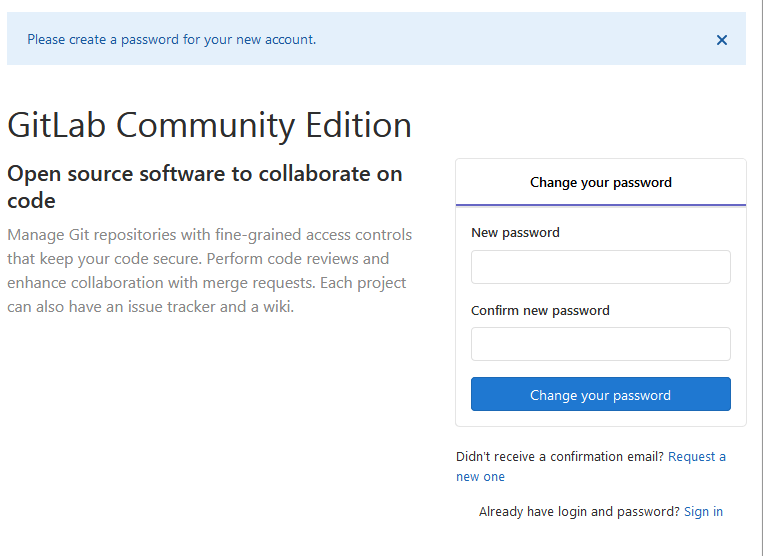
首次登录显示为密码设置界面,设置管理员密码,管理员账号默认username是root
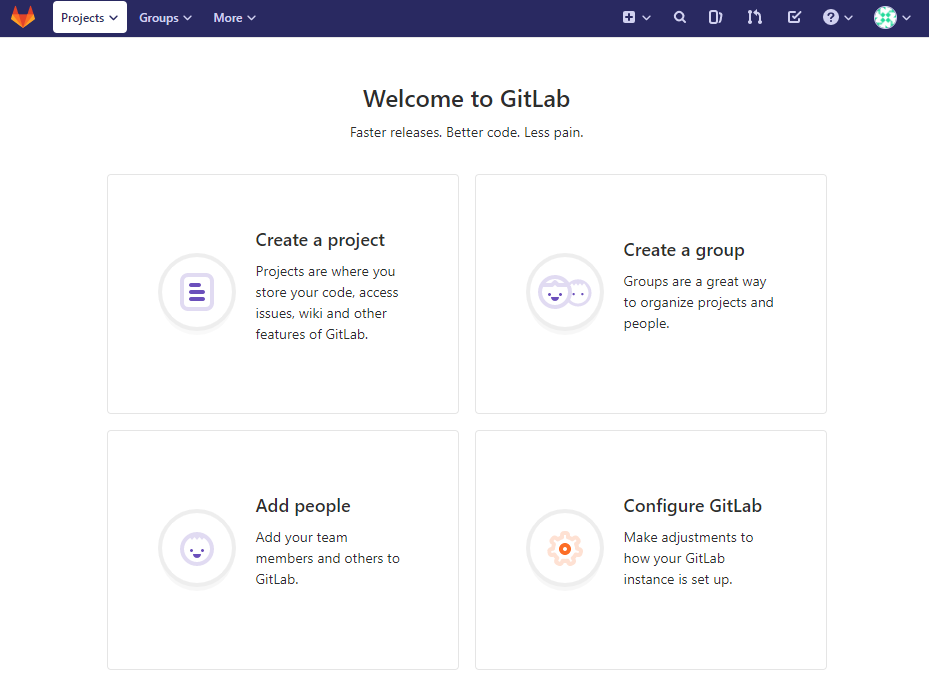
设置完成之后,刷新即可使用root账号登录,登陆后会进入欢迎界面。

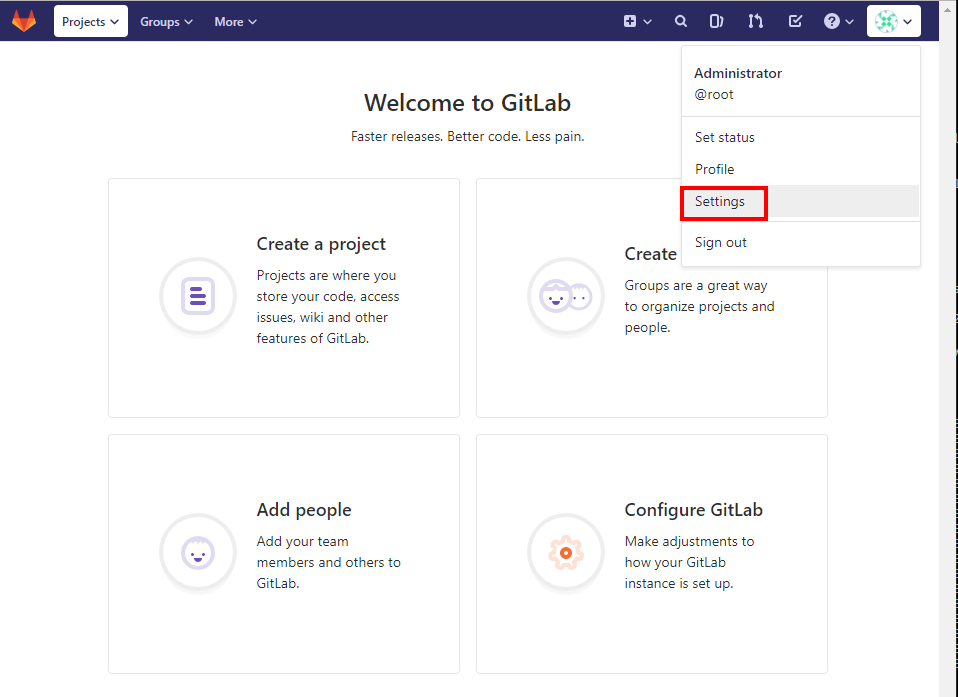
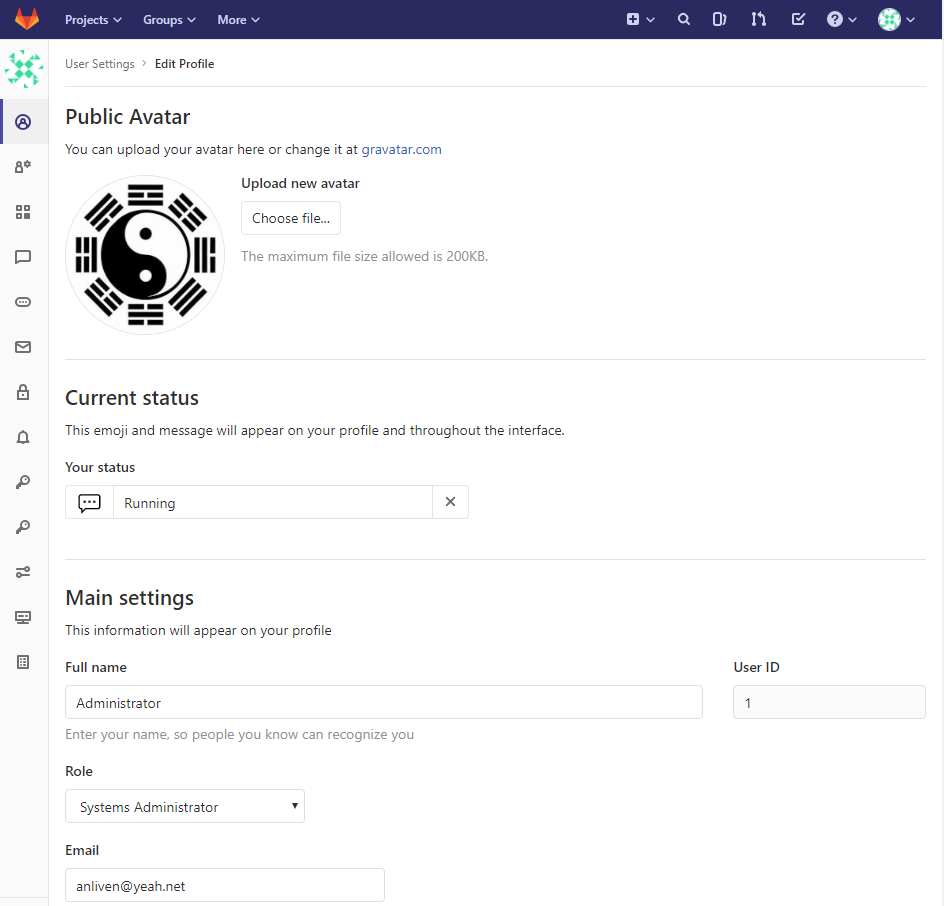
2.3 更新管理员资料
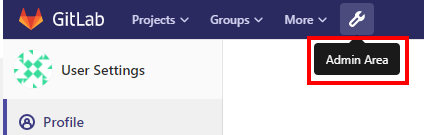
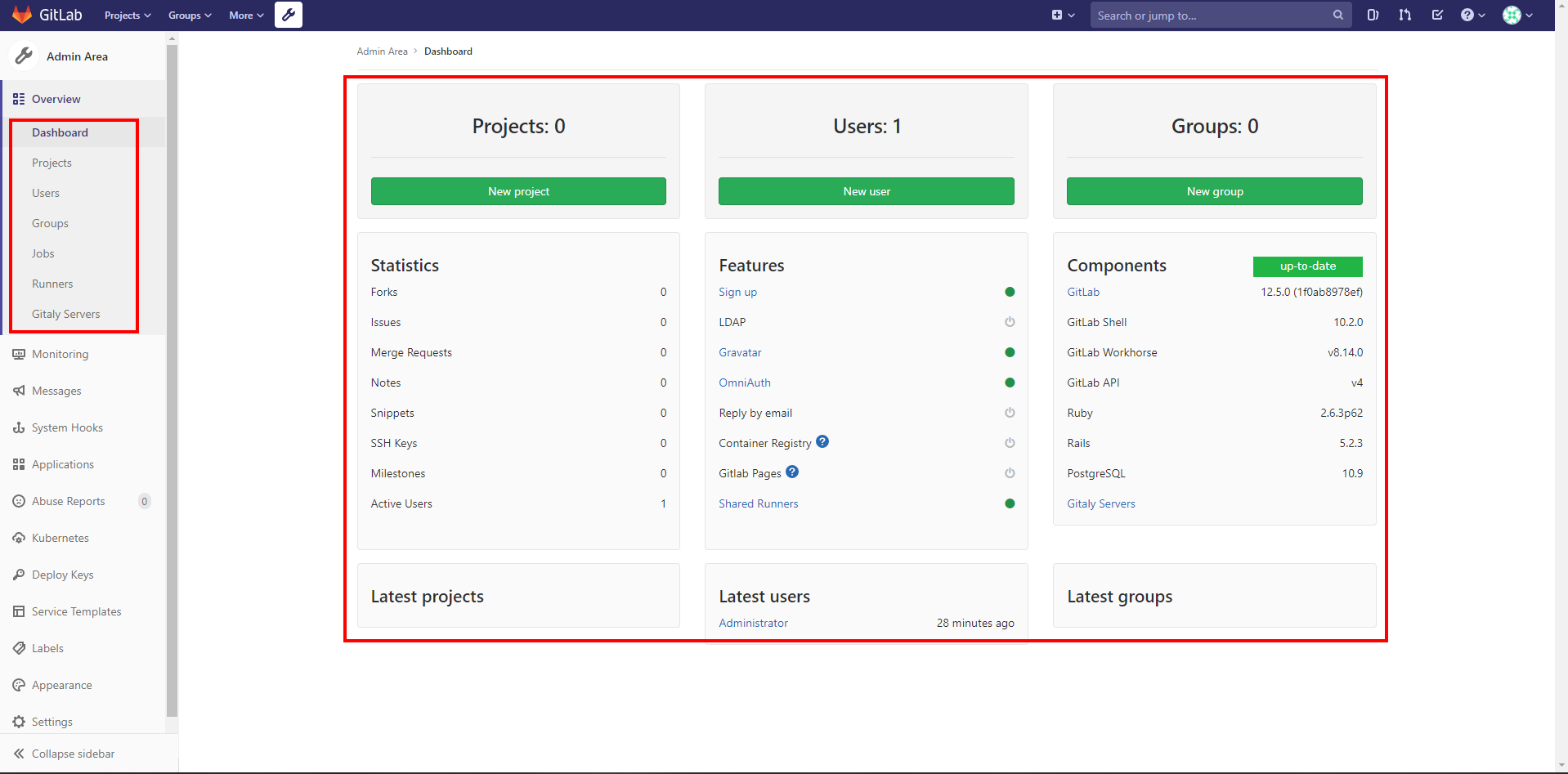
2.4 查看管理员面板
Admin Area的主面板显示整体数据,左侧导航菜单可以查看具体的分类信息
2.5 创建新用户
方式1:管理员直接创建用户
Admin Area ---》New user,根据规则和需要分别设置Account、Access部分,Password部分可以由本人进行设置。

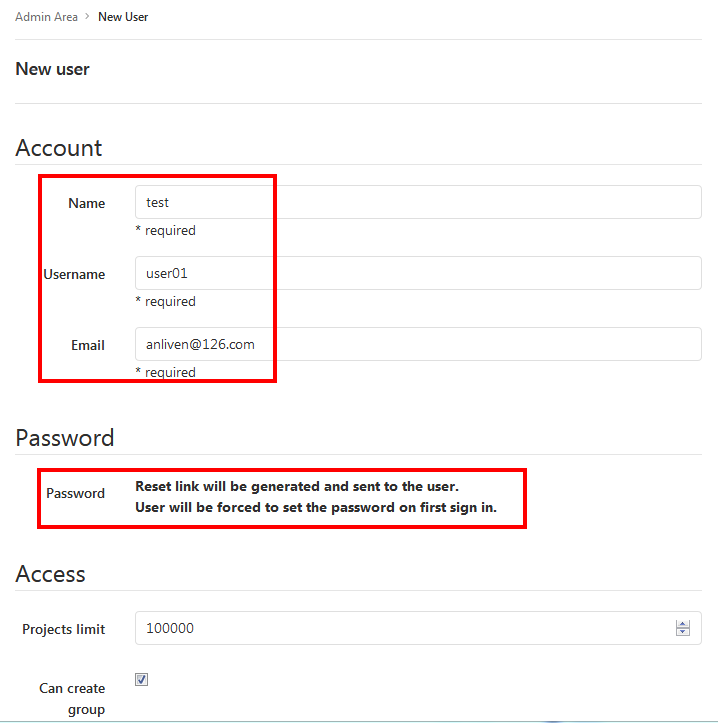

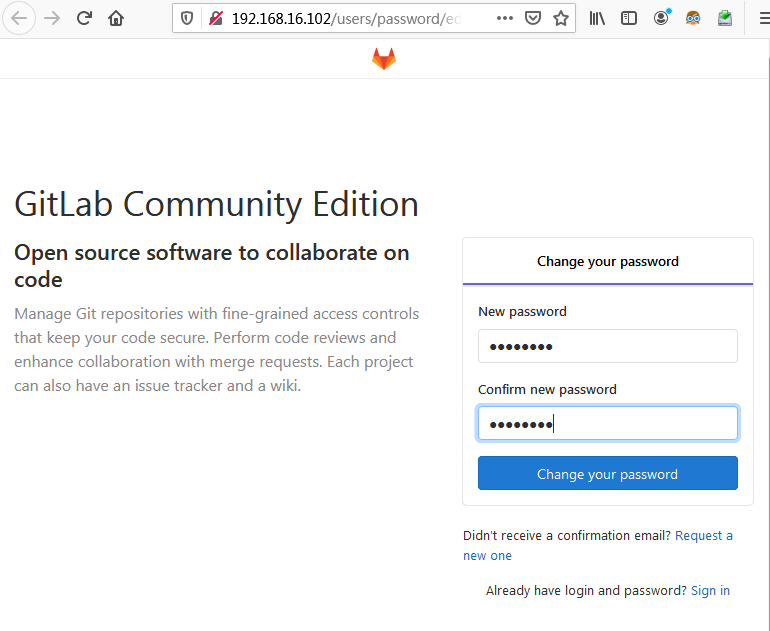
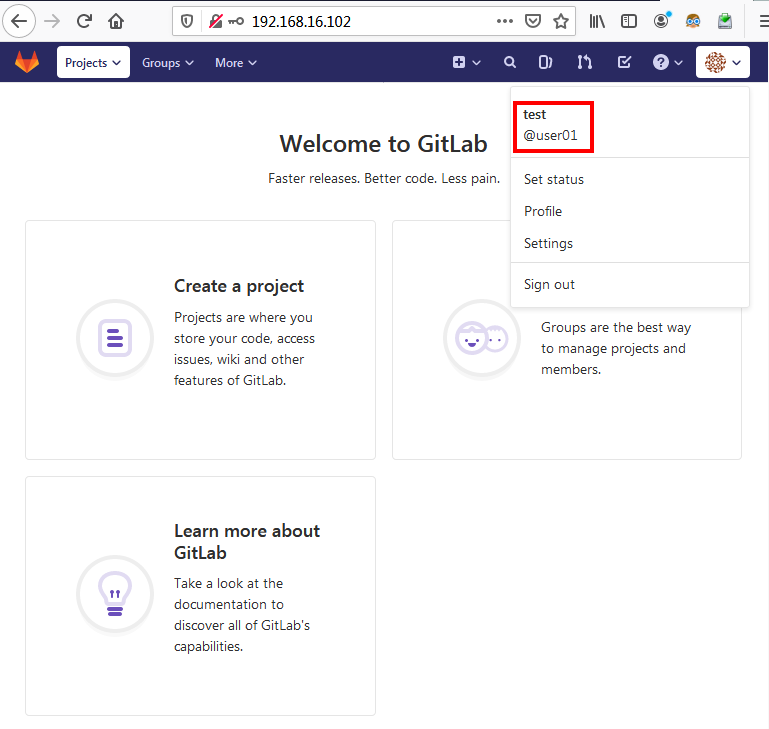
查看邮箱,点击邮件中的链接,设置密码并登陆

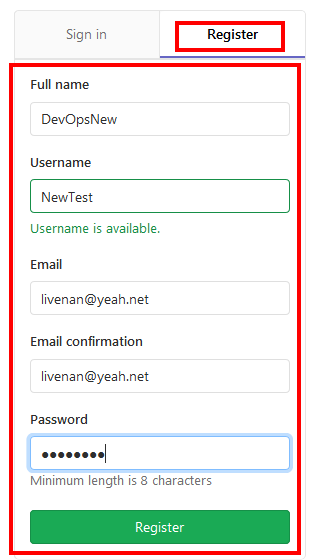
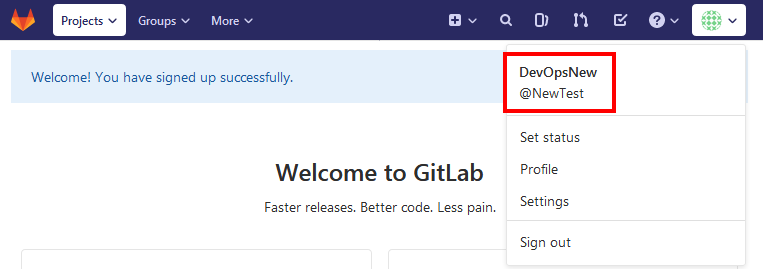
方式2:用户直接注册新的账户
在GitLab登录界面,直接点击“Register”,添加用户相关信息。
3 - GitLab常用配置
3.1 配置Git存储仓库目录
默认存储目录为/var/opt/gitlab/git-data/repositories
[root@test102 ~]# ll /var/opt/gitlab/git-data/

total 0

drwxrws--- 3 git root 45 Nov 27 13:53

[root@test102 ~]#
如果要更新或增加存储仓库目录,可以修改/etc/gitlab/gitlab.rb配置文件中git_data_dirs部分的内容,然后执行“gitlab-ctl reconfigure”命令使之生效。
例如:
git_data_dirs({

  "default" => {"path" => "/var/opt/gitlab/git-data"}

  "newrepo" => {"path" => "/mnt/nfs-01/git-data"}

})
特别注意:
- 如果修改仓库目录,用户有权限访问,否则重新配置时会报错。
- 修改仓库目录后,必须将旧仓库的数据迁移到新目录下,否则相关项目会提示“没有仓库”。
sudo gitlab-ctl upgrade  # 组件更新(可选)

sudo gitlab-ctl stop  # 停止服务

sudo rsync -av <old-dir>  <new-dir>/  # 目录同步(注意斜杠的作用)

ls <new-dir>  # 检查文件及目录层级

sudo gitlab-ctl start  # 启动服务

sudo gitlab-ctl reconfigure  # 重配置
3.2 配置邮件SMTP
GitLab可以直接发送邮件,但如果内网对网络访问有限制,就需要配置内部的SMTP服务来发送邮件。
[root@test102 ~]# cat -n /etc/gitlab/gitlab.rb |grep smtp

   559  ###! Docs: https://docs.gitlab.com/omnibus/settings/smtp.html

   560  ###! **Use smtp instead of sendmail/postfix.**

   562  # gitlab_rails['smtp_enable'] = true

   563  # gitlab_rails['smtp_address'] = "smtp.server"

   564  # gitlab_rails['smtp_port'] = 465

   565  # gitlab_rails['smtp_user_name'] = "smtp user"

   566  # gitlab_rails['smtp_password'] = "smtp password"

   567  # gitlab_rails['smtp_domain'] = "example.com"

   568  # gitlab_rails['smtp_authentication'] = "login"

   569  # gitlab_rails['smtp_enable_starttls_auto'] = true

   570  # gitlab_rails['smtp_tls'] = false

   574  # gitlab_rails['smtp_openssl_verify_mode'] = 'none'

   576  # gitlab_rails['smtp_ca_path'] = "/etc/ssl/certs"

   577  # gitlab_rails['smtp_ca_file'] = "/etc/ssl/certs/ca-certificates.crt"

[root@test102 ~]#
此外,也可以修改邮件的默认发送地址、显示名称等信息。
[root@test102 ~]# cat -n /etc/gitlab/gitlab.rb |grep gitlab_email

    60  # gitlab_rails['gitlab_email_enabled'] = true

    61  # gitlab_rails['gitlab_email_from'] = 'example@example.com'

    62  # gitlab_rails['gitlab_email_display_name'] = 'Example'

    63  # gitlab_rails['gitlab_email_reply_to'] = 'noreply@example.com'

    64  # gitlab_rails['gitlab_email_subject_suffix'] = ''

    65  # gitlab_rails['gitlab_email_smime_enabled'] = false

    66  # gitlab_rails['gitlab_email_smime_key_file'] = '/etc/gitlab/ssl/gitlab_smime.key'

    67  # gitlab_rails['gitlab_email_smime_cert_file'] = '/etc/gitlab/ssl/gitlab_smime.crt'

[root@test102 ~]#
邮件发送测试
[root@test102 ~]# gitlab-rails console

--------------------------------------------------------------------------------

 GitLab:       12.5.0 (1f0ab8978ef)

 GitLab Shell: 10.2.0

 PostgreSQL:   10.9

--------------------------------------------------------------------------------

Loading production environment (Rails 5.2.3)

irb(main):001:0> Notify.test_email('anliven@126.com','test','test').deliver_now

Notify#test_email: processed outbound mail in 1.4ms

Sent mail to anliven@126.com (73.0ms)

Date: Wed, 27 Nov 2019 15:12:58 +0800

From: GitLab <gitlab@192.168.16.102>

Reply-To: GitLab <noreply@192.168.16.102>

To: anliven@126.com

Message-ID: <5dde21fa612d4_3a1b3fcb38fcf9c0651b@test102.mail>

Subject: test

Mime-Version: 1.0

Content-Type: text/html;

 charset=UTF-8

Content-Transfer-Encoding: 7bit

Auto-Submitted: auto-generated

X-Auto-Response-Suppress: All

<!DOCTYPE html PUBLIC "-//W3C//DTD HTML 4.0 Transitional//EN" "http://www.w3.org/TR/REC-html40/loose.dtd">

<html><body><p>test</p></body></html>

=> #<Mail::Message:70141649239780, Multipart: false, Headers: <Date: Wed, 27 Nov 2019 15:12:58 +0800>, <From: GitLab <gitlab@192.168.16.102>>, <Reply-To: GitLab <noreply@192.168.16.102>>, <To: anliven@126.com>, <Message-ID: <5dde21fa612d4_3a1b3fcb38fcf9c0651b@test102.mail>>, <Subject: test>, <Mime-Version: 1.0>, <Content-Type: text/html; charset=UTF-8>, <Content-Transfer-Encoding: 7bit>, <Auto-Submitted: auto-generated>, <X-Auto-Response-Suppress: All>>

irb(main):002:0>

irb(main):003:0> exit

[root@test102 ~]#
3.3 禁用创建组权限
GitLab默认所有的注册用户都可以创建组,在实际使用中,通常只会给指定的少部分用户相关权限。
将/etc/gitlab/gitlab.rb中的gitlab_rails['gitlab_default_can_create_group']参数设为false,然后重载配置即可。
[root@test102 ~]# cat -n /etc/gitlab/gitlab.rb |grep "create_group"

    70  # gitlab_rails['gitlab_default_can_create_group'] = true

[root@test102 ~]#
3.4 集成OpenLDAP
设置/etc/gitlab/gitlab.rb文件中关于LDAP的内容,并重载配置,然后通过“gitlab-rake gitlab:ldap:check
”命令验证是否是否能正常获取用户列表,最后重启gitlab服务。
[root@test102 ~]# cat -n /etc/gitlab/gitlab.rb |grep "LDAP Settings"

   296  ### LDAP Settings

[root@test102 ~]#
3.5 GitLab个人中文界面
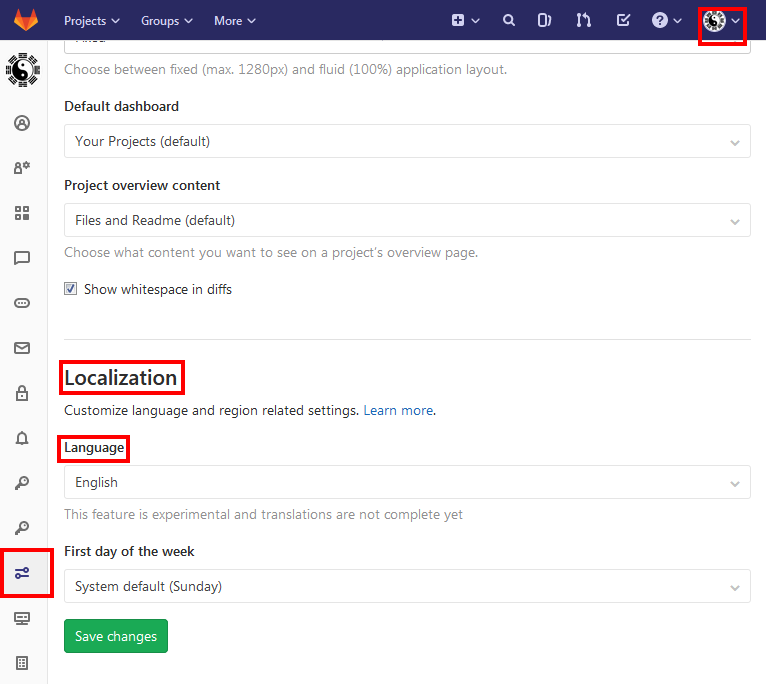
登录后,点击右上角用户头像---》Settings---》Preferences---》Localization部分的Language项目---》选择“简体中文”并保存更改---》刷新页面。

4 - 日志查看
gitlab-ctl tail     # 查看所有GitLab日志

gitlab-ctl tail <module-name>    # 查看某个组件的日志

gitlab-ctl tail <module-name>/<log-name>    # 查看某个组件的某个类型日志
日志目录:/var/log/gitlab/
[root@test102 ~]# ll /var/log/gitlab/

total 0

drwx------ 2 gitlab-prometheus root        47 Nov 27 13:55 alertmanager

drwx------ 2 git               root        47 Nov 27 13:53 gitaly

drwx------ 2 git               root        47 Nov 27 13:55 gitlab-exporter

drwx------ 2 git               root       238 Nov 27 14:00 gitlab-rails

drwx------ 2 git               root         6 Nov 27 13:53 gitlab-shell

drwx------ 2 git               root        47 Nov 27 13:54 gitlab-workhorse

drwx------ 2 gitlab-prometheus root        47 Nov 27 13:56 grafana

drwx------ 2 root              root        47 Nov 27 13:55 logrotate

drwxr-x--- 2 root              gitlab-www 131 Nov 27 13:54 nginx

drwx------ 2 gitlab-prometheus root        47 Nov 27 13:55 node-exporter

drwx------ 2 gitlab-psql       root        47 Nov 27 13:55 postgres-exporter

drwx------ 2 gitlab-psql       root        47 Nov 27 13:53 postgresql

drwx------ 2 gitlab-prometheus root        47 Nov 27 13:55 prometheus

drwxr-xr-x 2 root              root        50 Nov 27 15:04 reconfigure

drwx------ 2 gitlab-redis      root        47 Nov 27 13:53 redis

drwx------ 2 gitlab-redis      root        47 Nov 27 13:55 redis-exporter

drwx------ 2 git               root        47 Nov 27 13:54 sidekiq

drwx------ 2 git               root        99 Nov 27 13:54 unicorn

[root@test102 ~]#

[root@test102 ~]# ll /var/log/gitlab/nginx/

total 32

-rw-r--r-- 1 root root     0 Nov 27 13:54 access.log

-rw-r--r-- 1 root root    30 Nov 27 13:54 config

-rw-r--r-- 1 root root     0 Nov 27 13:54 current

-rw-r--r-- 1 root root     0 Nov 27 13:54 error.log

-rw-r--r-- 1 root root 28553 Nov 27 15:25 gitlab_access.log

-rw-r--r-- 1 root root     0 Nov 27 13:54 gitlab_error.log

-rw------- 1 root root     0 Nov 27 13:54 lock

[root@test102 ~]#
5 - GitLab-ctl常用命令
gitlab-ctl reconfigure    # 重载配置

gitlab-ctl check-config    # 检查配置并启动

gitlab-ctl diff-config    # 将用户配置与包可用配置进行比较

gitlab-ctl status    # 查看所有启动组件的进程和状态

gitlab-ctl service-list    # 查看所有服务

gitlab-ctl stop    # 停止GitLab服务

gitlab-ctl start    # 启动GitLab服务

gitlab-ctl restart    # 重启GitLab服务

gitlab-ctl once    # 如果GitLab服务已停止则启动服务,如果GitLab服务已启动则重启GitLab服务
gitlab-ctl help
# gitlab-ctl help

omnibus-ctl: command (subcommand)

check-config

  Check if there are any configuration in gitlab.rb that is removed in specified version

deploy-page

  Put up the deploy page

diff-config

  Compare the user configuration with package available configuration

prometheus-upgrade

  Upgrade the Prometheus data to the latest supported version

remove-accounts

  Delete *all* users and groups used by this package

reset-grafana

  Reset Grafana instance to its initial state by removing the data directory

set-grafana-password

  Reset admin password for Grafana

upgrade

  Run migrations after a package upgrade

General Commands:

  cleanse

    Delete *all* gitlab data, and start from scratch.

  help

    Print this help message.

  reconfigure

    Reconfigure the application.

  show-config

    Show the configuration that would be generated by reconfigure.

  uninstall

    Kill all processes and uninstall the process supervisor (data will be preserved).

Service Management Commands:

  graceful-kill

    Attempt a graceful stop, then SIGKILL the entire process group.

  hup

    Send the services a HUP.

  int

    Send the services an INT.

  kill

    Send the services a KILL.

  once

    Start the services if they are down. Do not restart them if they stop.

  restart

    Stop the services if they are running, then start them again.

  service-list

    List all the services (enabled services appear with a *.)

  start

    Start services if they are down, and restart them if they stop.

  status

    Show the status of all the services.

  stop

    Stop the services, and do not restart them.

  tail

    Watch the service logs of all enabled services.

  term

    Send the services a TERM.

  usr1

    Send the services a USR1.

  usr2

    Send the services a USR2.

Backup Commands:

  backup-etc

    Backup GitLab configuration [accepts directory path]

Let's Encrypt Commands:

  renew-le-certs

    Renew the existing Let's Encrypt certificates

Database Commands:

  pg-password-md5

    Generate MD5 Hash of user password in PostgreSQL format

  pg-upgrade

    Upgrade the PostgreSQL DB to the latest supported version

  revert-pg-upgrade

    Run this to revert to the previous version of the database

  set-replication-password

    Set database replication password

Container Registry Commands:

  registry-garbage-collect

    Run Container Registry garbage collection.
6 - 问题处理
修改root密码
https://docs.gitlab.com/ce/security/reset_root_password.html
[root@node102 ~]# gitlab-rails console -e production

--------------------------------------------------------------------------------

 GitLab:       12.5.0 (1f0ab8978ef)

 GitLab Shell: 10.2.0

 PostgreSQL:   10.9

--------------------------------------------------------------------------------

Loading production environment (Rails 5.2.3)

irb(main):001:0> user = User.where(id: 1).first

=> #<User id:1 @root>

irb(main):002:0> user = User.find_by(email: 'admin@example.com')

=> #<User id:1 @root>

irb(main):003:0> user.password = 'secret_pass'

=> "secret_pass"

irb(main):004:0> user.password_confirmation = 'secret_pass'

=> "secret_pass"

irb(main):005:0> user.save!

Enqueued ActionMailer::DeliveryJob (Job ID: 90526cdc-8d61-458f-bb85-bd1f2797c5b1) to Sidekiq(mailers) with arguments: "DeviseMailer", "password_change", "deliver_now", #<GlobalID:0x00007fc0b4541088 @uri=#<URI::GID gid://gitlab/User/1>>

=> true

irb(main):006:0> exit

[root@node102 ~]#
7 - 参考信息
- 官网:https://about.gitlab.com/install/#centos-7
- CentOS 7 下 GitLab安装部署教程:https://ken.io/note/centos7-gitlab-install-tutorial
GitLab - 安装并启动GitLab的更多相关文章
- [ci]gitlab安装配置(含gitlab邮件配置)
gitlab安装配置 参考: https://www.unixhot.com/article/48 原则:简单维护为准,故yum安装gitlab 1,gitlab安装 2,gitlab邮箱配置 1,g ...
- gitlab安装教程、gitlab官网、英文文档
gitlab官网 https://about.gitlab.com/ gitlab安装和官网英文文档 https://about.gitlab.com/downloads/ 清华大学tuna镜像源 G ...
- gitlab之一: gitlab安装配置使用
参考: gitlab 安装和配置 gitlab下载地址: https://mirror.tuna.tsinghua.edu.cn/gitlab-ce/ 官方教程: https://about.gitl ...
- gitlab安装、配置与阿里云产品集成
https://www.ilanni.com/?p=12819 一.gitlab安装与部署 gitlab的安装可以分为源码安装和通过安装包进行安装,要是按照我以前的写作习惯的话,我也会把源码安装在本文 ...
- gitlab 安装
GitLab的安装方式 GitLab的两种安装方法: 编译安装 优点:可定制性强.数据库既可以选择MySQL,也可以选择PostgreSQL;服务器既可以选择Apache,也可以选择Nginx. 缺点 ...
- GitLab安装说明
GitLab,是一个使用 Ruby on Rails 开发的开源应用程序,与Github类似,能够浏览源代码,管理缺陷和注释,非常适合在团队内部使用. gitlab是基于Ruby on Rails的, ...
- GitLab 安装配置笔记(转)
GitLab的安装方式 GitLab的两种安装方法: 编译安装 优点:可定制性强.数据库既可以选择MySQL,也可以选择PostgreSQL;服务器既可以选择Apache,也可以选择Nginx. 缺点 ...
- Gitlab 安装配置
Gitlab 很好的替代Github,可以安装到公司的内网服务器 进行管理 ,可以分布式的管理,集中的管理 下面介绍安装这个软件的步骤 其实安装很简单的 按照官网可以安装 https://about ...
- Ubuntu 简单安装和配置 GitLab
使用的 Ubuntu Server 16.04 LTS 版本,服务器托管在 Azure 上,用的 1 元试用 1 个月服务器订阅(1500 元额度). 安装命令(推荐使用): curl -sS htt ...
随机推荐
- Python的logging模块基本用法
Python 的 logging 模块的简单用法 在服务器部署时,往往都是在后台运行.当程序发生特定的错误时,我希望能够在日志中查询.因此这里熟悉以下 logging 模块的用法. logging 模 ...
- 二维数组中的查找 - Java版 -简单二分查找 -<<剑指Offer>> -水题
如题 (总结) -认真读题, 还WA了一次, https://www.nowcoder.com/practice/abc3fe2ce8e146608e868a70efebf62e?tpId=13&am ...
- word2vec中的subsampling
http://d0evi1.com/word2vec-subsampling/ 为了度量这种罕见词与高频词间存在不平衡现象,我们使用一个简单的subsampling方法:训练集中的每个词wiwi,以下 ...
- assert 断言
输入 assert 1>2,'123' 输出结果 assert 1>2,'123' AssertionError: 123
- 对当前目录下的所有APK包执行Monkey测试,并自动保存Crash日志
适用平台:Android,代码几个月前写的,有问题请及时回复.本代码会依次安装当前目录下的APK安装包,之后执行Monkey测试,然后卸载掉换下一个,继续重复执行,如出现Cransh,会自动保存在当前 ...
- HDU - 3644:A Chocolate Manufacturer's Problem(模拟退火, 求多边形内最大圆半径)
pro:给定一个N边形,然后给半径为R的圆,问是否可以放进去. 问题转化为多边形的最大内接圆半径.(N<50): sol:乍一看,不就是二分+半平面交验证是否有核的板子题吗. 然而事情并没有那 ...
- 异常检测(Anomaly detection): 异常检测算法(应用高斯分布)
估计P(x)的分布--密度估计 我们有m个样本,每个样本有n个特征值,每个特征都分别服从不同的高斯分布,上图中的公式是在假设每个特征都独立的情况下,实际无论每个特征是否独立,这个公式的效果都不错.连乘 ...
- 使用Apache commons-maths3-3.6.1.jar包实现快速傅里叶变换(java)
本例应用的是快速傅里叶变换 (fast Fourier transform),即利用计算机计算离散傅里叶变换(DFT)的高效.快速计算方法的统称,简称FFT.快速傅里叶变换是1965年由J.W.库利和 ...
- PyInstaller库,打包成exe基本介绍
一.pyinstaller简介 Python是一个脚本语言,被解释器解释执行.它的发布方式: .py文件:对于开源项目或者源码没那么重要的,直接提供源码,需要使用者自行安装Python并且安装依赖的各 ...
- nginx和ftp搭建图片服务器
一.需要的组件 图片服务器两个服务: Nginx(图片访问): 1.http服务:可以使用nginx做静态资源服务器.也可以使用apache.推荐使用nginx,效率更高. 2.反向代理 实现 负载均 ...