
WPF学习10:基于MVVM Light 制作图形编辑工具(1)
图形编辑器的功能如下图所示:
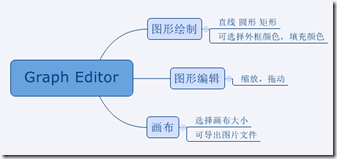
除了MVVM Light 框架是一个新东西之外,本文所涉及内容之前的WPF学习0-9基本都有相关介绍。
本节中,将搭建编辑器的界面,搭建MVVM Light 框架的使用环境。
界面
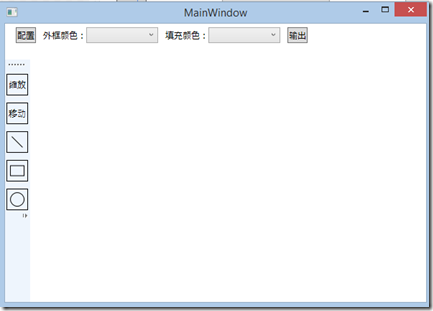
<Window x:Class="GraphEditor.MainWindow"

        xmlns="http://schemas.microsoft.com/winfx/2006/xaml/presentation"

        xmlns:x="http://schemas.microsoft.com/winfx/2006/xaml"

        Title="MainWindow" Height="350" Width="525" Background="#FFFFFF">

    <Window.Resources>

        <Style x:Key="StatusBarButton" TargetType="RadioButton">

            <Setter Property="Width" Value="30"/>

            <Setter Property="Height" Value="30"/>

            <Setter Property="Margin" Value="0 10 0 0"/>

            <Setter Property="BorderBrush" Value="Black"/>

            <Setter Property="BorderThickness" Value="1"/>

        </Style>

    </Window.Resources>

    <Grid>

        <Grid.ColumnDefinitions>

            <ColumnDefinition Width="auto"/>

            <ColumnDefinition Width="*"/>

        </Grid.ColumnDefinitions>

        <Grid.RowDefinitions>

            <RowDefinition Height="auto"/>

            <RowDefinition Height="*"/>

        </Grid.RowDefinitions>

        <!--工具栏-->

        <StackPanel Grid.Row="0" Orientation="Horizontal" Margin="5 5 5 5" Grid.ColumnSpan="2">

            <Button  Margin="10 0 10 0">配置</Button>

            <TextBlock VerticalAlignment="Center">外框颜色:</TextBlock>

            <ComboBox Width="100" Margin="0 0 10 0" ItemsSource="{Binding AvailiableColors}" SelectedItem="{Binding BorderColor}">

                <ComboBox.ItemTemplate>

                    <DataTemplate>

                        <Rectangle Width="100" Height="15" Fill="{Binding}"></Rectangle>

                    </DataTemplate>

                </ComboBox.ItemTemplate>

            </ComboBox>

            <TextBlock VerticalAlignment="Center">填充颜色:</TextBlock>

            <ComboBox Width="100" Margin="0 0 10 0"></ComboBox>

            <Button  Margin="0 0 10 0">输出</Button>

        </StackPanel>

        <!--状态选择栏-->

        <ToolBarTray Grid.Column="0" Grid.RowSpan="2" Margin="0 50 0 0" Orientation="Vertical">

            <ToolBar>

                <RadioButton Style="{StaticResource StatusBarButton}">缩放</RadioButton>

                <RadioButton Style="{StaticResource StatusBarButton}">移动</RadioButton>

                <RadioButton Style="{StaticResource StatusBarButton}">

                    <Line X1="0" Y1="0" X2="15" Y2="15" Stroke="Black" StrokeThickness="1"></Line>

                </RadioButton>

                <RadioButton Style="{StaticResource StatusBarButton}">

                    <Rectangle Width="20" Height="15" Stroke="Black" StrokeThickness="1"></Rectangle>

                </RadioButton>

                <RadioButton Style="{StaticResource StatusBarButton}">

                    <Ellipse Width="20" Height="20" Stroke="Black" StrokeThickness="1"></Ellipse>

                </RadioButton>

            </ToolBar>

        </ToolBarTray>

        <ScrollViewer HorizontalScrollBarVisibility="Auto" VerticalScrollBarVisibility="Auto" Grid.Column="1" Grid.Row="1">

            <Canvas>

                <Border>

                    <Image></Image>

                </Border>

            </Canvas>

        </ScrollViewer>

    </Grid>

</Window>
MVVM Light
首先是添加引用文件。
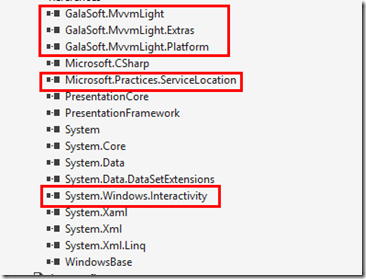
前三个为框架构成部分,ServiceLocation负责依赖反转。通过Interactivity我们可以扩展XAML,使得用前台代码就可以完成向ViewModel传参的功能。
创建ViewModel文件夹,其下创建MainViewModel ViewModelLocator两个文件。
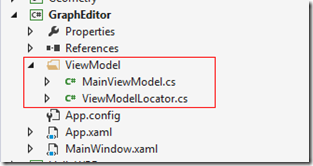
MainViewModel继承ViewModelBase即可,我们在这里写一个Command的例子。
class MainViewModel : ViewModelBase

{

    private ICommand _showPrompt;

    public ICommand ShowPrompt

    {

        get

        {

            //前一个Lambda为Excute,后一个为CanExcute

            return _showPrompt ?? (_showPrompt = new RelayCommand(() => MessageBox.Show("Hello World"), () => true));

        }

    }

}
在Locator中对ViewModel进行注册
class ViewModelLocator

{

    public ViewModelLocator()

    {

        ServiceLocator.SetLocatorProvider(() => SimpleIoc.Default);

        SimpleIoc.Default.Register<MainViewModel>();

    }

    public MainViewModel Main

    {

        get

        {

            return ServiceLocator.Current.GetInstance<MainViewModel>();

        }

    }

    public static void Cleanup()

    {

    }

}
在App.xaml中创建容器资源。
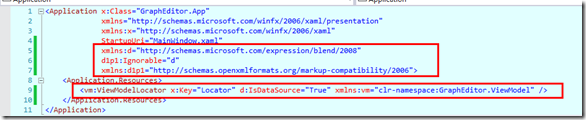
圈出的部分为需要添加的代码。
在主窗体的前台代码中配置DataContext,顺便添加Interactivity的引用。
<Window x:Class="GraphEditor.MainWindow"

        xmlns="http://schemas.microsoft.com/winfx/2006/xaml/presentation"

        xmlns:x="http://schemas.microsoft.com/winfx/2006/xaml"

        Title="MainWindow" Height="350" Width="525" Background="#FFFFFF"

        xmlns:i="clr-namespace:System.Windows.Interactivity;assembly=System.Windows.Interactivity"

        DataContext="{Binding Main, Source={StaticResource ResourceKey=Locator}}">
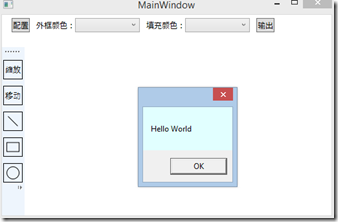
我们修改一下代码,用于测试是否成功使用了框架。
<Button Margin="0 0 10 0" Command="{Binding ShowPrompt}">输出</Button>
结果:
下一节将会完成画布的生成与三个基本形状的绘制。
WPF学习10:基于MVVM Light 制作图形编辑工具(1)的更多相关文章
- WPF学习12:基于MVVM Light 制作图形编辑工具(3)
本文是WPF学习11:基于MVVM Light 制作图形编辑工具(2)的后续 这一次的目标是完成 两个任务. 本节完成后的效果: 本文分为三个部分: 1.对之前代码不合理的地方重新设计. 2.图形可选 ...
- WPF学习11:基于MVVM Light 制作图形编辑工具(2)
本文是WPF学习10:基于MVVM Light 制作图形编辑工具(1)的后续 这一次的目标是完成 两个任务. 画布 效果: 画布上,选择的方案是:直接以Image作为画布,使用RenderTarget ...
- WPF学习笔记-用Expression Design制作矢量图然后导出为XAML
WPF学习笔记-用Expression Design制作矢量图然后导出为XAML 第一次用Windows live writer写东西,感觉不错,哈哈~~ 1.在白纸上完全凭感觉,想象来画图难度很大, ...
- WPF学习08:MVVM 预备知识之COMMAND
WPF内建的COMMAND是GOF 提出的23种设计模式中,命令模式的实现. 本文是WPF学习07:MVVM 预备知识之数据绑定的后续,将说明实现COMMAND的三个重点:ICommand Comm ...
- 【Telerik控件学习】-建立自己的图形编辑工具(Diagram)
Telerik提供了RadDiagram控件,用于图形元素的旋转,拖拽和缩放.更重要的是,它还拓展了许多绑定的命令(复制,剪切,粘贴,回退等等). 我们可以用来组织自己的图形编辑工具. Step1.定 ...
- MAPZONE GIS SDK接入Openlayers3之五——图形编辑工具
图形编辑工具提供对要素图形进行增.删.改的功能,具体包括以下几种工具类型: 浏览工具 选择工具 创建要素工具 删除命令 分割工具 合并命令 节点编辑工具 修边工具 撤销命令 重做命令 工具的实现基本上 ...
- WPF学习07:MVVM 预备知识之数据绑定
MVVM是一种模式,而WPF的数据绑定机制是一种WPF内建的功能集,两者是不相关的. 但是,借助WPF各种内建功能集,如数据绑定.命令.数据模板,我们可以高效的在WPF上实现MVVM.因此,我们需要对 ...
- WPF学习笔记-用Expression Blend制作自定义按钮
1.从Blend工具箱中添加一个Button,按住shift,将尺寸调整为125*125; 2.右键点击此按钮,选择Edit control parts(template)>Edit a cop ...
- WPF学习笔记:MVVM模式下,ViewModel如何关闭View?
原文:http://blog.csdn.net/leftfist/article/details/32349731 矫枉过正,从一个极端走向另一个极端.MVVM模式,View只负责呈现,虽然也有后台代 ...
随机推荐
- Python中的shelve模块
shelve中有用的函数就是open(),但是下面编写的数据库函数中调用路径是经常出错,如果直接调用一个从来没有用过的文件却能正常运行,暂时没有找出原因. 调用shelve.open()会返回一个sh ...
- wpf 导出Excel Wpf Button 样式 wpf简单进度条 List泛型集合对象排序 C#集合
wpf 导出Excel 1 private void Button_Click_1(object sender, RoutedEventArgs e) 2 { 3 4 ExportDataGrid ...
- Selenium系列之--04 常见元素操作总结
一.Selenium总共有八种定位方法 By.id() 通过id定位 By.name() 通过name 定位 By.xpath() 通过xpath定位 By.className() 通过clas ...
- 【转】TestNG执行顺序控制
1.class执行顺序控制---testng.xml之preserve-order preserve-order:用来控制<test>里面所有<classes>的执行顺序.&l ...
- Nginx系列三 内存池的设计
Nginx的高性能的是用非常多细节来保证,epoll下的多路io异步通知.阶段细分化的异步事件驱动,那么在内存管理这一块也是用了非常大心血.上一篇我们讲到了slab分配器,我们能够能够看到那是对共享内 ...
- 机器学习和深度学习笔记(Matlab语言实现)
不多说,直接上干货! 这里,对于想用matlab语言来做的朋友,强烈推荐 http://www.cnblogs.com/tornadomeet/
- C#生成Excel文件后彻底解除占用代码(来着CSDN)
http://bbs.csdn.net/topics/280078428 jy251 LS说KILL进程的朋友们···我说...你们真行!!!如果用户是administrator还行,如果不是怎么办? ...
- C项目实践--图书管理系统(3)
接下来将要实现用户管理模块的相关功能,用户管理模块的主要功能包括增加用户,查找用户以及保存用户等功能,查找用户时,如果查找成功,充许对查找到用户进行更新或删除操作.如果查找不成功,则给出相应的提示信息 ...
- Ant 打包 问题
Ant 打包问题及解决归纳总结: 1.build.xml注意设置basedir: <project name="s2si" default="dist" ...
- HDU1269 迷宫城堡 —— 强连通分量
题目链接:http://acm.hdu.edu.cn/showproblem.php?pid=1269 迷宫城堡 Time Limit: 2000/1000 MS (Java/Others) M ...