
Android底部导航栏——FrameLayout + RadioGroup
原创文章,转载请注明出处http://www.cnblogs.com/baipengzhan/p/6285881.html
Android底部导航栏有多种实现方式,本文详细介绍FrameLayout + RadioGroup结构的实现方式。
主要的思路是,创建一个Fragment的容器,点击RadioButton,动态地向容器中添加Fragment对象。
这种结构不同于ViewPager + RadioButton结构,本结构的Fragment展示部分不能左右滑动,只能
通过点击RadioButton切换页面,是一种单向传递的方式。
Fragment页面可以滑动的底部导航栏结构(ViewPager + RadioButton)可以参考文章:
http://www.cnblogs.com/baipengzhan/p/6270201.html
我们先看一下最终做出来的效果吧,以便有个最初的印象。
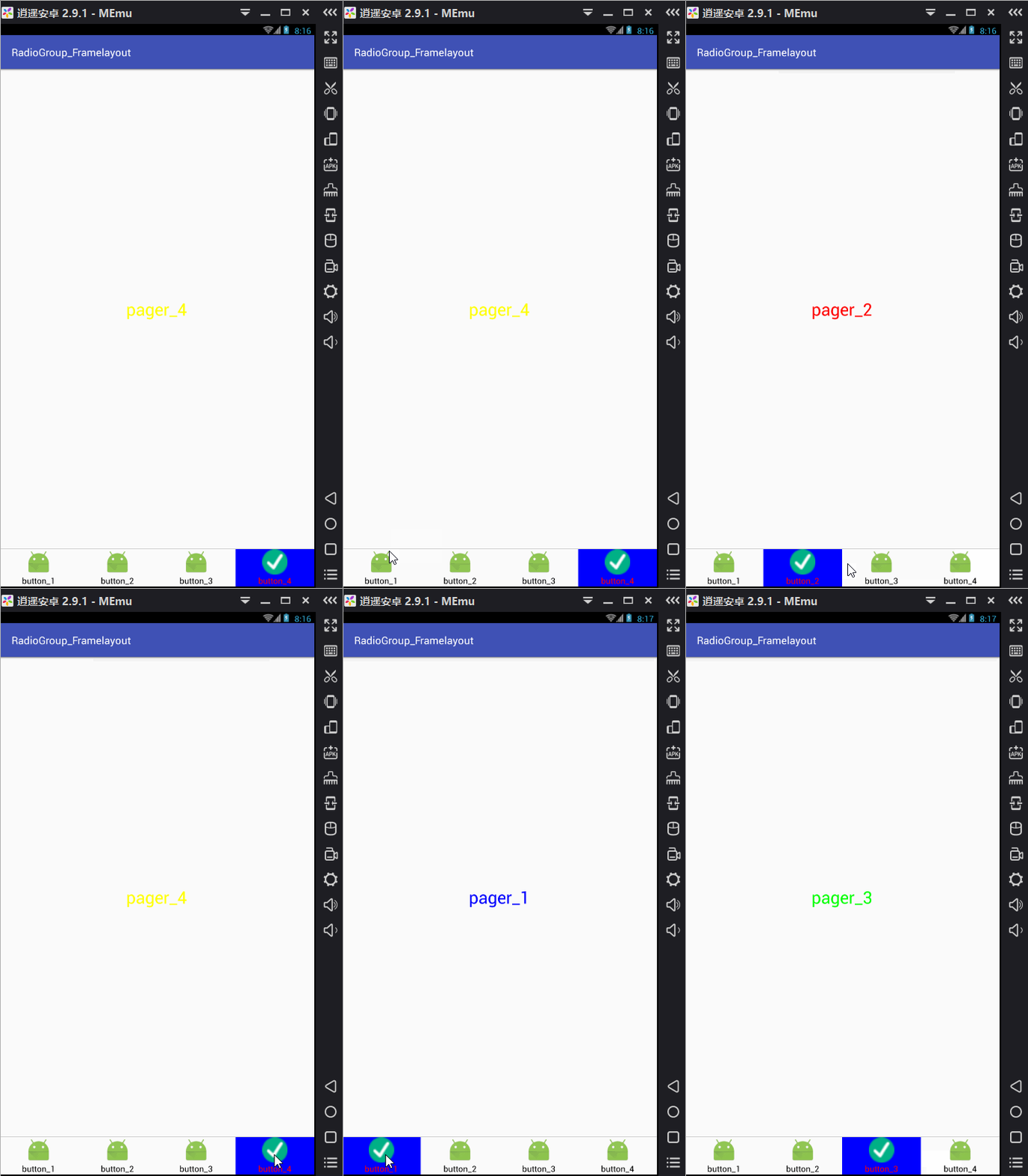
好啦,那下面我们开始制作这种结构的底部导航栏吧。
本结构特点:
1,我们无法直接手动切换FrameLayout中的Fragment页面,只能借助于RadioGroup;
2,当用户点击RadioGroup部分中的RadioButton,被点击的RadioButton出现被选中时的状态,FrameLayout界面对应于RadioButton的页面会出现在当前界面。
可以看到,FrameLayout和RadioGroup是单向传递。
下面我们通过一个实例完全弄懂FrameLayout + RadioGroup结构的用法
首先创建出我们界面的布局,上边一个FrameLayout,中间 一条分隔线,下边一个RadioGroup
我们在一个Activity的布局中创建如下的xml文件:
<?xml version="1.0" encoding="utf-8"?>

<LinearLayout xmlns:android="http://schemas.android.com/apk/res/android"

    android:id="@+id/activity_main"

    android:orientation="vertical"

    android:layout_width="match_parent"

    android:layout_height="match_parent"

    >

    <!--使用FrameLayout当做盛放Fragment对象的容器-->

    <FrameLayout

        android:id="@+id/framelayout"

        android:layout_width="match_parent"

        android:layout_height="0dp"

        android:layout_weight="1"

        />

    <!--中间为一条分割线-->

    <View

        android:background="@color/divider"

        android:layout_width="match_parent"

        android:layout_height="1dp"/>

    <!--最下边为RadioGroup-->

    <RadioGroup

        android:id="@+id/radioGroup"

        android:orientation="horizontal"

        android:layout_width="match_parent"

        android:layout_height="wrap_content">

        <!--第一个RadioButton-->

        <RadioButton

            android:id="@+id/button_1"

            android:text="button_1"

            android:button="@null"

            android:textColor="@color/radiobutton_color_selector"

            android:background="@drawable/radiobutton_bg_selector"

            android:gravity="center"

            android:layout_weight="1"

            android:drawableTop="@drawable/radiobutton_pic_selector"

            android:layout_width="wrap_content"

            android:layout_height="wrap_content" />

        <!--第二个RadioButton-->

        <RadioButton

            android:id="@+id/button_2"

            android:text="button_2"

            android:button="@null"

            android:textColor="@color/radiobutton_color_selector"

            android:background="@drawable/radiobutton_bg_selector"

            android:gravity="center"

            android:layout_weight="1"

            android:drawableTop="@drawable/radiobutton_pic_selector"

            android:layout_width="wrap_content"

            android:layout_height="wrap_content" />

        <!--第三个RadioButton-->

        <RadioButton

            android:id="@+id/button_3"

            android:text="button_3"

            android:button="@null"

            android:textColor="@color/radiobutton_color_selector"

            android:background="@drawable/radiobutton_bg_selector"

            android:gravity="center"

            android:layout_weight="1"

            android:drawableTop="@drawable/radiobutton_pic_selector"

            android:layout_width="wrap_content"

            android:layout_height="wrap_content" />

        <!--第四个RadioButton-->

        <RadioButton

            android:id="@+id/button_4"

            android:text="button_4"

            android:button="@null"

            android:textColor="@color/radiobutton_color_selector"

            android:background="@drawable/radiobutton_bg_selector"

            android:gravity="center"

            android:layout_weight="1"

            android:drawableTop="@drawable/radiobutton_pic_selector"

            android:layout_width="wrap_content"

            android:layout_height="wrap_content" />

    </RadioGroup>

</LinearLayout>
布局中重要属性说明:
①FrameLayout的android:layout_height属性值为0,android:layout_weight属性值为1。这两个属性值配合使用的意义是:
在竖直方向上FrameLayout占满父控件的剩余空间,也就是占据LinearLayout中除去分隔线和RadioGroup的剩余空间。
关于android:layout_weight属性的详细用法请参考http://www.cnblogs.com/baipengzhan/p/6282826.html
②RadioButton的android:button属性值为@null。这个属性值的意义是,去除RadioGroup默认自带显示的小圆圈。
③RadioButton的android:gravity属性值为center。这个属性值的意义是,使RadioButton的内容(图片和文字)居中。注意,内容默认情况没有居中。
④RadioGroup的android:orientation属性值为horizontal。意为,水平布置其中的RadioButton。
⑤RadioButton的android:textColor属性值为@color/radiobutton_color_selector,是一个颜色状态选择器。颜色状态选择器就是一个定义在res/color目录
下的xml文件,color目录需要我们手动创建。颜色状态选择器的代码如下:
<?xml version="1.0" encoding="utf-8"?>

<selector xmlns:android="http://schemas.android.com/apk/res/android">

    <item android:color="#f00" android:state_checked="true"/>

    <item android:color="#f00" android:state_pressed="true"/>

    <item android:color="#f00" android:state_selected="true"/>


    <!--没被选中时的颜色-->

    <item android:color="#000"/>


</selector>
关于状态选择器的更详细知识,请参考文章http://www.cnblogs.com/baipengzhan/p/6284682.html
⑥RadioButton的android:background属性值为@drawable/radiobutton_bg_selector,这一个背景状态选择器,用来改变背景颜色,代码如下:
<?xml version="1.0" encoding="utf-8"?>

<selector xmlns:android="http://schemas.android.com/apk/res/android">

    <item android:state_selected="true" android:drawable="@color/radiobutton_bg_selected"/>

    <item android:state_checked="true" android:drawable="@color/radiobutton_bg_selected"/>

    <item android:state_pressed="true" android:drawable="@color/radiobutton_bg_selected"/>


    <!--未被选中-->

    <item android:drawable="@color/radiobutton_bg_normal" />


</selector>
这个状态选择器是放置在res/drawable目录下的一个普通状态选择器,该选择器的属性android:drawable的属性值不能直接设置颜色,
颜色要封装在values目录下的colors.xml文件中,否则出错。
⑦RadioButton的android:drawableTop属性值为@drawable/radiobutton_pic_selector,是一个普通的状态选择器,用来改变图片,代码如下:
<?xml version="1.0" encoding="utf-8"?>

<selector xmlns:android="http://schemas.android.com/apk/res/android">

    <item android:state_selected="true" android:drawable="@mipmap/ic_selected"/>

    <item android:state_checked="true" android:drawable="@mipmap/ic_selected"/>

    <item android:state_pressed="true" android:drawable="@mipmap/ic_selected"/>


    <!--未被选中-->

    <item android:drawable="@mipmap/ic_launcher"/>


</selector>
该状态选择器同样放置在res/drawable目录下,选择器的属性值android:drawable属性值变为了图片,注意代码写到此处时,系统可能不会提示,
需要手动将该属性值添加进来。
更多关于状态选择器的知识请参考文章http://www.cnblogs.com/baipengzhan/p/6284682.html
创建出FrameLayout页面盛放的Fragment
我们创建出对应于四个RadioButton的四个Fragment,每个Fragment中盛放一个TextView。下边只列出一个Fragment的写法,剩余的相似,请各位朋友自己写写哦。
public class Fragment_1 extends Fragment {

    private View mView;

    @Nullable

    @Override

    public View onCreateView(LayoutInflater inflater, @Nullable ViewGroup container, @Nullable Bundle savedInstanceState) {

        //注意View对象的重复使用,以便节省资源

        if(mView == null) {

            mView = inflater.inflate(R.layout.fragment_1_layout,container,false);

        }

        return mView;

    }

}
Fragment_1对应的布局:
<?xml version="1.0" encoding="utf-8"?>

<LinearLayout xmlns:android="http://schemas.android.com/apk/res/android"

    android:orientation="vertical"

    android:gravity="center"

    android:layout_width="match_parent"

    android:layout_height="match_parent">


    <!--创建TextView-->

    <TextView

        android:text="pager_1"

        android:textSize="28sp"

        android:textColor="#00f"

        android:layout_width="wrap_content"

        android:layout_height="wrap_content" />


</LinearLayout>
在Activity中进行主要逻辑处理
我们在Activity中主要进行的工作如下:
监听RadioGroup中的RadioButton,改变FrameLayout中盛放的Fragment对象;
package com.example.radiogroup_framelayout;

import android.support.v4.app.Fragment;

import android.support.v4.app.FragmentManager;

import android.support.v4.app.FragmentTransaction;

import android.support.v7.app.AppCompatActivity;

import android.os.Bundle;

import android.view.View;

import android.view.ViewGroup;

import android.widget.FrameLayout;

import android.widget.RadioButton;

import android.widget.RadioGroup;

import java.util.ArrayList;

import java.util.List;

public class MainActivity extends AppCompatActivity implements View.OnClickListener{

    private RadioGroup radioGroup;

    private RadioButton button_1;

    private RadioButton button_2;

    private RadioButton button_3;

    private RadioButton button_4;

    private Fragment_1 fragment_1;

    private Fragment_2 fragment_2;

    private Fragment_3 fragment_3;

    private Fragment_4 fragment_4;

    private List<Fragment> list;

    private FrameLayout frameLayout;

    @Override

    protected void onCreate(Bundle savedInstanceState) {

        super.onCreate(savedInstanceState);

        setContentView(R.layout.activity_main);

        //初始化页面

        initView();

    }

    //初始化页面

    private void initView() {

        frameLayout = (FrameLayout) findViewById(R.id.framelayout);

        radioGroup = (RadioGroup) findViewById(R.id.radioGroup);

        //找到四个按钮

        button_1 = (RadioButton) findViewById(R.id.button_1);

        button_2 = (RadioButton) findViewById(R.id.button_2);

        button_3 = (RadioButton) findViewById(R.id.button_3);

        button_4 = (RadioButton) findViewById(R.id.button_4);

        //创建Fragment对象及集合

        fragment_1 = new Fragment_1();

        fragment_2 = new Fragment_2();

        fragment_3 = new Fragment_3();

        fragment_4 = new Fragment_4();

        //将Fragment对象添加到list中

        list = new ArrayList<>();

        list.add(fragment_1);

        list.add(fragment_2);

        list.add(fragment_3);

        list.add(fragment_4);

        //设置RadioGroup开始时设置的按钮,设置第一个按钮为默认值

        radioGroup.check(R.id.button_1);

        //设置按钮点击监听

        button_1.setOnClickListener(this);

        button_2.setOnClickListener(this);

        button_3.setOnClickListener(this);

        button_4.setOnClickListener(this);

        //初始时向容器中添加第一个Fragment对象

        addFragment(fragment_1);

    }

    @Override

    public void finish() {

        ViewGroup viewGroup = (ViewGroup) getWindow().getDecorView();

        viewGroup.removeAllViews();

        super.finish();

    }

    //点击事件处理

    @Override

    public void onClick(View v) {

        //我们根据参数的id区别不同按钮

        //不同按钮对应着不同的Fragment对象页面

        switch (v.getId()) {

            case R.id.button_1:

                addFragment(fragment_1);

                break;

            case R.id.button_2:

                addFragment(fragment_2);

                break;

            case R.id.button_3:

                addFragment(fragment_3);

                break;

            case R.id.button_4:

                addFragment(fragment_4);

                break;

            default:

                break;

        }

    }

    //向Activity中添加Fragment的方法

    public void addFragment(Fragment fragment) {

        //获得Fragment管理器

        FragmentManager fragmentManager = getSupportFragmentManager();

        //使用管理器开启事务

        FragmentTransaction fragmentTransaction = fragmentManager.beginTransaction();

        //使用事务替换Fragment容器中Fragment对象

        fragmentTransaction.replace(R.id.framelayout,fragment);

        //提交事务,否则事务不生效

        fragmentTransaction.commit();

    }

}
注意:
以上代码中很多可以优化,比如xml文件中大量的属性可以提取样式,等等,这里列出只是为了方便更多水平的读者读懂,请谅解。
其实Fragment对象的容器不止FrameLayout一种,只是这种结构容器对Fragment支持比较好,更为常用,各位小伙伴可以使用其他容器尝试哦,原理是一样的。
本方式利用动态添加Fragment对象到Activity中,其实我们也可以有个设想,使用静态方法添加到容器中,各个Fragment相互重叠,只有一个显示,我还没尝试,
今后有机会了可以这样试一下,各位小伙伴可以试试哦。
好啦,FrameLayout + RadioGroup结构我们到此就讲解完成了,感谢阅读!
Android底部导航栏——FrameLayout + RadioGroup的更多相关文章
- Android底部导航栏创建——ViewPager + RadioGroup
原创文章,引用请注明出处:http://www.cnblogs.com/baipengzhan/p/6270201.html Android底部导航栏有多种实现方式,本文详解其中的ViewPager ...
- Android底部导航栏
Android底部导航栏 今天简单写了一个底部导航栏,封装了一个库,用法比较简单 效果图 Github地址:https://github.com/kongqw/KqwBottomNavigation ...
- android底部导航栏实现
第一种用radiobutton实现 https://wizardforcel.gitbooks.io/w3school-android/content/75.html 布局文件,使用radiogrou ...
- Android底部导航栏(可滑动)----TabLayout+viewPager
[TabLayout] ①TabLayout是选项卡,在屏幕空间有限的情况下,对不同的空间进行分组.属于android support design,更多的用于新闻上,如果放在底部也可做底部导航栏 ② ...
- Android 底部导航栏实现一 Fragment-replace
[效果](这里下载的软件收费的试用有水印) [推荐]这里推荐一个图标网http://iconfont.cn/.以上图标来自此图标网 [项目结构] [步骤] ①创建布局文件,写底部导航栏 <?xm ...
- android底部导航栏小结
android自带的有TabHost,但好像无法满足要求, 本文只记录使用 TabLayout + Fragment 和 android 自带的 BottomNavigationView + Fra ...
- Android 底部导航栏的xml
<?xml version="1.0" encoding="utf-8"?> <RelativeLayout xmlns:android=&q ...
- Android 五种方式实现Android底部导航栏
https://segmentfault.com/a/1190000007697941
- [Android]--RadioGroup+RadioButton实现底部导航栏
RadioGroup+RadioButton组合方式打造简单实用的底部导航栏 代码块: <?xml version="1.0" encoding="utf-8&qu ...
随机推荐
- 2017 01 16 校内小测 ZXR专场
我等蒟蒻爆零之后,问LincHpin大爷:“此等神题可有甚么来头?” LincHpin:“此三题皆为当年ZXR前辈所留.” 固名之,ZXR专场,233~~~ T1 勤奋的YouSiki 这个题在BZO ...
- linux面试题集锦《转》
1. 下面的网络协议中,面向连接的的协议是: A . A 传输控制协议 B 用户数据报协议 C 网际协议 D 网际控制报文协议 2. 在/etc/fstab文件中指定的文件系统加载参数中, D 参数一 ...
- struts2框架学习(二)
---恢复内容开始--- 一.搭建步奏 1.新建web项目,进行必备Jar包的拷贝,放到lib目录以便项目的引用. 2.拷贝框架的核心配置文件Struts.xml,放到src目录下,保留一个基本配置即 ...
- iOS 10 之后,相机权限问题及易出现的Crash
1: iOS 10 之后,访问相机需要设置相关的权限 麦克风权限:Privacy - Microphone Usage Description 是否允许此App使用你的麦克风? 相机权限: Priva ...
- IOS之frame和bounds区别
用最简单的语言来解释就是:setFrame和setBounds都是为了把子view加载到父view上去,但设置的参数坐标系不同,setFrame是该view在父view坐标系统中的位置和大小,setB ...
- picturefill + picture 标签 实现兼容性很棒的 响应式图片 自适应 屏幕大小
polyfill 它是一个能够补齐浏览器兼容性问题的一个东西,使用到的<picture></picture>标签 ,并不是所有浏览器都支持,为了实现更好的兼容效果,这里就使用到 ...
- To the end
身为一名初二狗的我也走过了半年.不管怎么说人生中也没有几个半年嘛.从九月到现在快四个月了,我也离中考越来越近了/郁闷/.但是还是要好好过唔.不过我想起这半学期还是挺充实的,至少没有浪费太多的时间.有些 ...
- CSS3 filter(滤镜) 属性
filter 属性定义了元素(通常是<img>)的可视效果 语法: object.style.WebkitFilter="grayscale(100%)" 小栗子: 修 ...
- Substring (nyoj 308)
练习使用字符串函数了. 1.字串的反转也是它的字串,2.最长,3.最先出现 string: #include<iostream> #include<cstdio> #inclu ...
- PhpMyAdmin隐藏数据库设置同前缀失效的问题
用PhpMyAdmin默认会把所有数据库都显示出来,一些如 MySQL,information_schema之类的也会显示,这样既不安全看着也不爽,隐藏掉最好. 修改 config.inc.php 或 ...