
2.28 查看webdriver API
2.28 查看webdriver API(带翻译)
前言
前面都是点点滴滴的介绍selenium的一些api使用方法,那么selenium的api到底有多少呢?本篇就教大家如何去查看selenium api,不求人,无需伸手找人要,在自己电脑就有。
pydoc是Python自带的模块,主要用于从python模块中自动生成文档,这些文档可以基于文本呈现的、也可以生成WEB 页面的,还可以在服务器上以浏览器的方式呈现!
一、pydoc
1.到底什么是pydoc? ,这个是准确的解释:Documentation generator and online help
system. pydoc是Python自带的模块,主要用于从python模块中自动生成文档,这些文档可以基于文本呈现的、也可以生成WEB
页面的,还可以在服务器上以浏览器的方式呈现!简而言之,就是帮你从代码和注释自动生成文档的工具。
2.举个栗子,我需要查看python里面open函数的功能和语法,打开cmd,输入:python -m pydoc open
3.-m参数:python以脚本方法运行模块
>>python -m pydoc open
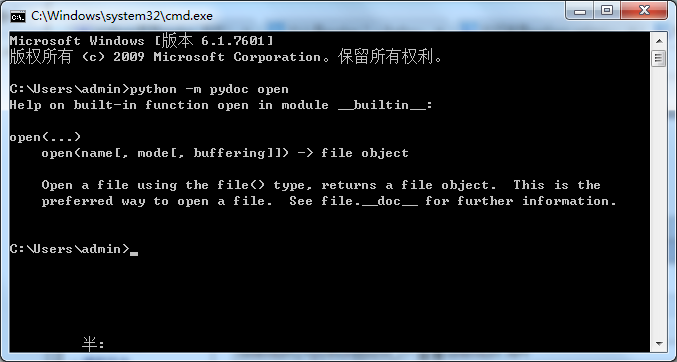
那么问题来了,这个是已经知道有这个函数,去查看它的功能,selenium里面不知道到底有多少个函数或方法,那如何查看呢?
二、启动server
1.打开cmd命令行,输入:python -m pydoc -p 6666
2.-p参数:这个表示在本机上启动服务
3.6666参数:这个是服务端口号,随意设置
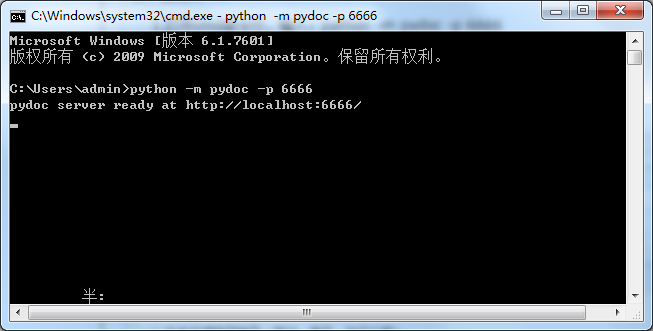
打开后,界面会出现一个地址:http://localhost:6666/,在浏览器直接打开。
三、浏览器查看文档
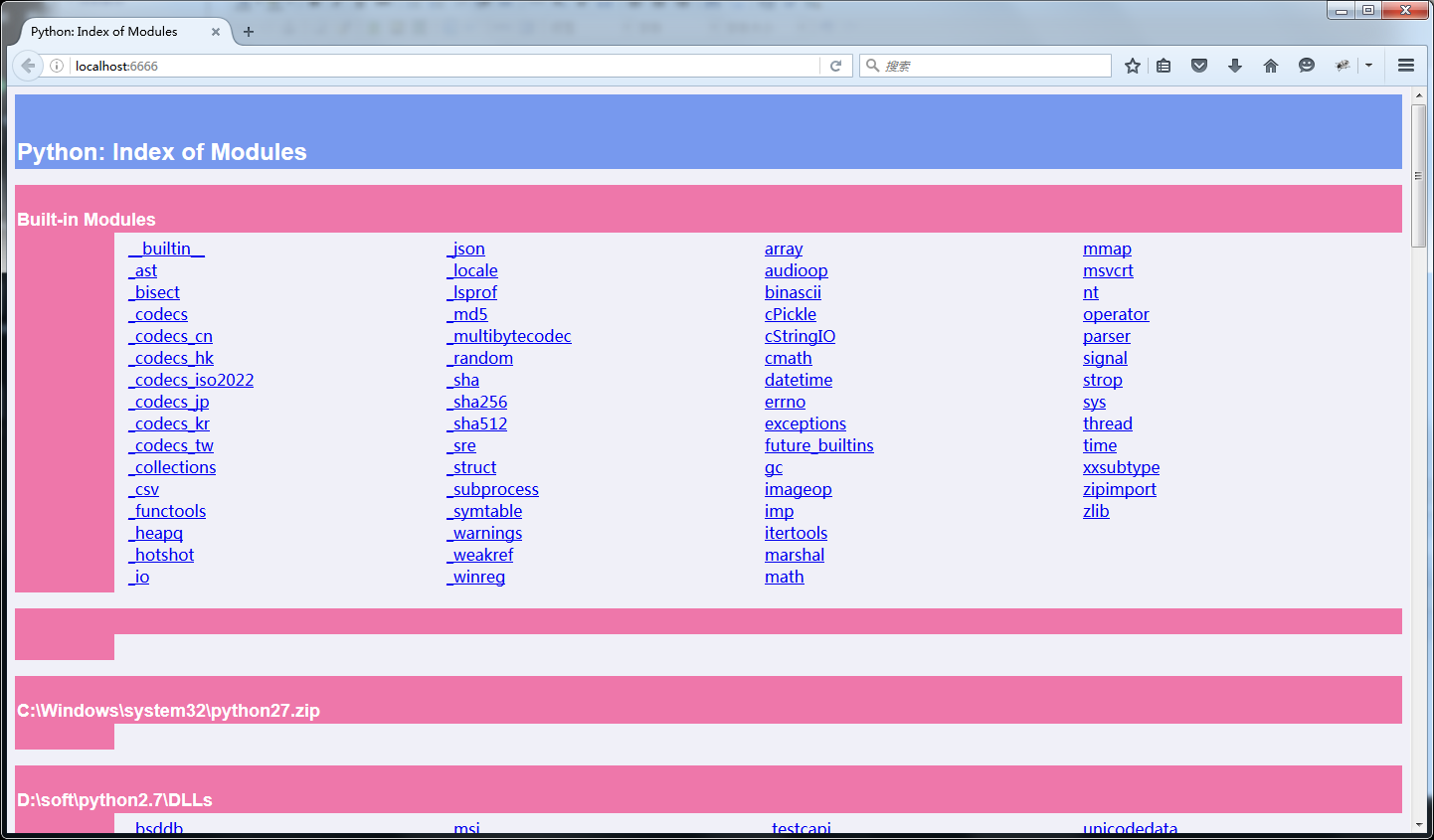
1.在浏览器输入:http://localhost:6666/
2.Built-in Moudles :这个是python自带的模块
四、webdriver API
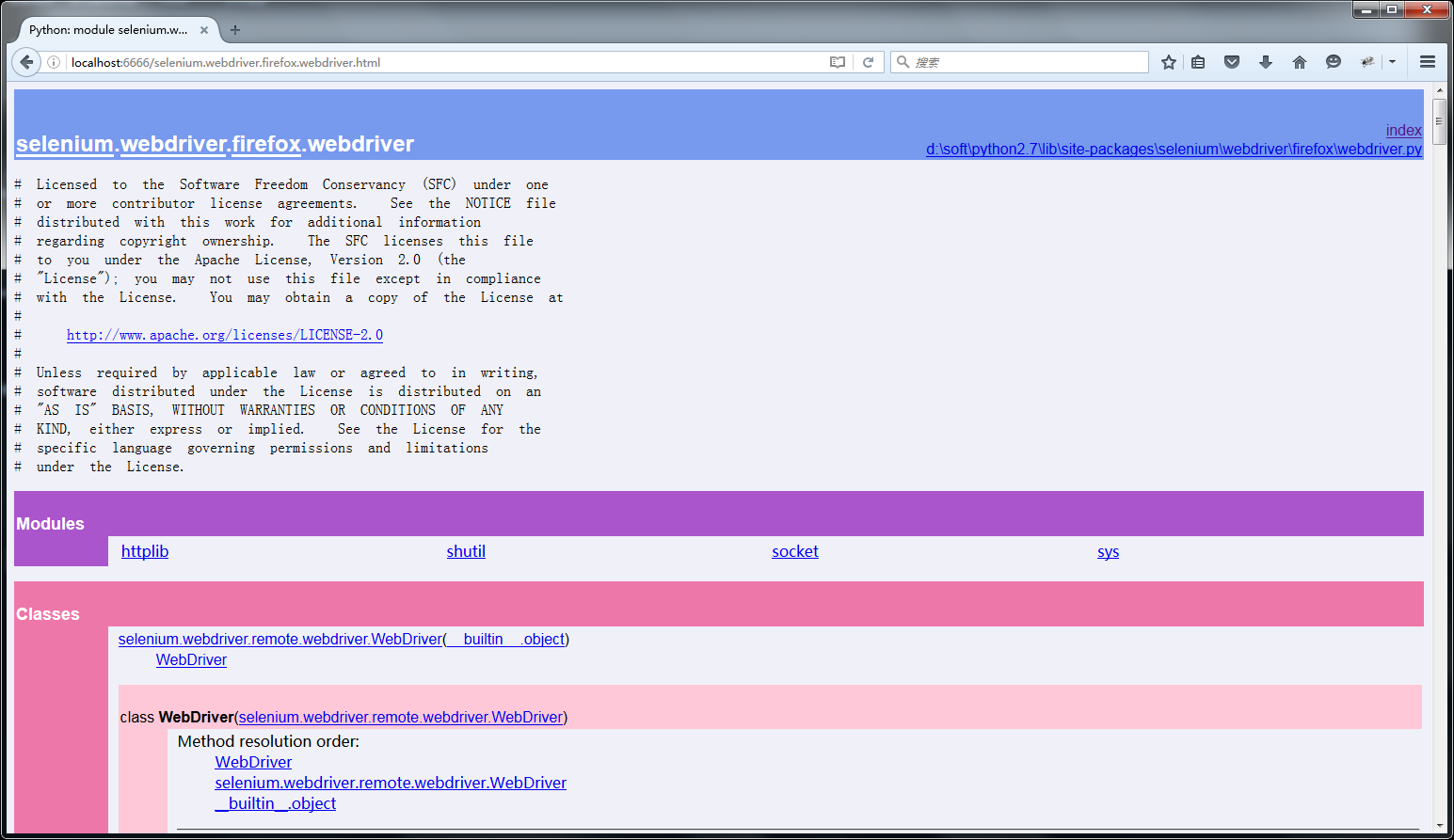
1.找到这个路径:python2.7\lib\site-packages,点开selenium
2.打开的selenium>webdriver>firefox>webdriver,最终路径:http://localhost:6666/selenium.webdriver.firefox.webdriver.html
3.最终看到的这些就是selenium的webdriver API帮助文档啦
【附录】webdriver API(带翻译)
1.找到这个路径:python2.7\lib\site-packages,点开selenium
2.打开的selenium>webdriver>firefox>webdriver,最终路径:http://localhost:6666/selenium.webdriver.firefox.webdriver.html
3.最终看到的这些就是selenium的webdriver API帮助文档啦

1.add_cookie(self,cookie_dict)

##翻译:添加cookie,cookie参数为字典数据类型

Adds a cookie to your current session.

:Args:

- cookie_dict: A dictionary object, with required keys - "name" and"value";

optional keys - "path", "domain", "secure","expiry"

Usage:

driver.add_cookie({'name' : 'foo', 'value' : 'bar'})

driver.add_cookie({'name' : 'foo', 'value' : 'bar', 'path' : '/'})

driver.add_cookie({'name' : 'foo', 'value' : 'bar', 'path' : '/','secure':True})

2.back(self)

##浏览器返回

Goes one step backward in the browser history.

:Usage:

driver.back()

3.close(self)

##关闭浏览器

Closes the current window.

:Usage:

driver.close()

4.create_web_element(self,element_id)

##给元素分配一个id

Creates a web element with the specified element_id.

5.delete_all_cookies(self)

##删除所有的cookies

Delete all cookies in the scope of the session.

:Usage:

driver.delete_all_cookies()

6.delete_cookie(self,name)

##删除指定name的cookie

Deletes a single cookie with the given name.

:Usage:

driver.delete_cookie('my_cookie')

7.execute(self,driver_command, params=None)

Sends a command to be executed by a command.CommandExecutor.

:Args:

- driver_command: The name of the command to execute as a string.

- params: A dictionary of named parameters to send with the command.

:Returns:

The command's JSON response loaded into a dictionary object.

8.execute_async_script(self,script, *args)

Asynchronously Executes JavaScript in the current window/frame.

:Args:

- script: The JavaScript to execute.

- \*args: Any applicable arguments for your JavaScript.

:Usage:

driver.execute_async_script('document.title')

9.execute_script(self,script, *args)

##执行JS

Synchronously Executes JavaScript in the current window/frame.

:Args:

- script: The JavaScript to execute.

- \*args: Any applicable arguments for your JavaScript.

:Usage:

driver.execute_script('document.title')

10.file_detector_context(*args,**kwds)

Overrides the current file detector (if necessary) in limited context.

Ensures the original file detector is set afterwards.

Example:

with webdriver.file_detector_context(UselessFileDetector):

someinput.send_keys('/etc/hosts')

:Args:

- file_detector_class - Class of the desired file detector. If the class is different

from the current file_detector, then the class is instantiated with args andkwargs

and used as a file detector during the duration of the context manager.

- args - Optional arguments that get passed to the file detector class during

instantiation.

- kwargs - Keyword arguments, passed the same way as args.

11.find_element(self,by='id', value=None)

##定位元素,参数化的方法

'Private' method used by the find_element_by_* methods.

:Usage:

Use the corresponding find_element_by_* instead of this.

:rtype: WebElement

12.find_element_by_class_name(self,name)

##通过class属性定位元素

Finds an element by class name.

:Args:

- name: The class name of the element to find.

:Usage:

driver.find_element_by_class_name('foo')

13.find_element_by_css_selector(self,css_selector)

##通过css定位元素

Finds an element by css selector.

:Args:

- css_selector: The css selector to use when finding elements.

:Usage:

driver.find_element_by_css_selector('#foo')

14.find_element_by_id(self,id_)

##通过id定位元素

Finds an element by id.

:Args:

- id\_ - The id of the element to be found.

:Usage:

driver.find_element_by_id('foo')

15.find_element_by_link_text(self,link_text)

##通过link链接定位

Finds an element by link text.

:Args:

- link_text: The text of the element to be found.

:Usage:

driver.find_element_by_link_text('Sign In')

16.find_element_by_name(self,name)

##通过name属性定位

Finds an element by name.

:Args:

- name: The name of the element to find.

:Usage:

driver.find_element_by_name('foo')

17.find_element_by_partial_link_text(self,link_text)

##通过部分link的模糊定位

Finds an element by a partial match of its link text.

:Args:

- link_text: The text of the element to partially match on.

:Usage:

driver.find_element_by_partial_link_text('Sign')

18.find_element_by_tag_name(self,name)

##通过标签定位

Finds an element by tag name.

:Args:

- name: The tag name of the element to find.

:Usage:

driver.find_element_by_tag_name('foo')

19.find_element_by_xpath(self,xpath)

##通过xpath语法定位

Finds an element by xpath.

:Args:

- xpath - The xpath locator of the element to find.

:Usage:

driver.find_element_by_xpath('//div/td[1]')

20.find_elements(self,by='id', value=None)

##定位一组元素

'Private' method used by the find_elements_by_* methods.

:Usage:

Use the corresponding find_elements_by_* instead of this.

:rtype: list of WebElement

21.find_elements_by_class_name(self,name)

Finds elements by class name.

:Args:

- name: The class name of the elements to find.

:Usage:

driver.find_elements_by_class_name('foo')

22.find_elements_by_css_selector(self,css_selector)

Finds elements by css selector.

:Args:

- css_selector: The css selector to use when finding elements.

:Usage:

driver.find_elements_by_css_selector('.foo')

23.find_elements_by_id(self,id_)

Finds multiple elements by id.

:Args:

- id\_ - The id of the elements to be found.

:Usage:

driver.find_elements_by_id('foo')

24.find_elements_by_link_text(self,text)

Finds elements by link text.

:Args:

- link_text: The text of the elements to be found.

:Usage:

driver.find_elements_by_link_text('Sign In')

25.find_elements_by_name(self,name)

Finds elements by name.

:Args:

- name: The name of the elements to find.

:Usage:

driver.find_elements_by_name('foo')

26.find_elements_by_partial_link_text(self,link_text)

Finds elements by a partial match of their link text.

:Args:

- link_text: The text of the element to partial match on.

:Usage:

driver.find_element_by_partial_link_text('Sign')

27.find_elements_by_tag_name(self,name)

Finds elements by tag name.

:Args:

- name: The tag name the use when finding elements.

:Usage:

driver.find_elements_by_tag_name('foo')

28.find_elements_by_xpath(self,xpath)

Finds multiple elements by xpath.

:Args:

- xpath - The xpath locator of the elements to be found.

:Usage:

driver.find_elements_by_xpath("//div[contains(@class, 'foo')]")

29.forward(self)

##切换到下一页面

Goes one step forward in the browser history.

:Usage:

driver.forward()

30.get(self, url)

##打开url地址

Loads a web page in the current browser session.

31.get_cookie(self,name)

##获取指定名称的cookie

Get a single cookie by name. Returns the cookie if found, None if not.

:Usage:

driver.get_cookie('my_cookie')

32.get_cookies(self)

##获取所有的cookies

Returns a set of dictionaries, corresponding to cookies visible in the currentsession.

:Usage:

driver.get_cookies()

33.get_log(self,log_type)

Gets the log for a given log type

:Args:

- log_type: type of log that which will be returned

:Usage:

driver.get_log('browser')

driver.get_log('driver')

driver.get_log('client')

driver.get_log('server')

34.get_screenshot_as_base64(self)

##截图base64格式

Gets the screenshot of the current window as a base64 encoded string

which is useful in embedded images in HTML.

:Usage:

driver.get_screenshot_as_base64()

35.get_screenshot_as_file(self,filename)

##截图保存为指定文件名称

Gets the screenshot of the current window. Returns False if there is

any IOError, else returns True. Use full paths in your filename.

:Args:

- filename: The full path you wish to save your screenshot to.

:Usage:

driver.get_screenshot_as_file('/Screenshots/foo.png')

36.get_screenshot_as_png(self)

##截图为png格式二进制流

Gets the screenshot of the current window as a binary data.

:Usage:

driver.get_screenshot_as_png()

37.get_window_position(self,windowHandle='current')

Gets the x,y position of the current window.

:Usage:

driver.get_window_position()

38.get_window_size(self,windowHandle='current')

##获取窗口的宽高

Gets the width and height of the current window.

:Usage:

driver.get_window_size()

39.implicitly_wait(self,time_to_wait)

##隐式等待

Sets a sticky timeout to implicitly wait for an element to be found,

or a command to complete. This method only needs to be called one

time per session. To set the timeout for calls to

execute_async_script, see set_script_timeout.

:Args:

- time_to_wait: Amount of time to wait (in seconds)

:Usage:

driver.implicitly_wait(30)

40.maximize_window(self)

##最大化窗口

Maximizes the current window that webdriver is using

41.refresh(self)

##刷新页面

Refreshes the current page.

:Usage:

driver.refresh()

save_screenshot = get_screenshot_as_file(self, filename)

Gets the screenshot of the current window. Returns False if there is

any IOError, else returns True. Use full paths in your filename.

:Args:

- filename: The full path you wish to save your screenshot to.

:Usage:

driver.get_screenshot_as_file('/Screenshots/foo.png')

42.set_page_load_timeout(self,time_to_wait)

##设置页面加载超时时间

Set the amount of time to wait for a page load to complete

before throwing an error.

:Args:

- time_to_wait: The amount of time to wait

:Usage:

driver.set_page_load_timeout(30)

43.set_script_timeout(self,time_to_wait)

Set the amount of time that the script should wait during an

execute_async_script call before throwing an error.

:Args:

- time_to_wait: The amount of time to wait (in seconds)

:Usage:

driver.set_script_timeout(30)

44.set_window_position(self,x, y, windowHandle='current')

Sets the x,y position of the current window. (window.moveTo)

:Args:

- x: the x-coordinate in pixels to set the window position

- y: the y-coordinate in pixels to set the window position

:Usage:

driver.set_window_position(0,0)

45.set_window_size(self,width, height, windowHandle='current')

##设置窗口大小

Sets the width and height of the current window. (window.resizeTo)

:Args:

- width: the width in pixels to set the window to

- height: the height in pixels to set the window to

:Usage:

driver.set_window_size(800,600)

46.start_client(self)

Called before starting a new session. This method may be overridden

to define custom startup behavior.

start_session(self, desired_capabilities,browser_profile=None)

Creates a new session with the desired capabilities.

:Args:

- browser_name - The name of the browser to request.

- version - Which browser version to request.

- platform - Which platform to request the browser on.

- javascript_enabled - Whether the new session should support JavaScript.

- browser_profile - A selenium.webdriver.firefox.firefox_profile.FirefoxProfileobject. Only used if Firefox is requested.

47.stop_client(self)

Called after executing a quit command. This method may be overridden

to define custom shutdown behavior.

48.switch_to_active_element(self)

##切换到活动的元素上,一般失去焦点时候会用到

Deprecated use driver.switch_to.active_element

49.switch_to_alert(self)

##切换到alert弹出框上

Deprecated use driver.switch_to.alert

50.switch_to_default_content(self)

##切换到默认的主页面上

Deprecated use driver.switch_to.default_content

51.switch_to_frame(self,frame_reference)

##切换iframe

Deprecated use driver.switch_to.frame

52.switch_to_window(self,window_name)

##切换窗口

Deprecated use driver.switch_to.window

Data descriptors inherited fromselenium.webdriver.remote.webdriver.WebDriver:

__dict__

dictionary for instance variables (if defined)

__weakref__

list of weak references to the object (if defined)

53.application_cache

Returns a ApplicationCache Object to interact with the browser app cache

54.current_url

##获取当前页面的url地址

Gets the URL of the current page.

:Usage:

driver.current_url

55.current_window_handle

##获取当前页面handle

Returns the handle of the current window.

:Usage:

driver.current_window_handle

56.desired_capabilities

returns the drivers current desired capabilities being used

57.file_detector

58.log_types

Gets a list of the available log types

:Usage:

driver.log_types

59.mobile

60.name

##获取浏览器名称

Returns the name of the underlying browser for this instance.

:Usage:

- driver.name

61.orientation

Gets the current orientation of the device

:Usage:

orientation = driver.orientation

62.page_source

##获取页面源码

Gets the source of the current page.

:Usage:

driver.page_source

63.switch_to

##切换iframe,handle等方法

64.title

##获取页面title

Returns the title of the current page.

:Usage:

driver.title

65.window_handles

##获取所有的handle

Returns the handles of all windows within the current session.

:Usage:

driver.window_handles
2.28 查看webdriver API的更多相关文章
- 查看webdriver API
pydoc是Python自带的模块,主要用于从python模块中自动生成文档 生成web页面文档: cmd->python -m pydoc -p 8888 -p:在本机上启动服务 8888:端 ...
- python+selenium自动化软件测试(第2章):WebDriver API
2.1 操作元素基本方法 前言前面已经把环境搭建好了,从这篇开始,正式学习selenium的webdriver框架.我们平常说的 selenium自动化,其实它并不是类似于QTP之类的有GUI界面的可 ...
- 查看python api
以下方法可以查看python 的api,包括selenium webdriver,requests等 1.cmd进入dos命令行窗口,输入python -m pydoc -p 2345 (2345 ...
- 查看selenium API
pydoc是Python自带的模块,主要用于从python模块中自动生成文档,这些文档可以基于文本呈现的.也可以生成WEB 页面的,还可以在服务器上以浏览器的方式呈现! 一.pydoc 1.到底什么是 ...
- Selenium2+python自动化-查看selenium API
前面都是点点滴滴的介绍selenium的一些api使用方法,那么selenium的api到底有多少呢?本篇就叫大家如何去查看selenium api,不求人,无需伸手找人要,在自己电脑就有. pydo ...
- Selenium WebDriver Api 知识梳理
之前一直没有系统的梳理WebDriver Api的相关知识,今天借此机会整理一下. 1.页面元素定位 1.1.8种常用定位方法 # id定位 driver.find_element_by_id() # ...
- 查看selenium api的方法
首先打开命令行,在doc窗口输入: python -m pydoc -p 4567简单解释一下: python -m pydoc表示打开pydoc模块,pydoc是查看python文档的首选工具:-p ...
- 转:python webdriver API 之操作测试对象
一般来说,所有有趣的操作与页面交互都将通过 WebElement 接口,包括上一节中介绍的对象定位,以及本节中需要介绍的常对象操作.webdriver 中比较常用的操作元素的方法有下面几个: cle ...
- Webdriver API (二)
(转载) 1.3 打开测试页面 对页面对测试,首先要打开被测试页面的地址(如:http://www.google.com),web driver 提供的get方法可以打开一个页面: // And no ...
随机推荐
- Oracle中序列(Sequence)详解
一 序列定义 序列(SEQUENCE)是序列号生成器,可以为表中的行自动生成序列号,产生一组等间隔的数值(类型为数字).不占用磁盘空间,占用内存. 其主要用途是生成表的主键值,可以在插入语句中引用,也 ...
- html 中一些不常见的标签
标签 描述 <b> 定义粗体文本. <big> 定义大号字. <em> 定义着重文字. <i> 定义斜体字. <small> 定义小号字. ...
- WebGoat 8安装、配置、使用教程(CentOS)
一.说明 1.1 背景说明 之前只用过dvwa,听说WebGoat也是类似的平台后,想装来试试有没有什么异同. 看了下载文件,和网上官方的.非官方的安装教程,感觉很多都对不上: 最后发现WebGoat ...
- git rebase commit 信息处理
pick:正常选中 reword:选中,并且修改提交信息: edit:选中,rebase时会暂停,允许你修改这个commit(参考这里) squash:选中,会将当前commit与上一个commit合 ...
- 把旧系统迁移到.Net Core 2.0 日记 (13) --图形验证码
参考这篇文章: http://www.cnblogs.com/yuangang/p/6000460.html using System; using System.IO; using System.D ...
- Win10系列:VC++绘制几何图形5
打开D2DBasicAnimation.h头文件,并在D2DBasicAnimation类中添加如下的代码: private: //声明成员变量point D2D1_POINT_2F ...
- learning ddr seft-refresh mode summary
- 【原创】QString 函数 replace()indexOf()、 lastindexOf()
1.替换函数 示例: QString x = "Say yes!"; QString y = "no"; x.replace(, , y); // x == & ...
- 经典DFS问题实践
八皇后问题: //八皇后问题 经典的DFS问题实践 #include<iostream> #include<cmath> #include<algorithm> # ...
- 数据库编程测试机试 QQ
创建QQ数据库 #创建数据库 CREATE DATABASE QQ #创建表名 并且添加列 DROP TABLE IF EXISTS `dbo.BaseInfo`; CREATE TABLE `stu ...