
10. Android框架和工具之 AppMsg(消息提示)
1. AppMsg
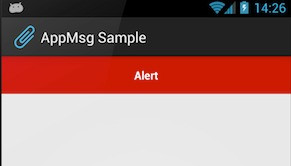
优雅的弹出类似Toast的消息提示,支持3种状态Alert(警告),Confirm(确认)以及Info(消息)。
2. AppMsg使用:
(1)AppMsg下载地址:
https://github.com/johnkil/Android-AppMsg
(2)下载成功之后,解压如下:
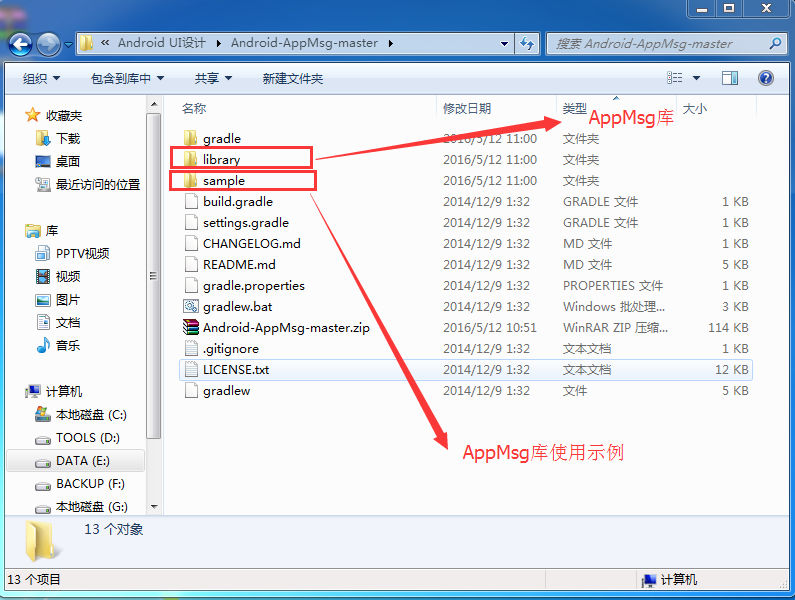
(3)导入library 和 sample 分别导入Eclipse如下:
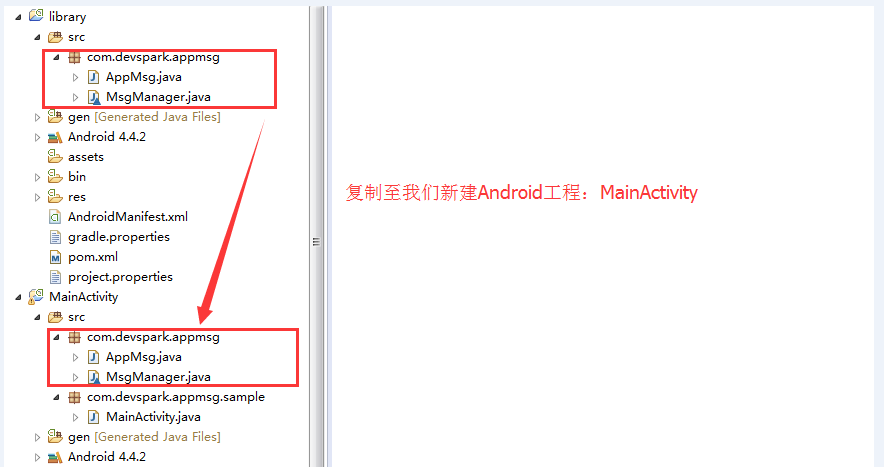
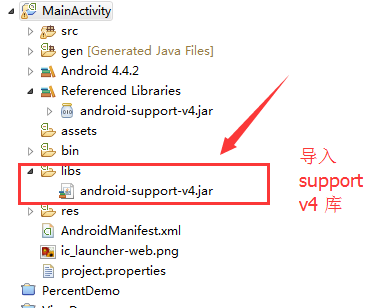
(4)首先我们来到主布局文件activity_main.xml,如下:
 <ScrollView xmlns:android="http://schemas.android.com/apk/res/android"

     xmlns:tools="http://schemas.android.com/tools"

     android:layout_width="match_parent"

     android:layout_height="match_parent"

     android:fillViewport="true">

     <LinearLayout

         android:id="@+id/animated_root"

         android:layout_width="match_parent"

         android:layout_height="match_parent"

         android:gravity="center"

         android:orientation="vertical"

         android:animateLayoutChanges="true"

         android:padding="48dp">

         <TextView

             android:layout_width="wrap_content"

             android:layout_height="wrap_content"

             android:layout_gravity="left"

             android:textAllCaps="true"

             android:text="@string/style"

             />

         <Spinner

             android:id="@+id/style_spnr"

             android:layout_width="match_parent"

             android:layout_height="wrap_content"

             android:minHeight="48dp"

             android:spinnerMode="dropdown"

             android:entries="@array/styles"

             android:prompt="@string/style"

             />

         <TextView

             android:layout_width="wrap_content"

             android:layout_height="wrap_content"

             android:layout_gravity="left"

             android:textAllCaps="true"

             android:text="@string/priority"

             />

         <Spinner

             android:id="@+id/priority_spnr"

             android:layout_width="match_parent"

             android:layout_height="wrap_content"

             android:minHeight="48dp"

             android:spinnerMode="dropdown"

             android:entries="@array/priorities"

             android:prompt="@string/priority"

             />

         <CheckBox

             android:id="@+id/bottom"

             android:layout_width="match_parent"

             android:layout_height="wrap_content"

             android:text="@string/bottom" />

         <LinearLayout

             android:id="@+id/alt_parent"

             android:visibility="gone"

             android:layout_width="match_parent"

             android:layout_height="wrap_content"

             android:minHeight="48dp"

             android:orientation="vertical" />

         <CheckBox

             android:id="@+id/parent_chk"

             android:layout_width="match_parent"

             android:layout_height="wrap_content"

             android:text="@string/custom_parent" />

         <EditText

             android:id="@+id/provided_txt"

             android:layout_width="match_parent"

             android:layout_height="wrap_content"

             android:hint="@string/your_message_here"

             />

         <Button

             android:id="@+id/show"

             android:layout_width="match_parent"

             android:layout_height="wrap_content"

             android:onClick="buttonClick"

             android:text="@string/show_appmsg" />

         <Button

             android:id="@+id/cancel_all"

             android:layout_width="match_parent"

             android:layout_height="wrap_content"

             android:onClick="buttonClick"

             android:text="@string/cancel_all" />

     </LinearLayout>

 </ScrollView>
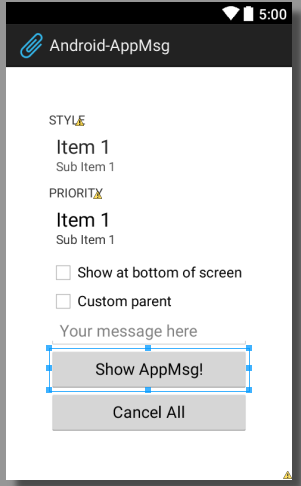
布局效果如下:
前面提到可以显示Alert、Confirm、Info三种消息样式,其实还可以显示自定义的消息样式,这里我们自定义一个消息样式为sticky.xml,如下:
 <?xml version="1.0" encoding="utf-8"?>

 <RelativeLayout xmlns:android="http://schemas.android.com/apk/res/android"

                 android:layout_width="match_parent"

                 android:layout_height="wrap_content"

                 android:minHeight="48dp">

     <ImageButton

             android:id="@+id/remove_btn"

             android:layout_width="wrap_content"

             android:layout_height="wrap_content"

             android:layout_alignParentRight="true"

             android:layout_centerVertical="true"

             android:minWidth="48dp"

             android:minHeight="48dp"

             android:src="@drawable/ic_action_cancel_inset"

             style="@style/SelectableItem"/>

     <TextView

             android:id="@android:id/message"

             android:layout_width="match_parent"

             android:layout_height="wrap_content"

             android:layout_toLeftOf="@id/remove_btn"

             android:layout_centerVertical="true"

             android:gravity="center"

             android:padding="8dp"

             android:textColor="#ff222222"

             android:textIsSelectable="false"

             android:textSize="14sp"

             android:textStyle="bold"/>

 </RelativeLayout>
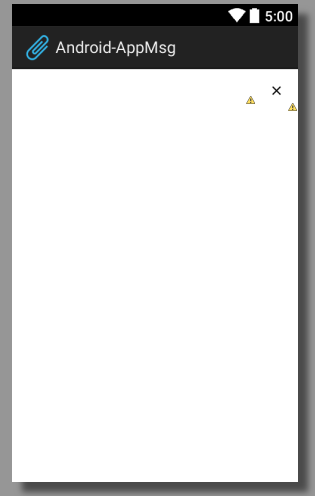
布局效果图,如下:
(5)在MainActivity工程之中找到主Activity,修改为extends Activity,如下:
 /*

  * Copyright 2012 Evgeny Shishkin

  *

  * Licensed under the Apache License, Version 2.0 (the "License");

  * you may not use this file except in compliance with the License.

  * You may obtain a copy of the License at

  *

  *      http://www.apache.org/licenses/LICENSE-2.0

  *

  * Unless required by applicable law or agreed to in writing, software

  * distributed under the License is distributed on an "AS IS" BASIS,

  * WITHOUT WARRANTIES OR CONDITIONS OF ANY KIND, either express or implied.

  * See the License for the specific language governing permissions and

  * limitations under the License.

  */

 package com.devspark.appmsg.sample;

 import android.app.Activity;

 import android.animation.LayoutTransition;

 import android.annotation.TargetApi;

 import android.os.Bundle;

 import android.view.View;

 import android.view.ViewGroup;

 import android.widget.CheckBox;

 import android.widget.CompoundButton;

 import android.widget.EditText;

 import android.widget.Spinner;

 import static android.os.Build.VERSION.SDK_INT;

 import static android.os.Build.VERSION_CODES.ICE_CREAM_SANDWICH;

 import static android.os.Build.VERSION_CODES.JELLY_BEAN;

 import static android.text.TextUtils.isEmpty;

 import static android.view.Gravity.BOTTOM;

 import static android.view.View.GONE;

 import static android.view.View.VISIBLE;

 import com.devspark.appmsg.AppMsg;

 /**

  * Sample of AppMsg library.

  *

  * @author hebao

  */

 public class  MainActivity  extends Activity {

     private static final int NORMAL_POSITION = 1;

     private static final int INFO_POSITION = 2;

     private int mMsgCount;

     private Spinner mStyle;

     private Spinner mPriority;

     private EditText mProvidedMsg;

     private CheckBox mBottom;

     private CheckBox mParent;

     private ViewGroup mAltParent;

     public void onCreate(Bundle savedInstanceState) {

         super.onCreate(savedInstanceState);

         setContentView(R.layout.activity_main);

         mProvidedMsg = (EditText) findViewById(R.id.provided_txt);

         mStyle = (Spinner) findViewById(R.id.style_spnr);

         mStyle.setSelection(INFO_POSITION);

         mPriority = (Spinner) findViewById(R.id.priority_spnr);

         mPriority.setSelection(NORMAL_POSITION);

         mBottom = (CheckBox) findViewById(R.id.bottom);

         mParent = (CheckBox) findViewById(R.id.parent_chk);

         mAltParent = (ViewGroup) findViewById(R.id.alt_parent);

         mParent.setOnCheckedChangeListener(new CompoundButton.OnCheckedChangeListener() {

             @Override

             public void onCheckedChanged(CompoundButton buttonView, boolean isChecked) {

                 mAltParent.setVisibility(isChecked ? VISIBLE : GONE);

                 mBottom.setVisibility(isChecked ? GONE : VISIBLE);

             }

         });

         if (SDK_INT >= JELLY_BEAN) {

             enableChangingTransition();

         }

     }

     /**

      * 指使用该注解的方法适用于系统版本Android 4.1

      * 注:Android 4.1的版本代号是Jelly Bean

      */

     @TargetApi(JELLY_BEAN)

     private void enableChangingTransition() {

         ViewGroup animatedRoot = (ViewGroup) findViewById(R.id.animated_root);

         animatedRoot.getLayoutTransition().enableTransitionType(LayoutTransition.CHANGING);

     }

     /**

      * Button onClick listener.

      *

      * @param v

      */

     public void buttonClick(View v) {

         switch (v.getId()) {

             case R.id.show:

                 showAppMsg();

                 break;

             case R.id.cancel_all:

                 AppMsg.cancelAll(this);

                 break;

             default:

                 return;

         }

     }

     /**

      * 显示App Message

      */

     private void showAppMsg() {

         mMsgCount++;

         final int styleSelected = mStyle.getSelectedItemPosition();

         final int priority = positionToPriority(mPriority.getSelectedItemPosition());

         final CharSequence providedMsg = mProvidedMsg.getText();

         final CharSequence msg = isEmpty(providedMsg)

                 ? new StringBuilder().append(mStyle.getSelectedItem())

                 .append(" ").append(mPriority.getSelectedItem())

                 .append(" msg#").append(mMsgCount).toString()

                 : providedMsg;

         final AppMsg.Style style;

         boolean customAnimations = false;

         AppMsg provided = null;

         switch (styleSelected) {

             case 0:

                 style = AppMsg.STYLE_ALERT;

                 break;

             case 1:

                 style = AppMsg.STYLE_CONFIRM;

                 break;

             case 3:

                 style = new AppMsg.Style(AppMsg.LENGTH_SHORT, R.color.custom);

                 customAnimations = true;

                 break;

             case 4:

                 style = new AppMsg.Style(AppMsg.LENGTH_STICKY, R.color.sticky);

                 provided = AppMsg.makeText(this, msg, style, R.layout.sticky);

                 provided.getView()

                         .findViewById(R.id.remove_btn)

                         .setOnClickListener(new CancelAppMsg(provided));

                 break;

             default:

                 style = AppMsg.STYLE_INFO;

                 break;

         }

         // create {@link AppMsg} with specify type

         AppMsg appMsg = provided != null ? provided : AppMsg.makeText(this, msg, style);

         appMsg.setPriority(priority);

         if (mParent.isChecked()) {

             appMsg.setParent(mAltParent);

         } else {

             if (mBottom.isChecked()) {

                 appMsg.setLayoutGravity(BOTTOM);

             }

         }

         if (customAnimations) {

             appMsg.setAnimation(android.R.anim.slide_in_left, android.R.anim.slide_out_right);

         }

         appMsg.show();

     }

     private static int positionToPriority(int selectedItemPosition) {

         switch (selectedItemPosition) {

             case 0:

                 return AppMsg.PRIORITY_HIGH;

             case 2:

                 return AppMsg.PRIORITY_LOW;

             default:

                 return AppMsg.PRIORITY_NORMAL;

         }

     }

     @Override

     protected void onPause() {

         super.onPause();

         // This is optional for 14+,

         // also you may want to call it at your later convenience, e.g. onDestroy

         if (SDK_INT < ICE_CREAM_SANDWICH) {

             AppMsg.cancelAll(this);

         }

     }

     static class CancelAppMsg implements View.OnClickListener {

         private final AppMsg mAppMsg;

         CancelAppMsg(AppMsg appMsg) {

             mAppMsg = appMsg;

         }

         @Override

         public void onClick(View v) {

             mAppMsg.cancel();

         }

     }

 }
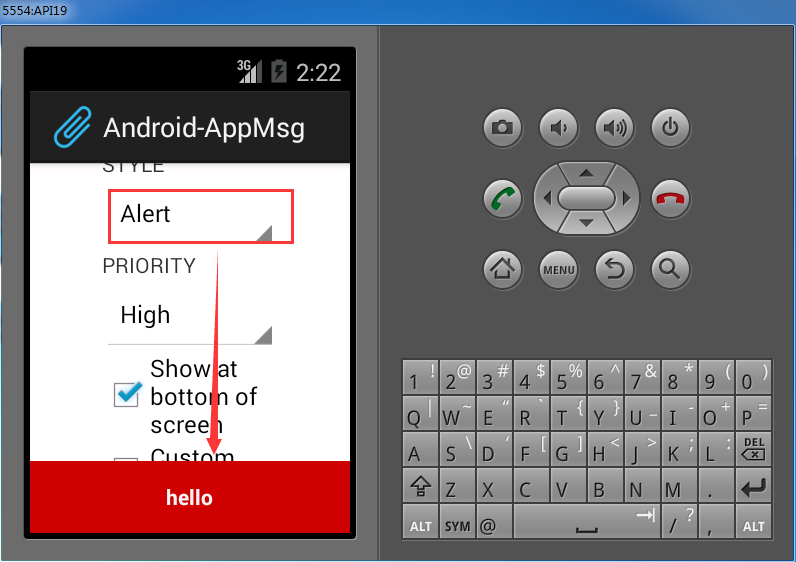
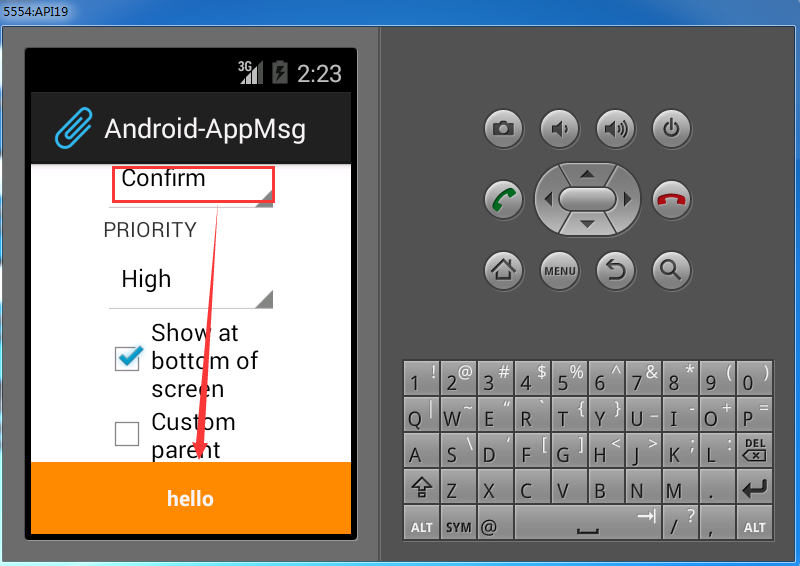
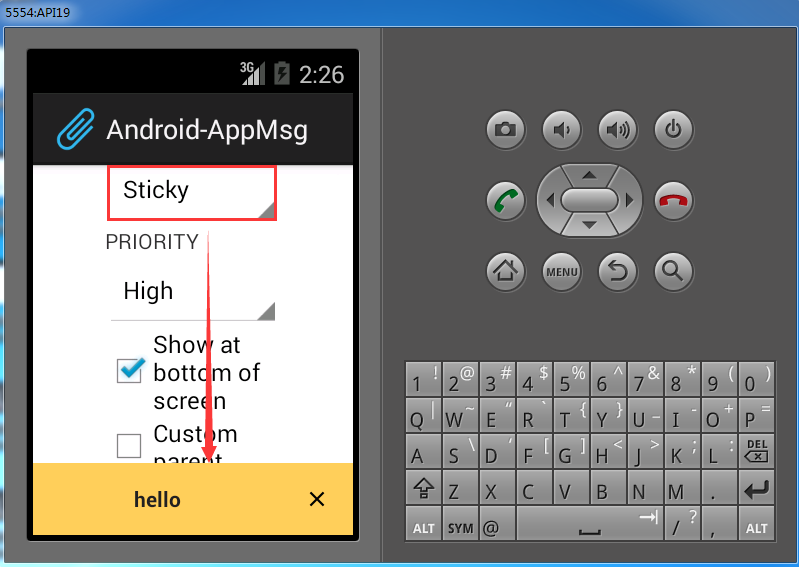
部署到模拟器上,如下:

10. Android框架和工具之 AppMsg(消息提示)的更多相关文章
- 7. Android框架和工具之 android-percent-support-lib-sample(百分比支持)
1. android-percent-support-lib-sample介绍: 谷歌最新的百分比布局库的示例项目.其实LinearLayout的layout_weight也能实现百分比效果,不过这个 ...
- Android应用开发学习之Toast消息提示框
作者:刘昊昱 博客:http://blog.csdn.net/liuhaoyutz 本文我们来看Toast消息提示框的用法.使用Toast消息提示框一般有三个步骤: 1. 创建一个Toast对象.可 ...
- Android学习笔记通过Toast显示消息提示框
显示消息提示框的步骤 这个很简单我就直接上代码了: Button show = (Button)findViewById(R.id.show); show.setOnClickListener(new ...
- 4. Android框架和工具之 android-async-http
1. android-async-http 简介 主要有以下功能: (1)发送异步http请求,在匿名callback对象中处理response信息: (2)http请求发生在UI(主)线程之外的 ...
- 3. Android框架和工具之 xUtils(DbUtils )
1. xUtils简介 xUtils 包含了很多实用的android工具.xUtils 最初源于Afinal框架,进行了大量重构,使得xUtils支持大文件上传,更全面的http请求协议支持(10种谓 ...
- 3. Android框架和工具之 xUtils(HttpUtils)
1. HttpUtils 作用: 支持同步,异步方式的请求: 支持大文件上传,上传大文件不会oom: 支持GET,POST,PUT,MOVE,COPY,DELETE,HEAD请求: 下载支持301/3 ...
- 13. Android框架和工具之 Android Drawable Factory
1. AndroidDrawableFactory 一个生成Android应用所需尺寸图片的工具. 托管在Github之中: https://github.com/tizionario/Android ...
- 6. Android框架和工具之 JSON解析
Android进阶笔记17:3种JSON解析工具(org.json.fastjson.gson)
- 3. Android框架和工具之 xUtils(BitmapUtils)
1. BitmapUtils 作用: 加载bitmap的时候无需考虑bitmap加载过程中出现的oom和android容器快速滑动时候出现的图片错位等现象: 支持加载网络图片和本地图片: 内存管理使用 ...
随机推荐
- HDU 4614 Vases and Flowers (2013多校2 1004 线段树)
Vases and Flowers Time Limit: 4000/2000 MS (Java/Others) Memory Limit: 65535/32768 K (Java/Others ...
- Android 显示/隐藏 应用图标
PackageManager packageManager = getPackageManager(); ComponentName componentName = new ComponentName ...
- UI:页面传值、单例模式传值、属性传值、NSUserDefaults 数据持久化
<单页面传值> 页面传值,从前向后传值,使用属性,在后一个页面定义属性,在前一个页面,用点语法,获得值,在适当的时候传值 页面传值,从后向前面传值,使用协议和代理,在后一个页面指定协议,定 ...
- 2.里氏替换原则(Liskov Substitution Principle)
1.定义 里氏替换原则的定义有两种,据说是由麻省理工的一位姓里的女士所提出,因此以其名进行命名. 定义1:如果对一个类型为T1的对象o1,都有类型为T2的对象o2,使得以T1所定义的程序P中在o1全都 ...
- windows的iis做后门,隐藏访问,无日志<转>
windows下的iis5/iis6做后门,隐藏访问,不留访问记录或者不留日志 好不容易攻下一台Windows2000/2003 IIS服务器,你一定会想,怎样才能长期占有这个“肉鸡”呢?聪明的你肯定 ...
- Windows性能计数器2
判断瓶颈 Ø 判断应用程序的问题 如果系统由于应用程序代码效率低下或者系统结构设计有缺陷而导致大量的上下文切换(context switches/sec显示的上下文切换次数太高)那么就会占用大量的系统 ...
- 【M11】禁止异常流出析构方法之外
1.在两种情况下,调用析构方法:a.在正常状态下被销毁,栈上的对象离开作用域或者堆上的对象执行delete:b.抛出异常,堆栈回滚,栈上已经构造好的对象,也就是抛出异常之前的代码,自动调用析构方法.注 ...
- 容器的end()方法
容器的end()方法,返回一个迭代器,需要注意:这个迭代器不指向实际的元素,而是表示末端元素的下一个元素,这个迭代器起一个哨兵的作用,表示已经处理完所有的元素. 因此,在查找的时候,返回的迭代器,不等 ...
- Codeforces Round #312 (Div. 2) C. Amr and Chemistry 暴力
C. Amr and Chemistry Time Limit: 20 Sec Memory Limit: 256 MB 题目连接 http://codeforces.com/contest/558/ ...
- VK Cup 2012 Qualification Round 1 C. Cd and pwd commands 模拟
C. Cd and pwd commands Time Limit: 20 Sec Memory Limit: 256 MB 题目连接 http://codeforces.com/problemset ...