
【开源】微信小程序、小游戏以及 Web 通用 Canvas 渲染引擎 - Cax
Cax
小程序、小游戏以及 Web 通用 Canvas 渲染引擎
- Github → https://github.com/dntzhang/cax
- 点我看看 DEMO
- 小程序 DEMO 正在审核中敬请期待
- 小游戏 DEMO 正在审核中敬请期待
特性
- Learn Once, Write Anywhere(小程序、小游戏、PC Web、Mobile Web)
- 支持小程序、小游戏以及 Web 浏览器渲染
- 小程序、小游戏和 Web 拥有相同简洁轻巧的 API
- 高性能的渲染架构
- 超轻量级的代码体积
- 松耦合的渲染架构
- 支持 Canvas 元素管理
- 支持 Canvas 元素事件体系
- 图灵完毕的 group 嵌套体系
- 内置 tween 运动能力
- 内置文本、位图、序列帧、绘图对象和多种矢量绘制对象
一分钟入门小程序 cax 使用
到 GitHub 下载 cax 自定义组件,然后小程序引入 cax 自定义组件:
└── cax

    ├── cax.js

    ├── cax.json

    ├── cax.wxml

    ├── cax.wxss

    └── index.js
在 page 或者 component 里声明依赖:
{

  "usingComponents": {

    "cax":"../cax/cax"

  }

}
在的 wxml 里引入 cax 标签:
<cax id="myCanvas"></cax>
在 js 里渲染逻辑:
import cax from '../cax/index'

Page({

  onLoad: function () {

    //比 web 里使用 cax 多传递 this,this 代表 Page 或 Component 的实例

    const stage = new cax.Stage(200, 200, 'myCanvas', this)

    const rect = new cax.Rect(100, 100, {

      fillStyle: 'black'

    })

    rect.originX = 50

    rect.originY = 50

    rect.x = 100

    rect.y = 100

    rect.rotation = 30

    rect.on('tap', () => {

      console.log('tap')

    })

    stage.add(rect)

    stage.update()

  }

})
效果如下所示:
除了 tap 事件,也可以帮 rect 绑定其他触摸事件:
rect.on('touchstart', () => {

  console.log('touchstart')

})

rect.on('touchmove', () => {

  console.log('touchmove')

})

rect.on('touchend', () => {

  console.log('touchend')

})
一分钟入门小游戏 cax 使用
到 GitHub 下载 cax 小游戏示例,目录结构和运行效果如下:
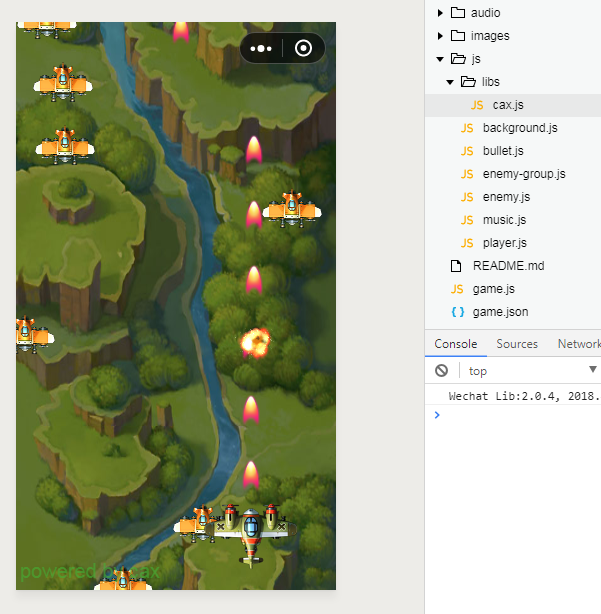
const stage = new cax.Stage()
和小程序以及 Web 不同的是,小游戏创建 Stage 不需要传任何参数。
一分钟入门 Web cax 使用
通过 npm 或者 CDN 获取:
npm i cax
import cax from 'cax'

const stage = new cax.Stage(200, 200, '#renderTo')

const rect = new cax.Rect(100, 100, {

  fillStyle: 'black'

})

stage.add(rect)

stage.update()
除了 Stage 构造函数比小程序第四个参数 this,其他使用方式都一样。
内置对象
Group
用于分组, group 也可以嵌套 group,父容器的属性会叠加在子属性上, 比如:
- group 的 x 是 100, group 里的 bitmap 的 x 是 200, 最后 bitmap 渲染到 stage 上的 x 是 300
- group 的 alpha 是 0.7, group 里的 bitmap 的 alpha 是 0.6, 最后 bitmap 渲染到 stage 上的 alpha 是 0.42
const group = new cax.Group()

const rect = new cax.Rect(100, 100 {

  fillStyle: 'black'

})

group.add(rect)

stage.add(group)

stage.update()
group 拥有常用的 add 和 remove 方法进行元素的增加和删除。先 add 的会先绘制,所有后 add 的会盖在先 add 的上面。
Bitmap
const bitmap = new cax.Bitmap(img)

stage.add(bitmap)

stage.update()
如果只传 url 而不是 Image 对象的实例,需要这样:
const bitmap = new cax.Bitmap('./wepay.png', ()=>{

  stage.update()

})

stage.add(bitmap)
这里需要注意小程序需要配置 downloadFile 需要配置合法域名才能正常加载到图片。
可以设置图片裁剪显示区域,和其他 transform 属性:
bitmap.rect = [0, 0, 170, 140]

bitmap.x = 200
Sprite
序列帧动画组件,可以把任意图片的任意区域组合成一串动画。
const sprite = new cax.Sprite({

    framerate: 7,

    imgs: ['./mario-sheet.png'],

    frames: [

        // x, y, width, height, originX, originY ,imageIndex

        [0, 0, 32, 32],

        [32 * 1, 0, 32, 32],

        [32 * 2, 0, 32, 32],

        [32 * 3, 0, 32, 32],

        [32 * 4, 0, 32, 32],

        [32 * 5, 0, 32, 32],

        [32 * 6, 0, 32, 32],

        [32 * 7, 0, 32, 32],

        [32 * 8, 0, 32, 32],

        [32 * 9, 0, 32, 32],

        [32 * 10, 0, 32, 32],

        [32 * 11, 0, 32, 32],

        [32 * 12, 0, 32, 32],

        [32 * 13, 0, 32, 32],

        [32 * 14, 0, 32, 32]

    ],

    animations: {

        walk: {

            frames: [0, 1]

        },

        happy: {

            frames: [5, 6, 7, 8, 9]

        },

        win: {

            frames: [12]

        }

    },

    playOnce: false,

    currentAnimation: "walk",

    animationEnd: function () {

    }

});
Text
文本对象
const text = new cax.Text('Hello World', {

  font: '20px Arial',

  color: '#ff7700',

  baseline: 'top'

})
Graphics
绘图对象,用于使用基本的连缀方式的 Canvas 指令绘制图形。
const graphics = new cax.Graphics()

graphics

    .beginPath()

    .arc(0, 0, 10, 0, Math.PI * 2)

    .closePath()

    .fillStyle('#f4862c')

    .fill()

    .strokeStyle('black')

    .stroke()

graphics.x = 100

graphics.y = 200

stage.add(graphics)
Shape
与 Graphics 不同的是, Shape 一般拥有有限的宽高,所以可以使用离屏 Canvas 进行缓存。下面这些属于 Shape。
Rect
const rect = new cax.Rect(200, 100, {

  fillStyle: 'black'

})
Circel
const circel = new cax.Circel(10)
Ellipse
const ellipse = new cax.Ellipse(10)
注意:从技术上小游戏和 Web 可以离屏 Canvas,小程序不行,因为小程序不支持动态创建离屏 Canvas。
Element
Element 是多种元素的组合,如 Bitmap、Group、 Text、 Shape 等混合起来的图像。
Button
const button = new cax.Button({

  width: 100,

  height: 40,

  text: "Click Me!"

})
属性
Transform
| 属性名 | 描述 |
|---|---|
| x | 水平偏移 |
| y | 竖直偏移 |
| scaleX | 水平缩放 |
| scaleY | 竖直缩放 |
| rotation | 旋转 |
| skewX | 歪斜 X |
| skewY | 歪斜 Y |
| originX | 旋转基点 X |
| originY | 旋转基点 Y |
Alpha
| 属性名 | 描述 |
|---|---|
| alpha | 元素的透明度 |
注意这里父子都设置了 alpha 会进行乘法叠加。
compositeOperation
| 属性名 | 描述 |
|---|---|
| compositeOperation | 源图像绘制到目标图像上的叠加模式 |
注意这里如果自身没有定义 compositeOperation 会进行向上查找,找到最近的定义了 compositeOperation 的父容器作为自己的 compositeOperation。
Cursor
| 属性名 | 描述 |
|---|---|
| cursor | 鼠标移上去的形状 |
事件
小程序事件
| 事件名 | 描述 |
|---|---|
| tap | 手指触摸后马上离开 |
| touchstart | 手指触摸动作开始 |
| touchmove | 手指触摸后移动 |
| touchend | 手指触摸动作结束 |
| drag | 拖拽 |
Web 事件
| 事件名 | 描述 |
|---|---|
| click | 元素上发生点击时触发 |
| mousedown | 当元素上按下鼠标按钮时触发 |
| mousemove | 当鼠标指针移动到元素上时触发 |
| mouseup | 当在元素上释放鼠标按钮时触发 |
| mouseover | 当鼠标指针移动到元素上时触发 |
| mouseout | 当鼠标指针移出元素时触发 |
| tap | 手指触摸后马上离开 |
| touchstart | 手指触摸动作开始 |
| touchmove | 手指触摸后移动 |
| touchend | 手指触摸动作结束 |
| drag | 拖拽 |
自定义对象
自定义 Shape
自定义 Shape 继承自 cax.Shape:
class Sector extends cax.Shape {

  constructor (r, from, to, option) {

    super()

    this.option = option || {}

    this.r = r

    this.from = from

    this.to = to

  }

  draw () {

    this.beginPath()

      .moveTo(0, 0)

      .arc(0, 0, this.r, this.from, this.to)

      .closePath()

      .fillStyle(this.option.fillStyle)

      .fill()

      .strokeStyle(this.option.strokeStyle)

      .lineWidth(this.option.lineWidth)

      .stroke()

  }

}
使用 Shape:
const sector = new Sector(10, 0, Math.PI/6, {

  fillStyle: 'red'

  lineWidth: 2

})

stage.add(sector)

stage.update()
自定义 Element
自定义 Element 继承自 cax.Group:
class Button extends cax.Group {

  constructor (option) {

    super()

    this.width = option.width

    this.roundedRect = new  cax.RoundedRect(option.width, option.height, option.r)

    this.text = new cax.Text(option.text, {

      font: option.font,

      color: option.color

    })

    this.text.x = option.width / 2 - this.text.getWidth() / 2 * this.text.scaleX

    this.text.y = option.height / 2 - 10 + 5 * this.text.scaleY

    this.add(this.roundedRect, this.text)

  }

}

export default Button
使用:
const button = new cax.Button({

  width: 100,

  height: 40,

  text: "Click Me!"

})
一般情况下,稍微复杂组合体都建议使用继承自 Group,这样利于扩展也方便管理自身内部的元件。
可以看到小游戏的 DEMO 里的 Player、Bullet、Enemy、Background 全都是继承自 Group。
License
MIT
【开源】微信小程序、小游戏以及 Web 通用 Canvas 渲染引擎 - Cax的更多相关文章
- 微信小程序(小游戏)后台开发
小程序开放接口功能,目的是方便小程序接入第三方服务器,比如,商城类小程序,小游戏,需要保存订单数据,玩家信息等.那就需要服务器和数据库, 开发者对于各方关系必须要理清,那就是小程序,用户,开发者服务器 ...
- 微信小程序把玩(四十一)canvas API
原文:微信小程序把玩(四十一)canvas API 绘图是每个移动应用必备的技术,基本上和Android,IOS,等移动开发都是相同的,创建个上下文,给你个画布再上画,官网给的小例子都比较全了自己去看 ...
- 微信小程序小Demo
微信小程序小Demo 调用API,轮播图,排行榜,底部BabTar的使用... board // board/board.js Page({ /** * 页面的初始数据 */ // 可以是网络路径图片 ...
- 微信小程序--骰子游戏
寒假老师让制作一个小程序,于是开始学习如何制作微信小程序. 第一步,拥有一个小程序帐号, 在这个小程序管理平台,你可以管理你的小程序的权限,查看数据报表,发布小程序等操作. 我用的是微信web开发工具 ...
- 微信小程序|小游戏
[官]小游戏开发 https://developers.weixin.qq.com/minigame/dev/index.html 官网 https://mp.weixin.qq.com 做了4个微信 ...
- 【微信小程序】实现类似WEB端【返回顶部】功能
1.原理:利用小程序自带的<scroll-view>组件,该组件的bindScroll和scroll-top方法.属性进行联合操作 2.效果图: 3.wxml: <scroll-vi ...
- 微信小程序教学第四章第二节(含视频):小程序中级实战教程:详情-视图渲染
§ 详情 - 数据渲染 本文配套视频地址: https://v.qq.com/x/page/x055550lrvd.html 开始前请把 ch4-2 分支中的 code/ 目录导入微信开发工具 这一节 ...
- 【零售小程序】—— webview嵌套web端项目(原生开发支付功能)
index → index.wxml 套webwiew // url 活动url bindmessage 接收信息 <web-view src='{{url}}' bindmessage='m ...
- 微信小程序小技巧系列《二》show内容展示,上传文件编码问题
作者:gou-tian 来自:github show内容展示 尝试用微信小程序的template组件实现.同时,尝试页面间转跳时传参,在目标页面引入模板文件实现 写的更少,做的更多 篇幅有限详细代码此 ...
随机推荐
- 关于ARM CM3的启动文件分析
下面以ARM Cortex_M3裸核的启动代码为例,做一下简单的分析.首先,在启动文件中完成了三项工作: 1. 堆栈以及堆的初始化 2. 定位中断向量表 3. 调用Reset Handler. ...
- Could not update the distribution database subscription table. The subscription status could not be changed.
在一个测试服务器删除发布(Publication)时遇到下面错误,具体如下所示 标题: Microsoft SQL Server Management Studio --------------- ...
- java质数判断
import java.util.Scanner; /** * Created by Admin on 2017/3/25. */ public class test01 { public stati ...
- mssql sqlserver 下文分享一种新颖的字符串截取方法
原文地址:http://www.maomao365.com/?p=7307 摘要: 以前分割字符串时,都使用类似split函数的方式处理,下文分享一种对有规律的字符串的分隔方式, 即:1. ...
- SSM框架—环境搭建(MyEclipse+Tomcat+MAVEN+SVN)
1.JDK的安装 首先下载JDK,这个从sun公司官网可以下载,根据自己的系统选择64位还是32位,安装过程就是next一路到底.安装完成之后当然要配置环境变量了. 1.1新建变量名:JAVA_HOM ...
- memory 监控 mysql vs percona vs maria
oracle mysql 5.7 在performance_schema 通过以下表展现内存信息.这些表实际engine为performance_schema.这些表数据实际是以数组的形式存储在内存中 ...
- c/c++线性循环队列
线性循环队列 队列是先进先出,和栈相反. 线性循环队列,牺牲一个空间,实现循环.比如空间大小为4,牺牲一个空间,所以最多放3个元素. 假设front指向0位置,tail指向3位置 1 2 3 空 出队 ...
- ini (ini-parser)配置文件解析 for donet
介绍 此ini解析库适用于mono(unity3d),donet,大小在30kb左右. 开源免费:https://github.com/rickyah/ini-parser 使用示例 engine_c ...
- python数据类型分类以及运算类型
一.python数据类型 目录: 1.数字(整数.小数) 2.字符串(单引号.双引号.三引号) 3.元组 #元素确定之后不能修改 4.列表 #元素可以修改 5.集合 #不讲顺序,得到的结果没有重复元 ...
- python根据关键字以及id值爬取图虫网上高质量大图
import requests import re import os import time print("ready....") def downPic(dirs, keywo ...