
Automate Screen or Button Taps via Tasker : Simulating keypress events
When using Tasker, sometimes we want to do some automation on screen e.g. screen or button taps.
We can use actions in "Input" category(especially "Dpad" action and "type" Action) to do some simple click/tap.
An example: http://tasker.wikidot.com/auto-usb-mass-storage
Auto USB mass storage when connected

With Tasker, use a trick to automatically enable USB mass storage when USB cable plugged.


Require:

- Android 2.3+

- USB debbuging off

- In fact, the button “Turn on USB storage” must show up when USB cable plugged.

Download this file

Otherwise, you can create the profile yourself with the following steps:

 Click New and select State

Select Hardware Action then USB plugged

 Click + in the bottom left to add an action

Select category Task and Wait

Set  ms and press Done

 Click + in the bottom left to add an action

Select category Input and DPad

Set Button Down and press done

 Click + in the bottom left to add an action

Select category Input and DPad

Set Button Press and press done

 Click + in the bottom left to add an action

Select category Task and Wait

Set  ms and press Done

 Click + in the bottom left to add an action

Select category Input and DPad

Set Button Right and press done

 Click + in the bottom left to add an action

Select category Input and DPad

Set Button Press only If %WIN ~ Turn off USB storage < replace it with your langage

Explanation:

Tasker simulates a tap on the button “Turn on USB storage” when it appears.
Use some type of Script to do this. Yes, script may be the best solution for automation.
2.1 Monkey Script
In order to get the correct coordinates, on your device go to Settings -> dev options and turn on "show pointer location" then you can go into your app and tap on the correct location and it will display the x/y coordinates of the tap which you can input on that script.
Some docs about the monkey tool>>>.
2.2 "Input" command in shell
With "input" command in shell, we can simulate keypress event on Android. The keycode sucks!
More info about "Input" command, here.
Android shell support sendevent and getevent command to grab and generate tap/swipe events on screen.
So we can make a way to do this. The method "listens" to your input actions (screen taps, button presses, etc)
and turns them into a script you can use to reproduce them.
Think of it as something similar to Excel's Macro Recording feature.
Of course, you need have knowledge of basic screen events(refer to tutorial).
TUTORIAL: Remote Control Touch Screen
Solution 1:
1. run getevent ini adb shell2. copy/paste it's output to file on PC3. run script which contents one line cat $1 | gawk --non-decimal-data '{print $1, ("0x"$2)+0, ("0x"$3)+0, ("0x"$4)+0}' | sed 's/://g;s/^/sendevent /g' as convert.sh file.in > file out4. put file.out on SD-card5. Source it with Run Shell action
Note: the solution comes from here. Thanks to Vladimir Oz .
Solution 2:
You can use "Sendevent->Getevent Toolbox" to find a way out.
Simulating keypress events on Android
- During development/testing of the button-drivers itself.
- To implement automated rigorous tests. ( MonkeyTest? )
- To implement/interface additional custom software keyboards.
- Just because we can!
Q. How to generate a hardware-button-press event

    WITHOUT actually pressing any key on the device?
Let us first understand what happens when a hardware button is pressed. Here is what happens when you press a button on an Android device:
- The h/w button triggers an interrupt.
- The ISR of the corresponding driver gets called (in kernel).
- In the ISR, the driver generates an input-event.
- Android-framework (in userspace) gets the notification of the event.
- Android reads the input-event code & type.
- Compares it with the proper "keymap/keylayout" file.
- The proper button is identified.
[ drum-roll... ]
input keyevent <event_code>
Now, before we try to send any keyevent, we need to find out the event-code that maps to the h/w key we want to simulate.
The following table summarizes all the supported keycodes in Android:
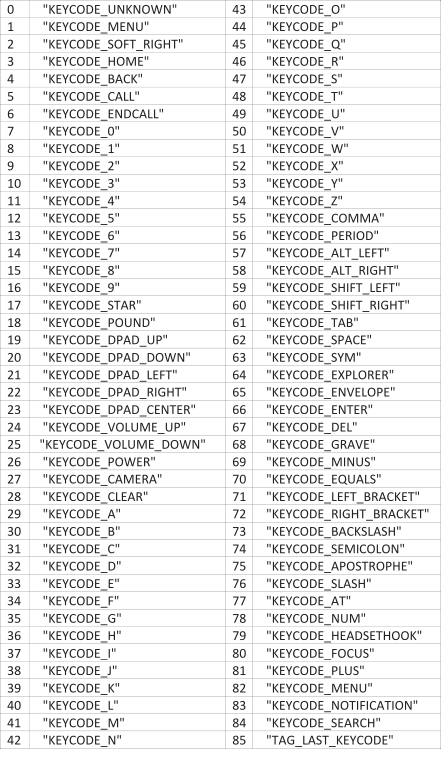
input keyevent <keycode>
The value of keycode can be any of the integer values from the above table.
In case a serial-console is NOT available on your device, you can always run the command via adb as follows:
adb shell input keyevent <keycode>
That's how a hardware-button-press is simulated in software!!
simulate screen tap with tasker
run shell -> input tap x y -> ensure use root is ticked
x y are the coordinates (activate them to show on screen in developer menu in settings)
run shell -> input tap 500 500
run shell -> input swipe 500 500 500 800
run shell -> input swipe 500 500 500 500 s
Emulating touch in Android is apparently possible with shell commands, using Tasker’s Run Shell action.
The command you use is
input tap x y
Where X and Y are coordinates. Root must be checked in the action options, and obviously Tasker needs root access to do this.
As for how you find X and Y, that’s easy:
Go to system settings, developer options, and enable “Show pointer location”.
Use that option to find the X and Y coordinates of whatever you need the touch emulation to press, and write them down.
Then use them in the above command.
You can also emulate swipes, using the following command:
input swipe X1 Y1 X2 Y2
Where X1 Y1 are the star coordinates and X2 Y2 are the end coordinates.
As an example, “input swipe 400 400 100 400″ on my phone swipes the image thumbnails in a Google Play listing.
This works great on my device, but might be dependent on device and/or OS version/ROM.
For long tap use , using the following command:
input swipe x1 y1 x2 y2 s
Set x1 and x2 to the same value and y1 and y2 to the same value to keep your swipe in the same place and set s to the number of milliseconds you want your long press to last.
TIP:
don't forget to turn off the "Show Pointer Location" and "Show Touches" BEFORE running the task.
That caused several reboots for me. Oops!
This is fantastic, only issue I'm having is that it doesn't seem to work with the screen off.. maybe if I remove keyguard?
yeah, have to wake disable key guard/ disable pattern lock, run the emulation,
enable keyguard/enable pattern lock, but totally worth it
Automate Screen or Button Taps via Tasker : Simulating keypress events的更多相关文章
- Simulating Mouse Events in JavaScript
http://marcgrabanski.com/simulating-mouse-click-events-in-javascript/
- Content portal for Pocketables Tasker articles
http://www.pocketables.com/2013/03/overview-of-pocketables-tasker-articles.html I write a lot about ...
- man screen
http://www.gnu.org/software/screen/manual/screen.html Screen User's Manual Next: Overview, Previous: ...
- How To Make A Swipeable Table View Cell With Actions – Without Going Nuts With Scroll Views
How To Make A Swipeable Table View Cell With Actions – Without Going Nuts With Scroll Views Ellen S ...
- bootstrap-modal 学习笔记 源码分析
Bootstrap是Twitter推出的一个开源的用于前端开发的工具包,怎么用直接官网 http://twitter.github.io/bootstrap/ 我博客的定位就是把这些年看过的源码给慢慢 ...
- The Engine Document of JustWeEngine
JustWeEngine - Android FrameWork An easy open source Android Native Game FrameWork. Github Game core ...
- ArcGIS Engine环境下创建自定义的ArcToolbox Geoprocessing工具
在上一篇日志中介绍了自己通过几何的方法合并断开的线要素的ArcGIS插件式的应用程序.但是后来考虑到插件式的程序的配置和使用比较繁琐,也没有比较好的错误处理机制,于是我就把之前的程序封装成一个类似于A ...
- View Focus的处理过程及ViewGroup的mFocused字段分析
通过上篇的介绍,我们知道在对KeyEvent的处理中有非常重要的一环,那就是KeyEvent在focus view的path上自上而下的分发, 换句话说只有focus的view才有资格参与KeyEve ...
- ExtJS笔记 Using Events
Using Events The Components and Classes of Ext JS fire a broad range of events at various points in ...
随机推荐
- day04作业
1.for(初始化表达式:条件表达式:循环后的操作表达式){ 循环体: } class Test_Sum { public static void main(String[] args) { int ...
- Extjs 代码拾穗
1.tree grid 添加一行 var rootNode = store.getRootNode(); var newRecord = Ext.create('MatrixDlv',{"s ...
- Effective STL 学习笔记 Item 30: 保证目标区间足够大
Effective STL 学习笔记 Item 30: 保证目标区间足够大 */--> div.org-src-container { font-size: 85%; font-family: ...
- spark集群安装[转]
[转]http://sofar.blog.51cto.com/353572/1352713 ====================================================== ...
- 使用mongo-java-driver-3.0.2连接MongoDB数据库
这里使用的mongodb的java驱动版本是:3.0.2,文件名mongo-java-driver-3.0.2.jar 博客本地下载下载网址(也可以下载其它版本):http://central.ma ...
- GUC-13 生产者和消费者案例-旧
/* * 生产者和消费者案例 */ public class TestProductorAndConsumer { public static void main(String[] args) { C ...
- C#一步一步学网络辅助开发(1)--常用抓包工具的使用
这次写的是一个系列,是让大家了解如何进行网络的辅助开发.要进行网络辅助开发抓包工具是必不可少的,下面就让大家熟悉一下常用的一些抓包工具, 1,Fiddler 这个工具是我目前用的最多的一款抓包工具,不 ...
- Android Studio奇技淫巧
No1: Ctrl+E:显示最近浏览过的文件 Ctrl+Shift+E:显示最近编辑过的文件 Ctrl+Tab:切换最近编辑过的文件 No2: 条件断点:断点右键 No3: 全局断点 这样只要碰到空指 ...
- matplotlib 中文显示 的问题
第一种方法 from pylab import mpl import numpy as np mpl.rcParams['font.sans-serif'] = ['SimHei'] # 指定默认字体 ...
- React Native之DeviceEventEmitter发送和接收消息完成事件处理
今天在Demo这样一个项目的时候,首先遇到的第一个问题就是,每次通过dialog选择[本周.本月.本天]时,伴随着内容重新渲染的时候,tab navigator每次都重新创建和渲染,造成性能浪费和用户 ...