
Configuring Network in CentOS 6.3 Virtual Box + Screenshots
Configuring Network in CentOS 6.3 Virtual Box + Screenshots
Posted: May 23, 2013 in Uncategorized
Tags: /etc/sysconfig/network-scripts/ifcfg-eth0, centos 6.3, centos 6.5, command line, configure network, internet, ip address, terminal, virtual box, windows 7
This is a guide on configuring network in CentOS 6.x in Virtual Box with screenshots (using terminal).
[UPDATE: This guide can also be used to configure network on CentOS 6.5]
So, here I have used CentOS 6.3 minimal and will be discussing on configuring the Virtual Box and CentOS for network access. If you need help installing CentOS minimal in the Virtual Box, you can find the instructions in my earlier post here.
Requirements:
- Virtual Box
- CentOS 6.3 or 6.5 (I have tested this on CentOS 6.3 and CentOS 6.5, you can use it on other 6.x versions too)
Step 1: Configure Virtual Box Network Settings:
There are different modes or ways you can configure your Virtual box network settings.
- Not Attached
- NAT
- Bridged Adapter
- Internal Network
- Host-Only Adapter
- Generic Driver
You can find more details about the different modes here.
I will be using the Bridged Adapter mode for this guide. It is faster as it treat the VM as an individual host within the network.
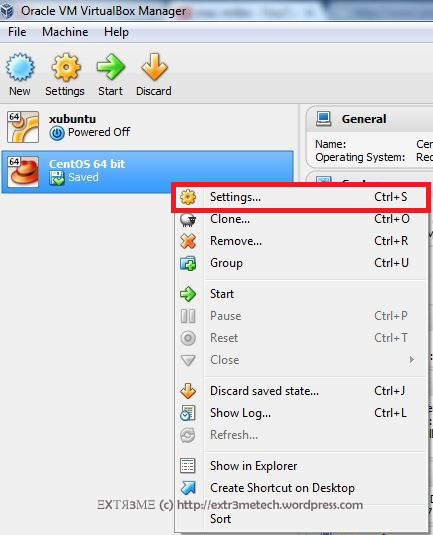
Open Virtual Box and right click on your CentOS VM, and click on “Settings“.
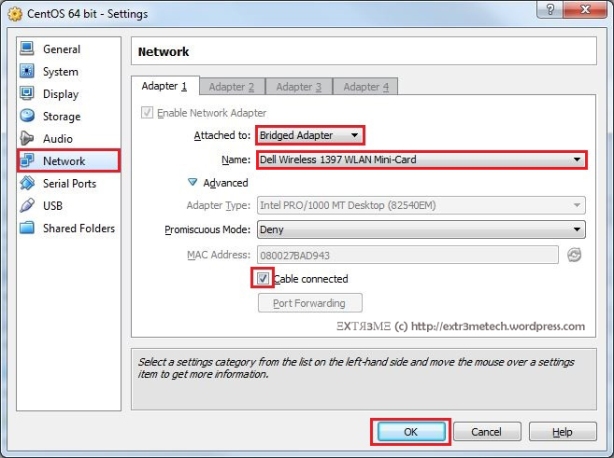
Now, go to the tab Network and change the “Attached to” field to “Bridged Adapter”. Then choose the “Name” to your network interface. For example, I have a dell wireless adapter, so I choose the Name as “Dell Wireless” from the drop down menu. And finally check the field “Cable Connected”. Finally, click on OK when you are done.
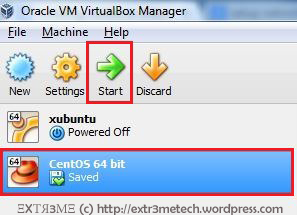
So, you have now configured the Virtual Box. Now, you can start your CentOS VM by selecting you VM and clicking on “Start”.
Step 2: Configure CentOS network settings:
You can configure your network either by using Dynamic IP addressing assigned by your DHCP server or you can manually configure your IP Address statically. You can choose either static or dynamic method and can do so by editing the file/etc/sysconfig/network-scripts/ifcfg-eth0.
Method 1: Dynamic IP
We can configure the network by using Dynamic IP address which are assigned automatically by the DHCP server. This is the simplest way to configure your network.
NOTE: You will have a line that starts with HWADDR in the your config file, do not change or modify that line.
In your terminal, type the following:
vi /etc/sysconfig/network-scripts/ifcfg-eth0
Now, add/modify the file as follows (DO NOT CHANGE the HWADDR line your config file):
DEVICE=eth0
BOOTPROTO=dhcp
ONBOOT=yes
NM_CONTROLLED=no
HWADDR=08:00:27:08:47:E9
Now, save the file by pressing “ESC” and typing :wq and hit ENTER.
To view your network config file. type the following in the terminal:
cat /etc/sysconfig/network-scripts/ifcfg-eth0

Now, you will have to restart your network. You can do so by typing the following in the terminal:
service network restart

To view your IP address, type the following in your terminal:
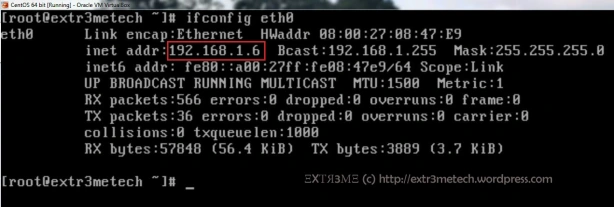
ifconfig eth0
You can see your IP Address of the interface eth0 next to the field “inet addr:” as shown below:
Now, if you have internet access, then you can check if you are able to ping any website. And you should be able to get the reply. For example, in your terminal type:
ping extr3metech.wordpress.com
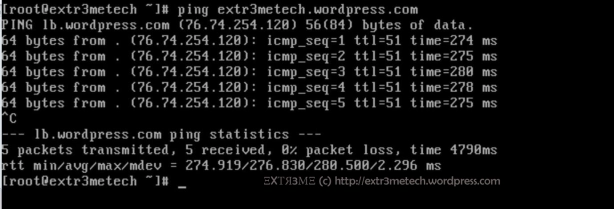
You can press CTRL+ C to stop the ping command.
So, Hurray! you have successfully setup up your network in your CentOS Virtual Box.
Method 2: Static IP
We can also assign the network information manually by assigning the IP Address, NETMASK , GATEWAY in the network interface config file.
NOTE: You will have a line that starts with HWADDR in your config file, do not change or modify that line.
Step1 : In you terminal, type:
vi /etc/sysconfig/network-scripts/ifcfg-eth0
Now, edit/merge the file to the following
DEVICE=eth0
BOOTPROTO=static
ONBOOT=yes
NM_CONTROLLED=no
HWADDR=08:00:27:08:47:E9
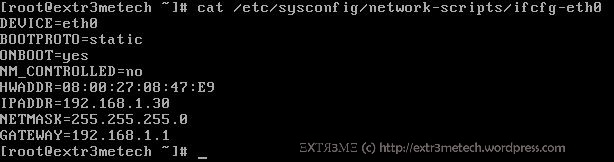
IPADDR=192.168.1.30
NETMASK=255.255.255.0
GATEWAY=192.168.1.1
Now, press ESC and type :wq and hit ENTER to save and exit the configuration file.
To view the config file. type the following in the terminal:
cat /etc/sysconfig/network-scripts/ifcfg-eth0
Step 2: Change Host name:
To change host name , you have to edit the config file /etc/sysconfig/network. If you want to know to change the host name manually, you can follow the guide I have posted earlier here.
Step 3: Assign DNS Server IP
To manually assign primary and secondary DNS Server IP addresses, in your terminal type:
vi /etc/resolv.conf
Now, edit this file to the following:
nameserver 8.8.8.8
nameserver 8.8.4.4
Now, press ESC and type :wq and hit ENTER to save and exit the configuration file.
Now, if you want you can make sure you have entered and saved the correct configuration(It is a good practice to double check ). To view your dns config file, in your terminal type:
cat /etc/resolv.conf

Step 4: Restart network:
Finally, all you have to do is to restart your network service. To so so, type the following in the terminal:
service network restart
Now, you can check your Current IP configuration, by typing the following in the terminal:
ifconfig eth0
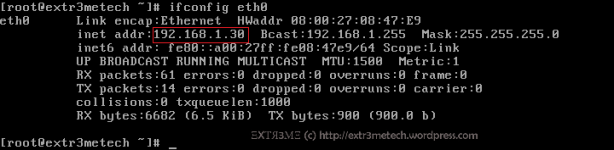
Now, if you have internet access, then you can check if you are able to ping any website. And you should be able to get the reply. For example, In your terminal type:
ping extr3metech.wordpress.com
You can press CTRL+ C to stop the ping command.
So, Hurray! you have successfully setup up your network manually in your CentOS Virtual Box.
Hope this guide helped you to configure network in your CentOS Virtual Machine.
If you have any queries or suggestions regarding this guide, feel free to leave a comment and will get back at you. Don’t forget to follow my blog to get future updates! 
转载自:https://extr3metech.wordpress.com/2013/05/23/configuring-network-in-centos-6-3-virtual-box-screenshots/
Configuring Network in CentOS 6.3 Virtual Box + Screenshots的更多相关文章
- centos安装Oracle virtual box
1.进入virtualbox官网 https://www.virtualbox.org/wiki/Downloads 2.点击Linux distributions 3.向下翻至如图 4.在/etc/ ...
- Virtual Box中 CentOS双网卡设置
Virtual Box中 CentOS双网卡设置: 在Virtual Box中安装CentOS x86-64 6.4(final),配置了双网卡,eth0 为桥接模式 , eth1为内网模式 ...
- virtual box 下安装centos 7
1: 在virtual box下导入 镜像的时候报错: Failed to open/create the internal network 'HostInterfaceNetworking-Virt ...
- 为 Virtual Box 中的 CentOS 6.6 配置本地DVD光盘做yum软件源
因为virtual box 中的centos配置host-only共享win7上网,配置失败,所以只能使用Centos的 DVD 光盘来配置yum软件源.不然就没得完了. 1. 首先要在virtual ...
- Virtual Box + CentOS Minimal + Apache搭建Web服务器
本文并不介绍关于Virtual Box, CentOS, Apache的安装, 主要针对安装后相关的配置, 使宿主机(Host)可以访问客户机(Guest: CentOS in Virtual Box ...
- 在centos 6.5 在virtual box 上 安装增强版工具
centos 6.5 在virtual box 上 安装增强版工具: 出现:centos unable to find the source of your current linux kernel ...
- virtual box 安装centos min
2018-4-19 22:20:40 星期四 之前不小心把用了很久的centos镜像删掉了.....这里记录下安装最小版centos的步骤 1. 安装centos 2. 开启网络, 并设置为随机启动 ...
- virtual Box在Centos 7上的安装
1.首先,我们需要在oracle官网下载virtual Box的centos7版本: 下载地址为:http://download.virtualbox.org/virtualbox/5.0.12/Vi ...
- Virtual Box虚拟机Ubuntu18.X系统安装及Mysql基本开发配置
Linux简介 什么是 Linux? Linux:世界上不仅只有一个 Windows 操作系统,还有 Linux.mac.Unix 等操作系统.桌面操作系统下 Windows 是霸主,而 Linux ...
随机推荐
- TestNG
一.TestNG 是什么 ? 脱胎于业界标杆的Junit,并超于Junit,主要原因是由于当时的JUnit3版本不支持annotation,使用不够灵活. TestNG不再需要test前缀的命名方式. ...
- Google Supersonic列存储查询库的介绍、安装、测试
查询引擎库介绍: http://www.infoq.com/cn/news/2012/10/Google-Supersonic/ Supersonic是一个面向列存储数据库的查询引擎库,它提供了一组数 ...
- Win7+Docker(boo2docker)搭建php开发环境简略
之所以称谓简略 是不准备配图的意思 嘿嘿! 步骤1: 到docker官网下载Docker Toolbox,并完全安装 步骤2: 安装完成后,运行在桌面新生成的快捷方式:Docker Quickstar ...
- 关于Java中基本类型的长度相关基础知识
1. 用HeapByteBuffer放int占几个byte? 占4个.而且不论你是放1还是-1还是0xffff. 因为int的长度是4个byte,HeapByteBuffer的存储又是byte数组. ...
- Android 广播 BroadcastReceiver
Android 系统里定义了各种各样的广播,如电池的使用状态,电话的接收和短信的接收,开机启动都会产生一个广播.当然用户也可以自定义自己的广播. 既然说到广播,那么必定有一个广播发送者,以及广播接收器 ...
- Select Tree Node
这里用到了Oracle的一个树形结构查询函数select * from record START WITH A.TREE_NODE IN ('COST_CTR_10053')CONNECT BY P ...
- 云硬盘error、error deleting、deleting状态(数据库基本操作小记)
起因是发现云硬盘显示删光了,但还是创建不了新的云硬盘,在api节点上用cinder list可以看到已经没有硬盘了,但是创建硬盘时,还是会提示配额满了,这是因为数据库里的记录没有更新,对数据库的操作记 ...
- CentOS下搭建LAMP环境详解
前言:在这里将介绍如何在CentOS下搭建LAMP环境(全部使用源码编译安装),用于web服务器开发. •LAMP: Linux + Apache + PHP + Mysql. •系统: CentOS ...
- docker命令小记
最近工作需要,对docker稍微了解了一下,大部分内容网上都有各种各样的教程.有两个稍微特殊的命令这里记录一下: 1. rename image的命令 从各种私有镜像下载后用docker images ...
- CEGUI0.8.4例子
#define GLUT_DISABLE_ATEXIT_HACK#pragma comment(lib,"glew32.lib")#include<stdlib.h># ...