
docker swarm 实例
1.配置三台虚拟机
先在virtualbox上生成三个Linux主机,一个manager1(管理节点),两个工作节点worker1和worker2
1)manager1
userdeMacBook-Pro:~ user$ docker-machine create --engine-registry-mirror=https://hes89po0.mirror.aliyuncs.com --virtualbox-boot2docker-url=/Users/user/.docker/machine/cache/boot2docker.iso -d virtualbox manager1

Running pre-create checks...

(manager1) Boot2Docker URL was explicitly set to "/Users/user/.docker/machine/cache/boot2docker.iso" at create time, so Docker Machine cannot upgrade this machine to the latest version.

Creating machine...

(manager1) Boot2Docker URL was explicitly set to "/Users/user/.docker/machine/cache/boot2docker.iso" at create time, so Docker Machine cannot upgrade this machine to the latest version.

(manager1) Downloading /Users/user/.docker/machine/cache/boot2docker.iso from /Users/user/.docker/machine/cache/boot2docker.iso...

(manager1) Creating VirtualBox VM...

(manager1) Creating SSH key...

(manager1) Starting the VM...

(manager1) Check network to re-create if needed...

(manager1) Waiting for an IP...

Waiting for machine to be running, this may take a few minutes...

Detecting operating system of created instance...

Waiting for SSH to be available...

Detecting the provisioner...

Provisioning with boot2docker...

Copying certs to the local machine directory...

Copying certs to the remote machine...

Setting Docker configuration on the remote daemon...

Checking connection to Docker...

Docker is up and running!

To see how to connect your Docker Client to the Docker Engine running on this virtual machine, run: docker-machine env manager1
查看状态:
userdeMBP:~ user$ docker-machine env manager1

export DOCKER_TLS_VERIFY=""

export DOCKER_HOST="tcp://192.168.99.101:2376"

export DOCKER_CERT_PATH="/Users/user/.docker/machine/machines/manager1"

export DOCKER_MACHINE_NAME="manager1"

# Run this command to configure your shell:

# eval $(docker-machine env manager1)
查看版本:
userdeMacBook-Pro:~ user$ docker-machine version manager1

18.09.
2)worker1
userdeMBP:~ user$ docker-machine create --engine-registry-mirror=https://hes89po0.mirror.aliyuncs.com --virtualbox-boot2docker-url=/Users/user/.docker/machine/cache/boot2docker.iso -d virtualbox worker1

Running pre-create checks...

(worker1) Boot2Docker URL was explicitly set to "/Users/user/.docker/machine/cache/boot2docker.iso" at create time, so Docker Machine cannot upgrade this machine to the latest version.

Creating machine...

(worker1) Boot2Docker URL was explicitly set to "/Users/user/.docker/machine/cache/boot2docker.iso" at create time, so Docker Machine cannot upgrade this machine to the latest version.

(worker1) Downloading /Users/user/.docker/machine/cache/boot2docker.iso from /Users/user/.docker/machine/cache/boot2docker.iso...

(worker1) Creating VirtualBox VM...

(worker1) Creating SSH key...

(worker1) Starting the VM...

(worker1) Check network to re-create if needed...

(worker1) Waiting for an IP...

Waiting for machine to be running, this may take a few minutes...

Detecting operating system of created instance...

Waiting for SSH to be available...

Detecting the provisioner...

Provisioning with boot2docker...

Copying certs to the local machine directory...

Copying certs to the remote machine...

Setting Docker configuration on the remote daemon...

Checking connection to Docker...

Docker is up and running!

To see how to connect your Docker Client to the Docker Engine running on this virtual machine, run: docker-machine env worker1

userdeMBP:~ user$ docker-machine env worker1

export DOCKER_TLS_VERIFY=""

export DOCKER_HOST="tcp://192.168.99.102:2376"

export DOCKER_CERT_PATH="/Users/user/.docker/machine/machines/worker1"

export DOCKER_MACHINE_NAME="worker1"

# Run this command to configure your shell:

# eval $(docker-machine env worker1)
3)worker2
userdeMBP:~ user$ docker-machine create --engine-registry-mirror=https://hes89po0.mirror.aliyuncs.com --virtualbox-boot2docker-url=/Users/user/.docker/machine/cache/boot2docker.iso -d virtualbox worker2

Running pre-create checks...

(worker2) Boot2Docker URL was explicitly set to "/Users/user/.docker/machine/cache/boot2docker.iso" at create time, so Docker Machine cannot upgrade this machine to the latest version.

Creating machine...

(worker2) Boot2Docker URL was explicitly set to "/Users/user/.docker/machine/cache/boot2docker.iso" at create time, so Docker Machine cannot upgrade this machine to the latest version.

(worker2) Downloading /Users/user/.docker/machine/cache/boot2docker.iso from /Users/user/.docker/machine/cache/boot2docker.iso...

(worker2) Creating VirtualBox VM...

(worker2) Creating SSH key...

(worker2) Starting the VM...

(worker2) Check network to re-create if needed...

(worker2) Waiting for an IP...

Waiting for machine to be running, this may take a few minutes...

Detecting operating system of created instance...

Waiting for SSH to be available...

Detecting the provisioner...

Provisioning with boot2docker...

Copying certs to the local machine directory...

Copying certs to the remote machine...

Setting Docker configuration on the remote daemon...

Checking connection to Docker...

Docker is up and running!

To see how to connect your Docker Client to the Docker Engine running on this virtual machine, run: docker-machine env worker2


userdeMBP:~ user$ docker-machine env worker2

export DOCKER_TLS_VERIFY=""

export DOCKER_HOST="tcp://192.168.99.103:2376"

export DOCKER_CERT_PATH="/Users/user/.docker/machine/machines/worker2"

export DOCKER_MACHINE_NAME="worker2"

# Run this command to configure your shell:

# eval $(docker-machine env worker2)
虚拟机上状态为:
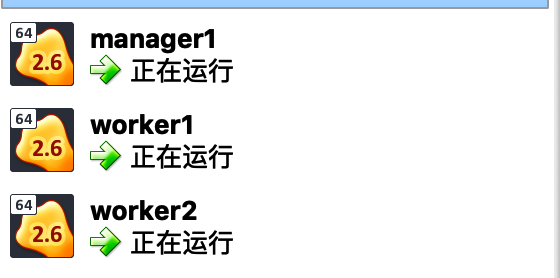
他们的IP地址分别是192.168.99.101,192.168.99.102,192.168.99.103
2.开始创建集群
1)先进入到manager1环境下,然后运行init命令:
userdeMBP:~ user$ docker-machine ssh manager1

   ( '>')

  /) TC (\   Core is distributed with ABSOLUTELY NO WARRANTY.

 (/-_--_-\)           www.tinycorelinux.net

docker@manager1:~$ docker swarm init --advertise-addr 192.168.99.101

Swarm initialized: current node (i2pkhzq17szv3sjawgz0eafdn) is now a manager.

To add a worker to this swarm, run the following command:

    docker swarm join --token SWMTKN--5lbt98t7j553bzwqysglhcq16bwkayev8uundmzu6cfbp592s5-evhywv8wwp1fa7euzlvsv68xd 192.168.99.101:

To add a manager to this swarm, run 'docker swarm join-token manager' and follow the instructions.

docker@manager1:~$
2)然后就能够查看创建出来的集群的当前状态了:
docker@manager1:~$ docker info

Containers:

 Running:

 Paused:

 Stopped:

Images:

Server Version: 18.09.

Storage Driver: overlay2

 Backing Filesystem: extfs

 Supports d_type: true

 Native Overlay Diff: true

Logging Driver: json-file

Cgroup Driver: cgroupfs

Plugins:

 Volume: local

 Network: bridge host macvlan null overlay

 Log: awslogs fluentd gcplogs gelf journald json-file local logentries splunk syslog

Swarm: active

 NodeID: i2pkhzq17szv3sjawgz0eafdn

 Is Manager: true

 ClusterID: m5zzclnwvccl8okibvjjypl6i

 Managers:

 Nodes:

 Default Address Pool: 10.0.0.0/   //默认的地址池

 SubnetSize:

 Orchestration:

  Task History Retention Limit:

 Raft:

  Snapshot Interval:

  Number of Old Snapshots to Retain:

  Heartbeat Tick:

  Election Tick:

 Dispatcher:

  Heartbeat Period:  seconds

 CA Configuration:

  Expiry Duration:  months

  Force Rotate:

 Autolock Managers: false

 Root Rotation In Progress: false

 Node Address: 192.168.99.101

 Manager Addresses:

  192.168.99.101:

Runtimes: runc

Default Runtime: runc

Init Binary: docker-init

containerd version: 468a545b9edcd5932818eb9de8e72413e616e86e

runc version: 69663f0bd4b60df09991c08812a60108003fa340

init version: fec3683

Security Options:

 seccomp

  Profile: default

Kernel Version: 4.14.-boot2docker

Operating System: Boot2Docker 18.09. (TCL 8.2.)

OSType: linux

Architecture: x86_64

CPUs:

Total Memory: .4MiB

Name: manager1

ID: K5LW:JU36:FYGM:3TUG:B7IY:K27B:TKSQ:SPIU:64SK:AWO3:OP3S:BFZO

Docker Root Dir: /mnt/sda1/var/lib/docker

Debug Mode (client): false

Debug Mode (server): false

Registry: https://index.docker.io/v1/

Labels:

 provider=virtualbox

Experimental: false

Insecure Registries:

 127.0.0.0/

Registry Mirrors:

 https://hes89po0.mirror.aliyuncs.com/

Live Restore Enabled: false

Product License: Community Engine
3)查看节点消息:
docker@manager1:~$ docker node ls

ID                            HOSTNAME            STATUS              AVAILABILITY        MANAGER STATUS      ENGINE VERSION

i2pkhzq17szv3sjawgz0eafdn *   manager1            Ready               Active              Leader              18.09.
节点ID旁边的*表示你当前正在此节点上连接。
3.添加节点到集群中
1)首先先进入到worker1的环境下,然后运行join命令:
docker@worker1:~$ docker swarm join --token SWMTKN--5lbt98t7j553bzwqysglhcq16bwkayev8uundmzu6cfbp592s5-evhywv8wwp1fa7euzlvsv68xd 192.168.99.101:

This node joined a swarm as a worker.
如果你忘记了连接令牌的值,可以到manager1的环境下运行下面的命令查看:
docker@manager1:~$ docker swarm join-token worker

To add a worker to this swarm, run the following command:

    docker swarm join --token SWMTKN--5lbt98t7j553bzwqysglhcq16bwkayev8uundmzu6cfbp592s5-evhywv8wwp1fa7euzlvsv68xd 192.168.99.101:
然后在manager1环境上查看现在集群中的节点信息:
docker@manager1:~$ docker node ls

ID                            HOSTNAME            STATUS              AVAILABILITY        MANAGER STATUS      ENGINE VERSION

i2pkhzq17szv3sjawgz0eafdn *   manager1            Ready               Active              Leader              18.09.

qk6radp5986xbfserk3m8wnt6     worker1             Ready               Active                                  18.09.
2)然后进入worker2环境,执行与上面相同的内容:
docker@worker2:~$ docker swarm join --token SWMTKN--5lbt98t7j553bzwqysglhcq16bwkayev8uundmzu6cfbp592s5-evhywv8wwp1fa7euzlvsv68xd 192.168.99.101:

This node joined a swarm as a worker.
在manager1环境上查看节点信息:
docker@manager1:~$ docker node ls

ID                            HOSTNAME            STATUS              AVAILABILITY        MANAGER STATUS      ENGINE VERSION

i2pkhzq17szv3sjawgz0eafdn *   manager1            Ready               Active              Leader              18.09.

qk6radp5986xbfserk3m8wnt6     worker1             Ready               Active                                  18.09.

bvfa8budw71nlesdbqqtzmfmm     worker2             Ready               Active                                  18.09.
到此为止,集群就创建成功了
4.部署服务
1)进入manager1环境运行service create命令:
docker@manager1:~$ docker service create --replicas  --name helloworld alpine ping docker.com

gv1uwdh4574kf29b2vu6uu0pr

overall progress:  out of  tasks

/: running

verify: Service converged
然后查看运行的服务的信息:
docker@manager1:~$ docker service ls

ID                  NAME                MODE                REPLICAS            IMAGE               PORTS

gv1uwdh4574k        helloworld          replicated          /                 alpine:latest
2)对集群中的服务进行检查
docker@manager1:~$ docker service inspect --pretty helloworld

ID:        gv1uwdh4574kf29b2vu6uu0pr

Name:        helloworld

Service Mode:    Replicated

 Replicas:

Placement:

UpdateConfig:

 Parallelism:

 On failure:    pause

 Monitoring Period: 5s

 Max failure ratio:

 Update order:      stop-first

RollbackConfig:

 Parallelism:

 On failure:    pause

 Monitoring Period: 5s

 Max failure ratio:

 Rollback order:    stop-first

ContainerSpec:

 Image:        alpine:latest@sha256:46e71df1e5191ab8b8034c5189e325258ec44ea739bba1e5645cff83c9048ff1

 Args:        ping docker.com

 Init:        false

Resources:

Endpoint Mode:    vip
去掉--pretty,则返回json格式,不易读:
docker@manager1:~$ docker service inspect helloworld

[

    {

        "ID": "gv1uwdh4574kf29b2vu6uu0pr",

        "Version": {

            "Index":

        },

        "CreatedAt": "2019-01-10T06:28:51.634811423Z",

        "UpdatedAt": "2019-01-10T06:28:51.634811423Z",

        "Spec": {

            "Name": "helloworld",

            "Labels": {},

            "TaskTemplate": {

                "ContainerSpec": {

                    "Image": "alpine:latest@sha256:46e71df1e5191ab8b8034c5189e325258ec44ea739bba1e5645cff83c9048ff1",

                    "Args": [

                        "ping",

                        "docker.com"

                    ],

                    "Init": false,

                    "StopGracePeriod": ,

                    "DNSConfig": {},

                    "Isolation": "default"

                },

                "Resources": {

                    "Limits": {},

                    "Reservations": {}

                },

                "RestartPolicy": {

                    "Condition": "any",

                    "Delay": ,

                    "MaxAttempts":

                },

                "Placement": {

                    "Platforms": [

                        {

                            "Architecture": "amd64",

                            "OS": "linux"

                        },

                        {

                            "OS": "linux"

                        },

                        {

                            "Architecture": "arm64",

                            "OS": "linux"

                        },

                        {

                            "Architecture": "",

                            "OS": "linux"

                        },

                        {

                            "Architecture": "ppc64le",

                            "OS": "linux"

                        },

                        {

                            "Architecture": "s390x",

                            "OS": "linux"

                        }

                    ]

                },

                "ForceUpdate": ,

                "Runtime": "container"

            },

            "Mode": {

                "Replicated": {

                    "Replicas":

                }

            },

            "UpdateConfig": {

                "Parallelism": ,

                "FailureAction": "pause",

                "Monitor": ,

                "MaxFailureRatio": ,

                "Order": "stop-first"

            },

            "RollbackConfig": {

                "Parallelism": ,

                "FailureAction": "pause",

                "Monitor": ,

                "MaxFailureRatio": ,

                "Order": "stop-first"

            },

            "EndpointSpec": {

                "Mode": "vip"

            }

        },

        "Endpoint": {

            "Spec": {}

        }

    }

]
3)查看是哪个节点正在运行该服务:
docker@manager1:~$ docker service ps helloworld

ID                  NAME                IMAGE               NODE                DESIRED STATE       CURRENT STATE           ERROR               PORTS

psmawcihw8ju        helloworld.        alpine:latest       manager1            Running             Running  minutes ago
可见是manager1节点在运行这个服务
5.在集群中扩展服务
1)进入manager1环境运行下面命令将服务运行副本从上面的一个扩展到5个:
docker@manager1:~$ docker service scale helloworld=

helloworld scaled to

overall progress:  out of  tasks

/: running

/: running

/: running

/: running

/: running

verify: Service converged
2)然后再查看目前的任务列表:
docker@manager1:~$ docker service ps helloworld

ID                  NAME                IMAGE               NODE                DESIRED STATE       CURRENT STATE            ERROR               PORTS

psmawcihw8ju        helloworld.        alpine:latest       manager1            Running             Running  minutes ago

0dcyw9yfalq4        helloworld.        alpine:latest       worker1             Running             Running  seconds ago

isan6tswf9vj        helloworld.        alpine:latest       worker2             Running             Running  seconds ago

49kzpmx87qr5        helloworld.        alpine:latest       worker2             Running             Running  seconds ago

jzay4dw8o9cn        helloworld.        alpine:latest       manager1            Running             Running  seconds ago
可见两个任务运行在manager1,两个在worker2,一个在worker1
3)如果想在运行的节点上查看任务,可以进入相应的环境,然后运行docker ps
比如进入worker2环境,然后运行docker ps:
docker@worker2:~$ docker ps

CONTAINER ID        IMAGE               COMMAND             CREATED             STATUS              PORTS               NAMES

5cf8e955f5ee        alpine:latest       "ping docker.com"    minutes ago       Up  minutes                            helloworld..49kzpmx87qr5cx0vveuuois0o

c1095cae8c19        alpine:latest       "ping docker.com"    minutes ago       Up  minutes                            helloworld..isan6tswf9vjsdhvci9ngpt7k
可见打开了两个容器
6.删除集群中的服务
1)进入manager1的环境,然后运行service rm来删除helloworld服务:
docker@manager1:~$ docker service inspect --pretty helloworld

ID:        gv1uwdh4574kf29b2vu6uu0pr

Name:        helloworld

Service Mode:    Replicated

 Replicas:

Placement:

UpdateConfig:

 Parallelism:

 On failure:    pause

 Monitoring Period: 5s

 Max failure ratio:

 Update order:      stop-first

RollbackConfig:

 Parallelism:

 On failure:    pause

 Monitoring Period: 5s

 Max failure ratio:

 Rollback order:    stop-first

ContainerSpec:

 Image:        alpine:latest@sha256:46e71df1e5191ab8b8034c5189e325258ec44ea739bba1e5645cff83c9048ff1

 Args:        ping docker.com

 Init:        false

Resources:

Endpoint Mode:    vip

docker@manager1:~$ docker service rm helloworld

helloworld

docker@manager1:~$ docker service inspect --pretty helloworld

Error: no such service: helloworld
然后再进入worker2环境下,可以看见之前的两个容器也已经删除:
docker@worker2:~$ docker ps

CONTAINER ID        IMAGE               COMMAND             CREATED             STATUS              PORTS               NAMES
7.对服务应用滚动更新
1)进入manager1环境下,运行service create命令:
docker@manager1:~$ docker service create \

>   --replicas  \

>   --name redis \

>   --update-delay 10s \

>   redis:3.0.

yxph89nq9ntoo5ip43sfz03as

overall progress:  out of  tasks

/: running

/: running

/: running

verify: Service converged
查看该redis服务:
docker@manager1:~$ docker service inspect --pretty redis

ID:        yxph89nq9ntoo5ip43sfz03as

Name:        redis

Service Mode:    Replicated

 Replicas:

Placement:

UpdateConfig:

 Parallelism:

 Delay:        10s

 On failure:    pause

 Monitoring Period: 5s

 Max failure ratio:

 Update order:      stop-first

RollbackConfig:

 Parallelism:

 On failure:    pause

 Monitoring Period: 5s

 Max failure ratio:

 Rollback order:    stop-first

ContainerSpec:

 Image:        redis:3.0.@sha256:6a692a76c2081888b589e26e6ec835743119fe453d67ecf03df7de5b73d69842

 Init:        false

Resources:

Endpoint Mode:    vip
docker@manager1:~$ docker service ps redis

ID                  NAME                IMAGE               NODE                DESIRED STATE       CURRENT STATE            ERROR               PORTS

rfvxxkgmsaac        redis.             redis:3.0.         worker1             Running             Running  minutes ago

ks3co6k15muu        redis.             redis:3.0.         worker2             Running             Running  minutes ago

qyuxuyhjlytf        redis.             redis:3.0.         manager1            Running             Running  minutes ago
2)对redis更新其容器镜像,从3.0.6版本更新到3.0.7版本
docker@manager1:~$ docker service update --image redis:3.0. redis

redis

overall progress:  out of  tasks

/: running

/: running

/: running

verify: Service converged
然后再查看该服务:
docker@manager1:~$ docker service inspect --pretty redis

ID:        yxph89nq9ntoo5ip43sfz03as

Name:        redis

Service Mode:    Replicated

 Replicas:

UpdateStatus:

 State:        completed

 Started:     minutes ago

 Completed:     seconds ago

 Message:    update completed

Placement:

UpdateConfig:

 Parallelism:

 Delay:        10s

 On failure:    pause

 Monitoring Period: 5s

 Max failure ratio:

 Update order:      stop-first

RollbackConfig:

 Parallelism:

 On failure:    pause

 Monitoring Period: 5s

 Max failure ratio:

 Rollback order:    stop-first

ContainerSpec:

 Image:        redis:3.0.@sha256:730b765df9fe96af414da64a2b67f3a5f70b8fd13a31e5096fee4807ed802e20

 Init:        false

Resources:

Endpoint Mode:    vip
State:completed说明更新成功了
然后查看节点上的变化:
docker@manager1:~$ docker service ps redis

ID                  NAME                IMAGE               NODE                DESIRED STATE       CURRENT STATE            ERROR               PORTS

pgche6fdwugv        redis.             redis:3.0.         worker1             Running             Running  seconds ago

rfvxxkgmsaac         \_ redis.         redis:3.0.         worker1             Shutdown            Shutdown  minutes ago

vhm4p6bmo0ch        redis.             redis:3.0.         worker2             Running             Running  minutes ago

ks3co6k15muu         \_ redis.         redis:3.0.         worker2             Shutdown            Shutdown  minutes ago

lnl8jeblqox2        redis.             redis:3.0.         manager1            Running             Running  minutes ago

qyuxuyhjlytf         \_ redis.         redis:3.0.         manager1            Shutdown            Shutdown  minutes ago
8.耗尽drain集群中的节点
1)进入manager1节点,先查看是否所有节点的状态是否都是Active:
docker@manager1:~$ docker node ls

ID                            HOSTNAME            STATUS              AVAILABILITY        MANAGER STATUS      ENGINE VERSION

i2pkhzq17szv3sjawgz0eafdn *   manager1            Ready               Active              Leader              18.09.

qk6radp5986xbfserk3m8wnt6     worker1             Ready               Active                                  18.09.

bvfa8budw71nlesdbqqtzmfmm     worker2             Ready               Active                                  18.09.
2)然后drain节点worker1:
docker@manager1:~$ docker node update --availability drain worker1

worker1
然后去查看其状态,果然变成了Drain:
docker@manager1:~$ docker node inspect --pretty worker1

ID:            qk6radp5986xbfserk3m8wnt6

Hostname:                  worker1

Joined at:                 -- ::31.783583009 + utc

Status:

 State:            Ready

 Availability:             Drain

 Address:        192.168.99.102

Platform:

 Operating System:    linux

 Architecture:        x86_64

Resources:

 CPUs:

 Memory:        .4MiB

Plugins:

 Log:        awslogs, fluentd, gcplogs, gelf, journald, json-file, local, logentries, splunk, syslog

 Network:        bridge, host, macvlan, null, overlay

 Volume:        local

Engine Version:        18.09.

Engine Labels:

 - provider=virtualbox

TLS Info:

 TrustRoot:

-----BEGIN CERTIFICATE-----

MIIBajCCARCgAwIBAgI...EwHhcNMTkwMTEwMDYwMTAwWhcNMzkwMTA1MDYw

MTAwWjATMREw...BBjAPBgNVHRMB

Af8EBTADAQH/MB0GA1UdDgQWBBTo0q8ticZATPsUPxHTY1VjcALewzAKBggqhkjO

PQQDAgNIADBFAi...9DUKIwJzxMbotuwRJwu

-----END CERTIFICATE-----

 Issuer Subject:    MBMxETAP...XJtLWNh

 Issuer Public Key:    MFkwEwYHKoZIzj0CAQYIKoZIzj0...B6EH0YUgIBZK880xfLT7kF3e5gI14G9bB3o1ArCT8FuZl0/3vDsGuA==
然后再去查看一些服务是怎么更新任务分配的:
docker@manager1:~$ docker service ps redis

ID                  NAME                IMAGE               NODE                DESIRED STATE       CURRENT STATE                 ERROR               PORTS

ugbktcw9mmwh        redis.             redis:3.0.         manager1            Running             Running  minutes ago

pgche6fdwugv         \_ redis.         redis:3.0.         worker1             Shutdown            Shutdown about a minute ago

rfvxxkgmsaac         \_ redis.         redis:3.0.         worker1             Shutdown            Shutdown  minutes ago

vhm4p6bmo0ch        redis.             redis:3.0.         worker2             Running             Running  minutes ago

ks3co6k15muu         \_ redis.         redis:3.0.         worker2             Shutdown            Shutdown  minutes ago

lnl8jeblqox2        redis.             redis:3.0.         manager1            Running             Running  minutes ago

qyuxuyhjlytf         \_ redis.         redis:3.0.         manager1            Shutdown            Shutdown  minutes ago
可见之前有worker1运行的任务被分配到了manager1上
3)当然,我们可以重新将其转会Active状态:
docker@manager1:~$ docker node update --availability active worker1

worker1

docker@manager1:~$ docker node inspect --pretty worker1

ID:            qk6radp5986xbfserk3m8wnt6

Hostname:                  worker1

Joined at:                 -- ::31.783583009 + utc

Status:

 State:            Ready

 Availability:             Active

 ...
但是服务这次就不会再更改任务的分配了
9.使用集群模式路由网格
路由网格使得集群中每个节点都能够接收集群中已发布的服务端口的连接,即使节点上没有运行该任务
路由网格将所有传入请求路由到发布端口的可用节点的可用容器上
1)将nginx容器中的端口80发布到集群中任意节点的端口8080:
docker@manager1:~$ docker service create \

>   --name my-web \

>   --publish published=,target= \

>   --replicas  \

>   nginx

nzpj6mg1p6i5al8vwdzwtxv6z

overall progress:  out of  tasks

/: running

/: running

verify: Service converged
2)使用docker service inspect命令去查看服务的发布端口:
docker@manager1:~$ docker service inspect --format="{{json .Endpoint.Spec.Ports}}" my-web

[{"Protocol":"tcp","TargetPort":,"PublishedPort":,"PublishMode":"ingress"}]
3)查看此时的服务分配:
docker@manager1:~$ docker service ps my-web

ID                  NAME                IMAGE               NODE                DESIRED STATE       CURRENT STATE           ERROR               PORTS

yaig5ijmlaob        my-web.            nginx:latest        worker1             Running             Running  minutes ago

mi36hhgnhrjd        my-web.            nginx:latest        worker2             Running             Running  minutes ago
docker swarm 实例的更多相关文章
- docker swarm英文文档学习-3-开始
https://docs.docker.com/engine/swarm/swarm-tutorial/ 1)Getting started with swarm mode 本教程向你介绍Docker ...
- Centos7的安装、Docker1.12.3的安装,以及Docker Swarm集群的简单实例
目录 [TOC] 1.环境准备 本文中的案例会有四台机器,他们的Host和IP地址如下 c1 -> 10.0.0.31 c2 -> 10.0.0.32 c3 -> 10.0.0. ...
- [转载] Centos7的安装、Docker1.12.3的安装,以及Docker Swarm集群的简单实例
1.环境准备 本文中的案例会有四台机器,他们的Host和IP地址如下 c1 -> 10.0.0.31 c2 -> 10.0.0.32 c3 -> 10.0.0.33 c4 -&g ...
- (转) Docker swarm - 使用体验 1+2
背景 凭借敏捷开发部署理念的推行,相信对于很多人来说docker这项容器技术已经并不陌生,Docker 1.12引擎发布了快两个月,新引擎中包含了许多特性.诸如: Swarm模式,容器集群的健康检查, ...
- docker 1.12 版本 docker swarm 集群
博客已经迁移到 个人博客中 个人博客 更新地址: http://www.xf80.com/2016/10/25/docker-swarm-1.12/ docker 1.12 版本 的新特性 (1)do ...
- 生产环境中使用Docker Swarm的一些建议
译者按: 实践中会发现,生产环境中使用单个Docker节点是远远不够的,搭建Docker集群势在必行.然而,面对Kubernetes, Mesos以及Swarm等众多容器集群系统,我们该如何选择呢?它 ...
- Docker 三剑客之 Docker Swarm
上一篇:Docker 三剑客之 Docker Compose 阅读目录: Docker Machine 创建 Docker 主机 Docker Swarm 配置集群节点 Docker Service ...
- 云计算之路-阿里云上:docker swarm 集群故障与异常
在上次遭遇 docker swarm 集群故障后,我们将 docker 由 17.10.0-ce 升级为最新稳定版 docker 17.12.0-ce . 前天晚上22:00之后集群中的2个节点突然出 ...
- 云计算之路-阿里云上:节点 CPU 波动引发 docker swarm 集群故障
非常抱歉,今天 10:05-10:20 左右,我们用阿里云服务器搭建的 docker swarm 集群又出现故障,又是因为突然的节点 CPU 波动. 受这次故障影响的站点有 闪存,博问,班级,园子,短 ...
随机推荐
- [PHP] 算法-数组中出现次数超过一半的数字的PHP实现
数组中有一个数字出现的次数超过数组长度的一半,请找出这个数字.例如输入一个长度为9的数组{1,2,3,2,2,2,5,4,2}.由于数字2在数组中出现了5次,超过数组长度的一半,因此输出2.如果不存在 ...
- Web前端基础——jQuery(三)
本文主要从以下几方面介绍jQuery应用中的内容: 1 jQuery 节点遍历2 jQuery 中的过滤器3 jQuery 属性操作4 jQuery Dom节点操作5 几个jQuery例子6 jQue ...
- Does the C standard guarantee buffers are not touched past their null terminator?
Question: In the various cases that a buffer is provided to the standard library's many string funct ...
- Python3 系列之 环境配置篇
以下所有操作是基于 Windows10 和 Python3.6 来进行的,其它平台和 python 版本请自行百度. 高效使用 Visual Studio Code 系列 环境安装 1.Python ...
- parseInt转换
function parse2Int(num) { return parseInt(num,10); } 如果 string 以 "0x" 开头,parseInt() 会把 str ...
- Apex 的异常处理
Apex 中的异常处理 在 Apex 中,和其他语言类似,对于异常处理通常使用 try.catch.finally.throw 等关键字. 对于每一个 try 代码段,必须要有至少一个 catch 或 ...
- Android 打开文件或文件夹777权限
打开777权限 public class SystemManager extends Activity { public static boolean RootCommand(String comma ...
- axure工具的使用总结
---恢复内容开始--- Axure工具的使用 axure是什么? Axure RP是一款快速原型设计工具,它不需要任何编程或写代码基础,就可以设计出交互效果良好的产品原型,常用于互联网产品设计.网页 ...
- Expo大作战(三十二)--expo sdk api之Noifications
简要:本系列文章讲会对expo进行全面的介绍,本人从2017年6月份接触expo以来,对expo的研究断断续续,一路走来将近10个月,废话不多说,接下来你看到内容,讲全部来与官网 我猜去全部机翻+个人 ...
- springcloud 入门 8 (config配置中心)
Spring Cloud Config: 配置中心为了方便服务配置文件统一管理,实时更新,所以需要分布式配置中心组件,它就是Spring Cloud Config. 在分布式系统中,由于服务数量巨多, ...