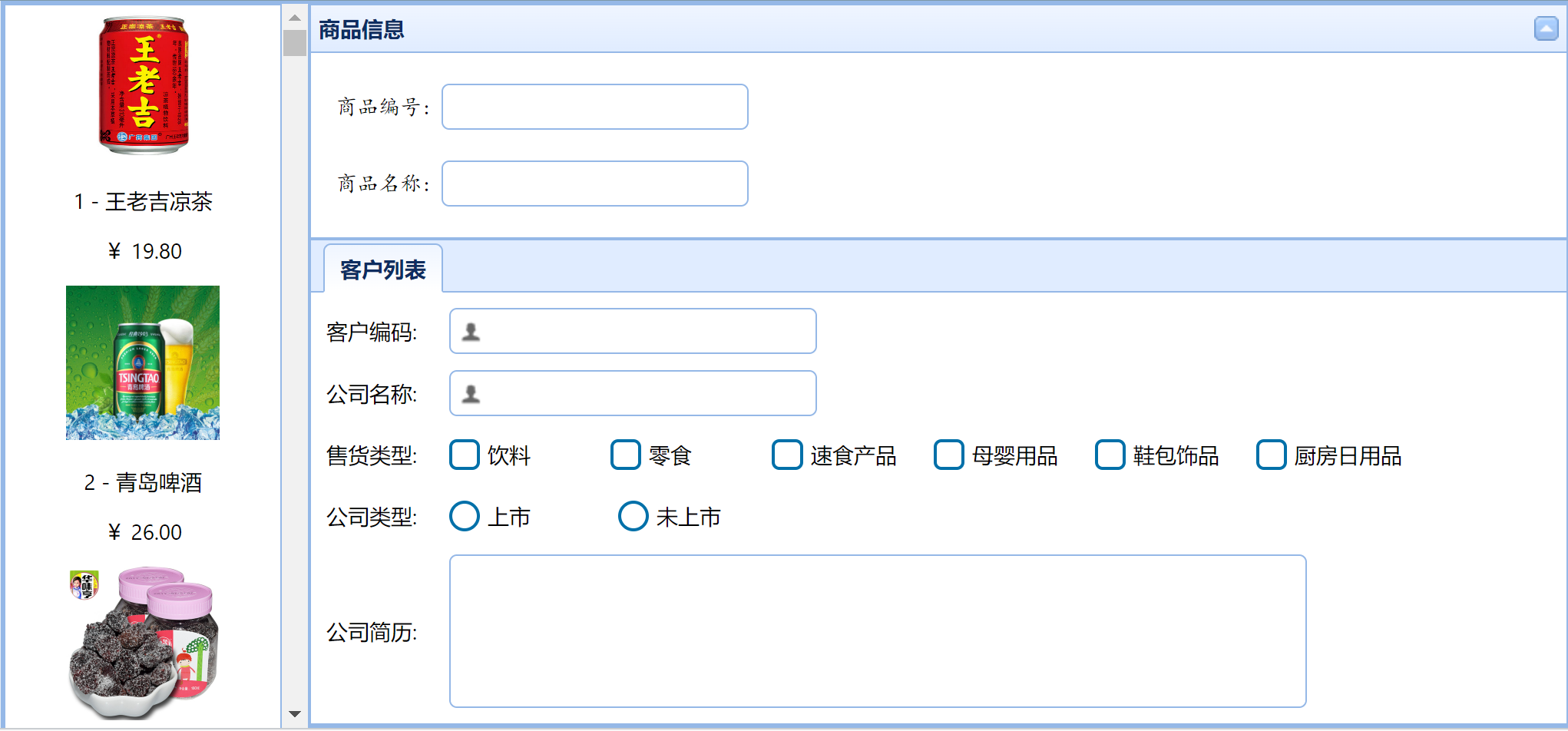
效果图:


import React from 'react';
import { Form, FormField, Layout,DataList,LayoutPanel,Panel, Label, CheckBox, TextBox,Tabs,TabPanel, DateBox, NumberBox, RadioButton, ComboBox, LinkButton } from 'rc-easyui';
import '../css/style.css';
import * as demo from 'rc-easyui/dist/locale/easyui-lang-zh_CN.js';
import { reqdoSQL } from '../../api/functions.js';
import 'rc-easyui/dist/themes/gray/radiobutton.css';
import 'rc-easyui/dist/themes/gray/checkbox.css';
export default class Page401 extends React.Component {
  constructor(props) {
    super(props);
    this.state = {
     product:{},
     data:[],
     topic:["饮料","零食","速食产品","母婴用品","鞋包饰品","厨房日用品"],
     topicchecked:[],
     onlist:["上市","未上市"],
     onlists:"",
     datetime:new Date(),
     listtime:[]
    }
  }
  getImage(row) {
    return "/myServer/mybase/products/"+row.productid+".jpg";
  }
  async componentDidMount() {
    let p={};
    p.selectsql='select productid,productname,unitprice from products';
    let rs= await reqdoSQL(p);
    this.setState({data:rs.rows});
   
  }
  renderItem({ row }) {
    return (
      <div key={row.productid}>
        <img src={this.getImage(row)} style={{width:"100px",height:"100px"}} />
        <div>
          <p>{row.productid} - {row.productname}</p>
 
          <p>¥ {row.unitprice}</p>
        </div>
      </div>
    )
  }
  handleChange(name, value) {  //同一个函数,用name来区分
 
    let product = Object.assign({}, this.state.product);
    product[name] = value;
    this.setState({product: product,open:false });
    console.log(name,value);
  }
handleSelectionChange(row){
    this.setState({product:row})
    console.log(111111,row);
  }
  handleChangelist(value, checked) {
    if (checked) {
      this.setState({ onlists: value },() => {
        setTimeout(()=>{
          if(this.state.onlists=="上市"){
            var listtime=[];
            listtime.push(<div style={{ margin: '10px'}}>
          <Label htmlFor="onlisttime" align="left">上市时间:</Label>
          <DateBox inputId="onlisttime" id="onlisttime" value={this.state.datetime} onChange={(value) => this.datetimeChange(value)} format="yyyy-MM-dd"
          style={{width:"300px",fontFamily:"楷体",height:"30px"}}></DateBox>
          </div>);
            this.setState({listtime:listtime})
     
          }else{
     
            this.setState({listtime:[]});
          }
        },100);
     
    });
   
  }
}
  datetimeChange(value){
    this.setState({datetime: value});
  }
  render() {
    return (
      <div>
        <Layout style={{width:"100%",height:"100%",position:"absolute"}}>
          <LayoutPanel region="west" style={{width:200}}>
            <div>
            <DataList
          style={{ width: "100%", height: "100%" ,textAlign:"center"}}
          renderItem={this.renderItem.bind(this)}
          data={this.state.data}
          selectionMode="single"
          onSelectionChange={this.handleSelectionChange.bind(this)}
          />
                  </div>
          </LayoutPanel>
          <LayoutPanel region="center" >
       
         
        <Panel title="商品信息" collapsible >
          <div style={{position:'relative', height:120}} >
          <Label htmlFor="productid" className="labelStyle" style={{position:'absolute', top:'20px', left:'16px'}}>商品编号:</Label>
          <TextBox inputId="productid" id="productid" value={this.state.product.productid}
          onChange={(value) => this.handleChange("pid", value)}
          style={{position:'absolute', top:'20px', left:'85px', width:'200px'}}></TextBox>
          <Label htmlFor="productname" className="labelStyle" style={{position:'absolute', top:70, left:'16px'}}>商品名称:</Label>
          <TextBox inputId="productname" id="productname" value={this.state.product.productname} onChange={(value) => this.handleChange("productname", value)}
          style={{position:'absolute', top:'70px', left:'85px', width:200}}></TextBox>
         
         </div>
        </Panel>
        <div>
        <Tabs tabPosition='top'  >
       
        <TabPanel ref={ref => this.myTab1 = ref} key="myTab1" title="客户列表">
        <div style={{margin:"10px"}}>
            <Label htmlFor="customerid" align="left">客户编码:</Label>
            <TextBox inputId="customerid" iconCls="icon-man" style={{ width: '30%' }}></TextBox>
        </div>
         
        <div style={{margin:"10px"}}>
            <Label htmlFor="companyname" align="left">公司名称:</Label>
            <TextBox inputId="companyname" iconCls="icon-man" style={{ width: '30%' }}></TextBox>
        </div>
        <div style={{margin:"10px"}}>
        <Label htmlFor="companyname" align="left">售货类型:</Label>
        {
          this.state.topic.map(topic => {
            return (
              <div key={topic} style={{display:"inline-block"}}>
                <CheckBox inputId={topic} multiple value={topic} values={this.state.topicchecked} onChange={this.handleChange.bind(this)}></CheckBox>
                <Label htmlFor={topic} style={{margin:'0px 0px 0px 5px'}}>{topic}</Label>
              </div>
            )
          })
         
        }
        </div>
        <div style={{margin:"10px"}}>
        <Label htmlFor="onlist" align="left">公司类型:</Label>
        {
  this.state.onlist.map(onlist => {
    return (
      <div key={onlist} style={{display:"inline-block"}}>
        <RadioButton
          inputId={onlist}
          value={onlist}
          groupValue={this.state.onlists}
          onChange={(checked) => this.handleChangelist(onlist, checked)}
        />
        <Label htmlFor={onlist} style={{ margin: '0 5px' }}>{onlist}</Label>
      </div>
    )
  })
}
</div>
{this.state.listtime}
        <div style={{ margin: '10px' }}>
            <Label htmlFor="note" align="left">公司简历:</Label>
            <TextBox inputId="note" multiline value={this.state.description} style={{ width: '70%', height: 100 }}></TextBox>
        </div>
        </TabPanel>
        </Tabs>
      </div>
        </LayoutPanel>
        </Layout>
      </div>
    );
  }
}


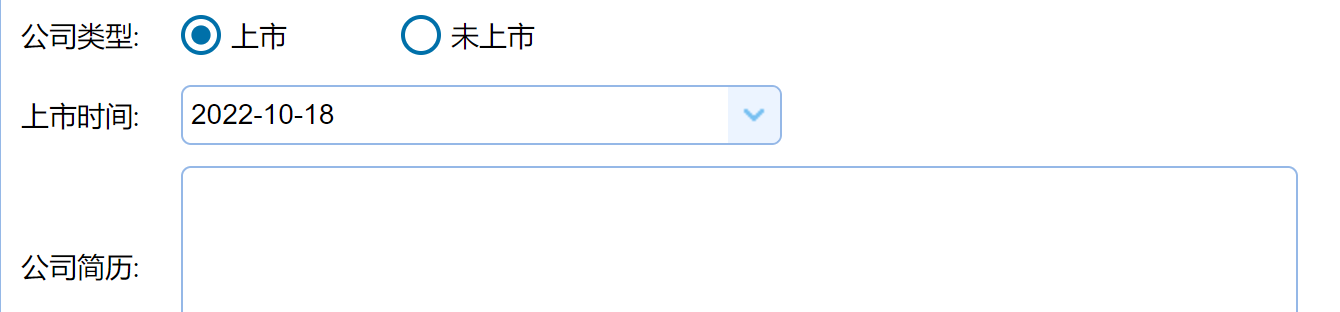
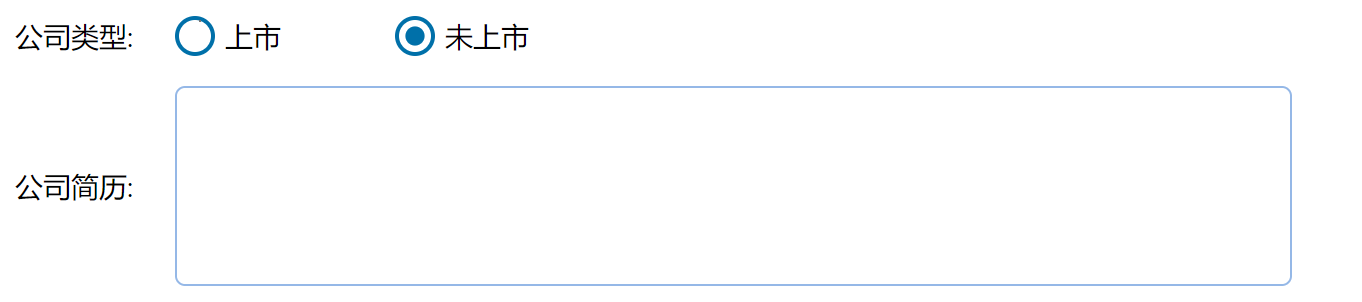
做了个选中才出现的信息框,开始做有异步,点击“上市”不出现“上市时间”,点击“未上市”才出现,后来还是用setTimeout()做的,如果有更好的方法可以指点指点的。
 
 handleChangelist(value, checked) {
    if (checked) {
      this.setState({ onlists: value },() => {
        setTimeout(()=>{
          if(this.state.onlists=="上市"){
            var listtime=[];
            listtime.push(<div style={{ margin: '10px'}}>
          <Label htmlFor="onlisttime" align="left">上市时间:</Label>
          <DateBox inputId="onlisttime" id="onlisttime" value={this.state.datetime} onChange={(value) => this.datetimeChange(value)} format="yyyy-MM-dd"
          style={{width:"300px",fontFamily:"楷体",height:"30px"}}></DateBox>
          </div>);
            this.setState({listtime:listtime})
     
          }else{
     
            this.setState({listtime:[]});
          }
        },100);
     
    });
   
  }

}


react.js+easyui 做一个简单的商品表的更多相关文章

  1. 使用React并做一个简单的to-do-list

    1. 前言 说到React,我从一年之前就开始试着了解并且看了相关的入门教程,而且还买过一本<React:引领未来的用户界面开发框架 >拜读.React的轻量组件化的思想及其virtual ...

  2. 【 D3.js 入门系列 --- 3 】 做一个简单的图表!

    前面说了几节,都是对文字进行处理,这一节中将用 D3.js 做一个简单的柱形图. 做柱形图有很多种方法,比如用 HTML 的 div 标签,或用 svg . 推荐用 SVG 来做各种图形.SVG 意为 ...

  3. 【 D3.js 入门系列 — 3 】 做一个简单的图表!

    图1. 柱形图 1. 柱形图 前几章的例子,都是对文字进行处理.本章中将用 D3 做一个简单的柱形图.制作柱形图有很多种方法,比如用 HTML 的 <div> 标签,或在 SVG 上绘制 ...

  4. MUI框架-05-用MUI做一个简单App

    MUI框架-05-用MUI做一个简单App MUI 是一个前端框架,前端框架就像 Bootstrap,EasyUI,Vue ,为了做 app 呢,就有了更加高效的 MUI,我觉得前端框架有很多,也没有 ...

  5. 使用 jquery 的 上传文件插件 uploadify 3.1 配合 java 来做一个简单的文件上次功能。并且在界面上有radio 的选择内容也要上传

    使用 jquery 的 上传文件插件 uploadify 3.1 配合 java 来做一个简单的文件上次功能.并且在界面上有radio 的选择内容也要上传 uploadify 插件的 下载和文档地址  ...

  6. 第四章 .net core做一个简单的登录

    项目目标部署环境:CentOS 7+ 项目技术点:.netcore2.0 + Autofac +webAPI + NHibernate5.1 + mysql5.6 + nginx 开源地址:https ...

  7. .Net Core 3.0后台使用httpclient请求网络网页和图片_使用Core3.0做一个简单的代理服务器

    目标:使用.net core最新的3.0版本,借助httpclient和本机的host域名代理,实现网络请求转发和内容获取,最终显示到目标客户端! 背景:本人在core领域是个新手,对core的使用不 ...

  8. 【Bugly干货分享】一起用 HTML5 Canvas 做一个简单又骚气的粒子引擎

    Bugly 技术干货系列内容主要涉及移动开发方向,是由Bugly邀请腾讯内部各位技术大咖,通过日常工作经验的总结以及感悟撰写而成,内容均属原创,转载请标明出处. 前言 好吧,说是“粒子引擎”还是大言不 ...

  9. 一起用HTML5 canvas做一个简单又骚气的粒子引擎

    前言 好吧,说是"粒子引擎"还是大言不惭而标题党了,离真正的粒子引擎还有点远.废话少说,先看demo 本文将教会你做一个简单的canvas粒子制造器(下称引擎). 世界观 这个简单 ...

随机推荐

  1. Win10环境下使用Flask配合Celery异步推送实时/定时消息(Socket.io)/2020年最新攻略

    原文转载自「刘悦的技术博客」https://v3u.cn/a_id_163 首先得明确一点,和Django一样,在2020年Flask 1.1.1以后的版本都不需要所谓的三方库支持,即Flask-Ce ...

  2. Vector3类定义

    大家一定要先看书,在看我的随笔啊.不然不知道原理的.而且我是不写教程的,只是写笔记怕自己忘记了. 我把所有的基础类放在了名叫geometry的文件中,包含Vector3, Normal3, Point ...

  3. vue2与vue3实现响应式的原理区别和提升

    区别: vue2.x: 实现原理: 对象类型:Object.defineProperty()对属性的读取,修改进行拦截(数据劫持): 数组类型:通过重写更新数组的一系列方法来进行拦截(对数组的变更方法 ...

  4. MySQL之JDBC编程增删改查

    MySQL之JDBC 一.JDBC是什么 Java DatabaseConnectivity (java语言连接数据库) 二.JDBC的本质 JDBC是SUN公司制定的一套接口(interface). ...

  5. python包合集-cffi

    一.cffi cffi是连接Python与c的桥梁,可实现在Python中调用c文件.cffi为c语言的外部接口,在Python中使用该接口可以实现在Python中使用外部c文件的数据结构及函数. 二 ...

  6. Linux 02 基本命令

    参考源 https://www.bilibili.com/video/BV187411y7hF?spm_id_from=333.999.0.0 版本 本文章基于 CentOS 7.6 工具 清屏 cl ...

  7. 腾讯云服务器安装rabbitmq及简单测试记录

    一.安装 近期对消息队列的学习让我对消息中间件产生了兴趣,而作为消息队列的使用的rabbitmq,就是我学习中间件的第一步. rabbitmq和erlang的安装 安装之前先检查环境: [root@V ...

  8. python自学笔记10:while循环和for循环

    条件控制和循环控制是两种典型的流程控制方法,前面我们写了 if 条件控制,这节讲 for 循环和 while 循环. 循环是另一种控制流程的方式,一个循环体中的代码在程序中只需要编写一次,但可能会连续 ...

  9. 开源IPTV源服务程序使用教程

    Streaming-Media-Server-Pro 前言 我的目标是将程序打造成属于每个人的直播源服务,且对每个人完全开源免费!可作为家庭影院电视.视频等流媒体的提供商,兼容全平台,只需下载视频播放 ...

  10. JTS TopologyException 问题

    计算2个几何相交结果时候,报错了: val geometry = polygon.intersection(lineString) 日志如下 org.locationtech.jts.geom.Top ...