
【转】Setting up SDL Extension Libraries on Code::Blocks 12.11
Setting up SDL Extension Libraries on Code::Blocks 12.11
Last Updated 11/18/13
1)First thing you need to do is download SDL_image headers and binaries. You will find them on the SDL_image website, specifically on this page.
Since Code::Blocks comes with the MinGW compiler by default, odds are you'll want to download the MinGW development libraries.

Open the gzip archive and there should be a tar archive. Open up the tar archive and the should be a folder called SDL2_image-2.something.something. In side of that folder there should be a bunch of folders and files, most importantly i686-w64-mingw32 which contains the 32bit library and x86_64-w64-mingw32 which contains the 64bit library.
2)This is important: most compilers still compile 32bit binaries by default to maximize compatibility. We will be using the 32bit binaries for this tutorial set. It doesn't matter if you have a 64bit operating system, since we are compiling 32bit binaries we will be using the 32bit library.
Inside of i686-w64-mingw32 are the include, lib, and bin folders which contain everything we need compile and run SDL applications. Copy the contents of i686-w64-mingw32 to any directory you want. I recommend putting it in a folder that you dedicate to holding all your development libraries for MinGW. For these tutorials I'm putting it in a directory I created C:\mingw_dev_lib
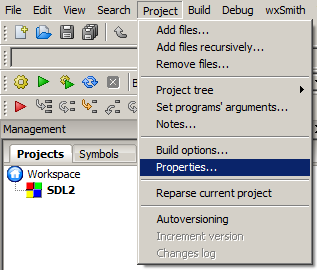
3)Open up your SDL 2 project and go to project properties.
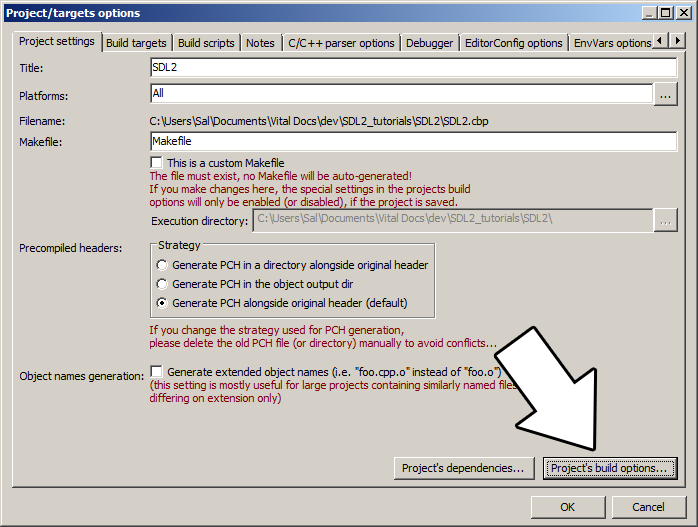
4)Now we have to tell Code::Blocks to search for header files in the library folder we just extracted. Go to build options.
In the Search Directories, we need to add a new compiler directory. Click add, Select the SDL_image folder inside of the include directory from the folder we extracted. Say no when it asks you whether you want it to be a relative path. Now Code::Blocks knows where to find the SDL_image header files.
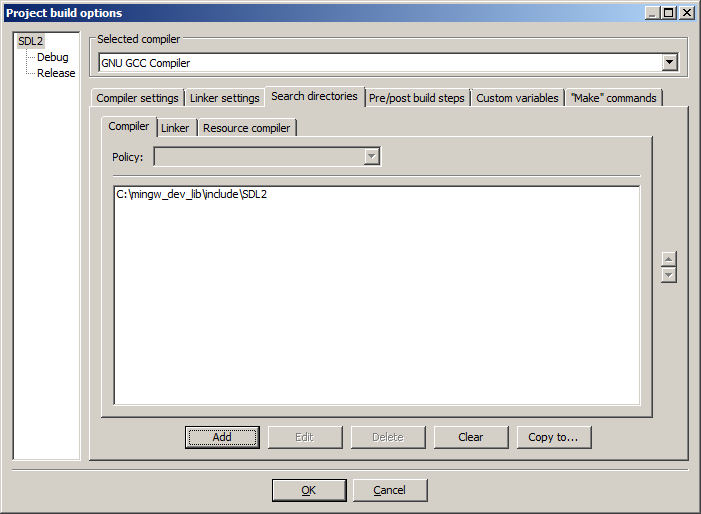
If you get an error where the compiler says it can't find SDL.h, it means you messed up this step.
You may have noticed that the folder added here is the same as the one for the SDL 2 main set up. Personally, I like keeping the SDL_image, SDL_ttf, and SDL_mixer headers and libraries in the same directories. Other people like to keep them separate. If you put the extension libary headers in the same directories as SDL 2, you can skip this step since you already told the compiler to look in that directory. If you put them somewhere else, you have to do this step so your compiler will look for the extension library headers in the right directory.
5)Next we are going to tell Code::Blocks to search for library files in the SDL folder we just extracted. All you have to is go to the linker tab and add the lib directory from the folder we extacted to the linker search directories.

If you get an error where the linker complains it can't find -lSDL2_image (or -lSDL2_ttf/-lSDL2_mixer), it means you messed up this step.
As with before, if you put the library files for the extension library in the same directory as SDL 2, you can skip this step since the compiler is already looking in that directory.
6)In order to compile SDL 2 code, we have to tell the compiler to link against the libraries. Go under Linker Settings and paste
-lSDL2_image
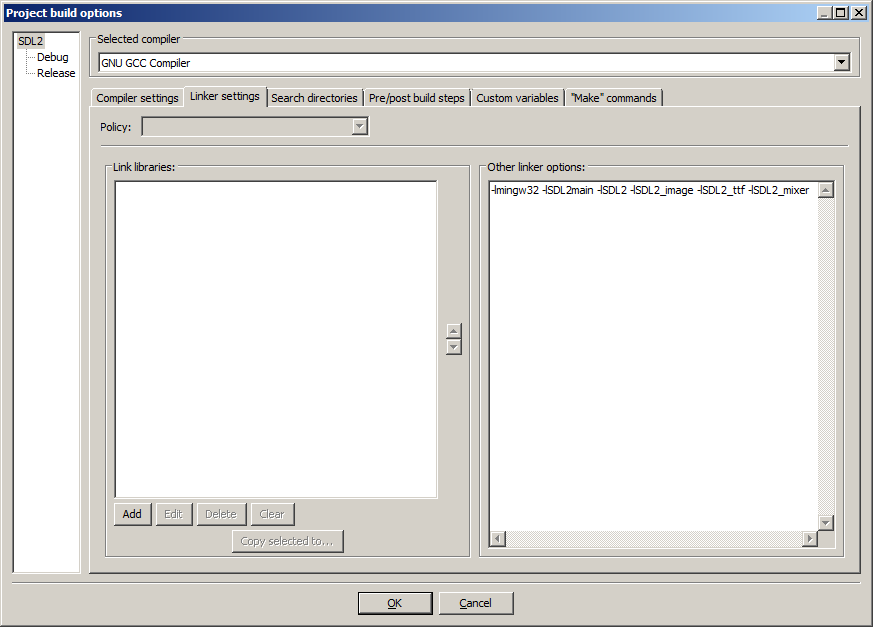
If you get an error where the linker complains about a bunch of undefined references, it means you messed up this step.
7)Like with plain SDL, the operating system needs to be able to find the dll files for the extension library while running.
Go find the SDL 2 folder you extracted and from the bin folder inside copy the dll files (all of them if there's more than one) and put it either where your executable will run, or inside of the system directory. C:\WINDOWS\SYSTEM32 is the 32bit windows system directory and C:\Windows\SysWOW64 is the 64bit system directory of 32bit applications. For these tutorials, I'm assuming we're making 32bit applications. If you get an error when you run the program where it complains that it can't find dll files, it means you messed up this step.
8)>Now go download the source for lesson 06. Add the source file inside to your project.
Now build. If there are any errors, make sure you didn't skip a step.
Now that you have the extension library compiling, it's time to go onto part 2 of the tutorial.
【转】Setting up SDL Extension Libraries on Code::Blocks 12.11的更多相关文章
- 【转】Setting up SDL Extension Libraries on Visual Studio 2010 Ultimate
FROM:http://lazyfoo.net/tutorials/SDL/06_extension_libraries_and_loading_other_image_formats/windows ...
- 【转】Setting up SDL Extension Libraries on Visual Studio 2019 Community
FROM:http://lazyfoo.net/tutorials/SDL/06_extension_libraries_and_loading_other_image_formats/windows ...
- 【转】Setting up SDL Extension Libraries on Windows
FROM: http://lazyfoo.net/tutorials/SDL/06_extension_libraries_and_loading_other_image_formats/window ...
- 【转】Setting up SDL Extension Libraries on MinGW
FROM:http://lazyfoo.net/tutorials/SDL/06_extension_libraries_and_loading_other_image_formats/windows ...
- 【转】Setting up SDL 2 on Code::Blocks 12.11
FROM: http://lazyfoo.net/tutorials/SDL/01_hello_SDL/windows/codeblocks/index.php Setting up SDL 2 on ...
- 【转】Setting up SDL on Windows
FROM: http://lazyfoo.net/tutorials/SDL/01_hello_SDL/windows/index.php Setting up SDL on Windows Last ...
- Code::Blocks
Code::Blocks 是一个开放源码的全功能的跨平台C/C++集成开发环境. Code::Blocks是开放源码软件.Code::Blocks由纯粹的C++语言开发完成,它使用了著名的图形界面库w ...
- 【转】Extension Libraries and Loading Other Image Formats
FROM: http://lazyfoo.net/tutorials/SDL/06_extension_libraries_and_loading_other_image_formats/index. ...
- 【转】Setting up SDL 2 on MinGW
FROM: http://lazyfoo.net/tutorials/SDL/01_hello_SDL/windows/mingw/index.php Setting up SDL 2 on MinG ...
随机推荐
- 纹理_贴图_texture
详细代码可以在我的GitHub上找文末指定的项目.
- 初识ABP vNext(11):聚合根、仓储、领域服务、应用服务、Blob存储
Tips:本篇已加入系列文章阅读目录,可点击查看更多相关文章. 目录 前言 开始 聚合根 仓储 领域服务 BLOB存储 应用服务 单元测试 模块引用 最后 前言 在前两节中介绍了ABP模块开发的基本步 ...
- Centos-统计文件或目录占用磁盘空间-du
du 显示文件或目录所占磁盘空间总量 相关选项 -s 显示文件或者整个目录的大小,默认单位为KB -b 指定单位为byte -h 人类友好读方式显示 -m 指定单位为 MB
- .Net Core 2.2 存取Cookie
第一步(注释代码):注释Startup.cs中 ConfigureServices 函数中的 options.CheckConsentNeeded = context => true; 第二步 ...
- centos7安装YouCompleteMe,vim打造成C++的IDE
一.安装python3 1.安装编译工具 yum -y groupinstall "Development tools" yum -y install zlib-devel bzi ...
- obj2opengl:转换OBJ 3D模型到iPhone OpenGL ES兼容的数组中
原文如下:obj2opengl: convert obj 3D models to arrays compatible with iPhone OpenGL ES obj2opengl在GitHub中 ...
- Opencv的imread用法
所有参考来自网上仅仅做学习记录用,具体正确性需要在具体项目各自验证,不涉及具体错误代码处理调试等问题,欢迎发现发现问题~ 参考: 1. https://blog.csdn.net/LiheZhu/ar ...
- 实验二 C2C实践
实验二 C2C实践 [实验目的] 掌握网上购物的基本流程和C2C平台的运营 [实验条件] ⑴.个人计算机一台 ⑵.计算机通过局域网形式接入互联网. (3).奥派电子商务应用软件 [知识准备] 本实验 ...
- linunx常用命令综合
# linux常用命令exsi 6.5虚拟化系统命令大全 https://www.runoob.com/linux/linux-command-manual.html# sudo -i 设置切换无密码 ...
- 扫描仪扫描文件处理-A4分辨率
转换公式:毫米转英寸,英寸乘以DPI(每英寸点数) 1英寸 = 2.54 厘米 = 25.4 毫米 例子(600dpi):mm: 210x297 = px: 4961(210/25.4*600)x70 ...