
安卓Design包之Toolbar控件的使用
转自:ToolBar的使用
ToolBar的出现是为了替换之前的ActionBar的各种不灵活使用方式,相反,ToolBar的使用变得非常灵活,因为它可以让我们自由往里面添加子控件.低版本要使用的话,可以添加support-v7包.
* toolabr使用:替代actionBar
* 可以自定义布局
* 点击事件和加载菜单可以当做view来使用
* 位置可以任意
* 需要在清单文件中去掉actionBar
* toolbar可以当做viewGroup使用
注意:toolbar兼容低版本时,所在的activity也应该是兼容低版本的activity即AppCompatActivity
* 否则,只能在Api21以上才能使用
如果需要实现toolbar与侧滑菜单的绑定与切换,请查看
安卓Design包之NavigationView结合DrawerLayout,toolbar的使用,FloatingActionButton
添加依赖库:
compile 'com.android.support:design:24.2.0'
xml文件:
<?xml version="1.0" encoding="utf-8"?>

<RelativeLayout xmlns:android="http://schemas.android.com/apk/res/android"

    xmlns:tools="http://schemas.android.com/tools"

    android:layout_width="match_parent"

    android:layout_height="match_parent"

    xmlns:app="http://schemas.android.com/apk/res-auto"

    tools:context="fanggao.qf.toolbartest.MainActivity">

    <android.support.v7.widget.Toolbar

        android:id="@+id/toolbar"

        android:layout_width="match_parent"

        android:layout_height="?attr/actionBarSize"

        android:background="#0000ff"

       >

        <!--

         ?attr/actionBarSize:表示根据屏幕的分辨率采用系统默认的高度

         如果低版本也要使用的话,则需要使用v7包的,否则只有api21上才能有效

         -->

        <!--自定义view-->

        <LinearLayout

            android:layout_width="wrap_content"

            android:layout_height="wrap_content"

            android:orientation="horizontal">

            <Button

                android:id="@+id/button"

                android:layout_width="wrap_content"

                android:layout_height="wrap_content"

                android:text="自定义"/>

        </LinearLayout>

    </android.support.v7.widget.Toolbar>

</RelativeLayout>
menu:包含两个item
<?xml version="1.0" encoding="utf-8"?>

<menu xmlns:android="http://schemas.android.com/apk/res/android"

    xmlns:app="http://schemas.android.com/apk/res-auto">

    <item

        android:id="@+id/item1"

        android:title="menu1"

        app:showAsAction="always"></item>

    <item

        android:id="@+id/item2"

        android:title="menu2"

        app:showAsAction="always"></item>

</menu>
layout_popupWindow.xml
自定义的带图标的菜单布局
<?xml version="1.0" encoding="utf-8"?>

<LinearLayout xmlns:android="http://schemas.android.com/apk/res/android"

    android:orientation="vertical" android:layout_width="match_parent"

    android:layout_height="match_parent"

    android:background="#274B5E"

    android:padding="10dp">

    <LinearLayout

        android:id="@+id/ll_item1"

        android:layout_width="match_parent"

        android:layout_height="wrap_content"

        android:gravity="center">

        <ImageView

            android:layout_width="wrap_content"

            android:layout_height="wrap_content"

            android:src="@mipmap/ic_launcher" />

        <TextView

            android:layout_width="wrap_content"

            android:layout_height="wrap_content"

            android:layout_marginLeft="10dp"

            android:text="哈哈"

            android:textSize="20sp" />

    </LinearLayout>

    <LinearLayout

        android:id="@+id/ll_item2"

        android:layout_width="match_parent"

        android:layout_height="wrap_content"

        android:gravity="center">

        <ImageView

            android:layout_width="wrap_content"

            android:layout_height="wrap_content"

            android:src="@mipmap/ic_launcher" />

        <TextView

            android:layout_width="wrap_content"

            android:layout_height="wrap_content"

            android:layout_marginLeft="10dp"

            android:text="呵呵"

            android:textSize="20sp" />

    </LinearLayout>

    <LinearLayout

        android:id="@+id/ll_item3"

        android:layout_width="match_parent"

        android:layout_height="wrap_content"

        android:gravity="center">

        <ImageView

            android:layout_width="wrap_content"

            android:layout_height="wrap_content"

            android:src="@mipmap/ic_launcher" />

        <TextView

            android:layout_width="wrap_content"

            android:layout_height="wrap_content"

            android:layout_marginLeft="10dp"

            android:text="嘻嘻"

            android:textSize="20sp" />

    </LinearLayout>

</LinearLayout>
源代码:
/**

 * PopupWindow 动画组件

 */

public class MainActivity extends AppCompatActivity implements Toolbar.OnMenuItemClickListener,View.OnClickListener {

    private Toolbar toolbar;

    private PopupWindow popupWindow;

    @Override

    protected void onCreate(Bundle savedInstanceState) {

        super.onCreate(savedInstanceState);

        setContentView(R.layout.activity_main);

        toolbar = (Toolbar) findViewById(R.id.toolbar);

        //当做actionBar用

        //设置最左侧图标

        toolbar.setNavigationIcon(R.mipmap.ic_launcher);

        //程序logo

       // toolbar.setLogo(R.mipmap.ic_launcher);

        //程序标题

        toolbar.setTitle("我来自toolbar");

        //子标题

        toolbar.setSubtitle("son");

        //取代原本的actionBar,需要在清单文件style中设置noActionBar,否则报错

        setSupportActionBar(toolbar);

        //设置NavigationIcon的点击事件,需要放在setSupportActionBar之后设置才会生效

        //因为setsupportActionBar里面也有setNavigationOnClickListener

        toolbar.setNavigationOnClickListener(new View.OnClickListener() {

            @Override

            public void onClick(View v) {

                Toast.makeText(MainActivity.this, "click NavigationIcon", Toast.LENGTH_SHORT).show();

            }

        });

        //如果设置toolbar为标题头,菜单不显示,需要重写onCreateOptionsMenu(Menu menu)方法加载菜单

        //toolbar加载菜单

        //   toolbar.inflateMenu(R.menu.menu);

        //设置菜单选项的点击事件

        toolbar.setOnMenuItemClickListener(this);

        //自定义按钮的的点击事件

        toolbar.findViewById(R.id.button).setOnClickListener(new View.OnClickListener() {

            @Override

            public void onClick(View v) {

                Toast.makeText(MainActivity.this, "点击了按钮", Toast.LENGTH_SHORT).show();

            }

        });

    }

    /* 设置toolBar上的MenuItem点击事件*/

    @Override

    public boolean onMenuItemClick(MenuItem item) {

        switch (item.getItemId()) {

            case R.id.item1:

                Toast.makeText(MainActivity.this, "item1", Toast.LENGTH_SHORT).show();

                break;

            case R.id.item2:

                //自定义的带图标的菜单

                myPopupMenuwithIcon();

               break;

        }

        return true;

    }

    /**

     * 自定义的带图标的菜单

     */

    private void myPopupMenuwithIcon() {

        //获取状态栏高度

        Rect frame = new Rect();

        getWindow().getDecorView().getWindowVisibleDisplayFrame(frame);

        //状态栏高度+toolbar的高度

        int yOffset = frame.top + toolbar.getHeight();

        if (popupWindow == null) {

            //初始化动画组件的布局

            View popContentView = getLayoutInflater().inflate(R.layout.layout_popupwindow_item, null);

            //参数一:动画组件布局,参数二三:宽高,参数四设置是否可聚焦 focusAble

            popupWindow = new PopupWindow(popContentView, ViewGroup.LayoutParams.WRAP_CONTENT, ViewGroup.LayoutParams.WRAP_CONTENT, true);

            //设置背景颜色后setOntsideTouchable(true)才会有效

            popupWindow.setBackgroundDrawable(new ColorDrawable());

            //点击外部关闭

            popupWindow.setOutsideTouchable(true);

            //设置动画

            popupWindow.setAnimationStyle(android.R.style.Animation_Dialog);

            //设置位置 参数一:父布局  参数二:位置,参数三:x轴的偏移量,参数四:y轴的偏移量

            popupWindow.showAtLocation(toolbar, Gravity.TOP | Gravity.RIGHT, 0, yOffset);

            //设置item的点击监听

            popContentView.findViewById(R.id.ll_item1).setOnClickListener(this);

            popContentView.findViewById(R.id.ll_item2).setOnClickListener(this);

            popContentView.findViewById(R.id.ll_item3).setOnClickListener(this);

        } else {

            popupWindow.showAtLocation(toolbar, Gravity.RIGHT | Gravity.TOP, 0, yOffset);

        }

    }

    //如果有Menu,创建完后,系统会自动添加到ToolBar上

    @Override

    public boolean onCreateOptionsMenu(Menu menu) {

        super.onCreateOptionsMenu(menu);

        getMenuInflater().inflate(R.menu.menu, menu);

        return true;

    }

    @Override

    public void onClick(View v) {

        switch (v.getId()) {

            case R.id.ll_item1:

                Toast.makeText(MainActivity.this, "haha", Toast.LENGTH_SHORT).show();

                break;

            case R.id.ll_item2:

                Toast.makeText(MainActivity.this, "hehe", Toast.LENGTH_SHORT).show();

                break;

            case R.id.ll_item3:

                Toast.makeText(MainActivity.this, "xixi", Toast.LENGTH_SHORT).show();

                break;

        }

        //点击PopWindow的item后,关闭此PopWindow

        if (null != popupWindow && popupWindow.isShowing()) {

            popupWindow.dismiss();

        }

    }

}
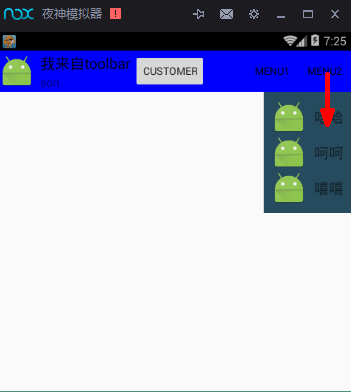
效果:

点击menu2后
安卓Design包之Toolbar控件的使用的更多相关文章
- 安卓Design包之TabLayout控件的使用
转自: 安卓Design包之TabLayout控件的简单使用 Google在2015的IO大会上,给我们带来了更加详细的Material Design设计规范,同时,也给我们带来了全新的Android ...
- 安卓Design包之超强控件CoordinatorLayout与SnackBar的简单使用
在前面的Design中,学习使用了TabLayout,NavigationView与DrawerLayout实现的神奇效果,今天就带来本次Design包中我认为最有意义的控件CoordinatorLa ...
- 安卓Design包之TabLayout控件的简单使用
Google在2015的IO大会上,给我们带来了更加详细的Material Design设计规范,同时,也给我们带来了全新的Android Design Support Library,在这个supp ...
- 安卓Design包之CollapsingToolbarLayout(可折叠的工具栏布局)的简单使用
转自: CollapsingToolbarLayout的使用 注意:使用前需要添加Design依赖包,使用toolbar时需要隐藏标题头 CollapsingToolbarLayout作用是提供了一个 ...
- ToolBar控件详解
ToolBar控件详解 在Activity中添加ToolBar 1.添加库 dependencies { ... compile "com.android.support:appcompat ...
- 安卓Design包之CoordinatorLayout配合AppBarLayout,ToolBar,TabLaout的使用
转载: CoordinatorLayout配合AppBarLayout,Toolbar和TabLayout的使用 控件的简单介绍: AppBarLayout:它是继承LinerLayout实现的一个V ...
- 安卓Design包之NavigationView结合DrawerLayout,toolbar的使用,FloatingActionButton
注意:使用前需要添加Design依赖包,使用toolbar时需要隐藏标题头 FloatingActionButton 悬浮按钮:FloatingActionButton是重写ImageView的,所有 ...
- 安卓Design包之AppBar和Toolbar的联用
前面讲了Design包的的CoordinatorLayout和SnackBar的混用,现在继续理解Design包的AppBar; AppBarLayout跟它的名字一样,把容器类的组件全部作为AppB ...
- 【转】Appium基于安卓的各种FindElement的控件定位方法实践
原文地址:http://blog.csdn.net/zhubaitian/article/details/39754041#t11 AppiumDriver的各种findElement方法的尝试,尝试 ...
随机推荐
- Spark系列(五)Master主备切换机制
Spark Master主备切换主要有两种机制,之中是基于文件系统,一种是基于Zookeeper.基于文件系统的主备切换机制需要在Active Master挂掉后手动切换到Standby Master ...
- ubuntu开机自启动脚本编写
1.将启动脚本复制到/etc/init.d目录下面 2.chmod 755 /etc/init.d/xxx 3.sudo update-rc.d /etc/init.d/xxx defaults 95 ...
- 使用DBCC SHOW_STATISTICS展示索引的统计信息
在开始之前搭建演示环境: USE master GO SET NOCOUNT ON --创建表结构 IF OBJECT_ID(N'ClassA', N'U') IS NOT NULL DROP TAB ...
- python 操作 excel
python操作execel主要是读写 读 通过 http://pypi.python.org/pypi/xlrd 写 通过 http://pypi.python.org/pypi/xlwd 下载ta ...
- javascript实现队列功能
- [转]Oracle 操作字符串的函数
转至:http://yedward.net/?id=62 (1)oracle中实现截取字符串:substr substr(string, start_position, [length]) 其中,st ...
- .Net 代码安全保护产品DNGuard HVM使用
前辈人物写的程序啊! 官方网站:http://www.dnguard.net/index.aspx 官方博客:http://www.cnblogs.com/rick/ (很久没更新了) 原文http: ...
- 如何给word 文章的每段段尾添加 脚注
新建一个宏,其代码如下 Sub 段尾加脚注() ' ' 段尾加脚注 宏 ' 'ActiveDocument.Paragraphs.Count返回文档的段落数 ' 定义一个整形变量numpara,来存储 ...
- 小学生玩ACM----广搜
Oil Deposits Time Limit: 2000/1000 MS (Java/Others) Memory Limit: 65536/32768 K (Java/Others) Tot ...
- cocos2d-x 纹理源码分析
转自:http://blog.csdn.net/honghaier/article/details/8068895 当一张图片被加载到内存后,它是以纹理的形式存在的.纹理是什么东西呢?纹理就是一块内存 ...