
MVC文件上传06-使用客户端jQuery-File-Upload插件和服务端Backload组件自定义控制器上传多个文件
当需要在控制器中处理除了文件的其他表单字段,执行控制器独有的业务逻辑......等等,这时候我们可以自定义控制器。
MVC文件上传相关兄弟篇:
MVC文件上传01-使用jquery异步上传并客户端验证类型和大小
MVC文件上传02-使用HttpPostedFileBase上传多个文件
MVC文件上传03-使用Request.Files上传多个文件
MVC文件上传04-使用客户端jQuery-File-Upload插件和服务端Backload组件实现多文件异步上传
MVC文件上传05-使用客户端jQuery-File-Upload插件和服务端Backload组件自定义上传文件夹
通过继承BackloadController
□ 思路
BackloadController的HandleRequestAsync()方法可以用来处理异步请求,通过继承BackloadController,子类也有了处理异步文件请求的能力。客户端方面,需要一个指向自定义控制器的初始化js文件。
□ FileUploadDerivedController继承BackloadController
1: public class FileUploadDerivedController : BackloadController
2: {
3: public ActionResult Index()
4: {
5: return View();
6: }
7:
8: public async Task<ActionResult> FileHandler()
9: {
10: ActionResult result = await base.HandleRequestAsync();
11: return result;
12: }
13: }
.csharpcode, .csharpcode pre
{
font-size: small;
color: black;
font-family: consolas, "Courier New", courier, monospace;
background-color: #ffffff;
/*white-space: pre;*/
}
.csharpcode pre { margin: 0em; }
.csharpcode .rem { color: #008000; }
.csharpcode .kwrd { color: #0000ff; }
.csharpcode .str { color: #006080; }
.csharpcode .op { color: #0000c0; }
.csharpcode .preproc { color: #cc6633; }
.csharpcode .asp { background-color: #ffff00; }
.csharpcode .html { color: #800000; }
.csharpcode .attr { color: #ff0000; }
.csharpcode .alt
{
background-color: #f4f4f4;
width: 100%;
margin: 0em;
}
.csharpcode .lnum { color: #606060; }
□ 创建一个指向自定义控制器的js文件main.js
1: $(function () {
2: 'use strict';
3:
4: var fileUploadUrl = "/FileUploadDerived/FileHandler";
5:
6: // Initialize the jQuery File Upload widget:
7: $('#fileupload').fileupload({
8: url: fileUploadUrl,
9: acceptFileTypes: /(jpg)|(jpeg)|(png)|(gif)$/i // Allowed file types
10: });
11:
12: // Optional: Initial ajax request to load already existing files.
13: $.ajax({
14: url: fileUploadUrl,
15: dataType: 'json',
16: context: $('#fileupload')[0]
17: })
18: .done(function (result) {
19: $(this).fileupload('option', 'done')
20: .call(this, null, { result: result });
21: // Attach the Colorbox plugin to the image files to preview them in a modal window. Other file types (e.g. pdf) will show up in a
22: // new browser window.
23: $(".files tr[data-type=image] a").colorbox();
24: });
25:
26:
27: // Initialize the jQuery ui theme switcher:
28: $('#theme-switcher').change(function () {
29: var theme = $('#theme');
30: theme.prop(
31: 'href',
32: theme.prop('href').replace(
33: /[\w\-]+\/jquery-ui.css/,
34: $(this).val() + '/jquery-ui.css'
35: )
36: );
37: });
38: });
39:
40:
41: $("document").ready(function () {
42: // The Colorbox plugin needs to be informed on new uploaded files in the template in order to bind a handler to it.
43: // There must be a little delay, because the fileuploaddone event is triggered before the new template item is created.
44: // A more elegant solution would be to use jQuery's delegated .on method, which automatically binds to the anchors in a
45: // newly created template item, and then call colorbox manually.
46: $('#fileupload').bind('fileuploaddone', function(e, data) {
47: setTimeout(function() { $(".files tr[data-type=image] a").colorbox() }, 1000);
48: });
49: });
50:
.csharpcode, .csharpcode pre
{
font-size: small;
color: black;
font-family: consolas, "Courier New", courier, monospace;
background-color: #ffffff;
/*white-space: pre;*/
}
.csharpcode pre { margin: 0em; }
.csharpcode .rem { color: #008000; }
.csharpcode .kwrd { color: #0000ff; }
.csharpcode .str { color: #006080; }
.csharpcode .op { color: #0000c0; }
.csharpcode .preproc { color: #cc6633; }
.csharpcode .asp { background-color: #ffff00; }
.csharpcode .html { color: #800000; }
.csharpcode .attr { color: #ff0000; }
.csharpcode .alt
{
background-color: #f4f4f4;
width: 100%;
margin: 0em;
}
.csharpcode .lnum { color: #606060; }
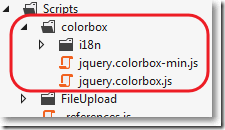
□ 其中用到了colorbox插件
install-package colorbox
□ FileUploadDerived/Index.cshtml视图
展开@{
ViewBag.Title = "Index";
Layout = "~/Views/Shared/_Layout.cshtml";
}
<div>
<!-- The file upload form used as target for the file upload widget -->
<form id="fileupload" action="/Backload/UploadHandler" method="POST" enctype="multipart/form-data">
<!-- Redirect browsers with JavaScript disabled to the origin page -->
<noscript><input type="hidden" name="redirect" value="/"></noscript>
<!-- The fileupload-buttonbar contains buttons to add/delete files and start/cancel the upload -->
<div class="row fileupload-buttonbar">
<div class="span7">
<!-- The fileinput-button span is used to style the file input field as button -->
<span class="btn btn-success fileinput-button">
<i class="icon-plus icon-white"></i>
<span>添加文件...</span>
<input type="file" name="files[]" multiple>
</span>
<button type="submit" class="btn btn-primary start">
<i class="icon-upload icon-white"></i>
<span>开始上传</span>
</button>
<button type="reset" class="btn btn-warning cancel">
<i class="icon-ban-circle icon-white"></i>
<span>取消上传</span>
</button>
<button type="button" class="btn btn-danger delete">
<i class="icon-trash icon-white"></i>
<span>删除</span>
</button>
<input type="checkbox" class="toggle">
<!-- The loading indicator is shown during file processing -->
<span class="fileupload-loading"></span>
</div>
<!-- The global progress information -->
<div class="span5 fileupload-progress fade">
<!-- The global progress bar -->
<div class="progress progress-success progress-striped active" role="progressbar" aria-valuemin="0" aria-valuemax="100">
<div class="bar" style="width:0%;"></div>
</div>
<!-- The extended global progress information -->
<div class="progress-extended"> </div>
</div>
</div>
<!-- The table listing the files available for upload/download -->
<table role="presentation" class="table table-striped"><tbody class="files" data-toggle="modal-gallery" data-target="#modal-gallery"></tbody></table>
</form>
<!-- The template to display files available for upload -->
<script id="template-upload" type="text/x-tmpl">
{% for (var i=0, file; file=o.files[i]; i++) { %}
<tr class="template-upload fade">
<td>
<span class="preview"></span>
</td>
<td>
<p class="name">{%=file.name%}</p>
{% if (file.error) { %}
<div><span class="label label-important">Error</span> {%=file.error%}</div>
{% } %}
</td>
<td>
<p class="size">{%=o.formatFileSize(file.size)%}</p>
{% if (!o.files.error) { %}
<div class="progress progress-success progress-striped active" role="progressbar" aria-valuemin="0" aria-valuemax="100" aria-valuenow="0"><div class="bar" style="width:0%;"></div></div>
{% } %}
</td>
<td>
{% if (!o.files.error && !i && !o.options.autoUpload) { %}
<button class="btn btn-primary start">
<i class="icon-upload icon-white"></i>
<span>Start</span>
</button>
{% } %}
{% if (!i) { %}
<button class="btn btn-warning cancel">
<i class="icon-ban-circle icon-white"></i>
<span>Cancel</span>
</button>
{% } %}
</td>
</tr>
{% } %}
</script>
<!-- The template to display files available for download -->
<script id="template-download" type="text/x-tmpl">
{% for (var i=0, file; file=o.files[i]; i++) { %}
<tr class="template-download fade">
<td>
<span class="preview">
{% if (file.thumbnail_url) { %}
<a href="{%=file.url%}" title="{%=file.name%}" data-gallery="gallery" download="{%=file.name%}"><img src="{%=file.thumbnail_url%}"></a>
{% } %}
</span>
</td>
<td>
<p class="name">
<a href="{%=file.url%}" title="{%=file.name%}" data-gallery="{%=file.thumbnail_url&&'gallery'%}" download="{%=file.name%}">{%=file.name%}</a>
</p>
{% if (file.error) { %}
<div><span class="label label-important">Error</span> {%=file.error%}</div>
{% } %}
</td>
<td>
<span class="size">{%=o.formatFileSize(file.size)%}</span>
</td>
<td>
<button class="btn btn-danger delete" data-type="{%=file.delete_type%}" data-url="{%=file.delete_url%}"{% if (file.delete_with_credentials) { %} data-xhr-fields='{"withCredentials":true}'{% } %}>
<i class="icon-trash icon-white"></i>
<span>Delete</span>
</button>
<input type="checkbox" name="delete" value="1" class="toggle">
</td>
</tr>
{% } %}
</script>
</div>
@section scripts
{
@* <script src="~/Scripts/FileUpload/backload.demo.js"></script>*@
<script src="~/Scripts/main.js"></script>
}
□ 在web.config中设置目的文件夹CustomerController
1: <configuration>
2: <configSections>
3: ...
4: <section name="backload" type="Backload.Configuration.BackloadSection, Backload, Version=1.9.3.1, Culture=neutral, PublicKeyToken=02eaf42ab375d363" requirePermission="false" />
5: </configSections>
6:
7: <backload xmlns:xsi="http://www.w3.org/2001/XMLSchema-instance" xmlns:name="urn:fileupload-schema" xsi:noNamespaceSchemaLocation="Web.FileUpload.xsd">
8: <fileSystem filesRoot="~/CustomerController" />
9: </backload>
10: </configuration>
.csharpcode, .csharpcode pre
{
font-size: small;
color: black;
font-family: consolas, "Courier New", courier, monospace;
background-color: #ffffff;
/*white-space: pre;*/
}
.csharpcode pre { margin: 0em; }
.csharpcode .rem { color: #008000; }
.csharpcode .kwrd { color: #0000ff; }
.csharpcode .str { color: #006080; }
.csharpcode .op { color: #0000c0; }
.csharpcode .preproc { color: #cc6633; }
.csharpcode .asp { background-color: #ffff00; }
.csharpcode .html { color: #800000; }
.csharpcode .attr { color: #ff0000; }
.csharpcode .alt
{
background-color: #f4f4f4;
width: 100%;
margin: 0em;
}
.csharpcode .lnum { color: #606060; }
□ 结果
上传界面:

CustomerController文件夹: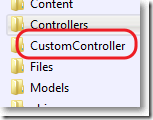
CustomerController文件夹内容:
通过为FileUploadHandler的事件IncomingRequestStarted注册方法
□ 思路
为FileUploadHandler的事件IncomingRequestStarted注册方法,再让事件处理异步文件请求。客户端方面,需要一个指向自定义控制器的初始化js文件。
□ FileUploadInstanceController
1: public class FileUploadInstanceController : Controller
2: {
3: public ActionResult Index()
4: {
5: return View();
6: }
7:
8: public async Task<ActionResult> FileHandler()
9: {
10: FileUploadHandler handler = new FileUploadHandler(Request, this);
11: handler.IncomingRequestStarted += handler_IncomingRequestStarted;
12: ActionResult result = await handler.HandleRequestAsync();
13: return result;
14: }
15:
16: void handler_IncomingRequestStarted(object sender, Backload.Eventing.Args.IncomingRequestEventArgs e)
17: {
18: //禁止添加操作
19: if (e.Context.HttpMethod == "PUT")
20: {
21: e.Context.PipelineControl.ExecutePipeline = false;
22: }
23: }
24: }
25:
.csharpcode, .csharpcode pre
{
font-size: small;
color: black;
font-family: consolas, "Courier New", courier, monospace;
background-color: #ffffff;
/*white-space: pre;*/
}
.csharpcode pre { margin: 0em; }
.csharpcode .rem { color: #008000; }
.csharpcode .kwrd { color: #0000ff; }
.csharpcode .str { color: #006080; }
.csharpcode .op { color: #0000c0; }
.csharpcode .preproc { color: #cc6633; }
.csharpcode .asp { background-color: #ffff00; }
.csharpcode .html { color: #800000; }
.csharpcode .attr { color: #ff0000; }
.csharpcode .alt
{
background-color: #f4f4f4;
width: 100%;
margin: 0em;
}
.csharpcode .lnum { color: #606060; }
□ 创建一个指向自定义控制器的js文件main.js
1: $(function () {
2: 'use strict';
3:
4: var fileUploadUrl = "/FileUploadInstance/FileHandler";
5:
6:
7: // Initialize the jQuery File Upload widget:
8: $('#fileupload').fileupload({
9: url: fileUploadUrl,
10: acceptFileTypes: /(jpg)|(jpeg)|(png)|(gif)$/i // Allowed file types
11: });
12:
13: // Optional: Initial ajax request to load already existing files.
14: $.ajax({
15: url: fileUploadUrl,
16: dataType: 'json',
17: context: $('#fileupload')[0]
18: })
19: .done(function (result) {
20: $(this).fileupload('option', 'done')
21: .call(this, null, { result: result });
22: // Attach the Colorbox plugin to the image files to preview them in a modal window. Other file types (e.g. pdf) will show up in a
23: // new browser window.
24: $(".files tr[data-type=image] a").colorbox();
25: });
26:
27:
28:
29: // Initialize the jQuery ui theme switcher:
30: $('#theme-switcher').change(function () {
31: var theme = $('#theme');
32: theme.prop(
33: 'href',
34: theme.prop('href').replace(
35: /[\w\-]+\/jquery-ui.css/,
36: $(this).val() + '/jquery-ui.css'
37: )
38: );
39: });
40: });
41:
42:
43: $("document").ready(function () {
44: // The Colorbox plugin needs to be informed on new uploaded files in the template in order to bind a handler to it.
45: // There must be a little delay, because the fileuploaddone event is triggered before the new template item is created.
46: // A more elegant solution would be to use jQuery's delegated .on method, which automatically binds to the anchors in a
47: // newly created template item, and then call colorbox manually.
48: $('#fileupload').bind('fileuploaddone', function(e, data) {
49: setTimeout(function() { $(".files tr[data-type=image] a").colorbox() }, 1000);
50: });
51: });
52:
.csharpcode, .csharpcode pre
{
font-size: small;
color: black;
font-family: consolas, "Courier New", courier, monospace;
background-color: #ffffff;
/*white-space: pre;*/
}
.csharpcode pre { margin: 0em; }
.csharpcode .rem { color: #008000; }
.csharpcode .kwrd { color: #0000ff; }
.csharpcode .str { color: #006080; }
.csharpcode .op { color: #0000c0; }
.csharpcode .preproc { color: #cc6633; }
.csharpcode .asp { background-color: #ffff00; }
.csharpcode .html { color: #800000; }
.csharpcode .attr { color: #ff0000; }
.csharpcode .alt
{
background-color: #f4f4f4;
width: 100%;
margin: 0em;
}
.csharpcode .lnum { color: #606060; }
□ FileUploadInstance/Index.cshtml视图
同上
□ 在web.config中设置目的文件夹FileUpload
1: <configuration>
2: <configSections>
3: ...
4: <section name="backload" type="Backload.Configuration.BackloadSection, Backload, Version=1.9.3.1, Culture=neutral, PublicKeyToken=02eaf42ab375d363" requirePermission="false" />
5: </configSections>
6:
7: <backload xmlns:xsi="http://www.w3.org/2001/XMLSchema-instance" xmlns:name="urn:fileupload-schema" xsi:noNamespaceSchemaLocation="Web.FileUpload.xsd">
8: <fileSystem filesRoot="~/FileUpload" />
9: </backload>
10: </configuration>
.csharpcode, .csharpcode pre
{
font-size: small;
color: black;
font-family: consolas, "Courier New", courier, monospace;
background-color: #ffffff;
/*white-space: pre;*/
}
.csharpcode pre { margin: 0em; }
.csharpcode .rem { color: #008000; }
.csharpcode .kwrd { color: #0000ff; }
.csharpcode .str { color: #006080; }
.csharpcode .op { color: #0000c0; }
.csharpcode .preproc { color: #cc6633; }
.csharpcode .asp { background-color: #ffff00; }
.csharpcode .html { color: #800000; }
.csharpcode .attr { color: #ff0000; }
.csharpcode .alt
{
background-color: #f4f4f4;
width: 100%;
margin: 0em;
}
.csharpcode .lnum { color: #606060; }
□ 结果
上传界面:
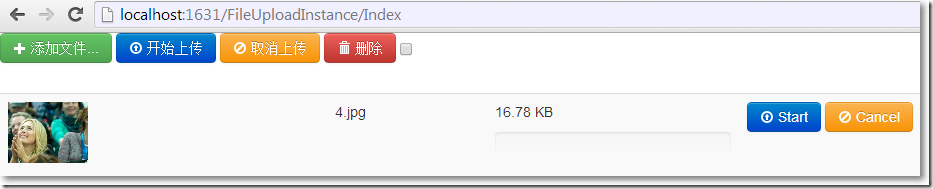
FileUpload文件夹: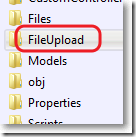
FileUpload文件夹内容:
参考资料:
※ http://backload.org/ Backload官网
※ https://github.com/blackcity/Backload#examples Backload例子
※ http://nuget.org/packages/Backload/ nuget上的Backload
※ http://blueimp.github.io/jQuery-File-Upload/ jQuery File Upload官网
※ https://github.com/blueimp/jQuery-File-Upload/wiki github上的jQuery File Upload介绍
※ https://github.com/blueimp/jQuery-File-Upload github上的jQuery File Upload源码
※ https://www.nuget.org/packages/JQueryFileUpload_Demo_with_Backload/ 下载jQuery File Upload结合Backload的MVC案例
MVC文件上传06-使用客户端jQuery-File-Upload插件和服务端Backload组件自定义控制器上传多个文件的更多相关文章
- MVC文件上传05-使用客户端jQuery-File-Upload插件和服务端Backload组件自定义上传文件夹
在零配置情况下,文件的上传文件夹是根目录下的Files文件夹,如何自定义文件的上传文件夹呢? MVC文件上传相关兄弟篇: MVC文件上传01-使用jquery异步上传并客户端验证类型和大小 MVC文 ...
- MVC文件上传09-使用客户端jQuery-File-Upload插件和服务端Backload组件让每个用户有专属文件夹,并在其中创建分类子文件夹
为用户创建专属上传文件夹后,如果想在其中再创建分类子文件夹,该怎么做?可以在提交文件的视图中再添加一个隐藏域,并设置 name="uploadContext". 相关兄弟篇: MV ...
- MVC文件上传08-使用客户端jQuery-File-Upload插件和服务端Backload组件让每个用户有专属文件夹
当需要为每个用户建立一个专属上传文件夹的时候,可以在提交文件的视图中添加一个隐藏域,并设置name="objectContext". 相关兄弟篇: MVC文件上传01-使用jque ...
- MVC文件上传07-使用客户端jQuery-File-Upload插件和服务端Backload组件裁剪上传图片
本篇通过在配置文件中设置,对上传图片修剪后保存到指定文件夹. 相关兄弟篇: MVC文件上传01-使用jquery异步上传并客户端验证类型和大小 MVC文件上传02-使用HttpPostedFileB ...
- MVC文件上传04-使用客户端jQuery-File-Upload插件和服务端Backload组件实现多文件异步上传
本篇使用客户端jQuery-File-Upload插件和服务端Badkload组件实现多文件异步上传.MVC文件上传相关兄弟篇: MVC文件上传01-使用jquery异步上传并客户端验证类型和大小 ...
- jQuery File Upload 插件 php代码分析
jquery file upload php代码分析首先进入构造方法 __construct() 再进入 initialize()因为我是post方式传的数据 在进入initialize()中的po ...
- JQuery File Upload 插件 出现 “empty file upload result” 错误的解决方案。
本例中采用的是 JQuery File Upload + ASP.NET 的方式, Google了大半天基本没有找到合理的解决方案,倒是在 NodeJS的一遍博客中找到了灵感:http://www.i ...
- 在windows系统上安装VMware Workstation虚拟机,然后在虚拟机VMware Workstation上安装linux系统,在linux系统安装xshell的服务端,在windows系统上安装xshell。用windows系统上的xshell连接到linux
第一步:安装xshell: 去百度 xshell ,然后安装一下就可以了.就是普通的软件安装,在这里不做过多的接收. 第二步:安装虚拟机VMware Workstation 百度安装,不做过介绍 ...
- 客户端 jQuery 跨端口 调用 node 服务端
一句话 很顶用 response.setHeader('Access-Control-Allow-Origin', 'http://127.0.0.1:8020'); 说 响应的头文件里设置 一个 h ...
随机推荐
- centos 6.x 部署uwsgi+flask项目
一.项目背景 1. 公司需求要做一个在线统计页面; 2. 统计在线人数,进行人数数据展示; 3. 类似QQ官网在线人数 二.测试环境 [root@linux-node2 ~]# cat /etc/*r ...
- The Art Of Computer Programming: 1.1
The Art Of Computer Programming: 1.1 */--> div.org-src-container { font-size: 85%; font-family: m ...
- centos6编译安装zabbix3.0和中文支持整理文档
编者按: 最近公司部分业务迁移机房,为了更方便的监控管理主机资源,决定上线zabbix监控平台.运维人员使用2.4版本的进行部署,个人在业余时间尝鲜,使用zabbix3.0进行部署,整理文档如下,仅供 ...
- 安卓手机获取IP地址
public class IpGetUtil { public static String getIPAddress(Context context) { NetworkInfo info = ((C ...
- spring boot上传文件错误The temporary upload location [/tmp/tomcat.5260880110861696164.8090/work/Tomcat/localhost/ROOT] is not valid
参考了:https://www.jianshu.com/p/cfbbc0bb0b84 再次感谢,但还是有些调整 一.在zuul服务中加入两个配置参数(location: /data/apps/temp ...
- python 关键知识点
学习资源:笨方法学习 python3 将变量传递给脚本--argv 脚本:你编写的 .py 文件. argv 参数变量(argument variable)保存着你运行 python 脚本的参数. i ...
- 不改源代码,修改服务器配置,解决全局Get中文乱码问题
- OpenGL笔记<5> shader 调试信息获取 Debug
我们今天来讲调试信息,这个东西讲起来会比较无聊,因为都是一些函数调用,没啥可讲的,函数就是那样用的,不过其效果挺好玩的,同时在程序设计中也是很必要的,所以还是来写一下,不过,就是因为知识比较固定且简单 ...
- odoo基础数据加载
odoo 基础数据加载 这里介绍的odoo基础数据加载分两种方式,一种是演示数据加载,一种是默认数据加载,下面就是详细介绍 首先,当然是创建一个date文件夹 项目目录,右键自定义一个文件夹 XML数 ...
- socket--多进程,多线程服务器
一:概念: 我们知道IP地址是标志网络中不用主机的IP地址,而端口号就是同一台主机上标志不同进程的地址,IP地址和端口号标志网络中的唯一地址.(又称socket) 在TCP协议中,建⽴立连接的两个进程 ...