
iOS开发——UI篇OC篇&UICollectionView详解+实例
UICollectionView详解+实例
实现步骤:
一、新建两个类
- 1.继承自UIScrollView的子类,比如HMWaterflowView
- * 瀑布流显示控件,用来显示所有的瀑布流数据
- 2.继承自UIView的子类,比如HMWaterflowViewCell
- * 代表着瀑布流数据中的一个单元(一个格子)
- 3.总结
- HMWaterflowView和HMWaterflowViewCell的关系实际上类似于
- UITableView和UITableViewCell的关系
二、设计HMWaterflowView的接口
- 1.模仿UITableView的接口来设计
- * 设计一套数据源和代理方法
三、HMWaterflowView的实现
- 1.reloadData
- * 作用:刷新数据
- * 步骤:
- 1> 清空以前残余的数据
- 2> 计算所有新数据对应的frame
- 2.layoutSubviews
- * 作用:显示和移除子控件
- * 步骤:
- 1> 检测每一个数据对应的frame在不在屏幕上(用户能不能看见)
- 2> 如果这个数据对应的frame在屏幕上:向数据源索要这个数据对应的cell,添加这个cell到HMWaterflowView中显示
- 3> 如果这个数据对应的frame不在屏幕上:从HMWaterflowView中移除这个数据对应的cell,并将这个cell添加到缓存池中
本章通过先总体介绍UICollectionView及其常用方法,再结合一个实例,了解如何使用UICollectionView。
UICollectionView 和 UICollectionViewController 类是iOS6 新引进的API,用于展示集合视图,布局更加灵活,可实现多列布局,用法类似于UITableView 和 UITableViewController 类。
使用UICollectionView 必须实现UICollectionViewDataSource,UICollectionViewDelegate,UICollectionViewDelegateFlowLayout这三个协议。
下面先给出常用到的一些方法。(只给出常用的,其他的可以查看相关API)
     #pragma mark -- UICollectionViewDataSource

     //定义展示的UICollectionViewCell的个数
     -(NSInteger)collectionView:(UICollectionView *)collectionView numberOfItemsInSection:(NSInteger)section
     {
         ;
     }

     //定义展示的Section的个数
     -(NSInteger)numberOfSectionsInCollectionView:(UICollectionView *)collectionView
     {
         ;
     }

     //每个UICollectionView展示的内容
     -(UICollectionViewCell *)collectionView:(UICollectionView *)collectionView cellForItemAtIndexPath:(NSIndexPath *)indexPath
     {
         static NSString * CellIdentifier = @"GradientCell";
         UICollectionViewCell * cell = [collectionView dequeueReusableCellWithReuseIdentifier:CellIdentifier forIndexPath:indexPath];

         cell.backgroundColor = [UIColor colorWithRed:(( * indexPath.row) /  * indexPath.row)/ * indexPath.row)/255.0) alpha:1.0f];
         return cell;
     }

     #pragma mark --UICollectionViewDelegateFlowLayout

     //定义每个UICollectionView 的大小
     - (CGSize)collectionView:(UICollectionView *)collectionView layout:(UICollectionViewLayout*)collectionViewLayout sizeForItemAtIndexPath:(NSIndexPath *)indexPath
     {
         , );
     }

     //定义每个UICollectionView 的 margin
     -(UIEdgeInsets)collectionView:(UICollectionView *)collectionView layout:(UICollectionViewLayout *)collectionViewLayout insetForSectionAtIndex:(NSInteger)section
     {
         , , , );
     }

     #pragma mark --UICollectionViewDelegate

     //UICollectionView被选中时调用的方法
     -(void)collectionView:(UICollectionView *)collectionView didSelectItemAtIndexPath:(NSIndexPath *)indexPath
     {
         UICollectionViewCell * cell = (UICollectionViewCell *)[collectionView cellForItemAtIndexPath:indexPath];
         cell.backgroundColor = [UIColor whiteColor];
     }

     //返回这个UICollectionView是否可以被选择
     -(BOOL)collectionView:(UICollectionView *)collectionView shouldSelectItemAtIndexPath:(NSIndexPath *)indexPath
     {
         return YES;
     }
下面通过一个例子具体介绍下。(例子来自网络。但是是通过第三方获得的,无法取得链接。还望见谅。)
iOS CollectionView的出现是一大福利,再也不用用TableView来定义复杂的多栏表格了,用法与Table类似,只是Cell必须自己添加,无默认模式
由于CollectionView没有默认的Cell布局,所以一般还是自定义方便又快捷
一、自定义Cell
1、新建类CollectionCell继承自UICollectionViewCell
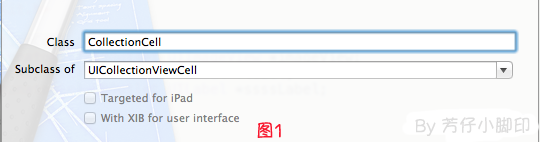
2、新建Xib,命名为CollectionCell.xib
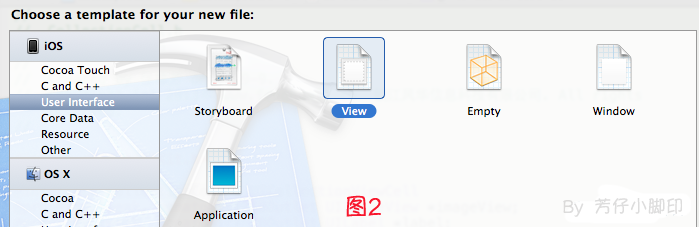
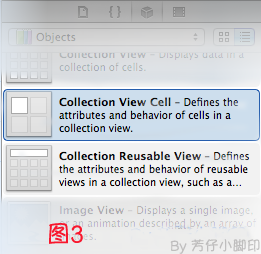
a.选中CollectionCell.xib删掉默认的View,从控件中拖一个Collection View Cell(图3)到画布中,设置大小为95*116;
b.选中刚刚添加的Cell,更改类名为CollectionCell,如图4

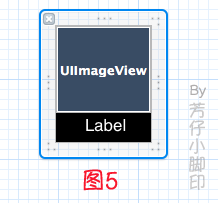
c.在CollectionCell.xib的CollectionCell中添加一个ImageView和一个Label(图5)
d.创建映射, 图6,图7
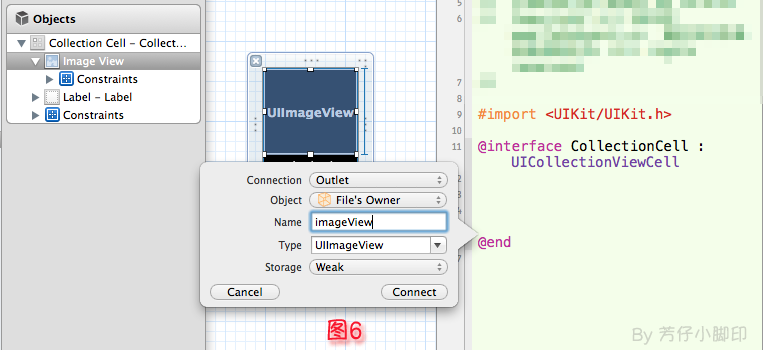
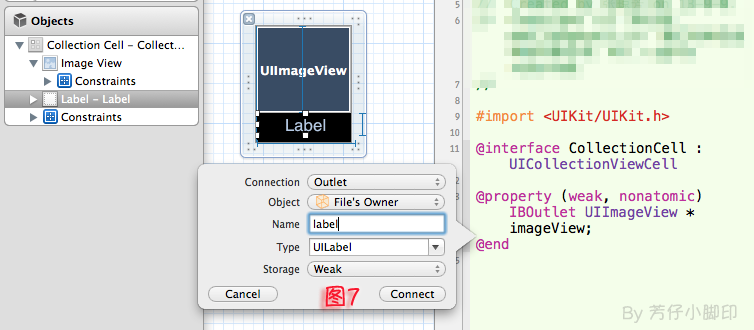
e.选中CollectionCell.m , 重写init方法
     - (id)initWithFrame:(CGRect)frame
     {
         self = [super initWithFrame:frame];
         if (self)
         {
             // 初始化时加载collectionCell.xib文件
             NSArray *arrayOfViews = [[NSBundle mainBundle] loadNibNamed:@"CollectionCell" owner:self options:nil];

             // 如果路径不存在,return nil
             )
             {
                 return nil;
             }
             // 如果xib中view不属于UICollectionViewCell类,return nil
             ] isKindOfClass:[UICollectionViewCell class]])
             {
                 return nil;
             }
             // 加载nib
             self = [arrayOfViews objectAtIndex:];
         }
         return self;
     }
f.选中CollectionCell.xib 修改其identifier为CollectionCell。
二、定义UICollectionView;
1、拖动一个Collection View到指定ViewController的View上
2、连线dataSource和delegate,并创建映射,命名为CollectionView
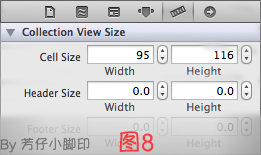
3、选中CollectionView的标尺,将Cell Size的Width和Height改成与自定义的Cell一样的95*116,图8
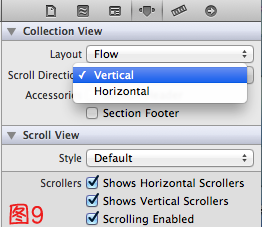
4、选中CollectionView的属性,可以修改其属性,比如是垂直滑动,还是水平滑动,选择Vertical或Horizontal
5、选中CollectionViewCell,修改Class,继承自CollectionCell
5、在ViewDidLoad方法中声明Cell的类,在ViewDidLoad方法中添加,此句不声明,将无法加载,程序崩溃
其中,CollectionCell是这个Cell的标识(之前几步已经定义过了。 )
[self.collectionView registerClass:[CollectionCell class] forCellWithReuseIdentifier:@"CollectionCell"];
6、在ViewController.h中声明代理
- @interface ViewController : UIViewController<UICollectionViewDataSource,UICollectionViewDelegate>
7、在.m文件中实现代理方法
     //每个section的item个数
     -(NSInteger)collectionView:(UICollectionView *)collectionView numberOfItemsInSection:(NSInteger)section
     {
         ;
     }

     -(UICollectionViewCell *)collectionView:(UICollectionView *)collectionView cellForItemAtIndexPath:(NSIndexPath *)indexPath
     {

         CollectionCell *cell = (CollectionCell *)[collectionView dequeueReusableCellWithReuseIdentifier:@"CollectionCell" forIndexPath:indexPath];

         //图片名称
         NSString *imageToLoad = [NSString stringWithFormat:@"%d.png", indexPath.row];
         //加载图片
         cell.imageView.image = [UIImage imageNamed:imageToLoad];
         //设置label文字
         cell.label.text = [NSString stringWithFormat:@"{%ld,%ld}",(long)indexPath.row,(long)indexPath.section];

         return cell;
     }
8 。效果如图10

点击某项后跳转事件与UITableView类似,实现代理方法
-(void)collectionView:(UICollectionView *)collectionView didSelectItemAtIndexPath:(NSIndexPath *)indexPath
即可,不赘述
iOS开发——UI篇OC篇&UICollectionView详解+实例的更多相关文章
- iOS开发——UI精选OC篇&UIApplication,UIWindow,UIViewController,UIView(layer)简单介绍
UIApplication,UIWindow,UIViewController,UIView(layer)简单介绍 一:UIApplication:单例(关于单例后面的文章中会详细介绍,你现在只要知道 ...
- iOS开发——UI高级OC篇&自定义控件之调整按钮中子控件(图片和文字)的位置
自定义控件之调整按钮中子控件(图片和文字)的位置 其实还有一种是在storyBoard中实现的,只需要设置对应空间的左右间距: 这里实现前面两种自定义的方式 一:imageRectForContent ...
- iOS开发——网络实用技术OC篇&网络爬虫-使用青花瓷抓取网络数据
网络爬虫-使用青花瓷抓取网络数据 由于最近在研究网络爬虫相关技术,刚好看到一篇的的搬了过来! 望谅解..... 写本文的契机主要是前段时间有次用青花瓷抓包有一步忘了,在网上查了半天也没找到写的完整的教 ...
- ios开发——实用技术篇OC篇&iOS的主要框架
iOS的主要框架 阅读目录 Foundation框架为所有的应用程序提供基本系统服务 UIKit框架提供创建基于触摸用户界面的类 Core Data框架管着理应用程序数据模型 Core ...
- iOS开发——高级技术OC篇&运行时(Runtime)机制
运行时(Runtime)机制 本文将会以笔者个人的小小研究为例总结一下关于iOS开发中运行时的使用和常用方法的介绍,关于跟多运行时相关技术请查看笔者之前写的运行时高级用法及相关语法或者查看响应官方文档 ...
- iOS开发——运行时OC篇&使用运行时获取系统的属性:使用自己的手势修改系统自带的手势
使用运行时获取系统的属性:使用自己的手势修改系统自带的手势 有的时候我需要实现一个功能,但是没有想到很好的方法或者想到了方法只是那个方法实现起来太麻烦,一或者确实为了装逼,我们就会想到iOS开发中最牛 ...
- iOS开发——网络实用技术OC篇&网络爬虫-使用java语言抓取网络数据
网络爬虫-使用java语言抓取网络数据 前提:熟悉java语法(能看懂就行) 准备阶段:从网页中获取html代码 实战阶段:将对应的html代码使用java语言解析出来,最后保存到plist文件 上一 ...
- iOS 开发之 -- UDID和UUID的详解
老实说,搞了几年的ios开发了,对基础的概念,还是不牢固,整天都是为了赶进度而码代码,这里记录一下这两者的区别: UDID的全名为 Unique Device Identifier :设备唯一标识符. ...
- iOS开发——高级技术&本地化与国际化详解
本地化与国际化详解 效果如下: 英语: 中文: 具体实现如下: ...
随机推荐
- poj1947
树上背包? 问最少断掉多少条边可以形成节点数为k的块 设f[i,j]表示以节点i为根,形成一个节点数为k的块要断多少条边 则有:f[x,j]:=min(f[x,j],f[x,j-k]+f[y,k]-2 ...
- 8.8-8.10 usaco
summary:44 没救了...整天刷水迟早药丸! ❤bzoj3892: 区间dp.我原来的思路是dp[i][j]表示前i个数跳过了j次,那么转移可以前k个数转移了j-1次,枚举k就好了,但是这样是 ...
- HAOI2007 理想的正方形
1047: [HAOI2007]理想的正方形 Time Limit: 10 Sec Memory Limit: 162 MBSubmit: 1402 Solved: 738[Submit][Sta ...
- I.MX6 android BatteryService jni hacking
/**************************************************************************** * I.MX6 android Batter ...
- LeetCode Intersection of Two Linked Lists (找交叉点)
题意: 给两个链表,他们的后部分可能有公共点.请返回第一个公共节点的地址?若不重叠就返回null. 思路: 用时间O(n)和空间O(1)的做法.此题数据弱有些弱. 方法(1)假设两个链表A和B,用两个 ...
- 【转】 实现 Cocos2d-x 全局定时器
转自:http://www.tairan.com/archives/3998 cocos2d-x 中有自己的定时器实现,一般用法是在场景,层等内部实现,定时器的生命周期随着它们的消亡而消亡,就运行周期 ...
- Nginx出现“413 Request Entity Too Large”错误解决方法
Nginx出现“413 Request Entity Too Large”错误解决方法 2011-03-25 13:49:55| 分类: 默认分类 | 标签:413 request entit ...
- class属性添加多个类
<html> <head> <style type="text/css"> h1.intro { color:blue; text-align: ...
- [转载]C#基础-Func,Action
Func,Action 的介绍及其用法 Func是一种委托,这是在3.5里面新增的,2.0里面我们使用委托是用Delegate,Func位于System.Core命名空间下,使用委托可以提升效率,例如 ...
- MAT文件操作
o李YZo 原文 MAT文件打开方法汇总及其他操作 MAT文件简介 为MATLAB使用的一种特有的二进制数据文件.MAT文件可以包含一个或者多个MATLAB 变量.MATLAB通常采用MAT文件把工作 ...