目标:
1、在VirtualBox中安装CentOS
2、配置虚拟机网络,实现:
a.主机联网后,宿机能够通过主机上网
b.不管主机联网与否,主机都能SSH登录宿机,并且主宿机能互相传送文件
安装环境:
1、Win7 64bit 旗舰版
2、VirtualBox 4.3.6
3、CentOS 6.5 x86_64
1、安装VirtualBox虚拟机
安装完成后,在网络连接中多一个"VirtualBox Host-Only Network"(仅对设置Host_only模式的网络有用)。
打开VirtualBox,管理--全局设定--网络--仅主机(Host-Only)网络:
双击“VirtualBox Host-Only Ethernet Adapter”:
主机虚拟网络界面:
192.168.56.1
255.255.255.0
DHCP 服务器:
192.168.56.100
255.255.255.0
192.168.56.101
192.168.56.254
2、新建并设置CentOS虚拟机
新建虚拟机:
(1)宿机类型:Linux/Red Hat
(2)内存大小:1G
(3)创建磁盘:
大小:20G
选择动态分配始占用空间小,性能稍差;
选择固定大小占用空间较大,性能较好,推荐
(4)存储设置:
CD/DVD控制器中加入准备好的CentOS安装光盘
(5)网络设置:
宿机启动第一块网卡
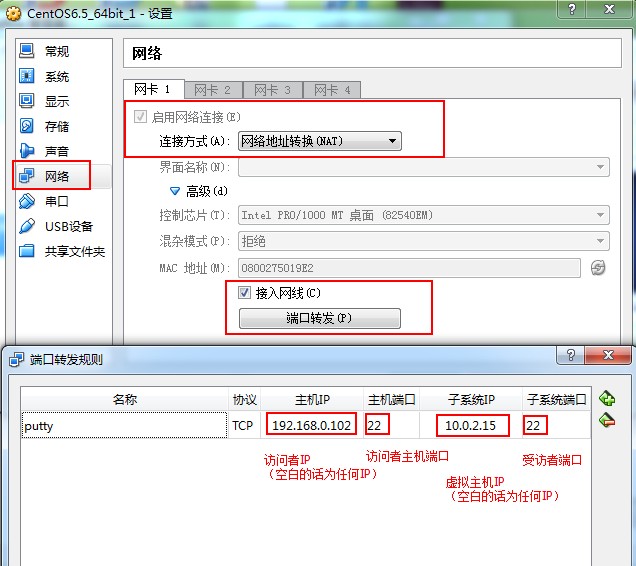
网卡1:NAT
宿机(CemtOS)用这一网卡通过主机(Win7)上网(此时宿机可以访问主机),而主机不能访问宿机。
注意:可以通过网卡1中的“端口转发”设置主机访问宿机中的相应服务,端口转发规则设置具体如下:
3、安装CentOS
简要步骤介绍:
(1)语言:简体中文
(2)安装设备:基本存储设备
(3)主机名:为默认的localhost.localdomain(在没有真正域名前)
(4)网络配置:先忽略
(5)root用户的密码设置
(6)进行哪种类型的安装:使用自定义布局
(7)简单分区方案:/--18G swap--2G
(8)选择Desktop安装,且现在自定义
(9)将拨号网络、联网工具和Emacs勾选上
(10)开始安装进程直到结束
安装完成之后,只要主机可以上网,宿机的CentOS就可以使用NAT(网卡1)通过主机上网。
网卡1默认分配的IP如下:
eth0:IP:10.0.2.15
4、CentOS安装后网络配置(可选)
若需要配置网络,可参考如下部分(不需要配置的话,直接进入第5部分。为了简单起见,此处我没有作网络配置):
(1)命令配置
1 |
# ifconfig eth0 192.168.56.102 netmask 255.255.255.0 //IP地址、子网掩码 |
2 |
# route add default gw 192.168.56.1 dev eth0 //网关 |
3 |
# hostname centos //计算机名 |
(2)文件配置
CentOS中的网络配置文件主要有以下几类:
01 |
# 指定某个网络接口的连接信息,每个网络设备对应一个这样的文件 |
02 |
/etc/sysconfig/network-scripts/ifcfg-<interface-name> |
04 |
/etc/sysconfig/network |
05 |
# 类似 C:\Windows\System32\drivers\etc\hosts,用于无DNS下的机器名解析 |
09 |
# 网络管理工具使用的配置文件存储目录,不要做手动修改 |
10 |
/etc/sysconfig/networking/ |
<1>修改IP地址
假设有2块网卡,要修改2块网卡(Host-Only,NAT)的网络设置:
进入/etc/sysconfig/network-scripts目录,修改两块网卡的ifcfg文件如下:
a. 修改ifcfg-eth0文件,配置Host-only网络:
01 |
# vim /etc/sysconfig/network-scripts/ifcfg-eth0: |
08 |
# 网卡设备的物理地址,默认,与VirtualBox网络设置界面一致 |
09 |
HWADDR=08:00:27:75:AD:13 |
18 |
# 设置了DNS指令后是否自动修改/etc/resolv.conf文件,启动协议为dhcp时此项默认yes |
b. 修改ifcfg-eth1文件,配置NAT网络:
1 |
# vim /etc/sysconfig/network-scripts/ifcfg-eth1: |
6 |
HWADDR=08:00:27:90:9B:08 |
<2>修改网关
修改对应网卡的网关的配置文件
1 |
# vi /etc/sysconfig/network |
2 |
# 表示系统是否使用网络,一般设置为 yes。如果设为 no,则不能使用网络,而且很多系统服务程序将无法启动 |
4 |
# 设置本机的主机名,这里设置的主机名要和/etc/hosts 中设置的主机名对应 |
6 |
# 设置本机连接的网关的IP地址。例如,网关为192.168.56.1 |
<3>修改DNS
修改对应网卡的 DNS 的配置文件
3 |
nameserver 202.101.224.68 |
5 |
nameserver 202.101.224.69 |
<4>重新启动网络配置
1 |
# service network restart |
3 |
# /etc/init.d/network restart |
5、软件源配置
国内速度较快的常用更新源如下:
http://mirrors.163.com/centos/ 163-网易
http://mirrors.ta139.com/centos/ 中国移动通信(山东移动)
http://centos.ustc.edu.cn/centos/ 中国科学技术大学
http://mirror.neu.edu.cn/centos/ 东北大学
更新yum为网易的源:
更新系统中可以更新的软件:
6、安装VBoxAdditions增强功能
在VirtualBox上安装好CentOS后,再将VBoxAdditions增强功能安装上,主要支持:虚拟机和主机之间共享文件以及无缝窗口和鼠标指针集成等。
(1)更新内核。CentOS 6.3对应的kernel默认为2.6.32-279.el6.i686:
2 |
2.6.32-431.1.2.0.1.el6.x86_64 |
安装增强功能需要kernel-devel包,必须保证kernel-devel和kernel版本的一致。查看软件源中kernel-devel的版本:
01 |
# yum info kernel-devel |
02 |
Loaded plugins: fastestmirror, refresh-packagekit, security |
03 |
Repository base is listed more than once in the configuration |
04 |
Repository updates is listed more than once in the configuration |
05 |
Repository extras is listed more than once in the configuration |
06 |
Repository centosplus is listed more than once in the configuration |
07 |
Repository contrib is listed more than once in the configuration |
08 |
Loading mirror speeds from cached hostfile |
13 |
Release : 431.1.2.0.1.el6 |
17 |
Summary : Development package for building kernel modules to match the |
20 |
Description : This package provides kernel headers and makefiles sufficient to |
21 |
: build modules against the kernel package. |
若两者版本不一致,则必须升级kernel:
升级完后必须重启系统,新的kernel才能被使用。
(2)安装kernel-devel和gcc。
1 |
# yum install kernel-devel gcc gcc-c++ |
(3)安装增强功能。进入增强功能光盘根目录,执行Linux下的安装命令:
01 |
# cd /media/VBOXADDITIONS_4.3.6_91406 |
02 |
# ./VBoxLinuxAdditions.run |
03 |
Verifying archive integrity... All good. |
04 |
Uncompressing VirtualBox 4.3.6 Guest Additions for Linux............ |
05 |
VirtualBox Guest Additions installer |
06 |
Removing installed version 4.3.6 of VirtualBox Guest Additions... |
07 |
Copying additional installer modules ... |
08 |
Installing additional modules ... |
09 |
Removing existing VirtualBox non-DKMS kernel modules [确定] |
10 |
Building the VirtualBox Guest Additions kernel modules |
11 |
Building the main Guest Additions module [确定] |
12 |
Building the shared folder support module [确定] |
13 |
Building the OpenGL support module [失败] |
14 |
(Look at /var/log/vboxadd-install.log to find out what went wrong) |
15 |
Doing non-kernel setup of the Guest Additions [确定] |
16 |
Installing the Window System drivers |
17 |
Installing X.Org Server 1.13 modules [确定] |
18 |
Setting up the Window System to use the Guest Additions [确定] |
19 |
You may need to restart the hal service and the Window System (or just restart |
20 |
the guest system) to enable the Guest Additions. |
22 |
Installing graphics libraries and desktop services componen[确定] |
解决Building the OpenGL support module FAILE的问题:
01 |
# cd /media/VBOXADDITIONS_4.3.6_91406 |
02 |
# export MAKE='/usr/bin/gmake -i' |
03 |
# ./VBoxLinuxAdditions.run |
04 |
Verifying archive integrity... All good. |
05 |
Uncompressing VirtualBox 4.3.6 Guest Additions for Linux............ |
06 |
VirtualBox Guest Additions installer |
07 |
Removing installed version 4.3.6 of VirtualBox Guest Additions... |
08 |
Copying additional installer modules ... |
09 |
Installing additional modules ... |
10 |
Removing existing VirtualBox non-DKMS kernel modules [确定] |
11 |
Building the VirtualBox Guest Additions kernel modules |
12 |
Building the main Guest Additions module [确定] |
13 |
Building the shared folder support module [确定] |
14 |
Building the OpenGL support module [确定] |
15 |
Doing non-kernel setup of the Guest Additions [确定] |
16 |
You should restart your guest to make sure the new modules are actually used |
17 |
Installing the Window System drivers |
18 |
Installing X.Org Server 1.13 modules [确定] |
19 |
Setting up the Window System to use the Guest Additions [确定] |
20 |
You may need to restart the hal service and the Window System (or just restart |
21 |
the guest system) to enable the Guest Additions. |
23 |
Installing graphics libraries and desktop services componen[确定] |
至此,增强功能已安装完成,共享文件、无缝窗口和鼠标指针继承等功能已经可以使用啦!
7、宿机重启系统,主机和宿机相互ping下
主机和宿机的网络配置:
主机(Win7)IP:192.168.0.102;网关:192.168.0.1;DNS:101.226.4.6,114.114.114.114
宿机(CentOS)IP:10.0.2.15
网卡1:NAT
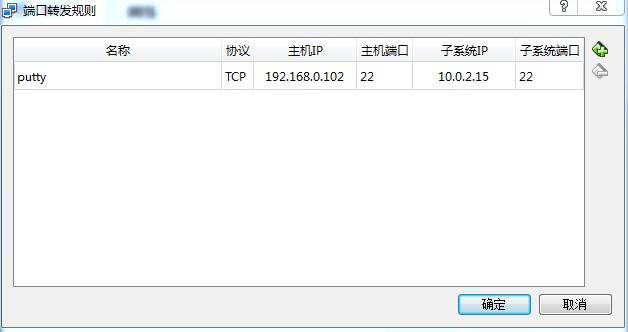
端口转发规则:
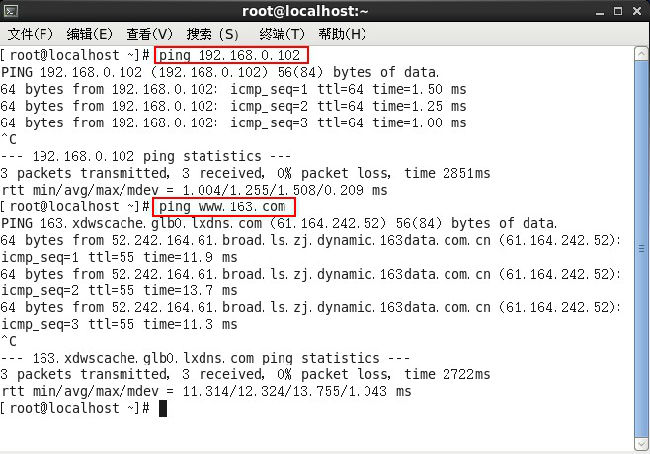
宿机--主机:ping 192.168.0.102 (通过)
宿机--网络:ping www.163.com (通过)
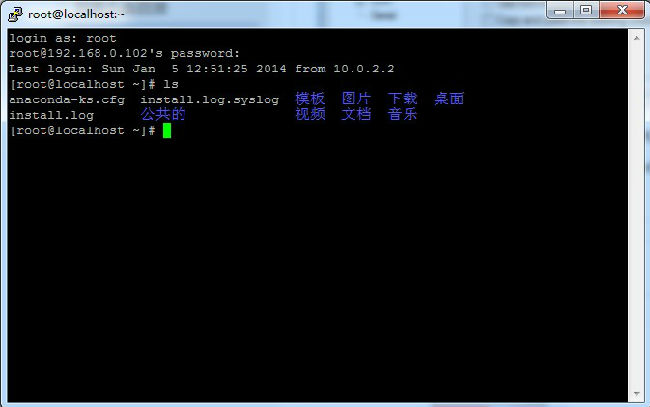
Win7上putty连接CentOS:

这里的Host Name也可填写为:localhost
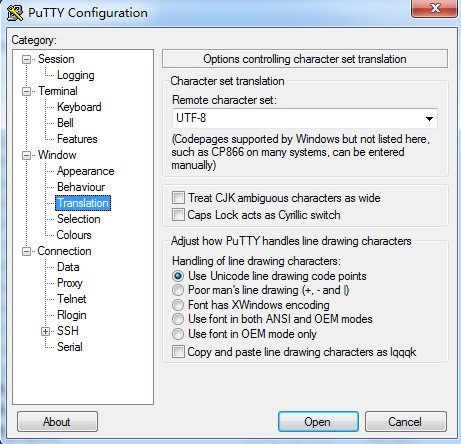
这里设置为UTF-8,是为了避免CentOS中的中文目录为在putty上显示乱码。
点击左侧的Seesion回到最初的界面,单击“Save”将Session保存,然后单击“Open”:
- 【Linux-CentOS】在无互联网-内网环境的Windows7主机上安装CentOS双系统,从安装到放弃
2018.12.3 日更新:本文仅作为无互联网环境下安装的参考.更推荐在互联网环境下安装软件和使用系统,毕竟会自动安装依赖包,比较方便. 因个人办公电脑装的盗版Win7总是蓝屏,影响工作,加之看到 W ...
- 遇到个鬼,在WIN08的DELL R710上安装CENTOS 63,无法格式化以前的硬盘分区,安装无法进行下去。
遇到个鬼,在WIN08的DELL R710上安装CENTOS 63,无法格式化以前的硬盘分区,安装无法进行下去. 我下面类似的办法来解决,就是---进行在安装过程中,用快捷键:Ctrl+Alt+F2到 ...
- 在VMware上安装CentOS -7步骤详解
在VMware上安装CentOS -7 一.下载好VMware虚拟机 二.准备好CentOS的镜像文件 在这里安装之前博主都已准备好了. 废话就少啰嗦啦!现在开始安装步骤了 1.首先打开VMware创 ...
- 在VirtualBox上安装Solaris 10全教程(包括下载)
您可以在博文的最下方留下评价, 也可以点击左边的 关注 来关注我的博客的最新动态. 如果文章内容对您有帮助, 不要忘记点击右下角的 推荐 来支持一下喔 如果您对博文有任何疑问, 可以通过评论或发邮件的 ...
- 在VMware上安装centos
Windows,VMware和Centos三者的关系 VMware安装.centos安装 在 VMware 上安装 CentOS 第 1 步:打开 VMware,点击创建新的虚拟机 第 2 步:选择典 ...
- 3.在vm上安装centos 7
在vm上安装centos 7 1.文件 → 新建虚拟机 3.选择安装Linux系统 4. 虚拟机命名,并选择安装的文件夹 5.选择分配的处理器 6.使用网络地址转换 7.默写选项 9.新建虚拟机 10 ...
- VirtualBox 6 安装 CentOS 7
1 安装环境 windows7 Oracle VM VirtualBox 6.0.24 CentOS 7 2 VirtualBox 6 - 虚拟机软件 2.1 下载 Oracle VM Virtual ...
- 在VirtualBox上安装Ubuntu-20.04
本文主要介绍如何在VirtualBox上安装Ubuntu-20.04 目录 下载VirtualBox 下载Ubuntu-20.04镜像 新建虚拟机 第一步:打开VirtualBox 第二步:设置虚拟机 ...
- VirtualBox上安装CentOS-7(Minimal)
Windows 10家庭中文版,VirtualBox 5.2.12,CentOS 7(Minimal版), 因为听到大家在谈论CentOS,阿里云上也有CentOS,CentOS还是Red Hat出品 ...
随机推荐
- performance_schema 变量
performance_schema 这个变量来控制performance_schema库的禁用和启用 1.performance_schema的值说明 performance_schema=1 表示 ...
- springMVC+ freemark多视图配置
<!--通用视图解析器--> <bean id="viewResolverCommon" class="org.springframework.web. ...
- Windows下FFmpeg快速入门 <第二篇>
FFmpeg简介 FFmpeg是什么? FFmpeg是用于录制.转换和流化音频和视频的完整解决方案, 包括 libavcodec ,一套领先的音/视频编解码类库.FFmpeg 在Linux上开发,当可 ...
- build.gradle中引入jar
只需在 dependencies{}中添加: compile fileTree(include: ['*.jar'], dir: 'libs')
- js 实现二叉树
二叉树是每个结点最多有两个子树的有序树.通常子树的根被称作“左子树”(left subtree)和“右子树”(right subtree),右边的总是大于左边的!二叉树的每个结点至多只有二棵子树(不存 ...
- 【转】飞凌嵌入式(Forlinx)TE/OK6410内核编译:“make: arm-none-linux-gnueabi-gcc:命令未找到”
原文网址:http://www.xuebuyuan.com/1104711.html Ubuntu10.04下编译飞凌嵌入式(Forlinx)TE/OK6410开发板提供的内核2.6.36 本以为按照 ...
- Safari HTML5 Canvas Guide: Creating Charts and Graphs
Safari HTML5 Canvas Guide: Creating Charts and Graphs Bar graphs are similar to data plots, but each ...
- AIX5.3CPU占用高的问题核查
AIX5.3 CPU占用高问题核查步骤 1.topas查看占用cpu占用最高的进程的PID 2.执行: ps -mp PID -o THREAD 以查找相应进程下所有正在占用 CPU 的线程的TID ...
- java中return和continue区别
编程语言大多是想通的,当然java也不例外,下面的在其他编程语言也是相同的道理. return与continue的区别 先看代码哦 class demo2 { public static void m ...
- kettle工具二次开发-代码启动JOB
kettle工具是一款优秀的数据同步.数据处理的BI工具,收到了很多人的青睐.kettle软件通过可视化的图标可以让我们很轻易的能完成数据同步.处理的开发工作.但是使用kettle可视化界面在跑JOB ...
