
[WPF系列]-ListBox
引言
本文就WPF中的ListBox常用项给以实例代码演示,包括隐蔽属性的设置,Style设置,以及ControlTemplate的自定义。
Listbox平滑滚动
<ListBox ItemsSource="{Binding ActorList}" Width="300"

         ScrollViewer.CanContentScroll="False"/>
或者
 <ListBox.Template>

    <ControlTemplate>

      <ScrollViewer Focusable="False" CanContentScroll="True">

        <ItemsPresenter />

      </ScrollViewer>

    </ControlTemplate>

  </ListBox.Template>
参考:http://stackoverflow.com/a/3031298/1616023
StackPanel implements the IScrollInfo interface to do logical scrolling, but if ScrollViewer can't find an IScrollInfo child it falls back to doing physical scrolling.
There are three ways to obtain logical scrolling inside a ScrollViewer:
- Let the ScrollViewer's direct child be a panel that can do logical scrolling (such as a StackPanel)
- Let the ScrollViewer's direct child be an ItemsPresenter which presents such a panel
- Let the ScrollViewer's direct child be a custom class you write yourself that implements IScrollInfo
点击ListboxItem任意位置选中ListBoxItem
<ListBox.Resources>

    <Style TargetType="{x:Type ListBoxItem}">

        <Style.Triggers>

            <Trigger Property="IsKeyboardFocusWithin" Value="True">

                <Setter Property="IsSelected" Value="True" />

            </Trigger>

        </Style.Triggers>

    </Style>

</ListBox.Resources>
引用:Trigger SelectedIndex changed whilst clicking on any control within a ListBoxItem area
控制滚动条的显示
ScrollViewer.VerticalScrollBarVisibility="Visible"

ScrollViewer.HorizontalScrollBarVisibility="Disabled"
更改Items的container
 <ListBox.ItemsPanel>

                    <ItemsPanelTemplate>

                        <WrapPanel/>

                    </ItemsPanelTemplate>

                </ListBox.ItemsPanel>
或者
<ListBox.Style>

    <Style TargetType="{x:Type ListBox}">

        <Setter Property="Visibility" Value="Visible" />

        <Setter Property="ItemsPanel">

            <Setter.Value>

                <ItemsPanelTemplate>

                    <WrapPanel />

                </ItemsPanelTemplate>

            </Setter.Value>

        </Setter>

</Style>

</ListBox.Style>
自定义ItemsControl template
<ItemsControl x:Name="activitiesControl" Margin="10">

    <ItemsControl.Template>

        <ControlTemplate>

            <WrapPanel  Width="{TemplateBinding Width}" Height="{TemplateBinding Height}"

                    FlowDirection="LeftToRight" IsItemsHost="true">

            </WrapPanel>

        </ControlTemplate>

    </ItemsControl.Template>

    <ItemsControl.ItemTemplate>

        <DataTemplate>

            <Button Style="{DynamicResource ActionButton}" HorizontalAlignment="Right" Margin="5"

                Content="{Binding Value}" Width="200"

                Command="{Binding Path=ViewModel.ActionTypeCommand,

                    RelativeSource={RelativeSource Mode=FindAncestor,

                AncestorType=local:CustomerEditView}}" CommandParameter="{Binding Key}"/>

        </DataTemplate>

    </ItemsControl.ItemTemplate>

</ItemsControl>
参考另一文章数据邦定之DataTemplate 根据对象属性切换模板
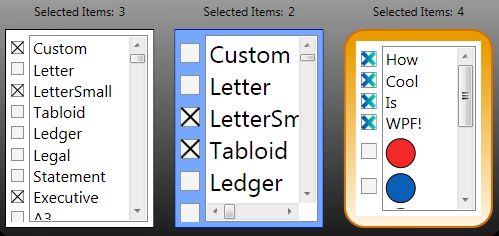
自定ListBox
A WPF Problem Solved Two Very Different Ways - Using XAML Only - Using a Custom Control

Listbox 为空时显示
利用AdornerLayer实现如下:

EmptyItemsControlOverlay
另一简单办法:
<Style TargetType="{x:Type ListBox}">

            <Style.Triggers>

                <DataTrigger Binding="{Binding Path=Items.Count,

                    RelativeSource={RelativeSource Self}}"  Value="0">

                    <Setter Property="Background">

                        <Setter.Value>

                            <VisualBrush Stretch="None">

                                <VisualBrush.Visual>

                                    <TextBlock  Text="No Items" VerticalAlignment="Center"  HorizontalAlignment="Center" IsEnabled="False" />

                                </VisualBrush.Visual>

                            </VisualBrush>

                        </Setter.Value>

                    </Setter>
<!--方法二-->

                    <!--<Setter Property="Template">

                        <Setter.Value>

                            <ControlTemplate>

                                <Border BorderThickness="1" BorderBrush="Black"

                                    Padding="10" Margin="10" Background="Transparent">

                                    --><!--<TextBlock>No items to display</TextBlock>--><!--

                                </Border>

                            </ControlTemplate>

                        </Setter.Value>

                    </Setter>-->

                </DataTrigger>

            </Style.Triggers>

        </Style>
参考
WPF : Using Adorner for overlaying Empty Collections
[WPF系列]-ListBox的更多相关文章
- [WPF系列]-数据邦定之DataTemplate 根据对象属性切换模板
引言 书接上回[WPF系列-数据邦定之DataTemplate],本篇介绍如何根据属性切换模板(DataTemplate) 切换模板的两种方式: 使用DataTemplateSelecto ...
- [WPF系列]-数据邦定之DataTemplate 对分层数据的支持
到目前为止,我们仅讨论如何绑定和显示单个集合. 某些时候,您要绑定的集合包含其他集合. HierarchicalDataTemplate 类专用于 HeaderedItemsControl 类型以显示 ...
- [WPF系列]-TreeView的常用事项
引言 项目经常会用Treeview来组织一些具有层级结构的数据,本节就将项目使用Treeview常见的问题作一个总结. DataBinding数据绑定 DataTemplate自定义 <Hier ...
- [WPF系列]从基础起步学习系列计划
引言 WPF技术已经算不什么新技术,一搜一大把关于WPF基础甚至高级的内容.之前工作中一直使用winform所以一直没有深入学习WPF,这次因项目中使用了WPF技术来实现比较酷的展示界面.我在这里只是 ...
- WPF ItemsControl ListBox ListView比较
在进行列表信息展示时,WPF中提供多种列表可供选择.这篇博客将对WPF ItemsControl, ListBox, ListView进行比较. 相同点: 1. 这三个控件都是列表型控件,可以进行列表 ...
- C# WinForm开发系列 - ListBox/ListView/Panel
转自会飞的小猪文章 C# WinForm开发系列 - ListBox/ListView/Panel 在博客园看到了一篇博文,觉得很不错,就转载过来了. 包含自定义绘制的ListBox, 带拖动, ...
- WPF中ListBox的项ListBoxItem被选中的时候Background变化
使用WPF 中ListBox,点击ListBoxItem的时候,自定义它的背景色,曾经在网上找了一些方法, 不是很理想,后来在StackOverflow上找到了,贴出代码和效果图: 效果图:
- WPF系列教程——(三)使用Win10 Edge浏览器内核 - 简书
原文:WPF系列教程--(三)使用Win10 Edge浏览器内核 - 简书 在需要显示一些 H5网站的时候自带的WebBrowser总是显示不了,WebBrowser使用的是IE内核,许多H5新特性都 ...
- WPF系列教程——(一)仿TIM QQ界面 - 简书
原文:WPF系列教程--(一)仿TIM QQ界面 - 简书 TIM QQ 我们先来看一下TIM QQ长什么样,整体可以将界面分为三个部分 TIM QQ 1. 准备 阅读本文假设你已经有XAML布局的基 ...
随机推荐
- 【原创】kafka consumer源代码分析
顾名思义,就是kafka的consumer api包. 一.ConsumerConfig.scala Kafka consumer的配置类,除了一些默认值常量及验证参数的方法之外,就是consumer ...
- IE6 IE7 ‘JSON’ 未定义
今天在调试javascript程序,在FireFox和Chrome没有问题,但是在IE中,一些可以,就会出现如标题的错误:‘JSON’ 未定义: 在IE6,IE7一定有此错误,以及IE能设置兼容性视图 ...
- ISS部署网站--未能写入输出文件“c:\Windows\Microsoft.NET\Framework64\v4.0.30319\Temporary ASP.NET Files\root ……
打开服务器系统c盘,打开window, 右键temp 属性 安全 编辑 添加IIS_IUSRS 用户控制权限添加修改和写入权限即可.这是Windows Server 2008 R2 标准版 SP1 6 ...
- 【吐槽】gist.github.com疑遭中间人攻击
北京时间201510081004,云南电信用户,现在上https://gist.github.com/,用IE10会提示证书被伪造,用搜狗4.1.3.9668会跳转到[http://www.cjb.n ...
- C++中关于[]静态数组和new分配的动态数组的区别分析
这篇文章主要介绍了C++中关于[]静态数组和new分配的动态数组的区别分析,很重要的概念,需要的朋友可以参考下 本文以实例分析了C++语言中关于[]静态数组和new分配的动态数组的区别,可以帮助大家加 ...
- 自己动手C#模拟电梯的运行V1.0
电梯调度有很多种模式,参见http://www.cnblogs.com/jianyungsun/archive/2011/03/16/1986439.html 1.1先来先服务算法(FCFS) 先来先 ...
- WPF数据验证
当填写表单时,需要对填写的内容进行验证,检查数据是否符合要求,比如字符串的长度.日期的格式.数字等.WPF支持自定义验证规则,并提供可视化反馈,以便在输入无效值时向用户发出通知. 下面的示例将演示一个 ...
- Cursor的用法
文章主要来自于::::http://www.cnblogs.com/TerryBlog/archive/2010/07/05/1771459.html 主要为了自己学习方便,侵删!!!! 使用过 SQ ...
- GJM : JavaScript 语言学习笔记
JavaScript ------------------------------变量声明 : var a;变量赋值 : var a = 12; 函数声明 : var mAwesomeFunction ...
- MyBatis的getMapper()接口、resultMap标签、Alias别名、 尽量提取sql列、动态操作
一.getMapper()接口 解析:getMapper()接口 IDept.class定义一个接口, 挂载一个没有实现的方法,特殊之处,借楼任何方法,必须和小配置中id属性是一致的 通过代理:生成接 ...