
Python Tkinter 图形组件介绍
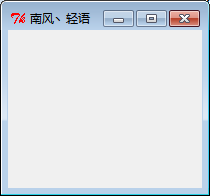
1、 窗口 Tkinter.Tk()
# -*- coding: UTF-8 -*-

import Tkinter

myWindow = Tkinter.Tk()

myWindow.title('南风丶轻语')

myWindow.geometry('400x500')

myWindow.mainloop()
运行结果
2、 标签 Label Tkinter.Label()
# -*- coding: UTF-8 -*-

import Tkinter

myWindow = Tkinter.Tk()

myWindow.title('南风丶轻语')

myWindow.geometry('400x500')

textVar = Tkinter.StringVar()

textVar.set('我是一个标签')

mylabel = Tkinter.Label(myWindow, bg='yellow', width=20, height=1,textvariable=textVar)

mylabel.pack()

myWindow.mainloop()
运行结果

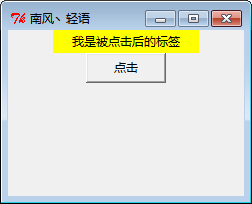
3、 按钮 Tkinter.Button()
# -*- coding: UTF-8 -*-

import Tkinter

myWindow = Tkinter.Tk()

myWindow.title('南风丶轻语')

myWindow.geometry('400x500')

textVar = Tkinter.StringVar()

textVar.set('我是一个标签')

mylabel = Tkinter.Label(myWindow, bg='yellow', width=20, height=1,textvariable=textVar)

mylabel.pack()

print type(textVar.get())

clickFlag = False

def clickEvet():

    global clickFlag

    if clickFlag == False:

        textVar.set('我是被点击后的标签')

        clickFlag = True

    else:

        textVar.set('我是一个标签')

        clickFlag = False

myButton = Tkinter.Button(myWindow, width=10, height=1,text='点击', command=clickEvet)

myButton.pack()

myWindow.mainloop()
运行结果
4、 输入框 Tkinter.Entry()
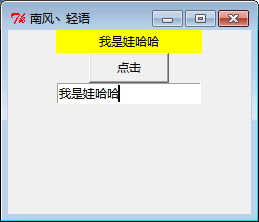
备注 : 程序功能为点击按钮,标签显示 entry 中输入的内容
# -*- coding: UTF-8 -*-

import Tkinter

myWindow = Tkinter.Tk()

myWindow.title('南风丶轻语')

myWindow.geometry('400x500')

textVar = Tkinter.StringVar()

textVar.set('我是一个标签')

mylabel = Tkinter.Label(myWindow, bg='yellow', width=20, height=1,textvariable=textVar)

mylabel.pack()

def clickEvet():

    textVar.set(myEntry.get())

myButton = Tkinter.Button(myWindow, width=10, height=1,text='点击', command=clickEvet)

myButton.pack()

myEntry = Tkinter.Entry(myWindow, width=20,)

myEntry.pack()

myWindow.mainloop()
运行结果
5、 文本框
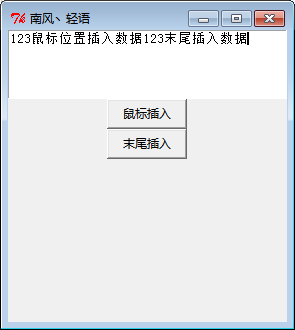
备注 : 实现功能为点击按钮,文本框插入数据(插入位置可以是鼠标位置,也可以是末尾,我们用两个按钮控制实现该效果)
# -*- coding: UTF-8 -*-

import Tkinter

myWindow = Tkinter.Tk()

myWindow.title('南风丶轻语')

myWindow.geometry('400x500')

myText = Tkinter.Text(myWindow, height=5, show=None)

myText.pack()

def clickEvet1():

    myText.insert('insert', '鼠标位置插入数据')

def clickEvet2():

    myText.insert('end', '末尾插入数据')

myButton = Tkinter.Button(myWindow, width=10, height=1,text='鼠标插入', command=clickEvet1)

myButton.pack()

myButton2 = Tkinter.Button(myWindow, width=10, height=1,text='末尾插入', command=clickEvet2)

myButton2.pack()

myWindow.mainloop()
运行结果
6、 listBox
备注 : 点击按钮,实现文本框显示选中的 listBox 的内容
# -*- coding: UTF-8 -*-

import Tkinter

myWindow = Tkinter.Tk()

myWindow.title('南风丶轻语')

myWindow.geometry('400x500')

myText = Tkinter.Text(myWindow, height=5, show=None)

myText.pack()

def clickEvet():

    myText.insert('end', myListBox.get(myListBox.curselection()))

myButton2 = Tkinter.Button(myWindow, width = 10, height = 1,text = '点击', command = clickEvet)

myButton2.pack()

listBoxVar = Tkinter.StringVar()

listBoxVar.set((11, 22, 33, 'tan'))

myListBox = Tkinter.Listbox(myWindow, listvariable = listBoxVar)

myListBox.pack()

myWindow.mainloop()
运行结果

7、CheckBox
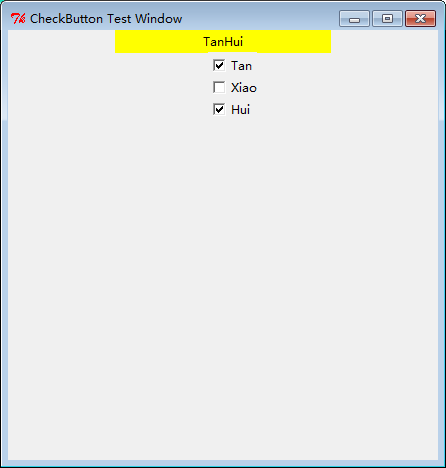
备注:实现选中 CheckBox, 标签中显示选中内容
# -*- coding: UTF-8 -*-

import Tkinter

myWindow = Tkinter.Tk()

myWindow.title('CheckButton Test Window')

myWindow.geometry('430x430')

labelText = Tkinter.StringVar()

lable = Tkinter.Label(myWindow, textvariable=labelText, bg='yellow', width=30, height=1)

lable.pack(side='top')

def chooseEvent():

    if (chooseFirst.get() == 1) and (chooseSecond.get() == 0) and (chooseThird.get() == 0):

        labelText.set('Tan')

    elif (chooseFirst.get() == 0) and (chooseSecond.get() == 1) and (chooseThird.get() == 0):

        labelText.set('Xiao')

    elif (chooseFirst.get() == 0) and (chooseSecond.get() == 0) and (chooseThird.get() == 1):

        labelText.set('Hui')

    elif (chooseFirst.get() == 1) and (chooseSecond.get() == 1) and (chooseThird.get() == 0):

        labelText.set('TanXiao')

    elif (chooseFirst.get() == 1) and (chooseSecond.get() == 0) and (chooseThird.get() == 1):

        labelText.set('TanHui')

    elif (chooseFirst.get() == 0) and (chooseSecond.get() == 1) and (chooseThird.get() == 1):

        labelText.set('XiaoHui')

    elif (chooseFirst.get() == 1) and (chooseSecond.get() == 1) and (chooseThird.get() == 1):

        labelText.set('TanXiaoHui')

    else:

        labelText.set('')

chooseFirst = Tkinter.IntVar()

checkButton1 = Tkinter.Checkbutton(myWindow, text='Tan', variable=chooseFirst, onvalue=1, offvalue=0, command=chooseEvent)

checkButton1.place(x=200, y=22)

chooseSecond = Tkinter.IntVar()

checkButton2 = Tkinter.Checkbutton(myWindow, text='Xiao', variable=chooseSecond, onvalue=1, offvalue=0, command=chooseEvent)

checkButton2.place(x=200, y=44)

chooseThird = Tkinter.IntVar()

checkButton3 = Tkinter.Checkbutton(myWindow, text='Hui', variable=chooseThird, onvalue=1, offvalue=0, command=chooseEvent)

checkButton3.place(x=200, y=66)

myWindow.mainloop()
运行结果
Python Tkinter 图形组件介绍的更多相关文章
- python Tkinter图形用户编程简单学习(一)
Events(事件) Events are given as strings, using a special event syntax:事件以字符串的方式给出,使用特殊的事件语法:<modif ...
- python的re模块一些方法 && Tkinter图形界面设计 && 终止python运行函数 && python读写文件 && python一旦给字符串赋值就不能单独改变某个字符,除非重新给变量赋值
Tkinter图形界面设计见:https://www.cnblogs.com/pywjh/p/9527828.html#radiobutton 终止python运行函数: 采用sys.exit(0)正 ...
- Tkinter图形界面设计(GUI)
[因为这是我第一个接触的GUI图形界面python库,现在也不用了,所以大多数内容都来自之前花 钱买的一些快速入门的内容,可以当作简单的知识点查询使用] 在此声明:内容来自微信公众号GitChat,付 ...
- 高效而稳定的企业级.NET Office 组件Spire(.NET组件介绍之二)
在项目开发中,尤其是企业的业务系统中,对文档的操作是非常多的,有时几乎给人一种错觉的是”这个系统似乎就是专门操作文档的“.毕竟现在的很多办公中大都是在PC端操作文档等软件,在这些庞大而繁重的业务中,单 ...
- 一款开源免费的.NET文档操作组件DocX(.NET组件介绍之一)
在目前的软件项目中,都会较多的使用到对文档的操作,用于记录和统计相关业务信息.由于系统自身提供了对文档的相关操作,所以在一定程度上极大的简化了软件使用者的工作量. 在.NET项目中如果用户提出了相关文 ...
- 数百个 HTML5 例子学习 HT 图形组件 – 3D建模篇
http://www.hightopo.com/demo/pipeline/index.html <数百个 HTML5 例子学习 HT 图形组件 – WebGL 3D 篇>里提到 HT 很 ...
- 数百个 HTML5 例子学习 HT 图形组件 – 3D 建模篇
http://www.hightopo.com/demo/pipeline/index.html <数百个 HTML5 例子学习 HT 图形组件 – WebGL 3D 篇>里提到 HT 很 ...
- 数百个 HTML5 例子学习 HT 图形组件 – WebGL 3D 篇
<数百个 HTML5 例子学习 HT 图形组件 – 拓扑图篇>一文让读者了解了 HT的 2D 拓扑图组件使用,本文将对 HT 的 3D 功能做个综合性的介绍,以便初学者可快速上手使用 HT ...
- 数百个 HTML5 例子学习 HT 图形组件 – 拓扑图篇
HT 是啥:Everything you need to create cutting-edge 2D and 3D visualization. 这口号是当年心目中的产品方向,接着就朝这个方向慢慢打 ...
随机推荐
- 化繁为简,弱监督目标定位领域的新SOTA - 伪监督目标定位方法(PSOL) | CVPR 2020
论文提出伪监督目标定位方法(PSOL)来解决目前弱监督目标定位方法的问题,该方法将定位与分类分开成两个独立的网络,然后在训练集上使用Deep descriptor transformation(DDT ...
- Vmware下安装Linux
Linux系统 开源的操作系统.主要是应用在软件的服务器,性能比windows要好. Linux系统(ubuntu,centos,redhat,aix....) Linux主要是通过命令去操作计算机, ...
- 计算机系统基础学习笔记(1)-基本GCC,objdump,GBD命令的使用
基本GCC命令的使用 GCC是一套由GNU项目开发的编程语言编译器,可处理C语言. C++.Fortran.Pascal.Objective-C.Java等等.GCC通常是 跨平台软件的编译器首选.g ...
- python selenium模块 xpath定位
''' 附w3xpath语法地址 https://www.w3school.com.cn/xpath/xpath_syntax.asp 总结: 返回匹配到所有符合条件的第一个节点,对象是 <cl ...
- PHP Curl 请求https 60错误解决办法
curl_setopt($curl, CURLOPT_SSL_VERIFYPEER, 0);
- file_put_contens小trick
file_put_contents tricks 0x01 trick1 来自于P神的实例: <?php $text = $_GET['text']; if(preg_match('[<& ...
- Spring5:IOC注解
使用注解须知: 1:导入约束:导入context的命名空间 2:配置注解的支持:<context:annotation-config/> <?xml version="1. ...
- SpringCloud(七)超时、重试
一.Ribbon(单独配置) 可以通过ribbon.xx来进行全局配置.也可以通过服务名.ribbon.xx来对指定服务配置 全局配置: ribbon: ConnectTimeout: 3000 #连 ...
- json:格式化数据
formatData = JSON.Stringfy(data, null, 2)
- HBase可用性分析与高可用实践
HBase作为一个分布式存储的数据库,它是如何保证可用性的呢?对于分布式系统的CAP问题,它是如何权衡的呢? 最重要的是,我们在生产实践中,又应该如何保证HBase服务的高可用呢? 下面我们来仔细分析 ...