
企业级镜像仓库Harbor
介绍:
Habor是由VMWare公司开源的容器镜像仓库。事实上,Habor是在Docker Registry上进行了相应的
企业级扩展,从而获得了更加广泛的应用,这些新的企业级特性包括:管理用户界面,基于角色的访
问控制 ,AD/LDAP集成以及审计日志等,足以满足基本企业需求
| 组件 | 功能 |
| harbor-adminserver | 配置管理中心 |
| harbor-db | MySQL数据库 |
| harbor-jobservice | 负责镜像的复制 |
| harbor-log | 负责操作日志 |
| harbor-ui | Web管理页面和API |
| nginx | 前端代理,负责前端页面和镜像的上传/下载转发 |
| redis | 会话 |
| registry | 镜像存储 |
Harbor的几种安装方式:
1、在线安装:从Docker Hub下载harbor相关镜像,因此安装软件包非常的小
2、离线安装:安装包包含部署的相关镜像,因此安装包比较大
3、OVA安装程序,当用户具有Vcenter环境的时候,使用此安装程序,再部署OVA后启动Harbor
这里我们使用离线安装的方式:
harbor-offline-installer-v1.6.1.tgz
tar -xf harbor-offline-installer-v1.6.1.tgz
修改配置文件
[root@hu-001 harbor]# grep -Ev "^$|^#" harbor.cfg

_version = 1.6.0

hostname = 192.168.20.11 #harbor 的地址,可以写IP,也可以写域名

ui_url_protocol = http

max_job_workers = 10

customize_crt = on

ssl_cert = /data/cert/server.crt

ssl_cert_key = /data/cert/server.key

secretkey_path = /data

admiral_url = NA

log_rotate_count = 50

log_rotate_size = 200M

http_proxy =

https_proxy =

no_proxy = 127.0.0.1,localhost,ui,registry

email_identity =

email_server = smtp.mydomain.com

email_server_port = 25

email_username = sample_admin@mydomain.com

email_password = abc

email_from = admin <sample_admin@mydomain.com>

email_ssl = false

email_insecure = false

harbor_admin_password = 123456

auth_mode = db_auth

ldap_url = ldaps://ldap.mydomain.com

ldap_basedn = ou=people,dc=mydomain,dc=com

ldap_uid = uid

ldap_scope = 2

ldap_timeout = 5

ldap_verify_cert = true

ldap_group_basedn = ou=group,dc=mydomain,dc=com

ldap_group_filter = objectclass=group

ldap_group_gid = cn

ldap_group_scope = 2

self_registration = on

token_expiration = 30

project_creation_restriction = everyone

db_host = postgresql

db_password = root123

db_port = 5432

db_user = postgres

redis_host = redis

redis_port = 6379

redis_password =

redis_db_index = 1,2,3

clair_db_host = postgresql

clair_db_password = root123

clair_db_port = 5432

clair_db_username = postgres

clair_db = postgres

clair_updaters_interval = 12

uaa_endpoint = uaa.mydomain.org

uaa_clientid = id

uaa_clientsecret = secret

uaa_verify_cert = true

uaa_ca_cert = /path/to/ca.pem

registry_storage_provider_name = filesystem

registry_storage_provider_config =

registry_custom_ca_bundle =
Harbor 是使用docker-compose来编排部署的,所以这里我们这里必须要有一个docker-compose
下载后就是一个二进制文件
docker-compose的作用是单机编排,以及管理多个容器
docker-compose-Linux-x86_64
mv docker-compose-Linux-x86_64 harbor/
mv docker-compose-Linux-x86_64 /usr/bin/docker-compose
chmod +x /usr/bin/docker-compose
[root@hu-001 harbor]# ./prepare 生成预配置文件
[root@hu-001 harbor]# ./install.sh 导入包中所有的镜像
[root@hu-001 harbor]# ./install.sh

[Step 0]: checking installation environment ...

Note: docker version: 18.09.0

Note: docker-compose version: 1.23.1

[Step 1]: loading Harbor images ...

ad50e89f4922: Loading layer  133.4MB/133.4MB

8c9a00a7f290: Loading layer  73.29MB/73.29MB

078e22641f73: Loading layer  3.584kB/3.584kB

5494f0d704cb: Loading layer  3.072kB/3.072kB

34c7e304d18b: Loading layer  4.096kB/4.096kB

ae9209f78c11: Loading layer  3.584kB/3.584kB

1498359f7391: Loading layer  9.728kB/9.728kB

Loaded image: goharbor/harbor-log:v1.6.1

bb738fd5b202: Loading layer  23.38MB/23.38MB

51f6c7e046ae: Loading layer  21.15MB/21.15MB

67ff79ae8340: Loading layer  21.15MB/21.15MB

Loaded image: goharbor/harbor-jobservice:v1.6.1

b5be864bae6a: Loading layer  83.89MB/83.89MB

9fdbae37c606: Loading layer  3.072kB/3.072kB

c24b06c70085: Loading layer   59.9kB/59.9kB

946c040a69da: Loading layer  61.95kB/61.95kB

Loaded image: goharbor/redis-photon:v1.6.1

747ac74b0475: Loading layer  5.128MB/5.128MB

Loaded image: goharbor/nginx-photon:v1.6.1

3d4aae33f4f1: Loading layer    683MB/683MB

3cb271cda7e0: Loading layer   7.68kB/7.68kB

7ae402931bdb: Loading layer  197.6kB/197.6kB

Loaded image: goharbor/harbor-migrator:v1.6.1

67747a74e108: Loading layer  158.1MB/158.1MB

93f3d22257c7: Loading layer  35.08MB/35.08MB

2eda636f347b: Loading layer   2.56kB/2.56kB

7a3b4ef015e8: Loading layer  35.08MB/35.08MB

Loaded image: goharbor/chartmuseum-photon:v0.7.1-v1.6.1

038c23438769: Loading layer  23.38MB/23.38MB

a6a0201bf457: Loading layer  26.88MB/26.88MB

aa0986b7d608: Loading layer  7.168kB/7.168kB

830a350d7059: Loading layer  11.32MB/11.32MB

3100afecce3d: Loading layer  26.87MB/26.87MB

Loaded image: goharbor/harbor-ui:v1.6.1

15134eb6d277: Loading layer  95.85MB/95.85MB

02cff5f31ca4: Loading layer  6.656kB/6.656kB

3e43f3cb1d4c: Loading layer  2.048kB/2.048kB

4ab1b74a5650: Loading layer   7.68kB/7.68kB

9c78faccbd48: Loading layer   2.56kB/2.56kB

158d4a16071f: Loading layer   2.56kB/2.56kB

6a2fbfb6100b: Loading layer   2.56kB/2.56kB

Loaded image: goharbor/harbor-db:v1.6.1

b15fe66f326a: Loading layer  23.38MB/23.38MB

336e69120569: Loading layer  3.072kB/3.072kB

f308142e2037: Loading layer  3.072kB/3.072kB

3119c7884a49: Loading layer  2.048kB/2.048kB

fafa9955d095: Loading layer   22.8MB/22.8MB

4c53b946082a: Loading layer   22.8MB/22.8MB

Loaded image: goharbor/registry-photon:v2.6.2-v1.6.1

0fee5e457010: Loading layer  23.38MB/23.38MB

6d1b402441fc: Loading layer  12.16MB/12.16MB

765a288fcf5a: Loading layer   17.3MB/17.3MB

da4578643aee: Loading layer  11.26kB/11.26kB

f02d275fa76f: Loading layer  3.072kB/3.072kB

4a3d1e973223: Loading layer  29.46MB/29.46MB

Loaded image: goharbor/notary-server-photon:v0.5.1-v1.6.1

918b224a19fd: Loading layer  10.95MB/10.95MB

ff41acdef199: Loading layer   17.3MB/17.3MB

4389d5e9282a: Loading layer  11.26kB/11.26kB

8a0e0bb6ed63: Loading layer  3.072kB/3.072kB

d437ffa494e0: Loading layer  28.24MB/28.24MB

Loaded image: goharbor/notary-signer-photon:v0.5.1-v1.6.1

1c86e9f19207: Loading layer  158.1MB/158.1MB

3b4698fe61a0: Loading layer  10.93MB/10.93MB

8dbd6d55a6cd: Loading layer  2.048kB/2.048kB

5cb748f1dcf1: Loading layer  48.13kB/48.13kB

f86a42ee549b: Loading layer  10.98MB/10.98MB

Loaded image: goharbor/clair-photon:v2.0.6-v1.6.1

18abf81cd9fd: Loading layer  23.38MB/23.38MB

66a3e670c5b5: Loading layer  15.58MB/15.58MB

9cdd51a1e20c: Loading layer  15.36kB/15.36kB

9aedba3496f1: Loading layer  15.58MB/15.58MB

Loaded image: goharbor/harbor-adminserver:v1.6.1

[Step 2]: preparing environment ...

Clearing the configuration file: ./common/config/adminserver/env

Clearing the configuration file: ./common/config/ui/env

Clearing the configuration file: ./common/config/ui/app.conf

Clearing the configuration file: ./common/config/ui/private_key.pem

Clearing the configuration file: ./common/config/db/env

Clearing the configuration file: ./common/config/jobservice/env

Clearing the configuration file: ./common/config/jobservice/config.yml

Clearing the configuration file: ./common/config/registry/config.yml

Clearing the configuration file: ./common/config/registry/root.crt

Clearing the configuration file: ./common/config/registryctl/env

Clearing the configuration file: ./common/config/registryctl/config.yml

Clearing the configuration file: ./common/config/nginx/nginx.conf

Clearing the configuration file: ./common/config/log/logrotate.conf

loaded secret from file: /data/secretkey

Generated configuration file: ./common/config/nginx/nginx.conf

Generated configuration file: ./common/config/adminserver/env

Generated configuration file: ./common/config/ui/env

Generated configuration file: ./common/config/registry/config.yml

Generated configuration file: ./common/config/db/env

Generated configuration file: ./common/config/jobservice/env

Generated configuration file: ./common/config/jobservice/config.yml

Generated configuration file: ./common/config/log/logrotate.conf

Generated configuration file: ./common/config/registryctl/env

Generated configuration file: ./common/config/ui/app.conf

Generated certificate, key file: ./common/config/ui/private_key.pem, cert file: ./common/config/registry/root.crt

The configuration files are ready, please use docker-compose to start the service.

[Step 3]: checking existing instance of Harbor ...

[Step 4]: starting Harbor ...

Creating network "harbor_harbor" with the default driver

Creating harbor-log ... done

Creating registry           ... done

Creating harbor-db          ... done

Creating redis              ... done

Creating harbor-adminserver ... done

Creating harbor-ui          ... done

Creating harbor-jobservice  ... done

Creating nginx              ... done

✔ ----Harbor has been installed and started successfully.----

Now you should be able to visit the admin portal at http://192.168.20.11.

For more details, please visit https://github.com/goharbor/harbor .
假如有什么异常的话,我们处理一下,然后使用docker-compose up -d 再启动一次
这个时候我们浏览器输入:
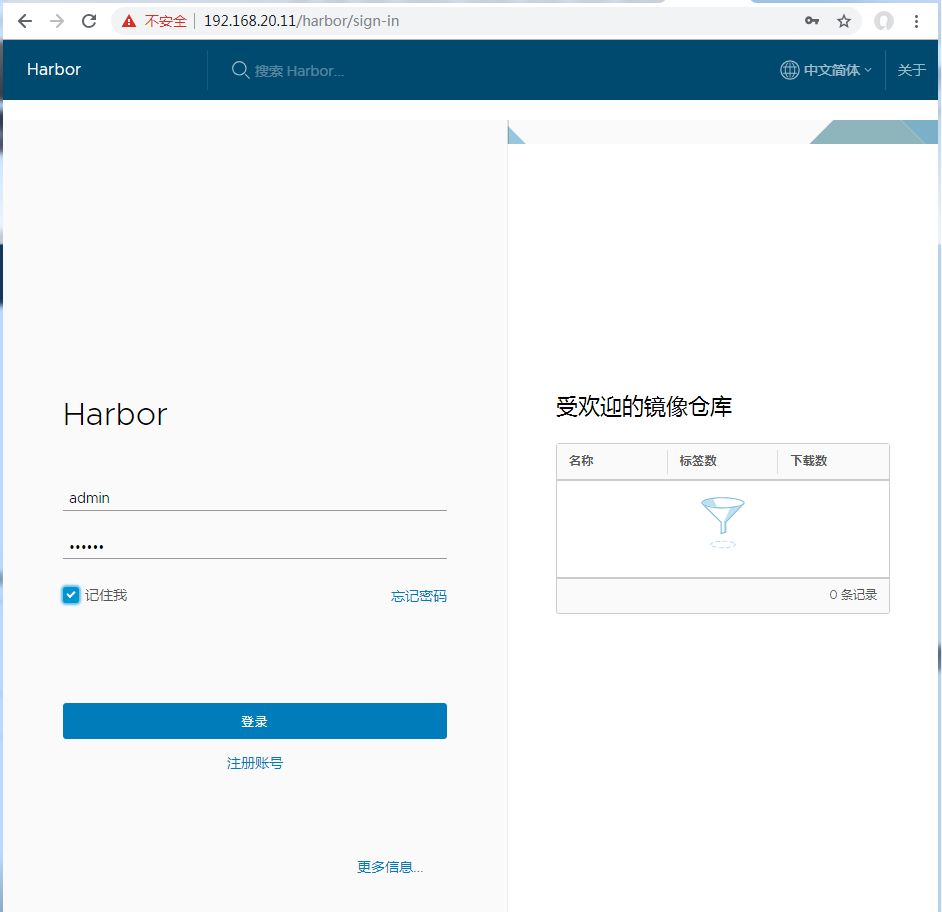
这里默认有一个项目是公开的

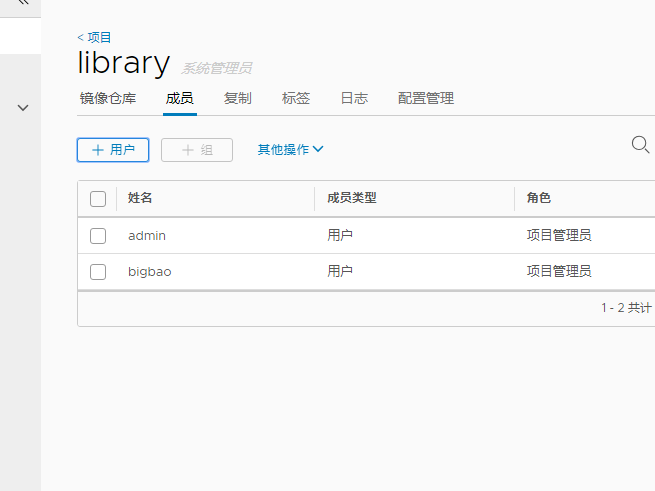
这个我们可以不用登陆就可以下载,但是我们上传的时候我们需要创建用户密码,所以这里我们在人员管理上添加一个用户,然后给这个项目分配成员
推送镜像的格式:
在项目中标记镜像:
docker tag SOURCE_IMAGE[:TAG] 192.168.20.11/library/IMAGE[:TAG]
这里我们先标记镜像,然后把标记的镜像推送到Harbor 仓库中
在推送镜像之前我们需要先登录Harbor
默认是使用https方式的但是我们目前这里使用的事http的方式,所以这里我们要添加一个可信任的配置
[root@hu-001 harbor]# cat /etc/docker/daemon.json
{"registry-mirrors": ["http://f1361db2.m.daocloud.io"],
"insecure-registries":["192.168.20.11"]
}
需要重启Docker才可以生效
systemctl restart docker
然后就是登录仓库(使用刚刚web页面上创建的用户名和密码)
[root@hu-001 harbor]# docker login 192.168.20.11 这里只要登录一次就可以了,但是会有失效时间,其实也不麻烦,每次上传的时候都可以登录一下

Username: bigbao

Password:

WARNING! Your password will be stored unencrypted in /root/.docker/config.json.

Configure a credential helper to remove this warning. See

https://docs.docker.com/engine/reference/commandline/login/#credentials-store

Login Succeeded
打标签

docker tag nginx:1.15 192.168.20.11/library/bigbao_harbor_nginx:1.15

上传镜像到仓库中

[root@hu-001 harbor]# docker push 192.168.20.11/library/bigbao_harbor_nginx:1.15

The push refers to repository [192.168.20.11/library/bigbao_harbor_nginx]

ece4f9fdef59: Pushed

ad5345cbb119: Pushed

ef68f6734aa4: Pushed

1.15: digest: sha256:87e9b6904b4286b8d41bba4461c0b736835fcc218f7ecbe5544b53fdd467189f size: 948
[root@hu-001 harbor]# docker images

REPOSITORY                                  TAG                 IMAGE ID            CREATED             SIZE

192.168.20.11/library/bigbao_harbor_nginx   1.15                568c4670fa80        4 days ago          109MB

nginx                                       1.15                568c4670fa80        4 days ago          109MB

nginx                                       latest              568c4670fa80        4 days ago          109MB

goharbor/chartmuseum-photon                 v0.7.1-v1.6.1       f0a2dbee1ff1        6 weeks ago         350MB

goharbor/harbor-migrator                    v1.6.1              60e8be845b35        6 weeks ago         798MB

goharbor/redis-photon                       v1.6.1              6a67380bb061        6 weeks ago         210MB

goharbor/clair-photon                       v2.0.6-v1.6.1       c4fcdbae7df2        6 weeks ago         302MB

goharbor/notary-server-photon               v0.5.1-v1.6.1       f1afd44d9f9b        6 weeks ago         209MB

goharbor/notary-signer-photon               v0.5.1-v1.6.1       83aa51867207        6 weeks ago         207MB

goharbor/registry-photon                    v2.6.2-v1.6.1       f4cb5e83f0a4        6 weeks ago         196MB

goharbor/nginx-photon                       v1.6.1              9ca888fe33b2        6 weeks ago         132MB

goharbor/harbor-log                         v1.6.1              9b1ea3f29465        6 weeks ago         198MB

goharbor/harbor-jobservice                  v1.6.1              9ca6fd371ca6        6 weeks ago         192MB

goharbor/harbor-ui                          v1.6.1              305ee5b8952c        6 weeks ago         215MB

goharbor/harbor-adminserver                 v1.6.1              a3e95f74984e        6 weeks ago         181MB

goharbor/harbor-db                          v1.6.1              3bea3bff0190        6 weeks ago         219MB

centos                                      7                   75835a67d134        7 weeks ago         200MB

busybox                                     latest              59788edf1f3e        2 months ago        1.15MB

[root@hu-001 harbor]# docker tag centos:7 192.168.20.11/library/bigbao_harbor_centos:7

[root@hu-001 harbor]# docker tag busybox:latest 192.168.20.11/library/bigbao_harbor_busybox:latest

[root@hu-001 harbor]# docker push 192.168.20.11/library/bigbao_harbor_busybox:latest

The push refers to repository [192.168.20.11/library/bigbao_harbor_busybox]

8a788232037e: Pushed

latest: digest: sha256:915f390a8912e16d4beb8689720a17348f3f6d1a7b659697df850ab625ea29d5 size: 527

[root@hu-001 harbor]# docker push 192.168.20.11/library/bigbao_harbor_centos:7

The push refers to repository [192.168.20.11/library/bigbao_harbor_centos]

f972d139738d: Pushed

7: digest: sha256:dc29e2bcceac52af0f01300402f5e756cc8c44a310867f6b94f5f7271d4f3fec size: 529
这个时候我们去看一下我们的镜像仓库就要镜像了
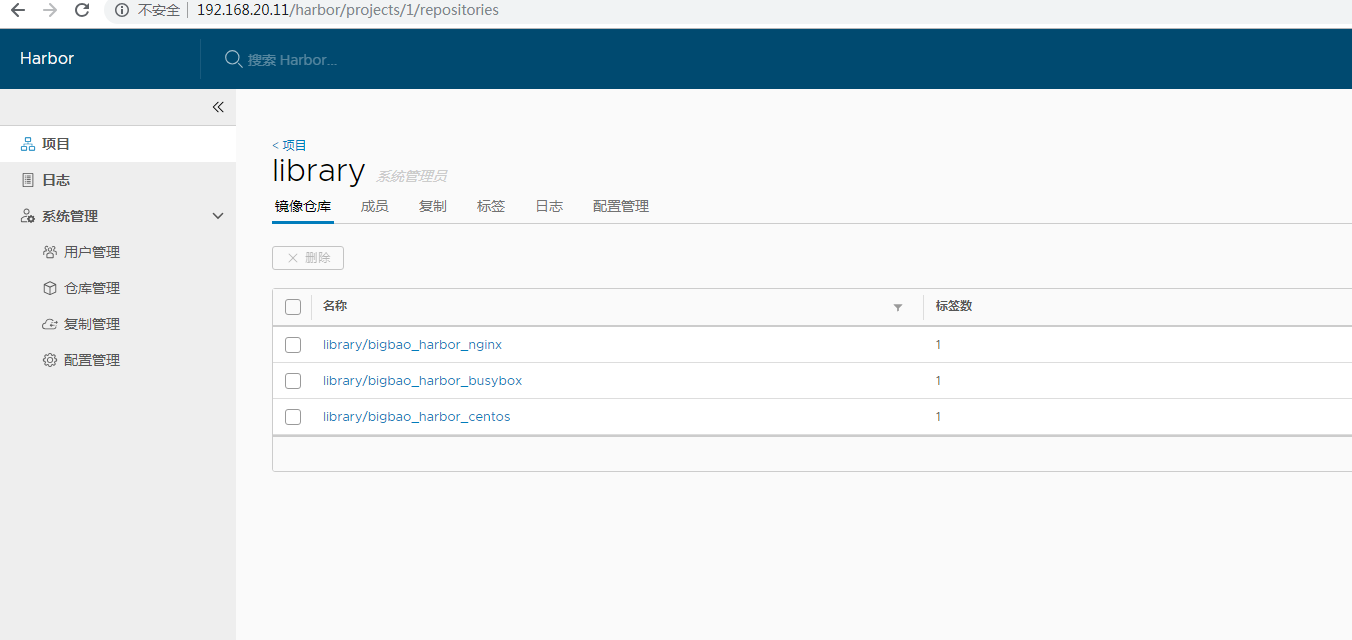
之前我们都是懂官方仓库下载镜像或者加速仓库下载,这个时候我们就可以从自己的私有仓库下载了
这里我们就可以直接只用
docker pull 192.168.20.11/library/bigbao_harbor_centos:7 下载了(如果不是公开项目我们先登录)
企业级镜像仓库Harbor的更多相关文章
- 企业级镜像仓库harbor搭建
企业级镜像仓库harbor搭建 一. Harbor概述 VMware公司最近开源了企业级Registry项目Harbor,其的目标是帮助用户迅速搭建一个企业级的Docker registry 服 ...
- 企业级镜像仓库 harbor
企业级镜像仓库 harbor 前言 a. 本文主要为 Docker的视频教程 笔记. b. 环境为 CentOS 7.0 云服务器 c. 上一篇:跨 Docker 宿主机网络 overlay 类型 h ...
- Docker: 企业级镜像仓库Harbor的使用
上一节,演示了Harbor的安装部署 这次我们来讲解 Harbor的使用. 我们需要了解到: 1. 如何推镜像到镜像仓库 2. 如何从镜像仓库拉取镜像 3. 如何运行从私有仓库拉取的镜像 # 查看 h ...
- docker进阶-搭建私有企业级镜像仓库Harbor
为什么要搭建私有镜像仓库 对于一个刚刚接触Docker的人来说,官方的Docker hub是用于管理公共镜像.既然官方提供了镜像仓库我们为什么还要去自己搭建私有仓库呢?虽然也可以托管私有镜像.我们 ...
- 使用docker搭建“企业级镜像仓库”Harbor
一.前沿 docker的官方镜像仓库registry,功能比较单一,不太好用,特别是删除镜像操作,不够友好. Harbor是一个用于存储和分发Docker镜像的企业级Registry服务器,通过添加一 ...
- 【Docker】企业级镜像仓库harbor的搭建(http/https)及使用
一:用途 Harbor是一个用于存储和分发Docker镜像的企业级Registry服务器. 二:安装docker-ce 环境:阿里云轻量应用服务器CentOS 7.3 这里通过yum Docker源仓 ...
- docker企业级镜像仓库Harbor管理
Harbor概述 Harbor是由VMWare公司开源的容器镜像仓库.事实上,Harbor是在Docker Registry上进行了相应的企业级扩展,从而获得了更加广泛的应用,这些新的企业级特性包括: ...
- Docker 企业级镜像仓库 Harbor 的搭建与维护
目录 一.什么是 Harbor 二.Harbor 安装 2.1.Harbor 安装环境 2.2.Harbor安装 2.3 配置HTTPS 三.Harbor 的使用 3.1.登录Harbor并使用 3. ...
- Docker企业级镜像仓库harbor(vmware 中国团队)
第一步:安装docker和docker-compose 第二步:下载harbor-offline-installer-v1.3.0.tgz 第三步:上传到/opt,并解压 第四步:修改harbor.c ...
随机推荐
- 上海市2019年公务员录用考试笔试合格人员笔试成绩(B类)
考试类别:B类 注册编号 总成绩 注册编号 总成绩 注册编号 总成绩 注册编号 总成绩 5101919 154.7 5113380 156.5 5126791 133.5 5146138 126.2 ...
- 9. Fizz Buzz 问题
Description Given number n. Print number from 1 to n. But: when number is divided by 3, print " ...
- Django——ModuleNotFoundError: No module named 'asgiref.sync'
Django+channels运行时报错 Unhandled exception in thread started by <function check_errors.<locals&g ...
- php 压缩文件 zip
<?php class PHPZip { private $ctrl_dir = array(); private $datasec = ...
- 2017中国无人机公开赛 总决赛 CDR Final 竞赛规则
2017中国无人机公开赛总决赛 CDR Final竞赛规则 V2 二〇一七年八月(修订) 一. 竞赛项目描述(一) 无人机绕标竞速赛(专业组)飞行员通过佩戴眼镜或显示屏采用第一视角飞行,使用无线电遥控 ...
- 面试题fugui02
一.概念题 1.描述对super.pass.yield.lambda关键字修饰的理解 2.大致描述一下python GIL的机制,以及python中多线程和多进程的区别 GIL全局解释器锁,是pyth ...
- It is not safe to rely on the system's timezone settings错误
在写php程序中有时会出现这样的警告: PHP Warning: date(): It is not safe to rely on the system's timezone settings. Y ...
- Docker安装管理界面portainer
在Ubuntu或者Debian已经部署完毕Docker 拉取镜像文件: sudo docker pull docker.io/portainer/portainer Using default tag ...
- 考前停课集训 Day2 非
因为太长了 所以一天一天分开发 Day2 昨天晚上没开黑车 没脱衣服就睡了 可能是我难受了…… 新的一天. 早上好. 我没去晨跑,早上先和团长集合了,没看见rkbudlo来 于是就先吃饭了 去机房的时 ...
- HTML入门随笔
---恢复内容开始--- html网址:https://developer.mozilla.org/zh-CN/docs/Learn/HTML/Introduction_to_HTML/Getting ...