
.Net Core 2.0 的 ConsoleApp 搭建 Quartz(xml配置)windows服务
零、创建一个.Net Core 2.0 的ConsoleApp 应用,建完就是这个样子了。
添加Log4Net 的引用,(不想看可以不看,个人习惯)
Install-Package log4net
添加Config文件夹
往文件夹里面添加Log4net.xml(别忘记了设置Copy always)
添加Log4NetConfig.cs文件
往里面写几行代码
 /// <summary>

     /// log4net拓展

     /// </summary>

     public sealed class Log4netConfig

     {

         /// <summary>

         /// 配置默认数据

         /// </summary>

         public static void DefalutConfig()

         {

             var defalutResposity = LogManager.GetRepository(Assembly.GetCallingAssembly());

             var path = Path.Combine(Directory.GetCurrentDirectory(), "Config", "Log4net.xml");

             XmlConfigurator.Configure(defalutResposity, new FileInfo(path));

         }

     }
Log4netConfig
在Main函数加下面几行代码
 Environment.CurrentDirectory = AppContext.BaseDirectory;

 Log4NetConfig.DefalutConfig();

 var logger = LogManager.GetLogger(typeof(Program));

 logger.Info("服务开始");
Main
得到的差不多就是这样了
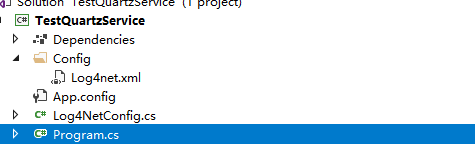
运行下,可以看到日志基本就没错了。
一、windows服务的搭建
大概或许是看下了https://github.com/aspnet/Hosting/tree/dev/src/Microsoft.AspNetCore.Hosting,随便乱写的
1.引用
Install-Package System.ServiceProcess.ServiceController
Install-Package Install-Package System.Configuration.ConfigurationManager
2.添加appSettings.config
在Config文件夹下添加appSettings.config
添加内容
<appSettings>

  <!--服务名称-->

  <add key="ServiceName" value="MyTestService"/>

</appSettings>
3.添加HostService.cs
然后写上如下代码
  /// <summary>

     /// 服务

     /// </summary>

     public class HostService : ServiceBase

     {

         private ILog Log = LogManager.GetLogger(typeof(HostService));

         /// <summary>

         /// Creates an instance of <c>WebHostService</c> which hosts the specified web application.

         /// </summary>

         /// <param name="host">The configured web host containing the web application to host in the Windows service.</param>

         public HostService()

         {

         }

         public void Start()

         {

             Log.Info($"{base.ServiceName}服务开启");

             OnStart(null);

         }

         protected sealed override void OnStart(string[] args)

         {

             OnStarting(args);

             //dosomthing

             OnStarted();

         }

         protected sealed override void OnStop()

         {

             Log.Info($"{base.ServiceName}服务关闭");

             OnStopping();

             try

             {

             }

             finally

             {

                 OnStopped();

             }

         }

         /// <summary>

         /// Executes before ASP.NET Core starts.

         /// </summary>

         /// <param name="args">The command line arguments passed to the service.</param>

         protected virtual void OnStarting(string[] args) { }

         /// <summary>

         /// Executes after ASP.NET Core starts.

         /// </summary>

         protected virtual void OnStarted() { }

         /// <summary>

         /// Executes before ASP.NET Core shuts down.

         /// </summary>

         protected virtual void OnStopping() { }

         /// <summary>

         /// Executes after ASP.NET Core shuts down.

         /// </summary>

         protected virtual void OnStopped() { }

     }
HostService
4. Main 改为如下代码
 var serviceName = ConfigurationManager.AppSettings["ServiceName"];

             var hostService = new HostService { ServiceName = serviceName };

             logger.Info("服务开始");

 #if DEBUG

             //服务名称赋值

             Console.WriteLine($"{serviceName}服务开启...");

             hostService.Start();

             Console.ReadKey(true);

             hostService.Stop();

             Console.WriteLine($"{serviceName}服务停止");

 #else

             logger.Info($"{serviceName}服务开启...");

             var servicesToRun = new ServiceBase[] { hostService };

             ServiceBase.Run(servicesToRun);

 #endif

             Console.ReadLine();
Main
这个时候,运行,服务就可以启动了。
大概就是这么个效果
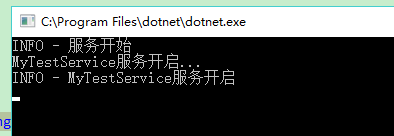
二、quart的使用
1.引用
添加引用
Install-Package Quartz
Install-Package Quartz.Plugins
2.添加TestQuartzService .cs 文件,写入以下代码
 public class TestQuartzService : IDisposable

     {

         private ILog Log = LogManager.GetLogger(typeof(TestQuartzService));

         public List<IScheduler> Schedulers = new List<IScheduler>();

         public void Start()

         {

             Log.Info("quartz开启!");

             // 从工厂中获取调度程序实例

             StdSchedulerFactory factory = new StdSchedulerFactory();

             IScheduler scheduler = factory.GetScheduler().Result;

             Schedulers.Add(scheduler);

             scheduler.Start();

             Log.Info("quartz开启完成!");

         }

         public void Stop()

         {

             Log.Info("quartz关闭!");

             foreach (var scheduler in Schedulers)

             {

                 scheduler.Shutdown().GetAwaiter().GetResult();

             }

             Log.Info("quartz关闭完成!");

         }

         public void Dispose()

         {

             foreach (var scheduler in Schedulers)

             {

                 if (scheduler.IsStarted)

                 {

                     scheduler.Shutdown().GetAwaiter().GetResult();

                 }

             }

         }

     }
TestQuartzService
3.添加TestJob.cs文件
写入以下代码
 public class TestJob : IJob

     {

         private ILog Log = LogManager.GetLogger(typeof(TestJob));

         public Task Execute(IJobExecutionContext context)

         {

             Log.Info("测试job启动");

             Console.WriteLine("测试job启动");

             return Task.CompletedTask;

         }

     }
TestJob
4.添加 quartz.config
 # You can configure your scheduler in either <quartz> configuration section

 # or in quartz properties file

 # Configuration section has precedence

 quartz.scheduler.instanceName = ServerScheduler

 # configure thread pool info

 quartz.threadPool.type = Quartz.Simpl.SimpleThreadPool, Quartz

 quartz.threadPool.threadCount =

 quartz.threadPool.threadPriority = Normal

 # job initialization plugin handles our xml reading, without it defaults are used

 quartz.plugin.xml.type = Quartz.Plugin.Xml.XMLSchedulingDataProcessorPlugin, Quartz.Plugins

 quartz.plugin.xml.fileNames = ~/quartz_jobs.xml
quartz.config
5.添加quartz_jobs.xml
 <?xml version="1.0" encoding="UTF-8"?>

 <job-scheduling-data xmlns="http://quartznet.sourceforge.net/JobSchedulingData" xmlns:xsi="http://www.w3.org/2001/XMLSchema-instance" version="2.0">

   <processing-directives>

     <overwrite-existing-data>true</overwrite-existing-data>

   </processing-directives>

   <schedule>

     <job>

       <name>TestJob</name>

       <group>TestJobGroup</group>

       <description>测试Job</description>

       <job-type>TestQuartzService.TestJob,TestQuartzService</job-type>

       <durable>true</durable>

       <recover>false</recover>

     </job>

     <trigger>

       <cron>

         <name>TestJobJobTrigger</name>

         <group>TestJobTriggerGroup</group>

         <job-name>TestJob</job-name>

         <job-group>TestJobGroup</job-group>

         <misfire-instruction>DoNothing</misfire-instruction>

         <cron-expression>/ * * * * ?</cron-expression>

       </cron>

     </trigger>

   </schedule>

 </job-scheduling-data>
quartz_job
6.HostService.cs改为
 /// <summary>

     /// 服务

     /// </summary>

     public class HostService : ServiceBase

     {

         private ILog Log = LogManager.GetLogger(typeof(HostService));

         private TestQuartzService _testQuartzService;

         /// <summary>

         /// Creates an instance of <c>WebHostService</c> which hosts the specified web application.

         /// </summary>

         /// <param name="host">The configured web host containing the web application to host in the Windows service.</param>

         public HostService()

         {

             _testQuartzService = new TestQuartzService();

         }

         public void Start()

         {

             Log.Info($"{base.ServiceName}服务开启");

             OnStart(null);

         }

         protected sealed override void OnStart(string[] args)

         {

             OnStarting(args);

             //dosomthing

              _testQuartzService.Start();

             OnStarted();

         }

         protected sealed override void OnStop()

         {

             Log.Info($"{base.ServiceName}服务关闭");

             OnStopping();

             try

             {

                 _testQuartzService.Stop();

             }

             finally

             {

                 OnStopped();

             }

         }

         /// <summary>

         /// Executes before ASP.NET Core starts.

         /// </summary>

         /// <param name="args">The command line arguments passed to the service.</param>

         protected virtual void OnStarting(string[] args) { }

         /// <summary>

         /// Executes after ASP.NET Core starts.

         /// </summary>

         protected virtual void OnStarted() { }

         /// <summary>

         /// Executes before ASP.NET Core shuts down.

         /// </summary>

         protected virtual void OnStopping() { }

         /// <summary>

         /// Executes after ASP.NET Core shuts down.

         /// </summary>

         protected virtual void OnStopped() { }

     }
HostService
6.尝试启动
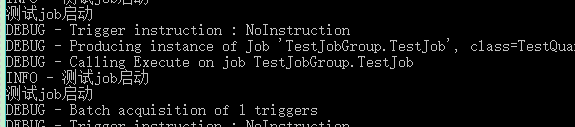
三、安装为windows服务
1.编辑TestQuartzService.csproj
添加 <RuntimeIdentifier>win-x64-corert</RuntimeIdentifier>
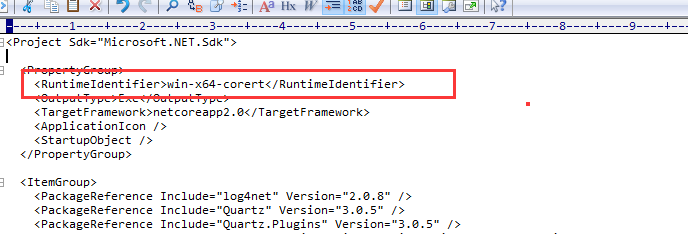
2.Main的引用添加(不添加release会报错,因为使用了 var servicesToRun = new ServiceBase[] { hostService };)
using System.ServiceProcess;
3.点击发布
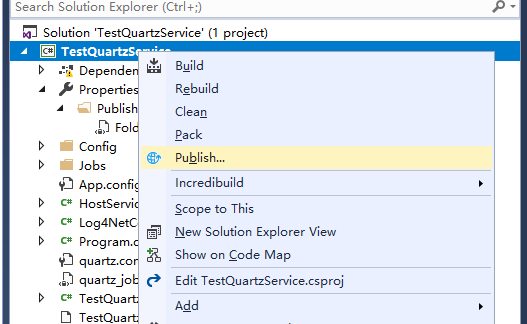
这下就会在 netcoreapp2.0\win-x64-corert 出现

有了这个exe就可以进行第四步了
4.管理员打开CMD
输入以下
sc create TestQuartzService binpath=E:\liuyue\TestQuartzService\TestQuartzService\bin\Release\netcoreapp2.0\win-x64-corert\TestQuartzService.exe

看到

5、打开服务找到

点启动
看到日志有日志不断输出

四、完结
值得注意一点就是,各种config、xml文件,记得copy always。
到这就弄完了。有什么问自己,翻源码去吧
.Net Core 2.0 的 ConsoleApp 搭建 Quartz(xml配置)windows服务的更多相关文章
- Quartz+TopShelf实现Windows服务作业调度
Quartz:首先我贴出来了两段代码(下方),可以看出,首先会根据配置文件(quartz.config),包装出一个Quartz.Core.QuartzScheduler instance,这是一个调 ...
- 基于.net core 2.0+mysql+AceAdmin搭建一套快速开发框架
前言 .net core已经出来一段时间了,相信大家对.net core的概念已经很清楚了,这里就不再赘述.笔者目前也用.net core做过一些项目,并且将以前framework下的一些经验移植到了 ...
- win10下ASP.NET Core 2.0部署环境搭建(转)
此文用于记录在win10环境下,新建的Asp.net Core 2.0 Web应用项目如何运行在IIS上 一.运行环境 操作系统: Window10 家庭中文版 版本 10.0.15063 版本 15 ...
- Quartz.Net在windows服务中的使用
写在前面 这几天在弄一个项目,需要定时抓取一些数据,当时也想直接用timer算了.因为之前也弄过这样的项目,但是一想,已经用过了,再去使用同一种思路,未免太乏味了.就换了一种新玩法.这里将之前看到的一 ...
- 使用 Topshelf 结合 Quartz.NET 创建 Windows 服务
Ø 前言 之前一篇文章已经介绍了,如何使用 Topshelf 创建 Windows 服务.当时提到还缺少一个任务调度框架,就是 Quartz.NET.而本文就展开对 Quartz.NET 的研究,以 ...
- 利用Topshelf把.NET Core Generic Host管理的应用程序部署为Windows服务
背景 2019第一篇文章. 此文源于前公司在迁移项目到.NET Core的过程中,希望使用Generic Host来管理定时任务程序时,没法部署到Windows服务的问题,而且官方也没给出解决方案,只 ...
- Quartz和TopShelf Windows服务作业调度
上一次写了一遍关于Quartz作业调度的文章 Quartz.NET 作业调度使用 现在使用TopShelf和Quartz实现windows服务作业调度 TopShelf版本4.0 Quartz版本3. ...
- Quartz.net创建windows服务
序言 安装服务 sc create XXService binpath= "XXService.exe" start= auto sc description XXService ...
- servlet3.0以后可以不用web.xml配置了
AbstractDispatcherServletInitializer 注意:删除了web.xml会报错,web.xml is missing and <failOnMissingWebXml ...
随机推荐
- Input设置只读属性
input设置为只读一般用于查看详情: 格式为: (1)单纯的input框 <div class="form-group"> <label for="c ...
- 2015年传智播客JavaEE 第168期就业班视频教程day45-ERP项目-01 10-类图结构分析设计
运行astah-pro.bat,这是windows下运行的.astah-run.sh是Linux下运行的. 类结构视图的作用是描述类模型和模型与模型之间的关系,也就是说我们在这要把这个一对多和多对多的 ...
- js中__proto__, property, prototype, 对象自身属性方法和原型中的属性方法的区别
__proto__: 这个属性是实例对象的属性,每个实例对象都有一个__proto__属性,这个属性指向实例化该实例的构造函数的原型对象(prototype). proterty:这个方法是对象的属性 ...
- 26.Remove Duplicates from Sorted Array(Array)
Given a sorted array, remove the duplicates in place such that each element appear only once and ret ...
- spring boot 1
1.创建项目. meven可以配置阿里云meven镜像 <mirror> <id>nexus-aliyun</id> <mirrorOf>central ...
- php之trait 个人笔记
自从 php 5.4 起 实现了一种代码复用的方式(tarit) 类似 class 但是用tarit 写的类 不能被实例化 和继承.现在来看看他的用法 <?php trait A{ publi ...
- Linux下Thunderbird要安装的插件
网络时代,总少不了跟邮件打交道,日常生活使用时多数是直接用网页版邮箱,在职场中一般要求用邮件客户端.使用Windows的朋友一般要么用Outlook,要么用Foxmail,其实,我们还有一个很不错的选 ...
- 用 RPM 打包软件,第 1 部分
http://www.ibm.com/developerworks/cn/linux/management/package/rpm/part1/ RPM(Red Hat Package Manager ...
- crt key转p12, jks p12互转,windows生成jks,
crt key转p12, jks p12互转,windows生成jks, 摘自:https://blog.csdn.net/u010801696/article/details/86546191 20 ...
- windows聚焦图片文件重命名bash脚本
win10聚焦路径为: %localappdata%\Packages\Microsoft.Windows.ContentDeliveryManager_cw5n1h2txyewy\LocalStat ...