
使用Aspose.Cells生成Excel的线型图表
目的:
1.根据模板里面的excel数据信息,动态创建line chart
2.linechart 的样式改为灰色
3.以流的形式写到客户端,不管客户端是否装excel,都可以导出到到客户端
4.使用Aspose.Cells的基本功能
5.使用mvc测试代码
导出到excel里面的效果图
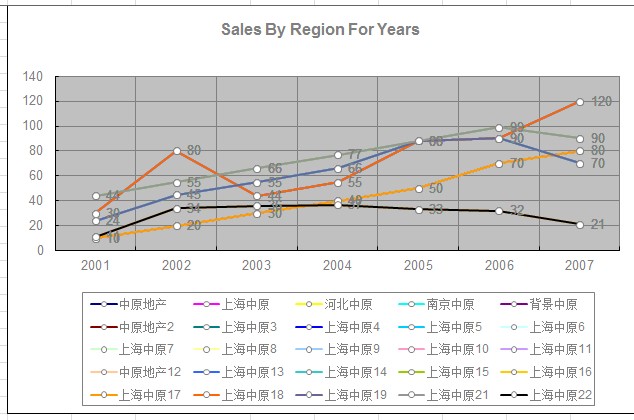
excel里面的数据源sheet2
|
1
2
3
4
5
6
7
8
9
10
11
12
13
14
15
16
17
18
19
20
21
22
23
24
25
26
|
2001 2002 2003 2004 2005 2006 2007中原地产 10 20 30 40 50 70 80上海中原 30 80 44 55 88 90 120河北中原 24 45 55 66 88 90 70南京中原 44 55 66 77 88 99 90背景中原 11 34 36 37 33 32 21中原地产2 10 20 30 40 50 70 80上海中原3 30 80 44 55 88 90 120上海中原4 24 45 55 66 88 90 70上海中原5 44 55 66 77 88 99 90上海中原6 11 34 36 37 33 32 21上海中原7 10 20 30 40 50 70 80上海中原8 30 80 44 55 88 90 120上海中原9 24 45 55 66 88 90 70上海中原10 44 55 66 77 88 99 90上海中原11 11 34 36 37 33 32 21中原地产12 10 20 30 40 50 70 80上海中原13 30 80 44 55 88 90 120上海中原14 24 45 55 66 88 90 70上海中原15 44 55 66 77 88 99 90上海中原16 11 34 36 37 33 32 21上海中原17 10 20 30 40 50 70 80上海中原18 30 80 44 55 88 90 120上海中原19 24 45 55 66 88 90 70上海中原21 44 55 66 77 88 99 90上海中原22 11 34 36 37 33 32 21 |
入口方法:
|
1
2
3
4
5
6
7
8
9
10
11
12
13
14
15
16
17
18
|
public ActionResult excels(){WorkbookDesigner designer = new WorkbookDesigner();string path = Server.MapPath("/Templete/11111.xls");designer.Workbook.Open(path);Workbook workbook = designer.Workbook;//创建一个chart到页面CreateStaticReport1(workbook);designer.Process();//将流文件写到客户端流的形式写到客户端,名称是_report.xlsdesigner.Save("_report.xls", SaveType.OpenInExcel, FileFormatType.Excel2003, System.Web.HttpContext.Current.Response);Response.Flush();Response.Close();designer = null;// Response.End();return View("getexcel");} |
生成chart方法
|
1
2
3
4
5
6
7
8
9
10
11
12
13
14
15
16
17
18
19
20
21
22
23
24
25
26
27
28
29
30
31
32
33
34
35
36
37
38
39
40
41
42
43
44
45
46
47
48
49
50
51
52
53
54
55
56
57
58
59
60
61
62
63
64
65
|
private void CreateStaticReport1(Workbook workbook){ //创建一个折线图 workbook.Worksheets[0].Charts.Add(ChartType.Line, 1, 1, 25, 10); Aspose.Cells.Chart chart = workbook.Worksheets[0].Charts[0]; //折线区域竖线设置为显示颜色设置为灰色 chart.CategoryAxis.MajorGridLines.IsVisible = true; chart.CategoryAxis.MajorGridLines.Color = Color.Gray; //折线区域设置横着的网格线显示 chart.MajorGridLines.IsVisible = true; chart.MajorGridLines.Color = Color.Gray; //设置title样式 chart.Title.Text = "Sales By Region For Years"; chart.Title.TextFont.Color = Color.Gray; chart.Title.TextFont.IsBold = true; chart.Title.TextFont.Size = 12; //Set Properties of nseries chart.NSeries.Add("Sheet2!B2:H26", false); //Set NSeries Category Datasource chart.NSeries.CategoryData = "Sheet2!B1:H1"; Cells cells = workbook.Worksheets[1].Cells; //loop over the Nseriese for (int i = 0; i < chart.NSeries.Count; i++) { //设置每条折线的名称 chart.NSeries[i].Name = cells[i + 1, 0].Value.ToString(); //设置线的宽度 chart.NSeries[i].Line.Weight = WeightType.MediumLine; //设置每个值坐标点的样式 chart.NSeries[i].MarkerStyle = ChartMarkerType.Circle; chart.NSeries[i].MarkerSize = 5; chart.NSeries[i].MarkerBackgroundColor = Color.White; chart.NSeries[i].MarkerForegroundColor = Color.Gray; //每个折线向显示出值 chart.NSeries[i].DataLabels.IsValueShown = true; chart.NSeries[i].DataLabels.TextFont.Color = Color.Gray; } //设置x轴上数据的样式为灰色 chart.CategoryAxis.TickLabels.Font.Color = Color.Gray; chart.CategoryAxis.TickLabelPosition = TickLabelPositionType.NextToAxis; //设置y轴的样式 chart.ValueAxis.TickLabelPosition = TickLabelPositionType.Low; chart.ValueAxis.TickLabels.Font.Color = Color.Gray; // chart.ValueAxis.TickLabels.TextDirection = TextDirectionType.LeftToRight; //设置Legend位置以及样式 chart.Legend.Position = LegendPositionType.Bottom; chart.Legend.TextFont.Color = Color.Gray; chart.Legend.Border.Color = Color.Gray;} |
使用Aspose.Cells 设置chart的y坐标轴显示值
目的:设置chart的y坐标轴显示值
用aspose.cell生成的chart生成的Y轴是默认生成的,自己要定义y轴坐标值
1.把数据源写到excel里面,list里面
2.y轴坐标自己定义
第一种:默认设置:chart里面会自己定义y轴坐标
第二种:y周坐标以对数显示 chart.ValueAxis.IsLogarithmic = true; 以10 100 1000格式显示
第三种:只设置间隔值 chart.ValueAxis.MajorUnit =20000;,会自动获取y轴的最大值与最小值
第四种:设置y轴的最大值与最小值,设置间隔值
//设置y坐标轴的厚度
chart.ValueAxis.AxisLine.Weight = WeightType.WideLine;
chart.ValueAxis.Title.Text = "y轴坐标";
chart.ValueAxis.MajorUnit =20000;//设置y轴的显示值间隔
chart.ValueAxis.MaxValue = 200000;//设置y轴开始最大值
chart.ValueAxis.MinValue = 0;//设置y轴的最小值
3.设置右边坐标轴是不是显示
//设置右边坐标轴显示
chart.SecondValueAxis.IsVisible = true;
//设置y坐标轴间隔值字大小
chart.SecondValueAxis.TickLabels.Font.Size = 12;
chart.SecondValueAxis.Title.Text = "y轴坐标2";
导出效果:
//设置y坐标轴的厚度
chart.ValueAxis.AxisLine.Weight = WeightType.WideLine;
chart.ValueAxis.Title.Text = "y轴坐标";
chart.ValueAxis.MajorUnit =20000;//设置y轴的显示值间隔
chart.ValueAxis.MaxValue = 200000;//设置y轴开始最大值
chart.ValueAxis.MinValue = 0;//设置y轴的最小值

第二种:y周坐标以对数显示 chart.ValueAxis.IsLogarithmic = true; 以10 100 1000格式显示

//设置y坐标轴的厚度
chart.ValueAxis.AxisLine.Weight = WeightType.WideLine;
chart.ValueAxis.Title.Text = "y轴坐标";
chart.ValueAxis.MajorUnit =20000;//设置y轴的显示值间隔
chart.ValueAxis.MaxValue = 80000;//设置y轴开始最大值
chart.ValueAxis.MinValue = 0;//设置y轴的最小值

入口函数
|
1
2
3
4
5
6
7
8
9
10
11
12
13
14
15
16
17
|
public ActionResult excels() { WorkbookDesigner designer = new WorkbookDesigner(); string path = Server.MapPath("/Templete/11111.xls"); designer.Workbook.Open(path); Workbook workbook = designer.Workbook; CreateStaticData(workbook); CreateStaticReport(workbook); designer.Process(); //将流文件写到客户端流的形式写到客户端,名称是_report.xls designer.Save("_report.xls", SaveType.OpenInExcel, FileFormatType.Excel2003, System.Web.HttpContext.Current.Response); Response.Flush(); Response.Close(); designer = null; // Response.End(); return View("getexcel"); } |
设置数据源
|
1
2
3
4
5
6
7
8
9
10
11
12
13
14
15
16
17
18
19
20
21
22
23
24
25
26
27
28
29
30
31
32
33
34
35
36
37
38
39
|
private void CreateStaticData(Workbook workbook) { //Initialize Cells object Cells cells = workbook.Worksheets[0].Cells; //Put string into a cells of Column A cells["A1"].PutValue("class"); cells["A2"].PutValue("红萝卜"); cells["A3"].PutValue("白萝卜"); cells["A4"].PutValue("青萝卜"); //Put a value into a Row 1 cells["B1"].PutValue(2002); cells["C1"].PutValue(2003); cells["D1"].PutValue(2004); cells["E1"].PutValue(2005); cells["F1"].PutValue(2006); //Put a value into a Row 2 cells["B2"].PutValue(40000); cells["C2"].PutValue(45000); cells["D2"].PutValue(50000); cells["E2"].PutValue(55000); cells["F2"].PutValue(70000); //Put a value into a Row 3 cells["B3"].PutValue(10000); cells["C3"].PutValue(25000); cells["D3"].PutValue(40000); cells["E3"].PutValue(52000); cells["F3"].PutValue(60000); //Put a value into a Row 4 cells["B4"].PutValue(5000); cells["C4"].PutValue(15000); cells["D4"].PutValue(35000); cells["E4"].PutValue(30000); cells["F4"].PutValue(20000); } |
设置chart y轴的显示值
|
1
2
3
4
5
6
7
8
9
10
11
12
13
14
15
16
17
18
19
20
21
22
23
24
25
26
27
28
29
30
31
32
33
34
35
36
37
38
39
40
41
42
43
44
45
46
47
48
49
50
51
52
53
54
55
56
57
58
59
60
61
62
63
64
65
66
67
68
69
70
|
private void CreateStaticReport(Workbook workbook) { //初始化 Worksheet Worksheet sheet = workbook.Worksheets[0]; //设置 worksheet名称 sheet.Name = "Line"; //设置worksheet不显示 sheet.IsGridlinesVisible = false; //根据数据源 创建 chart int chartIndex = 0; chartIndex = sheet.Charts.Add(ChartType.Line, 5, 1, 29, 15); //初始化chart Chart chart = sheet.Charts[chartIndex]; //设置竖线不显示 chart.CategoryAxis.MajorGridLines.IsVisible = false; //设置Title样式 chart.Title.Text = "Sales By Class For Years"; chart.Title.TextFont.Color = Color.Black; chart.Title.TextFont.IsBold = true; chart.Title.TextFont.Size = 12; //设置chart的数据源 chart.NSeries.Add("B2:F4", false); chart.NSeries.CategoryData = "B1:F1"; //Set Nseries color varience to True chart.NSeries.IsColorVaried = true; //初始化 Cells Cells cells = workbook.Worksheets[0].Cells; //循环 cells for (int i = 0; i < chart.NSeries.Count; i++) { //设置系列的名称 chart.NSeries[i].Name = cells[i + 1, 0].Value.ToString(); chart.NSeries[i].MarkerStyle = ChartMarkerType.Circle; //设置系列的名称 Background 与ForeGround chart.NSeries[i].MarkerBackgroundColor = Color.Yellow; chart.NSeries[i].MarkerForegroundColor = Color.Gold; //设置系列标记 chart.NSeries[i].MarkerSize = 10; //设置Category的名称 chart.CategoryAxis.Title.Text = "Year(2002-2006)"; chart.CategoryAxis.Title.TextFont.Color = Color.Black; chart.CategoryAxis.Title.TextFont.IsBold = true; chart.CategoryAxis.Title.TextFont.Size = 10; //设置图例的位置 chart.Legend.Position = LegendPositionType.Top; } //设置y轴的样式 chart.ValueAxis.TickLabelPosition = TickLabelPositionType.NextToAxis; chart.ValueAxis.TickLabels.Font.Color = Color.Gray; chart.ValueAxis.AxisBetweenCategories = false; //chart.ValueAxis.TickLabels.Font.Size = 13; chart.ValueAxis.TickLabels.Font.IsBold = true; //Y坐标轴对数间隔展示 // chart.ValueAxis.IsLogarithmic = true; chart.ValueAxis.MajorGridLines.Color = Color.Red; chart.ValueAxis.AxisLine.Color = Color.DarkGreen; //设置y坐标轴的厚度 chart.ValueAxis.AxisLine.Weight = WeightType.WideLine; chart.ValueAxis.Title.Text = "y轴坐标"; chart.ValueAxis.MajorUnit = 20000;//MajorUnit =2000; chart.ValueAxis.MaxValue = 200000; chart.ValueAxis.MinValue = 0; //设置右边坐标轴显示 chart.SecondValueAxis.IsVisible = true; //设置y坐标轴间隔值字大小 chart.SecondValueAxis.TickLabels.Font.Size = 12; chart.SecondValueAxis.Title.Text = "y轴坐标2"; // chart.SecondValueAxis.MinorGridLines.IsVisible = true; } |
使用Aspose.Cells生成Excel的线型图表的更多相关文章
- EpPlus读取生成Excel帮助类+读取csv帮助类+Aspose.Cells生成Excel帮助类
大部分功能逻辑都在,少量自定义异常类和扩展方法 ,可用类似代码自己替换 //EpPlus读取生成Excel帮助类+读取csv帮助类,epplus只支持开放的Excel文件格式:xlsx,不支持 xls ...
- 使用Aspose.Cells生成Excel的方法详解(转)
using System; using System.Collections.Generic; using System.Linq; using System.Web; using System ...
- 使用Aspose.Cells读取Excel
最新更新请访问: http://denghejun.github.io Aspose.Cells读取Excel非常方便,以下是一个简单的实现读取和导出Excel的操作类: 以下是Aspose.Ce ...
- 报表中的Excel操作之Aspose.Cells(Excel模板)
原文:报表中的Excel操作之Aspose.Cells(Excel模板) 本篇中将简单记录下Aspose.Cells这个强大的Excel操作组件.这个组件的强大之处,就不多说,对于我们的报表总是会有导 ...
- Aspose.Cells导出Excel(1)
利用Aspose.Cells导出excel 注意的问题 1.DataTable的处理 2.进行编码,便于中文名文件下载 3.别忘了Aspose.Cells.dll(可以自己在网上搜索) public ...
- 怎么使用Aspose.Cells读取excel 转化为Datatable
说明:vs2012 asp.net mvc4 c# 使用Aspose.Cells 读取Excel 转化为Datatable 1.HTML前端代码 <%@ Page Language=" ...
- 怎么利用Aspose.Cells 获取excel 数据表中sheet的名称
说明:开发环境 vs2012 asp.net mvc4 c# 利用Aspose.Cells 获取Excel数据表的sheet的名称,并把获取的名称赋值给easyUI 的combobox 1.运行效果 ...
- Aspose.cells 读取Excel表中的图片问题
一.说明 本文主要是讲解,怎么使用aspose.cells读取Excel表中的图片,并把图片转换成流或是image对象. 二.开发环境说明 开发工具vs2012,c#语言, 三.Aspose.cell ...
- 使用 Aspose.Cells 实现 excel导入
using System; using System.Collections.Generic; using System.Linq; using System.Web; using System.We ...
随机推荐
- What is the best Java email address validation method?
https://stackoverflow.com/questions/624581/what-is-the-best-java-email-address-validation-method htt ...
- 一个简单的Oracle和 SQLSERVER 重建所有表索引的办法
1. SQLSERVER 使用微软自带的存储过程 exec sp_msforeachtable 'DBCC DBREINDEX(''?'')' 2. Oracle的办法: select 'alter ...
- linux的LNMP架构介绍、MySQL安装、PHP安装
LNMP架构介绍 和LAMP唯一不同的是,LNMP中的N指的是Nginx(类似于Apache的一种web服务软件).目前这种环境的应用也非常多.Nginx设计的初衷是提供一种快速.高效.多并发的Web ...
- Linux中gcc与g++编译器的区别
一.对于C文件 对于C文件gcc和g++所做的事情确实是一样的,g++在编译C文件时调用了gcc. 二.对于C++文件 1.预处理 预处理gcc与g++做了相同的事. 2.编译 gcc无法自动和c++ ...
- html5應用緩存
HTML5使用了應用緩存,就是web應用緩存,使得在離線狀態下可以訪問web'應用. 應用緩存的優點: 離線訪問-可以在無網的狀態下訪問應用 速度-有緩存的應用加載更快 瀏覽器負載-瀏覽器只從服務器加 ...
- javascript 中的后退和前进到上下一页
jsp页面中要返回到上一页可以使用的方法有: 一不刷新: window.history.back(); //返回上一页,这里是利用的浏览器的缓存,返回后数据不会刷新;下一页就用:window.his ...
- SESSION和cookie的使用和区别
PHP中SESSION和cookie的使用和区别 cookie 是一种在远程浏览器端储存数据并以此来跟踪和识别用户的机制. PHP在http协议的头信息里发送cookie, 因此 setcookie( ...
- Linux 文本处理工具grep,sed,awk
grep.sed和awk都是文本处理工具,虽然都是文本处理工具单却都有各自的优缺点,一种文本处理命令是不能被另一个完全替换的,否则也不会出现三个文本处理命令了.只不过,相比较而言,sed和awk功能更 ...
- BZOJ3091城市旅行——LCT区间信息合并
题目描述 输入 输出 样例输入 4 5 1 3 2 5 1 2 1 3 2 4 4 2 4 1 2 4 2 3 4 3 1 4 1 4 1 4 样例输出 16/3 6/1 提示 对于所有数据满足 1& ...
- BZOJ2938[Poi2000]病毒——AC自动机
题目描述 二进制病毒审查委员会最近发现了如下的规律:某些确定的二进制串是病毒的代码.如果某段代码中不存在任何一段病毒代码,那么我们就称这段代码是安全的.现在委员会已经找出了所有的病毒代码段,试问,是否 ...