
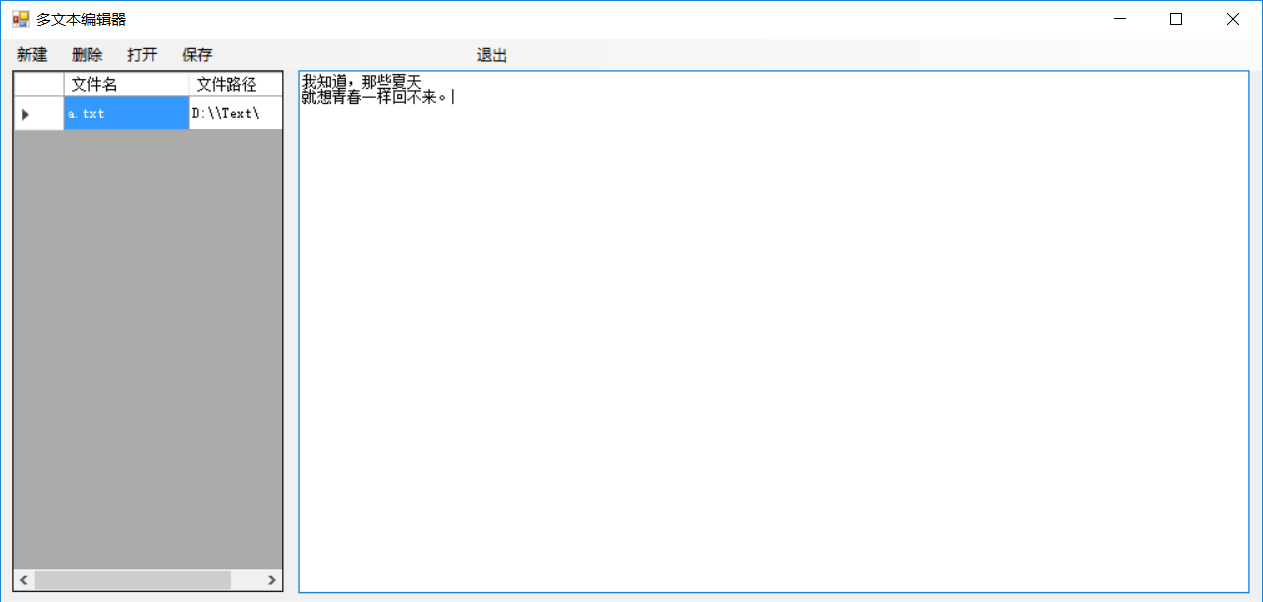
简单的winform编辑器
using System;
using System.Collections.Generic;
using System.ComponentModel;
using System.Data;
using System.Drawing;
using System.Linq;
using System.Text;
using System.Threading.Tasks;
using System.Windows.Forms;
using System.Data.SqlClient;
using System.IO;
namespace winformDemo
{
public partial class Form1 : Form
{
public Form1()
{
InitializeComponent();
//让textBox2隐藏
this.textBox2.Visible = false;
//让dataGridView1表中的最后一行空值隐藏掉
this.dataGridView1.AllowUserToAddRows = false;
}
SqlConnection con = new SqlConnection();
SqlCommand com = new SqlCommand();
OpenFileDialog open = new OpenFileDialog();
/// <summary>
/// 行
/// </summary>
string ClickRow = "";
/// <summary>
/// 列
/// </summary>
string ClickCells = "";
/// <summary>
/// 行和列相加的字符串
/// </summary>
string SqlLanding = "server=.;uid=sa;pwd=123456789;database=myfirstDemo";
private void dataGridView1_CellContentClick(object sender, DataGridViewCellEventArgs e)
{
//获取正在点击的行和列。
ClickRow = this.dataGridView1.Rows[e.RowIndex].Cells[0].Value.ToString();
ClickCells = this.dataGridView1.Rows[e.RowIndex].Cells[1].Value.ToString();
}
private void Form1_Load(object sender, EventArgs e)
{
SelectInfo();
}
public void SelectInfo()
{
//断开式链接查看数据库数据
con.ConnectionString = SqlLanding;
com.CommandText = "select Name as 文件名,TxtLuJing as 文件路径 from TxtBianJiQi";
com.Connection = con;
DataSet ds = new DataSet();
SqlDataAdapter sda = new SqlDataAdapter(com);
sda.Fill(ds);
this.dataGridView1.DataSource = ds.Tables[0];
}
private void 打开ToolStripMenuItem_Click(object sender, EventArgs e)
{
string Filepath = ClickCells + ClickRow;
this.textBox2.Visible = true;
try
{
//只读流;
FileStream fss = new FileStream(Filepath, FileMode.OpenOrCreate, FileAccess.Read);
StreamReader sww = new StreamReader(fss, Encoding.Default);
textBox2.Text = sww.ReadToEnd();
sww.Close();
fss.Close();
}
catch (Exception ex)
{
//如果没有选择路径提示出一句话;
MessageBox.Show("查看路径错误:" + ex.Message);
}
}
private void 保存ToolStripMenuItem_Click(object sender, EventArgs e)
{
string Filepath = ClickCells + ClickRow;
try
{
//只写流;
FileStream fss = new FileStream(Filepath, FileMode.Create, FileAccess.Write);
StreamWriter sww = new StreamWriter(fss, Encoding.Default);
sww.Write(textBox2.Text);
sww.Close();
fss.Close();
MessageBox.Show("保存成功!");
}
catch (Exception ex)
{
//如果没有选择路径提示出一句话;
MessageBox.Show("保存路径错误:" + ex.Message);
}
this.textBox2.Visible = false;
}
private void 新建ToolStripMenuItem_Click(object sender, EventArgs e)
{
this.textBox2.Text = "";
string localFilePath = "";
string fileNameExt = "";
string flie = "";
SaveFileDialog saveFileDialog = new SaveFileDialog();
//打开默认的文件目录
saveFileDialog.InitialDirectory = "D:\\\\Text\\";
//文件后缀名
saveFileDialog.Filter = "文本文件(*.txt)|*.txt|所有文件(*.*)|*.*";
saveFileDialog.FilterIndex = 2;
string LuJing = saveFileDialog.InitialDirectory;
if (saveFileDialog.ShowDialog() == DialogResult.OK)
{
flie = saveFileDialog.FileName;
//文件目录名
localFilePath = saveFileDialog.FileName.ToString();
//截取文件名字
fileNameExt = localFilePath.Substring(localFilePath.LastIndexOf("\\") + 1);
}
string sql = "select name from TxtBianJiQi";
SqlCommand co = new SqlCommand(sql, con);
SqlDataAdapter da = new SqlDataAdapter(co);
DataSet dss = new DataSet();
da.Fill(dss);
//循环判断传入的表中name
for (int i = 0; i < dss.Tables[0].Rows.Count; i++)
{
//定一个变量去接获取出来name
string ss = dss.Tables[0].Rows[i][0].ToString();
//判断对话框里输入的值是否与查出来的name相同
if (fileNameExt == ss)
{
MessageBox.Show("文件已更改!");
return;
}
}
try
{
//只写流
FileStream fs = new FileStream(flie, FileMode.Create, FileAccess.Write);
StreamWriter sw = new StreamWriter(fs, Encoding.Default);//对话框另存为。
sw.Write(textBox2.Text);
sw.Flush();
fs.Close();
con.ConnectionString = SqlLanding;
//往数据库添加 文件名和路径名 sql语句
com.CommandText = String.Format("insert into TxtBianJiQi(Name,TxtLuJing)values('{0}','{1}')", fileNameExt, LuJing);
com.Connection = con;
con.Open();
int insertInto = Convert.ToInt32(com.ExecuteScalar());
if (insertInto > 0)
{
MessageBox.Show("操作失败!请重试。");
}
else
{
MessageBox.Show("添加成功!");
this.textBox2.Visible = false;
}
}
catch (Exception ex)
{
MessageBox.Show("添加日志失败:" + ex.Message);
}
con.Close();
SelectInfo();
}
private void 删除ToolStripMenuItem_Click(object sender, EventArgs e)
{
con.ConnectionString = SqlLanding;
//从数据库删除正在点击的文件名
com.CommandText = String.Format("delete from TxtBianJiQi where Name='{0}'", ClickRow);
com.Connection = con;
con.Open();
DialogResult dr = MessageBox.Show("确认删除?", "提示", MessageBoxButtons.OKCancel, MessageBoxIcon.Information);
if (dr == DialogResult.OK)
{
int insertInto = Convert.ToInt32(com.ExecuteScalar());
if (insertInto > 0)
{
MessageBox.Show("操作失误!!");
}
else
{
//File.Delete(ClickCells + ClickRow);删除Windows里的文件,括号里是要删除文档的路径。
File.Delete(ClickCells + ClickRow);
MessageBox.Show("删除成功!");
}
}
con.Close();
SelectInfo();
}
private void 退出ToolStripMenuItem_Click(object sender, EventArgs e)
{
this.Close();
}
}
}
就是写了一个挺简单的在winform里进行填写文本,里面用到的ADO.NET来链接数据库,在新建文本的时候需要写入.txt后缀名,打开或者是删除的时候需要先点击一下文本名。 写的不足请见谅!
简单的winform编辑器的更多相关文章
- SimpleMarkdown - 一款简单的Markdown编辑器
源码地址: https://github.com/zhuangZhou/SimpleMarkdown 预览地址: http://hawkzz.com:8000 作者网站:http://hawkzz.c ...
- python使用wxPython创建一个简单的文本编辑器。
ubuntu下通过'sudo apt-get install python-wxtools'下载wxPython.load和save函数用于加载和保存文件内容,button通过Bind函数绑定这两个函 ...
- 原生JS实现简单富文本编辑器2
<!DOCTYPE html> <html lang="en"> <head> <meta charset="UTF-8&quo ...
- 原生JS实现简单富文本编辑器
<!DOCTYPE html> <html lang="en"> <head> <meta charset="UTF-8&quo ...
- [原创]用python写了一个简单的markdown编辑器
以前我常用openoffice记录东西,最喜欢它的当然是在linux上能用了,还有里面的公式输入,前几天才了解markdown这个东东,初步了解发现它正是我需要的东西,可以用它随心所欲地记录些东西,而 ...
- 学习vi和vim编辑(3):一个简单的文本编辑器(2)
然后文章,继续评论vi编辑简单的文本编辑命令. 本文主要是删除的文字.复制,运动命令. 删除文本: 正如上一篇文章中讲过的,对于删除命令("d")也具有"(command ...
- Tkinter制作简单的python编辑器
想要制作简单的python脚本编辑器,其中文字输入代码部分使用Tkinter中的Text控件即可实现. 但是问题是,如何实现高亮呢?参考python自带的编辑器:python27/vidle文件夹中的 ...
- C语言实例解析精粹学习笔记——39(简单的文本编辑器)
实例说明: 编辑一个简单的单行文本编辑器,编辑命令有以下几种:(E.Q.R.I.D) 只有自己在完全空白的情况下编写出来的程序,才是真正自己会的程序,现在所做的,不过是程序的搬运工,把书上的程序搬到网 ...
- 基于JQuery的简单富文本编辑器
利用jQuery实现最简单的编辑器 我试了很多种方法,目前最快捷能够实现及其简单的编辑可以使用 document.execCommand("ForeColor", "fa ...
随机推荐
- 处理序列的几个小技巧:保持原序去重,命名切片以及Counter类
一. 去重并保持原来元素的顺序 def dedupe(items): h = [] for item in items: if item not in h: h.append(item) return ...
- SAE实践——创建新应用开启MySQL服务
1. 创建SAE应用 当创建完成SAE账户之后,即可创建SAE应用.点击创建新应用按钮,创建一个新的SAE 应用 阅读提示信息,等待五秒,点继续创建. 填写应用信息完成创建.可选择PHP5.3和空应用 ...
- C#-进制转化
(一)数制 计算机中采用的是二进制,因为二进制具有运算简单,易实现且可靠,为逻辑设计提供了有利的途径.节省设备等优点,为了便于描述,又常用八.十六进制作为二进制的缩写.一般计数都采用进位计数,其特点是 ...
- UML总结
http://www.cnblogs.com/riky/archive/2007/04/07/704298.html
- Swift中的Weak Strong Dance
亲爱的博客园的关注着博主文章的朋友们告诉你们一个很不幸的消息哦, 这篇文章将会是博主在博客园发表的最后一篇文章咯, 因为之后的文章博主只会发布到这里哦 http://daiweilai.github. ...
- ArcGis10.2破解教程
ArcGis10.2下载地址: https://pan.baidu.com/s/15s5ki_8gf0_732br6h43Hw 破解步骤: 1.完成License Manager的安装. 2.将破解文 ...
- php 判断两个时间段是否有交集
一开始,没啥思路,全靠百度,记录一下哈 public function demo(){ //例子 $astart = strtotime("1995-06-16 12:00:00" ...
- 【Three.js】模型抗锯齿处理
1.锯齿消除方法 three.js参考使用官方demo发现模型渲染有锯齿,这种情况在旋转视角时候就非常明显. 抗锯齿的方法,很简单,只需要配置render两个属性即可: renderer = new ...
- Mac下关闭Sublime Text 3的更新检查
操作如下: 注意:update_check的属性前后都要有一个逗号. , "update_check":false, 然后还需要一步,就是注册破解,在[Help]->[Ent ...
- WCF系列教程之WCF中的会话
本文参考自http://www.cnblogs.com/wangweimutou/p/4516224.html,纯属读书笔记,加深记忆 一.WCF会话简介 1.在WCF应用程序中,回话将一组消息相互关 ...