
HTML5_canvas 画布
<canvas></canvas> 画布
<canvas id="my_canvas" width="400" height="400">
    您的浏览器不支持 canvas,建议更换浏览器
</canvas>
用于在网页上绘制图形
canvas 是一个 inline-block 行内块元素
canvas 默认宽高:width: 300px; height: 150px;
canvas 不能使用 css 设置 width 和 height,会导致后面绘画发生变形
canvas 必须使用标签上的属性设置 width 和 height
- 基本使用
- 获取画布
var myCanvas = document.getElementById("my_canvas");
- 获取画笔(也叫“获取上下文”)
var painting = myCanvas.getContext("2d");
- 画矩形
- 填充矩形
- 看到这个 fill 一定和 填充 有关系
- 看到这个 rect 一定是一个 矩形
painting.fillRect(0, 0, 100, 100);

// 或者
padding.rect(0, 0, 100, 100);
padding.fill();- 填充颜色
padding.fillStyle = "red";

padding.fillStyle = "rgba(255, 255, 0, 0.4)";
- 描边矩形
- 看到这个 stroke 一定和 描边 有关系
painting.strokeRect(100, 100, 100, 100);

// 或者
padding.rect(100, 100, 100, 100);
padding.stroke();- 设置线描边的颜色
padding.strikeStyle = "yellow";
- 设置线的宽度
padding.lineWidth = 20;

padding.lineWidth = "10";- 在原有盒子的基础上,描边 会 里外均等分布
- 填充矩形
- 参数1,参数2
- 矩形的 左上角 坐标
- 参数3,参数4
- 矩形的 width 和 height
- 再开始绘制新图形(类似绘画的 "抬笔" 动作)
padding.beginPath();
- 橡皮擦
- 矩形橡皮擦
painting.clearRect(0, 0, 100, 100);
- 清除整个画布
padding.clearRect(0, 0, myCanvas.width, myCanvas.height);
- 画 线段
- 画笔移动到画布起始点
painting.moveTo(100, 100);
- 设置画笔的终点
padding.lineTo(200, 100);
/**** 除了 .fillRect 和 .strokeRect
      其他绘制,都必须加 .fill(),或者 .stroke()
          才能看见图形
 ****/
painting.stroke();    // 线宽lineWidth 总是 线两侧均等分配
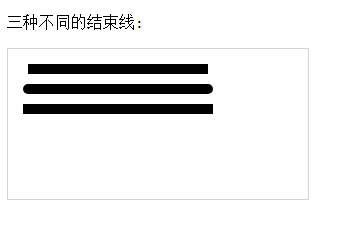
- 设置 线段两端 风格
painting.lineCap = "butt";    // 默认值,方形结束

painting.lineCap = "round";    // 圆形结束

painting.lineCap = "square";    // 方形结束,但是当??????????????
<!DOCTYPE html>

<html>

    <head>

        <meta charset="utf-8">

        <title>菜鸟教程(runoob.com)</title>

    </head>

    <body>

        <p>三种不同的结束线:</p>

        <canvas id="myCanvas" width="300" height="150" style="border:1px solid #d3d3d3;">

            您的浏览器不支持 HTML5 canvas 标签。

        </canvas>

        <script>

            var c=document.getElementById("myCanvas");

            var ctx=c.getContext("2d");

            ctx.beginPath();

            ctx.lineWidth=10;

            ctx.lineCap="butt";

            ctx.moveTo(20,20);

            ctx.lineTo(200,20);

            ctx.stroke();

            ctx.beginPath();

            ctx.lineCap="round";

            ctx.moveTo(20,40);

            ctx.lineTo(200,40);

            ctx.stroke();

            ctx.beginPath();

            ctx.lineCap="square";

            ctx.moveTo(20,60);

            ctx.lineTo(200,60);

            ctx.stroke();

        </script>

    </body>

</html>
- 连续线段 绘制
painting.moveTo(100, 100);    // 起点

painting.lineTo(100, 200);

painting.lineTo(200, 200);

// 线段连接处 样式设置

painting.lineJoin = "bevel";    // 斜角    默认值

painting.lineJoin = "round";    // 圆角

painting.lineJoin = "miter";    // 直角

// 手动 绘制三角形    不好,会在连接处缺一个角

painting.lineTo(100, 100);    // 手动连接 终点,起点,缺点: 会在连接处有一个缺角,且不会被 lineJoin() 设置样式

// 闭合路径 绘制三角形    一定要使用这个函数,来连接 终点,起点,且会所有角都会被 lineJoin() 设置到样式

painting.closePath();


painting.fill();    // 有填充

painting.stroke();    // 同时描边
注意: 从 获取画板 开始,到最终 .stroke() 临摹,只要有一个错误,结果就不会显示。console 控制台并不会报错
- pen.save() 和 pen.restore()
- 之间的样式被包裹,类似函数变量作用域
练习1.
<!DOCTYPE html>

<html>

    <head>

        <meta charset="UTF-8" />

        <title></title>

        <link rel="stylesheet" type="text/css" href="./css/index.css" />

        <script type="text/javascript" src="./js/kjfFunctions.js"></script>

        <script type="text/javascript" src="./js/index.js"></script>

        <style type="text/css">

            body {

                width: 100%;

                color: #000;

                background: #96b377;

                font: 14px Helvetica, Arial, sans-serif;

                text-align: center;

            }

        </style>

    </head>

    <body>

        <canvas id="my_canvas" width="600" height="600">

            您的浏览器不支持 canvas,建议更新或者更换浏览器。

        </canvas>

        <!-- javascript 代码 -->

        <script type="text/javascript">

            // 1. 获取画板

            var myCanvas = document.getElementById("my_canvas");

            /* 不能 使用 css 设置 canvas 的 width 和 height */

            // 给画布一个颜色

            myCanvas.style.backgroundColor = "#eee";

            // 2. 获取画笔

            var pen = myCanvas.getContext("2d");

            // 画一个填充矩形

            pen.beginPath();

            pen.fillStyle = 'red';    // 一定要在绘制之前设置好 颜色

            pen.fillRect(100, 100, 200, 200);

            // 画一个描边矩形

            pen.beginPath();

            pen.strokeStyle = 'blue';    // 一定要在绘制之前设置好 颜色

            pen.lineWidth = 20;    // 一定要在绘制之前设置好 笔宽

            pen.strokeRect(150, 150, 100, 100);    // 宽高从 线的中线开始算

        </script>

    </body>

</html>
练习2.
<!DOCTYPE html>

<html>

    <head>

        <meta charset="UTF-8" />

        <title></title>

        <link rel="stylesheet" type="text/css" href="./css/index.css" />

        <script type="text/javascript" src="./js/kjfFunctions.js"></script>

        <script type="text/javascript" src="./js/index.js"></script>

        <style type="text/css">

            body {

                width: 100%;

                color: #000;

                background: #96b377;

                font: 14px Helvetica, Arial, sans-serif;

                text-align: center;

            }

        </style>

    </head>

    <body>

        <canvas id="my_canvas" width="600" height="600">

            您的浏览器不支持 canvas,建议更新或者更换浏览器。

        </canvas>

        <!-- javascript 代码 -->

        <script type="text/javascript">

            // 1. 获取画板

            var myCanvas = document.getElementById("my_canvas");

            /* 不能 使用 css 设置 canvas 的 width 和 height */

            // 给画布一个颜色

            myCanvas.style.backgroundColor = "#eee";

            // 2. 获取画笔

            var pen = myCanvas.getContext("2d");

            // 3. 一次绘画的开始

            pen.beginPath();

            // 4. 一定要在绘制之前 设置好(可以在 pen.beginPath()之前设置)

            pen.fillStyle = 'red';    // 填充的颜色

            pen.strokeStyle = 'blue';    //  笔的颜色

            pen.lineWidth = 4;    // 笔宽

            pen.lineCap = "round";    // 圆形结束

            pen.lineJoin = "round";    // 圆角

           // 5. 终于可以开始画了

            pen.moveTo(100, 100);

            pen.lineTo(100, 200);

            pen.lineTo(150, 250);

            pen.closePath();

            // 画布 总是显示 .beginPath() 和 .closePath() 之间的绘画____所以,需要的话,要成对出现
            pen.beginPath();
            pen.moveTo(300, 300);
            pen.lineTo(500, 300);
            pen.lineTo(500, 500);
            pen.lineTo(300, 500);
            pen.closePath();    // 闭合路径
/**** 6. 一定要记得的 .stroke()临摹 ****/

        pen.stroke();

        </script>

    </body>

</html>
签名,DIY 画板 案例

<!DOCTYPE html>

<html>

    <head>

        <meta charset="UTF-8" />

        <title></title>

        <link rel="stylesheet" type="text/css" href="./css/index.css" />

        <script type="text/javascript" src="./js/kjfFunctions.js"></script>

        <script type="text/javascript" src="./js/index.js"></script>

        <style type="text/css">

            /**** btns ****/

            #btns button {

                padding: 0 10px;

                background-color: #565628;

                width: 116px;

                height: 30px;

                color: #c0cea7;

                font-size: 18px;

                line-height: 30px;

                text-align: center;

                outline: none;

                border: 0 none;

            }

            #btns button:hover {

                color: #bda0f1;

                font-size: 24px;

            }

            #btns button:active {

                color: #bda0f1;

                font-size: 18px;

            }

            body {

                width: 100%;

                color: #000;

                background: #96b377;

                font: 14px Helvetica, Arial, sans-serif;

            }

            #wrap {

                display: flex;

                flex-direction: column;

                justify-content: center;

                align-items: center;

            }

            #wrap #btns{

                width: 600px;

                height: 100px;

                display: flex;

                justify-content: space-around;

                align-items: space-around;

            }

        </style>

    </head>

    <body>

        <div id="wrap">

            <canvas id="my_canvas" width="600" height="600">

                您的浏览器不支持 canvas,建议更新或者更换浏览器。

            </canvas>

            <div id="btns">

                <button id="eraser">橡皮擦</button>

                <button id="the_black">画笔</button>

                <input id="chg_color" type="color" name="penColor" />

                <button id="add_width">笔粗</button>

                <button id="dec_width">笔细</button>

            </div>

        </div>

        <!-- javascript 代码 -->

        <script type="text/javascript">

            // 1. 获取画板

            var myCanvas = document.getElementById("my_canvas");

            /* 不能 使用 css 设置 canvas 的 width 和 height */

            // 给画布一个颜色

            myCanvas.style.backgroundColor = "#eee";

            // 2. 获取画笔

            var pen = myCanvas.getContext("2d");

            var chgColor = document.getElementById("chg_color");

            // 3. 一定要在绘制之前 设置好

            pen.fillStyle = 'red';    // 填充的颜色

            pen.strokeStyle = chgColor.value;    //  笔的颜色

            pen.lineWidth = 4;    // 笔宽

            pen.lineCap = "round";    // 圆形结束

            pen.lineJoin = "round";    // 圆角

            chgColor.addEventListener("change", watchColorPicker, false);

            function watchColorPicker(event) {

                pen.strokeStyle = chgColor.value;

            };

            var eraser = document.getElementById("eraser");

            eraser.onclick = function(){

                pen.strokeStyle = myCanvas.style.backgroundColor;

            };

            var theBlack = document.getElementById("the_black");

            theBlack.onclick = function(){

                pen.strokeStyle = chgColor.value;

            };

            var add_width = document.getElementById("add_width");

            add_width.onclick = function(){

                pen.lineWidth++;

            };

            var dec_width = document.getElementById("dec_width");

            dec_width.onclick = function(){

                pen.lineWidth--;

                if(pen.lineWidth <= 0){

                    pen.lineWidth = 1;

                }

            };

            myCanvas.onmousedown = function(e){

                e = e || window.event;

                myCanvas.setCapture && myCanvas.setCapture();

                var canvasX = myCanvas.getBoundingClientRect().left;

                var canvasY = myCanvas.getBoundingClientRect().top;

                // 4. 一次绘画的开始

                pen.beginPath();

                pen.moveTo(e.clientX-canvasX, e.clientY-canvasY);

                myCanvas.onmousemove = function(e){

                    e = e || window.event;

                    pen.lineTo(e.clientX-canvasX, e.clientY-canvasY);

                    /**** 5. 一定要记得的 临摹 ****/

                    pen.stroke();

                };

                myCanvas.onmouseup = function(){

                    myCanvas.onmousemove = null;

                    myCanvas.onmouseup = null;

                    myCanvas.releaseCapture && myCanvas.releaseCapture();

                };

                e.preventDefault && e.preventDefault();

                return false;

            };

        </script>

    </body>

</html>
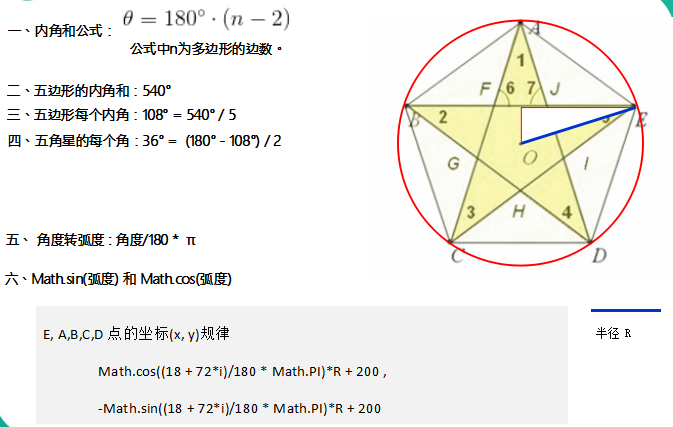
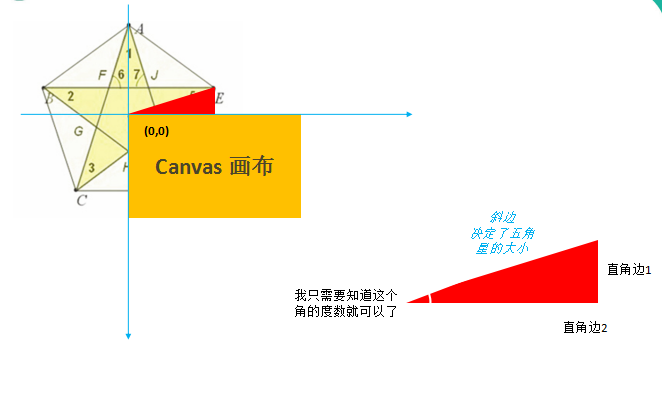
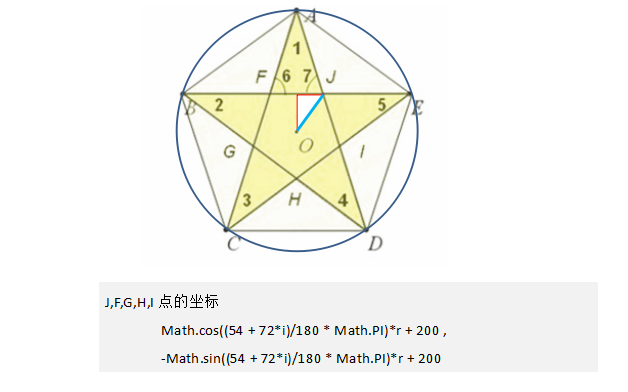
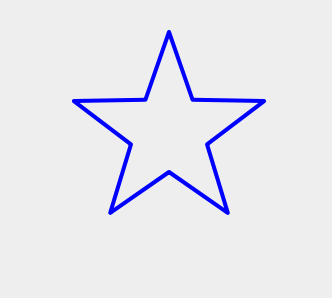
五角星 案例
- 画布原点(0, 0) 位移 painting.translate(100, 100);
<!DOCTYPE html>

<html>

    <head>

        <meta charset="UTF-8" />

        <title></title>

        <link rel="stylesheet" type="text/css" href="./css/index.css" />

        <script type="text/javascript" src="./js/kjfFunctions.js"></script>

        <script type="text/javascript" src="./js/index.js"></script>

        <style type="text/css">

            /**** btns ****/

            #btns button {

                padding: 0 10px;

                background-color: #565628;

                width: 116px;

                height: 30px;

                color: #c0cea7;

                font-size: 18px;

                line-height: 30px;

                text-align: center;

                outline: none;

                border: 0 none;

            }

            #btns button:hover {

                color: #bda0f1;

                font-size: 24px;

            }

            #btns button:active {

                color: #bda0f1;

                font-size: 18px;

            }

            body {

                width: 100%;

                color: #000;

                background: #96b377;

                font: 14px Helvetica, Arial, sans-serif;

            }

            #wrap {

                display: flex;

                flex-direction: column;

                justify-content: center;

                align-items: center;

            }

            #wrap #btns{

                width: 600px;

                height: 100px;

                display: flex;

                justify-content: space-around;

                align-items: space-around;

            }

        </style>

    </head>

    <body>

        <div id="wrap">

            <canvas id="my_canvas" width="1000" height="900">

                您的浏览器不支持 canvas,建议更新或者更换浏览器。

            </canvas>

        </div>

        <!-- javascript 代码 -->

        <script type="text/javascript">

            // 1. 获取画板

            var myCanvas = document.getElementById("my_canvas");

            /* 不能 使用 css 设置 canvas 的 width 和 height */

            // 给画布一个颜色

            myCanvas.style.backgroundColor = "#eee";

            // 2. 获取画笔

            var pen = myCanvas.getContext("2d");

            // 3. 一定要在绘制之前 设置好

            pen.fillStyle = 'olive';    // 填充的颜色

            pen.strokeStyle = "blue";    //  笔的颜色

            pen.lineWidth = 4;    // 笔宽

            pen.lineCap = "round";    // 圆形结束

            pen.lineJoin = "round";    // 圆角

            // 4. 一次绘画的开始

            pen.beginPath();

            drawStar(pen, 300, 300, 100,40);

            pen.closePath();

            /* 5. 一定要记得的 临摹 */

            pen.stroke();

            /**** 封装函数 ****/

            function drawStar(pen, centerX, centerY, R, r){

                pen.beginPath(centerX, centerY+R);

                pen.moveTo(centerX+R*Math.cos(18*Math.PI/180),centerY-R*Math.sin(18*Math.PI/180));

                for(var i=0;i<5;i++){

                    pen.lineTo(centerX+R*Math.cos((72*i+18)*Math.PI/180),centerY-R*Math.sin((72*i+18)*Math.PI/180))

                    pen.lineTo(centerX+r*Math.cos((72*i+54)*Math.PI/180),centerY-r*Math.sin((72*i+54)*Math.PI/180))

                };

            };

        </script>

    </body>

</html>
圆形 绘制
- painting.arc(圆形点, 弧度, 起始弧度, 终点弧度, false 顺时针);
- painting.arc(200, 200, 100, 0, 2*Math.PI);
- painting.arc(200, 200, 100, 0, 0.5*Math.PI); // 顺时针 画 1/4 个圆弧
- painting.arc(200, 200, 100, 0, 0.5*Math.PI, true); // 逆时针 画 3/4 个圆弧

圆弧 绘制

HTML5_canvas 画布的更多相关文章
- 06. Web大前端时代之:HTML5+CSS3入门系列~HTML5 画布
Web大前端时代之:HTML5+CSS3入门系列:http://www.cnblogs.com/dunitian/p/5121725.html 我们先看看画布的魅力: 初始画布 canvas默认是宽3 ...
- 如何快速清除ZBrush画布中多余图像
ZBrush是一款数字雕刻与绘画软件,它以强大的功能和直观的工作流程彻底改变了整个三维行业.它的简洁化.智能化和人性化的设计无不让众多用户所折服.刚接触它的用户可能会因为找不到相关命令或不熟悉而觉得它 ...
- 矢量图绘制工具Svg-edit调整画布的大小
矢量图绘制工具Svg-edit调整画布的大小 ------------------------------ ------------------------
- HTML5 中的 canvas 画布(一)
---恢复内容开始--- 在HTML5中新添加的元素,canvas 现在支持 IE9+的版本 注意:HTML5 <canvas> 元素用于图形的绘制,通过脚本 (通常是JavaScript ...
- html 5 canvas画布整理
1. 创建canvas画布<canvas id="myCanvas" width="800" height="800" >< ...
- Quartz 2D在ios中的使用简述二:创建画布
在iOS中使用Quartz画图时,第一步就是要获取画布(图形上下文),然后再画布上做各种操作.先看下CoreGraphics.h这个头文件,就可以知道能够创建多少种上下文类型. #include &l ...
- HTML5 Canvas 画布
一.Canvas是什么? canvas,是一个画布,canvas元素用于在网页上绘制图形. canvas 拥有多种绘制路径.矩形.圆形.字符以及添加图像的方法. 二.创建Canvas元素 加上基本的属 ...
- 解决CHROME中画布中无法显示图片的方法
最终效果图如下 我按照W3SCHOOL里面的方法,代码如下 <!DOCTYPE html> <html> <body> <script type=" ...
- HTML5 canvas画布写炫彩动态的倒计时效果
html代码如下,插入了2个js代码. <!DOCTYPE html> <html> <head> <title>canvas</title> ...
随机推荐
- mpvue体验微信小程序开发
微信小程序 https://developers.weixin.qq.com/miniprogram/introduction/index.html?t=18082114 微信小程序是一种全新的连接用 ...
- Lambda表达式-聚合操作
文章参考自博客:https://www.cnblogs.com/franson-2016/p/5593080.html 以及学习网站:how2java.cn 1.传统方式和聚合操作遍历数据的不同 传统 ...
- JavaSE笔记-注释
Annotation Annotation是一个接口,可以把Annotation当成一个修饰符 Annotation的定义 注解通过@interface定义 public @interface Tes ...
- python开发遇到的坑(1)xpath解析ValueError: Unicode strings with encoding declaration are not supported
Traceback (most recent call last): File "/Users/*******.py", line 37, in <module> Bt ...
- Ubuntu18.04 VMtools的安装与卸载
VM不推荐在Ubuntu中使用VMtools而是open-vm-tools,原文地址https://kb.vmware.com/s/article/2073803 安装方式 1 更新系统源 sudo ...
- 帆软报表(finereport)图表——扇形图/等弧度的玫瑰图
扇形图/等弧度的玫瑰图,展示的是展示数据所占的比例,需要所有数据的和加起来为1. 下面利用一个实例说明玫瑰图的用法和设置起始角度和终止角度,操作如下: 1.配置一个内置数据集 新增一个等弧度的玫瑰图模 ...
- 【原创】Linux基础之挂载硬盘
1 查看哪些硬盘没有挂载 # fdisk -l Disk /dev/vdb: 107.4 GB, 107374182400 bytes, 209715200 sectorsUnits = sector ...
- linux 乌班图 xshell链接不上服务器
输入 ps -e |grep ssh ,如果没有任何反应则是没有安装 命令 sudo apt-get install openssh-server 然后出现是否同意-Y,同意进行自动下载 如果提示 ...
- python正则表达式--编译正则表达式re.compile
编译正则表达式-- re.compile 使用re的一般步骤是先将正则表达式的字符串形 式编译为pattern实例,然后使用pattern实例处理文本并获取匹配结果(一个Match实例(值为True) ...
- 初学python之路-day04
每天一篇总结,今天学习的是有关于流程控制的知识. 流程控制,顾名思义,在计算机运行中,程序是被某种控制方式按照某种流程或者规律来执行的.而python程序的运行,肯定也是按照某种规律在执行.这些规律可 ...