
ASP.NET VS2013 Office 转 PDF
本文适用于VS2013 项目中的Word转换为PDF、Excel转换为PDF、PPT转换为PDF
0.一种更加简单方便的方法
1.本页所用的方法在本机测试时基本不会出现问题,只是偶尔PPT转PDF失败,需要重新添加dll,但是在服务器环境就会出现各种错误,需要各种配置。
2.http://www.cnblogs.com/moonache/p/4991459.html 请参考此文,更简单实用。
1.添加Using
1.在后台添加using
using Microsoft.Office.Interop.Word;

using Microsoft.Office.Interop.Excel;

using Microsoft.Office.Core;

using Microsoft.Office.Interop.PowerPoint;
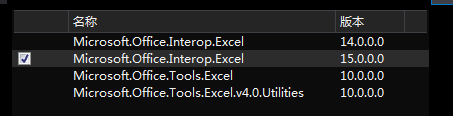
2.添加引用
1.添加引用

3.添加代码
1.在后台添加代码
protected void Page_Load(object sender, EventArgs e)

{

    string wordSource,wordTarget,excelSource,excelTarget,pptSource,pptTarget;

    wordSource = @"E:\FileDownload\Explorer\意向 0.3.docx";

    wordTarget = @"E:\FileDownload\Explorer\W2P.pdf";

    excelSource = @"E:\FileDownload\Explorer\xlsx.xlsx";

    excelTarget = @"E:\FileDownload\Explorer\E2P.pdf";

    pptSource = @"E:\FileDownload\Explorer\质量月活动1509.pptx";

    pptTarget = @"E:\FileDownload\Explorer\P2P.pdf";

    WordToPdf(wordSource,wordTarget);

    ExcelToPdf(excelSource,excelTarget);

    PPTConvertToPDF(pptSource, pptTarget);

}

public static bool WordToPdf(string sourcePath, string targetPath)

{

    bool result = false;

    WdExportFormat wdExportFormatPDF = WdExportFormat.wdExportFormatPDF;//转换格式1.wdExportFormatPDF转换成pdf格式 2.wdExportFormatXPS转换成xps格式

    object missing = Type.Missing;

    Microsoft.Office.Interop.Word.ApplicationClass applicationClass = null;

    Document document = null;

    try

    {

        applicationClass = new Microsoft.Office.Interop.Word.ApplicationClass();

        object inputfileName = sourcePath;//需要转格式的文件路径

        string outputFileName = targetPath;//转换完成后PDF或XPS文件的路径和文件名名称

        WdExportFormat exportFormat = wdExportFormatPDF;//导出文件所使用的格式

        bool openAfterExport = false;//转换完成后是否打开

        WdExportOptimizeFor wdExportOptimizeForPrint = WdExportOptimizeFor.wdExportOptimizeForPrint;//导出方式1.wdExportOptimizeForPrint针对打印进行导出,质量较高,生成的文件大小较大。2.wdExportOptimizeForOnScreen 针对屏幕显示进行导出,质量较差,生成的文件大小较小。

        WdExportRange wdExportAllDocument = WdExportRange.wdExportAllDocument;//导出全部内容(枚举)

        int from = ;//起始页码

        int to = ;//结束页码

        WdExportItem wdExportDocumentContent = WdExportItem.wdExportDocumentContent;//指定导出过程中是否只包含文本或包含文本的标记.1.wdExportDocumentContent:导出文件没有标记,2.导出文件有标记

        bool includeDocProps = true;//指定是否包含新导出的文件在文档属性

        bool keepIRM = true;//

        WdExportCreateBookmarks wdExportCreateWordBookmarks = WdExportCreateBookmarks.wdExportCreateWordBookmarks;//1.wdExportCreateNoBookmarks:不要在导出文件中创建书签,2.wdExportCreateHeadingBookmarks:标题和文本框导出的文件中创建一个书签,3.wdExportCreateWordBookmarks每个字的书签,其中包括除包含页眉和页脚中的所有书签导出的文件中创建一个书签。

        bool docStructureTags = true;

        bool bitmapMissingFonts = true;

        bool UseISO19005_1 = false;//生成的文档是否符合 ISO 19005-1 (PDF/A)

        document = applicationClass.Documents.Open(ref inputfileName, ref missing, ref missing, ref missing, ref missing, ref missing, ref missing, ref missing, ref missing, ref missing, ref missing, ref missing, ref missing, ref missing, ref missing, ref missing);

        if (document != null)

        {

            document.ExportAsFixedFormat(outputFileName, exportFormat, openAfterExport, wdExportOptimizeForPrint, wdExportAllDocument, from, to, wdExportDocumentContent, includeDocProps, keepIRM, wdExportCreateWordBookmarks, docStructureTags, bitmapMissingFonts, UseISO19005_1, ref missing);

        }

        result = true;

    }

    catch

    {

        result = false;

    }

    finally

    {

        if (document != null)

        {

            document.Close(ref missing, ref missing, ref missing);

            document = null;

        }

        if (applicationClass != null)

        {

            applicationClass.Quit(ref missing, ref missing, ref missing);

            applicationClass = null;

        }

    }

    return result;

}

public static bool ExcelToPdf(string sourcePath, string targetPath)

{

    bool result = false;

    XlFixedFormatType xlTypePDF = XlFixedFormatType.xlTypePDF;//转换成pdf

    object missing = Type.Missing;

    Microsoft.Office.Interop.Excel.ApplicationClass applicationClass = null;

    Workbook workbook = null;

    try

    {

        applicationClass = new Microsoft.Office.Interop.Excel.ApplicationClass();

        string inputfileName = sourcePath;//需要转格式的文件路径

        string outputFileName = targetPath;//转换完成后PDF文件的路径和文件名名称

        XlFixedFormatType xlFixedFormatType = xlTypePDF;//导出文件所使用的格式

        XlFixedFormatQuality xlFixedFormatQuality = XlFixedFormatQuality.xlQualityStandard;//1.xlQualityStandard:质量标准,2.xlQualityMinimum;最低质量

        bool includeDocProperties = true;//如果设置为True,则忽略在发布时设置的任何打印区域。

        bool openAfterPublish = false;//发布后不打开

        workbook = applicationClass.Workbooks.Open(inputfileName, missing, missing, missing, missing, missing, missing, missing, missing, missing, missing, missing, missing, missing, missing);

        if (workbook!=null)

        {

            workbook.ExportAsFixedFormat(xlFixedFormatType, outputFileName, xlFixedFormatQuality, includeDocProperties, openAfterPublish, missing, missing, missing, missing);

        }

        result = true;

    }

    catch

    {

        result = false;

    }

    finally

    {

        if (workbook != null)

        {

            workbook.Close(true, missing, missing);

            workbook = null;

        }

        if (applicationClass != null)

        {

            applicationClass.Quit();

            applicationClass = null;

        }

    }

    return result;

}

public static bool PPTConvertToPDF(string sourcePath, string targetPath)

{

   bool result;

   PpSaveAsFileType ppSaveAsFileType = PpSaveAsFileType.ppSaveAsPDF;//转换成pdf

   object missing = Type.Missing;

   Microsoft.Office.Interop.PowerPoint.ApplicationClass application = null;

   Presentation persentation = null;

   try

   {

       application = new Microsoft.Office.Interop.PowerPoint.ApplicationClass();

       persentation = application.Presentations.Open(sourcePath, MsoTriState.msoTrue, MsoTriState.msoFalse, MsoTriState.msoFalse);

       if (persentation!=null)

       {

           persentation.SaveAs(targetPath, ppSaveAsFileType, MsoTriState.msoTrue);

       }

       result = true;

   }

   catch

   {

       result = false;

   }

   finally

   {

       if (persentation != null)

       {

           persentation.Close();

           persentation = null;

       }

       if (application != null)

       {

           application.Quit();

           application = null;

       }

   }

   return result;

}
2.单独的Excel2PDF(Word2PDF同理,不过PPT2PDF就要采用上面的方法)
1.在后台添加using
public static bool ExcelToPdf(string sourcePath, string targetPath)

{

    bool result = false;

    XlFixedFormatType xlTypePDF = XlFixedFormatType.xlTypePDF;//转换成pdf

    object missing = Type.Missing;

    Microsoft.Office.Interop.Excel.ApplicationClass applicationClass = null;

    Workbook workbook = null;

    try

    {

        applicationClass = new Microsoft.Office.Interop.Excel.ApplicationClass();

        string inputfileName = sourcePath;//需要转格式的文件路径

        string outputFileName = targetPath;//转换完成后PDF文件的路径和文件名名称

        XlFixedFormatType xlFixedFormatType = xlTypePDF;//导出文件所使用的格式

        XlFixedFormatQuality xlFixedFormatQuality = XlFixedFormatQuality.xlQualityStandard;//1.xlQualityStandard:质量标准,2.xlQualityMinimum;最低质量

        bool includeDocProperties = true;//如果设置为True,则忽略在发布时设置的任何打印区域。

        bool openAfterPublish = false;//发布后不打开

        workbook = applicationClass.Workbooks.Open(inputfileName, missing, missing, missing, missing, missing, missing, missing, missing, missing, missing, missing, missing, missing, missing);

        if (workbook!=null)

        {

            workbook.ExportAsFixedFormat(xlFixedFormatType, outputFileName, xlFixedFormatQuality, includeDocProperties, openAfterPublish, missing, missing, missing, missing);

        }

        result = true;

    }

    catch

    {

        result = false;

    }

    finally

    {

        if (workbook != null)

        {

            workbook.Close(true, missing, missing);

            workbook = null;

        }

        if (applicationClass != null)

        {

            applicationClass.Quit();

            applicationClass = null;

        }

    }

    return result;

}
PS
1.我在具体项目中使用时发现方法一种引入的DLL可以重复引用(感觉就像引用了没效果一样),而且每次关闭VS2013后重新打开编译工程都失败,都必须再重新引用一次。侥幸PPT转PDF功能用不上,最后选择了方法二。
ASP.NET VS2013 Office 转 PDF的更多相关文章
- Asp.Net调用Office组件操作时的DCOM配置 (转)
Asp.Net调用Office组件操作时的DCOM配置 http://blog.csdn.net/gz775/article/details/6447758 在项目中将数据导出为Excel格式时出现“ ...
- java操作office和pdf文件java读取word,excel和pdf文档内容
在平常应用程序中,对office和pdf文档进行读取数据是比较常见的功能,尤其在很多web应用程序中.所以今天我们就简单来看一下Java对word.excel.pdf文件的读取.本篇博客只是讲解简单应 ...
- 记录libreoffice实现office转pdf(适用于windows、linux)
由于目前的工作跟office打交道比较多,所以才有了此篇blog,需求是实现word转换pdf方便页面展示.之前lz采用的是jacob(仅支持windows)进行转换的,但是现在服务器改成linux显 ...
- Confluence 6 Office 和 PDF 文件
插入一个文件到页面中是能够让你将有用的文件,电子表格,幻灯片或者其他可用的文件在你小组中进行分享的好方法. 针对所有的文件类型,你可以选择以链接方式插入一个文件.缩略图将会对文档的内容进行预览同时可以 ...
- openoffice+pdf2swf+FlexPaper在线显示office和pdf
前提:本人的系统为Ubuntu 13.10 64位系统.本篇是我在配置好环境后一段时间写的,所以操作上可能会有也错误,因此仅供参考. 搜索在线显示office和pdf,最常见的方法就是把都转为swf, ...
- Aspose实现Office转PDF (ASP.NET)
0.添加Aspose的DLL 1.可以直接去官网下载,不过默认是带水印的,如需去除水印可以购买 2.当然也可以在国内的一些下载站下载 3.将Aspose.Cells.dll.Aspose.Words. ...
- Asp.net与office web apps的整合
其实网上有关office web app的整合已经有相关的文章了,典型的是如何整合Office Web Apps至自己开发的系统(一) 和如何整合Office Web Apps至自己开发的系统(二), ...
- 【译】Asp.net mvc 使用ITextSharp PDF to HTML (解决img标签问题)
前言:因项目需求,需要将HTML代码转成PDF.大致上已经实现了,可以是发现使用ITextSharp(我现在的版本是5.5.9)的时候,img标签中的src只能跟绝对路径. 在百度上找了一个上午,有一 ...
- ASP.NET调用Office Com组件权限设置
ASP.NET在调用Office Com组件时,经常会出现权限限制的问题,而出现如下错误: 现通过以下几步设置,可解决上述问题:(1)64位系统中,请在IIS应用程序池集成模式中应启用调用32位应用程 ...
随机推荐
- Office 365 机器人(Bot)开发入门指南 (新篇)
最近在整理书稿时,发现我在2017年7月份写的这篇 Office 365 机器人(Bot)开发入门 的内容,因为相关平台的升级,已经完全不能体现当前的开发过程,所以我再专门写一篇新的开发入门指南给有兴 ...
- sql的升阶
前言:基本数据库操作根本无法满足实际的需要,需要引入更多的操作. 触发器-隐式的,主动的,更新数据表中的信息.带有inserted和deleted两个临时表,代表新操作和旧操作. 它是一种特殊的存储过 ...
- arm 异常处理结构
概念:正常的程序执行过程中发生暂时的停止称为异常,如果发现异常情况,将会进行异常处理 作用:快速响应用户的行为,提高cpu的响应能力 异常类型: 异常处理的三个步骤: 1.保护现场: 工作模式保存:C ...
- Godep的基本使用
[http://studygolang.com/articles/4385] 关于Godep 发现好多golang项目都使用到godep作为包管理的工具,像比较大型的项目,比如kubernetes这种 ...
- JavaScript 知识点
JS基础 页面由三部分组成: html:超文本标记语言,负责页面结构 css:层叠样式表,负责页面样式 js:轻量级的脚本语言,负责页面的动效和数据交互 小总结:结构,样式和行为,三者相分离 在htm ...
- Ajax疯狂讲义
Ajax: async javascript and xml 异步的JS和XML AJAX 是一种用于创建快速动态网页的技术. 通过在后台与服务器进行少量数据交换,AJAX 可以使网页实现异步更新.这 ...
- Spring Boot:Consider defining a bean of type '*.*.*' in your configuration解决方案
果然不看教程直接使用在遇到问题会懵逼,连解决问题都得搜半天还不一定能帮你解决了... ***************************APPLICATION FAILED TO START*** ...
- CentOS7上安装并配置Nginx、PHP、MySql
一.Nginx 1.安装nginx yum install nginx 2.启动nginx systemctl start nginx 除了systemctl start nginx之外,常用的相关命 ...
- C++学习笔记第三天:类、虚函数、双冒号
类 class Box { public: double length; // 盒子的长度 double breadth; // 盒子的宽度 double height; // 盒子的高度 }; 类成 ...
- mysql 学习心得1
1由于不靠这玩意吃饭 估计不准备精读 顺便中文版也不用担心翻译问题 科科 大致翻了下=,= mysql的感觉怎么就是背命令.... 2DDL语句 定义数据 创建删除修改 create drop alt ...