
Eclipse下的Maven
本文转载自:http://www.cnblogs.com/zlslch/p/5882567.html
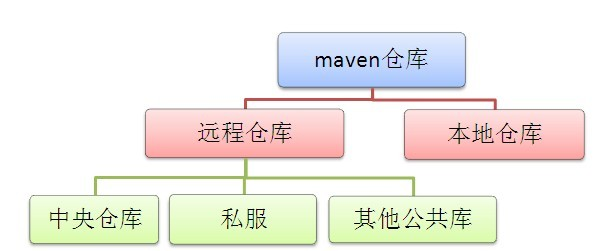
当我们无法从本地仓库找到需要的构件的时候,就会从远程仓库下载构件至本地仓库。一般地,对于每个人来说,书房只有一个,但外面的书店有很多,类似第,对于Maven来说,每个用户只有一个本地仓库,但可以配置访问很多远程仓库。
Eclipse *版本
Eclipse *下载
强烈推荐书籍:Maven实战 许晓斌著。目前是第一版
注意:最新版本的Eclipse代号Mars,已经直接集成了Maven,所以无需安装m2Eclipse插件。
Eclipse下新建Maven项目
1、下载Maven安装包
进入Maven官网的下载页面:http://maven.apache.org/download.cgi,如下图所示:
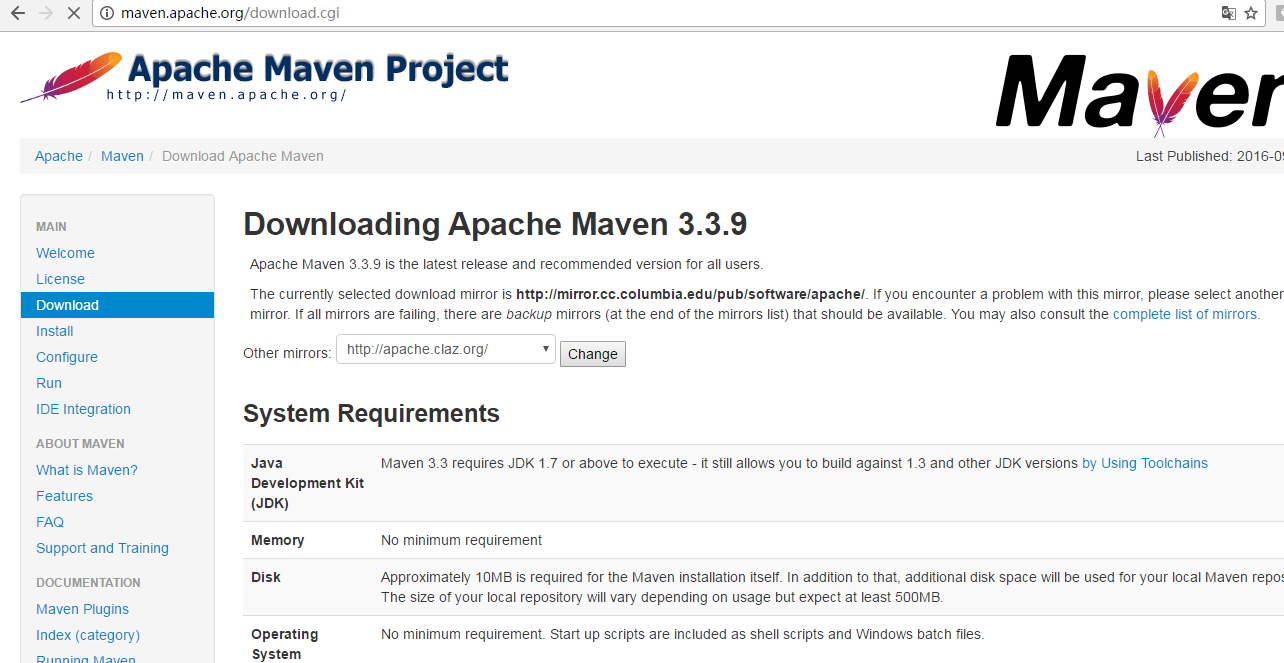
选择当前最新版本:"apache-maven-3.3.9-bin.zip",下载到本地,解压缩到本地磁盘下。
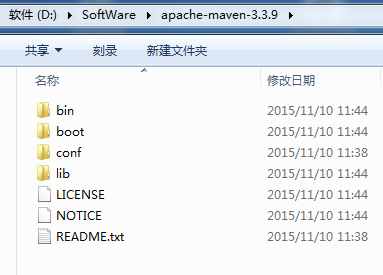
2、配置
2.1 环境变量的配置
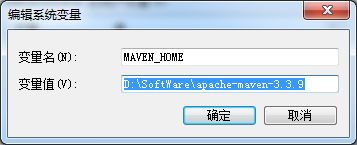
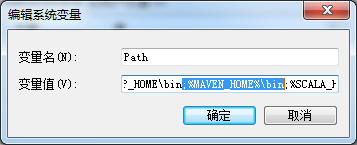
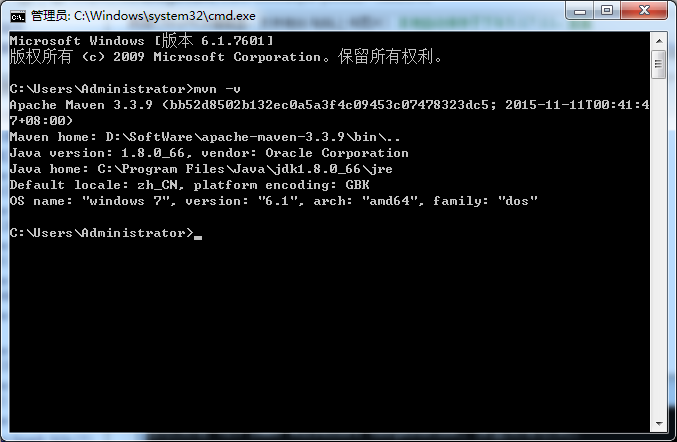
2.2 修改默认的本地仓库位置
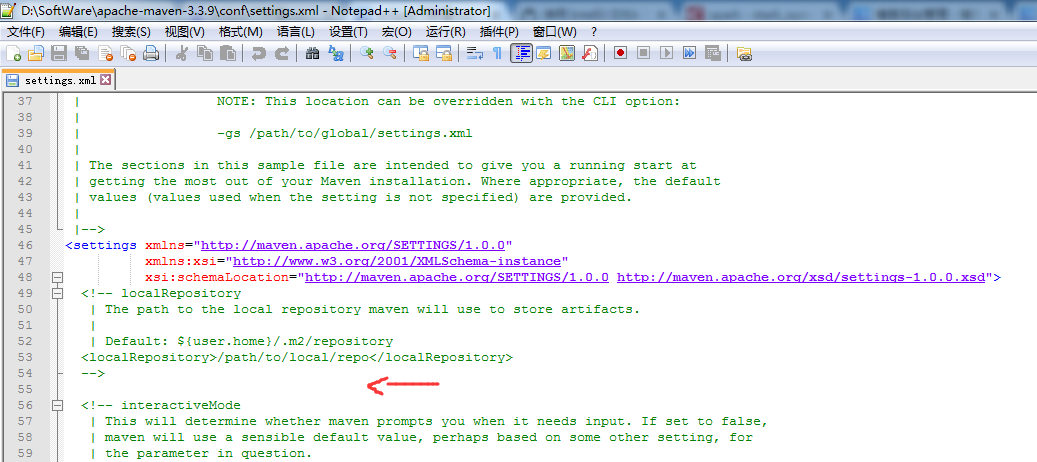
进入Maven安装目录下的conf子目录中,打开settings.xml进行配置修改。

<!-- localRepository
| The path to the local repository maven will use to store artifacts.
|
| Default: ${user.home}/.m2/repository
<localRepository>/path/to/local/repo</localRepository>
-->
<localRepository>D:/SoftWare/maven/repository</localRepository>
Maven默认的本地仓库位置是当前用户工作目录下的".m2/repository",使用过程中这个目录里的文件会比较多,占用空间越来越大。一般建议更换到其它磁盘目录下。如下配置,就把默认的本地仓库更改到自己创建的目录。
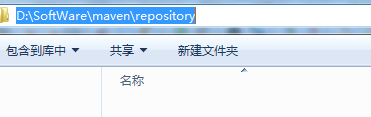
如下图所示的localRepository标签中设置,就把默认的本地仓库更改到D:/SoftWare/maven/repository这个目录(这个目录结构需要自己创建好)。

2.3修改默认的中央仓库镜像
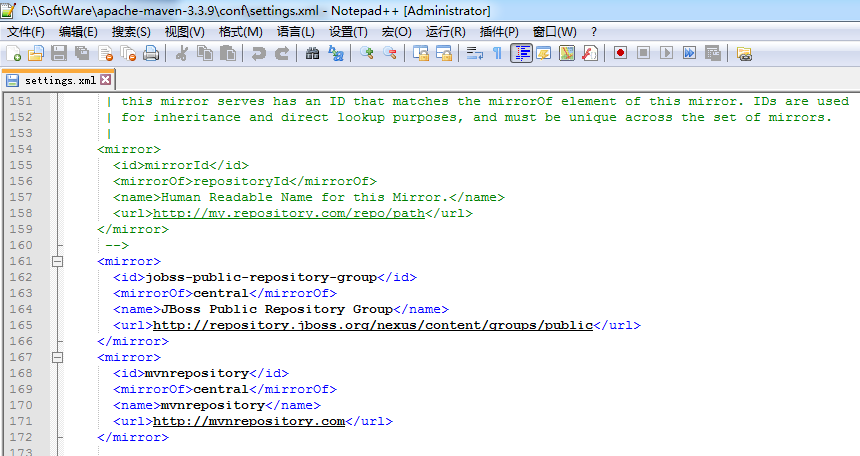
Maven默认的中央仓库里的文件不全。所以,都需要自行添加其它的镜像地址。在settings.xml文件中的“<mirrors>”标签里添加如下内容:


其实,是如下 http://mirrors.ibiblio.org/maven2/

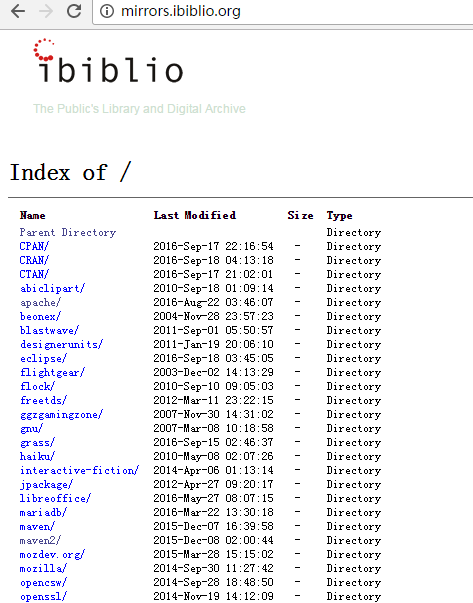
注意啦!有时候,上面这样配置,不稳定,我这里给大家分享一个稳定的setting.xml !!!(优先)
<?xml version="1.0" encoding="UTF-8"?>

<!--

Licensed to the Apache Software Foundation (ASF) under one

or more contributor license agreements. See the NOTICE file

distributed with this work for additional information

regarding copyright ownership. The ASF licenses this file

to you under the Apache License, Version 2.0 (the

"License"); you may not use this file except in compliance

with the License. You may obtain a copy of the License at

http://www.apache.org/licenses/LICENSE-2.0

Unless required by applicable law or agreed to in writing,

software distributed under the License is distributed on an

"AS IS" BASIS, WITHOUT WARRANTIES OR CONDITIONS OF ANY

KIND, either express or implied. See the License for the

specific language governing permissions and limitations

under the License.

-->

<!--

| This is the configuration file for Maven. It can be specified at two levels:

|

| 1. User Level. This settings.xml file provides configuration for a single user,

| and is normally provided in ${user.home}/.m2/settings.xml.

|

| NOTE: This location can be overridden with the CLI option:

|

| -s /path/to/user/settings.xml

|

| 2. Global Level. This settings.xml file provides configuration for all Maven

| users on a machine (assuming they're all using the same Maven

| installation). It's normally provided in

| ${maven.home}/conf/settings.xml.

|

| NOTE: This location can be overridden with the CLI option:

|

| -gs /path/to/global/settings.xml

|

| The sections in this sample file are intended to give you a running start at

| getting the most out of your Maven installation. Where appropriate, the default

| values (values used when the setting is not specified) are provided.

|

|-->

<settings xmlns="http://maven.apache.org/SETTINGS/1.0.0"

xmlns:xsi="http://www.w3.org/2001/XMLSchema-instance"

xsi:schemaLocation="http://maven.apache.org/SETTINGS/1.0.0 http://maven.apache.org/xsd/settings-1.0.0.xsd">

<!-- localRepository

| The path to the local repository maven will use to store artifacts.

|

| Default: ${user.home}/.m2/repository

<localRepository>/path/to/local/repo</localRepository>

-->

<localRepository>D:/SoftWare/maven/repository</localRepository>

<!-- interactiveMode

| This will determine whether maven prompts you when it needs input. If set to false,

| maven will use a sensible default value, perhaps based on some other setting, for

| the parameter in question.

|

| Default: true

<interactiveMode>true</interactiveMode>

-->

<!-- offline

| Determines whether maven should attempt to connect to the network when executing a build.

| This will have an effect on artifact downloads, artifact deployment, and others.

|

| Default: false

<offline>false</offline>

-->

<!-- pluginGroups

| This is a list of additional group identifiers that will be searched when resolving plugins by their prefix, i.e.

| when invoking a command line like "mvn prefix:goal". Maven will automatically add the group identifiers

| "org.apache.maven.plugins" and "org.codehaus.mojo" if these are not already contained in the list.

|-->

<pluginGroups>

<!-- pluginGroup

| Specifies a further group identifier to use for plugin lookup.

<pluginGroup>com.your.plugins</pluginGroup>

-->

</pluginGroups>

<!-- proxies

| This is a list of proxies which can be used on this machine to connect to the network.

| Unless otherwise specified (by system property or command-line switch), the first proxy

| specification in this list marked as active will be used.

|-->

<proxies>

<!-- proxy

| Specification for one proxy, to be used in connecting to the network.

|

<proxy>

<id>optional</id>

<active>true</active>

<protocol>http</protocol>

<username>proxyuser</username>

<password>proxypass</password>

<host>proxy.host.net</host>

<port>80</port>

<nonProxyHosts>local.net|some.host.com</nonProxyHosts>

</proxy>

-->

</proxies>

<!-- servers

| This is a list of authentication profiles, keyed by the server-id used within the system.

| Authentication profiles can be used whenever maven must make a connection to a remote server.

|-->

<servers>

<!-- server

| Specifies the authentication information to use when connecting to a particular server, identified by

| a unique name within the system (referred to by the 'id' attribute below).

|

| NOTE: You should either specify username/password OR privateKey/passphrase, since these pairings are

| used together.

|

<server>

<id>deploymentRepo</id>

<username>repouser</username>

<password>repopwd</password>

</server>

-->

<!-- Another sample, using keys to authenticate.

<server>

<id>siteServer</id>

<privateKey>/path/to/private/key</privateKey>

<passphrase>optional; leave empty if not used.</passphrase>

</server>

-->

</servers>

<!-- mirrors

| This is a list of mirrors to be used in downloading artifacts from remote repositories.

|

| It works like this: a POM may declare a repository to use in resolving certain artifacts.

| However, this repository may have problems with heavy traffic at times, so people have mirrored

| it to several places.

|

| That repository definition will have a unique id, so we can create a mirror reference for that

| repository, to be used as an alternate download site. The mirror site will be the preferred

| server for that repository.

|-->

<mirrors>

<!-- mirror

| Specifies a repository mirror site to use instead of a given repository. The repository that

| this mirror serves has an ID that matches the mirrorOf element of this mirror. IDs are used

| for inheritance and direct lookup purposes, and must be unique across the set of mirrors.

|

<mirror>

<id>mirrorId</id>

<mirrorOf>repositoryId</mirrorOf>

<name>Human Readable Name for this Mirror.</name>

<url>http://my.repository.com/repo/path</url>

</mirror>

-->

<mirror>

<id>osc</id>

<mirrorOf>central</mirrorOf>

<url>http://maven.aliyun.com/nexus/content/repositories/central</url>

</mirror>

<mirror>

<id>osc_thirdparty</id>

<mirrorOf>thirdparty</mirrorOf>

<url>http://maven.aliyun.com/nexus/content/repositories/central</url>

</mirror>

</mirrors>

<!-- profiles

| This is a list of profiles which can be activated in a variety of ways, and which can modify

| the build process. Profiles provided in the settings.xml are intended to provide local machine-

| specific paths and repository locations which allow the build to work in the local environment.

|

| For example, if you have an integration testing plugin - like cactus - that needs to know where

| your Tomcat instance is installed, you can provide a variable here such that the variable is

| dereferenced during the build process to configure the cactus plugin.

|

| As noted above, profiles can be activated in a variety of ways. One way - the activeProfiles

| section of this document (settings.xml) - will be discussed later. Another way essentially

| relies on the detection of a system property, either matching a particular value for the property,

| or merely testing its existence. Profiles can also be activated by JDK version prefix, where a

| value of '1.4' might activate a profile when the build is executed on a JDK version of '1.4.2_07'.

| Finally, the list of active profiles can be specified directly from the command line.

|

| NOTE: For profiles defined in the settings.xml, you are restricted to specifying only artifact

| repositories, plugin repositories, and free-form properties to be used as configuration

| variables for plugins in the POM.

|

|-->

<profiles>

<!-- profile

| Specifies a set of introductions to the build process, to be activated using one or more of the

| mechanisms described above. For inheritance purposes, and to activate profiles via <activatedProfiles/>

| or the command line, profiles have to have an ID that is unique.

|

| An encouraged best practice for profile identification is to use a consistent naming convention

| for profiles, such as 'env-dev', 'env-test', 'env-production', 'user-jdcasey', 'user-brett', etc.

| This will make it more intuitive to understand what the set of introduced profiles is attempting

| to accomplish, particularly when you only have a list of profile id's for debug.

|

| This profile example uses the JDK version to trigger activation, and provides a JDK-specific repo.

<profile>

<id>jdk-1.4</id>

<activation>

<jdk>1.4</jdk>

</activation>

<repositories>

<repository>

<id>jdk14</id>

<name>Repository for JDK 1.4 builds</name>

<url>http://www.myhost.com/maven/jdk14</url>

<layout>default</layout>

<snapshotPolicy>always</snapshotPolicy>

</repository>

</repositories>

</profile>

-->

<!--

| Here is another profile, activated by the system property 'target-env' with a value of 'dev',

| which provides a specific path to the Tomcat instance. To use this, your plugin configuration

| might hypothetically look like:

|

| ...

| <plugin>

| <groupId>org.myco.myplugins</groupId>

| <artifactId>myplugin</artifactId>

|

| <configuration>

| <tomcatLocation>${tomcatPath}</tomcatLocation>

| </configuration>

| </plugin>

| ...

|

| NOTE: If you just wanted to inject this configuration whenever someone set 'target-env' to

| anything, you could just leave off the <value/> inside the activation-property.

|

<profile>

<id>env-dev</id>

<activation>

<property>

<name>target-env</name>

<value>dev</value>

</property>

</activation>

<properties>

<tomcatPath>/path/to/tomcat/instance</tomcatPath>

</properties>

</profile>

-->

<profile>

<id>jdk-1.4</id>

<activation>

<jdk>1.4</jdk>

</activation>

<repositories>

<repository>

<id>nexus</id>

<name>local private nexus</name>

<url>http://maven.aliyun.com/nexus/content/repositories/central</url>

<releases>

<enabled>true</enabled>

</releases>

<snapshots>

<enabled>false</enabled>

</snapshots>

</repository>

</repositories>

<pluginRepositories>

<pluginRepository>

<id>nexus</id>

<name>local private nexus</name>

<url>http://maven.aliyun.com/nexus/content/repositories/central</url>

<releases>

<enabled>true</enabled>

</releases>

<snapshots>

<enabled>false</enabled>

</snapshots>

</pluginRepository>

</pluginRepositories>

</profile>

<profile>

<id>osc</id>

<activation>

<activeByDefault>true</activeByDefault>

</activation>

<repositories>

<repository>

<id>osc</id>

<url>http://maven.aliyun.com/nexus/content/repositories/central</url>

</repository>

<repository>

<id>osc_thirdparty</id>

<url>http://maven.aliyun.com/nexus/content/repositories/central</url>

</repository>

</repositories>

<pluginRepositories>

<pluginRepository>

<id>osc</id>

<url>http://maven.aliyun.com/nexus/content/repositories/central</url>

</pluginRepository>

</pluginRepositories>

</profile>

</profiles>

<!-- activeProfiles

| List of profiles that are active for all builds.

|

<activeProfiles>

<activeProfile>alwaysActiveProfile</activeProfile>

<activeProfile>anotherAlwaysActiveProfile</activeProfile>

</activeProfiles>

-->

</settings>
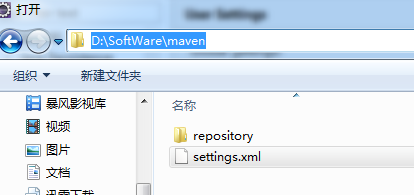
保存所做的修改,同时还需要把这个settings.xml文件复制一份到“D:\SoftWare\maven”目录下。

3、eclipse里的Maven插件安装
Eclipse默认不支持Maven。需要给它添加m2eclipse插件。下面是具体的操作步骤。
3.1、插件安装
打开Eclipse的Help->Install New Software,如下图所示:
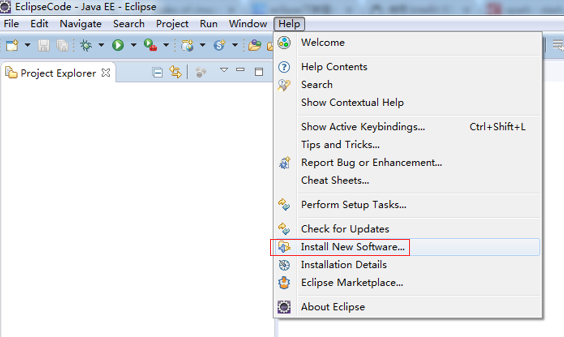
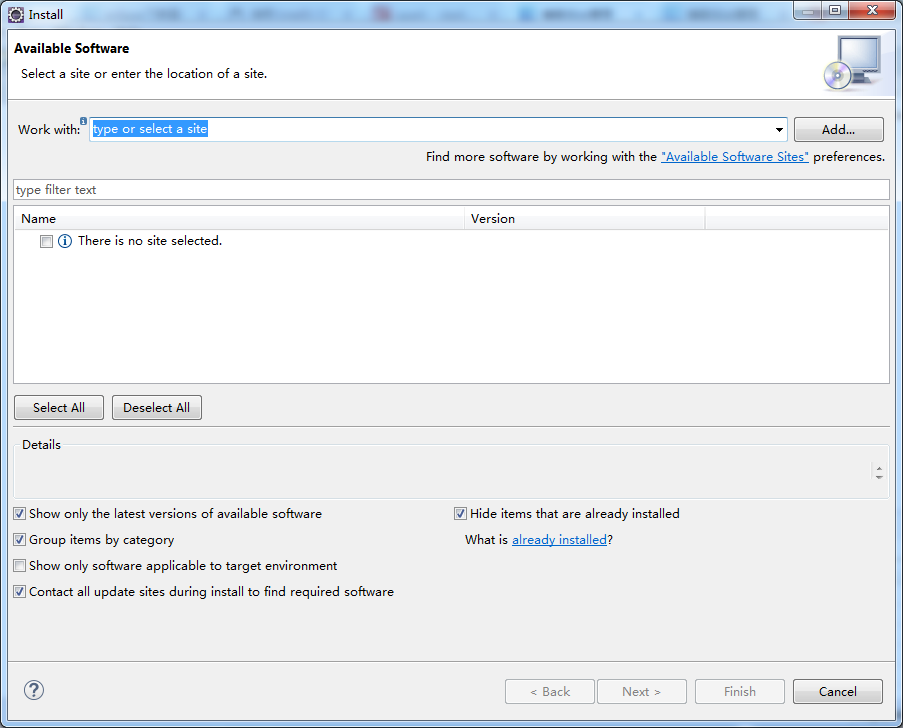
选择“Add..”按钮,又会弹出如下对话框:
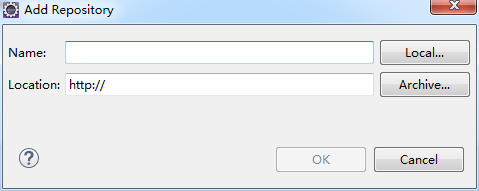
这个对话框就是用于添加一个插件地址的。在“Name”对应的输入框里输入该操作的一个标识名。在“Location”对应的输入框里输入这个插件的安装地址。注:Maven的Eclipse插件地址为:http://download.eclipse.org/technology/m2e/releases。输入后,如下图所示:
Name: m2e
Location: http://download.eclipse.org/technology/m2e/releases
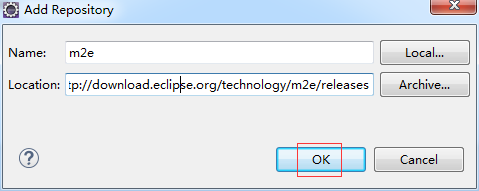
输入完成后,点击右下角的“OK”按钮,就会弹出如下对话框:
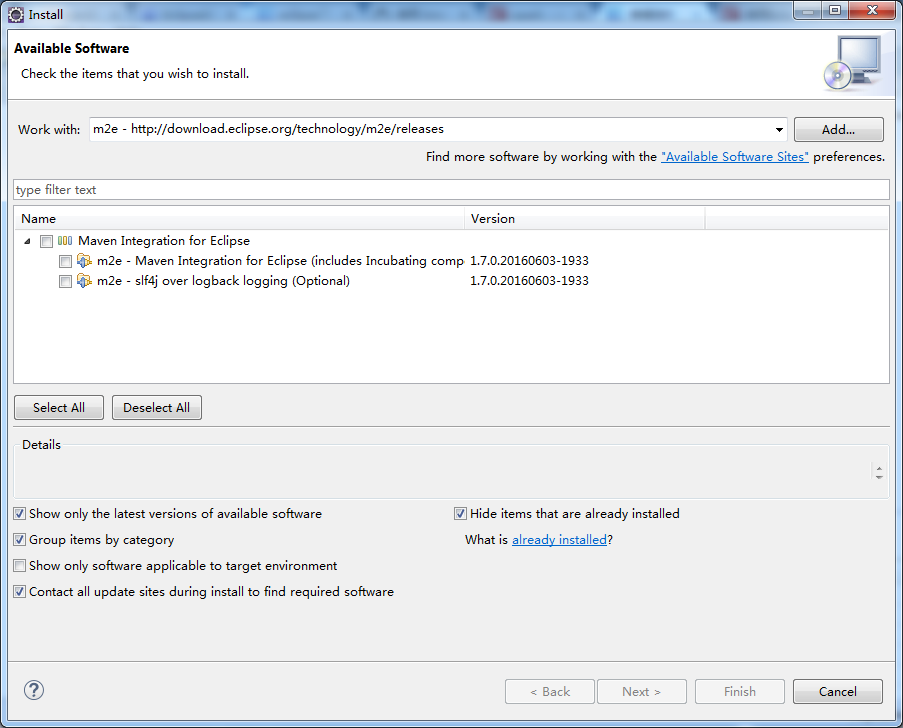
MARS版本
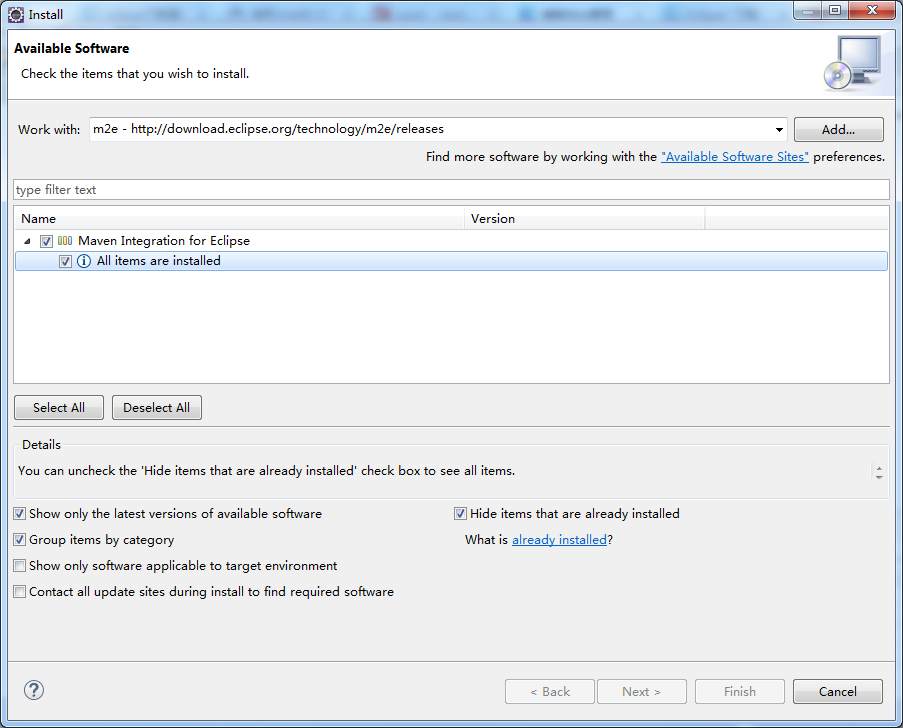
我这里,就,已经安装过了。
这一步,有可能会
注意:安装maven时一定要注意版本匹配问题:下面就是我安装时遇到的问题
首先安装maven时遇到Missing requirement: m2e logback configuration 1.7.0.20160603-1933 (org.eclipse.m2e.logback.configur。。。的问题。
这是由于eclipse和maven插件版本不匹配,我的eclipse版本为如下,只能安装m2e - http://download.eclipse.org/technology/m2e/releases/1.3的版本,高版本就报错

推荐用MARS版本!!!

注意,有些版本,我已测试过,如,NEON版本

会发生上述的错误。
这里需要选择想要安装的插件的详细内容。选中“Maven Integration for Eclipse”前面的复选框。如下图所示:
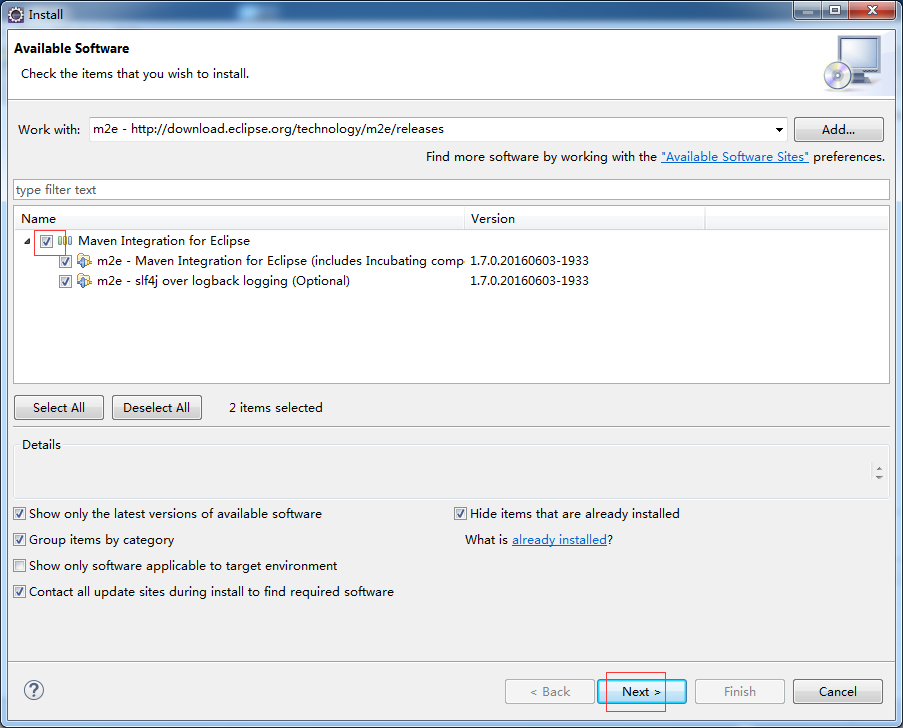
选择完成后,点击右下方的“Next>”按钮进行安装。安装成功后,会提示需要重启Eclipse来生效这次配置。重启之后,这个Eclipse就可以使用m2eclipse插件功能了。
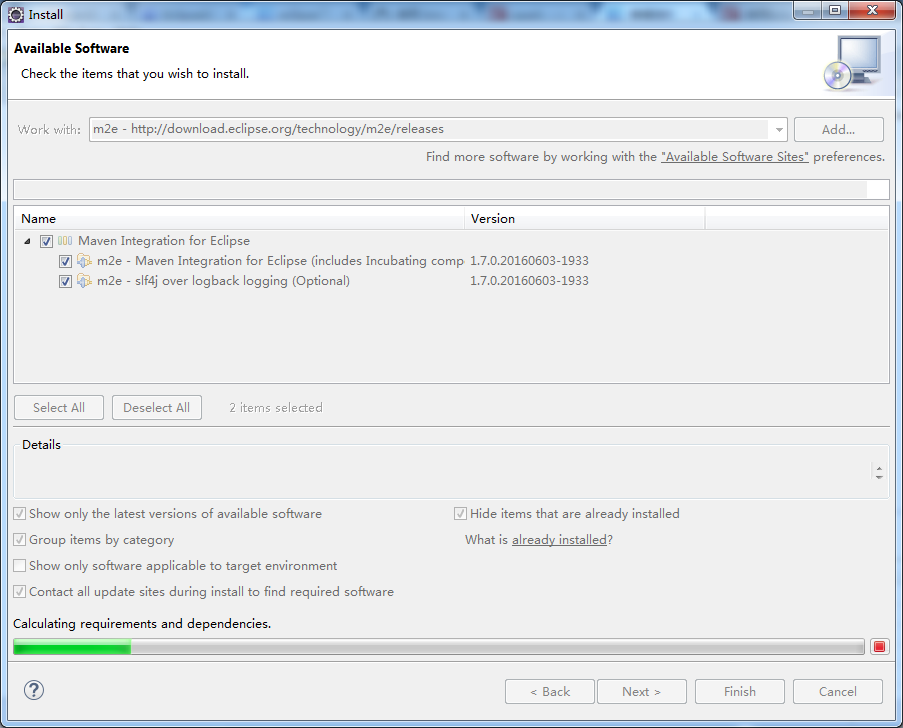
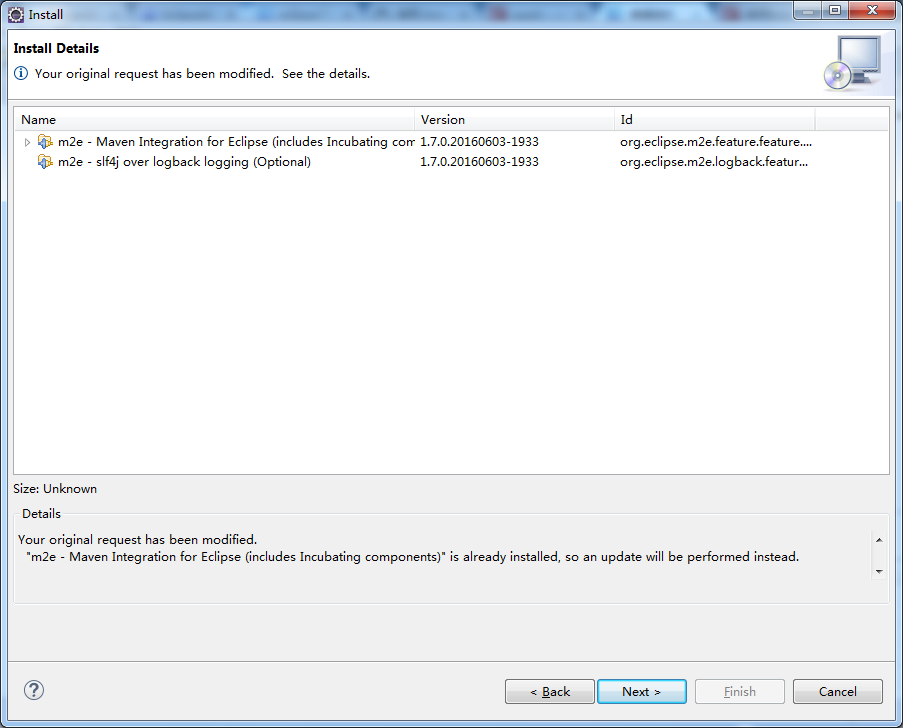
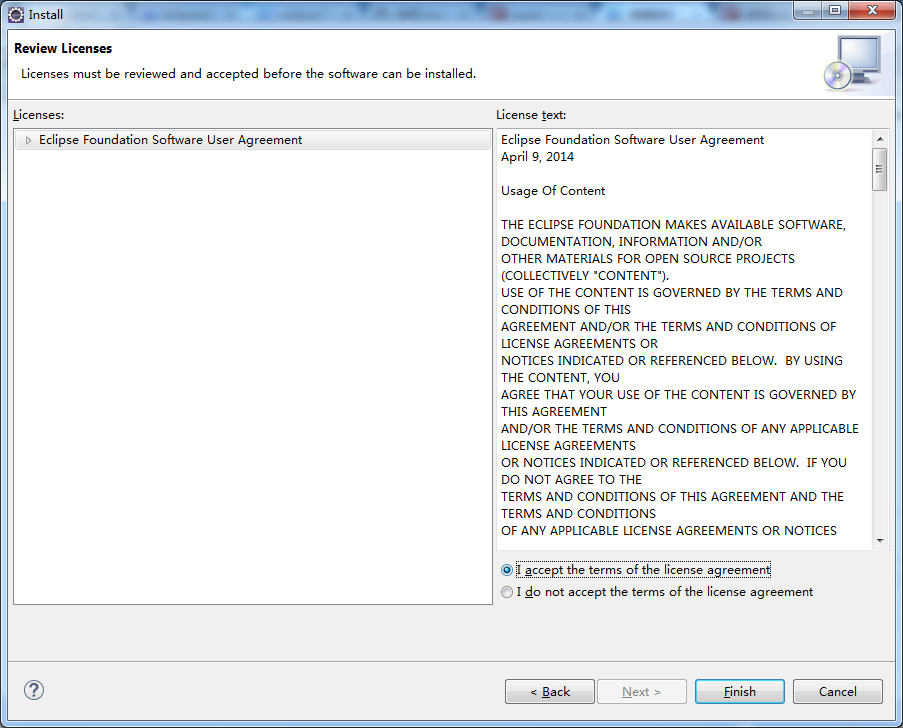
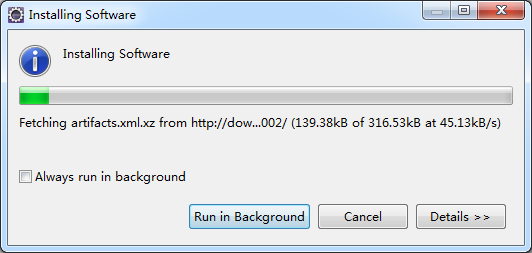
需要一段时间
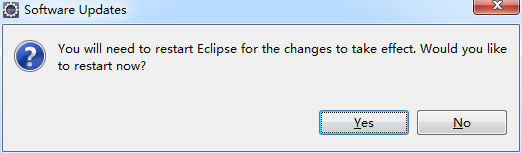
自动重启
3.2、Eclipse下对maven进行配置
插件安装好之后,还需要进行一些配置才能够开始使用Maven的功能。
3.2.1、 设置m2eclipse插件所关联的Maven程序
需要修改配置:首先选择Window->Preferences,弹出如下对话框

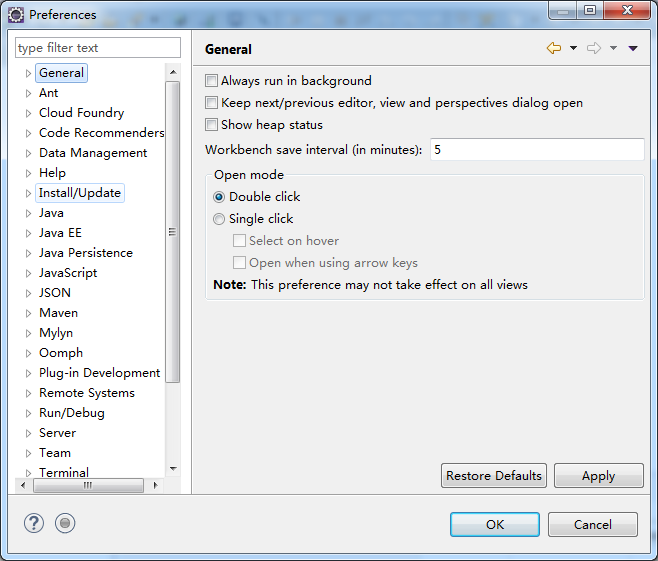
在这个对话框左边的导航栏中展开“Maven”目录结点,并选择“Installations”子节点,如下图所示:
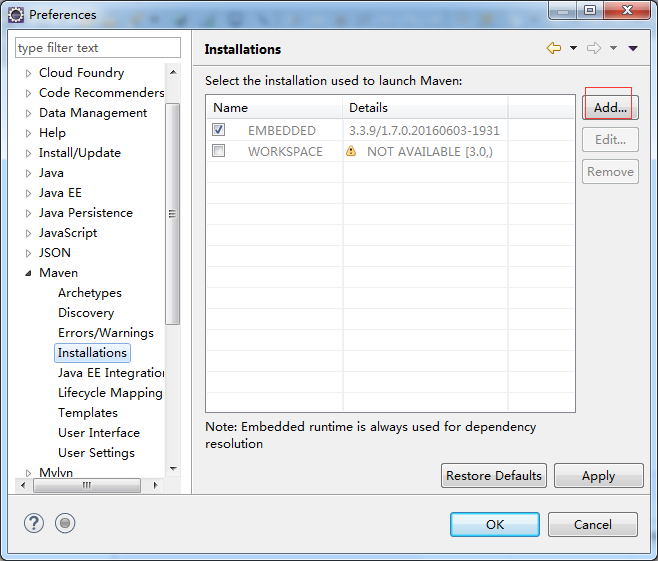
这里需要关联上对应的Maven安装程序。具体操作是,在右边面板中选择“Add…”按钮,会弹出如下选择Maven安装目录的选择对话框:
通过这个对话框来选择Maven的具体安装目录。选择好之后就点击“确定”按钮。如下图所示:
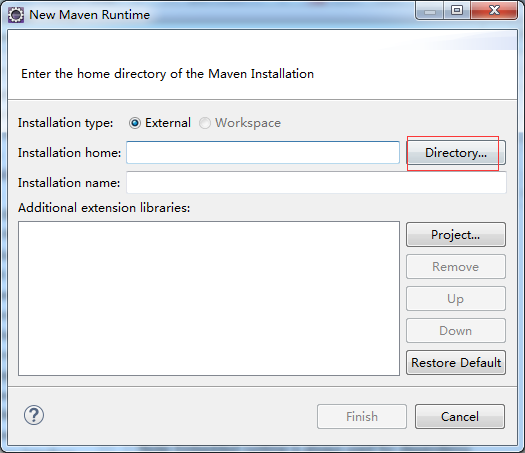
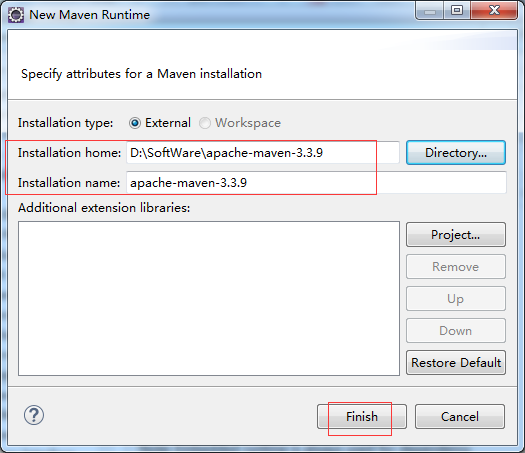
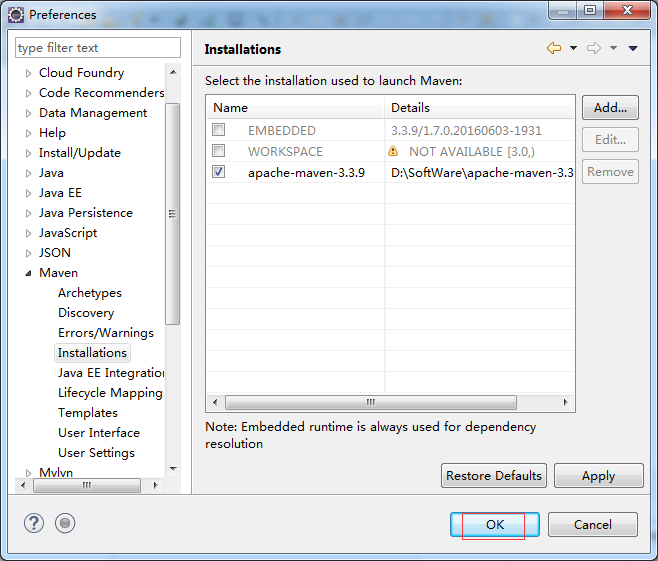
3.2.2、 设置自定义的本地仓库
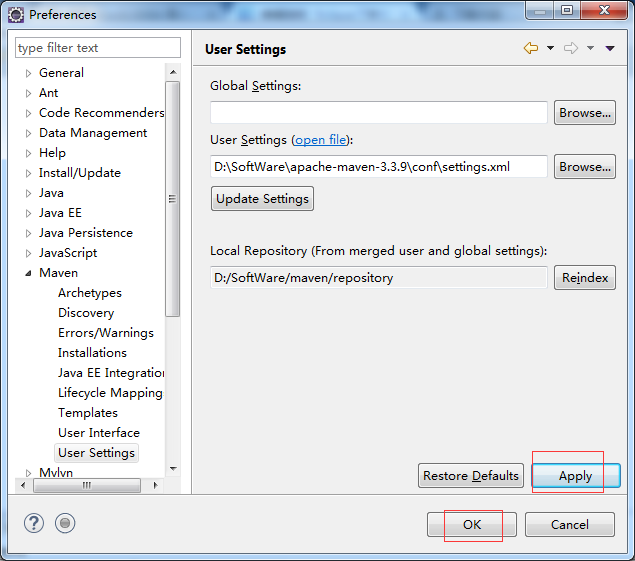
选择如上图对话窗口左边菜单树 “Maven”节点下的“UserSettings”子节点,它默认的配置文件是“C:\Documents and Settings\csdn\.m2\settings.xml”,如下图所示:
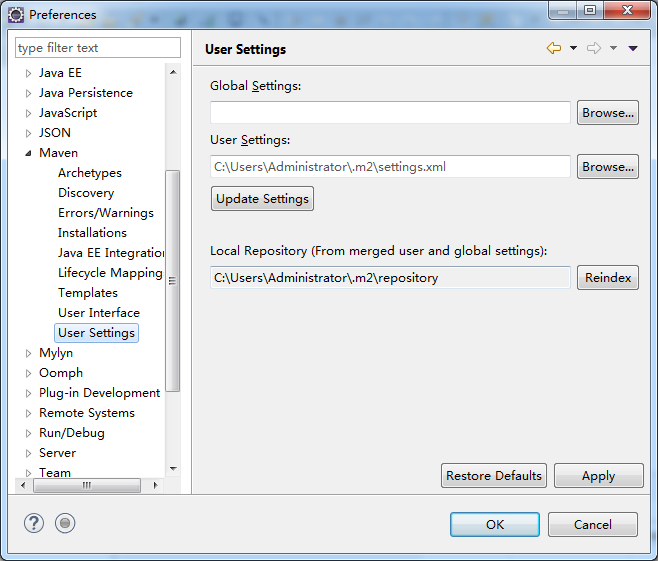
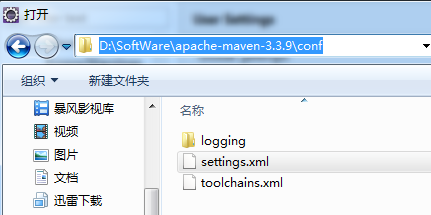
这边需要修改为我们自定义仓库位置下的settings.xml文件。具体操作是,点击“Browse…”按钮来选择上一步骤修改的本地仓库目录下的settings.xml文件,如下图所示:
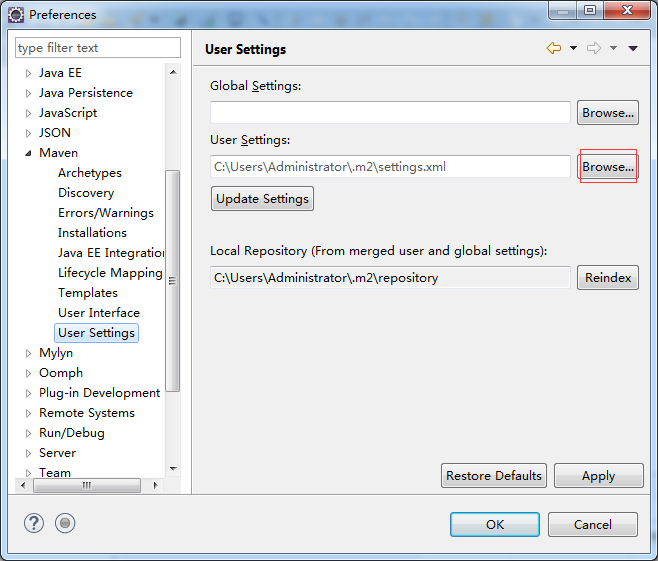
在上图中选择D:\SoftWare\apache-maven-3.3.9\conf目录下的“settings.xml”文件,点击“打开”按钮来确认刚才的选择,就会回到如下图的对话窗口中:
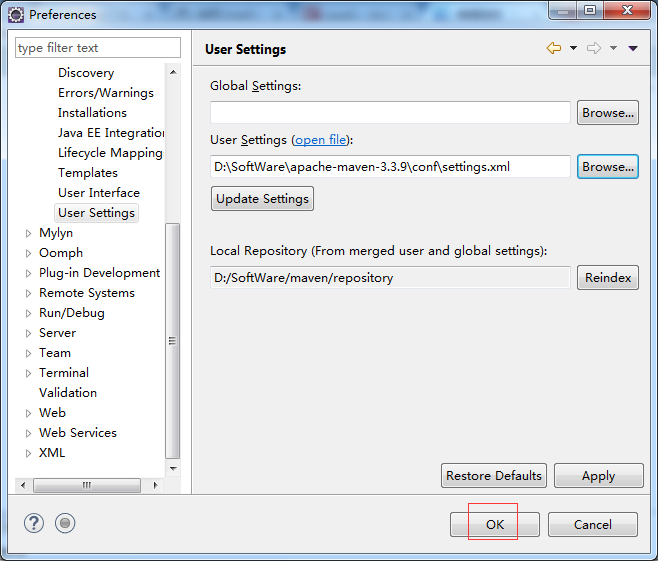
在上图中点击右下角的“OK”按钮来完成所有的配置修改。
4、Eclipse创建maven项目
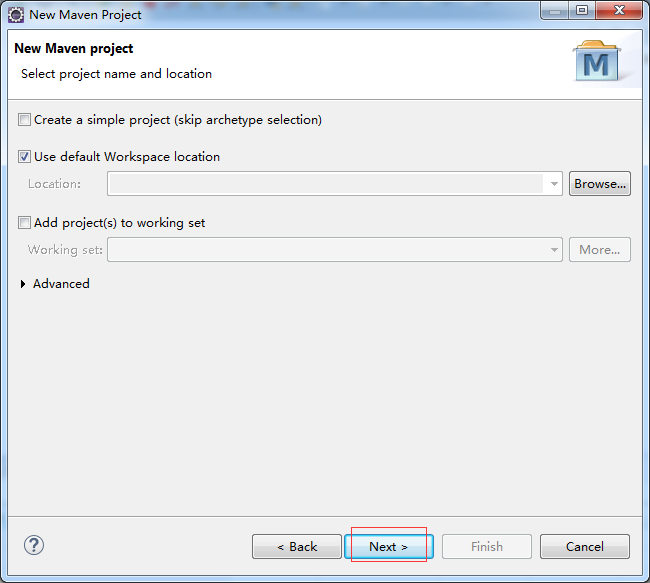
在eclipse菜单栏中选择"File"->"News"->"Other"菜单项,就会打开如下对话窗口,在窗口中选择"Maven"节点下"Maven Project"条目,如下图所示,之后跟着下一步。。。就可以将项目创建好了。
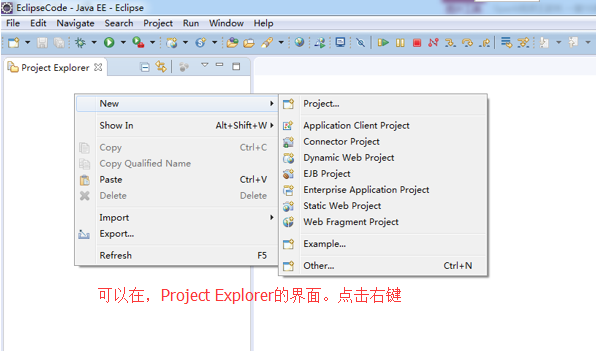
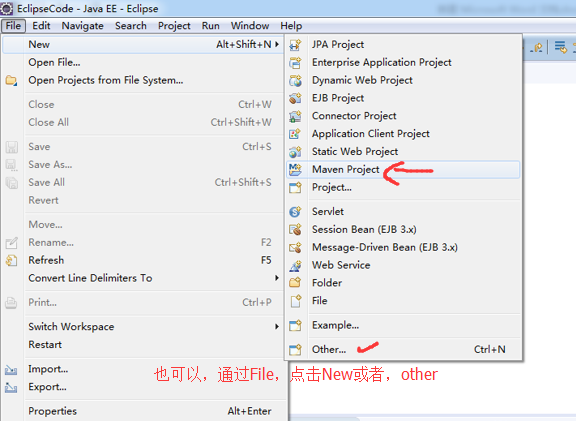
我这里,选择other
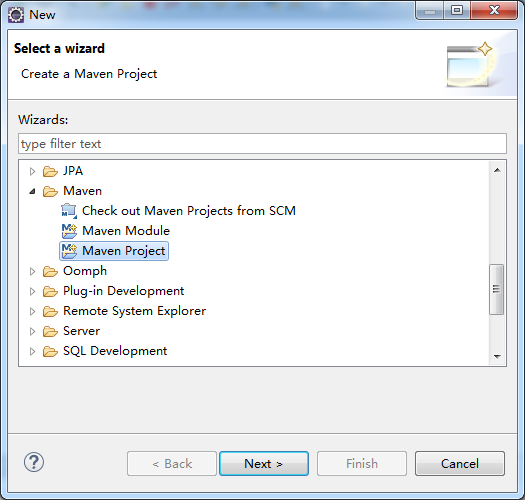
想说的是,SBT是为scala专门而设计的,但是,一般很多人还是用的是maven。
使用maven-archetype-quickstart 或者 coccoon-22-archetype-webapp
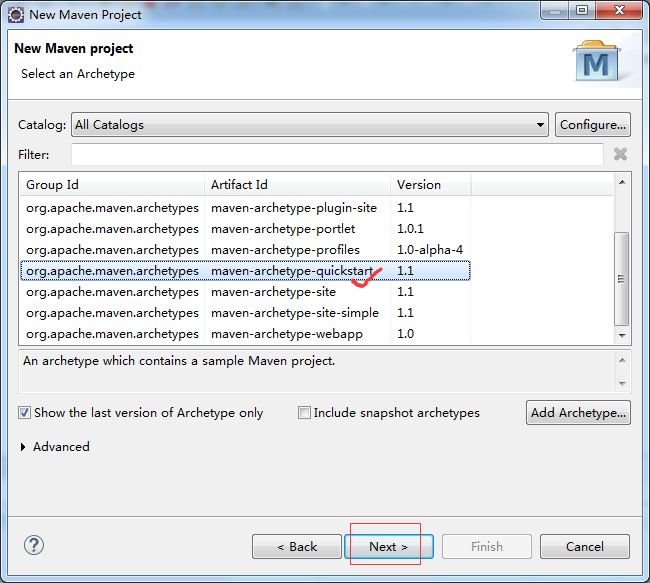
或者
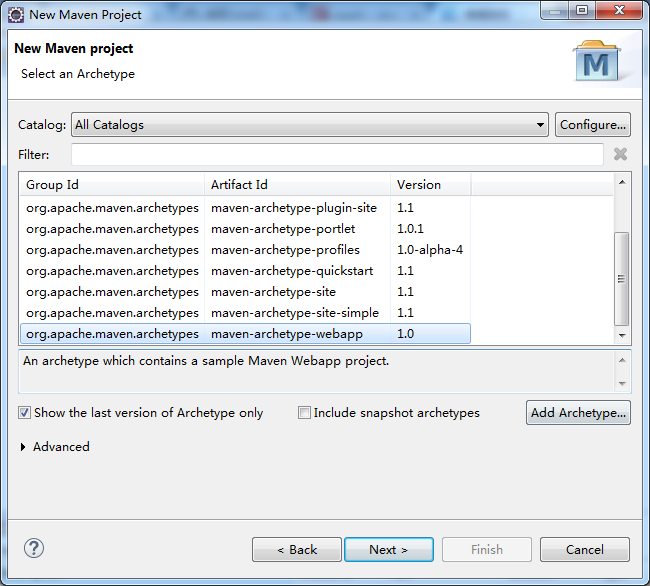
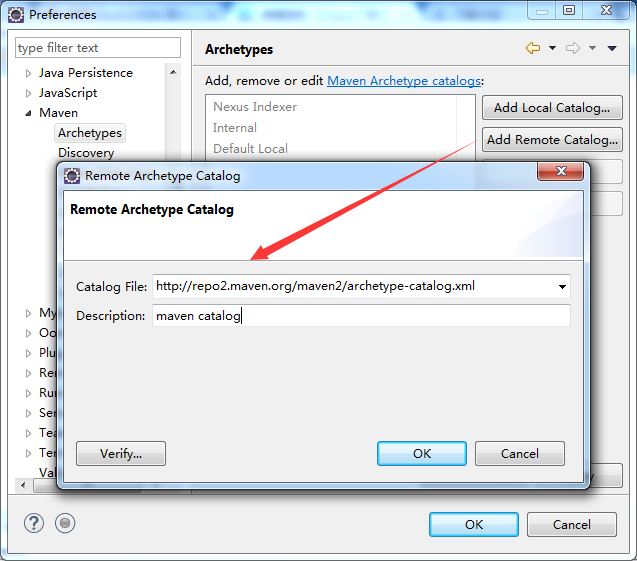
也许,这一步,会碰到如下问题。
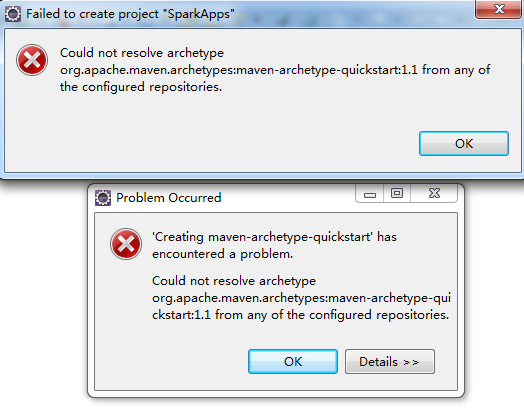
解决办法:
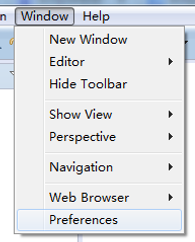
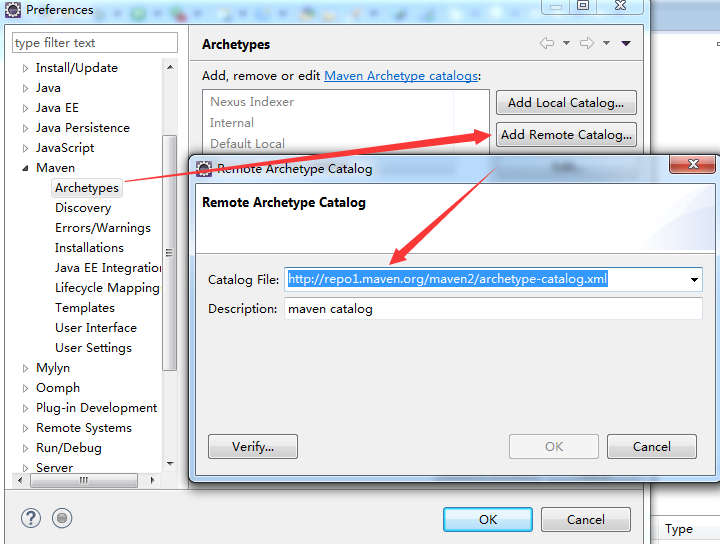
或者
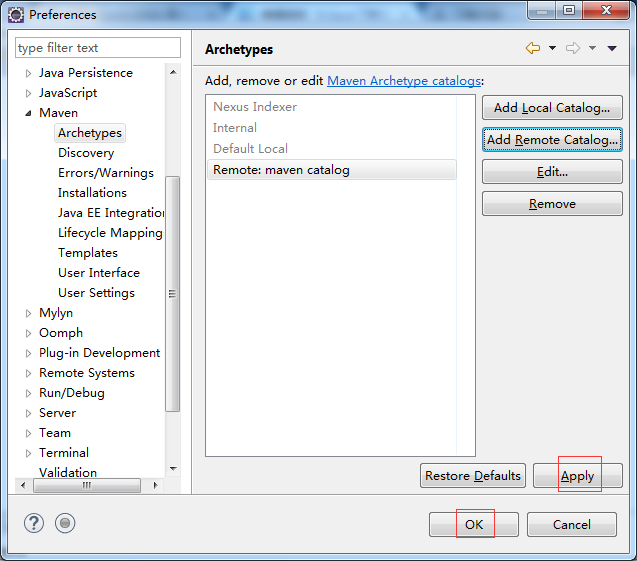
Catalog File: http://repo2.maven.org/maven2/archetype-catalog.xml
Description: maven catalog
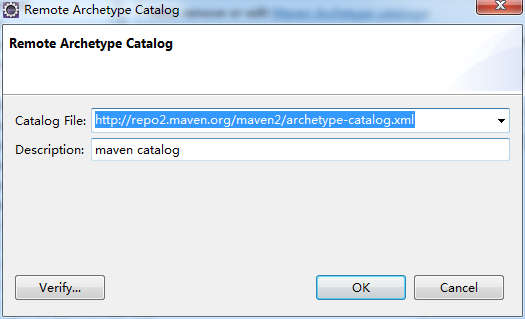
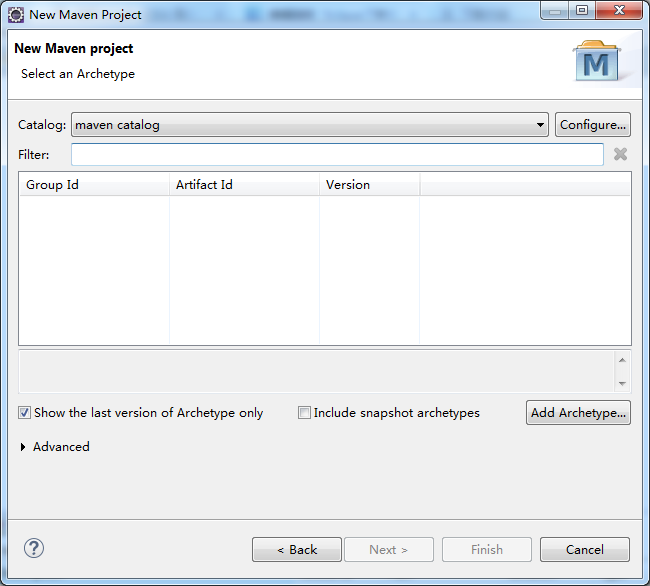
然后,再重新 File -> New -> Maven Project
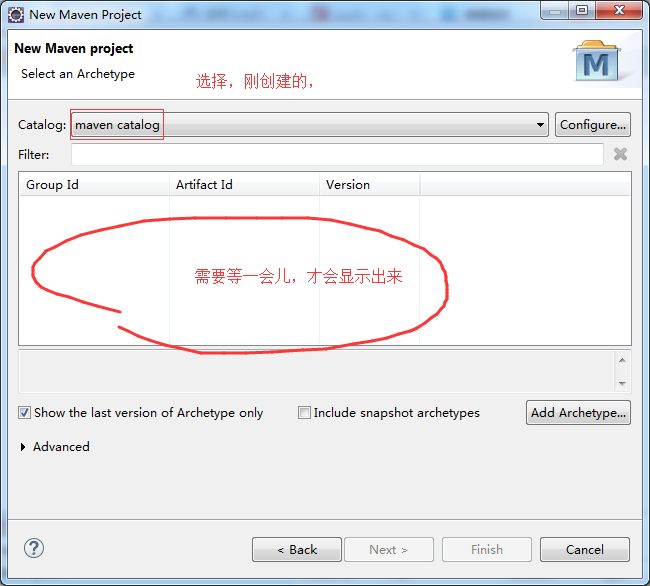

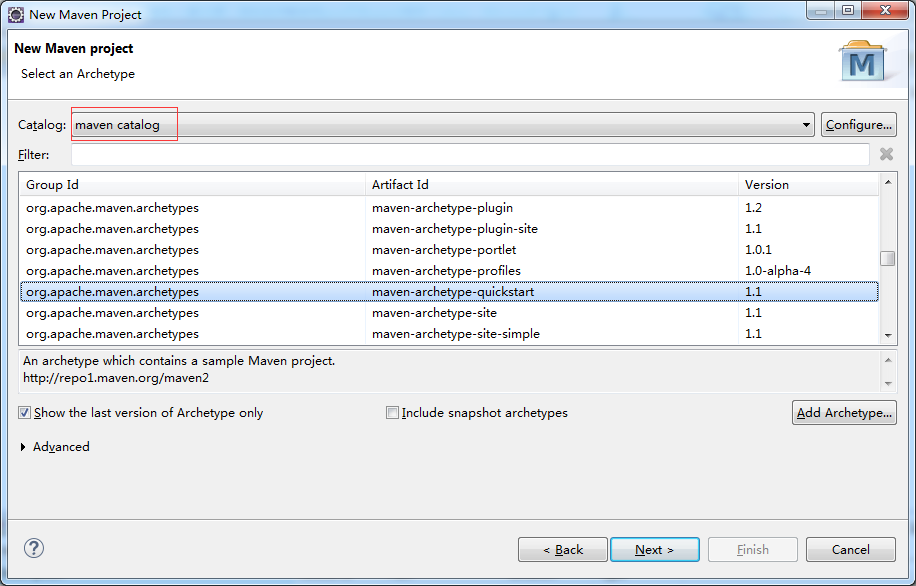

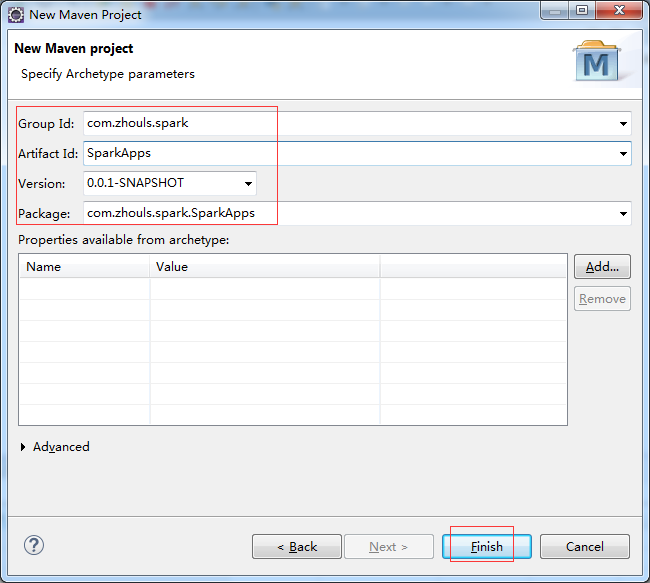
这里,自己任意取,
Group Id: com.zhouls.spark
Artifact Id: SparkApps

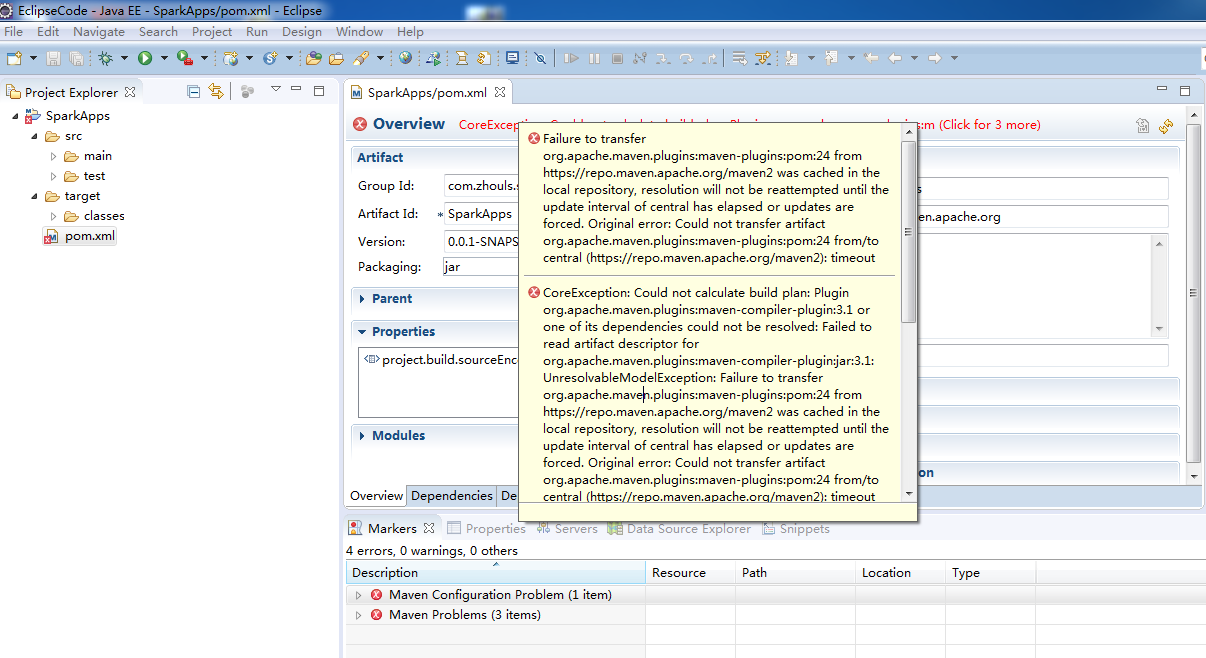
CoreException: Could not calculate build plan: Plugin org.apache.maven.plugins:maven-compiler-plugin:3.1 or one of its dependencies could not be resolved: Failed to read artifact descriptor for org.apache.maven.plugins:maven-compiler-plugin:jar:3.1: UnresolvableModelException: Failure to transfer org.apache.maven.plugins:maven-plugins:pom:24 from https://repo.maven.apache.org/maven2 was cached in the local repository, resolution will not be reattempted until the update interval of central has elapsed or updates are forced. Original error: Could not transfer artifact org.apache.maven.plugins:maven-plugins:pom:24 from/to central (https://repo.maven.apache.org/maven2): timeout
解决方法:
1.找到maven库目录,进入:D:\SoftWare\maven\repository\org\apache\maven\plugins\maven-compiler-plugin\3.1

2. 若3.1这个目录下只有,"maven-compiler-plugin-3.1.pom.lastUpdated" 则需要到http://repo1.maven.org/maven2/org/apache/maven/plugins/maven-compiler-plugin/3.1/,把里面的文件下载下来放到目录3.1下,如果该仓库中没有,那么可以去http://search.maven.org/这个地方下载下来,然后放置到对应的本地仓库中

可见,我这里是不需进行步骤2,直接到步骤3.
3.删除3.1下的maven-compiler-plugin-3.1.pom.lastUpdated文件或3.1目录下的所有文件
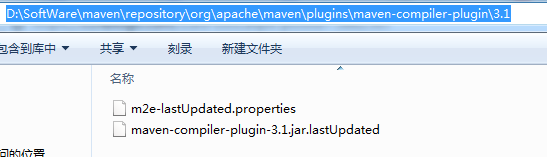
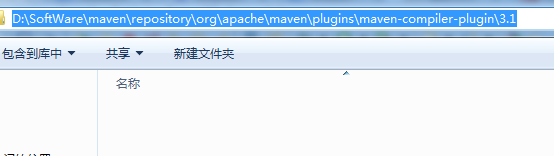
4.项目右键-->maven-->Update Dependencies
即,得到解决!
如果以上方法还是无法解决该问题:则 打开settings.xml,尝试换个mirror镜像或者干脆采用默认的仓库,即注释掉
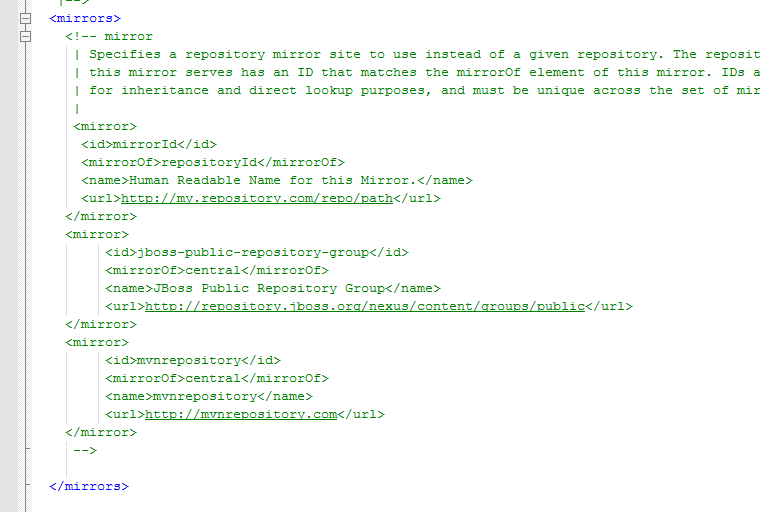
删除清空
再重新来一次
这里,我继续,上面的步骤,下来。用了我那个稳定的setting.xml文件,之后,中间不会出现什么问题!!!

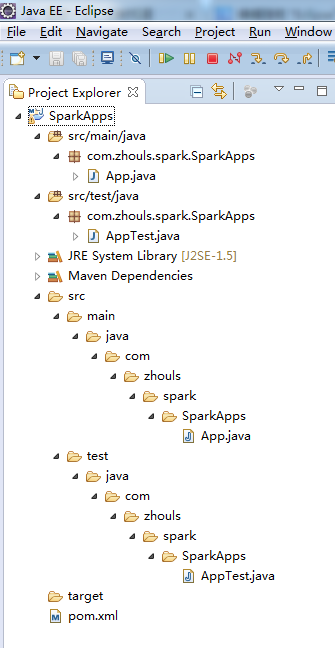
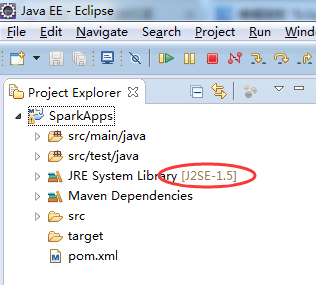
把此处默认的jdk,J2SE-1.5,变成我们自己安装的jdk版本(jdk1.7或jdk1.8)
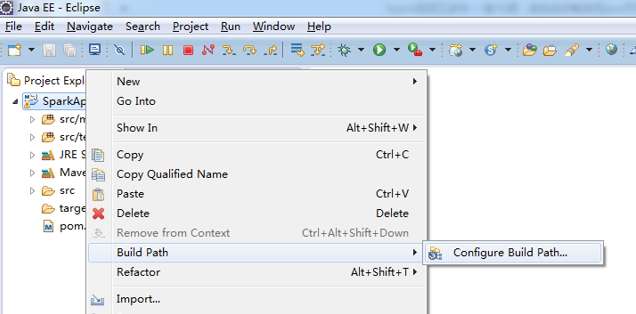

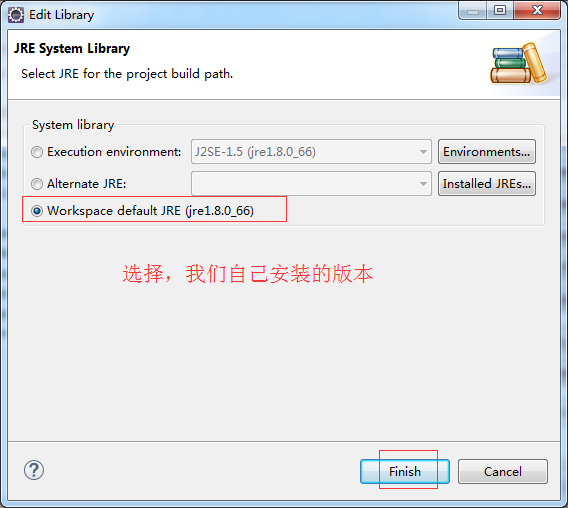
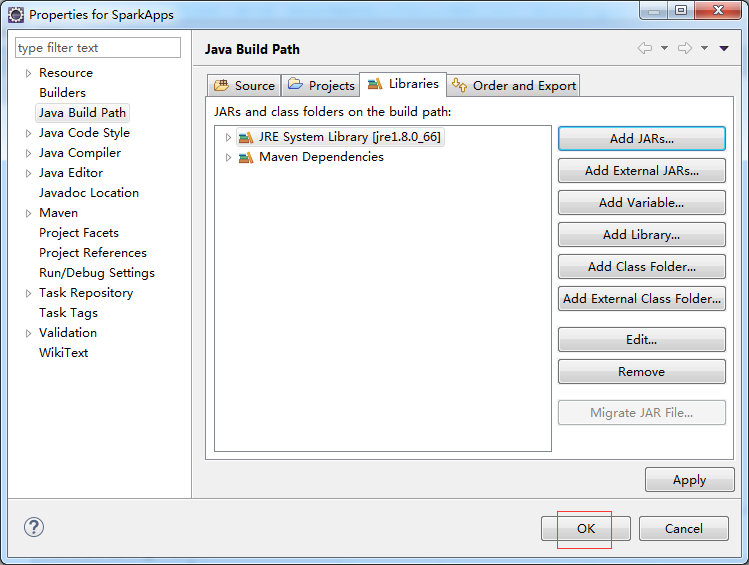
得到
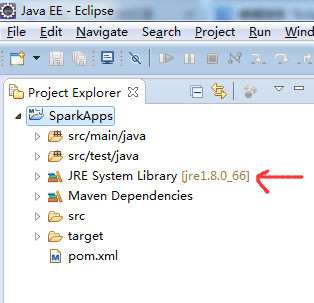
对应,得到
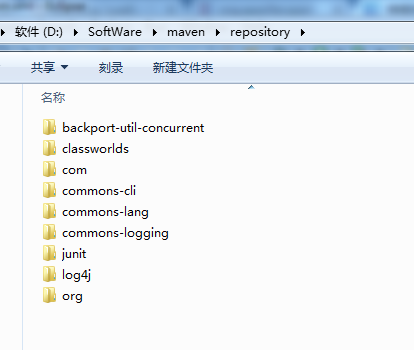
这个pom.xml文件,里有我们工程实际时编写和运行时的依赖和支持。
进入,如下
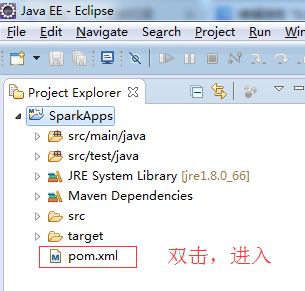
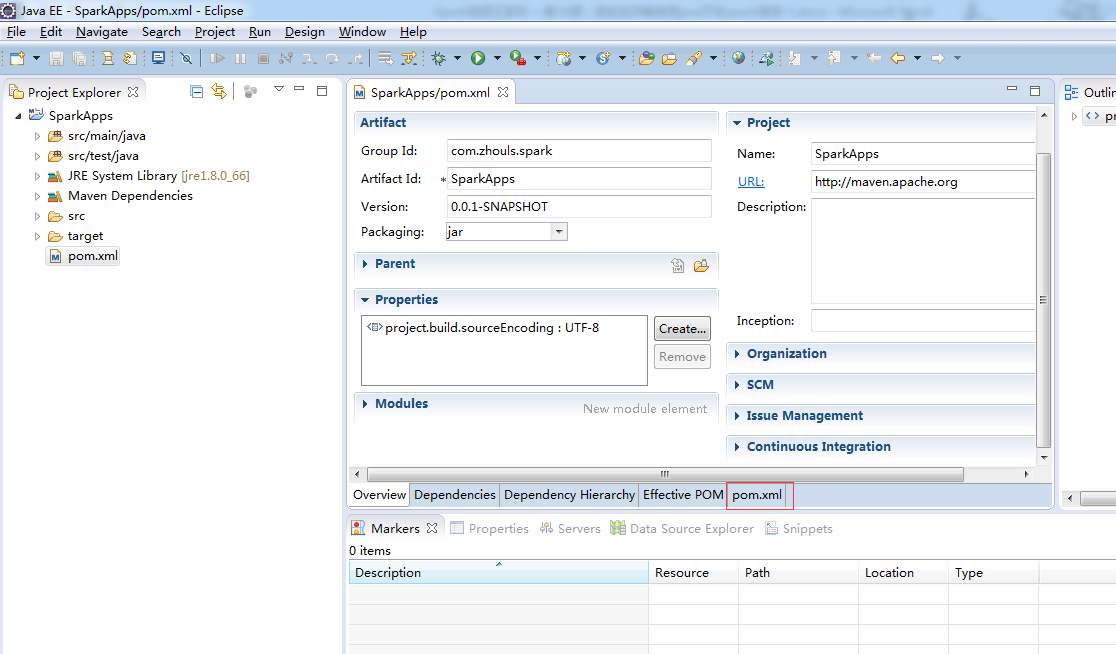
选择,pom.xml
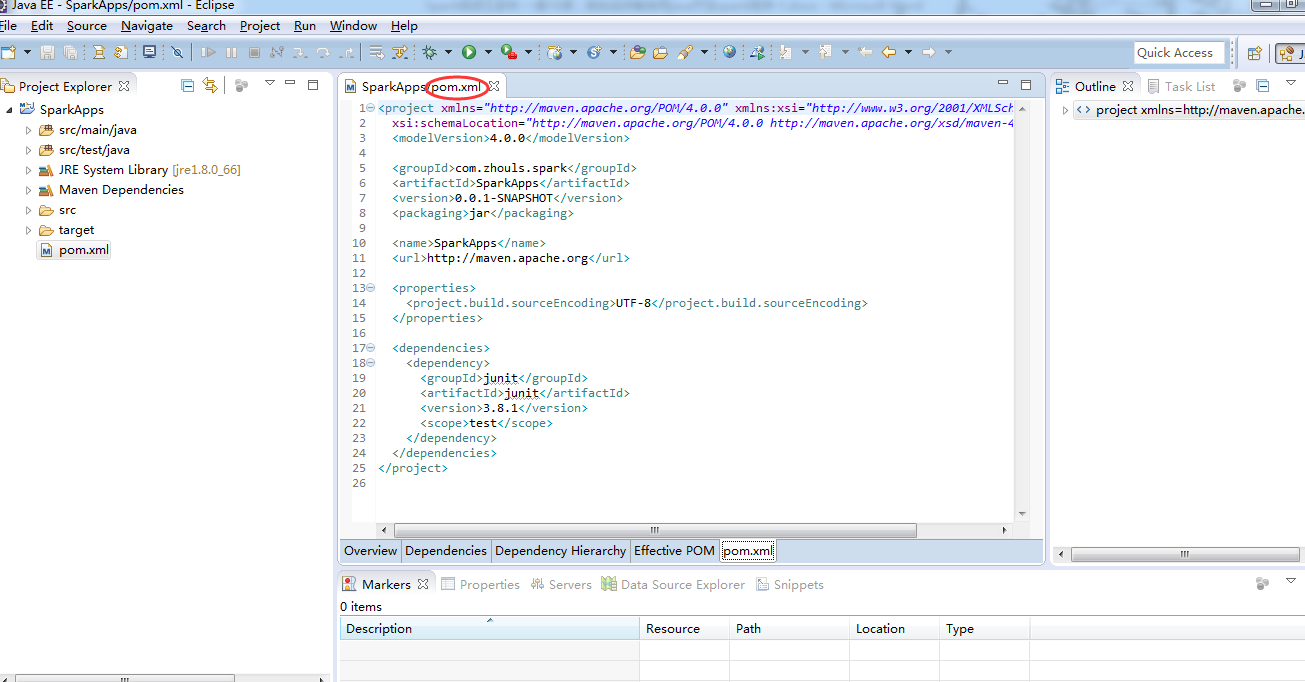
在修改pom.xml文件之前,Maven Dependencies如下
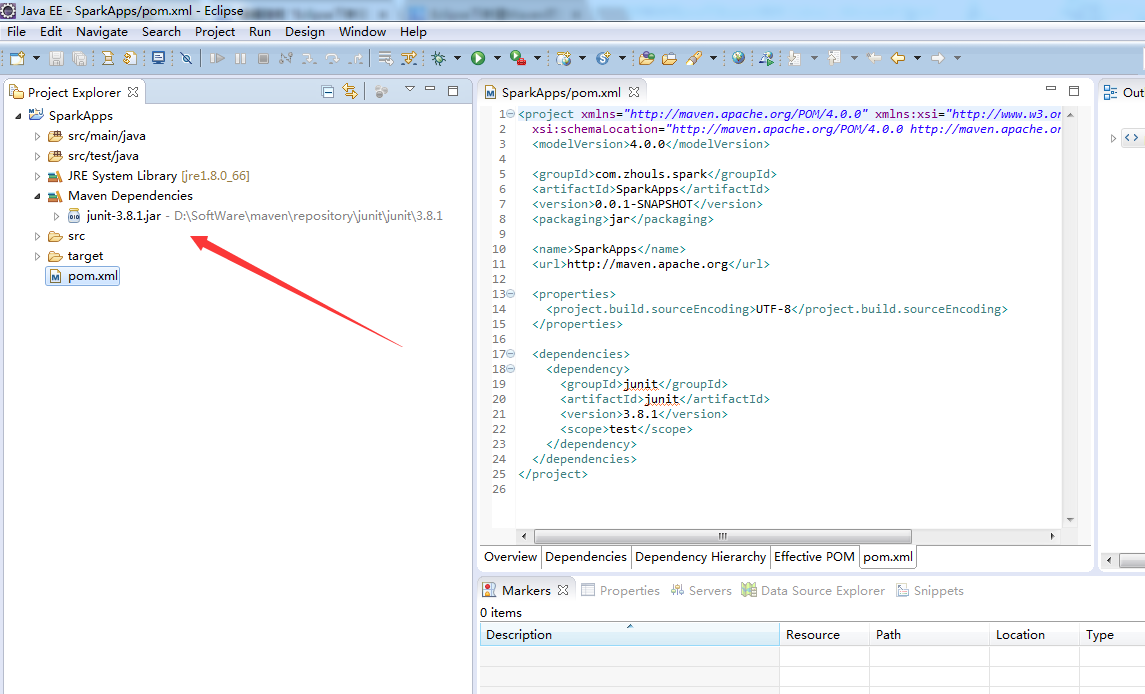
创建项目之后,pom.xml默认的内容如下
<project xmlns="http://maven.apache.org/POM/4.0.0" xmlns:xsi="http://www.w3.org/2001/XMLSchema-instance"

xsi:schemaLocation="http://maven.apache.org/POM/4.0.0 http://maven.apache.org/xsd/maven-4.0.0.xsd">

<modelVersion>4.0.0</modelVersion>

<groupId>com.zhouls.spark</groupId>

<artifactId>SparkApps</artifactId>

<version>0.0.1-SNAPSHOT</version>

<packaging>jar</packaging>

<name>SparkApps</name>

<url>http://maven.apache.org</url>

<properties>

<project.build.sourceEncoding>UTF-8</project.build.sourceEncoding>

</properties>

<dependencies>

<dependency>

<groupId>junit</groupId>

<artifactId>junit</artifactId>

<version>3.8.1</version>

<scope>test</scope>

</dependency>

</dependencies>

</project>
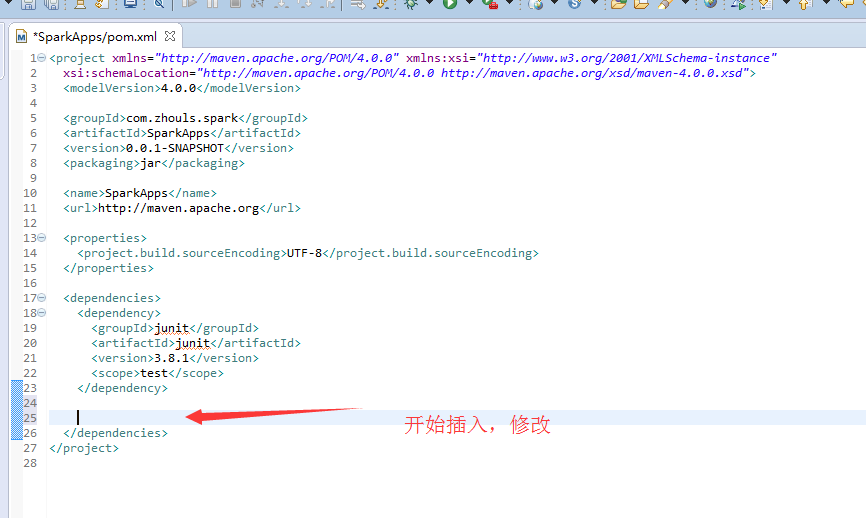
这一步,最为关键,具体怎么修改pom.xml,是要看自己的需求。
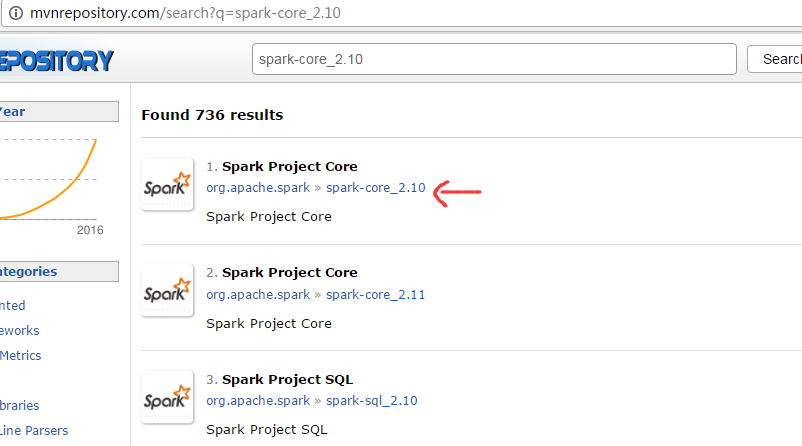
我这里,因为是spark1.5.2版本。
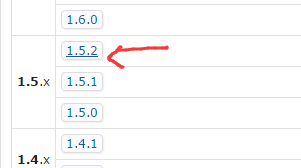
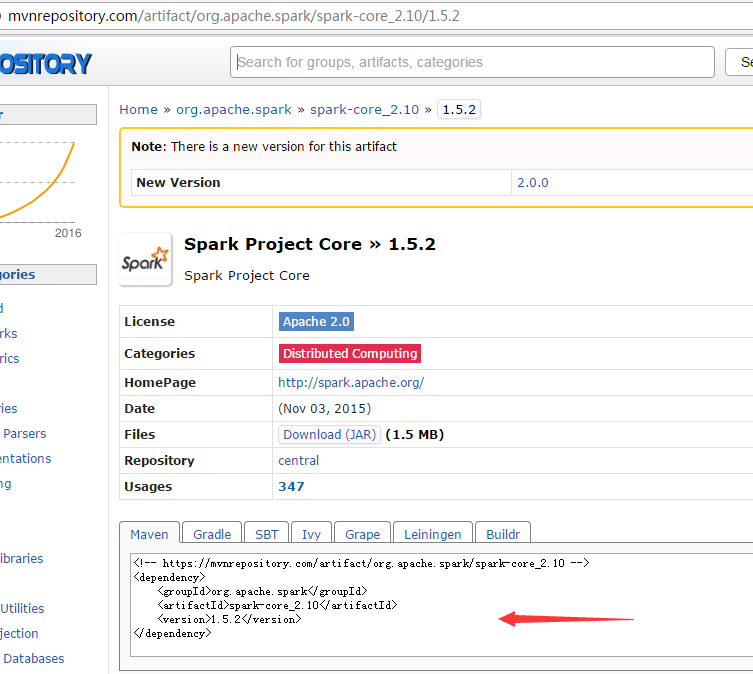

其他的,类似,这里不多赘述。
转】maven核心,pom.xml详解
在这过程中,最好是去复制,官网。为了避免自己手误或者格式不对!!!可以避免如下面的错误!
修改后的pom.xml内容是
<project xmlns="http://maven.apache.org/POM/4.0.0" xmlns:xsi="http://www.w3.org/2001/XMLSchema-instance"

xsi:schemaLocation="http://maven.apache.org/POM/4.0.0 http://maven.apache.org/xsd/maven-4.0.0.xsd">

<modelVersion>4.0.0</modelVersion>

<groupId>com.zhouls.spark</groupId>

<artifactId>SparkApps</artifactId>

<version>0.0.1-SNAPSHOT</version>

<packaging>jar</packaging>

<name>SparkApps</name>

<url>http://maven.apache.org</url>

<properties>

<project.build.sourceEncoding>UTF-8</project.build.sourceEncoding>

<junit.version>4.10</junit.version>

<spark.version>1.5.2</spark.version>

<hadoop.version>2.6.0</hadoop.version>

</properties>

<dependencies>

<dependency>

<groupId>junit</groupId>

<artifactId>junit</artifactId>

<version>${junit.version}</version>

<scope>test</scope>

</dependency>

<dependency>

<groupId>org.apache.spark</groupId>

<artifactId>spark-core_2.10</artifactId>

<version>${spark.version}</version>

</dependency>

<dependency>

<groupId>org.apache.spark</groupId>

<artifactId>spark-sql_2.10</artifactId>

<version>${spark.version}</version>

</dependency>

<dependency>

<groupId>org.apache.spark</groupId>

<artifactId>spark-hive_2.10</artifactId>

<version>${spark.version}</version>

</dependency>

<dependency>

<groupId>org.apache.spark</groupId>

<artifactId>spark-streaming_2.10</artifactId>

<version>${spark.version}</version>

</dependency>

<dependency>

<groupId>org.apache.spark</groupId>

<artifactId>spark-streaming-kafka_2.10</artifactId>

<version>${spark.version}</version>

</dependency>

<dependency>

<groupId>org.apache.hadoop</groupId>

<artifactId>hadoop-client</artifactId>

<version>${hadoop.version}</version>

</dependency>

</dependencies>

<build>

<sourceDirectory>src/main/java</sourceDirectory>

<testSourceDirectory>src/main/test</testSourceDirectory>

<plugins>

<plugin>

<artifactId>maven-assembly-plugin</artifactId>

<configuration>

<descriptorRefs>

<descriptorRef>jar-with-dependencies</descriptorRef>

</descriptorRefs>

<archive>

<manifest>

<mainClass></mainClass>

</manifest>

</archive>

</configuration>

<executions>

<execution>

<id>make-assembly</id>

<phase>package</phase>

<goals>

<goal>single</goal>

</goals>

</execution>

</executions>

</plugin>

<plugin>

<groupId>org.codehaus.mojo</groupId>

<artifactId>exec-maven-plugin</artifactId>

<version>1.2.1</version>

<executions>

<execution>

<goals>

<goal>exec</goal>

</goals>

</execution>

</executions>

<configuration>

<executable>java</executable>

<includeProjectDependencies>true</includeProjectDependencies>

<includePluginDependencies>false</includePluginDependencies>

<classpathScope>compile</classpathScope>

<mainClass>com.zhouls.spark.SparkApps.cores.WordCount</mainClass>

</configuration>

</plugin>

<plugin>

<groupId>org.apache.maven.plugins</groupId>

<artifactId>maven-compiler-plugin</artifactId>

<version>2.3.2</version>

<configuration>

<source>1.6</source>

<target>1.6</target>

</configuration>

</plugin>

</plugins>

</build>

</project>
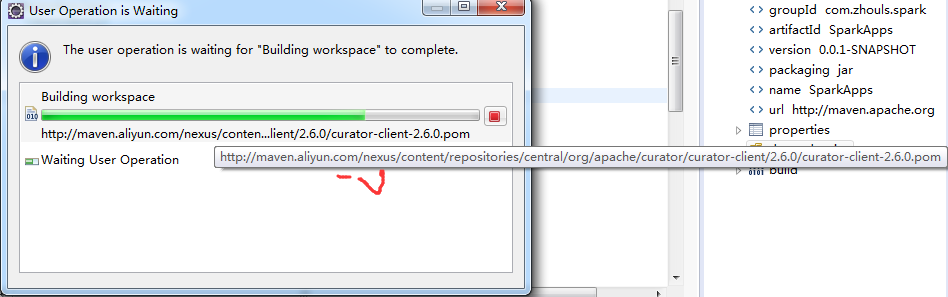
正在下载
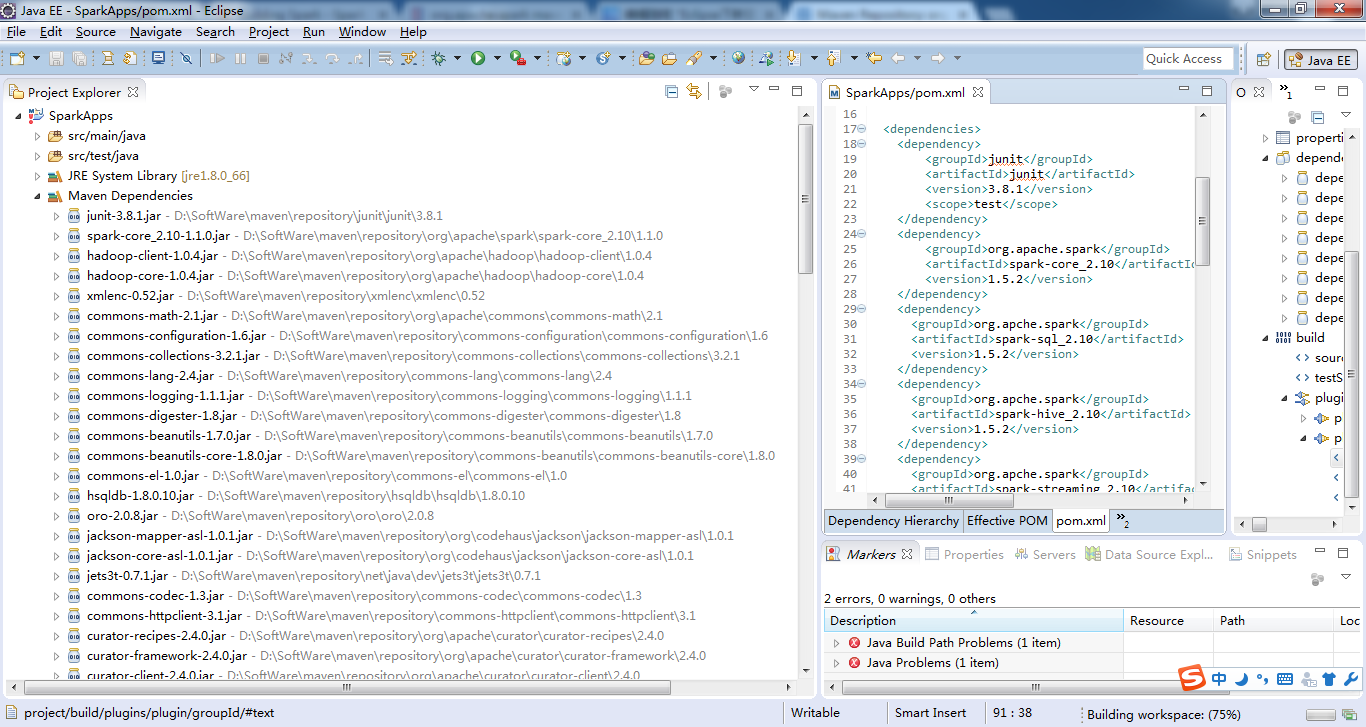
立马生成好了。可见,Maven自动生成jar包,多么的方便!
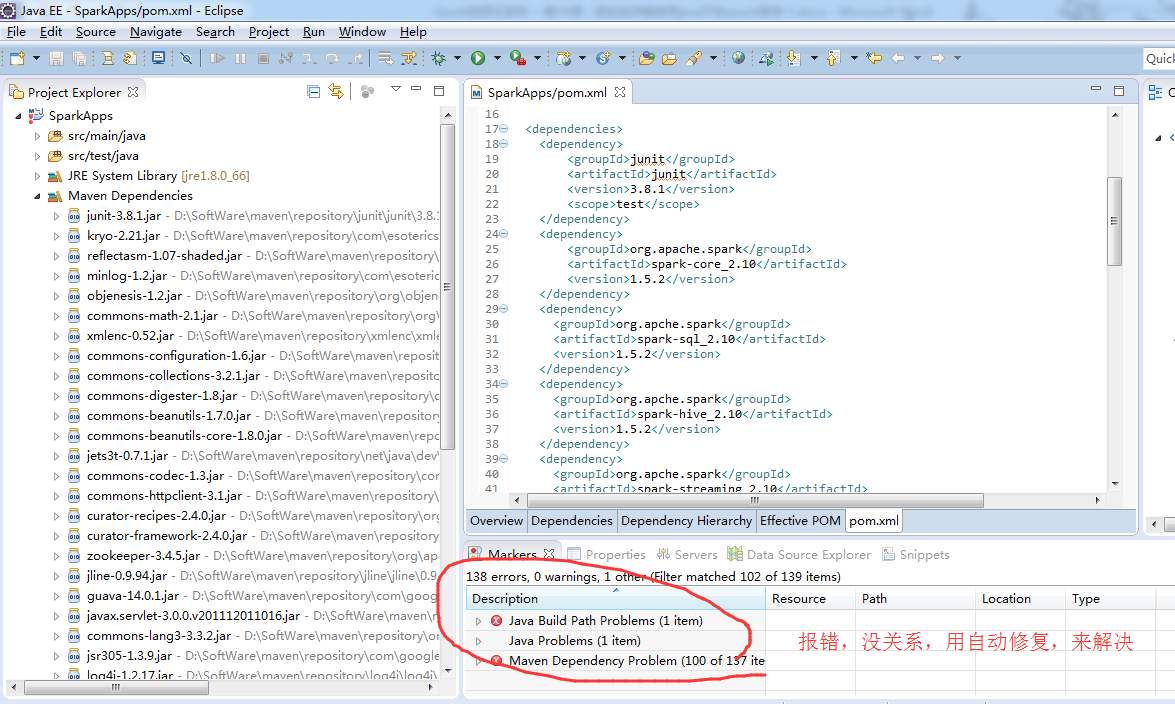
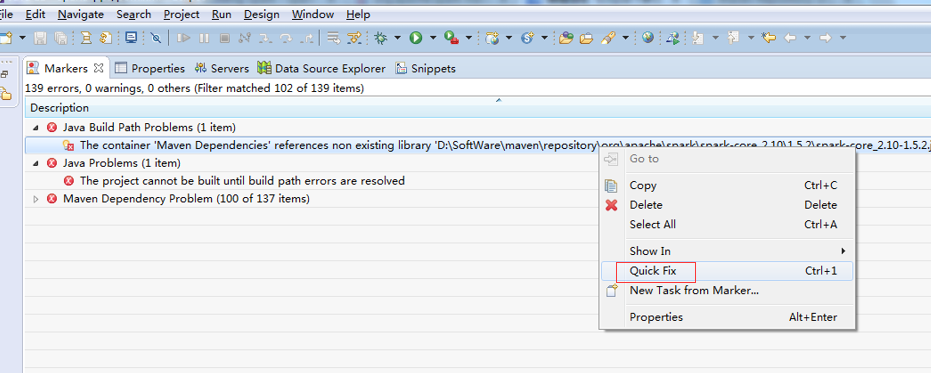
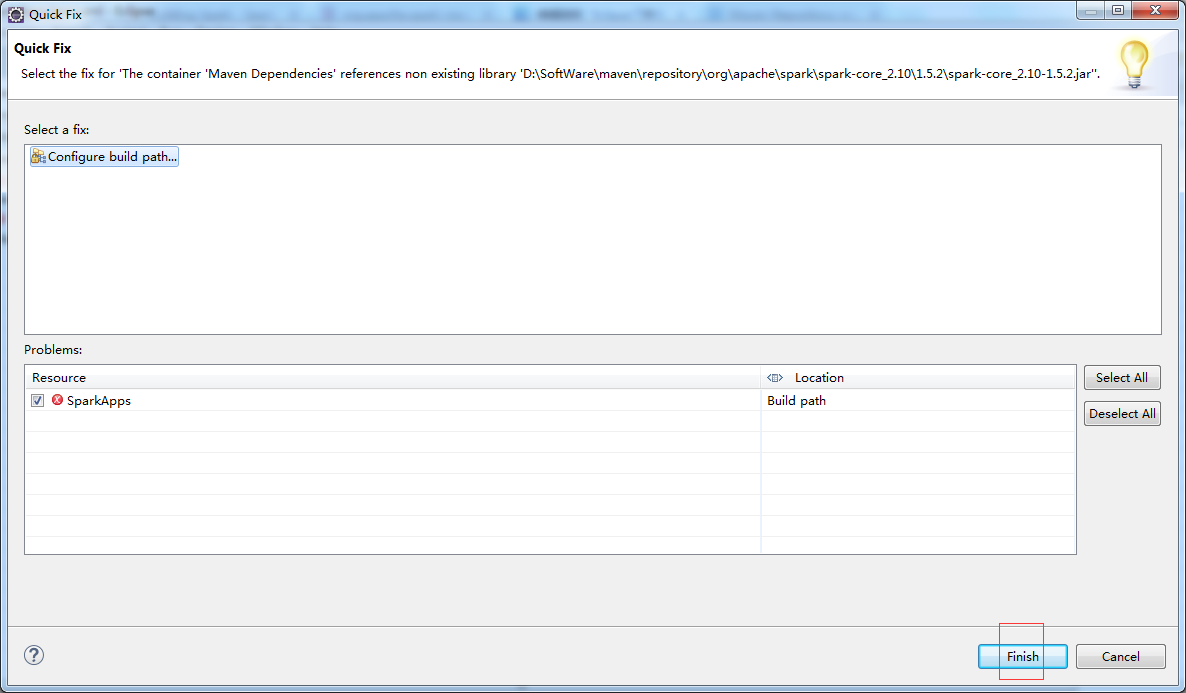
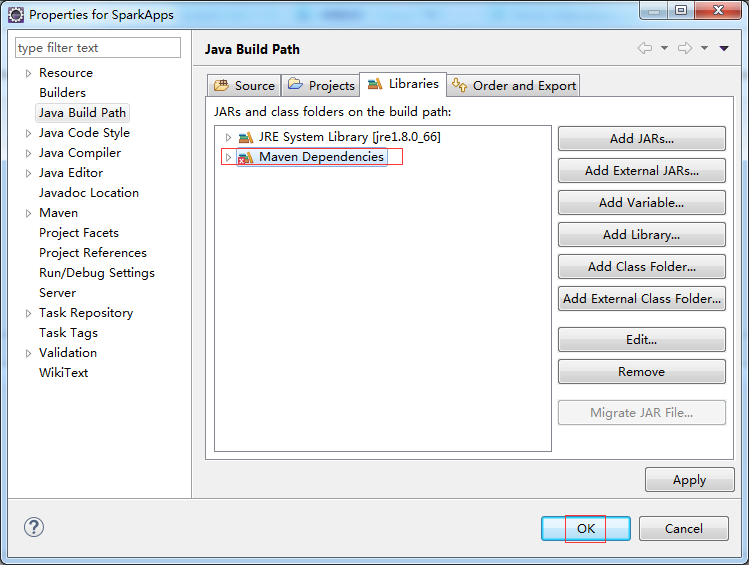
其他的一一去解决!
对应地,生成,
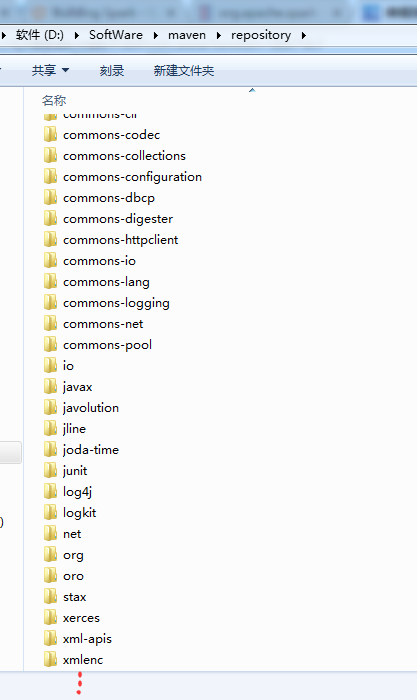
我的这里,得到如下
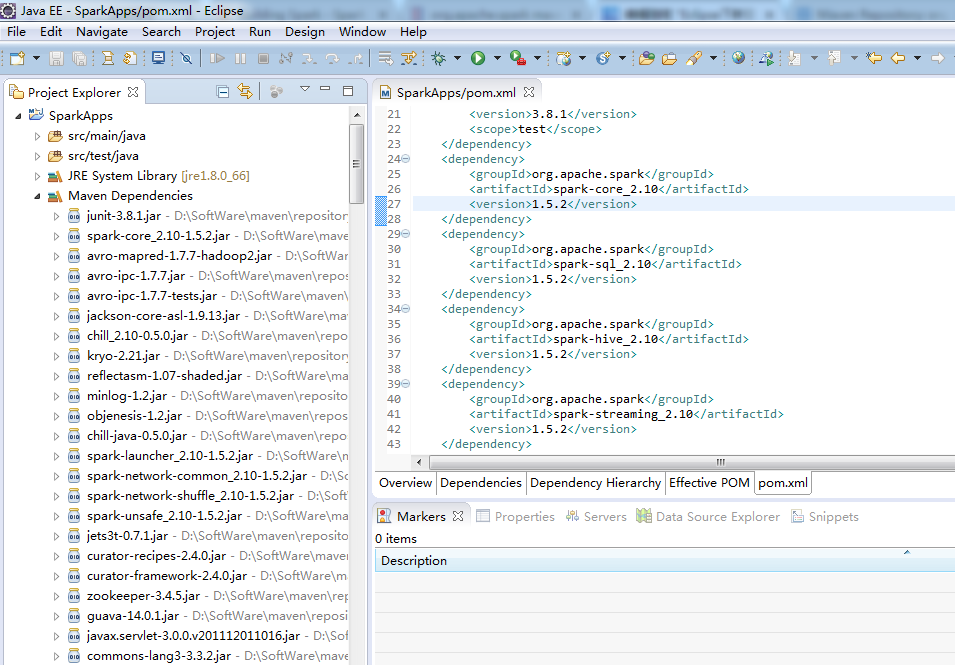
至此,Eclipse下新建Maven项目、自动打依赖jar包。大功告成!!!
Eclipse里创建Maven,比较有价值的错误总结
http://blog.csdn.net/afgasdg/article/details/12757433
http://blog.csdn.net/sunnylinner/article/details/52183156
http://www.cnblogs.com/liaojie970/p/5509760.html
http://www.cnblogs.com/tenghoo/p/maven_error.html
感谢如下博主:
http://www.cnblogs.com/ljdblog/p/5840858.html
http://blog.csdn.net/qjyong/article/details/9098213
http://dead-knight.iteye.com/blog/1910783
作者:好记性不如烂笔头!
出处:http://www.cnblogs.com/zlslch/
Eclipse下的Maven的更多相关文章
- Eclipse下新建Maven项目、自动打依赖jar包
当我们无法从本地仓库找到需要的构件的时候,就会从远程仓库下载构件至本地仓库.一般地,对于每个人来说,书房只有一个,但外面的书店有很多,类似第,对于Maven来说,每个用户只有一个本地仓库,但可以配置访 ...
- eclipse下新建maven项目
eclipse下新建maven项目 1.1下载maven安装包 进入Maven官网的下载页面:http://maven.apache.org/download.cgi,如下图所示:\ 选择当前最新版本 ...
- [Eclipse的Maven项目搭建,仅为测试Maven功能]如何在Eclipse下搭建Maven项目
[Eclipse的Maven项目搭建,仅为测试Maven功能]如何在Eclipse下搭建Maven项目 你可能需要了解以下才能更好的阅读以下: 在 Windows 中配置Maven: http:/ ...
- Eclipse下运行maven项目失败且Tomcat服务器也启动不了
今天遇到一个神奇的问题,在eclipse中创建一个maven项目后,Run on server 时说服务器启动失败.我以为是Eclipse配置tomcat的问题.找了一大堆没找到想要的答案!!! 我还 ...
- eclipse下创建maven项目并部署到tomcat服务器(转)
maven项目部署到服务器有很多方法,可以利用jetty-maven-plugin或者tomcat-maven-plugin,这属于maven的知识点. 通常开发中,需要将项目放在服务器上借助开发工具 ...
- 5.Maven和Eclipse整合(两种方式进行插件的安装),Maven相关设置,Eclipse下创建Maven项目
1 第一种方式是:在连网的情况下.通过在helpàInstall下安装. 新的地址是:http://download.eclipse.org/technology/m2e/releases 2 ...
- Eclipse下面的Maven管理的SSH框架整合(Struts,Spring,Hibernate)
搭建的环境:eclispe下面的maven web项目 Struts: 2.5.10 Spring: 4.3.8 Hibernate: 5.1.7 .Final MySQL: 5. ...
- Eclipse下,Maven+JRebel安装破解手记
Java开发中,Maven已经是标配,使用JRebel能大大地提高工作效率,特别是在Web开发中,不用重启tomcat,大大地提高了工作效率. 1.前提条件 安装JDK 8 安装eclipse, ec ...
- Eclipse下运行Maven项目提示缺少maven-resources-plugin:2.4.3
将一个手动创建的Maven项目(命令行下可正常运行)导入到Eclipse中,运行时提示这样的错误信息:[ERROR] Plugin org.apache.maven.plugins:maven-res ...
随机推荐
- typedef关键字
1. typedef的作用 在计算机编程语言中用来为复杂的声明定义简单的别名,与宏定义有些差异.它本身是一种存储类的关键字,与auto.extern.static.register等关键字不能出现在同 ...
- NOIP 考前 图论练习
LJOJ 1500: 题目:http://www.docin.com/p-601990756.html Sol:贪心,从叶子结点往上加入无法传递了,就需要建设. Dfs返回的是到达叶子节点最多所要的能 ...
- POJ 1274 裸二分图匹配
题意:每头奶牛都只愿意在她们喜欢的那些牛栏中产奶,告诉每头奶牛愿意产奶的牛棚编号,求出最多能分配到的牛栏的数量. 分析:直接二分图匹配: #include<stdio.h> #includ ...
- libc++
今天测试最新的微信iOS SDK, 仅仅是建了一个空的工程,把sdk加进去运行,就报了以下错误: Undefined symbols for architecture x86_64: "op ...
- Spring可以将简单的组件配置
这次听了老师的课程,觉得还是需要更加集中的去把各种题进行一个分类吧,然后有针对的去准备,虽然据说这一块在面试中也不容易考到,但是毕竟是难点,还是需要好好准备一下的.因为在dp这个方面,我算是一个比较新 ...
- js写的5秒钟倒计时跳转
使用js实现几秒以后倒计时跳转,这个在某些特殊情况下还是比较实用的,下面为大家介绍下具体的实现步骤,感兴趣的朋友不要错过 代码如下: <html> <head> < ...
- servlet/jsp详解
首先谈servlet的简单定义,servlet其实就是一门web服务器端编程的技术. servlet它分两种,一种是servlet容器,所有的servlet对象都要放在servlet容器中才能被调用执 ...
- python unicode 和 str 类型的关系
python (2.X)在进行 运行时候字符串运算的时候, 分为两种类型 str, unicode 前者是 二进制的形式进行对字符串的保存, 后者是 以unicode的方式进行保存, 一般的工作方式为 ...
- jquery 插件
1 jquery.slimscroll.min.js:虚拟滚轴 2 jquery.steps.js:步骤(注册下一步) 3 jquery-barcode.js:条形码
- 转:StrictMode使用
最新的Android平台中(Android 2.3起),新增加了一个新的类,叫StrictMode(android.os.StrictMode).这个类可以用来帮助开发者改进他们编写的应用,并且提供了 ...