
WPF Navigation
在开始学习WPF时,一开始对WPF的Window, Page, UserControl感到很迷惑。不知道什么时候该使用哪一个。下面简单介绍一下这三者的区别。
Window:故名思意,桌面程序的窗体。在WPF桌面应用中,我通常会只用一个主窗体,然后将不同的操作单元封装在不同的UserControl中,根据用户的操作展现不同的UserControl;
Page:Page需要承载在窗体中,通过Navigation进行不同Page的切换,也是本篇博客中需要讲到的;
UserControl:封装一些可以重复使用的功能。
在这篇博客中将介绍WPF导航应用。WPF Navigation实现在不同Page之间的切换。
我们需要在NavigationWindow或者Frame中承载Page,首先看NavigationWindow
新建WelcomePage,然后设置NavigationWindow的Source为WelcomePage
<NavigationWindow x:Class="NavigationBasedApp.MainWindow"

        xmlns="http://schemas.microsoft.com/winfx/2006/xaml/presentation"

        xmlns:x="http://schemas.microsoft.com/winfx/2006/xaml"

        xmlns:d="http://schemas.microsoft.com/expression/blend/2008"

        xmlns:mc="http://schemas.openxmlformats.org/markup-compatibility/2006"

        xmlns:local="clr-namespace:NavigationBasedApp"

        mc:Ignorable="d" ShowsNavigationUI="False" Source="WelcomePage.xaml"

        Title="MainWindow" Height="350" Width="525">

</NavigationWindow>
WelcomePage.xaml:
<Page x:Class="NavigationBasedApp.WelcomePage"

      xmlns="http://schemas.microsoft.com/winfx/2006/xaml/presentation"

      xmlns:x="http://schemas.microsoft.com/winfx/2006/xaml"

      xmlns:mc="http://schemas.openxmlformats.org/markup-compatibility/2006"

      xmlns:d="http://schemas.microsoft.com/expression/blend/2008"

      xmlns:local="clr-namespace:NavigationBasedApp"

      mc:Ignorable="d"

      d:DesignHeight="300" d:DesignWidth="300"

      Title="WelcomePage">

    <Grid>

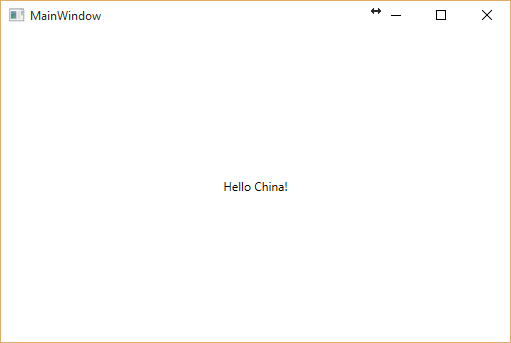
        <TextBlock Text="Hello China!" VerticalAlignment="Center" HorizontalAlignment="Center"/>

    </Grid>

</Page>
运行效果:
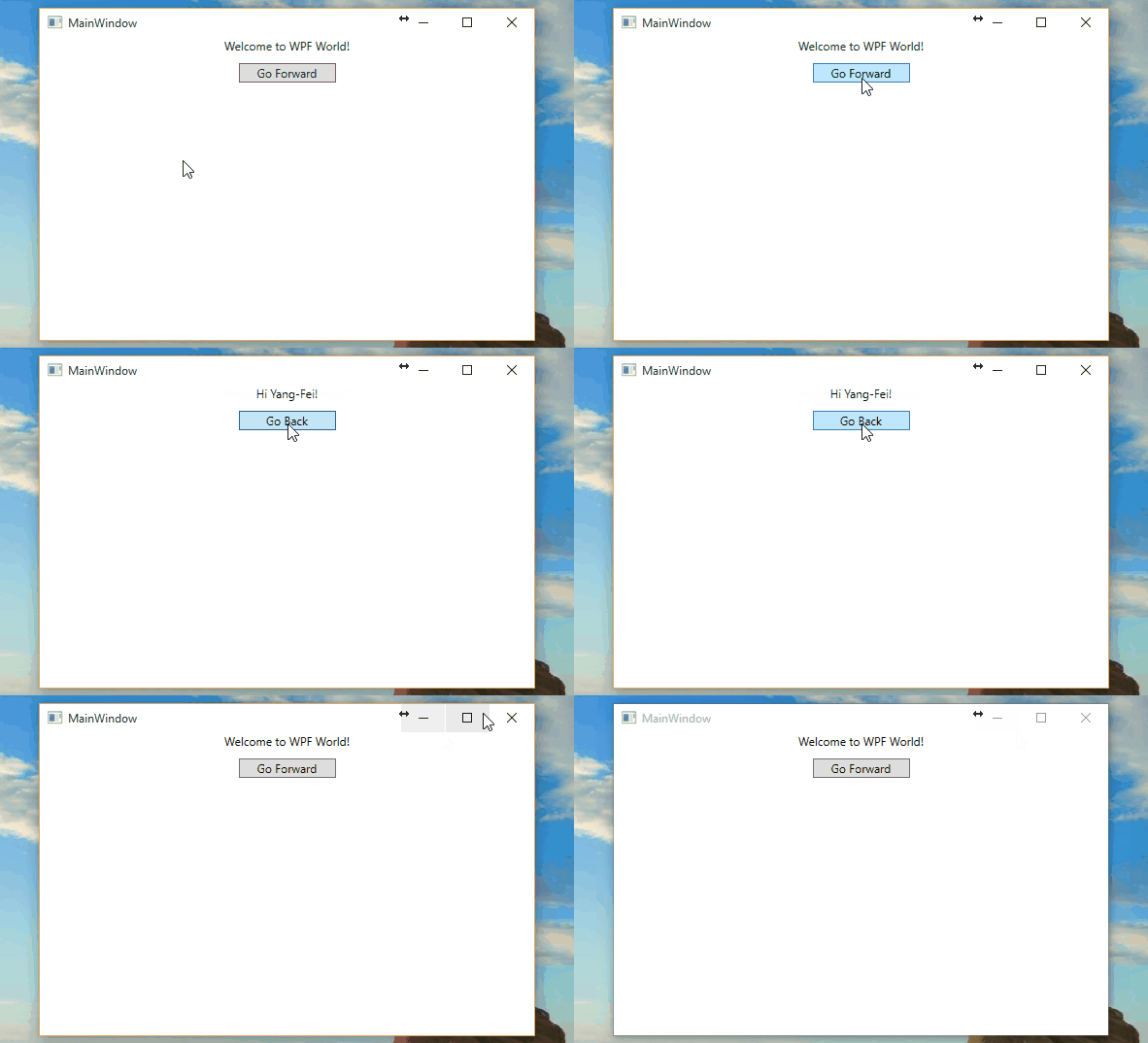
再新建一个GreetingPage.xaml,我们在WelcomePage上添加一个Button,点击Button时跳转到GreetingPage.xaml,在GreetingPage上也有一个Button,点击返回到WelcomePage。
WelcomePage.xaml
<Page x:Class="NavigationBasedApp.WelcomePage"

      xmlns="http://schemas.microsoft.com/winfx/2006/xaml/presentation"

      xmlns:x="http://schemas.microsoft.com/winfx/2006/xaml"

      xmlns:mc="http://schemas.openxmlformats.org/markup-compatibility/2006"

      xmlns:d="http://schemas.microsoft.com/expression/blend/2008"

      xmlns:local="clr-namespace:NavigationBasedApp"

      mc:Ignorable="d"

      d:DesignHeight="300" d:DesignWidth="300"

      Title="WelcomePage">

    <Grid>

        <Grid.RowDefinitions>

            <RowDefinition Height="Auto"/>

            <RowDefinition Height="Auto"/>

        </Grid.RowDefinitions>

        <TextBlock Text="Welcome to WPF World!" HorizontalAlignment="Center"/>

        <Button Grid.Row="1" Width="100" Margin="0,10" Content="Go Forward" Click="GoForwardButton_Click"/>

    </Grid>

</Page>
Code Behind:
        private void GoForwardButton_Click(object sender, RoutedEventArgs e)

        {

            if (this.NavigationService.CanGoForward)

            {

                this.NavigationService.GoForward();

            }

            else

            {

                //GreetingPage greeting = new GreetingPage();

                //this.NavigationService.Navigate(greeting);

                this.NavigationService.Navigate(new Uri("pack://application:,,,/GreetingPage.xaml"));

            }

        }
导航时,可以传递GreetingPage.xaml地址,也可以是GreetingPage对象。可以在 if (this.NavigationService.CanGoForward) 加一个断点,在从GreetingPage返回到WelcomePage后,再次点击Go Forward按钮时,直接使用this.NavigationService.GoForward()这句代码进行了导航,这是因为导航发生后,会在NavigationService中会记录导航记录。
GreetingPage.xaml:
<Page x:Class="NavigationBasedApp.GreetingPage"

      xmlns="http://schemas.microsoft.com/winfx/2006/xaml/presentation"

      xmlns:x="http://schemas.microsoft.com/winfx/2006/xaml"

      xmlns:mc="http://schemas.openxmlformats.org/markup-compatibility/2006"

      xmlns:d="http://schemas.microsoft.com/expression/blend/2008"

      xmlns:local="clr-namespace:NavigationBasedApp"

      mc:Ignorable="d"

      d:DesignHeight="300" d:DesignWidth="300"

      Title="GreetingPage">

    <Grid>

        <Grid.RowDefinitions>

            <RowDefinition Height="Auto"/>

            <RowDefinition Height="Auto"/>

        </Grid.RowDefinitions>

        <TextBlock Text="Hi Yang-Fei!" HorizontalAlignment="Center"/>

        <Button Grid.Row="1" Margin="0,10" Width="100" Content="Go Back" Click="GoBackButton_Click"/>

    </Grid>

</Page>
Code Behind:
        private void GoBackButton_Click(object sender, RoutedEventArgs e)

        {

            this.NavigationService.GoBack();

        }
运行效果:
可以在导航时传递参数。然后再NavigationWindow中获取。例如:
 GreetingPage greeting = new GreetingPage();

 this.NavigationService.Navigate(greeting,"This is a test message.");
在MainWindow中,
        public MainWindow()

        {

            InitializeComponent();

            this.NavigationService.LoadCompleted += NavigationService_LoadCompleted;

        }

        private void NavigationService_LoadCompleted(object sender, NavigationEventArgs e)

        {

            if(e.ExtraData != null)

            {

               // Do something here...

            }

        }
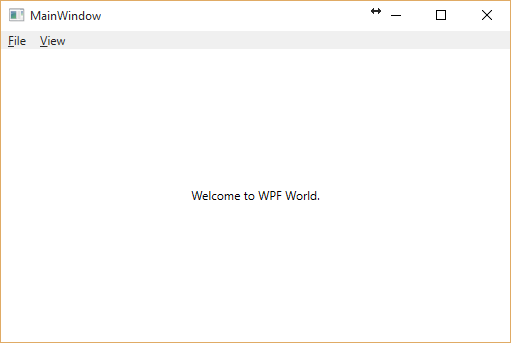
上面提到的Frame也可以作为Page的承载。和NavigationWindow的区别在于NavigationWindow是全局翻页,Frame是局部翻页。
<Window x:Class="FrameNavigationBasedApp.MainWindow"

        xmlns="http://schemas.microsoft.com/winfx/2006/xaml/presentation"

        xmlns:x="http://schemas.microsoft.com/winfx/2006/xaml"

        xmlns:d="http://schemas.microsoft.com/expression/blend/2008"

        xmlns:mc="http://schemas.openxmlformats.org/markup-compatibility/2006"

        xmlns:local="clr-namespace:FrameNavigationBasedApp"

        mc:Ignorable="d"

        Title="MainWindow" Height="350" Width="525">

    <DockPanel>

        <Menu DockPanel.Dock="Top">

            <MenuItem Header="_File"/>

            <MenuItem Header="_View"/>

        </Menu>

        <Frame x:Name="frmMain" NavigationUIVisibility="Hidden" Source="WelcomePage.xaml"/>

    </DockPanel>

</Window>
运行效果:
这篇博客就到这里了,代码点击这里下载。
感谢您的阅读。
WPF Navigation的更多相关文章
- WPF Navigation导航
WPF导航这个话题,网上的解决方法有很多种,有点吃猪脚的感觉,弃之可惜,食之乏味. 不过还是简单聊聊吧. 常见的导航: 利用HyperLink导航,可以到某一个Page页面,也可以是外部链接,当然也可 ...
- WPF的页面导航
工作中之前接触过的WPF程序一直是使用TabControl作不同页面间的切换,每个Tab负责独立的功能,清晰简捷,所以一直就没有动力研究WPF自带的页面导航.(虽然接触过使用页面导航的WPF项目,也并 ...
- ModernUI教程:第一个ModernUI应用(采用项目模板)
在我们开始之前,请确保你已经为你的Visual2012或者2013安装了ModernUI for WPF的模板扩展: >>从Visual Studio 库 下载并安装VSIX扩展 > ...
- WPF仿Word头部格式,涉及DEV RibbonControl,NarvbarControl,ContentPresenter,Navigation
时隔1个月,2015/06/17走进新的环境. 最近一个星期在学习仿Word菜单栏的WPF实现方式,废话不多说,先看一下效果. 打开界面后,默认选中[市场A],A对应的菜单栏,如上图, 选择[市场B] ...
- WPF笔记(1.2 Navigation导航)——Hello,WPF!
原文:WPF笔记(1.2 Navigation导航)--Hello,WPF! 这一节是讲导航的.看了一遍,发现多不能实现,因为版本更新了,所以很多旧的语法不支持了,比如说,不再有NavigationA ...
- 从PRISM开始学WPF(八)導航Navigation?
0x6Navigation Basic Navigation Prism中的Navigation提供了一种类似导航的功能,他可以根据用户的输入,来刷新UI. 先看一个最简单的例子,通过按钮来导航到一个 ...
- 从PRISM开始学WPF(八)导航Navigation?
原文:从PRISM开始学WPF(八)导航Navigation? 0x6Navigation Basic Navigation Prism中的Navigation提供了一种类似导航的功能,他可以根据用户 ...
- C# WPF抽屉效果实现(C# WPF Material Design UI: Navigation Drawer & PopUp Menu)
时间如流水,只能流去不流回! 点赞再看,养成习惯,这是您给我创作的动力! 本文 Dotnet9 https://dotnet9.com 已收录,站长乐于分享dotnet相关技术,比如Winform.W ...
- 搭建QQ聊天通信的程序:(1)基于 networkcomms.net 创建一个WPF聊天客户端服务器应用程序 (1)
搭建QQ聊天通信的程序:(1)基于 networkcomms.net 创建一个WPF聊天客户端服务器应用程序 原文地址(英文):http://www.networkcomms.net/creating ...
随机推荐
- angulaijs中的ng-upload-file与阿里云oss服务的结合,实现在浏览器端上传文件到阿里云(速度可以达到1.5M)
2015-10-26 angularjs结合aliyun浏览器端oos文件上传加临时身份验证例子 在服务端获取sts 源码: public class StsServiceSample { // 目前 ...
- ModelState.IsValid
model内的设置如下所示: /// <summary> /// 取得或设置邮编 /// </summary> [RegularExpression(@"(^[1-9 ...
- poj 1442
一个排序的题目. 题意:给你m个数a[m],和n个数b[n]. 首先a[0]….a[b[0]]排序.输出第一个数. 然后a[0]….a[b[1]]排序.输出第二个数. 以此类推,直到输出第n个数. 思 ...
- codecademy-command line-inputoutput
What happens when you type this command? $ echo "Hello" Hello The echo command accepts the ...
- DataTemplate应用
在WPF中,决定数据外观的是DataTemplate,即DataTemplate是数据内容的表现形式,一条数据显示成什么样子,是简单的文本还是直观的图形,就是由DataTemplate决定的.下面通过 ...
- Effective C++ -----条款34:区分接口继承和实现继承
接口继承和实现继承不同.在public继承之下,derived classes总是继承base class的接口. pure virtual函数只具体指定接口继承. 简朴的(非纯)impure vir ...
- 头文件algorithm中的常用函数
非修改性序列操作(12个) 循环 对序列中的每个元素执行某操作 for_each() 查找 在序列中找出某个值的第一次出现的位置 fin ...
- (2016弱校联盟十一专场10.2) A.Nearest Neighbor Search
题目链接 水题,算一下就行. #include <bits/stdc++.h> using namespace std; typedef long long ll; ll x[],y[], ...
- IOS-多线程技术
三种: •NSThread: –优点:NSThread 比其他两个轻量级,使用简单 –缺点:需要自己管理线程的生命周期.线程同步.加锁.睡眠以及唤醒等.线程同步对数据的加锁会有一定的系统开销 •NSO ...
- osg四元数设置roll pitch heading角度
roll绕Y轴旋转 pitch绕X轴旋转 heading绕Z轴旋转 单位是弧度,可以使用osg::inDegrees(45)将45角度转换为弧度 定义一个四元数 osg::Quat q( roll,o ...