
UWP控件与DataBind
在uwp开发中必不可少的一个环节就是各种通用的控件的开发,所以在闲暇时间汇总了一下在uwp开发中控件的几种常用写法,以及属性的几种绑定方式,有可能不全面,请大家多多包涵 :)
1、先从win10新增的{x:Bind}绑定方式说起,相对于{Binding},{x:Bind}在时间复杂度和空间复杂度上都要降低不少。但并不是说{x:Bind}能够完全取代{Binding},因为{x:Bind} 比 {Binding} 少了许多功能,例如 Source、UpdateSourceTrigger等,并且不支持后台C#代码编写,所以使用者还是要根据自己的需求来选择用哪种方式,下面是Control1的简单实现
Control1.xaml
<UserControl

    x:Class="Controls.Control1"

    xmlns="http://schemas.microsoft.com/winfx/2006/xaml/presentation"

    xmlns:x="http://schemas.microsoft.com/winfx/2006/xaml"

    xmlns:local="using:Controls"

    xmlns:d="http://schemas.microsoft.com/expression/blend/2008"

    xmlns:mc="http://schemas.openxmlformats.org/markup-compatibility/2006"

    mc:Ignorable="d"

    d:DesignHeight=""

    d:DesignWidth="">

    <Grid>

        <TextBlock Text="{x:Bind Text}"></TextBlock>

    </Grid>

</UserControl>
Control1.xaml.cs
using Windows.UI.Xaml.Controls;

// The User Control item template is documented at http://go.microsoft.com/fwlink/?LinkId=234236

namespace Controls

{

    public sealed partial class Control1 : UserControl

    {

        public Control1()

        {

            this.InitializeComponent();

        }

        public string Text { set; get; }

    }

}
使用方式
<Page

    x:Class="Controls.MainPage"

    xmlns="http://schemas.microsoft.com/winfx/2006/xaml/presentation"

    xmlns:x="http://schemas.microsoft.com/winfx/2006/xaml"

    xmlns:local="using:Controls"

    xmlns:d="http://schemas.microsoft.com/expression/blend/2008"

    xmlns:mc="http://schemas.openxmlformats.org/markup-compatibility/2006"

    mc:Ignorable="d"

    xmlns:controls="using:Controls">

    <StackPanel Background="{ThemeResource ApplicationPageBackgroundThemeBrush}" Margin="">

        <controls:Control1 Text="这是控件1"></controls:Control1>

    </StackPanel>

</Page>
值得一提是{x:Bind}在DataTemplate中绑定时是需要指定类型的(x:DataType),并且Mode默认是OneTime,所以使用者如果有需要千万不要忘了改成Mode=OneWay或者Mode=TwoWay
<DataTemplate x:DataType="model:Student">

        <TextBlock Text="{x:Bind Name}"></TextBlock>

        <TextBlock Text="{x:Bind Age}"></TextBlock>

</DataTemplate>
2、{Binding}绑定方式,大家应该比较熟悉了,它提供了丰富的绑定功能,绑定方式也比较灵活,闲话不多说啦,下面的Control2和Control3的实现
TextVisibilityConverter.cs
using System;

using System.Collections.Generic;

using System.Linq;

using System.Text;

using System.Threading.Tasks;

using Windows.UI.Xaml;

using Windows.UI.Xaml.Data;

namespace Controls.Common

{

    public class TextVisibilityConverter : IValueConverter

    {

        public object Convert(object value, Type targetType, object parameter, string language)

        {

            if(value is string)

            {

                var text = value as string;

                if(string.IsNullOrEmpty(text))

                {

                    return Visibility.Collapsed;

                }

                else

                {

                    return Visibility.Visible;

                }

            }

            return Visibility.Visible;

        }

        public object ConvertBack(object value, Type targetType, object parameter, string language)

        {

            throw new NotImplementedException();

        }

    }

}
Control2.xaml
<UserControl

    x:Class="Controls.Control2"

    xmlns="http://schemas.microsoft.com/winfx/2006/xaml/presentation"

    xmlns:x="http://schemas.microsoft.com/winfx/2006/xaml"

    xmlns:local="using:Controls"

    xmlns:converter="using:Controls.Common"

    xmlns:d="http://schemas.microsoft.com/expression/blend/2008"

    xmlns:mc="http://schemas.openxmlformats.org/markup-compatibility/2006"

    mc:Ignorable="d"

    d:DesignHeight=""

    d:DesignWidth="">

    <UserControl.Resources>

        <converter:TextVisibilityConverter x:Name="TextVisibilityConverter"></converter:TextVisibilityConverter>

    </UserControl.Resources>

    <Grid>

        <TextBlock Text="{Binding Text}" Visibility="{Binding Text,Converter={StaticResource TextVisibilityConverter}}"></TextBlock>

    </Grid>

</UserControl>
Control2.xaml.cs
using Windows.UI.Xaml;

using Windows.UI.Xaml.Controls;

// The User Control item template is documented at http://go.microsoft.com/fwlink/?LinkId=234236

namespace Controls

{

    public sealed partial class Control2 : UserControl

    {

        public Control2()

        {

            this.InitializeComponent();

            this.DataContext = this;

        }

        public string Text

        {

            get { return (string)GetValue(TextProperty); }

            set { SetValue(TextProperty, value); }

        }

        // Using a DependencyProperty as the backing store for Text.  This enables animation, styling, binding, etc...

        public static readonly DependencyProperty TextProperty =

            DependencyProperty.Register("Text", typeof(string), typeof(Control2), new PropertyMetadata(""));

    }

}
Control3.xaml
<UserControl

    x:Class="Controls.Control3"

    Name="uc"

    xmlns="http://schemas.microsoft.com/winfx/2006/xaml/presentation"

    xmlns:x="http://schemas.microsoft.com/winfx/2006/xaml"

    xmlns:local="using:Controls"

    xmlns:d="http://schemas.microsoft.com/expression/blend/2008"

    xmlns:mc="http://schemas.openxmlformats.org/markup-compatibility/2006"

    mc:Ignorable="d"

    d:DesignHeight=""

    d:DesignWidth="">

    <Grid>

        <TextBlock Text="{Binding ElementName=uc,Path=Text}"></TextBlock>

    </Grid>

</UserControl>
Control3.xaml.cs
using System;

using System.Collections.Generic;

using System.IO;

using System.Linq;

using System.Runtime.InteropServices.WindowsRuntime;

using Windows.Foundation;

using Windows.Foundation.Collections;

using Windows.UI.Xaml;

using Windows.UI.Xaml.Controls;

using Windows.UI.Xaml.Controls.Primitives;

using Windows.UI.Xaml.Data;

using Windows.UI.Xaml.Input;

using Windows.UI.Xaml.Media;

using Windows.UI.Xaml.Navigation;

// The User Control item template is documented at http://go.microsoft.com/fwlink/?LinkId=234236

namespace Controls

{

    public sealed partial class Control3 : UserControl

    {

        public Control3()

        {

            this.InitializeComponent();

        }

        public string Text { set; get; }

    }

}
大家可以看出Control2和Control3是有些微差别的:
Control2是通过 this.DataContext = this,然后将依赖属性(至于为什么是依赖属性,下面会有详细的介绍)绑到xaml页面的控件属性上
Control3的特点也不难发现,充分利用了{Binding}强大功能的一个小小角落;个人感觉应该提一下的是,如果Control3有一个叫做Control1属性,类型是Control1,我们可以把控件1绑到控件3上面去,这样我们就可以在控件3里访问控件1啦,这个只是{Binding}灵活运用的一个例子
<controls:Control1 x:Name="ctr1" Text="这是控件1"></controls:Control1>

<controls:Control3 Control1="{Binding ElementName=ctr1}"></controls:Control3>
3、通过依赖属性的PropertyChangedCallback来实现对控件属性赋值,请看示例Control5
Control5.xaml
<UserControl

    x:Class="Controls.Control5"

    xmlns="http://schemas.microsoft.com/winfx/2006/xaml/presentation"

    xmlns:x="http://schemas.microsoft.com/winfx/2006/xaml"

    xmlns:local="using:Controls"

    xmlns:d="http://schemas.microsoft.com/expression/blend/2008"

    xmlns:mc="http://schemas.openxmlformats.org/markup-compatibility/2006"

    mc:Ignorable="d"

    d:DesignHeight=""

    d:DesignWidth="">

    <Grid>

        <TextBlock Name="txt"></TextBlock>

    </Grid>

</UserControl>
Control5.xaml.cs
using Windows.UI.Xaml;

using Windows.UI.Xaml.Controls;

// The User Control item template is documented at http://go.microsoft.com/fwlink/?LinkId=234236

namespace Controls

{

    public sealed partial class Control5 : UserControl

    {

        public Control5()

        {

            this.InitializeComponent();

        }

        public string Text

        {

            get { return (string)GetValue(TextProperty); }

            set { SetValue(TextProperty, value); }

        }

        // Using a DependencyProperty as the backing store for Text.  This enables animation, styling, binding, etc...

        public static readonly DependencyProperty TextProperty =

            DependencyProperty.Register("Text", typeof(string), typeof(Control5), new PropertyMetadata("", OnTextChanged));

        private static void OnTextChanged(DependencyObject d, DependencyPropertyChangedEventArgs e)

        {

            var me = d as Control5;

            me.OnTextChanged();

        }

        private void OnTextChanged()

        {

            var text = txt.Text = this.Text;

            if (string.IsNullOrEmpty(text))

            {

                txt.Visibility = Visibility.Collapsed;

            }

            else

            {

                txt.Visibility = Visibility.Visible;

            }

        }

    }

}
不用通过任何绑定,就可以实现数据赋值,好处在于更加灵活,实现了与Control2同样的功能,您会不会觉得与使用Converter相比,这样写更加直观和舒服呢,而且很多复杂的功能都可以在OnTextChanged里面处理。当然,并不是说Converter是多余的,如果仅限于“值”的转换,Converter还是很方便的,而且还可以重用。
如果我们增加一个属性TextMaxLength,用来表示最多可显示的字符数,这样我们把Control5做一下改装
Control5.xaml
<UserControl

    x:Class="Controls.Control5"

    xmlns="http://schemas.microsoft.com/winfx/2006/xaml/presentation"

    xmlns:x="http://schemas.microsoft.com/winfx/2006/xaml"

    xmlns:local="using:Controls"

    xmlns:d="http://schemas.microsoft.com/expression/blend/2008"

    xmlns:mc="http://schemas.openxmlformats.org/markup-compatibility/2006"

    mc:Ignorable="d"

    d:DesignHeight=""

    d:DesignWidth="">

    <StackPanel>

        <TextBlock Name="txt"></TextBlock>

        <TextBlock><Run Text="最多可显示"></Run><Run x:Name="run1" Foreground="Red"></Run><Run Text="个字符"></Run></TextBlock>

        <TextBlock><Run Text="还有"></Run><Run x:Name="run2" Foreground="Blue"></Run><Run Text="个字符可以显示"></Run></TextBlock>

    </StackPanel>

</UserControl>
Control5.xaml.cs
using Windows.UI.Xaml;

using Windows.UI.Xaml.Controls;

// The User Control item template is documented at http://go.microsoft.com/fwlink/?LinkId=234236

namespace Controls

{

    public sealed partial class Control5 : UserControl

    {

        public Control5()

        {

            this.InitializeComponent();

        }

        public int TextMaxLength

        {

            get { return (int)GetValue(TextMaxLengthProperty); }

            set { SetValue(TextMaxLengthProperty, value); }

        }

        // Using a DependencyProperty as the backing store for TextMaxLength.  This enables animation, styling, binding, etc...

        public static readonly DependencyProperty TextMaxLengthProperty =

            DependencyProperty.Register("TextMaxLength", typeof(int), typeof(Control5),

                new PropertyMetadata(int.MaxValue, OnTextChanged));

        public string Text

        {

            get { return (string)GetValue(TextProperty); }

            set { SetValue(TextProperty, value); }

        }

        // Using a DependencyProperty as the backing store for Text.  This enables animation, styling, binding, etc...

        public static readonly DependencyProperty TextProperty =

            DependencyProperty.Register("Text", typeof(string), typeof(Control5),

                new PropertyMetadata("", OnTextChanged));

        private static void OnTextChanged(DependencyObject d, DependencyPropertyChangedEventArgs e)

        {

            var me = d as Control5;

            me.OnTextChanged();

        }

        private void OnTextChanged()

        {

            run1.Text = TextMaxLength.ToString();

            if (string.IsNullOrEmpty(this.Text))

            {

                txt.Visibility = Visibility.Collapsed;

            }

            else

            {

                txt.Visibility = Visibility.Visible;

                var len = this.Text.Length;

                if (len <= TextMaxLength)

                {

                    txt.Text = this.Text;

                    run2.Text = (TextMaxLength - len).ToString();

                }

                else

                {

                    txt.Text = this.Text.Remove(TextMaxLength);

                    run2.Text = "";

                }

            }

        }

    }

}
使用方式
<Page

    x:Class="Controls.MainPage"

    xmlns="http://schemas.microsoft.com/winfx/2006/xaml/presentation"

    xmlns:x="http://schemas.microsoft.com/winfx/2006/xaml"

    xmlns:local="using:Controls"

    xmlns:d="http://schemas.microsoft.com/expression/blend/2008"

    xmlns:mc="http://schemas.openxmlformats.org/markup-compatibility/2006"

    mc:Ignorable="d"

    xmlns:controls="using:Controls">

    <StackPanel Background="{ThemeResource ApplicationPageBackgroundThemeBrush}" HorizontalAlignment="Center" Margin="">

        <controls:Control5 x:Name="control5" TextMaxLength="" Text="这是控件5"></controls:Control5>

    </StackPanel>

</Page>
运行结果

需求好无厘头啊,不过确实体现出了通过PropertyChangedCallback来处理实现两种或两种以上属性间“联动”(我给起的名字,具体意思就是多个属性联合在一起来实现某个功能,意会吧)情况的方便之处,在这里提醒一下大家,请尽量使用同一个PropertyChangedCallback来处理属性“联动”问题,否则可能会因为属性赋值先后问题,而导致出现各种“值”不一致的bug
4、{TemplateBinding}绑定方式实现自定义控件
用UserControl来制作自定义控件是一个很方便的做法,但是用来制作一些简单或者功能单一的那些最基本的自定义控件时,就显得有点大材小用了,同时UserControl也带来了许多多余的开销,这个时候就可以用另外一种方式来编写这样的控件了,我们可以通过看一下Control4的实现方式,来了解一下
Generic.xaml
<ResourceDictionary

    xmlns="http://schemas.microsoft.com/winfx/2006/xaml/presentation"

    xmlns:x="http://schemas.microsoft.com/winfx/2006/xaml"

    xmlns:controls="using:Controls">

    <Style TargetType="controls:Control4">

        <Setter Property="Template">

            <Setter.Value>

                <ControlTemplate TargetType="controls:Control4">

                    <Grid>

                        <TextBlock x:Name="txt" Text="{TemplateBinding Text}"></TextBlock>

                    </Grid>

                </ControlTemplate>

            </Setter.Value>

        </Setter>

    </Style>

</ResourceDictionary>
Control4.cs
using Windows.UI.Xaml;

using Windows.UI.Xaml.Controls;

namespace Controls

{

    public class Control4 : Control

    {

        TextBlock txt;

        public Control4()

        {

            DefaultStyleKey = typeof(Control4);

        }

        //public string Text { set; get; }

        public string Text

        {

            get { return (string)GetValue(TextProperty); }

            set { SetValue(TextProperty, value); }

        }

        // Using a DependencyProperty as the backing store for Text.  This enables animation, styling, binding, etc...

        public static readonly DependencyProperty TextProperty =

            DependencyProperty.Register("Text", typeof(string), typeof(Control4), new PropertyMetadata(""));

        protected override void OnApplyTemplate()

        {

            base.OnApplyTemplate();

            txt = GetTemplateChild("txt") as TextBlock;

        }

    }

}
这种实现方式有几个特点:
a)Generic.xaml文件要放在主项目的根目录下的一个叫做“Themes”的文件夹下,如果没有“Themes”文件夹,可以自己创建一个
b)构造函数里不能缺少DefaultStyleKey = typeof(Control4)
c)您需要对控件的生命周期有一定的了解,因为在不同的时期txt有可能为null
d)所有的绑定方式都是TemplateBinding,当然你也可以用txt.Text=Text来赋值,但是在这之前最好能确定txt不为空
一般在重写控件时使用的比较多例如重写Button、ListView等,您可以到系统的“C:\Program Files (x86)\Windows Kits\10\DesignTime\CommonConfiguration\Neutral\UAP\{版本号比如 10.0.10586.0}\Generic\generic.xaml”里找到这些控件的样式,可以根据视觉需求对控件样式做一些修改,也可以增加一些自定义的功能
5、比较一下
把这5个控件放到一起比较一下
MainPage.xaml
<Page

    x:Class="Controls.MainPage"

    xmlns="http://schemas.microsoft.com/winfx/2006/xaml/presentation"

    xmlns:x="http://schemas.microsoft.com/winfx/2006/xaml"

    xmlns:local="using:Controls"

    xmlns:d="http://schemas.microsoft.com/expression/blend/2008"

    xmlns:mc="http://schemas.openxmlformats.org/markup-compatibility/2006"

    mc:Ignorable="d"

    xmlns:controls="using:Controls">

    <StackPanel Background="{ThemeResource ApplicationPageBackgroundThemeBrush}" HorizontalAlignment="Center" Margin="">

        <controls:Control1 x:Name="control1" Text="这是控件1"></controls:Control1>

        <controls:Control2 x:Name="control2" Text="这是控件2"></controls:Control2>

        <controls:Control3 x:Name="control3" Text="这是控件3"></controls:Control3>

        <controls:Control4 x:Name="control4" Text="这是控件4"></controls:Control4>

        <controls:Control5 x:Name="control5" Text="这是控件5"></controls:Control5>

        <TextBox Name="txt"></TextBox>

        <Button Click="Button_Click">update</Button>

    </StackPanel>

</Page>
MainPage.xaml.cs
using Windows.UI.Xaml;

using Windows.UI.Xaml.Controls;

// The Blank Page item template is documented at http://go.microsoft.com/fwlink/?LinkId=402352&clcid=0x409

namespace Controls

{

    /// <summary>

    /// An empty page that can be used on its own or navigated to within a Frame.

    /// </summary>

    public sealed partial class MainPage : Page

    {

        public MainPage()

        {

            this.InitializeComponent();

        }

        private void Button_Click(object sender, RoutedEventArgs e)

        {

            control1.Text = txt.Text;

            control2.Text = txt.Text;

            control3.Text = txt.Text;

            control4.Text = txt.Text;

            control5.Text = txt.Text;

        }

    }

}
运行结果
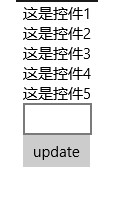
看上去这些控件都没有问题,但是如果我们在TextBox中输入内容,然后update一下,再看一下结果
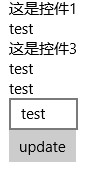
我们发现Control1和Control3的值没有更新,问题到底出在哪呢?仔细检查一下会发现这俩个控件的Text属性是普通属性(public string Text { set; set; }),依赖属性是有通知属性变更的能力的,而普通属性是不具备这个能力的,所以我们需要控件继承INotifyPropertyChanged接口,于是我们将Control1.xaml.cs作如下变更,Control3也如Control1一样
using System.ComponentModel;

using System.Runtime.CompilerServices;

using Windows.UI.Xaml.Controls;

// The User Control item template is documented at http://go.microsoft.com/fwlink/?LinkId=234236

namespace Controls

{

    public sealed partial class Control1 : UserControl, INotifyPropertyChanged

    {

        public event PropertyChangedEventHandler PropertyChanged;

        public void RaisePropertyChanged([CallerMemberName]string propertyName = null)

        {

            var handler = PropertyChanged;

            if (handler != null)

                handler(this, new PropertyChangedEventArgs(propertyName));

        }

        public Control1()

        {

            this.InitializeComponent();

        }

        private string text;

        public string Text

        {

            get

            {

                return text;

            }

            set

            {

                text = value;

                RaisePropertyChanged();

            }

        }

    }

}
现在我们再来看一下运行结果
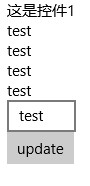
Control3是可以了,可是为什么Control1还是不能更新呢,why?让我们来重新看一下Control1的code,原来问题出现在这里
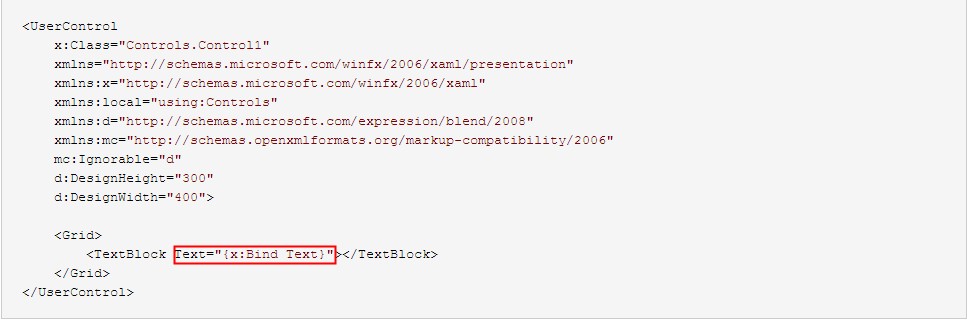
前面我们说过{x:Bind}的默认Mode是OneTime,所以我们需要把它改成OneWay
<UserControl

    x:Class="Controls.Control1"

    xmlns="http://schemas.microsoft.com/winfx/2006/xaml/presentation"

    xmlns:x="http://schemas.microsoft.com/winfx/2006/xaml"

    xmlns:local="using:Controls"

    xmlns:d="http://schemas.microsoft.com/expression/blend/2008"

    xmlns:mc="http://schemas.openxmlformats.org/markup-compatibility/2006"

    mc:Ignorable="d"

    d:DesignHeight=""

    d:DesignWidth="">

    <Grid>

        <TextBlock Text="{x:Bind Text,Mode=OneWay}"></TextBlock>

    </Grid>

</UserControl>
再来不厌其烦地看一下结果

Great!用螺丝钉们经常说的一句话叫“大功告成”。:-D
题外话,给大家出个谜语,猜一猜下面的程序运行结果是多少?
for (var i = ; i < ; i++)

{

    await Dispatcher.RunAsync(Windows.UI.Core.CoreDispatcherPriority.Normal, async () =>

    {

        await Dispatcher.RunAsync(Windows.UI.Core.CoreDispatcherPriority.Normal, () =>

        {

            Debug.WriteLine(i);

        });

    });

}
UWP控件与DataBind的更多相关文章
- WindowsXamlHost:在 WPF 中使用 UWP 控件库中的控件
在 WindowsXamlHost:在 WPF 中使用 UWP 的控件(Windows Community Toolkit) 一文中,我们说到了在 WPF 中引入简单的 UWP 控件以及相关的注意事项 ...
- 使用 Microsoft.UI.Xaml 解决 UWP 控件和对老版本 Windows 10 的兼容性问题
原文 使用 Microsoft.UI.Xaml 解决 UWP 控件和对老版本 Windows 10 的兼容性问题 虽然微软宣称 Windows 10 将是最后一个 Windows 版本,但由于年代跨越 ...
- uwp - 控件精确移动动画
原文:uwp - 控件精确移动动画 先看效果图: 一共有8个GRID,黄色的负责移动,其他7个负责定位.新建一个页面page,替换默认代码: <UserControl.Resources> ...
- Windows Community Toolkit 3.0 新功能 在WinForms 和 WPF 使用 UWP 控件
本文告诉大家一个令人震惊的消息,Windows Community Toolkit 有一个大更新,现在的版本是 3.0 .最大的提升就是 WinForm 和 WPF 程序可以使用部分 UWP 控件. ...
- DevExpress Windows 10 v19.1新版亮点:UWP控件新功能全面解析
行业领先的.NET界面控件DevExpress 日前正式发布v19.1版本,本站将以连载的形式介绍各版本新增内容.在本系列文章中将为大家介绍DevExpress WPF v19.1中新增的一些控件及部 ...
- WindowsXamlHost:在 WPF 中使用 UWP 的控件(Windows Community Toolkit)
Windows Community Toolkit 再次更新到 5.0.以前可以在 WPF 中使用有限的 UWP 控件,而现在有了 WindowsXamlHost,则可以使用更多 UWP 原生控件了. ...
- 控件UI性能调优 -- SizeChanged不是万能的
简介 我们在之前的“UWP控件开发——用NuGet包装自己的控件“一文中曾提到XAML的布局系统 和平时使用上的一些问题(重写Measure/Arrange还是使用SizeChanged?),这篇博文 ...
- 共享你的控件 -- 用NuGet包装自己的控件
简介 在当前的开发中,NuGet的使用已经有了不小的地位,特别是应用.NET Core的UWP开发里,模块化的平台本身更是直接依赖于NuGet这一包管理器. 有时自己开发了一个不错的控组件,想通过Nu ...
- ASP.NET_验证控件(class0620)
为什么使用验证控件 当需要让用户输入数据时,用户有可能输入不符合我们程序逻辑要求的信息,所以我们要对输入进行验证. 客户端验证(用户体验,减少服务器端压力) 服务器端验证(防止恶意攻击,客户端js很容 ...
随机推荐
- jquery和Js的区别和基础操作
jqery的语法和js的语法一样,算是把js升级了一下,这两种语法可以一起使用,只不过是用jqery更加方便 一个页面想要使用jqery的话,先要引入一下jqery包,jqery包从网上下一个就可以, ...
- 前端框架 EasyUI (2)页面布局 Layout
在 Web 程序中,页面布局对应用程序的用户体验至关重要. 在一般的信息管理类的 Web 应用程序中,页面结构通常有一个主工作区,然后在工作区上下左右靠近边界的区域设置一些边栏,用于显示信息或放置一些 ...
- iOS审核这些坑,腾讯游戏也踩过
作者:Jamie,专项技术测试工程师,在iOS预审和ASO优化领域从事专项测试相关工作,为腾讯游戏近100个产品提供专项服务. WeTest 导读 在App上架苹果应用商店的过程中,相信大多数iOS开 ...
- WebApi接口 - 如何在应用中调用webapi接口
很高兴能再次和大家分享webapi接口的相关文章,本篇将要讲解的是如何在应用中调用webapi接口:对于大部分做内部管理系统及类似系统的朋友来说很少会去调用别人的接口,因此可能在这方面存在一些困惑,希 ...
- await and async
Most people have already heard about the new “async” and “await” functionality coming in Visual Stud ...
- VS项目中使用Nuget还原包后编译生产还一直报错?
Nuget官网下载Nuget项目包的命令地址:https://www.nuget.org/packages 今天就遇到一个比较奇葩的问题,折腾了很久终于搞定了: 问题是这样的:我的解决方案原本是好好的 ...
- H3 BPM让天下没有难用的流程之技术体系
一.技术架构 H3 BPM 基于微软.NET 技术架构,采用C#语言开发,以高开放.高扩展.高性能为核心准则,遵循分层的设计原理,结合最新的B/S 以及智能手机应用开发技术研发的. 图:H3 BPM ...
- TFS 2015 敏捷开发实践 – 在Kanban上运行一个Sprint
前言:在 上一篇 TFS2015敏捷开发实践 中,我们给大家介绍了TFS2015中看板的基本使用和功能,这一篇中我们来看一个具体的场景,如何使用看板来运行一个sprint.Sprint是Scrum对迭 ...
- Collections
2017-01-06 22:50:43 数据结构和算法 <如何学习数据结构?>:https://www.zhihu.com/question/21318658 <How do I ...
- 机器学习之sklearn——EM
GMM计算更新∑k时,转置符号T应该放在倒数第二项(这样计算出来结果才是一个协方差矩阵) from sklearn.mixture import GMM GMM中score_samples函数第 ...