
在winform下实现左右布局多窗口界面的方法(二)
可视化设计部份:
1.父窗口:ParentForm的IsMdiContainer 设置为 true,即:this.IsMdiContainer=true;
2.在父窗口中添加一个顶部菜单:menuStrip1,并新增一个菜单项:Windows,且将menuStrip1的MdiWindowListItem设置为该Windows菜单对象,即: this.menuStrip1.MdiWindowListItem = this.windowsToolStripMenuItem;
3.在父窗口中添加一个树形菜单:treeView1,并将其Dock设为左靠齐,即:this.treeView1.Dock = System.Windows.Forms.DockStyle.Left;且将margin设为0;
4.在父窗口中添加一个Panel:panel1,且将其width设为3;
以下是设计后自动生成的代码:
namespace WinFormTest

{

partial class ParentForm

{

/// <summary>

/// 必需的设计器变量。

/// </summary>

private System.ComponentModel.IContainer components = null;

/// <summary>

/// 清理所有正在使用的资源。

/// </summary>

/// <param name="disposing">如果应释放托管资源,为 true;否则为 false。</param>

protected override void Dispose(bool disposing)

{

if (disposing && (components != null))

{

components.Dispose();

}

base.Dispose(disposing);

}

#region Windows 窗体设计器生成的代码

/// <summary>

/// 设计器支持所需的方法 - 不要

/// 使用代码编辑器修改此方法的内容。

/// </summary>

private void InitializeComponent()

{

this.menuStrip1 = new System.Windows.Forms.MenuStrip();

this.windowsToolStripMenuItem = new System.Windows.Forms.ToolStripMenuItem();

this.treeView1 = new System.Windows.Forms.TreeView();

this.panel1 = new System.Windows.Forms.Panel();

this.menuStrip1.SuspendLayout();

this.SuspendLayout();

//

// menuStrip1

//

this.menuStrip1.Items.AddRange(new System.Windows.Forms.ToolStripItem[] {

this.windowsToolStripMenuItem});

this.menuStrip1.Location = new System.Drawing.Point(0, 0);

this.menuStrip1.MdiWindowListItem = this.windowsToolStripMenuItem;

this.menuStrip1.Name = "menuStrip1";

this.menuStrip1.Size = new System.Drawing.Size(684, 25);

this.menuStrip1.TabIndex = 0;

this.menuStrip1.Text = "menuStrip1";

//

// windowsToolStripMenuItem

//

this.windowsToolStripMenuItem.Name = "windowsToolStripMenuItem";

this.windowsToolStripMenuItem.Size = new System.Drawing.Size(73, 21);

this.windowsToolStripMenuItem.Text = "Windows";

//

// treeView1

//

this.treeView1.Dock = System.Windows.Forms.DockStyle.Left;

this.treeView1.Location = new System.Drawing.Point(0, 25);

this.treeView1.Margin = new System.Windows.Forms.Padding(0);

this.treeView1.Name = "treeView1";

this.treeView1.Size = new System.Drawing.Size(228, 380);

this.treeView1.TabIndex = 3;

this.treeView1.NodeMouseDoubleClick += new System.Windows.Forms.TreeNodeMouseClickEventHandler(this.treeView1_NodeMouseDoubleClick);

//

// panel1

//

this.panel1.Anchor = ((System.Windows.Forms.AnchorStyles)(((System.Windows.Forms.AnchorStyles.Top | System.Windows.Forms.AnchorStyles.Bottom)

| System.Windows.Forms.AnchorStyles.Left)));

this.panel1.BackColor = System.Drawing.Color.Red;

this.panel1.BorderStyle = System.Windows.Forms.BorderStyle.FixedSingle;

this.panel1.Cursor = System.Windows.Forms.Cursors.VSplit;

this.panel1.Location = new System.Drawing.Point(230, 28);

this.panel1.Margin = new System.Windows.Forms.Padding(0);

this.panel1.Name = "panel1";

this.panel1.Size = new System.Drawing.Size(3, 100);

this.panel1.TabIndex = 5;

//

// Form1

//

this.AutoScaleDimensions = new System.Drawing.SizeF(6F, 12F);

this.AutoScaleMode = System.Windows.Forms.AutoScaleMode.Font;

this.ClientSize = new System.Drawing.Size(684, 405);

this.Controls.Add(this.panel1);

this.Controls.Add(this.treeView1);

this.Controls.Add(this.menuStrip1);

this.IsMdiContainer = true;

this.MainMenuStrip = this.menuStrip1;

this.Name = "Form1";

this.Text = "Form1";

this.Load += new System.EventHandler(this.Form1_Load);

this.Resize += new System.EventHandler(this.Form1_Resize);

this.menuStrip1.ResumeLayout(false);

this.menuStrip1.PerformLayout();

this.ResumeLayout(false);

this.PerformLayout();

}

#endregion

private System.Windows.Forms.MenuStrip menuStrip1;

private System.Windows.Forms.ToolStripMenuItem windowsToolStripMenuItem;

private System.Windows.Forms.TreeView treeView1;

private System.Windows.Forms.Panel panel1;

}

}
编码部份:
其实上面的设计后,如果通过以下定义的方法打开一个子窗口,则直接实现了左右布局且包含多子窗口的界面。
private void ShowChildForm<TForm>() where TForm : Form, new()

{

Form childForm = new TForm();

childForm.MdiParent = this;

childForm.Name = "ChildForm - " + DateTime.Now.Millisecond.ToString();

childForm.Text = childForm.Name;

childForm.Show();

}
当然仍然有不完美的地方,那就是左边菜单栏宽度不能动态调整,而又没有用到splitContainer,故我们只有自己来实现,其实也很简单,步骤如下:
1.在父窗口构造函数中加入初始化panel1(用作分割器)位置及订阅相关事件,代码如下:
public ParentForm()

{

InitializeComponent();

panel1.MouseDown += panel1_MouseDown;

panel1.MouseUp += panel1_MouseUp;

panel1.MouseMove += panel1_MouseMove;

panel1.Top = menuStrip1.Height;

panel1.Left = treeView1.Left + treeView1.Width;

panel1.Height = panel1.Parent.Height;

}
上述代码的作用是:1.保证panel1的高度与位置与左侧树形菜单控件相匹配;2.订阅的三个Mouse事件主要是为了后面实现移动panel1。
2.实现订阅的三个Mouse事件所对应的方法,分别为鼠标按下、鼠标移动、鼠标松开,代码如下:
private bool startMove = false; //用于标记是否在移动中

void panel1_MouseMove(object sender, MouseEventArgs e)

{

if (startMove)

{

panel1.Left += e.X;

}

}

void panel1_MouseUp(object sender, MouseEventArgs e)

{

if (startMove)

{

panel1.Left += e.X;

startMove = false;

this.treeView1.Width = panel1.Left;

}

}

void panel1_MouseDown(object sender, MouseEventArgs e)

{

startMove = true;

}
上述代码作用:按下鼠标标记为开始移动,然后移动鼠标,若是标记移动中,说明是要移动panel1,故直接将鼠标当前的X坐标位置累加到panel1.Left属性上,从而实现移动,当鼠标弹起后,则将树形菜单的宽度设置为panel1.Left,从而实现树形菜单随panel1的移动而改变大小。
同时为了保证panel1的高度始终与树形菜单相同,在父窗口的Resize方法加入动态调整panel1的高度,代码如下:
private void ParentForm_Resize(object sender, EventArgs e)

{

panel1.Height = panel1.Parent.Height;

}
到此就完成了整个的实现方案,为了便于模拟在树形菜单中双击打开子窗口的效果,同时也添加了如下代码:
private void ParentForm_Load(object sender, EventArgs e)

{

LoadMenuNodes();

}

private void LoadMenuNodes() //实现情况应该是从数据库及用户权限来进行动态创建菜单项

{

this.treeView1.Nodes.Clear();

var root = this.treeView1.Nodes.Add("Root");

for (int i = 1; i <= 10; i++)

{

var section = root.Nodes.Add("Section-" + i);

int maxNodes = new Random(i).Next(1, 10);

for (int n = 1; n <= maxNodes; n++)

{

section.Nodes.Add(string.Format("Level-{0}-{1}", i, n));

}

}

}

private void treeView1_NodeMouseDoubleClick(object sender, TreeNodeMouseClickEventArgs e)

{

if (e.Node.Nodes.Count <= 0)//当非父节点(即:实际的功能节点)

{

ShowChildForm<ChildForm>();

}

}
附上完整的实现代码:
using System;

using System.Collections.Generic;

using System.ComponentModel;

using System.Data;

using System.Drawing;

using System.Linq;

using System.Text;

using System.Threading.Tasks;

using System.Windows.Forms;

namespace WinFormTest

{

public partial class ParentForm : Form

{

private bool startMove = false;

public ParentForm()

{

InitializeComponent();

panel1.MouseDown += panel1_MouseDown;

panel1.MouseUp += panel1_MouseUp;

panel1.MouseMove += panel1_MouseMove;

panel1.Top = menuStrip1.Height;

panel1.Left = treeView1.Left + treeView1.Width;

panel1.Height = panel1.Parent.Height;

}

void panel1_MouseMove(object sender, MouseEventArgs e)

{

if (startMove)

{

panel1.Left += e.X;

}

}

void panel1_MouseUp(object sender, MouseEventArgs e)

{

if (startMove)

{

panel1.Left += e.X;

startMove = false;

this.treeView1.Width = panel1.Left;

}

}

void panel1_MouseDown(object sender, MouseEventArgs e)

{

startMove = true;

}

private void ParentForm_Load(object sender, EventArgs e)

{

LoadMenuNodes();

}

private void treeView1_NodeMouseDoubleClick(object sender, TreeNodeMouseClickEventArgs e)

{

if (e.Node.Nodes.Count <= 0)//当非父节点(即:实际的功能节点)

{

ShowChildForm<ChildForm>();

}

}

private void ParentForm_Resize(object sender, EventArgs e)

{

panel1.Height = panel1.Parent.Height;

}

private void LoadMenuNodes() //实现情况应该是从数据库及用户权限来进行动态创建菜单项

{

this.treeView1.Nodes.Clear();

var root = this.treeView1.Nodes.Add("Root");

for (int i = 1; i <= 10; i++)

{

var section = root.Nodes.Add("Section-" + i);

int maxNodes = new Random(i).Next(1, 10);

for (int n = 1; n <= maxNodes; n++)

{

section.Nodes.Add(string.Format("Level-{0}-{1}", i, n));

}

}

}

private void ShowChildForm<TForm>() where TForm : Form, new()

{

Form childForm = new TForm();

childForm.MdiParent = this;

childForm.Name = "ChildForm - " + DateTime.Now.Millisecond.ToString();

childForm.Text = childForm.Name;

childForm.Show();

}

}

}
最终效果如下图示:
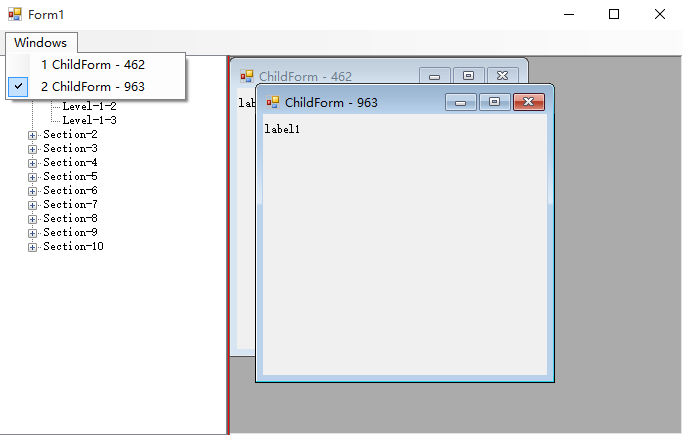
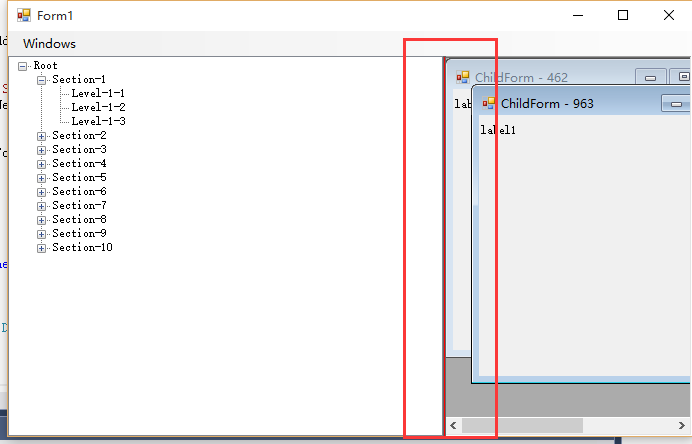
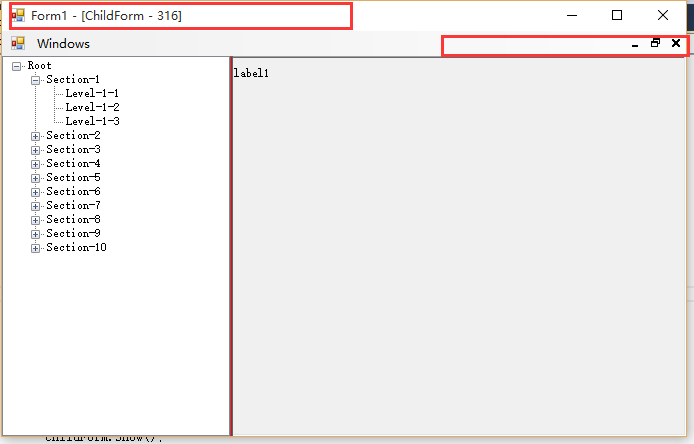
说明:我这里为了体现分割器,故将其背景色设为红色,便于大家观察,这种解决方案与之前的解决方案功能上是相同的,但有一点小小区别,之前的解决方案中子窗口的标题栏是在父窗口的容器内,而本文的解决方案中子窗口在最大化后,子窗口的标题栏会与父窗口合并,如下图示,至于大家用哪种依实际场景。
关于在winform下实现左右布局多窗口界面的方法之续篇的相关知识就给大家介绍到这里,后续时间我会继续研究winform关于插件式编程(近期工作任务要求),到时候同样会分享给大家,也欢迎大家一起交流,当然高手可以无视。
出处:http://www.jb51.net/article/80196.htm
在winform下实现左右布局多窗口界面的方法(二)的更多相关文章
- 在winform下实现左右布局多窗口界面的方法(一)
在web页面上我们可以通过frameset,iframe嵌套框架很容易实现各种导航+内容的布局界面,而在winform.WPF中实现其实也很容易,通过本文给大家介绍在winform下实现左右布局多窗口 ...
- 分享在winform下实现左右布局多窗口界面-续篇
之前的这篇文章<分享在winform下实现左右布局多窗口界面>已经实现了左右布局多窗口界面,今天本来是研究基于winform的插件编程,没想到顺便又找到了另一种实现方案,这种实现方案更简单 ...
- 分享在winform下实现左右布局多窗口界面
在web页面上我们可以通过frameset,iframe嵌套框架很容易实现各种导航+内容的布局界面,而在winform.WPF中实现其实也很容易,我这里就分享一个:在winform下实现左右布局多窗口 ...
- Win10下PB停在欢迎窗口界面
问题:Win10下不能打开PB12.5,PB12.6,一直停在欢迎窗口界面. 解决方法:把服务"Touch Keyboard and Handwriting Panel Service&qu ...
- 分享在winform下实现模块化插件编程
其实很早之前我就已经了解了在winform下实现插件编程,原理很简单,主要实现思路就是:先定一个插件接口作为插件样式及功能的约定,然后具体的插件就去实现这个插件接口,最后宿主(应用程序本身)就利用反射 ...
- linux-shell-screen后台调用-后台运行脚本和命令-仿start命令-伪窗口界面
序 我比较熟练bat.cmd脚本.刚接触使用shell时,总会习惯想用windows窗口界面来套用shell脚本.于是找到screen后台命令,它可以交互shell脚本,保持后台运行.但是在批处理ba ...
- 用vsstudio 设计Winform 高分屏上布局错乱的问题
在使用win10高分辨率150%,200%系统进行winform开发时, 会有布局错乱的现象,比如之前定义的300px的宽度,往往被设置成600px (200%分辨率下). 这个问题vs2015的解决 ...
- Winform下CefSharp的引用、配置、实例与报错排除(源码)
Winform下CefSharp的引用.配置.实例与报错排除 本文详细介绍了CefSharp在vs2013..net4.0环境下,创建Winfrom项目.引用CefSharp的方法,演示了winfro ...
- 分享在winform下实现模块化插件编程-优化版
上一篇<分享在winform下实现模块化插件编程>已经实现了模块化编程,但我认为不够完美,存在以下几个问题: 1.IAppContext中的CreatePlugInForm方法只能依据完整 ...
随机推荐
- 【Head First Servlets and JSP】笔记10:请求分派(RequestDispatcher)
1.让其它组件接管全部请求. package com.example.web; import com.example.model.BeerExpert; import javax.servlet.*; ...
- R/Bioconductor包的下载和安装,升级
R包:基本包(自动加载)和推荐包(安装R时也会下载,但需要手动加载),拓展包(其他包,手动加载). 安装好的包将被放在一个指定的目录下.这个目录被称为库(Library).当需要使用到某一个包的时候, ...
- 八、golang文本操作、json协议
一.终端读写 操作终端相关文件语句常量,go所有的都是接口 os.Stdin:标准输入 os.Stdout:标准输入,只要实现输出这个接口,打印到终端, os.Stderr:标准错误输出 os.Ope ...
- WINDOWS下好用的MongoDB 3.0以上客户端工具: NoSql Manager
WINDOWS下好用的MongoDB 3.0以上客户端工具: NoSql Manager https://www.mongodbmanager.com/download
- java string 细节原理分析(2016.5)
看到了以前2016.5月学习java写的笔记,这里放在一起. String实现的细节原理分析 一.jdk源码中String 的实现 public final class String implemen ...
- MapReduce-输入分片与记录
一个输入分片(split)就是一个由单个map操作来处理的输入块.每一个map操作只处理一个输入分片.每个分片被划分为若干个记录,每条记录就是一个键值对,map一个接一个地处理记录.输入分片和记录都是 ...
- openssl——初了解
Openssl OpenSSL是一个开源的.用于SSL/TLS协议的加密工具,是互联网加密传输的核心基础组件,由加拿大的Eric Yang等发起编写的,当前互联网安全传输的大部分场景(如HTTPS)均 ...
- 笔记<c# 调用DLL解密密文>
using DTcms.Common; using System; using System.Collections.Generic; using System.Linq; using System. ...
- poj 2116 Death to Binary? 模拟
Death to Binary? Time Limit: 1000MS Memory Limit: 65536K Total Submissions: 1707 Accepted: 529 D ...
- Template、ItemsPanel、ItemContainerStyle、ItemTemplate(包括ListBox的Item子项是横向排列)
Template.ItemsPanel.ItemContainerStyle.ItemTemplate 分类: WPF2011-10-12 10:13 4716人阅读 评论(0) 收藏 举报 data ...