
C#中使用设置(Settings.settings) Properties.Settings.Default .(配置文件相当重要)
C#中使用设置(Settings.settings) Properties.Settings.Default .
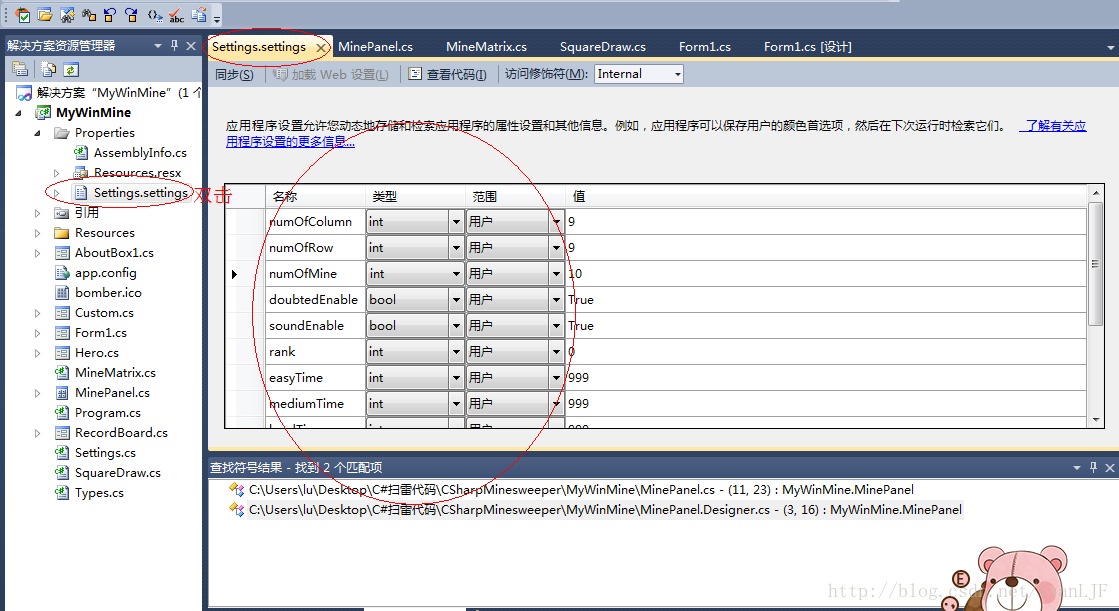
在设计时创建新设置的步骤
在“Solution Explorer”(解决方案资源管理器)中,展开项目的“Properties”(属性)节点。
在“Solution Explorer”(解决方案资源管理器)中,双击要在其中添加新设置的 .settings 文件。此文件的默认名称是 Settings.settings。
| • |
为设置键入新值,然后保存该文件。 |
在运行时使用设置
运行时应用程序可以通过代码使用设置。具有应用程序作用域的设置值能够以只读方式进行访问,而用户作用域设置的值可以进行读写。在 C# 中可以通过 Properties 命名空间使用设置。
在运行时读取设置
可在运行时使用 Properties 命名空间读取应用程序作用域及用户作用域设置。Properties 命名空间通过Properties.Settings.Default 对象公开了项目的所有默认设置。编写使用设置的代码时,所有设置都会出现在 IntelliSense 中并且被强类型化。因此,举例来说,如果设置的类型为 System.Drawing.Color,则无需先对其进行强制类型转换即可使用该设置,如下例所示:
this.BackColor = Properties.Settings.Default.myColor;
在运行时保存用户设置
应用程序作用域设置是只读的,只能在设计时或通过在应用程序会话之间修改 <AssemblyName>.exe.config 文件来进行更改。然而,用户作用域设置却可以在运行时进行写入,就像更改任何属性值那样。新值会在应用程序会话持续期间一直保持下去。可以通过调用 Settings.Save 方法来保持在应用程序会话之间对用户设置所做的更改。这些设置保存在 User.config 文件中。
在运行时写入和保持用户设置的步骤
| • |
访问用户设置并为其分配新值,如下例所示: Properties.Settings.Default.myColor = Color.AliceBlue;
|
| • |
如果要保持在应用程序会话之间对用户设置所做的更改,请调用 Save 方法,如以下代码所示: Properties.Settings.Default.Save(); |
=========================================================================================================================================================================================================================================================================================================================================================================================================
1、定义
在Settings.settings文件中定义配置字段。把作用范围定义为:User则运行时可更改,Applicatiion则运行时不可更改。可以使用数据网格视图,很方便;
2、读取配置值
text1.text = Properties.Settings.Default.FieldName;
//FieldName是你定义的字段
3、修改和保存配置
Properties.Settings.Default.FieldName = "server";
Properties.Settings.Default.Save();//使用Save方法保存更改
4、也可以自己创建
创建一个配置类FtpSetting。在WinForm应用程序里,一切配置类都得继承自 ApplicationSettingsBase 类。
sealed class FtpSettings : ApplicationSettingsBase
{
[UserScopedSetting]
[DefaultSettingValue("127.0.0.1")]
public string Server
{
get { return (string)this["Server"]; }
set { this["Server"] = value; }
}
[UserScopedSetting]
[DefaultSettingValue("21")]
public int Port
{
get { return (int)this["Port"]; }
set { this["Port"] = value; }
}
}
使用上述配置类,可以用:
private void button2_Click(object sender, EventArgs e)
{
FtpSettings ftp = new FtpSettings();
string msg = ftp.Server + ":" + ftp.Port.ToString();
MessageBox.Show(msg);
}
我们在使用上述FtpSetting 配置时,当然要先进行赋值保存,然后再使用,后面再修改,再保存,再使用。
private void button2_Click(object sender, EventArgs e)
{
FtpSettings ftp = new FtpSettings();
ftp.Server = "ftp.test.com";
ftp.Port = 8021;
ftp.Save();
ftp.Reload();
string msg = ftp.Server + ":" + ftp.Port.ToString();
MessageBox.Show(msg);
}
嗯。已经Save了,你可能会在应用程序文件夹里找不到它到底保存到哪里去了。由于我们是用UserScope的,所以其实该配置信息是保存到了你的Windows的个人文件夹里去了。比如我的就是 C:\Documents and Settings\brooks\Local Settings\Application Data\TestWinForm目录了。
=========================================================================================================================================================================================================================================================================================================================================================================================================
例:
using System;
using System.Collections.Generic;
using System.ComponentModel;
using System.Data;
using System.Drawing;
using System.Linq;
using System.Text;
using System.Windows.Forms;
using System.Configuration;
namespace 设置文件读写测试
{
public partial class Form1 : Form
{
public Form1()
{
InitializeComponent();
}
private void button1_Click(object sender, EventArgs e)
{
Properties.Settings.Default.name = this.textBox1.Text;
Properties.Settings.Default.Save();
this.label1.Text = Properties.Settings.Default.name;
}
private void button2_Click(object sender, EventArgs e)
{
this.label1.Text = Properties.Settings.Default.name;
}
private void button3_Click(object sender, EventArgs e)
{
FtpSettings ftp = new FtpSettings();
string msg = ftp.Server + ":" + ftp.Port.ToString();
this.label2.Text = msg;
}
private void button4_Click(object sender, EventArgs e)
{
FtpSettings ftp = new FtpSettings();
ftp.Server = this.textBox2.Text ;
ftp.Port = Convert.ToInt32(this.textBox3.Text);
ftp.Save();
//ftp.Reload();
string msg = ftp.Server + ":" + ftp.Port.ToString();
this.label2.Text = msg;
}
}
sealed class FtpSettings : ApplicationSettingsBase
{
[UserScopedSetting]
[DefaultSettingValue("127.0.0.1")]
public string Server
{
get { return (string)this["Server"]; }
set { this["Server"] = value; }
}
[UserScopedSetting]
[DefaultSettingValue("21")]
public int Port
{
get { return (int)this["Port"]; }
set { this["Port"] = value; }
}
}
}
C#中使用设置(Settings.settings) Properties.Settings.Default .(配置文件相当重要)的更多相关文章
- C#中使用设置(Settings.settings) Properties.Settings.Default
应用程序及用户设置 在设计时创建新设置的步骤 在“Solution Explorer”(解决方案资源管理器)中,展开项目的“Properties”(属性)节点. 在“Solution Explorer ...
- The content of element type "configuration" must match "(properties?,settings?,typeAliases?,typeHandlers?,objectFactory?...
<?xml version="1.0" encoding="UTF-8"?> <!DOCTYPE configuration PUBLIC & ...
- 【转】The content of element type "configuration" must match "(properties?,settings?,typeAliases?,typeHandlers?,objectFactory?...
[转]The content of element type "configuration" must match "(properties?,settings?,typ ...
- C# winform或控制台Properties.Settings.Default的使用及存储位置
C# winform或控制台Properties.Settings.Default的使用及存储位置 作者的程序 是MmPS.ClientForm.exe,使用Properties.Settings.D ...
- WPF 应用 - 使用 Properties.Settings 保存客户端密码
1. 先在项目的 Settings.settings 新建需要的字段和类型 有需要还可设置初始默认值 2. 启动客户端时,获取 Properties.Settings 的属性值 public void ...
- The content of element type "configuration" must match "(properties?,settings?,typeAliases?,typeHandlers?,objectFactory?,objectWrapperFactory?,reflectorFactory?,plugins?,environments?,databaseIdProv
在mybatis配置文件config.xml中报错: The content of element type "configuration" must match "(p ...
- mybatis:"configuration" must match "(properties?,settings?,typeAliase.....
在运行mybatis配置文件的时候,出现错误: mybatis:"configuration" must match "(properties?,settings?,ty ...
- 无法识别的配置节点 applicationSettings/* Properties.Settings 解决方法
http://blog.csdn.net/yaoxtao/article/details/7766888 在项目中引用web service时,偶然出现 无法识别的配置节点 applicationSe ...
- 元素类型为 "configuration" 的内容必须匹配 "(properties?,settings?,typeAliases?,typeHandlers?
报错主要部分如下: Error building SqlSession.### Cause: org.apache.ibatis.builder.BuilderException: Error cre ...
随机推荐
- 二分查找及几种变体的Python实现
1. 在不重复的有序数组中,查找等于给定值的元素 循环法 def search(lst, target): n = len(lst) if n == 0: return -1 low = 0 high ...
- 基于贝叶斯模型和KNN模型分别对手写体数字进行识别
首先,我们准备了0~9的训练集和测试集,这些手写体全部经过像素转换,用0,1表示,有颜色的区域为0,没有颜色的区域为1.实现代码如下: # 图片处理 # 先将所有图片转为固定宽高,比如32*,然后再进 ...
- springboot 跨域
参考: https://blog.csdn.net/qq779446849/article/details/53102925 https://blog.csdn.net/wo541075754/art ...
- 《SQL 进阶教程》 查找局部不一致的数据
-- 从下面这张商品表里找出价格相等的商品的组合 select * from products p1LEFT JOIN products p2on p1.price = p2.price and p1 ...
- MAC97A6检测
- C/C++ - 多线程
前几天简单对C和C++中的创建多线程的函数进行了测试,这篇随笔就简单介绍一下创建线程的相关函数. C中三个创建线程函数:pthread_create()._beginthread().CreateTh ...
- java 调用阿里云短信接口,报InvalidTimeStamp.Expired : Specified time stamp or date value is expired.
官网解释: 问题所在: 自己的电脑(或者服务器) 的时间与阿里云的服务器时间 相差15分钟了. 解决方法 : 把自己的电脑时间 (或者服务器)的时间 改成标准的北京时间就行了.
- Eclipse中创建新的SpringBoot项目(打包并且部署到tomcat)
Spring-boot因为其对jar包的高度集成以及简化服务配置,快速部署等的优点,逐渐成为Java开发人员的热衷的框架.下面演示一下怎么在Eclipse中新建Spring-boot项目以及打包部署. ...
- Lesson 8 Trading standards
What makes trading between rich countires difficult? Chickens slautered in the United States, claim ...
- kill和raise
kill向特定的进程和进程组发送信号 raise向进程自身发送信号