
CSS常用样式及示例
-
CSS常用样式及示例
 <!DOCTYPE html>

 <html lang="en">

 <head>

     <meta charset="UTF-8">

     <title>Title</title>

 </head>

 <body>

     <!--设置背景颜色,文本颜色-->

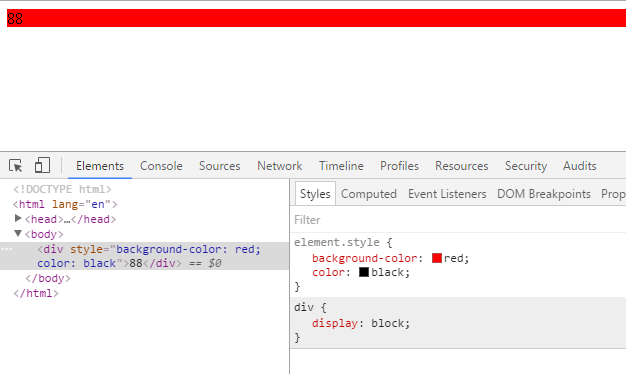
     <div style="background-color: red;color: black">88</div>

 </body>

 </html>
结果:
b:放置在HTML头部
 <!DOCTYPE html>

 <html lang="en">

 <head>

     <meta charset="UTF-8">

     <title>Title</title>

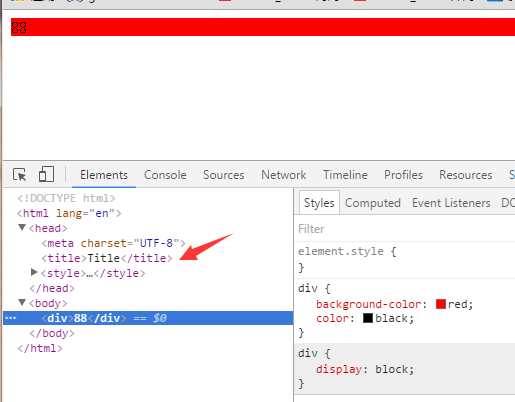
     <style>

         div{

             background-color: red;

             color: black;

         }

     </style>

 </head>

 <body>

     <div >88</div>

 </body>

 </html>
结果为:
c:存放在文件中
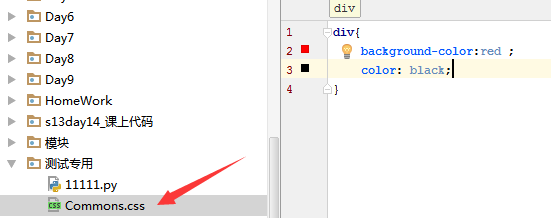
定义CSS文件Commons
引入文件:
 <!DOCTYPE html>

 <html lang="en">

 <head>

     <meta charset="UTF-8">

     <title>Title</title>

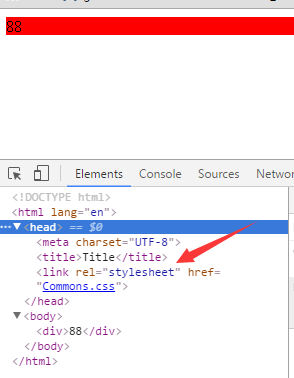
     <link rel="stylesheet" href="Commons.css">#引用文件

 </head>

 <body>

     <div >88</div>

 </body>

 </html>
结果:
优先级:
css标签内-->文件头部-->文件,依次从高到低。这里不展示示例,可以自己动手查看结果。
2.CSS标签选择器
 <!DOCTYPE html>

 <html lang="en">

 <head>

     <meta charset="UTF-8">

     <title>Title</title>

     <style>

         /*<!--标签选择器-->*/

         div{

             color: green;

         }

         /*ID选择器*/

         #i1{

             font-size: 56px;

         }

         /*class选择器*/

         .c1{

             background-color: white;

         }

         /*层级选择器*/

         .c1 div p .c3{

            color: red;

             font-size: 56px;

         }

         /*组合选择器*/

         .c4,.c5,.c6{

             background-color: rebeccapurple;

         }

         /*属性选择器*/

         .c1[alex='123']{

             color: red;

         }

     </style>

 </head>

 <body>

     <div class="c4"></div>

     <div class="c5"></div>

     <div class="c6"></div>

     <hr/>

     <!--/*class选择器*/-->

     <span class="c1">1</span>

     <span class="c1">2</span>

     <span class="c1">3</span>

     <!--/*ID选择器*/-->

     <a id="i1">baidu</a>

     <hr/>

      /*<!--标签选择器-->*/

     <div>99</div>

     <div>99</div>

     <div>99</div>

     <div>99</div>

     <div class="c1">test

         <div>

             <p>

             <!--<p>  /*层级选择器*/-->

                 <span class="c3">888888888888</span>

             </p>

         </div>

     </div>

           /*属性选择器*/

     <div class="c1" alex="123" > alex--test</div>

     <div class="c1" > alex--test</div>

 </body>

 </html>
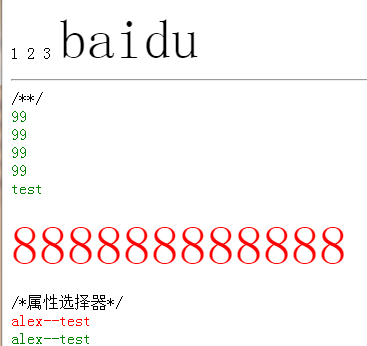
显示结果:
3.基本样式
3.1显示背景颜色
 <html>

 <head>

 <style type="text/css">

 body {background-color: yellow}

 h1 {background-color: #00ff00}

 h2 {background-color: transparent}

 p {background-color: rgb(250,0,255)}

 p.no2 {background-color: gray; padding: 20px;}

 </style>

 </head>

 <body>

 <h1>这是标题 1</h1>

 <h2>这是标题 2</h2>

 <p>这是段落</p>

 <p class="no2">这个段落设置了内边距。</p>

 </body>

 </html>
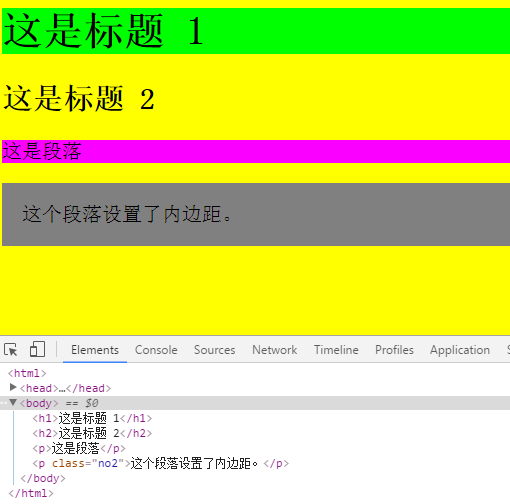
结果:
3.2设置文本颜色
 <html>

 <head>

 <meta charset="utf-8" />

 <style type="text/css">

 span.highlight

 {

 background-color:yellow

 }

 </style>

 </head>

 <body>

 <p>

 <span class="highlight">这是文本。</span> 这是文本。 这是文本。 <span class="highlight">这是文本。</span>

 </p>

 </body>

 </html>
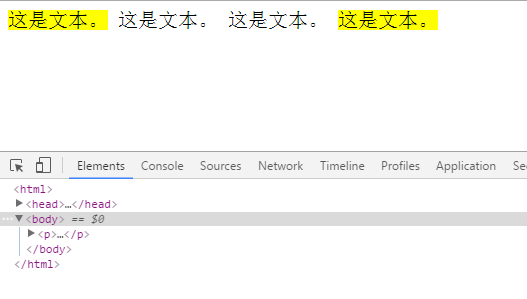
结果:
3.3设置背景图片(背景图片重复)
 <html>

 <head>

 <meta charset="utf-8" />

 <style type="text/css">

 body {background-image:url(2.jpg);

       }

 </style>

 </head>

 <body>

 <p>

 <span class="highlight">这是文本。</span> 这是文本。 这是文本。 <span class="highlight">这是文本。</span>

 </p>

 </body>

 </html>
3.4背景图片不重复
 <html>

 <head>

 <meta charset="utf-8" />

 <style type="text/css">

 body {background-image:url(2.jpg);

       background-repeat:no-repeat }

 </style>

 </head>

 <body>

 <p>

 <span class="highlight">这是文本。</span> 这是文本。 这是文本。 <span class="highlight">这是文本。</span>

 </p>

 </body>

 </html>
3.5图片页面固定
 <html>

 <head>

 <style type="text/css">

 body

 {

   background-image:url('/i/eg_bg_03.gif');

   background-repeat:no-repeat;

   background-attachment:fixed;

   background-position:center;

 }

 </style>

 </head>

 <body>

 <body>

 <p><b>提示:</b>您需要把 background-attachment 属性设置为 "fixed"。</p>

 </body>

 </body>

 </html>
3.6使用%设置固定图片大小
 <html>

 <head>

 <style type="text/css">

 body

 {

 background-image: url('/i/eg_bg_03.gif');

 background-repeat: no-repeat;

 background-attachment:fixed;

 background-position: 30% 20%;

 }

 </style>

 </head>

 <body>

 <p><b>注释:</b>为了在 Mozilla 中实现此效果,background-attachment 属性必须设置为 "fixed"。</p>

 </body>

 </html>
3.7 将背景属性放在一个申明里面
 <html>

 <head>

 <style type="text/css">

 body

 {

 background: #ff0000 url(/i/eg_bg_03.gif) no-repeat fixed center;

 }

 </style>

 </head>

 <body>

 <p>这是一些文本。</p>

 <p>这是一些文本。</p>

 <p>这是一些文本。</p>

 <p>这是一些文本。</p>

 <p>这是一些文本。</p>

 <p>这是一些文本。</p>

 <p>这是一些文本。</p>

 <p>这是一些文本。</p>

 </body>

 </html>
3.8设置文本颜色及文本背景颜色
 <html>

 <head>

 <style type="text/css">

 body {color:red}

 h1 {color:#00ff00}

 p.ex {color:rgb(0,0,255)}

 span.highlight

 {

 background-color:yellow

 }

 </style>

 </head>

 <body>

 <p>

 <span class="highlight">这是文本。</span> 这是文本。 这是文本。 这是文本。 这是文本。 这是文本。 这是文本。 这是文本。 这是文本。 这是文本。 这是文本。 这是文本。 这是文本。 这是文本。 这是文本。 这是文本。 这是文本。 <span class="highlight">这是文本。</span>

 </p>

 <h1>这是 heading 1</h1>

 <p>这是一段普通的段落。请注意,该段落的文本是红色的。在 body 选择器中定义了本页面中的默认文本颜色。</p>

 <p class="ex">该段落定义了 class="ex"。该段落中的文本是蓝色的。</p>

 </body>

 </html>
3.9设置字体大小
 <html>

 <head>

 <style type="text/css">

 h1 {font-size: 300%}

 h2 {font-size: 200%}

 p {font-size: 100%}

 </style>

 </head>

 <body>

 <h1>This is header 1</h1>

 <h2>This is header 2</h2>

 <p>This is a paragraph</p>

 </body>

 </html>
3.10将边框属性写在同一个申明里
 <html>

 <head>

 <style type="text/css">

 p

 {

 border: medium double rgb(250,0,255)

 }

 </style>

 </head>

 <body>

 <p>Some text</p>

 </body>

 </html>
3.11设置四边框样式
 <html>

 <head>

 <style type="text/css">

 p.dotted {border-style: dotted}

 p.dashed {border-style: dashed}

 p.solid {border-style: solid}

 p.double {border-style: double}

 p.groove {border-style: groove}

 p.ridge {border-style: ridge}

 p.inset {border-style: inset}

 p.outset {border-style: outset}

 </style>

 </head>

 <body>

 <p class="dotted">A dotted border</p>

 <p class="dashed">A dashed border</p>

 <p class="solid">A solid border</p>

 <p class="double">A double border</p>

 <p class="groove">A groove border</p>

 <p class="ridge">A ridge border</p>

 <p class="inset">An inset border</p>

 <p class="outset">An outset border</p>

 </body>

 </html>
3.12设置每一边的边框
 <html>

 <head>

 <style type="text/css">

 p.soliddouble {border-style: solid double}

 p.doublesolid {border-style: double solid}

 p.groovedouble {border-style: groove double}

 p.three {border-style: solid double groove}

 </style>

 </head>

 <body>

 <p class="soliddouble">Some text</p>

 <p class="doublesolid">Some text</p>

 <p class="groovedouble">Some text</p>

 <p class="three">Some text</p>

 </body>

 </html>
3.13设置下边框颜色(左右上类似)
 <html>

 <head>

 <style type="text/css">

 p

 {

 border-style:solid;

 border-bottom-color:#ff0000;

 }

 </style>

 </head>

 <body>

 <p>This is some text in a paragraph.</p>

 </body>

 </html>
3.14设置外边距(厘米,像素,%都可以)
 <html>

 <head>

 <style type="text/css">

 p.leftmargin {margin-left: 2cm}

 </style>

 </head>

 <body>

 <p>这个段落没有指定外边距。</p>

 <p class="leftmargin">这个段落带有指定的左外边距。</p>

 </body>

 </html>
3.15设置内边距(厘米,像素,%都可以)
 <html>

 <head>

 <style type="text/css">

 td

 {

 padding-bottom: 10%

 }

 </style>

 </head>

 <body>

 <table border="1">

 <tr>

 <td>

 这个表格单元拥有下内边距。

 </td>

 </tr>

 </table>

 </body>

 </html>
3.14合并表格边框
 <!DOCTYPE html PUBLIC "-//W3C//DTD XHTML 1.0 Transitional//EN" "http://www.w3.org/TR/xhtml1/DTD/xhtml1-transitional.dtd">

 <html>

 <head>

 <style type="text/css">

 table

   {

   border-collapse:collapse;

   }

 table, td, th

   {

   border:1px solid black;

   }

 </style>

 </head>

 <body>

 <table>

 <tr>

 <th>Firstname</th>

 <th>Lastname</th>

 </tr>

 <tr>

 <td>Bill</td>

 <td>Gates</td>

 </tr>

 <tr>

 <td>Steven</td>

 <td>Jobs</td>

 </tr>

 </table>

 <p><b>注释:</b>如果没有规定 !DOCTYPE,border-collapse 属性可能会引起意想不到的错误。</p>

 </body>

 </html>
3.16把段落元素设置为内联元素
 <html>

 <head>

 <style type="text/css">

 p {display: inline}

 div {display: none}

 </style>

 </head>

 <body>

 <p>本例中的样式表把段落元素设置为内联元素。</p>

 <p>而 div 元素不会显示出来!</p>

 <div>div 元素的内容不会显示出来!</div>

 </body>

 </html>
3.17把 span 元素设置为块级元素
 <html>

 <head>

 <style type="text/css">

 span

 {

 display: block

 }

 </style>

 </head>

 <body>

 <span>本例中的样式表把 span 元素设置为块级元素。</span>

 <span>两个 span 元素之间产生了一个换行行为。</span>

 </body>

 </html>
3.18浮动简单应用
 <html>

 <head>

 <style type="text/css">

 img

 {

 float:right

 }

 </style>

 </head>

 <body>

 <p>在下面的段落中,我们添加了一个样式为 <b>float:right</b> 的图像。结果是这个图像会浮动到段落的右侧。</p>

 <p>

 <img src="/i/eg_cute.gif" />

 This is some text. This is some text. This is some text.

 This is some text. This is some text. This is some text.

 This is some text. This is some text. This is some text.

 This is some text. This is some text. This is some text.

 This is some text. This is some text. This is some text.

 This is some text. This is some text. This is some text.

 This is some text. This is some text. This is some text.

 This is some text. This is some text. This is some text.

 This is some text. This is some text. This is some text.

 This is some text. This is some text. This is some text.

 </p>

 </body>

 </html>
3.19创建水平菜单
 <html>

 <head>

 <style type="text/css">

 ul

 {

 float:left;

 width:100%;

 padding:;

 margin:;

 list-style-type:none;

 }

 a

 {

 float:left;

 width:7em;

 text-decoration:none;

 color:white;

 background-color:purple;

 padding:0.2em 0.6em;

 border-right:1px solid white;

 }

 a:hover {background-color:#ff3300}

 li {display:inline}

 </style>

 </head>

 <body>

 <ul>

 <li><a href="#">Link one</a></li>

 <li><a href="#">Link two</a></li>

 <li><a href="#">Link three</a></li>

 <li><a href="#">Link four</a></li>

 </ul>

 <p>

 在上面的例子中,我们把 ul 元素和 a 元素浮向左浮动。li 元素显示为行内元素(元素前后没有换行)。这样就可以使列表排列成一行。ul 元素的宽度是 100%,列表中的每个超链接的宽度是 7em(当前字体尺寸的 7 倍)。我们添加了颜色和边框,以使其更漂亮。

 </p>

 </body>

 </html>
3.20相对定位
 <html>

 <head>

 <style type="text/css">

 h2.pos_left

 {

 position:relative;

 left:-20px

 }

 h2.pos_right

 {

 position:relative;

 left:20px

 }

 </style>

 </head>

 <body>

 <h2>这是位于正常位置的标题</h2>

 <h2 class="pos_left">这个标题相对于其正常位置向左移动</h2>

 <h2 class="pos_right">这个标题相对于其正常位置向右移动</h2>

 <p>相对定位会按照元素的原始位置对该元素进行移动。</p>

 <p>样式 "left:-20px" 从元素的原始左侧位置减去 20 像素。</p>

 <p>样式 "left:20px" 向元素的原始左侧位置增加 20 像素。</p>

 </body>

 </html>
3.21绝对定位
 <html>

 <head>

 <style type="text/css">

 h2.pos_abs

 {

 position:absolute;

 left:100px;

 top:150px

 }

 </style>

 </head>

 <body>

 <h2 class="pos_abs">这是带有绝对定位的标题</h2>

 <p>通过绝对定位,元素可以放置到页面上的任何位置。下面的标题距离页面左侧 100px,距离页面顶部 150px。</p>

 </body>

 </html>
3.22固定定位
 <html>

 <head>

 <style type="text/css">

 p.one

 {

 position:fixed;

 left:5px;

 top:5px;

 }

 p.two

 {

 position:fixed;

 top:30px;

 right:5px;

 }

 </style>

 </head>

 <body>

 <p class="one">一些文本。</p>

 <p class="two">更多的文本。</p>

 </body>

 </html>
3.23标签内页面固定
 <!DOCTYPE html>

 <html lang="en">

 <head>

     <meta charset="UTF-8">

     <title></title>

 </head>

 <body>

     <div style="height: 500px;width: 400px;border: 1px solid red;position: relative">

         <div style="height: 200px;background-color: red;">

             <div style="position: absolute;bottom: 0;right: 0;">111</div>

         </div>

     </div>

 </body>

 </html>
3.24元素不可见
 <html>

 <head>

 <style type="text/css">

 h1.visible {visibility:visible}

 h1.invisible {visibility:hidden}

 </style>

 </head>

 <body>

 <h1 class="visible">这是可见的标题</h1>

 <h1 class="invisible">这是不可见的标题</h1>

 </body>

 </html>
3.25改变光标
 <html>

 <body>

 <p>请把鼠标移动到单词上,可以看到鼠标指针发生变化:</p>

 <span style="cursor:auto">

 Auto</span><br />

 <span style="cursor:crosshair">

 Crosshair</span><br />

 <span style="cursor:default">

 Default</span><br />

 <span style="cursor:pointer">

 Pointer</span><br />

 <span style="cursor:move">

 Move</span><br />

 <span style="cursor:e-resize">

 e-resize</span><br />

 <span style="cursor:ne-resize">

 ne-resize</span><br />

 <span style="cursor:nw-resize">

 nw-resize</span><br />

 <span style="cursor:n-resize">

 n-resize</span><br />

 <span style="cursor:se-resize">

 se-resize</span><br />

 <span style="cursor:sw-resize">

 sw-resize</span><br />

 <span style="cursor:s-resize">

 s-resize</span><br />

 <span style="cursor:w-resize">

 w-resize</span><br />

 <span style="cursor:text">

 text</span><br />

 <span style="cursor:wait">

 wait</span><br />

 <span style="cursor:help">

 help</span>

 </body>

 </html>
3.26清除元素
<html>

<head>

<style type="text/css">

img

  {

  float:left;

  clear:both;

  }

</style>

</head>

<body>

<img src="/i/eg_smile.gif" />

<img src="/i/eg_smile.gif" />

</body>

</html>
3.27设置元素形状
 <html>

 <head>

 <style type="text/css">

 img

 {

 position:absolute;

 clip:rect(0px 50px 200px 0px)

 }

 </style>

 </head>

 <body>

 <p>clip 属性剪切了一幅图像:</p>

 <p><img border="0" src="/i/eg_bookasp.gif" width="120" height="151"></p>

 </body>

 </html>
3.28使用滚动条显示溢出文本内容
 <html>

 <head>

 <style type="text/css">

 div

 {

 background-color:#00FFFF;

 width:150px;

 height:150px;

 overflow: scroll

 }

 </style>

 </head>

 <body>

 <p>如果元素中的内容超出了给定的宽度和高度属性,overflow 属性可以确定是否显示滚动条等行为。</p>

 <div>

 这个属性定义溢出元素内容区的内容会如何处理。如果值为 scroll,不论是否需要,用户代理都会提供一种滚动机制。因此,有可能即使元素框中可以放下所有内容也会出现滚动条。默认值是 visible。

 </div>

 </body>

 </html>
3.29浏览器自动处理元素文本溢出
 <html>

 <head>

 <style type="text/css">

 div

 {

 background-color:#00FFFF;

 width:150px;

 height:150px;

 overflow: auto

 }

 </style>

 </head>

 <body>

 <p>如果元素中的内容超出了给定的宽度和高度属性,overflow 属性可以确定是否显示滚动条等行为。</p>

 <div>

 这个属性定义溢出元素内容区的内容会如何处理。如果值为 scroll,不论是否需要,用户代理都会提供一种滚动机制。因此,有可能即使元素框中可以放下所有内容也会出现滚动条。默认值是 visible。

 </div>

 </body>

 </html>
3.30将一个元素放置在另一个元素背后
 <html>

 <head>

 <style type="text/css">

 img.x

 {

 position:absolute;

 left:0px;

 top:0px;

 z-index:-1

 }

 </style>

 </head>

 <body>

 <h1>这是一个标题</h1>

 <img class="x" src="/i/eg_mouse.jpg" />

 <p>默认的 z-index 是 0。Z-index -1 拥有更低的优先级。</p>

 </body>

 </html>
3.31使用固定值设置图像边缘
 <html>

 <head>

 <style type="text/css">

 img

 {

 position:absolute;

 top:0px

 }

 </style>

 </head>

 <body>

 <h1>This is a Heading</h1>

 <img class="normal" src="/i/eg_smile.gif" />

 <p>一些文本。一些文本。一些文本。一些文本。一些文本。一些文本。</p>

 </body>

 </html>
3.32CSS伪类
 <html>

 <head>

 <style type="text/css">

 a:link {color: #FF0000}

 a:visited {color: #00FF00}

 a:hover {color: #FF00FF}

 a:active {color: #0000FF}

 </style>

 </head>

 <body>

 <p><b><a href="/index.html" target="_blank">这是一个链接。</a></b></p>

 <p><b>注释:</b>在 CSS 定义中,a:hover 必须位于 a:link 和 a:visited 之后,这样才能生效!</p>

 <p><b>注释:</b>在 CSS 定义中,a:active 必须位于 a:hover 之后,这样才能生效!</p>

 </body>

 </html>
示例2:
 <html>

 <head>

 <style type="text/css">

 a.one:link {color: #ff0000}

 a.one:visited {color: #0000ff}

 a.one:hover {color: #ffcc00}

 a.two:link {color: #ff0000}

 a.two:visited {color: #0000ff}

 a.two:hover {font-size: 150%}

 a.three:link {color: #ff0000}

 a.three:visited {color: #0000ff}

 a.three:hover {background: #66ff66}

 a.four:link {color: #ff0000}

 a.four:visited {color: #0000ff}

 a.four:hover {font-family: monospace}

 a.five:link {color: #ff0000; text-decoration: none}

 a.five:visited {color: #0000ff; text-decoration: none}

 a.five:hover {text-decoration: underline}

 </style>

 </head>

 <body>

 <p>请把鼠标移动到这些链接上,以查看效果:</p>

 <p><b><a class="one" href="/index.html" target="_blank">这个链接改变颜色</a></b></p>

 <p><b><a class="two" href="/index.html" target="_blank">这个链接改变字体大小</a></b></p>

 <p><b><a class="three" href="/index.html" target="_blank">这个链接改变背景颜色</a></b></p>

 <p><b><a class="four" href="/index.html" target="_blank">这个链接改变字体系列</a></b></p>

 <p><b><a class="five" href="/index.html" target="_blank">这个链接改变文本装饰</a></b></p>

 </body>

 </html>
CSS遮罩层示例:
 <!DOCTYPE html>

 <html lang="en">

 <head>

     <meta charset="UTF-8">

  <title>DIV CSS遮罩层</title>

  <script language="javascript" type="text/javascript">

  function showdiv() {

  document.getElementById("bg").style.display ="block";

  document.getElementById("show").style.display ="block";

  }

  function hidediv() {

  document.getElementById("bg").style.display ='none';

  document.getElementById("show").style.display ='none';

  }

 </script>

  <style type="text/css">

  *#bg{ display: none; position: absolute; top:; left:; width: 100%; height: 100%; background-color: black; z-index:; -moz-opacity: 0.7; opacity:.70; filter: alpha(opacity=70);}*/

  *#show{display: none; position: absolute; top: 25%; left: 22%; width: 53%; height: 49%; padding: 8px; border: 8px solid #E8E9F7; background-color: white; z-index:; overflow: auto;}*/

  </style>

  </head>

  <body>

  <input id="btnshow" type="button" value="Show" onclick="showdiv();"/>

  <div id="bg"></div>

  <div id="show">测试

  <input id="btnclose" type="button" value="Close" onclick="hidediv();"/>

  </div>

  </body>

  </html>
CSS常用样式及示例的更多相关文章
- CSS常用样式(四)之animation
上篇CSS常用样式(三)这篇博文中已经介绍过了CSS中具有动画效果的transition.transform,今天来大概说说CSS中的animation.animation的加入会使得动画效果更加乐观 ...
- 从零开始学习前端开发 — 9、标签嵌套规则及CSS常用样式覆盖
1. 块级元素可以包含内联元素或某些块级元素,但内联元素却不能包含块级元素,它只能包含其它的内联元素: <div><h1></h1><p></p& ...
- css常用样式对文本的处理演练
CSS文本属性可定义文本的外观,这是毫无疑问的,其次css可以通过以下属性改变文字的排版,比方说letter-spacing实现字符间距text-indent: 2em;完成首行缩进2字符word-s ...
- css常用样式font控制字体的多种变换
CSS 字体属性定义文本的字体系列.大小.加粗.风格(如斜体)和变形(如小型大写字母)font-family控制字体,由于各个电脑系统安装的字体不尽相同,但是基本装有黑体.宋体与微软雅黑这三款字体,通 ...
- CSS常用样式属性
1.CSS字体和文本相关属性 属性 font-family 规定文本的字体系列,比如:“serif” ''sans-serif" font-size 规定文本的字体尺寸 font-style ...
- css常用样式属性详细介绍
对于初学css的来说,肯定会觉得这么多样式不好记,而且记住了也容易忘,其实刚开始我们不用去记这么多的样式,确实是记了也会忘,刚开始只需记住一些常用的就可以了,然后在慢慢的使用过程当中接触并学习一些高级 ...
- CSS常用样式整理
元素边框显示圆角:-moz-border-radius适用于火狐浏览器,-webkit-border-radius适用于Safari和Chrome两种浏览器. 浏览器渐变背景颜色: FILTER: p ...
- css 常用样式命名规则
大家在写css的时候,对一些html标签起一个合适的名字是个很头疼的事情,现在给大家分享项目中常用的名字供参考. 外套:wrap ——用于最外层 头部:header ——用于头部 主要内容:mai ...
- CSS常用样式--font
CSS font 属性 参考:W3school- CSS font 所有浏览器都支持 font 属性,可在一个声明中设置所有字体属性,各属性需按顺序,语法如下: selector{ font:styl ...
随机推荐
- hiho一下21周 线段树的区间修改 离散化
离散化 时间限制:10000ms 单点时限:1000ms 内存限制:256MB 描述 小Hi和小Ho在回国之后,重新过起了朝7晚5的学生生活,当然了,他们还是在一直学习着各种算法~ 这天小Hi和小Ho ...
- python 3 学习笔记(一)
由于之前学过python2,因此今天就想记录下第一天学习python3过程中的遇到的不同和之前没有太掌握的基础知识. python2和python3的语法区别 print语句 在Python2里,pr ...
- float和double精度问题
System.out.println(new BigDecimal(253.90).doubleValue() * 100);25390.0精度正确 System.out.println(new Bi ...
- Codeforces Round #341 Div.2 B. Wet Shark and Bishops
题意:处在同一对角线上的主教(是这么翻译没错吧= =)会相互攻击 求互相攻击对数 由于有正负对角线 因此用两个数组分别保存每个主教写的 x-y 和 x+y 然后每个数组中扫描重复数字k ans加上kC ...
- 副本限制修改-M端
魔兽的副本很多,也有很多副本都有进入的限制,比方说最普遍的,有些副本有级别限制,没达到要求的级别是不能进入对应副本的还有些副本是有任务需求限制,比方说黑翼副本,需要做完一个任务之后才可以进入副本当然, ...
- mvc模型验证
自定义的ValidationAttribute类, Compare [Compare("MyOtherProperty")] 两个属性必须相同值,比如我们要求用户重复输入两次邮 ...
- JS正则截取两个字符串之间的字符串
match方法 var str = "iid0000ffr"; var substr = str.match(/id(\S*)ff/); console.log(substr) 返 ...
- 使用npm安装一些包失败了的看过来(npm国内镜像介绍)
这个也是网上搜的,亲自试过,非常好用! 镜像使用方法(三种办法任意一种都能解决问题,建议使用第三种,将配置写死,下次用的时候配置还在): 1.通过config命令 npm config set reg ...
- iPhone4下window各个部分的高度
- [Spring MVC] - 从数据库读取MessageSource
Spring MVC中使用MessageSource默认是写在properties文件当中,以支持国际化. 但很多时候我们需要把数据写到数据库当中,而不是在properties文件当中,以方便日常维护 ...