
Python Windows 快捷键自动给剪贴板(复制)图片添加水印
本文章是第一次更新,更新于 2022年3月28日
准备工作
方案设想
方案设想来自2019年的文章 使用 Python 对接 PicGo,实现自动添加水印并上传 (写代码的明哥)
此方案部分代码已过时,由于pyclipboard库不支持windows,遂做出修改。编写一个能在windows上使用的剪贴板图片自动加水印工具,即按下快捷键自动给剪贴板(复制)的图片添加水印。 改动如下
- 使用最新的
Pynput全局快捷键监听器 - 使用
win32clipboard对windows剪贴板进行操作 - 使用
plyer进行windows弹窗通知 - 使用
pyinstaller进行exe包装 - 其他细节上的改动
PS:我踩了很多坑,这些坑都被记录下来,帮你们填完。
官方文档
下面是我参考过的文档
- https://pynput.readthedocs.io/en/latest/index.html
- https://plyer.readthedocs.io/en/latest/#plyer.facades.Notification
- https://pillow.readthedocs.io/en/stable/reference/ImageFont.html
- https://pillow.readthedocs.io/en/stable/reference/ImageDraw.html
- https://pillow.readthedocs.io/en/stable/handbook/text-anchors.html#text-anchors
- https://pillow.readthedocs.io/en/stable/reference/ImageGrab.html
- https://docs.microsoft.com/en-us/windows/win32/dataxchg/standard-clipboard-formats
- https://pyinstaller.readthedocs.io/en/stable/
资料下载

如果文章字体过小,请调整浏览器页面缩放。Windows: Ctrl + 鼠标滚轮
本篇文章代码注释使用了 vscode 的 better-comments 拓展
软件效果
原图片
修改后
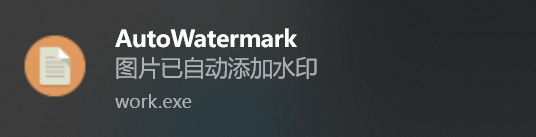
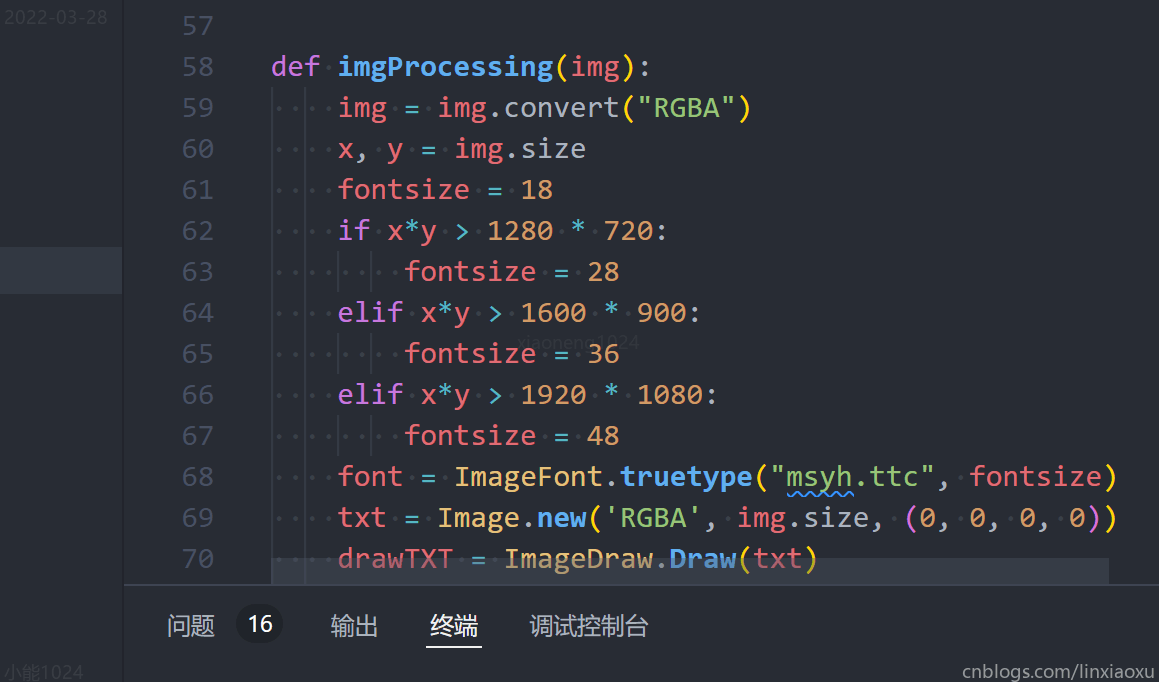
按下快捷键后,你可以看到四层水印,分别在左上,左下,中间,右下。
开发过程
功能分割
我将程序分为了三个部分,通知处理模块Notify.py,图片处理模块Image.py,键盘监听模块Work.py
notify.py
具体功能
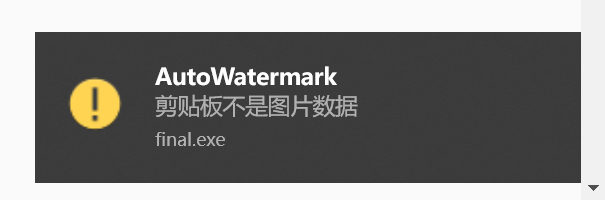
用于右下角的系统通知
Plyer
Install the
plyermodule withpip.pip install plyer
plyercomes with a class callednotification, which helps us create a notification. Import it like this:from plyer import notification
For Example
#import notification from plyer module 导入 player 里的 notification 方法

from plyer import notification

#import time 导入时间库

import time

#Use while loop to create notifications indefinetly 死循环

while(True):

    #notification 进行系统提示

    notification.notify(

        title = "Reminder to take a break",

        message = '''Drink water, take a walk''',

        timeout = 60

    )

    #System pause the execution of this programm for 60 minutes 每60分钟执行一次

    time.sleep(60*60)
Windows有效的可选参数:

title (str): 显示通知标题

message (str): 显示通知信息

app_icon (str): 显示通知图标,注意windows只能使用ico

timeout (int): 通知显示时间
notify.py
对notification进行简单封装
from plyer import notification

import os

import random

import sys

path = os.path.dirname(__file__)

appname = "自动水印"

def resource_path(relative_path):

    """ Get absolute path to resource, works for dev and for PyInstaller """

    try:

        # PyInstaller creates a temp folder and stores path in _MEIPASS

        base_path = sys._MEIPASS

    except Exception:

        base_path = os.path.abspath(".")

    return os.path.join(base_path, relative_path)

def notify(title, message, icon):

    notification.notify(

        title=title,

        message=message,

        app_name=appname,

        app_icon=resource_path('{}.ico'.format(icon)),

        timeout=2

    )
代码当中有一个 resource_path方法,这个是取当前文件夹路径,是为了打包成exe之后能够使用依赖资源,因为使用的不是exe当前的目录,而是temp缓存目录,pyinstaller打包出来的可执行程序会将temp目录保存到 sys._MEIPASS,os.path.abspath(".")通过绝对路径方法获取当前目录位置。
注意:执行exe时 os.path.dirname(__file__) 将会出错无法得到正确路径,只能用于本地测试。
image.py
具体功能
- 从剪贴板获取图片
- 处理图片
- 将图片放回剪贴板
PIL 库使用
PIL 是 Python 的图像处理标准库
官方文档
- https://pillow.readthedocs.io/en/stable/reference/ImageFont.html 字体的设置
- https://pillow.readthedocs.io/en/stable/reference/ImageDraw.html 图像的处理,比如添加字体
- https://pillow.readthedocs.io/en/stable/handbook/text-anchors.html#text-anchors 添加字体锚点
- https://pillow.readthedocs.io/en/stable/reference/ImageGrab.html 从剪贴板取图片数据
其他资料
https://www.liaoxuefeng.com/wiki/1016959663602400/1017785454949568 PIL介绍与使用
https://blog.csdn.net/weixin_43790276/article/details/108478270 PIL简单图片处理
图片存入剪贴板
Windows 剪贴板仅支持 BMP 位图格式,所以我们需要对Image进行格式转换。存入剪贴板的数据需要去除BMP格式的头部信息(位图信息)。
图片转化后,我们需要一组二进制字节流,用于存储图片的数据,再从二进制流里读取数据放入剪贴板中。
    img_byte_arr = io.BytesIO()  # 生成二进制字节流

    img.save(img_byte_arr, format='BMP')  # 将图片输入二进制字节流中

    img_byte_arr = img_byte_arr.getvalue()[14:]  # 取出二进制字节流并切片截取
存入剪贴板需要使用 win32clipboard 库,需要 pip install pywin32
如何画粗体字
https://stackoverflow.com/questions/1815165/draw-bold-italic-text-with-pil
添加文字框的方法中发现并没有字体变粗的属性,具体实现有两种
切换字体,像微软雅黑UI 有三种字体,分别是 粗、普通、细,文件名也不同
描边,对
drawTXT.text添加参数,最好颜色一致,这种可以自定义字体粗的程度drawTXT.text((x/2, y/2), "xiaoneng1024", font=font, fill=(220, 220, 220, 16), anchor='mm',stroke_width=2,stroke_fill = "black")
image.py
import io

import os

import random

import win32clipboard

import time

from PIL import Image, ImageFont, ImageDraw, ImageGrab

from notify import notify

path = os.path.dirname(__file__)

# img = Image.open(path + "/lazy.jpeg") # ^ 测试用

def main():

    # ^ 运行主流程

    img = getClipboard()

    if img == None:

        notify('AutoWatermark', '剪贴板不是图片数据', 'warn')

        return

    # print(img.size, img.mode)

    try:

        img = imgProcessing(img)

        img_bytes = imgToBytes(img)

        res = setClipboard(img_bytes)

    except:

        notify('AutoWatermark', '异常错误 ERROR', 'file')

        return

    if res == True:

        notify('AutoWatermark', '图片已自动添加水印', 'file')

    else:

        notify('AutoWatermark', '剪贴板读取失败:拒绝访问', 'warn')

def getClipboard():

    # ^ 获取剪贴板数据

    try:

        img = ImageGrab.grabclipboard()

    except:

        return None

    return img

def imgProcessing(img):

    # ^ 图像处理

    # @ 将图像转换为RGBA,添加通道值方便后期与字体图层叠加

    img = img.convert("RGBA")

    x, y = img.size

    fontsize = 18

    # @ 根据截取大小调整字体大小

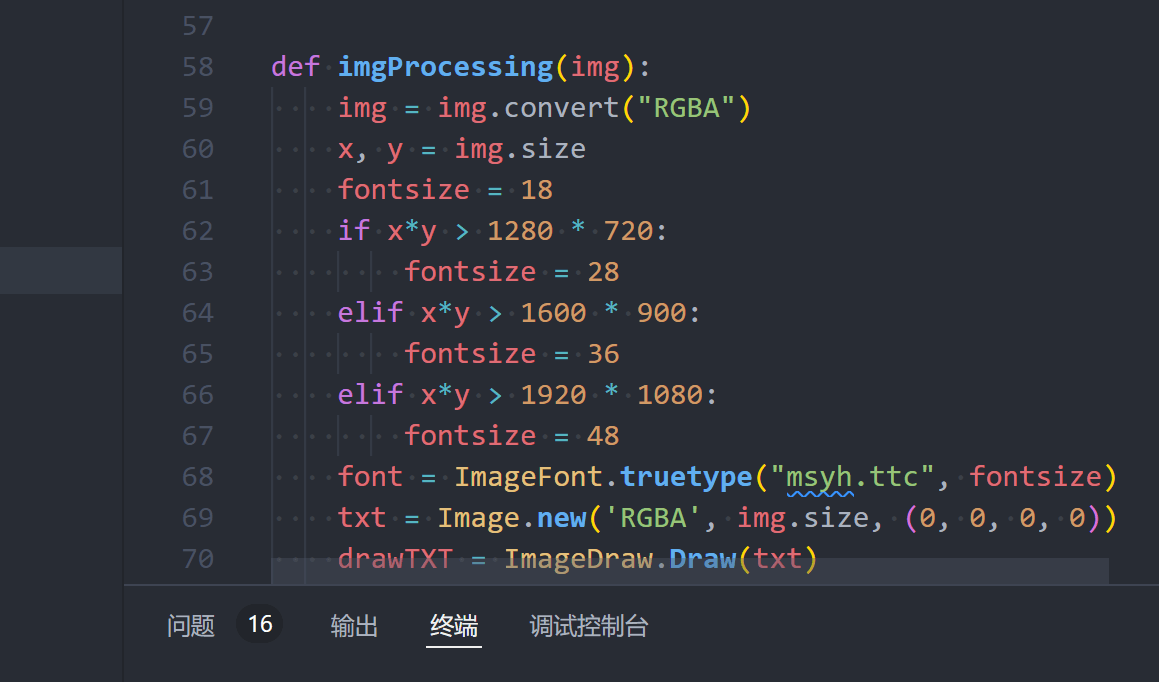
    if x*y > 1280 * 720:

        fontsize = 28

    elif x*y > 1600 * 900:

        fontsize = 36

    elif x*y > 1920 * 1080:

        fontsize = 48

    # @ 选择字体,这里我选择微软雅黑

    font = ImageFont.truetype("msyh.ttc", fontsize)

    # @ 新建一个存文字框的图层

    txt = Image.new('RGBA', img.size, (0, 0, 0, 0))

    # @ 创建Draw对象,可以对图层绘图操作

    drawTXT = ImageDraw.Draw(txt)

    drawTXT.text((x-4, y-4), "cnblogs.com/linxiaoxu", font=font, fill=(220, 220, 220, 156), anchor='rs')  # stroke_width=2,stroke_fill = "black"

    drawTXT.text((x/2, y/2), "xiaoneng1024", font=font, fill=(220, 220, 220, 16), anchor='mm')

    drawTXT.text((4, 4), time.strftime("%Y-%m-%d", time.gmtime()), font=font, fill=(220, 220, 220, 24), anchor='la')  # stroke_width=2,stroke_fill = "black"

    drawTXT.text((4, y), "小能1024", font=font, fill=(220, 220, 220, 24), anchor='lb')

    # @ 将两个图层合并

    img = Image.alpha_composite(img, txt)

    return img

def imgToBytes(img):

    # ^ 将图像转换为二进制流,并裁剪头部信息

    img_byte_arr = io.BytesIO()

    img.save(img_byte_arr, format='BMP')

    img_byte_arr = img_byte_arr.getvalue()[14:]

    # print(img_byte_arr, type(img_byte_arr))

    return img_byte_arr

def setClipboard(img_byte_arr):

    # ^ 设置系统剪贴板数据

    try:

        win32clipboard.OpenClipboard()

        win32clipboard.EmptyClipboard()

        win32clipboard.SetClipboardData(win32clipboard.CF_DIB, img_byte_arr)

        win32clipboard.CloseClipboard()

        return True

    except:

        return False

if __name__ == '__main__':

    main()
work.py
pynput 包
我们需要有一个对全局键盘事件进行监听并响应事件的线程,这时 pynput 包作用就出来了,用于控制和监视鼠标、键盘的类
https://pynput.readthedocs.io/en/latest/index.html
work.py
from pynput import keyboard

from image import main

from notify import notify

def on_activate():

    print('Global hotkey activated!')

    main()

def for_canonical(f):

    return lambda k: f(l.canonical(k))

notify('AutoWatermark', '程序已启动!', 'warn')

hotkey = keyboard.HotKey(

    keyboard.HotKey.parse('<ctrl>+<shift>+,'),

    on_activate)

with keyboard.Listener(

        on_press=for_canonical(hotkey.press),

        on_release=for_canonical(hotkey.release)) as l:

    l.join()
on_activate 是触发快捷键的方法
for_canonical(f) 是修饰器,返回一个匿名函数,为了调用 listener 的方法 canonical 使用户输入的按键规范化
奇数行是直接调用,不使用修饰器。偶数行使用修饰器,可以看到原本的 Key.alt_l 被规范成 Key.alt
第1次 Key.alt_l <enum 'Key'>

第1次 Key.alt <enum 'Key'>

第2次 Key.ctrl_l <enum 'Key'>

第2次 Key.ctrl <enum 'Key'>
hotkey = keyboard.HotKey(

    keyboard.HotKey.parse('<ctrl>+<shift>+,'),

    on_activate)
这个是设置HotKey对象,parse方法方便转换组合的快捷键,on_activate 是触发时调用的方法
with keyboard.Listener(

        on_press=for_canonical(hotkey.press),

        on_release=for_canonical(hotkey.release)) as l:

    l.join()
这个是阻塞式的用法,开始一个新线程监听键盘事件
打包exe
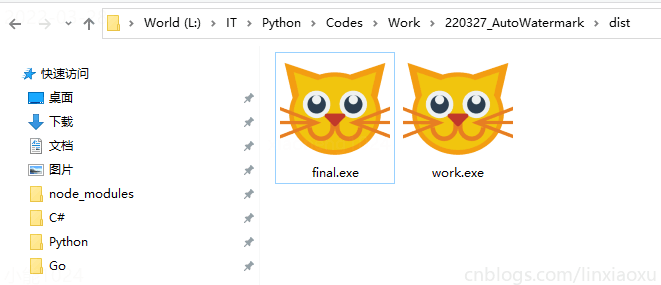
安装 pyinstaller
pip install pyinstaller
[已解决] ModuleNotFoundError: No module named ‘pip‘
在安装 pyinstaller 的过程中控制台报错,ModuleNotFoundError: No module named ‘pip‘
解决方法
python -m ensurepip

python -m pip install --upgrade pip
一个py打包exe
合并py
我们将三个py合并为一个py
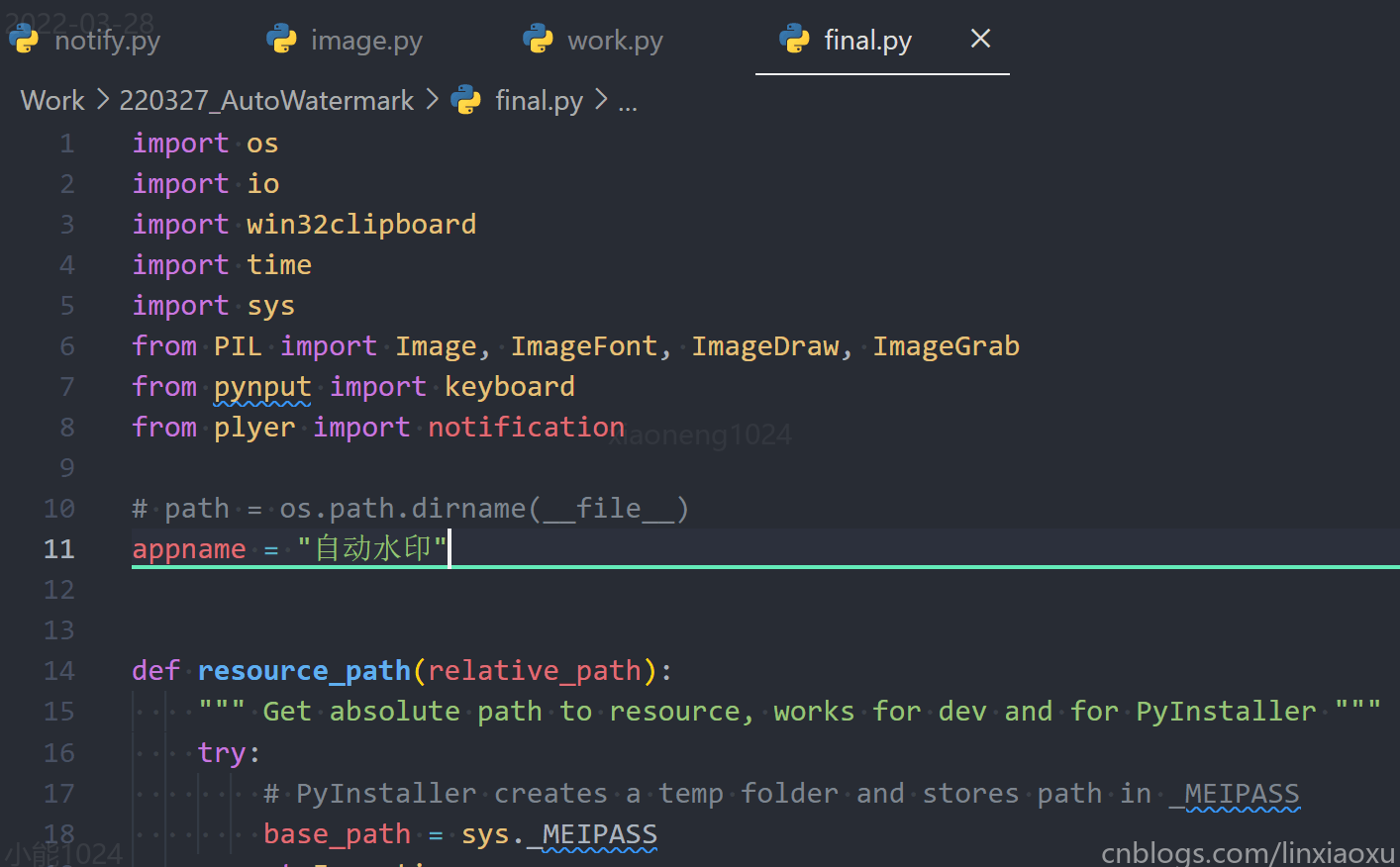
执行命令
在当前终端执行如下命令
pyinstaller --windowed --icon cat.ico -i cat.ico --onefile --add-data "L:/IT/Python/Codes/Work/220327_AutoWatermark/file.ico;." --add-data "L:/IT/Python/Codes/Work/220327_AutoWatermark/warn.ico;." --hidden-import plyer.platforms.win.notification --hidden-import PIL final.py
参数介绍
- --windowed 最小化运行
- --icon 设置图表
- --onefile 生成一个exe文件
- --add-data 添加第三方依赖
- --hidden-import 手动添加需要打包的库
- final.py 当前需要打包的py脚本
多个py打包exe
执行命令
在当前终端执行如下命令
pyinstaller --windowed --icon cat.ico -i cat.ico --onefile --add-data "L:/IT/Python/Codes/Work/220327_AutoWatermark/file.ico;." --add-data "L:/IT/Python/Codes/Work/220327_AutoWatermark/warn.ico;." --hidden-import plyer.platforms.win.notification --hidden-import PIL work.py -p notify.py -p image.py
参数介绍
- -p 其他脚本
打包错误
Plyer 库未被打包导致方法调用失败
Traceback (most recent call last):

    ...

ModuleNotFoundError: No module named 'plyer.platforms'

Traceback (most recent call last):

  File "notification test.py", line 3, in <module>

  File "plyer\facades\notification.py", line 79, in notify

  File "plyer\facades\notification.py", line 88, in _notify

NotImplementedError: No usable implementation found!

[12520] Failed to execute script 'notification test' due to unhandled exception!
https://stackoverflow.com/questions/67489963/failed-to-execute-script-pyinstaller
plyer 模块不会自动被打包,需要手动添加命令 --hidden-import plyer.platforms.win.notification
另一种方法
PIL库也可能未被打包,先打包一次,在当前目录下找到被打包py的spec文件,打开修改添加库所在的位置。我是win10,库文件夹目录在C:\Users\Administrator\AppData\Local\Programs\Python\Python310\Lib\site-packages
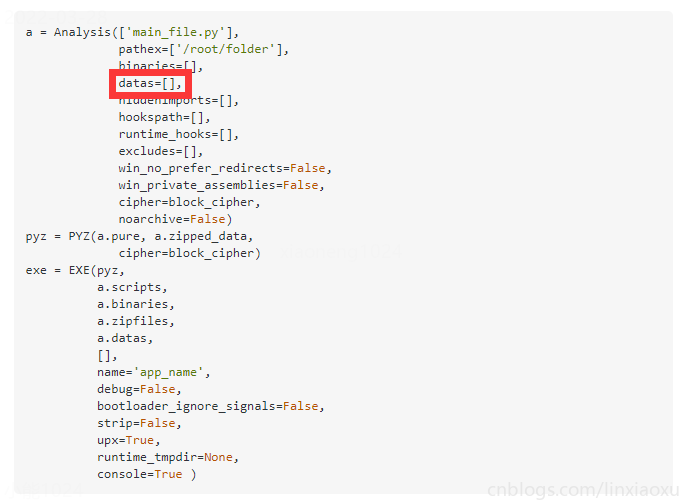
datas=[('C:/Users/Administrator/AppData/Local/Programs/Python/Python310/Lib/site-packages/PIL','PIL'),],
其他资料
https://pypi.org/project/auto-py-to-exe/ 打包工具
https://www.imooc.com/article/286538 打包指南
https://www.zhihu.com/question/281858271/answer/611320245 打包文件太大了
final.py
import os

import io

import win32clipboard

import time

import sys

from PIL import Image, ImageFont, ImageDraw, ImageGrab

from pynput import keyboard

from plyer import notification

# path = os.path.dirname(__file__)

appname = "自动水印"

def resource_path(relative_path):

    """ Get absolute path to resource, works for dev and for PyInstaller """

    try:

        # PyInstaller creates a temp folder and stores path in _MEIPASS

        base_path = sys._MEIPASS

    except Exception:

        base_path = os.path.abspath(".")

    return os.path.join(base_path, relative_path)

def notify(title, message, icon):

    notification.notify(

        title=title,

        message=message,

        app_name=appname,

        app_icon=resource_path('{}.ico'.format(icon)),

        timeout=19

    )

def main():

    img = getClipboard()

    if img == None:

        notify('AutoWatermark', '剪贴板不是图片数据', 'warn')

        return

    # print(img.size, img.mode)

    try:

        img = imgProcessing(img)

        img_bytes = imgToBytes(img)

        res = setClipboard(img_bytes)

    except:

        notify('AutoWatermark', '异常错误 ERROR', 'file')

        return

    if res == True:

        notify('AutoWatermark', '图片已自动添加水印', 'file')

    else:

        notify('AutoWatermark', '剪贴板读取失败:拒绝访问', 'warn')

def getClipboard():

    try:

        img = ImageGrab.grabclipboard()

    except:

        return None

    return img

def imgProcessing(img):

    img = img.convert("RGBA")

    x, y = img.size

    fontsize = 18

    if x*y > 1280 * 720:

        fontsize = 28

    elif x*y > 1600 * 900:

        fontsize = 36

    elif x*y > 1920 * 1080:

        fontsize = 48

    font = ImageFont.truetype("msyh.ttc", fontsize)

    txt = Image.new('RGBA', img.size, (0, 0, 0, 0))

    drawTXT = ImageDraw.Draw(txt)

    drawTXT.text((x-4, y-4), "cnblogs.com/linxiaoxu", font=font, fill=(220, 220, 220, 156), anchor='rs')  # stroke_width=2,stroke_fill = "black"

    drawTXT.text((x/2, y/2), "xiaoneng1024", font=font, fill=(220, 220, 220, 16), anchor='mm')

    drawTXT.text((4, 4), time.strftime("%Y-%m-%d", time.gmtime()), font=font, fill=(220, 220, 220, 24), anchor='la')  # stroke_width=2,stroke_fill = "black"

    drawTXT.text((4, y), "小能1024", font=font, fill=(220, 220, 220, 24), anchor='lb')

    img = Image.alpha_composite(img, txt)

    return img

def imgToBytes(img):

    img_byte_arr = io.BytesIO()

    img.save(img_byte_arr, format='BMP')

    img_byte_arr = img_byte_arr.getvalue()[14:]

    # print(img_byte_arr, type(img_byte_arr))

    return img_byte_arr

def setClipboard(img_byte_arr):

    try:

        win32clipboard.OpenClipboard()

        win32clipboard.EmptyClipboard()

        win32clipboard.SetClipboardData(win32clipboard.CF_DIB, img_byte_arr)

        win32clipboard.CloseClipboard()

        return True

    except:

        return False

def on_activate():

    print('Global hotkey activated!')

    main()

def for_canonical(f):

    return lambda k: f(l.canonical(k))

notify('AutoWatermark', '程序已启动!', 'warn')

hotkey = keyboard.HotKey(

    keyboard.HotKey.parse('<ctrl>+<shift>+,'),

    on_activate)

with keyboard.Listener(

        on_press=for_canonical(hotkey.press),

        on_release=for_canonical(hotkey.release)) as l:

    l.join()
Python Windows 快捷键自动给剪贴板(复制)图片添加水印的更多相关文章
- js点击后将文字复制到剪贴板,将图片复制到剪贴板
复制文字: <table width="99%" border="0" cellpadding="0" cellspacing=&qu ...
- js点击后将文字复制到剪贴板,将图片复制到画图
<!DOCTYPE HTML PUBLIC "-//W3C//DTD HTML 4.0 Transitional//EN"><HTML> <HEAD& ...
- Pycharm+Python3+python工程打包成exe+在windows下自动定时运行
python3打包成exe---pyinstaller方法:https://www.cnblogs.com/mufenglin/p/7479281.html 按照如上方式打包后,执行dist文件夹(新 ...
- Co. - Microsoft - Windows - 快捷键
[F1-F12]键 [Win]键 Windows键就是电脑键盘上是Windows图标的键,一般在Ctrl键和Alt键之间.搜索看整个键盘你会发现键盘上有两个Windows键,主要是左右手设计方便按各种 ...
- Windows快捷键大全(从XP到win8.1)
常见用法 F1 显示当前程序或者windows的帮助内容. F2 当你选中一个文件的话,这意味着“重命名” F3 当你在桌面上的时候是打开“查找:所有文件” 对话框 F5 刷新 F10或ALT 激活当 ...
- Python IDLE 快捷键
Python IDLE 快捷键 编辑状态时: Ctrl + [ .Ctrl + ] 缩进代码 Alt+3 Alt+4 注释.取消注释代码行 Alt+5 Alt+6 切换缩进方式 空格<=> ...
- windows快捷键十八式(win10)
胖友,如果你的电脑是windows系统,下面这十八招windows快捷键都不会,还敢说你会用windows? 说到windows的快捷键,当然不是只有ctrl+c,ctrl+v这么简单,今天我整理了一 ...
- Capslock+ 键盘党都爱的高效利器 - 让 Windows 快捷键操作更加灵活强大
Capslock+ 键盘党都爱的高效利器 - 让 Windows 快捷键操作更加灵活强大 优化辅助 Windows 2016-06-05 91,167 微博微信QQ空间印象有道邮件 ...
- CefBrowser 复制图片解决办法
使用的是CefSharp控件,开放出的功能比较多,但是还是有一些封闭的.例如复制图片到Clipbord,库没有提供. VC虽然看得懂,但托管代码没搞过,看得很蛋痛,而且如果有CefSharp有新版本还 ...
随机推荐
- 不使用数字和字母的PHP webshell
Round 1 代码如下: <?php if(!preg_match('/[a-z0-9]/is',$_GET['shell'])) { eval($_GET['shell']); } 思路 将 ...
- 羽夏看Win系统内核—— VT 入门番外篇
写在前面 此系列是本人一个字一个字码出来的,包括示例和实验截图.由于系统内核的复杂性,故可能有错误或者不全面的地方,如有错误,欢迎批评指正,本教程将会长期更新. 如有好的建议,欢迎反馈.码字不易, ...
- Java9的模块化是什么
Java9新特性中的模块化到底是什么 Java9中的一个重大特性是增加了一种新型的程序设计组件 - 模块. 官方对模块的定义为:一个被命名的,代码和数据的自描述集合.( the module, whi ...
- JVM分析工具与查看命令
1.概述 无可避免地,我们都需要用到多线程的一天.单纯地使用多线程的参数设置,比如-Xms.-Xmx.-Xss等,还不足够,我们还要学会如何分析JVM里面的线程状况. 在进行java程序问题定位时,内 ...
- Spring Boot 的核心配置文件有哪几个?它们的区别是什么?
Spring Boot 的核心配置文件是 application 和 bootstrap 配置文件.application 配置文件这个容易理解,主要用于 Spring Boot 项目的自动化配置.b ...
- 使用Pycharm IDE工具,使用input()函数出现>?符号
Python Console === 如果你是要Pycharm开发Python项目时,出现使用input函数,提示 >? 符号的时候,那应该是开启了Python Console控制台输出,取 ...
- keybd_event 在F按键系列不起作用的解决办法
最近给公司做自动化测试工具,主要用到的功能是模拟鼠标键盘录制回放.一切都很完美了,但在客户大机系统上使用的时候,发现F1-F24系列按键无法正确使用,查了很多资料,主要有2个方面的原因: 1.一些游戏 ...
- java-集合-realdo-集合一对多
school类: package setdone; import java.util.List; public class School { private String schoolname; pr ...
- HTML5摇一摇(上)—如何判断设备摇动
刚刚过去的一年里基于微信的H5营销可谓是十分火爆,通过转发朋友圈带来的病毒式传播效果相信大家都不太陌生吧,刚好最近农历新年将至,我就拿一个"摇签"的小例子来谈一谈HTML5中如何调 ...
- android webview与jquery mobile相互通信
最近做android项目中遇到要在webview中做与js交互相关的东东,涉及到js中调用android本地的方法,于是查了资料整理了一下android和js互相调用的过程.如下demo,demo的主 ...