
Azure - Create your first function using Visual Studio
Azure Functions lets you execute your code in a serverless environment without having to first create a VM or publish a web application.
In this article, you learn how to use the Visual Studio 2017 tools for Azure Functions to locally create and test a "hello world" function. You then publish the function code to Azure. These tools are available as part of the Azure development workload in Visual Studio 2017.

This topic includes a video that demonstrates the same basic steps.
Prerequisites
To complete this tutorial:
Install Visual Studio 2017 version 15.5 or a later version, including the Azure development workload.
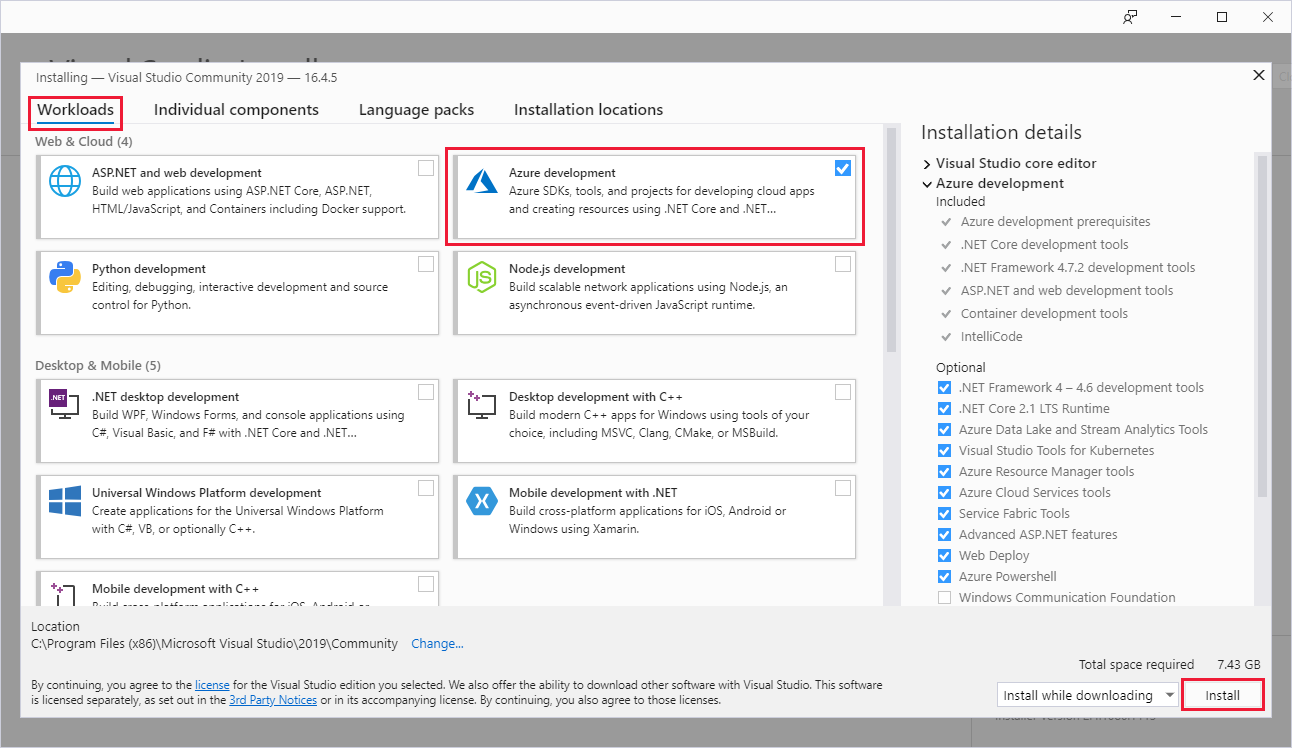
If you have already installed Visual Studio, make sure you have installed any pending updates.
If you installed the Azure development workload with Visual Studio 2017 version 15.4 or earlier, you may also need to update your Azure Functions tools.
If you don't have an Azure subscription, create a free account before you begin.
Create a function app project
The Azure Functions project template in Visual Studio creates a project that can be published to a function app in Azure. A function app lets you group functions as a logical unit for management, deployment, and sharing of resources.
In Visual Studio, select New > Project from the File menu.
In the New Project dialog, select Installed, expand Visual C# > Cloud, select Azure Functions, type a Name for your project, and click OK. The function app name must be valid as a C# namespace, so don't use underscores, hyphens, or any other nonalphanumeric characters.
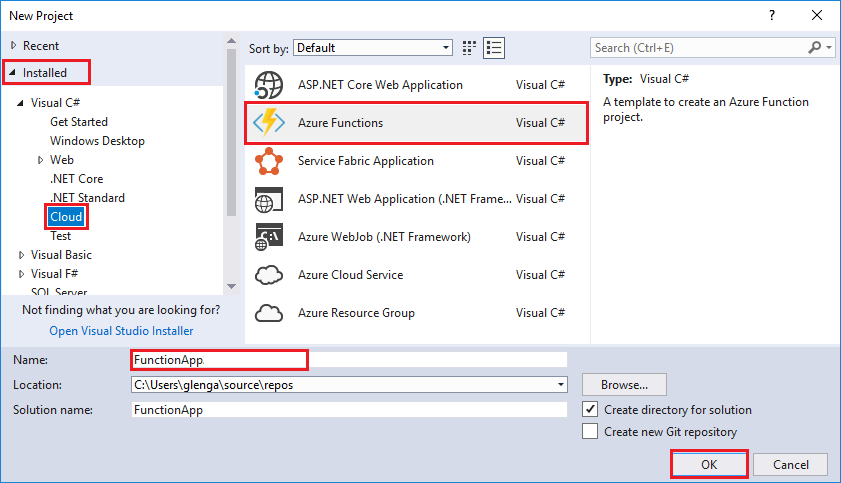
Use the settings specified in the table that follows the image.

Setting Suggested value Description Version Azure Functions v1
(.NET Framework)This creates a function project that uses the version 1 runtime of Azure Functions. The version 2 runtime, which supports .NET Core, is currently in preview. For more information, see How to target Azure Functions runtime version. Template HTTP trigger This creates a function triggered by an HTTP request. Storage account Storage Emulator An HTTP trigger doesn't use the Storage account connection. All other trigger types require a valid Storage account connection string. Access rights Anonymous The created function can be triggered by any client without providing a key. This authorization setting makes it easy to test your new function. For more information about keys and authorization, see Authorization keys in the HTTP and webhook bindings. - Click OK to create the function project and HTTP triggered function.
Visual Studio creates a project and in it a class that contains boilerplate code for the chosen function type. The FunctionName attribute on the method sets the name of the function. The HttpTrigger attribute specifies that the function is triggered by an HTTP request. The boilerplate code sends an HTTP response that includes a value from the request body or query string. You can add input and output bindings to a function by applying the appropriate attributes to the method. For more information, see the Triggers and bindings section of the Azure Functions C# developer reference.

Now that you've created your function project and an HTTP-triggered function, you can test it on your local computer.
Test the function locally
Azure Functions Core Tools lets you run an Azure Functions project on your local development computer. You are prompted to install these tools the first time you start a function from Visual Studio.
To test your function, press F5. If prompted, accept the request from Visual Studio to download and install Azure Functions Core (CLI) tools. You may also need to enable a firewall exception so that the tools can handle HTTP requests.
Copy the URL of your function from the Azure Functions runtime output.

Paste the URL for the HTTP request into your browser's address bar. Append the query string
?name=<yourname>to this URL and execute the request. The following shows the response in the browser to the local GET request returned by the function: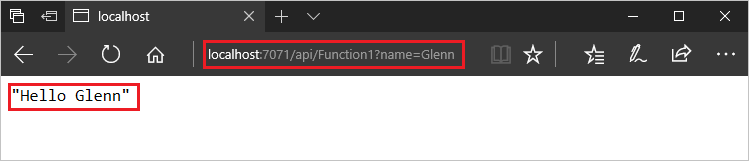
To stop debugging, press Shift + F5.
After you have verified that the function runs correctly on your local computer, it's time to publish the project to Azure.
Publish the project to Azure
You must have a function app in your Azure subscription before you can publish your project. You can create a function app right from Visual Studio.
In Solution Explorer, right-click the project and select Publish. Choose Create New and then Publish.

If you haven't already connected Visual Studio to your Azure account, select Add an account....
In the Create App Service dialog, use the Hosting settings as specified in the following table:

Setting Suggested value Description App Name Globally unique name Name that uniquely identifies your new function app. Subscription Choose your subscription The Azure subscription to use. Resource Group myResourceGroup Name of the resource group in which to create your function app. Choose New to create a new resource group. App Service Plan Consumption plan Make sure to choose the Consumption under Size after you click New to create a new plan. Also, choose a Location in a region near you or near other services your functions access. Note
An Azure storage account is required by the Functions runtime. Because of this, a new Azure Storage account is created for you when you create a function app.
Click Create to create a function app and related resources in Azure with these settings and deploy your function project code.
After the deployment is complete, make a note of the Site URL value, which is the address of your function app in Azure.

Test your function in Azure
Copy the base URL of the function app from the Publish profile page. Replace the
localhost:portportion of the URL you used when testing the function locally with the new base URL. As before, make sure to append the query string?name=<yourname>to this URL and execute the request.The URL that calls your HTTP triggered function should be in the following format:
Copyhttp://<functionappname>.azurewebsites.net/api/<functionname>?name=<yourname>
Paste this new URL for the HTTP request into your browser's address bar. The following shows the response in the browser to the remote GET request returned by the function:

Azure - Create your first function using Visual Studio的更多相关文章
- Create an offline installation of Visual Studio 2017 RC
Create an offline installation of Visual Studio 2017 RC 2016年12月7日 ...
- Azure ARM (7) ARM Template - 使用Visual Studio编辑
<Windows Azure Platform 系列文章目录> 之前介绍的ARM Template,都是使用文本编辑器来编辑JSON文件的. 文本讲介绍如何使用Visual Studio, ...
- Create C/C++ DLLs in Visual Studio
https://docs.microsoft.com/zh-tw/cpp/build/dlls-in-visual-cpp?view=vs-2019 Walkthrough: Create and u ...
- Create a Visual C++ Wizard for Visual Studio 2005
from:http://www.codeguru.com/cpp/v-s/devstudio_macros/customappwizards/article.php/c12775/Create-a-V ...
- [Azure] 使用 Visual Studio 2013 管理中国版 Azure 订阅
比较关心微软平台技术的朋友应该都知道,微软云服务(Microsoft Azure)以下简称Azure分为全球版和中国版,由于政府法规问题中国版的服务是由二十一世纪互联运营,整体来看中国版Azure和全 ...
- 使用 Visual Studio 将 ASP.NET Web 应用部署到 Azure
原文地址:https://www.azure.cn/zh-cn/documentation/articles/web-sites-dotnet-get-started 配置新的 Web 项目 下一步是 ...
- Visual Studio 2013 Update 3 RTM 正式发布
VS2013.3 RTM已发布! 完整安装包:http://download.microsoft.com/download/6/F/0/6F0777D3-3541-465F-8639-A8F9D36B ...
- Visual Studio 2019 正式发布,重磅更新,支持live share
如约而至,微软已于今天推出 Visual Studio 2019 正式版,一同发布的还有 Visual Studio 2019 for Mac. Visual Studio 2019 下载地址:htt ...
- Data Science With R In Visual Studio
R Projects Similar to Python, when we installed the data science tools we get an “R” section in our ...
随机推荐
- 经典面试题:浏览器是怎样解析CSS的?
摘要: 理解浏览器原理. 解析 一旦 CSS 被浏览器下载,CSS 解析器就会被打开来处理它遇到的任何 CSS.这可以是单个文档内的 CSS.<style>标记内的 CSS,也可以是 DO ...
- jsp基础语言-jsp代码段
jsp代码段:是放在<% %>标记之间符合java语言规范的代码片段 格式:<% 代码段 %> 代码段中可以包含用于jsp变量和方法的声明.显示表达式.HTML以及调用Jav ...
- [ArcGIS API for JavaScript 4.8] Sample Code-Get Started-widgets简介
[官方文档:https://developers.arcgis.com/javascript/latest/sample-code/intro-widgets/index.html] 一.Intro ...
- IDEA修改Git账户和密码
找到c盘中git目录的.gitconfig文件可以直接修改name和邮箱
- Mina的IoBuffer改造成Netty的ByteBuff
背景:部标GPS通讯底层全部改造成基于Netty服务器实现的,现将Mina的依赖移除,修改过程中有用到缓冲区的读写.现做了如下修改: 原有基于Mina的IoBuffer对字节读写封装代码如下: pac ...
- B
baababblebabblerbabebabelbaboonbabybabyhoodBabylonBabylonianbacchanalbacchanalianbachelorbacillusbac ...
- Django组件--forms组件(注册用)
一.forms组件--校验类的使用 二.form组件--校验类的参数 三.forms组件校验的局部钩子--自定义校验规则(要看源码理解) 四.forms组件校验的全局钩子--校验form表单两次密码输 ...
- Python开发【第二篇】运算符
"+" 加号 __author__ = 'Tang' a = 8 b = 9 c = a + b a = 8.0 b = 9 c = a + b print(c) # 17.0 a ...
- 背景图片固定不随页面上下滚动而滚动 ,属性 background-attachment
<div id="testimonials-section" class="text-center"> </div> css: #tes ...
- Ajax概述和判断用户名是否存在的简单代码练习
在本代码中主要体现,Ajax实现了部分位置的刷新.不需要重新刷新网页,重新请求服务器.下面用过代码来对Ajax更深的认识 这里需要创建,一个jsp文件(显示登录界面),js文件(对Ajax的主要设置) ...