
WPF仿Word头部格式,涉及DEV RibbonControl,NarvbarControl,ContentPresenter,Navigation
时隔1个月,2015/06/17走进新的环境。
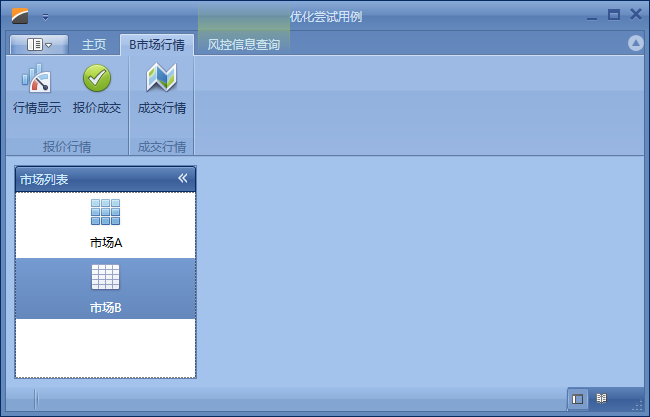
最近一个星期在学习仿Word菜单栏的WPF实现方式,废话不多说,先看一下效果。

打开界面后,默认选中【市场A】,A对应的菜单栏,如上图,
选择【市场B】后讲改变菜单栏,和B相应的界面。
要实现上述的功能,要怎么解决?
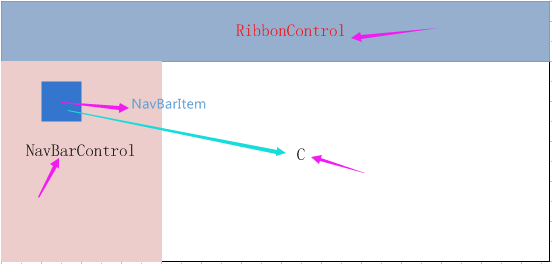
实际上,每个界面都可以看成有三部分组成,顶部的DEV.RibbonControl,左侧的DEV.NavbarControl,和中间显示主要界面C部分。
NavBarControl中包含多个NavBarItem,当切换NavBarItem时,就加载相应的子界面到C处。但,除了MainWindow完整包含这几个部分外,其他子界面都不一定。
下面,就围绕这3个部分展开。
1、MainWindow.xaml
<dxr:DXRibbonWindow  x:Class="WPFOptimizeTry.MainWindow"

        xmlns="http://schemas.microsoft.com/winfx/2006/xaml/presentation"

        xmlns:x="http://schemas.microsoft.com/winfx/2006/xaml"

         xmlns:dx="http://schemas.devexpress.com/winfx/2008/xaml/core"

        xmlns:dxb="http://schemas.devexpress.com/winfx/2008/xaml/bars"

        xmlns:dxe="http://schemas.devexpress.com/winfx/2008/xaml/editors"

        xmlns:dxdo="http://schemas.devexpress.com/winfx/2008/xaml/docking"

        xmlns:dxn="http://schemas.devexpress.com/winfx/2008/xaml/navbar"

        xmlns:dxr="http://schemas.devexpress.com/winfx/2008/xaml/ribbon"

        xmlns:dxrt="http://schemas.devexpress.com/winfx/2008/xaml/ribbon/themekeys"

        xmlns:dxmvvm="http://schemas.devexpress.com/winfx/2008/xaml/mvvm"

        xmlns:dxwui="http://schemas.devexpress.com/winfx/2008/xaml/windowsui"

        xmlns:dxwuin="http://schemas.devexpress.com/winfx/2008/xaml/windowsui/navigation"

        xmlns:dxnt="http://schemas.devexpress.com/winfx/2008/xaml/navbar/themekeys"

        xmlns:local="clr-namespace:WPFOptimizeTry"

        xmlns:sys="clr-namespace:System;assembly=mscorlib"

        Title="优化尝试用例"

        Height="900" Width="1300"

        WindowStartupLocation="CenterScreen"

        UseLayoutRounding="True"

        DataContext="{dxmvvm:ViewModelSource Type=local:MainWindowViewModel}"

                     Icon="pack://application:,,,/WPFOptimizeTry;component/demoicon.ico" >

    <dxmvvm:Interaction.Behaviors>

        <dxmvvm:CurrentWindowService />

        <dx:DialogService/>

    </dxmvvm:Interaction.Behaviors>

    <dxb:BarManager Name="barManager">

        <dxb:BarManager.Items>

            <dxr:RibbonGalleryBarItem x:Name="ribbonGalleryBarItem1">

                <dxmvvm:Interaction.Behaviors>

                    <dxr:RibbonGalleryItemThemeSelectorBehavior/>

                </dxmvvm:Interaction.Behaviors>

                <dxr:RibbonGalleryBarItem.Gallery>

                    <dxb:Gallery ItemGlyphSize="30,24" HoverGlyphSize="48,48"/>

                </dxr:RibbonGalleryBarItem.Gallery>

            </dxr:RibbonGalleryBarItem>

            <dxb:BarCheckItem x:Name="layoutNormal" IsChecked="{Binding IsExpanded, ElementName=navPanelView, Mode=TwoWay}"

                              Glyph="pack://application:,,,/WPFOptimizeTry;component/Images/normal.png" GlyphSize="Small"/>

            <dxb:BarCheckItem x:Name="layoutReading"

                              IsChecked="{Binding IsExpanded, ElementName=navPanelView, Mode=TwoWay, Converter={StaticResource BooleanNegationConverter}}"

                              Glyph="pack://application:,,,/WPFOptimizeTry;component/Images/reading.png" GlyphSize="Small"/>

        </dxb:BarManager.Items>

        <Grid>

            <Grid.RowDefinitions>

                <RowDefinition Height="Auto" />

                <RowDefinition Height="*" />

                <RowDefinition Height="Auto" />

            </Grid.RowDefinitions>

            <dxr:RibbonControl RibbonStyle="Office2010" x:Name="ribbon" AllowCustomization="False">

                <!--ApplicationMenu可以先忽略-->

                <dxr:RibbonControl.ApplicationMenu>

                    <dxr:BackstageViewControl SelectedTabIndex="{Binding DefaultBackstatgeIndex, Mode=TwoWay}"

                                              IsOpen="{Binding IsBackstageOpen, Mode=TwoWay}">

                        <dxr:BackstageViewControl.Items>

                            <dxr:BackstageTabItem Content="个人账户"  >

                            </dxr:BackstageTabItem>

                            <dxr:BackstageTabItem  Content="订单查询" IsEnabled="{Binding HasPrinting, Mode=OneWay}">

                            </dxr:BackstageTabItem>

                            <dxr:BackstageButtonItem  Content="授信查询" Command="{Binding ExitCommand}" />

                        </dxr:BackstageViewControl.Items>

                    </dxr:BackstageViewControl>

                </dxr:RibbonControl.ApplicationMenu>

                <!--RibbonDefaultPageCategory 主界面默认显示的菜单,像Word里面可能先默认显示-->

                <dxr:RibbonDefaultPageCategory>

                    <dxr:RibbonPage Caption="主页" >

                        <dxr:RibbonPageGroup Caption="个人账户" ShowCaptionButton="False">

                            <dxb:BarButtonItem Content="修改" x:Name="btnModify"  RibbonStyle="Large"

                                               Glyph="pack://application:,,,/WPFOptimizeTry;component/Images/WordProcessing.png"

                                               Command="{Binding ModifyCommand}" ></dxb:BarButtonItem>

                        </dxr:RibbonPageGroup>

                        <dxr:RibbonPageGroup Caption="XXXX" ShowCaptionButton="False">

                            <dxb:BarButtonItem Content="MMM" x:Name="btnM"  RibbonStyle="Large"

                                               Glyph="pack://application:,,,/WPFOptimizeTry;component/Images/WordProcessing.png"

                                               Command="{Binding MoCommand}" ></dxb:BarButtonItem>

                        </dxr:RibbonPageGroup>

                    </dxr:RibbonPage>

                </dxr:RibbonDefaultPageCategory>

            </dxr:RibbonControl>

            <dxdo:DockLayoutManager Grid.Row="1" Margin="6">

                <dxdo:LayoutGroup Caption="LayoutRoot">

                    <dxdo:LayoutPanel Caption="WPF Products" ItemWidth="Auto" AllowClose="False" ShowCaption="False" MaxWidth="183" Name="layoutPanel" AllowSizing="{Binding IsExpanded, ElementName=navPanelView}">

                        <dxn:NavBarControl SelectedItem="{Binding SelectedModuleInfo, Mode=TwoWay}" ItemsSource="{Binding Path=ModuleGroups}">

                            <dxmvvm:Interaction.Triggers>

                                <dxmvvm:EventToCommand EventName="Loaded" Command="{Binding OnModulesLoadedCommand}" />

                            </dxmvvm:Interaction.Triggers>

                            <dxn:NavBarControl.ItemStyle>

                                <Style TargetType="dxn:NavBarGroup">

                                    <Setter Property="Header" Value="{Binding Path=Title}" />

                                    <Setter Property="ItemsSource" Value="{Binding Path=ModuleInfos}" />

                                    <Setter Property="ItemStyle">

                                        <Setter.Value>

                                            <Style TargetType="dxn:NavBarItem">

                                                <Setter Property="IsSelected" Value="{Binding Path=IsSelected, Mode=TwoWay, UpdateSourceTrigger=PropertyChanged}" />

                                                <Setter Property="Content" Value="{Binding Path=Title}" />

                                                <Setter Property="ImageSource" Value="{Binding Path=Icon}" />

                                                <Setter Property="Command" Value="{Binding Path=ShowCommand}" />

                                                <Setter Property="ImageSettings">

                                                    <Setter.Value>

                                                        <dxn:ImageSettings Width="32" Height="32" Stretch="Uniform" StretchDirection="Both" />

                                                    </Setter.Value>

                                                </Setter>

                                                <Setter Property="LayoutSettings">

                                                    <Setter.Value>

                                                        <dxn:LayoutSettings ImageDocking="Top"  ImageHorizontalAlignment="Center" TextHorizontalAlignment="Center" ImageVerticalAlignment="Center" TextVerticalAlignment="Center" />

                                                    </Setter.Value>

                                                </Setter>

                                            </Style>

                                        </Setter.Value>

                                    </Setter>

                                </Style>

                            </dxn:NavBarControl.ItemStyle>

                            <dxn:NavBarControl.View>

                                <dxn:NavigationPaneView x:Name="navPanelView" IsOverflowPanelVisible="False" IsSplitterVisible="False" />

                            </dxn:NavBarControl.View>

                        </dxn:NavBarControl>

                    </dxdo:LayoutPanel>

                    <dxdo:LayoutPanel AllowClose="False" AllowFloat="False" AllowHide="False" ShowCaption="False" ShowBorder="False" ShowCloseButton="False">

                        <dxwui:NavigationFrame x:Name="documentFrame"  Navigating="OnDocumentFrameNavigating">

                            <dxwui:NavigationFrame.Resources>

                                <Style TargetType="dxwui:PageAdornerControl">

                                    <Setter Property="Template">

                                        <Setter.Value>

                                            <ControlTemplate TargetType="dxwui:PageAdornerControl">

                                                <ContentPresenter Content="{TemplateBinding Content}"  />

                                            </ControlTemplate>

                                        </Setter.Value>

                                    </Setter>

                                </Style>

                            </dxwui:NavigationFrame.Resources>

                            <dxmvvm:Interaction.Behaviors>

                                <dxwuin:FrameNavigationService Frame="{Binding ElementName=documentFrame}" />

                                <dx:DXSplashScreenService SplashScreenType="{Binding SplashScreenType}" />

                            </dxmvvm:Interaction.Behaviors>

                        </dxwui:NavigationFrame>

                    </dxdo:LayoutPanel>

                </dxdo:LayoutGroup>

            </dxdo:DockLayoutManager>

            <dxr:RibbonStatusBarControl x:Name="statusBar" Grid.Row="2">

                <dxr:RibbonStatusBarControl.RightItemLinks>

                    <dxb:BarCheckItemLink BarItemName="layoutNormal"/>

                    <dxb:BarCheckItemLink BarItemName="layoutReading"/>

                </dxr:RibbonStatusBarControl.RightItemLinks>

            </dxr:RibbonStatusBarControl>

        </Grid>

    </dxb:BarManager>

</dxr:DXRibbonWindow>
MainWindow.cs
namespace WPFOptimizeTry

{

    /// <summary>

    /// MainWindow.xaml 的交互逻辑

    /// </summary>

    public partial class MainWindow : DXRibbonWindow

    {

       public virtual FrameworkElement BindContent { get; set; }

        public MainWindow()

        {

            InitializeComponent();

            if (Height > SystemParameters.VirtualScreenHeight || Width > SystemParameters.VirtualScreenWidth)

                WindowState = WindowState.Maximized;

            DevExpress.Utils.About.UAlgo.Default.DoEventObject(DevExpress.Utils.About.UAlgo.kDemo, DevExpress.Utils.About.UAlgo.pWPF, this);

        }
        void OnDocumentFrameNavigating(object sender, NavigatingEventArgs e)

        {

            if (e.Cancel) return;

            //在Show命令中触发导航事件,在导航时加载子界面,

            Type type = Type.GetType(new MainWindow().GetType().Namespace + "." + e.Parameter.ToString(), true, true);

            var temp = Activator.CreateInstance(type);

            NavigationFrame frame = (sender as NavigationFrame);

            frame.Content = temp;
            //到这里其实已经加载页面完毕,如果不添加SetMergeWith语句,会将子界面整个加载到C区,再与主界面合并,肉眼能够看到整个程序变化的过程。
            //使用SetMergeWith可以使整个过度很平滑,会让你觉得一开始菜单就在菜单的位置。

            FrameworkElement oldContent = (FrameworkElement)frame.Content;

            if (oldContent != null)

            {

                RibbonMergingHelper.SetMergeWith(oldContent, ribbon);

                RibbonMergingHelper.SetMergeStatusBarWith(oldContent, statusBar);

            }
           //下面这句话不可缺少,

            e.Cancel = true;

        }

    }

}
MainWindowViewModel.cs
namespace WPFOptimizeTry

{

    public class MainWindowViewModel

    {

        public virtual IEnumerable<ModuleGroup> ModuleGroups { get; protected set; }

        public virtual ModuleInfo SelectedModuleInfo { get; set; }

        public virtual Type SplashScreenType { get; set; }

        public virtual int DefaultBackstatgeIndex { get; set; }

        public virtual bool HasPrinting { get; set; }

        public virtual bool IsBackstageOpen { get; set; }

        [Required]

        protected virtual ICurrentWindowService CurrentWindowService { get { return null; } }

        public MainWindowViewModel()

        {

            List<ModuleInfo> modules = new List<ModuleInfo>()

            {

                ViewModelSource.Create(() => new ModuleInfo("UCMarketA", this, "市场A")).SetIcon("GridContacts"),

                ViewModelSource.Create(() => new ModuleInfo("UCMarketB", this, "市场B")).SetIcon("GridTasks"),

            };

            ModuleGroups = new ModuleGroup[] {  new ModuleGroup("市场列表", modules)  };

        }

        public void Exit()

        {

            CurrentWindowService.Close();

        }

        public void OnModulesLoaded()

        {

            if (SelectedModuleInfo == null)

            {

                SelectedModuleInfo = ModuleGroups.First().ModuleInfos.First();

                SelectedModuleInfo.IsSelected = true;

                SelectedModuleInfo.Show();

            }

        }

    }
//为NavBarControl构造数据源的类

    public class ModuleGroup

    {

        public ModuleGroup(string _title, IEnumerable<ModuleInfo> _moduleInfos)

        {

            Title = _title;

            ModuleInfos = _moduleInfos;

        }

        public string Title { get; private set; }

        public IEnumerable<ModuleInfo> ModuleInfos { get; private set; }

    }

//一个NavBarItem对应一个ModuleInfo

    public class ModuleInfo

    {

        ISupportServices Parent;

        public ModuleInfo(string _type, object parent, string _title)

        {

            Type = _type;

            this.Parent = (ISupportServices)parent;

            Title = _title;

        }

        public string Type { get; private set; }

        public virtual bool IsSelected { get; set; }

        public string Title { get; private set; }

        public virtual Uri Icon { get; set; }

        public ModuleInfo SetIcon(string icon)

        {

            this.Icon = AssemblyHelper.GetResourceUri(typeof(ModuleInfo).Assembly, string.Format("Images/{0}.png", icon));

            return this;

        }
          //选中按钮时触发导航事件,至于为什么,为了极大程度上的符合MVVM,这是我暂时能想到的解决问题的唯一办法。

        public void Show(object parameter = null)

        {

            INavigationService navigationService = Parent.ServiceContainer.GetService<INavigationService>();

            navigationService.Navigate(Type, Type, Parent);

        }

    }

}
子界面,以B为例。
MarketB.xaml,子界面中有不同的菜单,所以需要在子界面写B的菜单RibbonControl.
<UserControl x:Class="WPFOptimizeTry.UCMarketB"

        xmlns="http://schemas.microsoft.com/winfx/2006/xaml/presentation"

        xmlns:x="http://schemas.microsoft.com/winfx/2006/xaml"

             xmlns:dxe="http://schemas.devexpress.com/winfx/2008/xaml/editors"

        xmlns:dxg="http://schemas.devexpress.com/winfx/2008/xaml/grid"

        xmlns:dxb="http://schemas.devexpress.com/winfx/2008/xaml/bars"

        xmlns:dxr="http://schemas.devexpress.com/winfx/2008/xaml/ribbon"

        xmlns:dxlc="http://schemas.devexpress.com/winfx/2008/xaml/layoutcontrol"

        xmlns:dxmvvm="http://schemas.devexpress.com/winfx/2008/xaml/mvvm"

        xmlns:dx="http://schemas.devexpress.com/winfx/2008/xaml/core"

        xmlns:dxdo="http://schemas.devexpress.com/winfx/2008/xaml/docking"

             xmlns:local="clr-namespace:WPFOptimizeTry"

             DataContext="{dxmvvm:ViewModelSource Type=local:UCMarketBViewModel}"

         Height="300" Width="300">

    <UserControl.Resources>

        <ResourceDictionary>

            <!--<local:ItemTypeToBooleanConverter x:Key="itemTypeToBooleanConverter"/>-->

             <Style x:Key="gridControlMVVMStyle" TargetType="{x:Type dxg:GridControl}">

                <Setter Property="ItemsSource" Value="{Binding ItemsSource}"/>

                <Setter Property="ColumnsSource" Value="{Binding Columns}"/>

                <Setter Property="AutoExpandAllGroups" Value="True"/>

                <Setter Property="SelectedItem" Value="{Binding SelectedItem, Mode=TwoWay}"/>

                <Setter Property="FilterString" Value="{Binding FilterString, Mode=TwoWay}"/>

            </Style>

            <dxg:GridControl x:Key="printGridControl"  >

                <dxg:GridControl.View>

                    <dxg:TableView AutoWidth="True"/>

                </dxg:GridControl.View>

                <dxg:GridControl.GroupSummary>

                    <dxg:GridSummaryItem SummaryType="Count"/>

                </dxg:GridControl.GroupSummary>

            </dxg:GridControl>

        </ResourceDictionary>

    </UserControl.Resources>

    <dxmvvm:Interaction.Behaviors>

        <dxmvvm:NotificationService UseWin8NotificationsIfAvailable="False"

                                PredefinedNotificationTemplate="ShortHeaderAndLongText"/>

    </dxmvvm:Interaction.Behaviors>

    <Grid>

        <dxb:BarManager CreateStandardLayout="False">

            <Grid>

                <Grid.RowDefinitions>

                    <RowDefinition Height="Auto"/>

                    <RowDefinition Height="*"/>

                </Grid.RowDefinitions>

                    <dxr:RibbonControl  DockPanel.Dock="Top" RibbonStyle="Office2010">

                        <dxr:RibbonDefaultPageCategory>

                            <dxr:RibbonPage Caption="B市场行情" MergeOrder="1">

                                <dxr:RibbonPageGroup Caption="报价行情">

                                    <dxb:BarButtonItem Content="行情显示" x:Name="btnQuotationlShow"   RibbonStyle="Large"

                                               Glyph="pack://application:,,,/WPFOptimizeTry;component/Images/Analytics.png"

                                               Command="{Binding QuotationlShowCommand}"></dxb:BarButtonItem>

                                    <dxb:BarButtonItem Content="报价成交" x:Name="btnQuotationDeal"  RibbonStyle="Large"

                                               Glyph="pack://application:,,,/WPFOptimizeTry;component/Images/Tasks/Completed_32x32.png"

                                               Command="{Binding QuotationDealCommand}" ></dxb:BarButtonItem>

                                </dxr:RibbonPageGroup>

                                <dxr:RibbonPageGroup Caption="成交行情">

                                    <dxb:BarButtonItem Content="成交行情" x:Name="btnDealShow"   RibbonStyle="Large"

                                               Glyph="pack://application:,,,/WPFOptimizeTry;component/Images/WeatherMap.png"

                                               Command="{Binding Path=DealShowCommand}"></dxb:BarButtonItem>

                                </dxr:RibbonPageGroup>

                            </dxr:RibbonPage>

                        </dxr:RibbonDefaultPageCategory>

                    <dxr:RibbonPageCategory>

                        <dxr:RibbonPage Caption="风控信息查询">

                            <dxr:RibbonPageGroup Caption="授信查询"></dxr:RibbonPageGroup>

                        </dxr:RibbonPage>

                    </dxr:RibbonPageCategory>

                </dxr:RibbonControl>

                <dxlc:LayoutControl Margin="0" Padding="0" Grid.Row="1">

                    <Grid Background="Pink" HorizontalAlignment="Center" VerticalAlignment="Center">

                        <TextBlock x:Name="blkB" Text="{Binding Path=BindMarketBContent,Mode=TwoWay}" Grid.Row="1" TextWrapping="Wrap" Foreground="Red" FontSize="36" />

                    </Grid>

                </dxlc:LayoutControl >

                <dxr:RibbonStatusBarControl>

                    <dxr:RibbonStatusBarControl.LeftItemLinks>

                        <dxb:BarStaticItemLink BarItemName="summaryCount"/>

                        <dxb:BarItemLinkSeparator/>

                        <dxb:BarButtonItemLink BarItemName="reminders"/>

                    </dxr:RibbonStatusBarControl.LeftItemLinks>

                </dxr:RibbonStatusBarControl>

            </Grid>

        </dxb:BarManager>

    </Grid>

</UserControl>
MarketB.cs
namespace WPFOptimizeTry

{

    /// <summary>

    /// UCMarketB.xaml 的交互逻辑

    /// </summary>

    public partial class UCMarketB : UserControl

    {

        public UCMarketB()

        {

            InitializeComponent();

        }
    }

}
UCMarketBViewModel.cs
namespace WPFOptimizeTry

{

    public class UCMarketBViewModel

    {

        public virtual string BindMarketBContent { get; set; }

        public  UCMarketBViewModel()

        {

        }

        public void DealShow( )

        {

            BindMarketBContent = "成交行情B";

        }

        public void QuotationlShow()

        {

            BindMarketBContent = "行情显示";

        }

        public void QuotationDeal()

        {

            BindMarketBContent = "成交";

        }

    }

}
综上,其实并不复杂,主要是写好各个界面、控件的布局,然后就是想好如何Show出界面。
由于刚刚学习,如有我哪里有不对或者你有更好的建议,欢迎讨论。
WPF仿Word头部格式,涉及DEV RibbonControl,NarvbarControl,ContentPresenter,Navigation的更多相关文章
- WPF仿QQ聊天框表情文字混排实现
原文:WPF仿QQ聊天框表情文字混排实现 二话不说.先上图 图中分别有文件.文本+表情.纯文本的展示,对于同一个list不同的展示形式,很明显,应该用多个DataTemplate,那么也就需要Data ...
- 去掉word冗余格式 java正则表达式
word转换html时,会留下很多格式,有些格式并不是我们所需要的,然而这些格式比真正的文章内容还要多,严重影响页面的加载速度,因此就需要找个一个好的解决方案把这些多余的格式个去掉.网上有很多去除wo ...
- 网络中TCP、IP、MAC、UDP的头部格式信息
TCP头部格式 字段名称 长度(比特) 含义 TCP头部(20字节~) 发送方端口号 16 发送网络包的程序的端口号 接收方端口号 16 网络包的接收方程序的端口号 序号(发送数据的顺序编号) 32 ...
- WPF 仿IPhone滑块开关 样式 - CheckBox
原文:WPF 仿IPhone滑块开关 样式 - CheckBox <Style x:Key="CheckRadioFocusVisual"> <Setter Pr ...
- WPF仿酷狗页面
原文:WPF仿酷狗页面 版权声明:本文为博主原创文章,如需转载请标明转载地址 http://blog.csdn.net/u013981858 https://blog.csdn.net/u013981 ...
- TCP头部格式详解,附Wireshark对TCP头部抓包分析
TCP之所以能为数据通讯提供可靠的传输,主要在于TCP数据包头部功能非常多. 那么,我们先来看看TCP头部格式(RFC 793.1323定义了TCP头部): TCP头部格式中的内容解析如下:(文末还有 ...
- TCP和UDP头部格式的了解?
tcp头部格式如下图所示: 1.源端口号,16位,发送方的端口号. 2.目标端口号,16位,发送方的目标端口号. 3. 32为序列号,sequence number,保证网络传输数据的顺序性. 4. ...
- 自动生成脚本头部格式并调用VIM工具
在我们写脚本的时候,开始总要按照脚本书写规范来定义脚本头部格式,久而久之是不是会觉得麻烦效率低下呢,这里就介绍一个好的思路给大家. 1 首先我们在VIM里先复制个头部格式的内容,这里就抄袭一个二师兄的 ...
- TCP头部格式和封装
文章目录 12.3 TCP头部和封装 12.3.1 端口号 12.3.2 序列号 12.3.3 头部长度 12.3.4 相关控制位 12.3.5 窗口大小 12.3.6 校验和 12.3.7 选项字段 ...
随机推荐
- SQL Server 导入 MDF LDF文件
EXEC sp_attach_db @dbname = 'OA', @filename1 = 'C:\OA.mdf', @filename2 = 'C:\OA_log.ldf'
- kafka java代码实现消费者
public class KafkaConsumer { public static void main(String[] args) { Properties props = new Propert ...
- Android 通过 Wifi 调试 Debug (Android Studio)
参考资料: http://www.cnblogs.com/sunzhenxing19860608/archive/2011/07/14/2106492.html 前提: Android 手机 和 PC ...
- fasta文件拆分与合并
Linux中fasta文件的拆分与合并 FASTA文件的拆分: (1)如果从一个文件a提取第11至20个序列存到另一个文件b: awk -v RS='>' 'NR>1{i++}i>= ...
- HTML5 webSQL 中查询结果集 result.rows.item 的用法
加入查询回调函数如下: function(tx,result){ var len = result.rows.length; var recordset = result.rows.item; ){ ...
- Linux内核链表深度分析【转】
本文转载自:http://blog.csdn.net/coding__madman/article/details/51325646 链表简介: 链表是一种常用的数据结构,它通过指针将一系列数据节点连 ...
- Css Study - 横向MENU
http://cssmenumaker.com/menu/tabbed-chrome-and-blue HTML <div id="topMenu"> <ul&g ...
- Python之基础知识
一.数据类型和变量 计算机顾名思义就是做数学计算的机器,因此,计算机程序理所当然地可以处理各种数值.但是,计算机能处理的远不止数值,还可以处理文本.图形.音频.网页等各种各样的数据,不同的数据,需要定 ...
- Java 泛型和通配符解惑
转自:http://www.linuxidc.com/Linux/2013-10/90928.htm T 有类型 ? 未知类型 一.通配符的上界 既然知道List<Cat>并不是Lis ...
- 模拟jquery
<!DOCTYPE html> <html> <head> <meta charset="UTF-8"> <title> ...