
【WPF】给TextBox添上Label
引言
在客户端开发中,要说出现频率大的控件,必定有TextBox的身影.然而在TextBox的旁边通常得有个基友Label,形影不离.为此,我们都要写两个控件,布局两次,这样麻烦且有点浪费时间.不如,我们做狠点,将它们两个绑在一起算了.
简单需求
我们需要的控件该是怎样的.首先,它应该有TextBox的所有特性,其次,它的上方或者左边应该有个Label.我们可以通过设置属性,显示Label的内容.大体上就是这样.
构建方式的选取
WPF的控件开发有两种,分为用户控件和自定义控件.在这次的控件开发中,自定义控件又可以细分为三种,如下:
1.首先是用户控件,通过继承UserControl,直接在xaml上布局设计.这种方式开发上比较方便,适用于多个界面上重用不变的模块.但是专业的控件开发一般不采取这种方式.
2.自定义控件之一,通过继承Control和模板上采用TextBox和Label的布局构建控件.这种方式功能上的自由度很高,例如可以自定义text属性,但是要构建大量的依赖项属性和路由事件.
3.自定义控件之二,通过继承TextBox和修改采用msdn上提供TextBox的默认模板,这种方式轻量级些,但是要深入理解默认模板的设计,和需要重定义模板的一些触发器和效果等.
4.自定义控件之三,上面两种都是比较复杂,我们有折中的做法.通过继承TextBox和模板上采用TextBox和Label的布局构建控件,本文就是介绍一下这种做法.
新建项目
首先,新建一个WPF用户控件库的项目,VS已经帮我们添加了一些东西,如图:
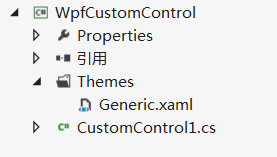
Themes文件夹下面的特定的Generic.xaml里面就是放我们的模板文件的了,一般我们不直接将模板直接写在里面,而是每个控件模板分别放在一个资源文件中,再合并在Generic里面.而真正的控件是CustomControl1.cs,里面包含着我们熟悉的各种依赖项属性和事件.当然,我们得重命名一下,就叫LabelTextBox吧.
无外观的LabelTextBox
在静态构造函数中,调用 DefaultStyleKeyProperty.OverrideMetadata,告诉WPF为此控件应用一个新样式,再新建一个LabelProperty和LabelPosition的依赖项属性,如下:
public class LabelTextBox : TextBox

    {

        static LabelTextBox()

        {

            DefaultStyleKeyProperty.OverrideMetadata(typeof(LabelTextBox), new FrameworkPropertyMetadata(typeof(LabelTextBox)));

        }

        public static readonly DependencyProperty LabelProperty = DependencyProperty.Register("Label", typeof(Object), typeof(LabelTextBox), new PropertyMetadata(string.Empty));

        public static readonly DependencyProperty LabelPositionProperty = DependencyProperty.Register("LabelPosition", typeof(Position), typeof(LabelTextBox), new PropertyMetadata(Position.Top));

        public Object Label

        {

            get { return (Object)GetValue(LabelProperty); }

            set { SetValue(LabelProperty, value); }

        }

        public Position LabelPosition

        {

            get { return (Position)GetValue(LabelPositionProperty); }

            set { SetValue(LabelPositionProperty, value); }

        }

    }

    public enum Position

    {

        Top,

        Left

    }
LabelTextBox的控件模板
上面已经完成了我们的LabelTextBox,但是它还没有样式模板.接下来我们来构建它的控件模板.在Themes文件夹下面新建一个资源字典名为LabelTextBox.xaml,其实模板的TextBox和LabelTextBox没有什么关联,所以我们给控件模板写上各种绑定和设置样式触发器,如下:
<ResourceDictionary xmlns="http://schemas.microsoft.com/winfx/2006/xaml/presentation"

                    xmlns:x="http://schemas.microsoft.com/winfx/2006/xaml"

                     xmlns:local="clr-namespace:WpfCustomControl">

    <ControlTemplate x:Key="TopLabelTextBoxTemplate" TargetType="{x:Type local:LabelTextBox}">

        <Grid>

            <Grid.RowDefinitions>

                <RowDefinition Height="auto"/>

                <RowDefinition Height="*"/>

            </Grid.RowDefinitions>

            <Label

                Content="{Binding Label, RelativeSource={RelativeSource TemplatedParent}}" Grid.Row=""/>

            <TextBox Grid.Row=""

                Text="{Binding Text, RelativeSource={RelativeSource TemplatedParent}, Mode=TwoWay, UpdateSourceTrigger=PropertyChanged}"

                HorizontalContentAlignment="{Binding HorizontalContentAlignment,RelativeSource={RelativeSource TemplatedParent}}"

                VerticalContentAlignment="{Binding VerticalContentAlignment,RelativeSource={RelativeSource TemplatedParent}}"

                Background="{Binding Background,RelativeSource={RelativeSource TemplatedParent}}"

                Foreground="{Binding Foreground,RelativeSource={RelativeSource TemplatedParent}}"

                TextWrapping="{Binding TextWrapping,RelativeSource={RelativeSource TemplatedParent}}"

                TextAlignment="{Binding TextAlignment,RelativeSource={RelativeSource TemplatedParent}}"

                HorizontalScrollBarVisibility="{Binding HorizontalScrollBarVisibility,RelativeSource={RelativeSource TemplatedParent}}"

                VerticalScrollBarVisibility="{Binding VerticalScrollBarVisibility,RelativeSource={RelativeSource TemplatedParent}}"

                                         MaxLength="{Binding MaxLength,RelativeSource={RelativeSource TemplatedParent}}"

                                         IsReadOnly="{Binding IsReadOnly,RelativeSource={RelativeSource TemplatedParent}}"

                                         IsEnabled="{Binding IsEnabled,RelativeSource={RelativeSource TemplatedParent}}"/>

        </Grid>

    </ControlTemplate>

    <ControlTemplate x:Key="LeftLabelTextBoxTemplate" TargetType="{x:Type local:LabelTextBox}">

        <Grid>

            <Grid.ColumnDefinitions>

                <ColumnDefinition Width="Auto"></ColumnDefinition>

                <ColumnDefinition Width="*"></ColumnDefinition>

            </Grid.ColumnDefinitions>

            <Label HorizontalAlignment="Center" VerticalAlignment="Center"

                Content="{Binding Label, RelativeSource={RelativeSource TemplatedParent}}" Grid.Column=""/>

            <TextBox Grid.Column=""

                Text="{Binding Text, RelativeSource={RelativeSource TemplatedParent}, Mode=TwoWay, UpdateSourceTrigger=PropertyChanged}"

                HorizontalContentAlignment="{Binding HorizontalContentAlignment,RelativeSource={RelativeSource TemplatedParent}}"

                VerticalContentAlignment="{Binding VerticalContentAlignment,RelativeSource={RelativeSource TemplatedParent}}"

                Background="{Binding Background,RelativeSource={RelativeSource TemplatedParent}}"

                Foreground="{Binding Foreground,RelativeSource={RelativeSource TemplatedParent}}"

                TextWrapping="{Binding TextWrapping,RelativeSource={RelativeSource TemplatedParent}}"

                TextAlignment="{Binding TextAlignment,RelativeSource={RelativeSource TemplatedParent}}"

                HorizontalScrollBarVisibility="{Binding HorizontalScrollBarVisibility,RelativeSource={RelativeSource TemplatedParent}}"

                VerticalScrollBarVisibility="{Binding VerticalScrollBarVisibility,RelativeSource={RelativeSource TemplatedParent}}"

                                         MaxLength="{Binding MaxLength,RelativeSource={RelativeSource TemplatedParent}}"

                                         IsReadOnly="{Binding IsReadOnly,RelativeSource={RelativeSource TemplatedParent}}"

                                         IsEnabled="{Binding IsEnabled,RelativeSource={RelativeSource TemplatedParent}}"/>

        </Grid>

    </ControlTemplate>

    <Style TargetType="{x:Type local:LabelTextBox}"  >

        <Setter Property="Template" Value="{StaticResource TopLabelTextBoxTemplate}"/>

        <Style.Triggers>

            <Trigger Property="LabelPosition" Value="Left">

                <Setter Property="Template" Value="{StaticResource ResourceKey=LeftLabelTextBoxTemplate}"></Setter>

            </Trigger>

        </Style.Triggers>

    </Style>

</ResourceDictionary>
接下来,将资源字典添加到Generic.xaml,如下:
<ResourceDictionary

    xmlns="http://schemas.microsoft.com/winfx/2006/xaml/presentation"

    xmlns:x="http://schemas.microsoft.com/winfx/2006/xaml"

    xmlns:local="clr-namespace:WpfCustomControl">

    <ResourceDictionary.MergedDictionaries>

        <ResourceDictionary Source="/WpfCustomControl;component/themes/LabelTextBox.xaml" ></ResourceDictionary>

    </ResourceDictionary.MergedDictionaries>

</ResourceDictionary>
编译通过后就得到我们的控件库WpfCustomControl.dll.
LabelTextBox的使用
在自己项目引用WpfCustomControl.dll,在xaml文件中添加标记引用,然后就可以直接使用,如下:
<Window x:Class="ControlsTest.MainWindow"

        xmlns="http://schemas.microsoft.com/winfx/2006/xaml/presentation"

        xmlns:x="http://schemas.microsoft.com/winfx/2006/xaml"

        xmlns:control="clr-namespace:WpfCustomControl;assembly=WpfCustomControl"

        Title="MainWindow" Height="" Width="">

    <Grid>

        <control:LabelTextBox Name="txtbox" LabelPosition="Top"  Label="标题" Width="" TextChanged="LabelTextBox_TextChanged_1" Margin="209,136,209.4,136.4"/>

    </Grid>

</Window>
可以看到TextChanged等事件能正常触发,但是上面说到TextBox和LabelTextBox没什么关联,要手动绑定属性.然而我们没有为LabelTextBox事件绑定过什么,却依然生效了.那是因为它们公用一个事件路由,实质是TextBox触发了TextChanged事件,冒泡到LabelTextBox,触发了LabelTextBox的TextChanged事件.
小结
本文简单介绍了如何构建一个自定义控件,其中涉及到依赖项属性,控件模板,资源,事件的知识点.最后,如果您有更好的建议,请不吝指教.
【WPF】给TextBox添上Label的更多相关文章
- WPF的TextBox产生内存泄露的情况
前段时间参与了一个WPF编写的项目,在该项目中有这样一个场景:在程序运行过程中需要动态地产生大量文本信息,并追加WPF界面上的一个TextBox的Text中进行显示.编写完之后,运行该项目的程序,发现 ...
- WPF自定义TextBox及ScrollViewer
原文:WPF自定义TextBox及ScrollViewer 寒假过完,在家真心什么都做不了,可能年龄大了,再想以前那样能专心坐下来已经不行了.回来第一件事就是改了项目的一个bug,最近又新增了一个新的 ...
- “WPF老矣,尚能饭否”—且说说WPF今生未来(上):担心
近日微软公布了最新的WPF路线图,一片热议:对于老牌控件提供商葡萄城来说,这是WPF系列控件一个重要的机遇,因此,Spread Studio for WPF产品做了一次重要更新,并随着Spread S ...
- C# C/S WPF 远程操作服务器上面的文件
作的时候用的是WPF,需要做一个上传附件的功能,服务器上有一个文件夹,附件都上传到里面,只知道URL路径. 文件夹是在服务器上的IIS里面(就比如说你发布一个网站,把文件夹建在网站下面,当然这个网站啥 ...
- Wpf解决TextBox文件拖入问题、拖放问题
在WPF中,当我们尝试向TextBox中拖放文件,从而获取其路径时,往往无法成功(拖放文字可以成功).造成这种原因关键是WPF的TextBox对拖放事件处理机制的不同, 解放方法如下: 使用Previ ...
- WPF技术触屏上的应用系列(六): 视觉冲击、超炫系统主界面、系统入口效果实现
原文:WPF技术触屏上的应用系列(六): 视觉冲击.超炫系统主界面.系统入口效果实现 去年某客户单位要做个大屏触屏应用,要对档案资源进行展示之用.客户端是Window7操作系统,54寸大屏电脑电视一体 ...
- WPF技术触屏上的应用系列(五): 图片列表异步加载、手指进行缩小、放大、拖动 、惯性滑入滑出等效果
原文:WPF技术触屏上的应用系列(五): 图片列表异步加载.手指进行缩小.放大.拖动 .惯性滑入滑出等效果 去年某客户单位要做个大屏触屏应用,要对档案资源进行展示之用.客户端是Window7操作系统, ...
- WPF技术触屏上的应用系列(四): 3D效果图片播放器(图片立体轮放、图片立体轮播、图片倒影立体滚动)效果实现
原文:WPF技术触屏上的应用系列(四): 3D效果图片播放器(图片立体轮放.图片立体轮播.图片倒影立体滚动)效果实现 去年某客户单位要做个大屏触屏应用,要对档案资源进行展示之用.客户端是Window7 ...
- WPF技术触屏上的应用系列(三): 视频播放器的使用及视频播放、播放、暂停、可拖动播放进度效果实现
原文:WPF技术触屏上的应用系列(三): 视频播放器的使用及视频播放.播放.暂停.可拖动播放进度效果实现 去年某客户单位要做个大屏触屏应用,要对档案资源进行展示之用.客户端是Window7操作系统,5 ...
随机推荐
- Fit项目分页组件的编写
项目中涉及列表显示的地方都会用到分页控件,为了能更好地与当前网站的样式匹配,这次要自己实现一个. 所以选择了模板中提供的分页样式,基于模板改造以能够动态生成: 一 控件的行为规则 a) 可设置显示几个 ...
- window下安装RabbitMQ
RabbitMQ: MQ全称为Message Queue, 消息队列(MQ)是一种应用程序对应用程序的通信方法.应用程序通过读写出入队列的消息(针对应用程序的数据)来通信,而无需专用连接来链接它们.消 ...
- Django 处理modelform错误信息
cp:https://blog.csdn.net/qq_34964399/article/details/79781071
- 【Python】生成词云
import matplotlib.pyplot as plt from wordcloud import WordCloud import jieba text_from_file_with_apa ...
- 【three.js练习程序】随机生成100个方块
<!DOCTYPE html> <html> <head> <meta charset="utf-8"> <title> ...
- CSS实现DIV从隐藏到展示的过渡效果
CSS中有很多功能强大的方法,其中过渡属性transition就很牛叉.你不用写一行JavaScript代码,随便写点css就可以实现一个动画效果.下面结合我在W3C网站上看到的实例,举个栗子说明下( ...
- sklearn——数据集调用及应用
忙了许久,总算是又想起这边还没写完呢. 那今天就写写sklearn库的一部分简单内容吧,包括数据集调用,聚类,轮廓系数等等. 自带数据集API 数据集函数 中文翻译 任务类型 数据规模 load_ ...
- 重学C语言---03数据和C
1.数据的必要性.数据使我们生活中不可缺少的东西,程序也是如次,离不开数据.将文字.图片和单词等输入到算计,将其展现出来或者做一系列操作等. 2.实例程序. /*rhodium.c--用金属铑衡量体重 ...
- 转:C#综合揭秘——细说多线程(下)
原文地址:http://www.cnblogs.com/leslies2/archive/2012/02/08/2320914.html 引言 本文主要从线程的基础用法,CLR线程池当中工作者线程与I ...
- MVC 上传下载
在Asp.net的WEBform中,上传文件与下载文件处理是很简单的事情,如果转为ASP.NET MVC呢?那就没有那么容易了,难少少,也不是很难,一起来看下本文吧.本文主要讲如何在Asp.net M ...