
从0到1:使用Caliburn.Micro(WPF和MVVM)开发简单的计算器
从0到1:使用Caliburn.Micro(WPF和MVVM)开发简单的计算器
之前时间一直在使用Caliburn.Micro这种应用了MVVM模式的WPF框架做开发,是时候总结一下了。
Caliburn.Micro(Caliburn.Micro框架概述 - https://blog.csdn.net/lzuacm/article/details/78886436) 是一个轻量级的WPF框架,简化了WPF中的不少用法,推荐做WPF开发时优先使用。
真正快速而熟练地掌握一门技术就可以尝试着用最快的速度去构建一个玩具项目(Toy project),然后不断地优化、重构之。比如本文将介绍如何使用Caliburn.Micro v3.2开发出一个简单的计算器,里面用到了C#中的async异步技术,Caliburn.Micro中的Conductor等等~
Step 1: 在VS中创建WPF项目
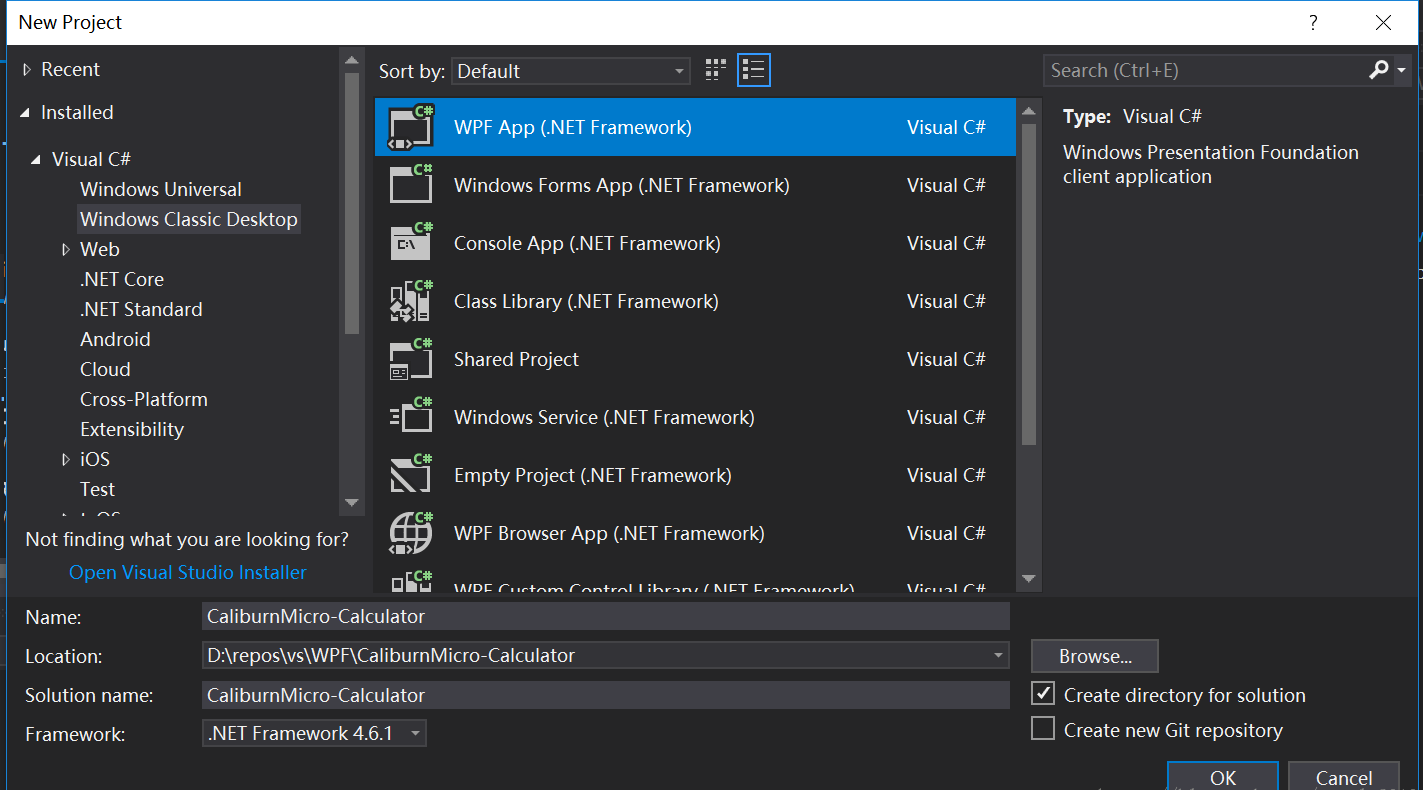
Step 2: 使用NuGet包管理工具为当前项目安装Caliburn.Micro
对于Caliburn.Micro 1.x和2.x版,只能使用.dll,需手动给项目加Reference。而3.0以后的版本可使用NuGet包管理工具来管理,安装和卸载既方便又彻底,推荐使用。(ps: NuGet之于Visual Studio(C++, C#等), 犹pip之于Python, npm之于node, maven之于Java, gem之于Ruby等等)
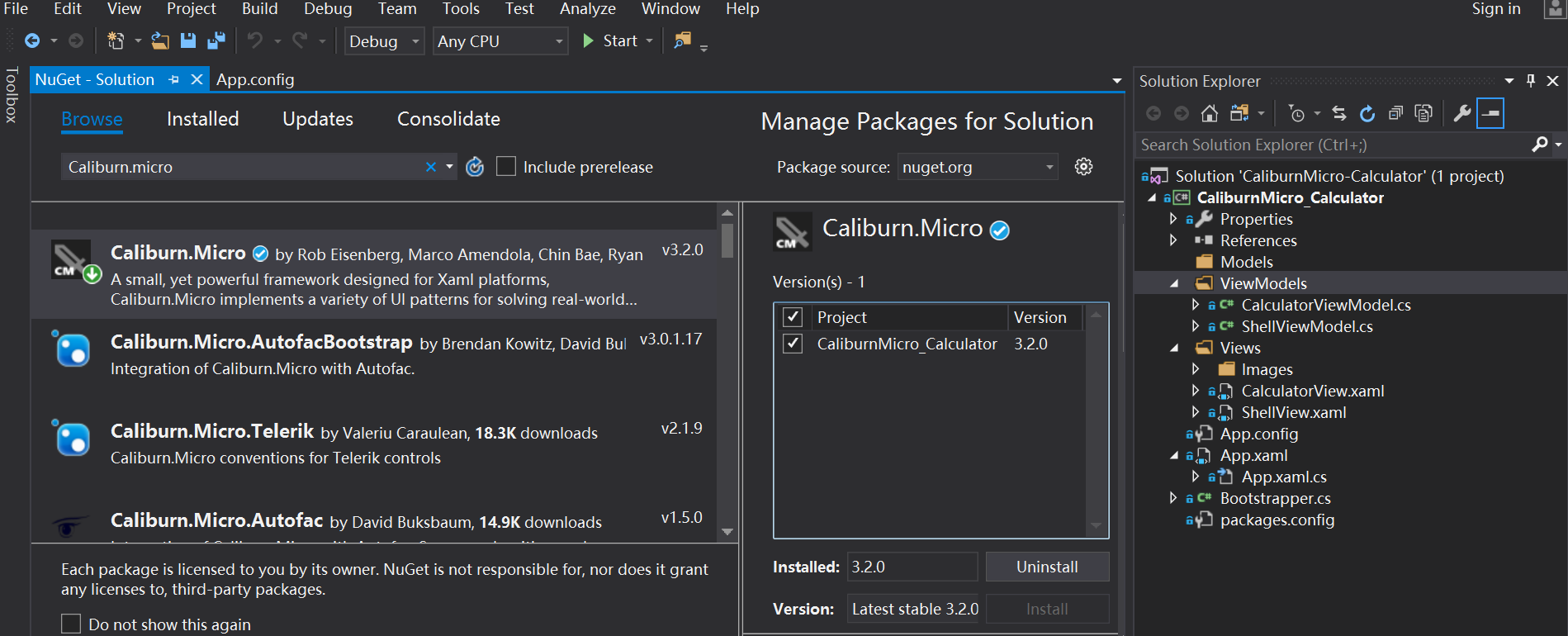
Step 3: 框架搭建
删除项目根目录下的MainWindow.xaml
按下图调整App.xaml
删除语句StartupUri="MainWindow.xmal"。
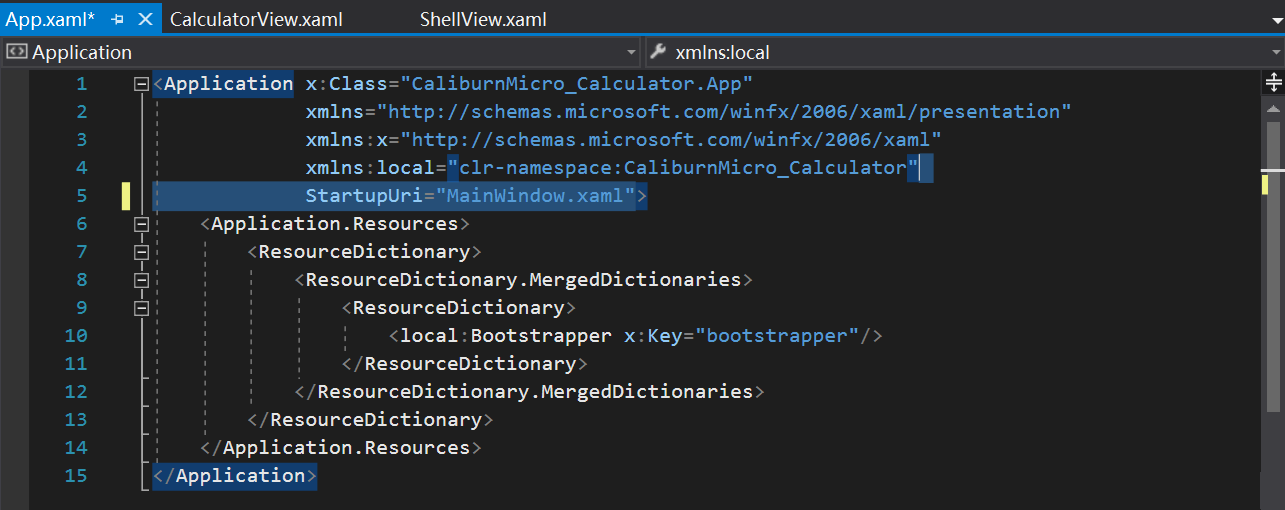
填充Application.Resources
    <Application.Resources>

         <ResourceDictionary>

             <ResourceDictionary.MergedDictionaries>

                 <ResourceDictionary>

                     <local:Bootstrapper x:Key="bootstrapper"/>

                 </ResourceDictionary>

             </ResourceDictionary.MergedDictionaries>

         </ResourceDictionary>

    </Application.Resources>
4 . 创建Bootstrapper类
然后让其继承自BootstrapperBase类,并加上构造函数,另外再重写函数OnStartup即可。
using System.Windows;

using Caliburn.Micro;

using CaliburnMicro_Calculator.ViewModels;

namespace CaliburnMicro_Calculator

{

    public class Bootstrapper : BootstrapperBase

    {

        public Bootstrapper()

        {

            Initialize();

        }

        protected override void OnStartup(object obj, StartupEventArgs e)

        {

            DisplayRootViewFor<ShellViewModel>();

        }

    }

}
5 . 在项目目录下新建Models, ViewModels, Views这3个文件夹
在ViewModel文件夹中添加ShellViewModel.cs,并创建Left, Right和Result这3个属性。
需要注意的是 ShellViewModel.cs需要继承类 Screen 和 INotifyPropertyChanged (用于感知并同步所绑定属性的变化),ShellViewModel具体代码为:
using System.ComponentModel;

using System.Threading;

using System.Windows;

using System.Windows.Controls;

using Caliburn.Micro;

namespace CaliburnMicro_Calculator.ViewModels

{

    public class ShellViewModel : Screen, INotifyPropertyChanged

    {

        private double _left;

        private double _right;

        private double _result;

        public double Left

        {

            get { return _left; }

            set

            {

                _left = value;

                NotifyOfPropertyChange();

            }

        }

        public double Right

        {

            get { return _right; }

            set

            {

                _right = value;

                NotifyOfPropertyChange();

            }

        }

        public double Result

        {

            get { return _result; }

            set

            {

                _result = value;

                NotifyOfPropertyChange();

            }

        }

}
说明: 最开始布局xaml时,设计位置时采用的是左(operand 1), 中(operand 2), 右(result),于是属性值使用了Left, Right和Result。
Step 4: 设计XAML并绑定属性
在Views文件夹中创建Window,命名为ShellView.xaml,在Views文件夹下创建子文件夹Images,用于存放+,-,*,/这4种操作对应的小图标,其具体代码如下:
<Window x:Class="CaliburnMicro_Calculator.Views.ShellView"

        xmlns="http://schemas.microsoft.com/winfx/2006/xaml/presentation"

        xmlns:x="http://schemas.microsoft.com/winfx/2006/xaml"

        xmlns:d="http://schemas.microsoft.com/expression/blend/2008"

        xmlns:mc="http://schemas.openxmlformats.org/markup-compatibility/2006"

        xmlns:local="clr-namespace:CaliburnMicro_Calculator.Views"

        xmlns:cal="http://www.caliburnproject.org"

        mc:Ignorable="d"

        Title="Calculator" SizeToContent="Height" Width="240">

    <StackPanel Background="Beige">

        <StackPanel Orientation="Horizontal">

            <Label Margin="10"

                   Target="{Binding ElementName=left}">

                Operand _1:

            </Label>

            <TextBox Margin="10"

                     Width="72"

                     x:Name="left"/>

        </StackPanel>

        <StackPanel Orientation="Horizontal">

            <Label Margin="10"

                   Target="{Binding ElementName=right}">

                Operand _2:

            </Label>

            <TextBox Margin="10"

                     Width="72"

                     x:Name="right"/>

        </StackPanel>

        <StackPanel Orientation="Horizontal">

            <Button Margin="10"

                    x:Name="btnPlus"

                    cal:Message.Attach="[Event Click]=[Action Plus(left.Text, right.Text):result.Text]">

                <Image Source="Images/op1.ICO"/>

            </Button>

            <Button Margin="10"

                    x:Name="btnMinus"

                    cal:Message.Attach="[Event Click]=[Action Minus(left.Text, right.Text):result.Text]">

                <Image Source="Images/op2.ICO"/>

            </Button>

            <Button Margin="10"

                    x:Name="btnMultiply"

                    cal:Message.Attach="[Event Click]=[Action Multipy(left.Text, right.Text):result.Text]">

                <Image Source="Images/op3.ICO"/>

            </Button>

            <Button Margin="10"

                    x:Name="btnDivide" IsEnabled="{Binding Path=CanDivide}"

                    cal:Message.Attach="[Event Click]=[Action Divide(left.Text, right.Text):result.Text]">

                <Image Source="Images/op4.ICO"/>

            </Button>

        </StackPanel>

        <StackPanel Orientation="Horizontal">

            <Label Margin="10">

                Answer:

            </Label>

            <TextBox Margin="10"

                     Width="72"

                     Text ="{Binding Path=Result, StringFormat={}{0:F4}}" IsReadOnly="True" />

        </StackPanel>

    </StackPanel>

</Window>
说明:对操作数Operand _1和Operand _2,按Alt键+数字可以选中该处,这是WPF的一个特殊用法。由于计算结果不希望被修改,于是加上了属性IsReadOnly="True"。
Step 5: 设计并绑定事件
由于暂时只打算实现+, -, *, /四种操作,于是我们只需创建相应的4个函数即可,由于除数是0这个操作不允许,于是需再加个判断函数CanDivide。
Caliburn.Micro中绑定事件的写法是:
cal:Message.Attach="[Event E]=[Action A]"(E是操作,比如Click, MouseDown, KeyDown等等,A是ViewModel中具体的函数。)
向ShellViewModel中加入事件中要做的事,此时ShellViewModel为:
using System.ComponentModel;

using System.Threading;

using System.Windows;

using System.Windows.Controls;

using Caliburn.Micro;

namespace CaliburnMicro_Calculator.ViewModels

{

    public class ShellViewModel : Screen, INotifyPropertyChanged

    {

        private double _left;

        private double _right;

        private double _result;

        public double Left

        {

            get { return _left; }

            set

            {

                _left = value;

                NotifyOfPropertyChange();

            }

        }

        public double Right

        {

            get { return _right; }

            set

            {

                _right = value;

                NotifyOfPropertyChange();

            }

        }

        public double Result

        {

            get { return _result; }

            set

            {

                _result = value;

                NotifyOfPropertyChange();

            }

        }

                public bool CanDivide(double left, double right)

        {

            return right != 0;

        }

        public async void Divide(double left, double right)

        {

            Thread.Sleep(600);

            if (CanDivide(left, right) == true)

                Result = left / right;

            else MessageBox.Show("Divider cannot be zero.", "Warning", MessageBoxButton.OK, MessageBoxImage.Warning);

        }

        public async void Plus(double left, double right)

        {

            Result = left + right;

        }

        public async void Minus(double left, double right)

        {

            Result = left - right;

        }

        public async void Multipy(double left, double right)

        {

            Result = left * right;

        }

    }

}
此时计算器的功能已基本完成,但我们可以对ViewModel进行适当的调整:
1.创建新的ViewModel - CalculatorViewModel,将原来的ShellViewModel中具体的计算逻辑移入到CalculatorViewModel中;
2.此时让ShellViewModel继承Conductor<Object>,于是ShellViewModel拥有了管理Screen实例的功能(ViewModel中使用ActivateItem函数,而View中使用X:Name="ActivateItem"标签),其具体代码为:
using System.ComponentModel;

using System.Threading;

using System.Windows;

using System.Windows.Controls;

using Caliburn.Micro;

namespace CaliburnMicro_Calculator.ViewModels

{

    public class ShellViewModel : Conductor<object>

    {

        public ShellViewModel()

        {

        }

        public void ShowCalculator()

        {

            ActivateItem(new CalculatorViewModel());

        }

    }

}
此时,CalculatorViewModel的具体代码为:
using System.ComponentModel;

using System.Threading;

using System.Windows;

using Caliburn.Micro;

namespace CaliburnMicro_Calculator.ViewModels

{

    public class CalculatorViewModel: Screen, INotifyPropertyChanged

    {

        private double _left;

        private double _right;

        private double _result;

        public double Left

        {

            get { return _left; }

            set

            {

                _left = value;

                NotifyOfPropertyChange();

            }

        }

        public double Right

        {

            get { return _right; }

            set

            {

                _right = value;

                NotifyOfPropertyChange();

            }

        }

        public double Result

        {

            get { return _result; }

            set

            {

                _result = value;

                NotifyOfPropertyChange();

            }

        }

        public CalculatorViewModel()

        {

        }

        public bool CanDivide(double left, double right)

        {

            return right != 0;

        }

        public async void Divide(double left, double right)

        {

            Thread.Sleep(600);

            if (CanDivide(left, right) == true)

                Result = left / right;

            else MessageBox.Show("Divider cannot be zero.", "Warning", MessageBoxButton.OK, MessageBoxImage.Warning);

        }

        public async void Plus(double left, double right)

        {

            Result = left + right;

        }

        public async void Minus(double left, double right)

        {

            Result = left - right;

        }

        public async void Multipy(double left, double right)

        {

            Result = left * right;

        }

    }

}
3 . 对于View,只需把CalculatorViewModel对应的CalculatorView作为ContentControl控件嵌入ShellView即可。此时ShellView的代码调整为:
<Window x:Class="CaliburnMicro_Calculator.Views.ShellView"

        xmlns="http://schemas.microsoft.com/winfx/2006/xaml/presentation"

        xmlns:x="http://schemas.microsoft.com/winfx/2006/xaml"

        xmlns:d="http://schemas.microsoft.com/expression/blend/2008"

        xmlns:mc="http://schemas.openxmlformats.org/markup-compatibility/2006"

        xmlns:local="clr-namespace:CaliburnMicro_Calculator.Views"

        xmlns:cal="http://www.caliburnproject.org"

        mc:Ignorable="d"

        Title="Calculator" SizeToContent="Height" Width="240">

    <Grid MinHeight="200">

        <Button Content="Show Calculator" x:Name="ShowCalculator" Grid.Row="0"></Button>

        <ContentControl x:Name="ActiveItem"></ContentControl>

    </Grid>

</Window>
另外提一点,向ViewModel A中嵌入ViewModel B,一般来说需要做的操作是:
在A的view中使用ContentControl,绑定B的ViewModel只需使用语句cal:View.Model="{Binding BViewModel}"即可,而B的view是UserControl就可以啦。
此时CalculatorView是一个UserControl,其代码为:
<UserControl x:Class="CaliburnMicro_Calculator.Views.CalculatorView"

             xmlns="http://schemas.microsoft.com/winfx/2006/xaml/presentation"

             xmlns:x="http://schemas.microsoft.com/winfx/2006/xaml"

             xmlns:mc="http://schemas.openxmlformats.org/markup-compatibility/2006"

             xmlns:d="http://schemas.microsoft.com/expression/blend/2008"

             xmlns:local="clr-namespace:CaliburnMicro_Calculator.Views"

             xmlns:cal="http://www.caliburnproject.org"

             mc:Ignorable="d"

             Width="240">

    <StackPanel Background="Beige">

        <StackPanel Orientation="Horizontal">

            <Label Margin="10"

                   Target="{Binding ElementName=left}">

                Operand _1:

            </Label>

            <TextBox Margin="10"

                     Width="72"

                     x:Name="left"/>

        </StackPanel>

        <StackPanel Orientation="Horizontal">

            <Label Margin="10"

                   Target="{Binding ElementName=right}">

                Operand _2:

            </Label>

            <TextBox Margin="10"

                     Width="72"

                     x:Name="right"/>

        </StackPanel>

        <StackPanel Orientation="Horizontal" HorizontalAlignment="Center">

            <Button Margin="10"

                    x:Name="btnPlus"

                    cal:Message.Attach="[Event Click]=[Action Plus(left.Text, right.Text):result.Text]">

                <Image Source="Images/op1.ICO"/>

            </Button>

            <Button Margin="10"

                    x:Name="btnMinus"

                    cal:Message.Attach="[Event Click]=[Action Minus(left.Text, right.Text):result.Text]">

                <Image Source="Images/op2.ICO"/>

            </Button>

            <Button Margin="10"

                    x:Name="btnMultiply"

                    cal:Message.Attach="[Event Click]=[Action Multipy(left.Text, right.Text):result.Text]">

                <Image Source="Images/op3.ICO"/>

            </Button>

            <Button Margin="10"

                    x:Name="btnDivide" IsEnabled="{Binding Path=CanDivide}"

                    cal:Message.Attach="[Event Click]=[Action Divide(left.Text, right.Text):result.Text]">

                <Image Source="Images/op4.ICO"/>

            </Button>

        </StackPanel>

        <StackPanel Orientation="Horizontal">

            <Label Margin="10">

                Answer:

            </Label>

            <TextBox Margin="10"

                     Width="72"

                     Text ="{Binding Path=Result, StringFormat={}{0:F4}, UpdateSourceTrigger=PropertyChanged}" IsReadOnly="True" />

        </StackPanel>

    </StackPanel>

</UserControl>
好啦,就酱,由于本例中逻辑并不复杂,Model暂时用不上,对于复杂一点的项目,Model主要负责数据的读取,如文件操作、数据库操作、service调用等,以后有机会举例具体来说。
如果需要持久化(persistent),则还需给给每对M-VM(Model和ViewModel)加入State,这个实际工程中也用得特别多。
Part 6: 功能举例
Calculator主页:
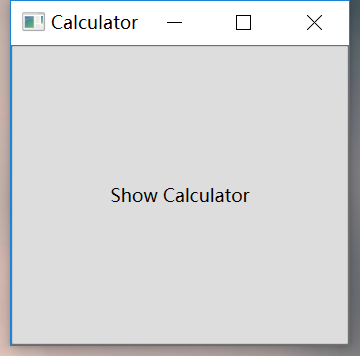
点击按钮“ShowCalculator”即可看到具体的计算器~
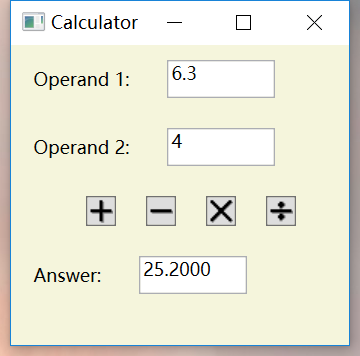
乘法举例:
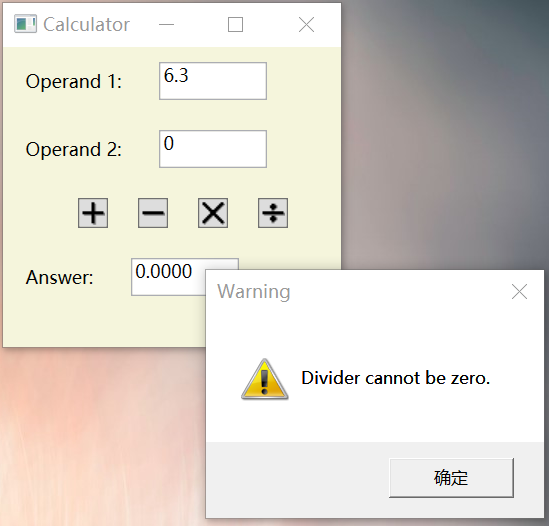
除法举例:
最后附上代码:
CaliburnMicro-Calculator: A simple Calculator using Caliburn.Micro
https://github.com/yanglr/CaliburnMicro-Calculator,
欢迎fork和star,如有改进意见欢迎提交pull request~
作者简介:Bravo Yeung,计算机硕士,知乎干货答主(获81K 赞同, 38K 感谢, 235K 收藏)。曾在国内 Top3互联网视频直播公司工作过,后加入一家外企做软件开发至今。
如需转载,请加微信 iMath7 申请开白!
欢迎在留言区留下你的观点,一起讨论提高。如果今天的文章让你有新的启发,学习能力的提升上有新的认识,欢迎转发分享给更多人。
欢迎各位读者加入 .NET技术交流群,在公众号后台回复“加群”或者“学习”即可。

文末彩蛋
微信后台回复“asp”,给你:一份全网最强的ASP.NET学习路线图。
回复“cs”,给你:一整套 C# 和 WPF 学习资源!
回复“core”,给你:2019年dotConf大会上发布的.NET core 3.0学习视频!
从0到1:使用Caliburn.Micro(WPF和MVVM)开发简单的计算器的更多相关文章
- Caliburn.Micro 杰的入门教程4,事件聚合器
Caliburn.Micro 杰的入门教程1(原创翻译)Caliburn.Micro 杰的入门教程2 ,了解Data Binding 和 Events(原创翻译)Caliburn.Micro 杰的入门 ...
- Caliburn.Micro学习笔记(四)----IHandle<T>实现多语言功能
Caliburn.Micro学习笔记目录 说一下IHandle<T>实现多语言功能 因为Caliburn.Micro是基于MvvM的UI与codebehind分离, binding可以是双 ...
- WPF +MVVM(Caliburn.Micro)项目框架
最近做了一个软件,这个软件不是网站,但是与HTML,AJAX等技术密切相关,也不是只有单纯的数据库增删改查,还涉及到线程协调,比较复杂的文本处理…… 这样的软件,用OA,ERP的框架显然是不合适的,因 ...
- AvalonDock 2.0+Caliburn.Micro+MahApps.Metro实现Metro风格插件式系统(一)
随着IOS7由之前UI的拟物化设计变为如今的扁平化设计,也许扁平化的时代要来了,当然我们是不是该吐槽一下,苹果什么时候也开始跟风了,自GOOGLE和微软界面扁平化过后,苹果也加入了这一队伍. Aval ...
- WPF 使用Caliburn.Micro 多线程打开窗口
我们都知道在WPF里面用多线程打开一个窗口很简单.如下 public void ClickMe(object sender) { Thread newWindowThread = new Thread ...
- AvalonDock 2.0+Caliburn.Micro+MahApps.Metro实现Metro风格插件式系统(菜单篇)
这章主要说插件的菜单,可以说菜单是最核心的部分,前面我们已经实现了Document添加,现在主要就是生成具有层级关系的菜单,以及把菜单跟我们自定义的Document关联起来,也就是MenuPart-& ...
- 在WPF中使用Caliburn.Micro搭建MEF插件化开发框架
原文:在WPF中使用Caliburn.Micro搭建MEF插件化开发框架 版权声明:原创内容转载必须注明出处,否则追究相关责任. https://blog.csdn.net/qq_36663276/a ...
- [WPF] Caliburn Micro学习三 Binding
Caliburn Micro学习一 Installation Caliburn Micro学习二 Infrastructure 如果说WPF推崇的Binding开辟了一条UI开发新的方式——让写代码的 ...
- [WPF] Caliburn Micro学习二 Infrastructure
Caliburn Micro学习一 Installation http://blog.csdn.net/alvachien/article/details/12985415 Step 1. 无论是通过 ...
随机推荐
- EF Code First 数据迁移配置
这里我想讲清楚code first 数据迁移的两种模式,还有开发环境和生产环境数据迁移的最佳实践. 1.1 数据迁移综述 EF Code first 虽然已经有了几种不同的数据库初始化策略,但是大部分 ...
- 关于HTML、CSS、JavaScript三者关系的简述
总述 我对于网页这部分的理解吧,对于静态网页来说,无非分为三部分:第一部分.HTML,第二部分.CSS,第三部分.JavaScript(这部分暂且放一边).这俩个给我的第一印象就是,这你妹的都是一串串 ...
- FineReport启动后访问404
近期将FineReport以嵌入式方式部署在Tomcat8上,启动服务后,点击导出下载出现HTTP ERROR 404情况: 百思不得其解啊,纠结了好几天: 后查看原部署Tomcat6服务器的cata ...
- jmeter如何录制App及Web应用
1.添加一个线程组(Test Plan上右键,添加_Threads_线程组) 2.添加一个HTTP代理服务器(Test Plan上右键,添加_非测试元件_HTTP代理服务器) 3.在HTTP代理服务器 ...
- oracle通用函数,nvl,nvl2,NULLIF ,coalesce
Oracle 通用函数 ① NVL 函数--------将空值转换成一个已知的值: 可以使用的数据类型有日期.字符.数字. 函数的一般形式: NVL(commission_pct,0) ...
- PAT1065: A+B and C (64bit)
1065. A+B and C (64bit) (20) 时间限制 100 ms 内存限制 65536 kB 代码长度限制 16000 B 判题程序 Standard 作者 HOU, Qiming G ...
- EXCEL解析之终极方法WorkbookFactory
Selenium做自动化测试当然不能避免和Excel打交道. 由于Excel版本的关系,文件扩展名分xls和xlsx, 以往的经验都是使用HSSFWorkbook和XSSFWorkbook来分别处理. ...
- CF泛做
CF Rd478 Div2 A Aramic script 题意:给定几个字符串,去重后,求种类 思路:直接map乱搞 #include<bits/stdc++.h> using name ...
- SSM-SpringMVC-19:SpringMVC中请求和响应的乱码解决
------------吾亦无他,唯手熟尔,谦卑若愚,好学若饥------------- 配置一道拦截器即可解决乱码 配置方式如下: 在web.xml中: <!--过滤器处理乱码--> ...
- SQL*Loader FAQ
SQL*Loader FAQ: Contents [hide] 1 What is SQL*Loader and what is it used for? 2 How does one use th ...