最近在做小程序的登录,需要同时获取用户手机号和头像昵称等信息,但是小程序又不支持单个接口同时获取两种数据,因此想到自定义一个弹窗,通过弹窗按钮触发获取手机号事件。记录一下。
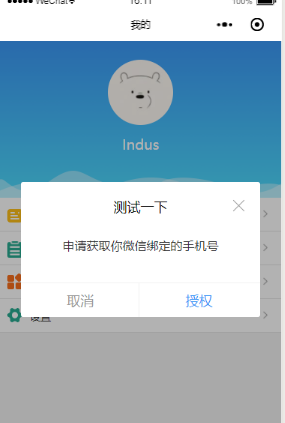
具体代码如下:
业务代码中:
在业务代码中引入dialog组件即可
<dialog visible="{{dialogVisible}}" showFooter="{{footerVisible}}" title="测试一下">
<view class='dialog-body' slot="dialog-body">
<view class='dialog-content'>申请获取你微信绑定的手机号</view>
<view class='dialog-footer' slot="dialog-footer">
<button class='cancel-btn' bindtap="close">取消</button>
<button open-type="getPhoneNumber" bindgetphonenumber="getPhoneNumber" class='confirm-btn'>授权</button>
</view>
</view>
</dialog>
dialog组件:
component下面新建dialog。注意是 component 不是 page ,因为要作为组件引入到页面中
dialog.wxml:
需要传入四个属性
visible:是否显示弹窗
title :标题
showClose:是否显示右上角关闭按钮
showFooter:是否显示底部按钮
<!--components/dialog/dialog.wxml-->
<view class='dialog-custom' wx:if="{{visible}}">
<view class='dialog-mask' bindtap="clickMask"></view>
<view class="dialog-main">
<view class="dialog-container">
<view class='dialog-container__title' wx:if="{{title.length>0}}">
<view class='title-label'>{{ title }}</view>
<view class='title-icon'>
<image wx:if="{{showClose}}" bindtap='close' src='/images/close-btn.png'></image>
</view>
</view>
<view class='dialog-container__body'>
<slot name="dialog-body"></slot>
</view>
<view class='dialog-container__footer' wx:if="{{showFooter}}">
<view class='dialog-container__footer__cancel' bindtap="close">取消</view>
<view class='dialog-container__footer__confirm' bindtap='confirm'>确定</view>
</view>
</view>
</view>
</view>
dialog.js
Component({
/**
* 组件的属性列表
*/
properties: {
visible: {
type: Boolean,
value: false
},
width: {
type: Number,
value: 85
},
position: {
type: String,
value: 'center'
},
title: {
type: String,
value: ''
},
showClose: {
type: Boolean,
value: true
},
showFooter: {
type: Boolean,
value: false
},
},
/**
* 组件的初始数据
*/
data: {
},
options:{
multipleSlots: true
},
/**
* 组件的方法列表
*/
methods: {
clickMask() {
this.setData({ visible: false });
},
close(){
this.setData({ visible: false });
},
cancel() {
this.setData({ visible: false });
this.triggerEvent('cancel');
},
confirm() {
this.setData({ visible: false });
this.triggerEvent('confirm');
}
}
})
dialog.json:声明是组件就行
{
"component": true,
"usingComponents": {}
}
dialog.wxss
css可以根据自己喜好的样式调整,注意mask遮罩层的z-index高一点,确保在最上层
/* components/dialog/dialog.wxss */
.dialog-custom {
width: 100vw;
height: 100%;
position: absolute;
left: 0;
top: 0;
z-index: 9999;
}
.dialog-mask {
position: fixed;
top: 0;
left: 0;
right: 0;
bottom: 0;
z-index: 10000;
width: 100vw;
height: 100%;
background: rgba(0, 0, 0, 0.3);
}
.dialog-main {
position: fixed;
z-index: 10001;
top: 50%;
left: 0;
right: 0;
width: 85vw;
height: auto;
margin: auto;
transform: translateY(-50%);
}
.dialog-container {
margin: 0 auto;
background: #fff;
z-index: 10001;
border-radius: 3px;
box-sizing: border-box;
padding: 40rpx;
}
.dialog-container__title {
width: 100%;
height: 50rpx;
line-height: 50rpx;
margin-bottom: 20rpx;
position: relative;
}
.dialog-container__title .title-label{
display: inline-block;
width: 100%;
height: 50rpx;
line-height: 50rpx;
font-size: 36rpx;
color: #000;
text-align: center;
}
.dialog-container__title .title-icon{
width: 34rpx;
height: 50rpx;
position: absolute;
top: 0;
right: 0;
}
.dialog-container__title .title-icon image{
width: 34rpx;
height: 34rpx;
}
.dialog-container__body {
padding-top: 10rpx;
font-size: 32rpx;
line-height: 50rpx;
}
.dialog-container__footer {
height: 76rpx;
line-height: 76rpx;
font-size: 32rpx;
text-align: center;
border-top: 1px solid #f1f1f1;
position: absolute;
bottom: 0;
left: 0;
right: 0;
}
.dialog-container__footer .dialog-container__footer__cancel {
width: 50%;
color: #999;
display: inline-block;
}
.dialog-container__footer .dialog-container__footer__cancel::after{
position: absolute;
right: 50%;
bottom: 0;
content: '';
width: 2rpx;
height: 76rpx;
background: #f1f1f1;
}
.dialog-container__footer .dialog-container__footer__confirm {
color: #3B98F7;
width: 50%;
display: inline-block;
text-align: center;
}
/* components/dialog/dialog.wxss */
.dialog-custom {
width: 100vw;
height: 100%;
position: absolute;
;
;
;
}
.dialog-mask {
position: fixed;
;
;
;
;
;
width: 100vw;
height: 100%;
, , , 0.3);
}
.dialog-main {
position: fixed;
;
top: 50%;
;
;
width: 85vw;
height: auto;
margin: auto;
transform: translateY(-50%);
}
.dialog-container {
auto;
background: #fff;
;
border-radius: 3px;
box-sizing: border-box;
rpx;
}
.dialog-container__title {
width: 100%;
rpx;
rpx;
rpx;
position: relative;
}
.dialog-container__title .title-label{
display: inline-block;
width: 100%;
rpx;
rpx;
rpx;
color: #000;
text-align: center;
}
.dialog-container__title .title-icon{
rpx;
rpx;
position: absolute;
;
;
}
.dialog-container__title .title-icon image{
rpx;
rpx;
}
.dialog-container__body {
rpx;
rpx;
rpx;
}
.dialog-container__footer {
rpx;
rpx;
rpx;
text-align: center;
border-top: 1px solid #f1f1f1;
position: absolute;
;
;
;
}
.dialog-container__footer .dialog-container__footer__cancel {
width: 50%;
color: #999;
display: inline-block;
}
.dialog-container__footer .dialog-container__footer__cancel::after{
position: absolute;
right: 50%;
;
content: '';
rpx;
rpx;
background: #f1f1f1;
}
.dialog-container__footer .dialog-container__footer__confirm {
color: #3B98F7;
width: 50%;
display: inline-block;
text-align: center;
}
- 微信小程序封装storage(含错误处理)
这次给你们安利的是微信小程序封装storage,先说下微信官方的 wx.getStorage({ key:"", success: function (res) { }, fail ...
- 微信小程序 修改(自定义) 单选/复选按钮样式 checkbox/radio样式自定义
参考文章: 微信小程序 修改(自定义) 单选/复选按钮样式 checkbox/radio样式自定义
- 微信小程序中自定义modal
微信小程序中自定义modal .wxml <modal hidden="{{hidden}}" title="这里是title" confirm-text ...
- 微信小程序之自定义toast弹窗
微信小程序里面的自带弹窗icon只有两种,success和loading.有时候用户输入错误的时候想加入一个提醒图标,也可以使用wx.showToast中的image来添加图片达到使用自定义图标的目的 ...
- 【微信小程序】自定义模态框实例
原文链接:https://mp.weixin.qq.com/s/23wPVFUGY-lsTiQBtUdhXA 1 概述 由于官方API提供的显示模态弹窗,只能简单地显示文字内容,不能对对话框内容进行自 ...
- 微信小程序之自定义select下拉选项框组件
知识点:组件,animation,获取当前点击元素的索引与内容 微信小程序中没有select下拉选项框,所以只有自定义.自定义的话,可以选择模板的方式,也可以选择组件的方式来创建. 这次我选择了组件, ...
- 微信小程序之自定义组件
在微信小程序项目中 肯定会存在很多功能和样式上相似的部分 面对这种情况 只是单单的ctrl+c ctrl+v 就显得很low了,而且也不便于后期维护那么这时候 使用微信小程序中的自定义组件功能就很合适 ...
- 微信小程序:自定义组件
为什么要学习自定义组件? 1.用上我自己的单词abc,我希望在页面中展示椭圆形的图片, 2.打开手机淘宝,假如现在要做一个企业级项目,里面有很多页面,首页存在导航模块,点击天猫,进入第二个页面,而第二 ...
- 微信小程序之自定义组件的应用
小程序支持自定义组件,下面是一个简单的购物车组件,实现的效果如图: 效果图 创建组件 在根目录创建components目录,然后创建计数组件 count 如图: 组件内容 <!--compone ...
随机推荐
- linux追加中文字库,解决imagemagick 中文乱码的问题。
Windows下的字体丰富多样,而且显示的工整.漂亮. 所以自己想把windows上的字体移到Ubuntu下来.Windows下字体库的位置为C:\Windows\fonts,这里面包含所有windo ...
- 洛谷P1966 [NOIP2013提高组Day1T2]火柴排队
P1966 火柴排队 题目描述 涵涵有两盒火柴,每盒装有 n 根火柴,每根火柴都有一个高度. 现在将每盒中的火柴各自排成一列, 同一列火柴的高度互不相同, 两列火柴之间的距离定义为: ∑(ai-bi) ...
- SQLServer2005 没有日志文件(*.ldf) 只有数据文件(*.mdf) 恢复数据库的方法
代码如下: exec sp_attach_db exun,'d:\exun2.mdf' (可能执行一次不能成功,测试了下,有时候需要执行2次以上命令才行) 执行了之后,记得刷新数据库,不然是不会显示的
- 多线程 多进程 协程 Queue(爬虫代码)
快速理解多进程与多线程以及协程的使用场合和特点 首先我们来了解下python中的进程,线程以及协程! 从计算机硬件角度: 计算机的核心是CPU,承担了所有的计算任务.一个CPU,在一个时间切片里只能运 ...
- No.6 Verilog 其他论题
(1)任务 **任务类似于一段程序,可以提供一种能力,使设计者可以从设计描述的不同位置执行共同的代码段.任务可以包含时序控制, 可以调用其它任务和函数. 任务的定义格式: task[automat ...
- 计算机网络.{wireshark的使用实验}
---恢复内容开始--- 三种选择 1 2 3 端口镜像:交换机的某个端口,接受或者发送的数据给另外一个端口 ARP欺骗: ARP欺骗是利用ARP协议自身的不足进行的欺骗 1 执行ping命令, 2 ...
- 第二周<线性回归>
可行性分析 略 sklearn.linear_model.linear_regression() 一些参数 fit_intercept 布尔型参数,表示是否计算该模型的截距 normalize 布尔型 ...
- Centos7搭建Django出现的问题(Centos7+Django1.11.1+Nginx+uwsgi)
出现的问题: 1.pip未安装:http://www.cnblogs.com/fnng/p/3737964.html 2.安装uwsgi失败,因为未安装python-devel yum search ...
- 廖雪峰Python总结3
1.模块简介 为了编写可维护的代码,我们把很多函数分组,分别放到不同的文件中,这样每个文件包含的代码相对来说就比较少.一个.py文件就称之为一个模块(Module). 使用模块的好处: 提高了代码的可 ...
- CMake学习笔记六-引用cmake文件
include(${CMAKE_CURRENT_SOURCE_DIR}/../Share/share.cmake)
