
WPF实现动画的几种方式及其小案例
WPF实现动画的方式:
- 基于计时器的动画
建立一个定时器,然后根据其频率循环调用函数或者一个事件处理函数,在这个函数中可以手工更新目标属性,直到达到最终值,这时可以停止计时器。
案例:
效果图:
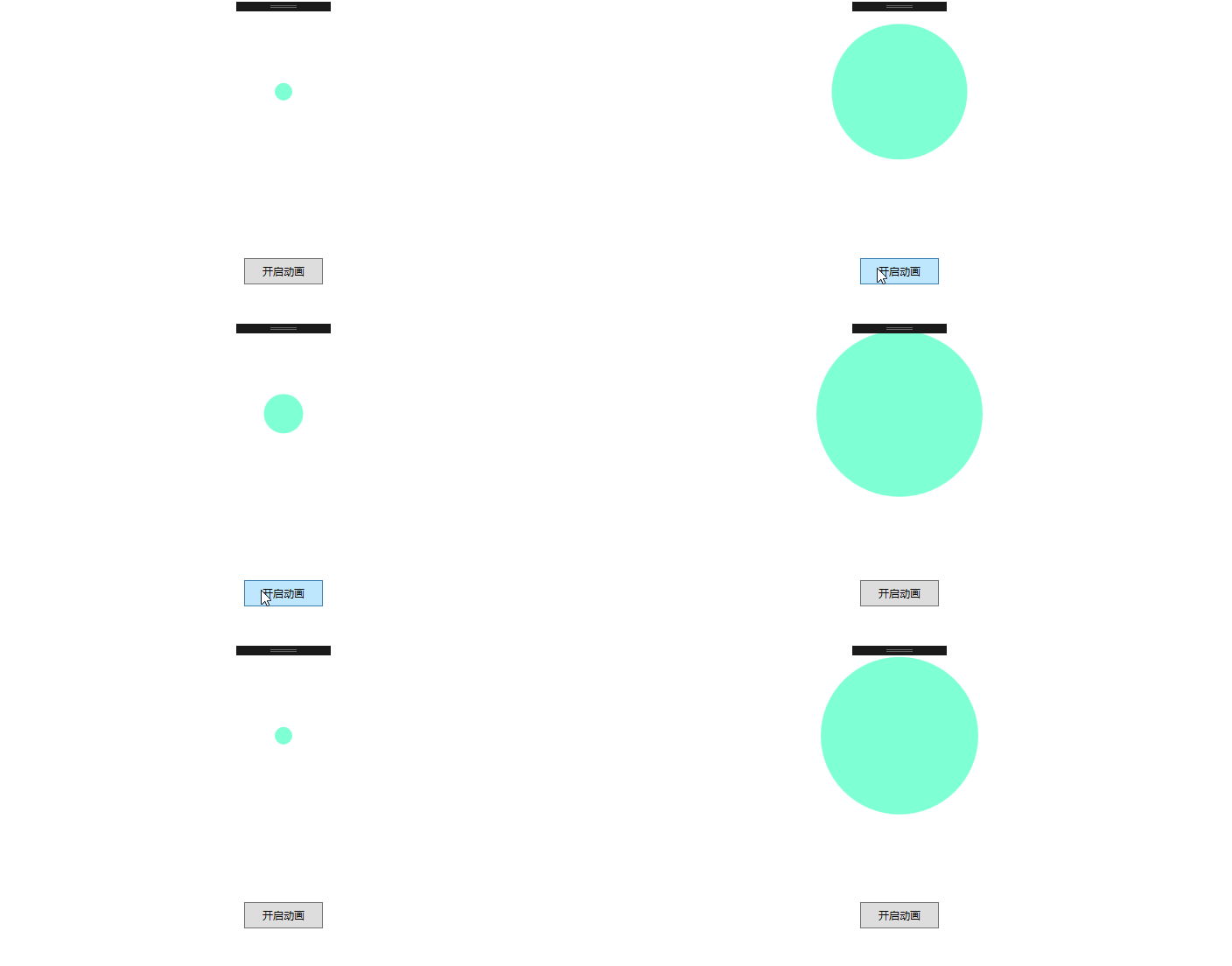
XAML:
<Window x:Class="WpfDispatcherTimerAnimation.MainWindow"

        xmlns="http://schemas.microsoft.com/winfx/2006/xaml/presentation"

        xmlns:x="http://schemas.microsoft.com/winfx/2006/xaml"

        xmlns:d="http://schemas.microsoft.com/expression/blend/2008"

        xmlns:mc="http://schemas.openxmlformats.org/markup-compatibility/2006"

        xmlns:local="clr-namespace:WpfDispatcherTimerAnimation"

        mc:Ignorable="d"

        Title="MainWindow" Height="" Width="">

    <Grid>

        <Grid.RowDefinitions>

            <RowDefinition/>

            <RowDefinition/>

        </Grid.RowDefinitions>

        <Ellipse Name="rectangle" Height="" Width=""  Fill="Aquamarine"/>

        <Button  Content="开启动画" Click="ButtonBase_OnClick" Height="" Width="" Grid.Row=""/>

    </Grid>

</Window>
C#代码:
using System;

using System.Windows;

using System.Windows.Threading;

namespace WpfDispatcherTimerAnimation

{

    /// <summary>

    /// MainWindow.xaml 的交互逻辑

    /// </summary>

    public partial class MainWindow : Window

    {

        public MainWindow()

        {

            InitializeComponent();

        }

        /// <summary>

        /// 长方形减小计时器

        /// </summary>

        DispatcherTimer dispatcherTimerDecrease = new DispatcherTimer();

        /// <summary>

        /// 长方形增大计时器

        /// </summary>

        DispatcherTimer dispatcherTimerIncrease = new DispatcherTimer();

        /// <summary>

        /// 按钮点击事件

        /// </summary>

        /// <param name="sender"></param>

        /// <param name="e"></param>

        private void ButtonBase_OnClick(object sender, RoutedEventArgs e)

        {

            dispatcherTimerIncrease.Interval = TimeSpan.FromMilliseconds();

            dispatcherTimerIncrease.Tick += dispatcherTimerIncrease_Tick;

            dispatcherTimerIncrease.Start();

            dispatcherTimerDecrease.Interval = TimeSpan.FromMilliseconds();

            dispatcherTimerDecrease.Tick += DispatcherTimerDecrease_Tick;

        }

        /// <summary>

        /// 增加计时器事件

        /// </summary>

        /// <param name="sender"></param>

        /// <param name="e"></param>

        private void DispatcherTimerDecrease_Tick(object sender, EventArgs e)

        {

            if (rectangle.Width <  || rectangle.Height < )

            {

                (sender as DispatcherTimer).Stop();

                dispatcherTimerIncrease.Start();

            }

            else if (rectangle.Width >=  || rectangle.Height >= )

            {

                rectangle.Width -= ;

                rectangle.Height -= ;

            }

        }

        /// <summary>

        /// 减少计时器事件

        /// </summary>

        /// <param name="sender"></param>

        /// <param name="e"></param>

        private void dispatcherTimerIncrease_Tick(object sender, EventArgs e)

        {

            if (rectangle.Width <  || rectangle.Height < )

            {

                rectangle.Width += ;

                rectangle.Height += ;

            }

            else if (rectangle.Width >=  || rectangle.Height >= )

            {

                (sender as DispatcherTimer).Stop();

                dispatcherTimerDecrease.Start();

            }

        }

    }

}
2.基于桢的动画
由CompositionTarget类来完成,它提供了一个回调函数(Rendering的事件处理函数),WPF会在每次界面刷新时调用该回调函数。CompositionTarget的刷新率与窗体保持一致,因此很难人工控制动画的快慢。
案例:
效果图:

XAML:
<Window x:Class="Wpf基于桢的动画.MainWindow"

        xmlns="http://schemas.microsoft.com/winfx/2006/xaml/presentation"

        xmlns:x="http://schemas.microsoft.com/winfx/2006/xaml"

        xmlns:d="http://schemas.microsoft.com/expression/blend/2008"

        xmlns:mc="http://schemas.openxmlformats.org/markup-compatibility/2006"

        xmlns:local="clr-namespace:Wpf基于桢的动画"

        mc:Ignorable="d"

        Title="MainWindow" Height="" Width="">

    <Grid >

        <Grid.RowDefinitions>

            <RowDefinition/>

            <RowDefinition/>

        </Grid.RowDefinitions>

        <Ellipse Name="ellipse" Height="" Width=""  Fill="Aquamarine"/>

        <Button Grid.Row=""  Content="开启动画" Height="" Width=""  Click="ButtonBase_OnClick" />

    </Grid>

</Window>
C#:
using System;

using System.Collections.Generic;

using System.Linq;

using System.Text;

using System.Threading.Tasks;

using System.Windows;

using System.Windows.Controls;

using System.Windows.Data;

using System.Windows.Documents;

using System.Windows.Input;

using System.Windows.Media;

using System.Windows.Media.Imaging;

using System.Windows.Navigation;

using System.Windows.Shapes;

using System.Windows.Threading;

namespace Wpf基于桢的动画

{

    /// <summary>

    /// MainWindow.xaml 的交互逻辑

    /// </summary>

    public partial class MainWindow : Window

    {

        public MainWindow()

        {

            InitializeComponent();

        }

        private void ButtonBase_OnClick(object sender, RoutedEventArgs e)

        {

            CompositionTarget.Rendering+=new EventHandler(CompositionTarget_Rendering);

        }

        private void CompositionTarget_Rendering(object sender, EventArgs e)

        {

            if (ellipse.Width <  || ellipse.Height < )

            {

                ellipse.Width += ;

                ellipse.Height += ;

            }

            else if (ellipse.Width >=  || ellipse.Height >= )

            {

              CompositionTarget.Rendering-=new EventHandler(CompositionTarget_Rendering);

            }

        }

    }

}
3.基于属性的动画
用一个DoubleAnimation类制定起始值(From=“”)、终点值To=“”、时间(Duration=“0:0:2.7”),以及动画结束应该(FillBehavior=”Stop”)。设置好之后该矩形调用BeginAnimation方法开始实现动画,BeginAnimation制定需要应用动画的属性和创建的DoubleAnimation。
案例:
效果图:

XAML:
<Window x:Class="Wpf基于属性的动画.MainWindow"

        xmlns="http://schemas.microsoft.com/winfx/2006/xaml/presentation"

        xmlns:x="http://schemas.microsoft.com/winfx/2006/xaml"

        xmlns:d="http://schemas.microsoft.com/expression/blend/2008"

        xmlns:mc="http://schemas.openxmlformats.org/markup-compatibility/2006"

        xmlns:local="clr-namespace:Wpf基于属性的动画"

        mc:Ignorable="d"

        Title="MainWindow" Height="" Width="">

    <Grid >

        <Grid.RowDefinitions>

            <RowDefinition/>

            <RowDefinition/>

        </Grid.RowDefinitions>

        <Ellipse Name="ellipse" Height="" Width=""  Fill="Aquamarine"/>

        <Button Grid.Row=""  Content="开启动画" Height="" Width=""  Click="ButtonBase_OnClick" />

    </Grid>

</Window>
C#:
using System;

using System.Windows;

using System.Windows.Media.Animation;

using System.Windows.Shapes;

namespace Wpf基于属性的动画

{

    /// <summary>

    /// MainWindow.xaml 的交互逻辑

    /// </summary>

    public partial class MainWindow : Window

    {

        public MainWindow()

        {

            InitializeComponent();

        }

        private void ButtonBase_OnClick(object sender, RoutedEventArgs e)

        {

            DoubleAnimation doubleAnimation=new DoubleAnimation();

            doubleAnimation.From = ;

            doubleAnimation.To = ;

            doubleAnimation.Duration = TimeSpan.FromMilliseconds();

            doubleAnimation.FillBehavior = FillBehavior.Stop;

            ellipse.BeginAnimation(Ellipse.WidthProperty,doubleAnimation);

            DoubleAnimation doubleAnimation1 = new DoubleAnimation();

            doubleAnimation1.From = ;

            doubleAnimation1.To = ;

            doubleAnimation1.Duration = TimeSpan.FromMilliseconds();

            doubleAnimation1.FillBehavior = FillBehavior.Stop;

            ellipse.BeginAnimation(Ellipse.HeightProperty, doubleAnimation);

        }

    }

}
WPF实现动画的几种方式及其小案例的更多相关文章
- Spring框架访问数据库的两种方式的小案例
1.1 以Xml的方式访问数据库的案例 要以xml的方式访问数据库需要用到JdbcTemplate ,因为 JdbcTemplate(jdbc的模板对象)在Spring 中提供了一个可以操作数据库的对 ...
- 加载gif动画的三种方式
GifView.h/** * 调用结束就开始播放动画,如果需要用户指定何时播放的话,只需要把timer的开始放到合适的位置.通过对CFDictonaryRaf 也就是gifProperties的改变, ...
- WPF实现导航的几种方式
下面是展示的是几种导航方式: 我们来具体看下xaml文件 <Page x:Class="WPF实现Navigation.Page1" xmlns="http://s ...
- 实现activity跳转动画的若干种方式
第一种: (使用overridePendingTransition方法实现Activity跳转动画) 在Activity中代码如下 /** * 点击按钮实现跳转逻辑 */ button1.setOnC ...
- Android系统移植与调试之------->如何修改开机动画的两种方式剖析
首先,我们先来分析一下源码: frameworks/base/cmds/bootanimation/BootAnimation.cpp 首先看一下定义的常量: BootAnimation::ready ...
- WPF设置样式的几种方式
第一种方式是直接使用Setter来进行,可以对Background等进行设置. <Window.Resources> <Style TargetType="Button&q ...
- 前端制作动画的几种方式(css3,js)
制作动态的网页是是前端工程师必备的技能,很好的实现动画能够极大的提高用户体验,增强交互效果,那么动画有多少实现方式,一直对此有选择恐惧症的我就总结一下,以便在开发的时候选择最好的实现方式. 1.css ...
- IOS 动画的两种方式
方式一: [UIView animateWithDuration:1 animations:^{ //动画的内容 CGRect frame = CGRectMake([UIParam widthScr ...
- Cocos2d-x3.3beta0创建动画的3种方式
1.单独载入精灵对象 渲染效率低,浪费资源,不推荐用该方法.代码例如以下:注:代码仅仅需贴到HelloWorldScene.cpp中就可以. //First,单独渲染每个精灵帧 auto sprite ...
随机推荐
- sql数据库 大小查询
select * from sys.master_files where name='CODA_PRD_Catalog' 12416*8/1024=(m)
- 在Myeclipse中查看android源码就是这么easy
在开发android 时不能查看源码必是很不爽的一件事,看过网上一些文章后(都是2.0以前的版本,跟我的2.2最新版本的配置是不一样的)不过还是给了我启示,通过配置终于可以在myeclipse中查看源 ...
- Ionic2使用TypeScript调用自定义JavaScript脚本
在项目app目录下面写一个.d.ts 里面声明你要引用JS库里面定义的变量,变量名要保持一致 declare var Strophe: any; 然后把JS库放在www目录下面 然后在index.ht ...
- Springboot接口简单实现生成MySQL插入语句
Springboot接口简单实现调用接口生成MySQL插入语句 在实际测试中,有这样一个需求场景,比如:在性能压力测试中,可能需要我们事先插入数据库中一些相关联的数据. 我们在实际测试中,遇到问题,需 ...
- C#-一维数组——★★冒泡排序★★
////★★★★★冒泡排序 ; i < a - ; i++) { ; j < a; j++) { if (age[i] < age[j]) { int zhong = age[i]; ...
- jQuery 节点操作(创建 插入 删除 复制 替换 包裹)
一,创建元素节点: 第1个步骤可以使用jQuery的工厂函数$()来完成,格式如下: $(html); $(html)方法会根据传入的HTML标记字符串,创建一个DOM对象,并将这个DOM对象包装成一 ...
- EDEM 2018 + Fluent 19.0耦合
具体步骤参考流沙的文章即可,如果python版本较高,可能有个地方需要小小的改动一下: tools文件夹下的compile_lib_edem_coupling.py文件中,导入模块有个地方需要修改 其 ...
- Web安全学习笔记——SQL注入
一.MySQL注入 1. 常用信息查询 常用信息: 当前数据库名称:database() 当前用户:user() current_user() system_user() 当前数据库版本号:@@ver ...
- Android手游2048核心功能
private void swipeUp(){ //向上滑动函数 for (int x = 0; x < 4; x++) { //行从上到下 for (int y = 0; y < 4; ...
- python 进程与线程(理论部分)
一.理论部分 一 什么是进程 进程:正在进行的一个过程或者说一个任务.而负责执行任务则是cpu. 举例(单核+多道,实现多个进程的并发执行): egon在一个时间段内有很多任务要做:python备课的 ...