
微信小程序之豆瓣电影
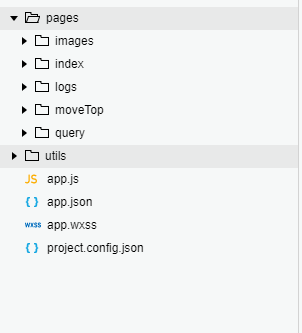
此文是学习小程序第二天做出的一个小demo,调用了豆瓣电影的api,但是需要填上自己appId,现在项目的 目录如下图:
效果图如下:
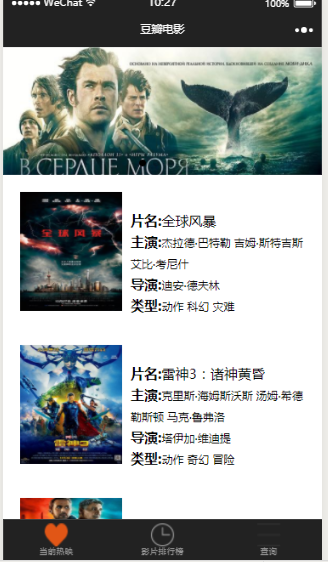
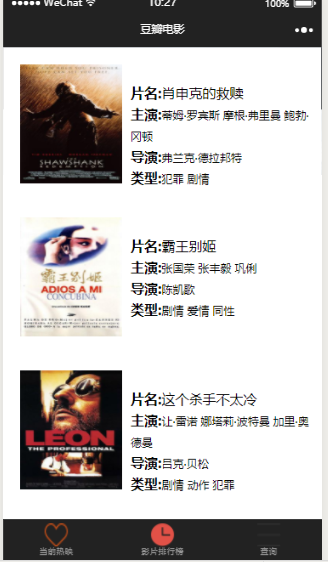
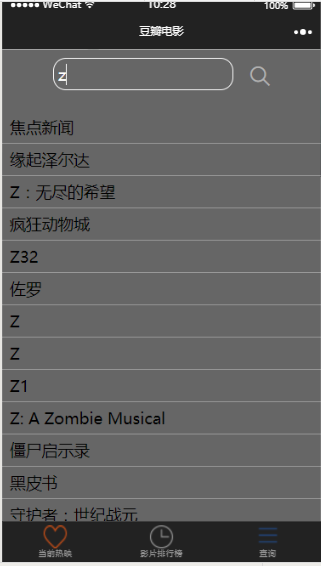
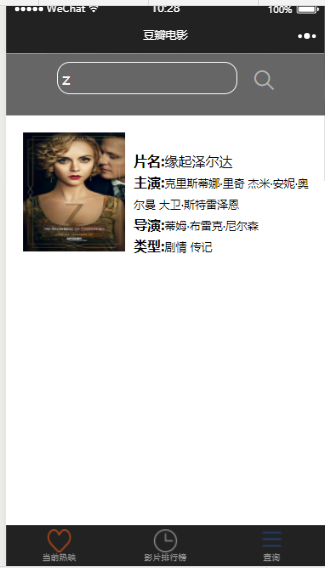
在这个demo里面,我更改了小程序的navigationBar,设置了最下方的三个tabBar,这是公共的设置需要在app.json里面设置,
 {

 "pages": [

 "pages/index/index",

 "pages/logs/logs",

 "pages/query/index",

 "pages/moveTop/index"

 ],

 "window": {

 "backgroundTextStyle": "light",

 "navigationBarBackgroundColor": "#222",

 "navigationBarTitleText": "豆瓣电影",

 "navigationBarTextStyle": "#fff"

 },

 "tabBar": {

 "backgroundColor": "#222",

 "list": [

 {

 "pagePath": "pages/index/index",

 "text": "当前热映",

 "iconPath": "pages/images/collection-o.png",

 "selectedIconPath": "pages/images/collection.png"

 },

 {

 "pagePath": "pages/moveTop/index",

 "text": "影片排行榜",

 "iconPath": "pages/images/examResult-time.png",

 "selectedIconPath": "pages/images/icon_clock.png"

 },

 {

 "pagePath": "pages/query/index",

 "text": "查询",

 "iconPath": "pages/images/nav_icon.png",

 "selectedIconPath": "pages/images/icon_nav_cell.png"

 }

 ]

 }

 }
 /**app.wxss**/

 .container {

 height: 100%;

 padding:;

 }

 .list_img {

 float: left;

 width: 120px;

 }

 image {

 width: 100%;

 height: 140px;

 padding: 20px 20px 0 20px;

 }

 .list_info {

 float: left;

 width: 210px;

 height: 140px;

 padding-left: 30px;

 padding-top: 40px;

 }

 .move-item_fontWeight {

 font-weight: bold;

 font-size: 16px;

 }

 .move-item_moveName{

 font-size: 16px;

 }

 .move-item_fontSize {

 font-size: 13px;

 }
 <!--index.wxml-->

 <view class="container">

   <!--轮播图-->

   <swiper indicator-dots="{{indicatorDots}}" autoplay="{{autoplay}}" interval="{{interval}}" duration="{{duration}}">

     <block wx:for="{{imgUrls}}" wx:key="{{item}}">

       <swiper-item>

         <image src="{{item}}" />

       </swiper-item>

     </block>

   </swiper>

   <!--热映列表展示-->

   <block wx:for="{{moves}}" wx:key="{{item}}">

     <view class="list">

       <view class="list_img">

         <image src="{{item.images.medium}}"></image>

       </view>

       <view class="list_info">

         <text class="move-item_fontWeight">片名:</text>

         <text class="move-item_moveName">{{item.title}}\n</text>

         <view>

           <text class="move-item_fontWeight">主演:</text>

           <block wx:for="{{item.casts}}" wx:key="{{index}}">

             <text class="move-item_fontSize">{{item.name}} </text>

           </block>

         </view>

         <view>

           <text class="move-item_fontWeight">导演:</text>

           <block wx:for="{{item.directors}}" wx:key="{{index}}">

             <text class="move-item_fontSize">{{item.name}} </text>

           </block>

         </view>

  <view>

           <text class="move-item_fontWeight">类型:</text>

           <block wx:for="{{item.genres}}" wx:key="{{index}}">

             <text class="move-item_fontSize">{{item}} </text>

           </block>

         </view>

       </view>

     </view>

   </block>

 </view>
 /**index.wxss**/

 swiper-item > image {

   width: 100%;

   height: 200px;

   padding: 0px;

 }
 //index.js

 //获取应用实例

 var app = getApp()

 Page({

   data: {

     motto: 'Hello World',

     imgUrls: [

       '/pages/images/swiper_01.jpg', '/pages/images/swiper_02.jpg', '/pages/images/swiper_03.jpg', '/pages/images/swiper_04.jpg',

     ],

     indicatorDots: true,

     autoplay: true,    // 轮播图自动播放

     circular: true,

     interval: 3000,

     duration: 1000,

     moves:[],   // 当前热映相关数据

   },

   onLoad: function () {

     this.moveList();

   },

   // 加载当前热映电影目录

   moveList() {

     wx.showToast({

       title: '正在加载',

       icon: 'loading',

       duration: 5000

     })

     let thisPage = this;

     wx.request({

       url: 'https://api.douban.com/v2/movie/in_theaters',

       method: 'GET',

       header: {

         "Content-Type": "json"

       },

       success: function (res) {

        thisPage.setData({

          moves:res.data.subjects,

          })

        console.log(res.data.subjects)

        wx.hideLoading();

       },

     })

   },

 })
影片排行榜部分的代码
 <!--index.wxml-->

 <view class="container">

   <!--影片排行榜列表展示-->

   <block wx:for="{{moves}}" wx:key="{{item}}">

     <view class="list">

       <view class="list_img">

         <image src="{{item.images.medium}}"></image>

       </view>

       <view class="list_info">

         <text class="move-item_fontWeight">片名:</text>

         <text class="move-item_moveName">{{item.title}}\n</text>

         <view>

           <text class="move-item_fontWeight">主演:</text>

           <block wx:for="{{item.casts}}" wx:key="{{index}}">

             <text class="move-item_fontSize">{{item.name}} </text>

           </block>

         </view>

         <view>

           <text class="move-item_fontWeight">导演:</text>

           <block wx:for="{{item.directors}}" wx:key="{{index}}">

             <text class="move-item_fontSize">{{item.name}} </text>

           </block>

         </view>

  <view>

           <text class="move-item_fontWeight">类型:</text>

           <block wx:for="{{item.genres}}" wx:key="{{index}}">

             <text class="move-item_fontSize">{{item}} </text>

           </block>

         </view>

       </view>

     </view>

   </block>

 </view>
 //index.js

 //获取应用实例

 var app = getApp()

 Page({

   data: {

     motto: 'Hello World',

     moves: [],   // 当前热映相关数据

   },

   onLoad: function () {

     this.moveList();

   },

   // 加载口碑榜电影目录

   moveList() {

     wx.showToast({

       title: '正在加载',

       icon: 'loading',

       duration: 5000

     })

     let thisPage = this;

     wx.request({

       url: 'https://api.douban.com/v2/movie/top250',

       method:'GET',

       header: {

         "Content-Type": "json"

       },

       success: function (res) {

         thisPage.setData({

           moves: res.data.subjects,

         })

         console.log(res.data.subjects)

         wx.hideLoading();

       },

     })

   },

 })
查询部分的代码
 <!--pages/query/index.wxml-->

 <!--查询-->

 <view class="container page_query">

   <view class="section">

     <input type="text" value="{{searchValue}}" class="searchMove" placeholder="查询片名" auto-focus bindfocus="focusSearch" bindinput="searchActiveChangeinput" />

     <icon type="search" />

   </view>

   <view class="movesList" wx:if="{{isShowQueryMoves}}">

     <block wx:for="{{searchMoves}}" wx:key="item">

       <view class="move-item">

         <text class="item-name" bindtap="showDetailInfo" data-info="{{item}}">{{item.title}}\n</text>

       </view>

     </block>

   </view>

   <view class="classname" wx:if="{{isShowDetailInfo}}">

     <view class="list_img">

       <image src="{{info.images.medium}}"></image>

     </view>

     <view class="list_info">

       <text class="move-item_fontWeight">片名:</text>

       <text class="move-item_moveName">{{info.title}}\n</text>

       <view>

         <text class="move-item_fontWeight">主演:</text>

         <block wx:for="{{info.casts}}" wx:key="{{index}}">

           <text class="move-item_fontSize">{{item.name}} </text>

         </block>

       </view>

       <view>

         <text class="move-item_fontWeight">导演:</text>

         <block wx:for="{{info.directors}}" wx:key="{{index}}">

           <text class="move-item_fontSize">{{item.name}} </text>

         </block>

       </view>

       <view>

         <text class="move-item_fontWeight">类型:</text>

         <block wx:for="{{info.genres}}" wx:key="{{index}}">

           <text class="move-item_fontSize">{{item}} </text>

         </block>

       </view>

     </view>

   </view>

 </view>
 // pages/query/index.js

 Page({

   data: {

     searchValue: '',    // 搜索框的文字

     showClearBtn: false,   // 清除按钮

     searchMoves: [],      // 搜索到的结果

     num: 0,

     info: null,              // 可供点击的查询出来的单个影片名

     isShowQueryMoves:false,    // 默认不显示查询出来的影片信息

     isShowDetailInfo:false,    // 默认不现实单个影片的详细信息

   },

   /**

    * 生命周期函数--监听页面加载

    */

   onLoad: function (options) {

   },

   focusSearch() {

     if (this.data.searchValue) {

       this.setData({

         showClearBtn: true

       })

     }

   },

   //对输入框输入的字符进行查询

   searchActiveChangeinput(e) {

     let thisPage = this;

     const val = e.detail.value;

     this.setData({

       // showClearBtn: val != '' ? true : false,

       searchValue: val,

       num: (this.data.num)++

     })

     if (this.data.num > 35) {

       return;

     }

     wx.request({

       url: 'https://api.douban.com/v2/movie/search',

       data: {

         q: thisPage.data.searchValue,

       },

       method: 'GET',

       header: {

         "Content-Type": "json"

       },

       success: function (res) {

         thisPage.setData({

           searchMoves: res.data.subjects,

           isShowQueryMoves: true,    // 显示查询出来的影片信息

         })

       }

     })

   },

   // 点击查询出来的影片名,显示影片的具体信息

   showDetailInfo(e) {

     this.setData({

       info: e.currentTarget.dataset.info,

       isShowQueryMoves:false,

       isShowDetailInfo:true,

     })

   }

 })
 /* pages/query/index.wxss */

 .page_query {

   min-height: 100%;

   background-color: #666;

 }

 .searchMove {

   width: 200px;

   margin: 10px 0px 20px 60px;

 }

 view>input {

   border: 1px solid #fff;

   border-radius: 15px;

   width: 250px;

   padding: 5px;

   margin: 10px;

   color: #fff;

   display: inline-block;

 }

 view>icon {

   float: right;

   margin: 20px 60px 0 0;

 }

 .move-item {

   border-bottom: 1px solid #999;

 }

 .item-name {

   line-height: 2rem;

   padding: 0.1rem 0.5rem;

 }
微信小程序之豆瓣电影的更多相关文章
- 微信小程序访问豆瓣电影api400错误解决方法
最近在跟着demo学习微信小程序,却卡在了第一步请求豆瓣电影api上,折腾了很久,代码如下: wx.request({ url : "https://api.douban.com/v2/mo ...
- 微信小程序开发豆瓣电影接口失效
豆瓣旧API接口停用,使用以下接口代替 .获取正在热映的电影:https://douban.uieee.com/v2/movie/in_theaters访问参数:start : 数据的开始项 coun ...
- 微信小程序访问豆瓣api403问题解决方发法
微信小程序访问豆瓣api403问题解决方法一览:通过豆瓣api可以获取很多电影.书籍等的数据信息.昨晚上用微信小程序请求豆瓣api,竟然被豆瓣拒绝了.(豆瓣设置了小程序的访问权限):下面就跟着小编一起 ...
- 微信小程序demo豆瓣图书
最近微信小程序被炒得很火热,本人也抱着试一试的态度下载了微信web开发者工具,开发工具比较简洁,功能相对比较少,个性化设置也没有.了解完开发工具之后,顺便看了一下小程序的官方开发文档,大概了解了小程序 ...
- 微信小程序 —— 仿制豆瓣(一)
先预览一下效果 欢迎扫码查看 码云地址:https://gitee.com/mk_23/little_chen_xu.git 预览完成,首先进入app.json文件中配置参数,主要就是配置我们要用的页 ...
- 微信小程序访问豆瓣api报403错误解决方法
通过豆瓣API可以获取很多电影.书籍的数据信息,今天在调用豆瓣正在上映电影接口的时候报403错误,原因是豆瓣设置了小程序的访问权限.如下: 解决方法是使用代理,将豆瓣API地址换成 https://d ...
- 如何用微信小程序模仿豆瓣首页
程序思路: 用微信自带组件swiper来实现轮播图 用豆瓣提供的api(这里使用的电影api)来获取最近的电影数据[豆瓣api地址] 获取数据用微信的request方法,只需要提供豆瓣api的url链 ...
- 微信小程序实现豆瓣读书
个人练习项目,使用了scss+webstorm watcher来处理样式.整体上没有什么难点. github:https://github.com/axel10/wx-douban-read
- 微信小程序开源项目库汇总
最近做了一个微信小程序开源项目库汇总,里面集合了OpenDigg 上的优质的微信小程序开源项目库,方便移动开发人员便捷的找到自己需要的项目工具等,感兴趣的可以到GitHub上给个star. UI组件 ...
随机推荐
- ITA 15.5 Optimal binary search trees
p400 页最后一段 When j >= i , we need to select a root kr from among ki ... kj and then make an optima ...
- JavaScript中判断整数的方法
一.使用取余运算符判断 任何整数都会被1整除,即余数是0.利用这个规则来判断是否是整数. 1 2 3 4 5 function isInteger(obj) { return obj%1 == ...
- 模版——KMP
#include <iostream> #include <cstdio> #include <cstring> ; int f[maxn]; char P[max ...
- H3C RIP路由表的初始化
- js执行代码顺序
之前一直停留在主线程先执行,异步后执行的浅理解中,后来随着不断的学习,才渐渐意识到这里面还是有点复杂的,不过我不打算写很多.一幅图来说明这个复杂的关系 processTick可理解为node中的延时器 ...
- 2019-9-2-C#命令行解析工具
title author date CreateTime categories C#命令行解析工具 lindexi 2019-09-02 12:57:37 +0800 2018-2-13 17:23: ...
- H3C 被动方式建立连接过程
- vue-cli3 使用 svg-sprite-loader 的坑
chainWebpack: config => { config.module.rules.delete("svg"); //重点:删除默认配置中处理svg, //const ...
- Python的优缺点、以及解释器种类
优点 Python起始定位“优雅”.“明确”.“简洁”,工具型语言,上手快,实用性强. 开发效率高,支持库强大,很多功能都有与之对应的最优模块支持. 高级语言,编程时无需考虑内存等底层具体实现. 可移 ...
- 【codeforces 750C】New Year and Rating
time limit per test2 seconds memory limit per test256 megabytes inputstandard input outputstandard o ...