
HUGO 创建属于自己的博客
Hugo 拥有超快的速度,强大的内容管理和强大的模板语言,使其非常适合各种静态网站。可以轻松安装在macOS,Linux,Windows等平台上,在开发过程中使用LiveReload可即时渲染更改
一、安装 Hugo
Mac 上安装 HUGO,很简单,通过 brew 可以快速安装
brew install hugo
检查安装版本信息
hugo version
二、使用 Hugo
1、创建网站
hugo new site iChochy 创建
其中
iChochy为你的博客目录
目录结构
iChochy

├── archetypes

│   └── default.md

├── config.toml

├── content

├── data

├── layouts

├── static

└── themes
2、添加主题
a、下载主题
以 hyde主题为例 https://github.com/spf13/hyde
直接下载主题,放到themes目录中,或通过 git 方式添加主题
git submodule add https://github.com/spf13/hyde.git themes/hyde
b、修改配置
echo 'theme = "hyde"' >> config.toml
config.toml 文件内容
baseURL = "https://ichochy.com/"

languageCode = "en-us"

title = "My New Hugo Site"

theme = "hyde"
目录结构
iChochy

├── archetypes

│   └── default.md

├── config.toml

├── content

├── data

├── layouts

├── static

└── themes

    └── hyde

        ├── CHANGELOG.md

        ├── LICENSE.md

        ├── README.md

        ├── archetypes

        │   └── default.md

        ├── go.mod

        ├── images

        │   ├── screenshot.png

        │   └── tn.png

        ├── layouts

        │   ├── 404.html

        │   ├── _default

        │   │   ├── baseof.html

        │   │   ├── list.html

        │   │   └── single.html

        │   ├── index.html

        │   └── partials

        │       ├── head.html

        │       ├── head_fonts.html

        │       ├── hook_head_end.html

        │       └── sidebar.html

        ├── static

        │   ├── apple-touch-icon-144-precomposed.png

        │   ├── css

        │   │   ├── hyde.css

        │   │   ├── poole.css

        │   │   ├── print.css

        │   │   └── syntax.css

        │   └── favicon.png

        └── theme.toml
3、编写内容
新建文章
hugo new posts/HelloWorld.md 新建
注:以 archetypes/default.md为模版创建
编写文章
vim content/posts/HelloWorld.md
HelloWorld.md 文件内容
---

title: "HelloWorld"

date: 2020-08-02T21:47:48+08:00

draft: true

---

### HelloWorld

https://ichochy.com
预览文章
hugo server -D 启动服务,访问 http://localhost:1313
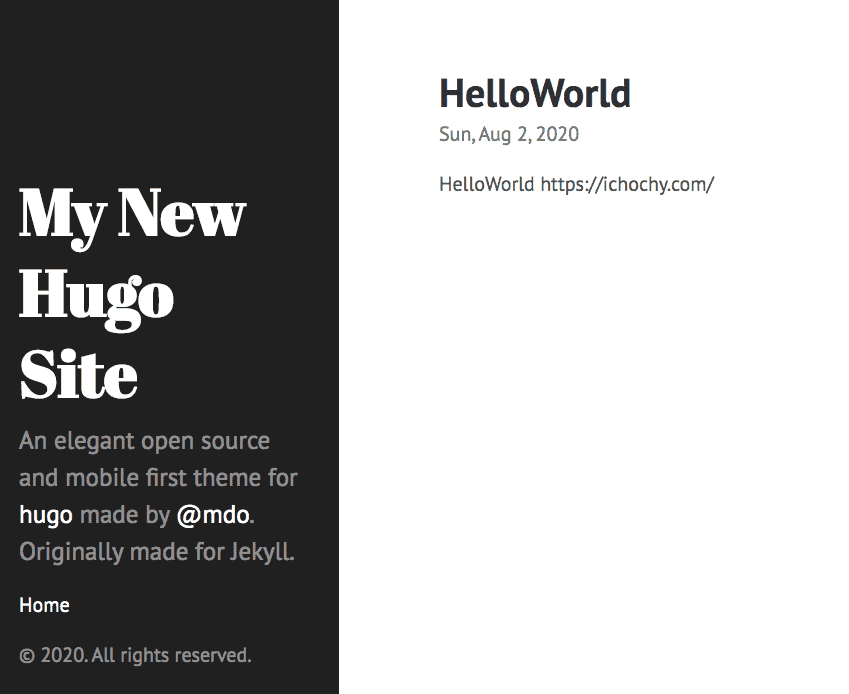
目录结构
iChochy

├── archetypes

│   └── default.md

├── config.toml

├── content

│   └── posts

│       └── HelloWorld.md

├── data

├── layouts

├── resources

│   └── _gen

│       ├── assets

│       └── images

├── static

└── themes

    └── hyde

        ├── CHANGELOG.md

        ├── LICENSE.md

        ├── README.md

        ├── archetypes

        │   └── default.md

        ├── go.mod

        ├── images

        │   ├── screenshot.png

        │   └── tn.png

        ├── layouts

        │   ├── 404.html

        │   ├── _default

        │   │   ├── baseof.html

        │   │   ├── list.html

        │   │   └── single.html

        │   ├── index.html

        │   └── partials

        │       ├── head.html

        │       ├── head_fonts.html

        │       ├── hook_head_end.html

        │       └── sidebar.html

        ├── static

        │   ├── apple-touch-icon-144-precomposed.png

        │   ├── css

        │   │   ├── hyde.css

        │   │   ├── poole.css

        │   │   ├── print.css

        │   │   └── syntax.css

        │   └── favicon.png

        └── theme.toml
部署
修改部署目录
修改 config.toml 文件
1、修改 bashURL 的部署域名
2、添加 publishDir = "docs",指定部署目录为 docs
config.toml 文件内容
baseURL = "https://ichochy.com/"

languageCode = "en-us"

title = "My New Hugo Site"

theme = "hyde"

publishDir = "docs"
生成静态文件
hugo -D 生成静态文件
目录结构
iChochy

├── archetypes

│   └── default.md

├── config.toml

├── content

│   └── posts

│       └── HelloWorld.md

├── data

├── docs

│   ├── 404.html

│   ├── apple-touch-icon-144-precomposed.png

│   ├── categories

│   │   ├── index.html

│   │   └── index.xml

│   ├── css

│   │   ├── hyde.css

│   │   ├── poole.css

│   │   ├── print.css

│   │   └── syntax.css

│   ├── favicon.png

│   ├── index.html

│   ├── index.xml

│   ├── posts

│   │   ├── helloworld

│   │   │   └── index.html

│   │   ├── index.html

│   │   └── index.xml

│   ├── sitemap.xml

│   └── tags

│       ├── index.html

│       └── index.xml

├── layouts

├── resources

│   └── _gen

│       ├── assets

│       └── images

├── static

└── themes

    └── hyde

        ├── CHANGELOG.md

        ├── LICENSE.md

        ├── README.md

        ├── archetypes

        │   └── default.md

        ├── go.mod

        ├── images

        │   ├── screenshot.png

        │   └── tn.png

        ├── layouts

        │   ├── 404.html

        │   ├── _default

        │   │   ├── baseof.html

        │   │   ├── list.html

        │   │   └── single.html

        │   ├── index.html

        │   └── partials

        │       ├── head.html

        │       ├── head_fonts.html

        │       ├── hook_head_end.html

        │       └── sidebar.html

        ├── static

        │   ├── apple-touch-icon-144-precomposed.png

        │   ├── css

        │   │   ├── hyde.css

        │   │   ├── poole.css

        │   │   ├── print.css

        │   │   └── syntax.css

        │   └── favicon.png

        └── theme.toml
部署 GitHub Pages
将整个项目推送到 GitHub,然后在项目的 Settings 中开启的 GitHub Pages,并指定分支和目录 docs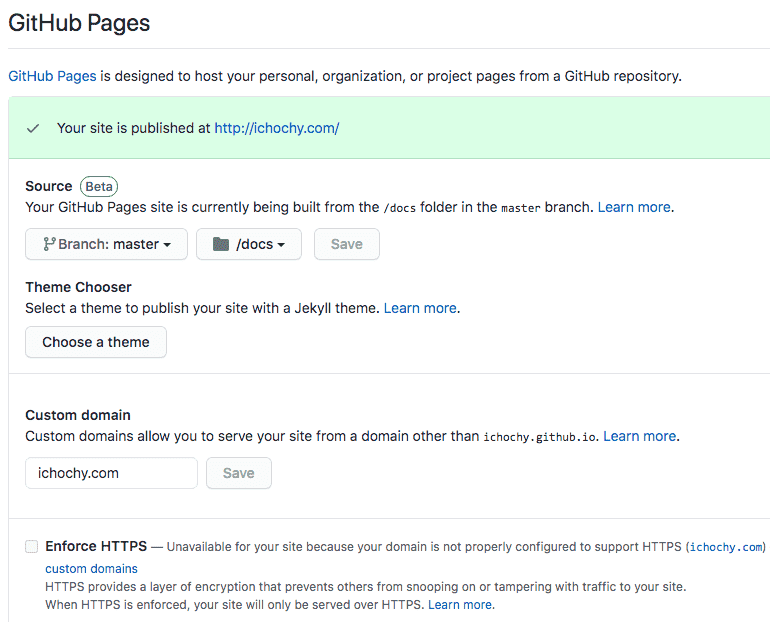
就是可以直接在线访问了,如:https://ichochy.github.io
总结
Hugo 简单、易用、快速
模版化强大,只需要关心文章的编写
默认开启 LiveReload,修改后可以实时预览,免去手去刷新操作
还有很多强大的功能,如:摘要(Summary)、文章目录(TableOfContents)、相关推荐(Related)、多语言支持(i18n)、列表分页(Pagination)、简码(Shortcodes)等。
联系方式
网站:https://ichochy.com/
源文:https://ichochy.com/posts/20200802/
HUGO 创建属于自己的博客的更多相关文章
- 用Hugo在gitee上构建博客(Windows环境下)
目录 用Hugo在gitee上构建博客(Windows环境下) 1.为什么要用gitee? 2.安装git 3.安装Hugo 4.创建远程仓库 5.搭建博客 (以下所有命令都在git bash中输入) ...
- Hugo + Github Pages 搭建个人博客
尝试过 Hexo .GatsbyJs. Vuepress 搭建博客后,对这些工具最大的不满,就是运行速度以及打包速度. 后来看到 Hugo ,号称最快的静态站点生成器后. 尝试搭建博客,发现不管是运行 ...
- 应用github pages创建自己的个人博客
首先你需要注册自己的github账号 1.登录或者注册github,登录之后点击右上角的“+”号,选择“New repository”菜单,创建仓库,用于存储和博客相关的源文件. 2.跳转页面将填写域 ...
- hexo+github创建属于自己的博客
配置环境 安装Node(必须) 作用:用来生成静态页面的 到Node.js官网下载相应平台的最新版本,一路安装即可. 安装Git(必须) 作用:把本地的hexo内容提交到github上去. 安装Xco ...
- 创建自己的网站博客--Hexo
原文地址:https://www.xingkongbj.com/blog/hexo/creat-hexo.html 安装环境 安装 node 下载对应版本并安装 node . 安装 Git Windo ...
- 如何用Hexo+Github创建自己的技术博客
注册一个github GitHub官网.按照一般的网站注册登录执行就好了,不详细说. 安装git 安装很简单,一直下一步 git安装教程 很多教程里都说要配置环境变量,我本人安装过5次左右的git,一 ...
- SpringBoot使用Hibernate,实现自动创建数据库表【博客数据库设计】
我们准备设计博客,那就要设计数据库. 我们可以使用Hibernate来自动生成数据库. 博客数据库的结构: 实体类: 博客 Blog 博客分类 Type 博客标签 Tag 博客评论 Comment 用 ...
- python基础[18]——使用django创建一个简易的博客网站
一.页面实现 index.html base.html post.html header.html footer.html <!-- index.html--> {% extends 'b ...
- Hugo + github 搭建个人博客
前言 很早以前就有想法,搭建一个个人的博客.没有实现的原因:一方面个人的服务器不太安全掉线,欠费,维护起来麻烦,另一方面,文章编辑发布起来也不方便. 后来了解到 github 提供了博客的功能,也一直 ...
随机推荐
- 七大php主流框架,你用过几个?
在php中,我们最常用的框架有七个,分别是Yii2.Laravel.Yaf.Thinkphp.Code Igniter.Zend Framework以及CakePHP,今天我们就来详细介绍一下他们.一 ...
- [Fundamental of Power Electronics]-PART II-7. 交流等效电路建模-7.3 脉冲宽度调制器建模
7.3 脉冲宽度调制器建模 我们现在已经达成了本章开始的目标,为图7.1推导了一个有效的等效电路模型.但仍存在一个细节,对脉冲宽度调制(PWM)环节进行建模.如图7.1所示的脉冲宽度调制器可以产生一个 ...
- M3D - 一个想突破又还有很多包袱的新生三维数据格式杂谈
目录 1 门派 2 几个术语简析 3 结构简析 3.1 空间剖分方式 3.2 空间范围表示方式 4 M3DDataInfo.mcj 类定义 5 NodeInfo.json 类定义 6 *.m3d 文件 ...
- Dynamics CRM新加了组织后提示数据加密错误的解决方法
新加组织后登录报错如下: 这个是因为你新还原的组织原来绑定的加密GUID和现有的组织冲突导致的,所以需要重新为数据加密绑定一个GUID 解决办法:随机生成一个GUID 可以在https://guidg ...
- 使用VS Code从零开始开发调试.NET 5
使用VS Code 从零开始开发调试.NET 5.无需安装VS 2019即可开发调试.NET 5应用. VS Code 全称是 Visual Studio Code,Visual Studio Cod ...
- python读取excel数据为json格式(兼容xls\xlsx)
做自动化时需要从excel读取数据: 本文实现将excel文件数据读取为json格式,方便自动化调用 读取xls文件 使用xlrd读取xls文件代码: import xlrd def read_xls ...
- Appium 简介与自动化测试环境搭建
1. Appium 简介 2. Appium 自动化测试环境搭建 1. Appium 简介 Appium 是一个开源测试自动化框架,可用于原生,混合和移动 Web 应用程序测试. 它使用 WebDri ...
- 数据驱动 - 不同数据源的读取方式(ddt、数据文件、mysql)
1. ddt 装饰器传参 2. ddt 读取数据文件 3. 读取 txt 文件 4. 读取 excel 文件 5. 连接 mysql 1. ddt 装饰器传参 python 的数据驱动模块 ddt 安 ...
- css选择器中:first-child 与 :first-of-type的区别
## css选择器中:first-child 与 :first-of-type的区别 ---- :first-child选择器是css2中定义的选择器,从字面意思上来看也很好理解,就是第一个子元素.比 ...
- 【布隆过滤器】基于Hutool库实现的布隆过滤器Demo
布隆过滤器出现的背景: 如果想判断一个元素是不是在一个集合里,一般想到的是将集合中所有元素保存起来,然后通过比较确定.链表.树.散列表(又叫哈希表,Hash table)等等数据结构都是这种思路,存储 ...