
根据url路径获取图片并显示到ListView中
项目开发中我们需要从网络获取图片显示到控件中,很多开源框架如Picasso可以实现图片下载和缓存功能。这里介绍的是一种简易的网络图片获取方式并把它显示到ListView中。
本案例实现的效果如下:
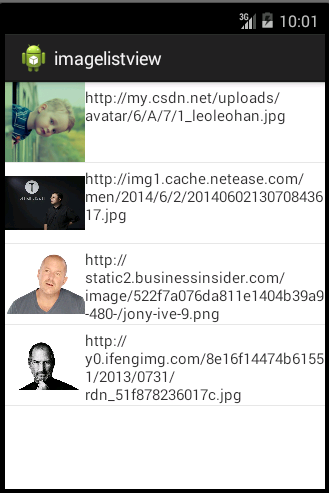
项目结构:
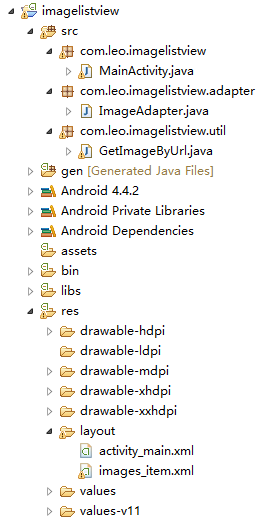
根据部分开源代码,我修改并封装了一个网络图片加载的工具类GetImageByUrl,通过调用其中的setImage方法,传入待显示图片的ImageView控件和该图片的url路径这两个参数即可实现获取网络图片的功能。
GetImageByUrl.java
package com.leo.imagelistview.util;

import java.io.InputStream;

import java.net.HttpURLConnection;

import java.net.URL;

import android.graphics.Bitmap;

import android.graphics.BitmapFactory;

import android.os.Handler;

import android.os.Message;

import android.widget.ImageView;

/**

 * 根据图片url路径获取图片

 *

 * @author LeoLeoHan

 *

 */

public class GetImageByUrl {

    private PicHandler pic_hdl;

    private ImageView imgView;

    private String url;

    /**

     * 通过图片url路径获取图片并显示到对应控件上

     *

     * @param imgView

     * @param url

     */

    public void setImage(ImageView imgView, String url) {

        this.url = url;

        this.imgView = imgView;

        pic_hdl = new PicHandler();

        Thread t = new LoadPicThread();

        t.start();

    }

    class LoadPicThread extends Thread {

        @Override

        public void run() {

            Bitmap img = getUrlImage(url);

            System.out.println(img + "---");

            Message msg = pic_hdl.obtainMessage();

            msg.what = 0;

            msg.obj = img;

            pic_hdl.sendMessage(msg);

        }

    }

    class PicHandler extends Handler {

        @Override

        public void handleMessage(Message msg) {

            Bitmap myimg = (Bitmap) msg.obj;

            imgView.setImageBitmap(myimg);

        }

    }

    public Bitmap getUrlImage(String url) {

        Bitmap img = null;

        try {

            URL picurl = new URL(url);

            HttpURLConnection conn = (HttpURLConnection) picurl

                    .openConnection();

            conn.setConnectTimeout(6000);

            conn.setDoInput(true);

            conn.setUseCaches(false);

            conn.connect();

            InputStream is = conn.getInputStream();

            img = BitmapFactory.decodeStream(is);

            is.close();

        } catch (Exception e) {

            e.printStackTrace();

        }

        return img;

    }

}
- 1
- 2
- 3
- 4
- 5
- 6
- 7
- 8
- 9
- 10
- 11
- 12
- 13
- 14
- 15
- 16
- 17
- 18
- 19
- 20
- 21
- 22
- 23
- 24
- 25
- 26
- 27
- 28
- 29
- 30
- 31
- 32
- 33
- 34
- 35
- 36
- 37
- 38
- 39
- 40
- 41
- 42
- 43
- 44
- 45
- 46
- 47
- 48
- 49
- 50
- 51
- 52
- 53
- 54
- 55
- 56
- 57
- 58
- 59
- 60
- 61
- 62
- 63
- 64
- 65
- 66
- 67
- 68
- 69
- 70
- 71
- 72
- 73
- 74
- 75
- 76
- 77
- 78
- 79
- 80
- 81
下面的代码就是实现ListView显示网络图片。
首先创建一个自定义的布局文件images_item.xml和自定义的ImageAdapter。
images_item.xml
<?xml version="1.0" encoding="utf-8"?>

<LinearLayout xmlns:android="http://schemas.android.com/apk/res/android"

    android:layout_width="match_parent"

    android:layout_height="match_parent"

    android:orientation="horizontal" >

    <ImageView

        android:id="@+id/iv_image"

        android:layout_width="80dp"

        android:layout_height="80dp" />

    <LinearLayout

        android:layout_width="0dp"

        android:layout_height="80dp"

        android:layout_weight="1"

        android:orientation="vertical" >

        <TextView

            android:id="@+id/tv_url"

            android:layout_width="wrap_content"

            android:layout_height="wrap_content"

            android:layout_marginTop="5dp"

            android:textSize="15sp" />

    </LinearLayout>

</LinearLayout>
- 1
- 2
- 3
- 4
- 5
- 6
- 7
- 8
- 9
- 10
- 11
- 12
- 13
- 14
- 15
- 16
- 17
- 18
- 19
- 20
- 21
- 22
- 23
- 24
- 25
- 26
ImageAdapter.java
package com.leo.imagelistview.adapter;

import java.util.List;

import java.util.Map;

import android.content.Context;

import android.view.View;

import android.view.ViewGroup;

import android.widget.BaseAdapter;

import android.widget.ImageView;

import android.widget.TextView;

import com.leo.imagelistview.R;

import com.leo.imagelistview.util.GetImageByUrl;

/**

 *

 * @author LeoLeoHan

 *

 */

public class ImageAdapter extends BaseAdapter {

    // 要显示的数据的集合

    private List<Map<String, Object>> data;

    // 接受上下文

    private Context context;

    // 声明内部类对象

    private ViewHolder viewHolder;

    /**

     * 构造函数

     *

     * @param context

     * @param data

     */

    public ImageAdapter(Context context, List<Map<String, Object>> data) {

        this.context = context;

        this.data = data;

    }

    // 返回的总个数

    @Override

    public int getCount() {

        // TODO Auto-generated method stub

        return data.size();

    }

    // 返回每个条目对应的数据

    @Override

    public Object getItem(int position) {

        // TODO Auto-generated method stub

        return data.get(position);

    }

    // 返回的id

    @Override

    public long getItemId(int position) {

        // TODO Auto-generated method stub

        return position;

    }

    // 返回这个条目对应的控件对象

    @Override

    public View getView(int position, View convertView, ViewGroup parent) {

        // 判断当前条目是否为null

        if (convertView == null) {

            viewHolder = new ViewHolder();

            convertView = View.inflate(context, R.layout.images_item, null);

            viewHolder.iv_image = (ImageView) convertView

                    .findViewById(R.id.iv_image);

            viewHolder.tv_url = (TextView) convertView

                    .findViewById(R.id.tv_url);

            convertView.setTag(viewHolder);

        } else {

            viewHolder = (ViewHolder) convertView.getTag();

        }

        // 获取List集合中的map对象

        Map<String, Object> map = data.get(position);

        // 获取图片的url路径

        String url = map.get("url").toString();

        // 这里调用了图片加载工具类的setImage方法将图片直接显示到控件上

        GetImageByUrl getImageByUrl = new GetImageByUrl();

        getImageByUrl.setImage(viewHolder.iv_image, url);

        viewHolder.tv_url.setText(url);

        return convertView;

    }

    /**

     * 内部类 记录单个条目中所有属性

     *

     * @author LeoLeoHan

     *

     */

    class ViewHolder {

        public ImageView iv_image;

        public TextView tv_url;

    }

}
- 1
- 2
- 3
- 4
- 5
- 6
- 7
- 8
- 9
- 10
- 11
- 12
- 13
- 14
- 15
- 16
- 17
- 18
- 19
- 20
- 21
- 22
- 23
- 24
- 25
- 26
- 27
- 28
- 29
- 30
- 31
- 32
- 33
- 34
- 35
- 36
- 37
- 38
- 39
- 40
- 41
- 42
- 43
- 44
- 45
- 46
- 47
- 48
- 49
- 50
- 51
- 52
- 53
- 54
- 55
- 56
- 57
- 58
- 59
- 60
- 61
- 62
- 63
- 64
- 65
- 66
- 67
- 68
- 69
- 70
- 71
- 72
- 73
- 74
- 75
- 76
- 77
- 78
- 79
- 80
- 81
- 82
- 83
- 84
- 85
- 86
- 87
- 88
- 89
- 90
- 91
- 92
- 93
- 94
- 95
- 96
- 97
- 98
- 99
- 100
MainActivity.java
package com.leo.imagelistview;

import java.util.ArrayList;

import java.util.HashMap;

import java.util.List;

import java.util.Map;

import com.leo.imagelistview.adapter.ImageAdapter;

import android.app.Activity;

import android.os.Bundle;

import android.widget.BaseAdapter;

import android.widget.ListView;

public class MainActivity extends Activity {

    private List<Map<String, Object>> data = new ArrayList<Map<String, Object>>();

    //声明控件

    private ListView lv_images;

    @Override

    protected void onCreate(Bundle savedInstanceState) {

        super.onCreate(savedInstanceState);

        setContentView(R.layout.activity_main);

        // 获取ListView对象

        lv_images = (ListView) findViewById(R.id.lv_images);

        //获取数据

        getData();

        BaseAdapter adapter = new ImageAdapter(this, data);

        //设置适配器

        lv_images.setAdapter(adapter);

    }

    /**

     * 简单添加一些网络图片的url路径

     * 实际开发中url路径是从服务器中解析json数据

     */

    public void getData() {

        String url1 = "http://my.csdn.net/uploads/avatar/6/A/7/1_leoleohan.jpg";

        String url2 = "http://img1.cache.netease.com/men/2014/6/2/2014060213070843617.jpg";

        String url3 = "http://static2.businessinsider.com/image/522f7a076da811e1404b39a9-480-/jony-ive-9.png";

        String url4 = "http://y0.ifengimg.com/8e16f14474b61551/2013/0731/rdn_51f878236017c.jpg";

        Map<String, Object> map1 = new HashMap<String, Object>();

        map1.put("url", url1);

        Map<String, Object> map2 = new HashMap<String, Object>();

        map2.put("url", url2);

        Map<String, Object> map3 = new HashMap<String, Object>();

        map3.put("url", url3);

        Map<String, Object> map4 = new HashMap<String, Object>();

        map4.put("url", url4);

        data.add(map1);

        data.add(map2);

        data.add(map3);

        data.add(map4);

    }

}
- 1
- 2
- 3
- 4
- 5
- 6
- 7
- 8
- 9
- 10
- 11
- 12
- 13
- 14
- 15
- 16
- 17
- 18
- 19
- 20
- 21
- 22
- 23
- 24
- 25
- 26
- 27
- 28
- 29
- 30
- 31
- 32
- 33
- 34
- 35
- 36
- 37
- 38
- 39
- 40
- 41
- 42
- 43
- 44
- 45
- 46
- 47
- 48
- 49
- 50
- 51
- 52
- 53
- 54
- 55
- 56
- 57
- 58
- 59
- 60
- 61
- 62
- 63
activity_main.xml
<RelativeLayout xmlns:android="http://schemas.android.com/apk/res/android"

    xmlns:tools="http://schemas.android.com/tools"

    android:layout_width="match_parent"

    android:layout_height="match_parent"

    tools:context="${relativePackage}.${activityClass}" >

    <ListView

        android:id="@+id/lv_images"

        android:layout_width="match_parent"

        android:layout_height="match_parent" />

</RelativeLayout>
- 1
- 2
- 3
- 4
- 5
- 6
- 7
- 8
- 9
- 10
- 11
- 12
转载来源:https://blog.csdn.net/LeoLeoHan/article/details/46553317
根据url路径获取图片并显示到ListView中的更多相关文章
- MVC中根据后台绝对路径读取图片并显示在IMG中
数据库存取图片并在MVC3中显示在View中 根据路径读取图片: byte[] img = System.IO.File.ReadAllBytes(@"d:\xxxx.jpg"); ...
- Java通过图片url地址获取图片base64位字符串的两种方式
工作中遇到通过图片的url获取图片base64位的需求.一开始是用网上的方法,通过工具类Toolkit,虽然实现的代码比较简短,不过偶尔会遇到图片转成base64位不正确的情况,至今不知道为啥. 之后 ...
- 通过url动态获取图片大小方法总结
很多时候再项目中,我们往往需要先获取图片的大小再加载图片,但是某些特定场景,如用过cocos2d-js的人都知道,在它那里只能按比例缩放大小,是无法设置指定大小的图片的,这就是cocos2d-js 的 ...
- 根据图片url地址获取图片的宽高
/** * 根据img获取图片的宽高 * @param img 图片地址 * @return 图片的对象,对象中图片的真实宽高 */ public BufferedImage getBufferedI ...
- 用Seam实现:图片上传 + 保存到数据库 + 从数据库读出图片并显示到页面中
上传图片并保存到数据库 seam给我们提供了 s:fileUpload 标签以完成文件上传功能.使用该标签时,要在web.xml中声明一个Seam的过滤器: <filter> <fi ...
- 【Web】解决简书图片不显示问题“系统维护中,图片暂时无法加载”
简书不显示图片的解决方法 首次编辑于2019-6-6 最近几天在浏览简书上的文章时,发现图片显示不出来,提示"系统维护中,图片暂时无法加载". 猜测应该是简书由于某种原因暂时屏蔽了 ...
- C# 通过URL获取图片并显示在PictureBox上的方法
, ); System.Net.WebRequest webreq = System.Net.WebRequest.Create(url); System.Net.WebResponse webres ...
- vue 相对路径的图片 不显示问题
例如 data () { return { img: '../../images/jifen/index/img_list_default_pic.jpg' //路径也没问题啊,怎么不显示呢,难道他瞎 ...
- 在Android中如何获取视频的第一帧图片并显示在一个ImageView中
String path = Environment.getExternalStorageDirectory().getPath(); MediaMetadataRetriever media = n ...
随机推荐
- 拒绝服务(DoS)理解、防御与实现
一.说明 我一直不明白为什么拒绝服务,初学着喜欢拿来装逼.媒体喜欢吹得神乎其神.公司招聘也喜欢拿来做标准,因为我觉得拒绝服务和社会工程学就是最名不副实的两样东西.当然由于自己不明确拒绝服务在代码上是怎 ...
- 在 NLTK 中使用 Stanford NLP 工具包
转载自:http://www.zmonster.me/2016/06/08/use-stanford-nlp-package-in-nltk.html 目录 NLTK 与 Stanford NLP 安 ...
- Spring Developer Tools 源码分析:二、类路径监控
在 Spring Developer Tools 源码分析一中介绍了 devtools 提供的文件监控实现,在第二部分中,我们将会使用第一部分提供的目录监控功能,实现对开发环境中 classpath ...
- Unity调试模式设置辅助线是否可见
1.新建变量 //调试的标识(状态开关) public bool m_debug = true; 2.在画线方法中写 //如果非调试状态,则不再输出网格和立方体 if (!m_debug) { ret ...
- Vue解决同一页面跳转页面不更新
问题分析:路由之间的切换,其实就是组件之间的切换,不是真正的页面切换.这也会导致一个问题,就是引用相同组件的时候,会导致该组件无法更新. 方案一:使用 watch 进行监听 watch: { /* = ...
- python批量插入mysql数据库(性能相关)以及反引号的使用
参考link: https://blog.csdn.net/qq_35958094/article/details/78462800(插入相关) https://www.cnblogs.com/hya ...
- 成功解决android studio打包报错
Win7系统,Android Studio 版本2.3.1,对cpp-empty-test使用了 cocos compile -p android --android-studio,命令 编译打包AP ...
- ionic1 添加百度地图插件 cordova-plugin-baidumaplocation
cordova-plugin-baidumaplocation 这个插件返回的数据是 json 格式的 可以直接获取 android 和 ios 都可用 1.先去百度地图平台去创建应用 获取访问 ...
- traceroute命令初探
一.学习目标 了解traceroute基本概念 了解traceroute工作原理及详细过程 熟悉traceroute常用命令 一些注意点 二.traceroute基本概念 traceroute (Wi ...
- red hat防火墙的开启与关闭及状态查看方法
Redhat使用了SELinux来增强安全, 首先怎么查看防火墙的状态呢? a.可以通过如下命令查看iptables防火墙状态: chkconfig --list iptables b. selinu ...