
python webdriver api-上传文件的三种方法
上传文件:
第一种方式,sendkeys(),最简单的
#encoding=utf-8
from selenium import webdriver
import unittest
import time
import traceback
from selenium.webdriver.support.ui import WebDriverWait
from selenium.webdriver.common.by import By
from selenium.webdriver.support import expected_conditions as EC
from selenium.common.exceptions import TimeoutException, NoSuchElementException
class TestDemo(unittest.TestCase):
def setUp(self):
# 启动Chrome浏览器
#self.driver = webdriver.Ie(executable_path = "D:\\IEDriverServer")
self.driver = webdriver.Firefox(executable_path = "D:\\geckodriver")
def test_uploadFileBySendKeys(self):
url = "http://127.0.0.1/test_upload_file.html"
# 访问自定义网页
self.driver.get(url)
try:
# 创建一个显示等待对象
wait = WebDriverWait(self.driver, 10, 0.2)
# 显示等待判断被测试页面上的上传文件按钮是否处于可被点击状态
wait.until(EC.element_to_be_clickable((By.ID, 'file')))
except TimeoutException, e:
# 捕获TimeoutException异常
print traceback.print_exc()
except NoSuchElementException, e:
# 捕获NoSuchElementException异常
print traceback.print_exc()
except Exception, e:
# 捕获其他异常
print traceback.print_exc()
else:
# 查找页面上ID属性值为“file”的文件上传框
fileBox = self.driver.find_element_by_id("file")
# 在文件上传框的路径框里输入要上传的文件路径“d:\\test.txt”
fileBox.send_keys("d:\\test.txt")
# 暂停查看上传的文件
time.sleep(4)
# 找到页面上ID属性值为“filesubmit”的文件提交按钮对象
fileSubmitButton = self.driver.find_element_by_id("filesubmit")
# 单击提交按钮,完成文件上传操作
fileSubmitButton.click()
# 因为文件上传需要时间,所以这里可以添加显示等待场景,
# 判断文件上传成功后,页面是否跳转到文件上传成功的页面。
# 通过EC.title_is()方法判断跳转后的页面的Title
# 值是否符合期望,如果匹配将继续执行后续代码
#wait.until(EC.title_is(u"文件上传成功"))
def tearDown(self):
# 退出IE浏览器
self.driver.quit()
if __name__ == '__main__':
unittest.main()
D:\test>python test.py
.
----------------------------------------------------------------------
Ran 1 test in 37.512s
OK
第二种方式,操作键盘
点击后弹出一个文件上传框,在文件名的输入框里,直接输入文件名,然后enter,
#encoding=utf-8
from selenium import webdriver
import unittest
import time
import traceback
import win32clipboard as w
import win32api
import win32con
from selenium.webdriver.support.ui import WebDriverWait
from selenium.webdriver.common.by import By
from selenium.webdriver.support import expected_conditions as EC
from selenium.common.exceptions import TimeoutException, NoSuchElementException
# 用于设置剪切板内容
def setText(aString):
w.OpenClipboard()
w.EmptyClipboard()
w.SetClipboardData(win32con.CF_UNICODETEXT, aString)
w.CloseClipboard()
# 键盘按键映射字典
VK_CODE = {
'enter':0x0D,
'ctrl':0x11,
'v':0x56}
# 键盘键按下
def keyDown(keyName):
win32api.keybd_event(VK_CODE[keyName], 0, 0, 0)
# 键盘键抬起
def keyUp(keyName):
win32api.keybd_event(VK_CODE[keyName], 0, win32con.KEYEVENTF_KEYUP, 0)
class TestDemo(unittest.TestCase):
def setUp(self):
# 启动Chrome浏览器
#self.driver = webdriver.Ie(executable_path = "e:\\IEDriverServer")
self.driver = webdriver.Firefox(executable_path = "d:\\geckodriver")
def test_uploadFileByKeyboard(self):
url = "http://127.0.0.1/test_upload_file.html"
# 访问自定义网页
self.driver.get(url)
try:
# 创建一个显示等待对象
wait = WebDriverWait(self.driver, 10, 0.2)
# 显示等待判断被测试页面上的上传文件按钮是否处于可被点击状态
wait.until(EC.element_to_be_clickable((By.ID, 'file')))
except TimeoutException, e:
# 捕获TimeoutException异常
print traceback.print_exc()
except NoSuchElementException, e:
# 捕获NoSuchElementException异常
print traceback.print_exc()
except Exception, e:
# 捕获其他异常
print traceback.print_exc()
else:
# 将即将要上传的文件名及路径设置到剪切板中
setText(u"c:\\test.txt")
# 查找页面上ID属性值为“file”的文件上传框,
# 并点击调出选择文件上传框
self.driver.find_element_by_id("file").click()
time.sleep(2)
# 模拟键盘按下ctrl + v组合键
keyDown("ctrl")
keyDown("v")
# 模拟键盘释放Ctrl + v组合键
keyUp("v")
keyUp("ctrl")
time.sleep(1)
# 模拟键盘按下回车键
keyDown("enter")
# 模拟键盘释放回车键
keyUp("enter")
# 暂停查看上传的文件
time.sleep(2)
# 找到页面上ID属性值为“filesubmit”的文件提交按钮对象
fileSubmitButton = self.driver.find_element_by_id("filesubmit")
# 单击提交按钮,完成文件上传操作
fileSubmitButton.click()
# 因为文件上传需要时间,所以这里可以添加显示等待场景,
# 判断文件上传成功后,页面是否跳转到文件上传成功的页面。
# 通过EC.title_is()方法判断跳转后的页面的Title
# 值是否符合期望,如果匹配将继续执行后续代码
#wait.until(EC.title_is(u"文件上传成功"))
#def tearDown(self):
# 退出IE浏览器
#self.driver.quit()
if __name__ == '__main__':
unittest.main()
D:\test>python test.py
.
----------------------------------------------------------------------
Ran 1 test in 29.442s
OK
第三种用Autoit使用
尽量用前两种,autoit是用来解决疑难杂症的问题,烂七八糟的windows弹窗,都可以用autoit来进行操作,比如输入、选择、按键。
测试简单的windows小程序的,
两个都要装,
如果windows弹出很多窗口,用autoit来识别,进行处理
安装文件autoit-v3-setup.exe、SciTE4AutoIt3.exe
用脚本标记器SciTe把test.au3的脚本用compile script to exe工具转成exe文件

test.au3脚本内容是用来在window弹出选择框的时候,进行自动选择文件的
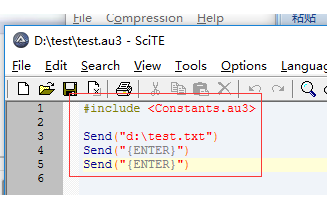
用下边的工具把test.au3脚本convert成exe文件,以便python调用
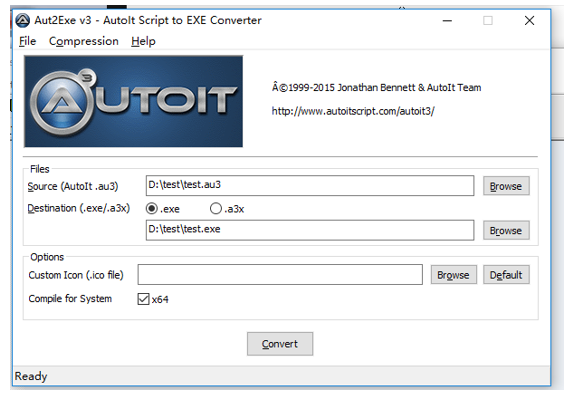
然后把脚本文件里的路径改一下
#encoding=utf-8
from selenium import webdriver
import unittest
import time, os
import traceback
from selenium.webdriver.support.ui import WebDriverWait
from selenium.webdriver.common.by import By
from selenium.webdriver.support import expected_conditions as EC
from selenium.common.exceptions import TimeoutException, NoSuchElementException
class TestDemo(unittest.TestCase):
def setUp(self):
# 启动Chrome浏览器
self.driver = webdriver.Firefox(executable_path = "d:\\geckodriver")
def test_uploadFileByAutoIt(self):
url = "http://127.0.0.1/test_upload_file.html"
# 访问自定义网页
self.driver.get(url)
try:
# 创建一个显示等待对象
wait = WebDriverWait(self.driver, 10, 0.2)
# 显示等待判断被测试页面上的上传文件按钮是否处于可被点击状态
wait.until(EC.element_to_be_clickable((By.ID, 'file')))
except TimeoutException, e:
# 捕获TimeoutException异常
print traceback.print_exc()
except NoSuchElementException, e:
# 捕获NoSuchElementException异常
print traceback.print_exc()
except Exception, e:
# 捕获其他异常
print traceback.print_exc()
else:
# 查找页面上ID属性值为“file”的文件上传框,
# 并点击调出选择文件上传框
self.driver.find_element_by_id("file").click()
# 通过Python提供的os模块的system方法执行生成的test.exe文件
os.system("d:\\test\\test.exe")
# 由于AutoIt脚本转换后的可执行文件test.exe可能执行速度比较慢,
# 这里等待5秒,以确保test.exe脚本执行成功
time.sleep(5)
# 找到页面上ID属性值为“filesubmit”的文件提交按钮对象
fileSubmitButton = self.driver.find_element_by_id("filesubmit")
# 单击提交按钮,完成文件上传操作
fileSubmitButton.click()
# 因为文件上传需要时间,所以这里可以添加显示等待场景,
# 判断文件上传成功后,页面是否跳转到文件上传成功的页面。
# 通过EC.title_is()方法判断跳转后的页面的Title
# 值是否符合期望,如果匹配将继续执行后续代码
#wait.until(EC.title_is(u"文件上传成功"))
time.sleep(2)
def tearDown(self):
# 退出IE浏览器
self.driver.quit()
if __name__ == '__main__':
unittest.main()
D:\test>python test.py
.
----------------------------------------------------------------------
Ran 1 test in 43.298s
OK
python webdriver api-上传文件的三种方法的更多相关文章
- net上传文件的三种方法
ASP.NET依托.net framework类库,封装了大量的功能,使得上传文件非常简单,主要有以下三种基本方法. 方法一:用Web控件FileUpload,上传到网站根目录. Test.aspx关 ...
- 转:python webdriver API 之上传文件
文件上传操作也比较常见功能之一,上传功能操作 webdriver 并没有提供对应的方法,关键上传文件的思路.上传过程一般要打开一个系统的 window 窗口,从窗口选择本地文件添加.所以,一般会卡在如 ...
- SpringMVC上传文件的三种方式(转)
直接上代码吧,大伙一看便知 这时:commonsmultipartresolver 的源码,可以研究一下 http://www.verysource.com/code/2337329_1/common ...
- SpringMVC上传文件的三种方式
直接上代码吧,大伙一看便知 这时:commonsmultipartresolver 的源码,可以研究一下 http://www.verysource.com/code/2337329_1/common ...
- ASP.NET上传文件的三种基本方法
ASP.NET依托.net framework类库,封装了大量的功能,使得上传文件非常简单,主要有以下三种基本方法. 方法一:用Web控件FileUpload,上传到网站根目录. Test.aspx关 ...
- SpringMVC上传文件的三种方式(转载)
直接上代码吧,大伙一看便知 这时:commonsmultipartresolver 的源码,可以研究一下 http://www.verysource.com/code/2337329_1/common ...
- Web上传文件的三种解决方案
第一点:Java代码实现文件上传 FormFile file = manform.getFile(); String newfileName = null; String newpathname = ...
- SpringMVC上传文件的三种方式(转帖)
/* * 通过流的方式上传文件 * @RequestParam("file") 将name=file控件得到的文件封装成CommonsMultipartFile 对象 */ @Re ...
- ASP.NET上传文件的几种方法
//上传文件实例 if (fileDealer.HasFile)//判断文件是否存在 { string filepath = ""; ...
随机推荐
- kernel中文件的读写操作可以使用vfs_read()和vfs_write
需要在Linux kernel--大多是在需要调试的驱动程序--中读写文件数据.在kernel中操作文件没有标准库可用,需要利用kernel的一些函数,这些函数主要有: filp_open() fil ...
- Gym - 101028I March Rain 二分
http://codeforces.com/gym/101028/problem/I 题意:给你n个洞,k个布条,问布条能贴到所有洞时的最小值. 题解:二分答案,因为答案越大就越容易满足条件. 技巧: ...
- session hijacking-php.ini
wamp->php.ini ; This option forces PHP to fetch and use a cookie for storing and maintaining; the ...
- supervisor control in centos 6/7 python2.6.2.7 3.4
sudo yum install epel-releasesudo yum install python34 sudo pip install virtualenv yum -y install ep ...
- ssh各种姿势---ssh-keygen 生成ssh公钥和私钥
利用ssh-keygen -t rsa可以生成ssh公钥和私钥,实现免输密码的ssh登陆 ssh-keygen -l -f /etc/ssh_host_rsa_key ssh-keygen ...
- kafka配置文件注解
若advertised.host.name的值是aa,则kafka发布的服务名也要是aa kafka log.cleanup.policy=delete 日志清理策略 log.retention.ho ...
- 《MYSQL必知必会2
60.NULL是没有值,空串是一个有效值61.主键只能使用不允许未NULL值的列62.每个表只允许一个auto_increment列63.不允许使用函数作为默认值,只支持常量64.InnoDB 支持事 ...
- 从0开始做一个的Vue图片/ 文件选择(上传)组件[基础向]
原文:http://blog.csdn.net/sinat_17775997/article/details/58585142 之前用Vue做了一个基础的组件 vue-img-inputer ,下面就 ...
- python 全局变量引用与修改
一.引用 使用到的全局变量只是作为引用,不在函数中修改它的值的话,不需要加global关键字.如: #! /usr/bin/python a = 1 b = [2, 3] def func(): if ...
- Ubuntu16.04安裝最新Nvidia驱动
在安装完Ubuntu之后,可能通过自带驱动无法更新,一直处于无法下载状态,那么就需要通过到Nvidia官网下载驱动,手动安装了 方法/步骤 通过度娘,打开NVIDIA官网,然后在下载驱动那里找到自己的 ...