
将Word表格中单元格中的文字替换成对应的图片
示例
原文件结构:
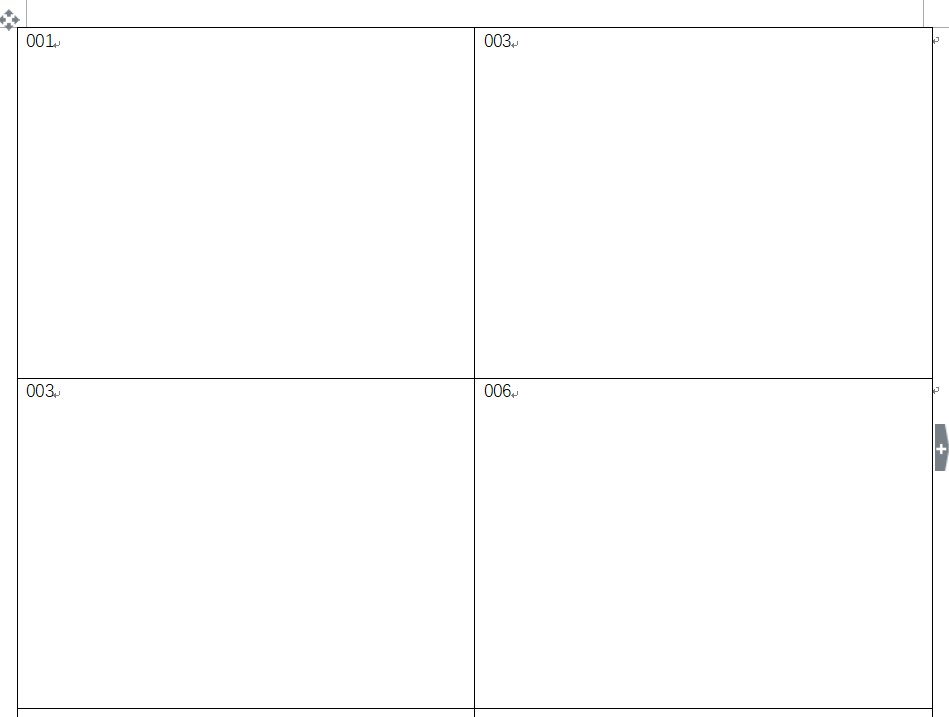
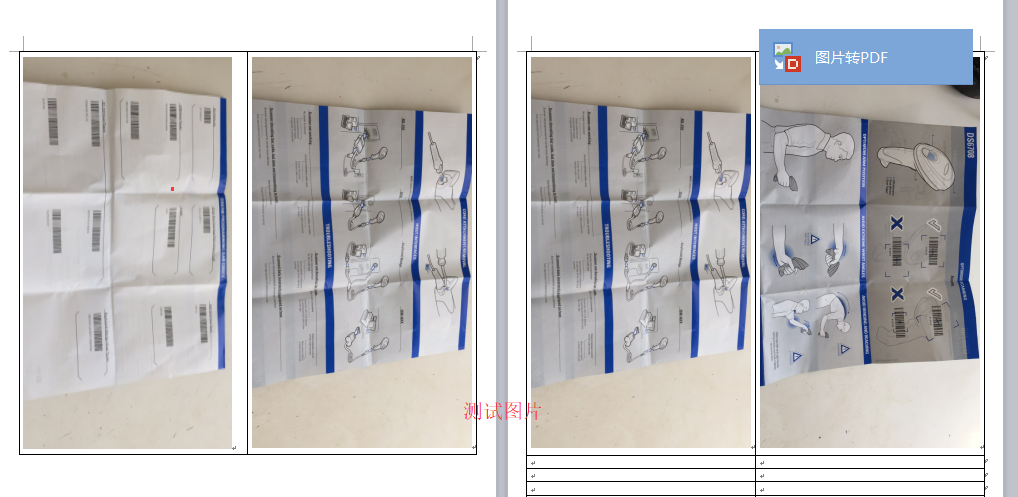
替换后文档结构:
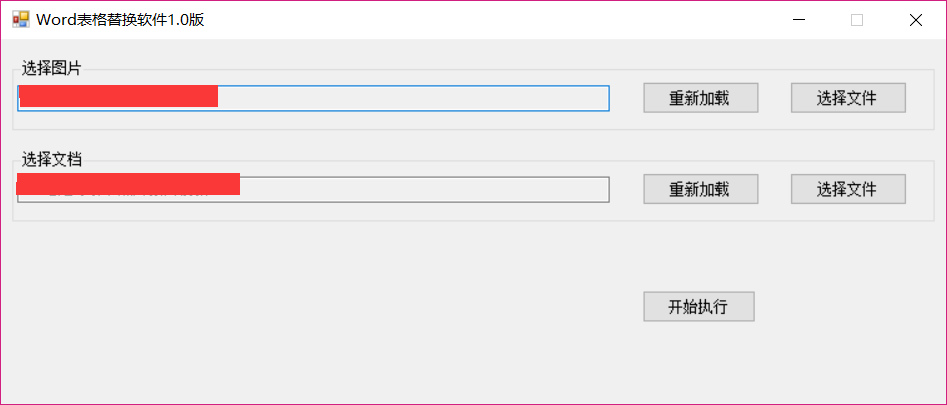
软件截图:
代码:
using System;
using System.Collections.Generic;
using System.ComponentModel;
using System.Data;
using System.Drawing;
using System.Linq;
using System.Text;
using System.Windows.Forms;
using System.IO;
using System.Net;
using System.Threading;
using System.Runtime.InteropServices;
using Microsoft.Office.Interop.Word;
namespace WordInsertImg
{
public partial class Form1 : Form
{
public Form1()
{
InitializeComponent();
}
private void btnSelectFile_Click(object sender, EventArgs e)
{
OpenFileDialog PictureDlg = new OpenFileDialog();
PictureDlg.Title = "打开文档";
PictureDlg.Filter = "DOC文件(*.doc)|*.doc";
PictureDlg.Multiselect = true;
if (PictureDlg.ShowDialog() == DialogResult.OK)
{
string foldPath = PictureDlg.FileName;
txtPath.Text = foldPath;
if (File.Exists("pathWord.ini"))
{
StreamWriter sw = new StreamWriter("pathWord.ini");
sw.Write(foldPath);
sw.Close();
}
else
{
File.WriteAllText("pathWord.ini", foldPath);
}
}
}
private void button2_Click(object sender, EventArgs e)
{
OpenFileDialog PictureDlg = new OpenFileDialog();
PictureDlg.Title = "打开图片";
PictureDlg.Filter = "JPG图片(*.jpg)|*.jpg|BMP图片(*.bmp)|*.bmp|所有文件(*.*)|*.*";
PictureDlg.Multiselect = true;
FolderBrowserDialog dialog = new FolderBrowserDialog();
dialog.Description = "请选择文件路径";
if (dialog.ShowDialog() == DialogResult.OK)
{
string foldPath = dialog.SelectedPath;
txtImgPath.Text = foldPath;
if (File.Exists("path.ini"))
{
StreamWriter sw = new StreamWriter("path.ini");
sw.Write(foldPath);
sw.Close();
}
else
{
File.WriteAllText("path.ini", foldPath);
}
}
}
private void btnUpload_Click(object sender, EventArgs e)
{
Microsoft.Office.Interop.Word.Application app = new Microsoft.Office.Interop.Word.Application();
object MissingValue = Type.Missing;
object file = txtPath.Text;
string PathNew = txtPath.Text.Replace(".doc", "_New_") + DateTime.Now.ToString("yyMMddHHmmss") + ".doc";
if (File.Exists(PathNew))
File.Delete(PathNew);
File.Copy(Convert.ToString(file), PathNew);
file = PathNew;
Microsoft.Office.Interop.Word.Document doc = app.Documents.Open(
ref file, ref MissingValue, ref MissingValue,
ref MissingValue, ref MissingValue, ref MissingValue,
ref MissingValue, ref MissingValue, ref MissingValue,
ref MissingValue, ref MissingValue, ref MissingValue,
ref MissingValue, ref MissingValue, ref MissingValue, ref MissingValue);
//doc.Content.Find.Text = strOldText ;
StringBuilder sbStrOld = new StringBuilder();
StringBuilder sbStrNew = new StringBuilder();
#region 表格替换
if (doc.Tables.Count > 0)
{
//int oldRows = 1;
for (int i = 1; i <= doc.Tables[1].Rows.Count; i++)
{
//取得单元格中的值
string item1 = doc.Tables[1].Cell(i, 1).Range.Text.Replace("\r\a", "");
//将光标指定到当前单元格
doc.Tables[1].Cell(i, 1).Select();
string FileName = "";
if (File.Exists(txtImgPath.Text + "\\" + item1 + ".jpg"))
{
doc.Tables[1].Cell(i, 1).Range.Text = "";
FileName = txtImgPath.Text + "\\" + item1 + ".jpg";//图片所在路径
}
else if (File.Exists(txtImgPath.Text + "\\" + item1 + ".png"))
{
doc.Tables[1].Cell(i, 1).Range.Text = "";
FileName = txtImgPath.Text + "\\" + item1 + ".png";//图片所在路径
}
else if (File.Exists(txtImgPath.Text + "\\" + item1 + ".jpeg"))
{
doc.Tables[1].Cell(i, 1).Range.Text = "";
FileName = txtImgPath.Text + "\\" + item1 + ".jpeg";//图片所在路径
}
if (File.Exists(FileName))
{
object LinkToFile = false;
object SaveWithDocument = true;
object Anchor = doc.Application.Selection.Range;
doc.Application.ActiveDocument.InlineShapes.AddPicture(FileName, ref LinkToFile, ref SaveWithDocument, ref Anchor);
doc.Application.ActiveDocument.InlineShapes[1].Width = 100f;//图片宽度
doc.Application.ActiveDocument.InlineShapes[1].Height = 100f;//图片高度
//将图片设置为四周环绕型
//Microsoft.Office.Interop.Word.Shape s = doc.Application.ActiveDocument.InlineShapes[1].ConvertToShape();
//s.WrapFormat.Type = Microsoft.Office.Interop.Word.WdWrapType.wdWrapSquare;
//以下为单元格跳转方式
//object what = WdGoToItem.wdGoToTable;
//object which = WdGoToDirection.wdGoToNext;
//doc.Application.Selection.GoTo(ref what, ref which);
//object which = WdGoToDirection.wdGoToNext;
//doc.Application.Selection.GoTo(ref which);
}
FileName = "";
string item2 = doc.Tables[1].Cell(i, 2).Range.Text.Replace("\r\a", "");
doc.Tables[1].Cell(i, 2).Select();
if (File.Exists(txtImgPath.Text + "\\" + item2 + ".jpg"))
{
doc.Tables[1].Cell(i, 2).Range.Text = "";
FileName = txtImgPath.Text + "\\" + item2 + ".jpg";//图片所在路径
}
else if (File.Exists(txtImgPath.Text + "\\" + item2 + ".png"))
{
doc.Tables[1].Cell(i, 2).Range.Text = "";
FileName = txtImgPath.Text + "\\" + item2 + ".png";//图片所在路径
}
else if (File.Exists(txtImgPath.Text + "\\" + item2 + ".jpeg"))
{
doc.Tables[1].Cell(i, 2).Range.Text = "";
FileName = txtImgPath.Text + "\\" + item2 + ".jpeg";//图片所在路径
}
if (File.Exists(FileName))
{
object LinkToFile = false;
object SaveWithDocument = true;
object Anchor = doc.Application.Selection.Range;
doc.Application.ActiveDocument.InlineShapes.AddPicture(FileName, ref LinkToFile, ref SaveWithDocument, ref Anchor);
doc.Application.ActiveDocument.InlineShapes[1].Width = 100f;//图片宽度
doc.Application.ActiveDocument.InlineShapes[1].Height = 100f;//图片高度
}
}
}
#endregion
doc.Save();
doc.Close(ref MissingValue, ref MissingValue, ref MissingValue);
//关闭应用
app.Quit(ref MissingValue, ref MissingValue, ref MissingValue);
app = null;
MessageBox.Show("插入完毕");
}
private void Form1_Load(object sender, EventArgs e)
{
if (File.Exists("pathWord.ini"))
{
StreamReader sr = new StreamReader("pathWord.ini");
txtPath.Text = sr.ReadToEnd();
sr.Close();
}
if (File.Exists("path.ini"))
{
StreamReader sr = new StreamReader("path.ini");
txtImgPath.Text = sr.ReadToEnd();
sr.Close();
}
}
}
}
要注意 Microsoft.Office.Interop.Word引用的版本,我这里引用的是14.0版的
将Word表格中单元格中的文字替换成对应的图片的更多相关文章
- 使用POI创建word表格合并单元格兼容wps
poi创建word表格合并单元格代码如下: /** * @Description: 跨列合并 */ public void mergeCellsHorizontal(XWPFTable table, ...
- poi 读取word 遍历表格和单元格中的图片
背景 项目需要解析word表格 需要批量导入系统,并保存每行信息到数据库 并且要保存word中的图片, 并保持每条信息和图片的对应关系 一行数据可能有多条图片 解决办法 没有找到现成的代码,怎么办呐? ...
- 使用POI创建word表格-在表格单元格中创建子表格
要实现的功能如下:表格中的单元格中有子表格 实现代码如下: XWPFParagraph cellPara = row.getCell(j).getParagraphArray(0); //row.ge ...
- EXCEL表格单元格中包含数字英文和汉字,如何自动去掉汉字,保留英文和数字
EXCEL表格单元格中包含数字英文和汉字,如何自动去掉汉字,保留英文和数字 Function 求数字和字母(对象 As String) '在文本与数字混杂中提取数字和字母 Dim myReg ...
- python 将表格多个列数据放到同一个单元格中
表格模板: 目的将卡片1到卡片5的所有数据组合起来到一个单元格中如下入F列中(工作中为了避免手动复制粘贴),其余不变,因为数据太多 自己一个一个复制工作效率太低,所以写这个脚本是为了方便自己有需要 ...
- Swift - 可编辑表格样例(可直接编辑单元格中内容、移动删除单元格)
(本文代码已升级至Swift3) 本文演示如何制作一个可以编辑单元格内容的表格(UITableView). 1,效果图 (1)默认状态下,表格不可编辑,当点击单元格的时候会弹出提示框显示选中的内容 ...
- itextpdf中表格中单元格的文字水平垂直居中的设置
在使用itextpdf中,版本是5.5.6,使用Doucument方式生成pdf时,设置单元格中字体的对齐方式时,发现一些问题,并逐渐找到了解决方式. 给我的经验就是:看官网的例子才能保证代码的效果, ...
- Swift - 异步加载各网站的favicon图标,并在单元格中显示
下面是一个简单的应用,表格视图的各个单元格自动异步加载各个网站的favicon图标,并显示出来. 主要是复习下如何自定义单元格,单元格中图片的异步加载,以及didSet的用法. 效果图如下: 操作步骤 ...
- html table中单元格自动换行
table中单元格自动换行样式: table-layout: fixed; word-wrap: break-word; table-layout 可能的值(IE不支持inherit属性) 值 描 ...
随机推荐
- FORTH基本堆栈操作
body, table{font-family: 微软雅黑} table{border-collapse: collapse; border: solid gray; border-width: 2p ...
- Log4j源码解析--Layout类解析
本文转载上善若水的博客,原文出处:http://www.blogjava.net/DLevin/archive/2012/07/04/382131.html.感谢作者的分享. Layout负责将Log ...
- WebSphere--用户简要表
Application Server 含有 com.ibm.servlet.personalization.userprofile 软件包中的类,这些类使维护关于 Web 站点访问者的持久信息和利用 ...
- JAVA中使用log4j及slf4j进行日志输出的方法详解
JAVA中输出日志比较常用的是log4j,这里讲下log4j的配置和使用方法,以及slf4j的使用方法. 一.下载log4j的架包,并导入项目中,如下: 二.创建log4j.properties配置 ...
- 【转】CString,string,char*综合比较
(一) 概述 1.string和CString均是字符串模a板类: 2.string为标准模板类(STL)定义的字符串类,已经纳入C++标准之中: 3.CString(typedef CString ...
- python --- queue模块使用
1. 什么是队列? 学过数据结构的人都知道,如果不知道队列,请Google(或百度). 2. 在python中什么是多生产者,多消费模型? 简单来说,就是一边生产(多个生产者),一边消费(多个消费者) ...
- C++——函数的调用
调用前先声明函数: >>若函数定义在调用点之前,则无需另外声明 >>若函数定义在调用点之后,则需要在调用函数前按如下形式声明函数原型(原型声明) 类型标识符 被调用函数名( ...
- @RequestMapping注解
Spring MVC中用于参数绑定的注解有很多,都在org.springframework.web.bind.annotation包中,根据它们处理的request的不同内容部分可以分为四类(主要讲解 ...
- Effective Java 之-----返回零长度的数组或集合而不是null
如下代码,通常用户列表为空时,会习惯性返回null,因为这时会认为:null返回值比零长度数组更好,因为它避免了分配数组所需要的开销. private final List<UserBean&g ...
- 给php加速安装APC
说明:APC-3.1.13 适应于 php-5.4.27 下载: wget http://blog.xinfilm.com/softdir/APC-3.1.13.tgz tar -zxvf APC-3 ...